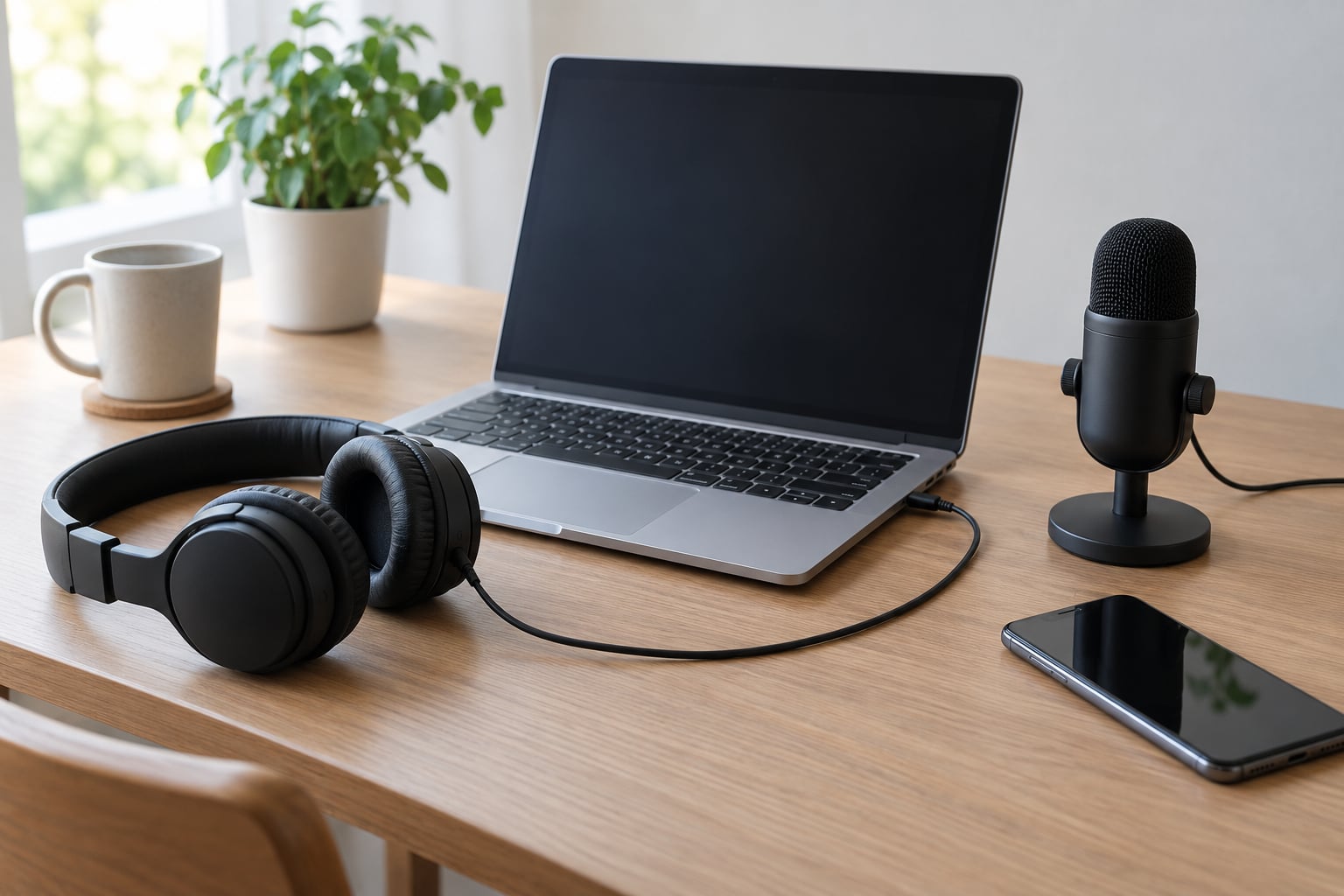
To fix echo on a video call, put on wired headphones and mute your microphone for a few seconds. Echo almost always comes from an audio feedback loop: your speaker plays a voice, your microphone picks that voice back up, and the call sends it out again on a short delay. If the echo stops the moment you mute or switch to headphones, you have found the cause in under a minute.
Most people solve it there. The harder cases take another ten minutes: a wrong device selected in a settings menu, a Bluetooth headset still paired to a phone, or an app noise filter fighting your microphone. Here is the order I work in, fastest check first.
Table of Contents
- 1What You Need
- 2Step-by-Step: How to Fix Echo on a Video Call
- 3How to fix echo on a video call by testing the microphone and speakers
- 4How to fix echo on a video call by checking the selected devices
- 5How to fix echo on a video call by disabling automatic audio adjustments
- 6How to fix echo on a video call by fixing permissions and exclusive-mode conflicts
- 7How to fix echo on a video call by restarting and updating the app
- 8How to fix echo on a video call when the problem persists
- 9Common Mistakes
- 10Frequently Asked Questions
- 11Why does echo happen on a video call?
- 12How do I stop echo in a video meeting when using speakers?
- 13Can a Bluetooth headset cause echo during a video call?
- 14Why can only other people hear echo on my video call?
- 15How do I fix echo in Chrome, Zoom, or Microsoft Teams?
- 16Do I need a new microphone if my video call has echo?
- 17Conclusion
What You Need
You need the device you are joining the call on, and access to its audio settings. That is genuinely all. No downloads, no diagnostic software, nothing to buy.
Before you start, gather these five things:
- The computer, laptop, tablet, iPhone, or Android phone you will use for the meeting.
- Its microphone, whether built into the screen or an external one, plus the matching speaker or headset.
- The video-call app or browser tab, and a way to reach its audio settings before the meeting starts.
- A pair of headphones, wired if you have them. This is the single most useful tool for the whole process.
- Two or three minutes of a quiet moment, ideally before the call rather than in the middle of it.
For the first round of checks you do not need any extra software. If you get that far, the later steps will tell you exactly what to install, if anything.
It also helps to know one thing before you begin: if you can hear the echo, your equipment is probably not the cause. The sound is arriving at your speakers from the far end of the call, which means the loop is being created somewhere on their side or in a room you are not in. You can confirm that, and it changes where you spend your next ten minutes. More on that below, because it is the question forum threads ask most.
Step-by-Step: How to Fix Echo on a Video Call
Work through these in order. The first two steps take under a minute and resolve most of the calls I get asked about. Each step tells you what to do and how to tell whether it worked.
How to fix echo on a video call by testing the microphone and speakers
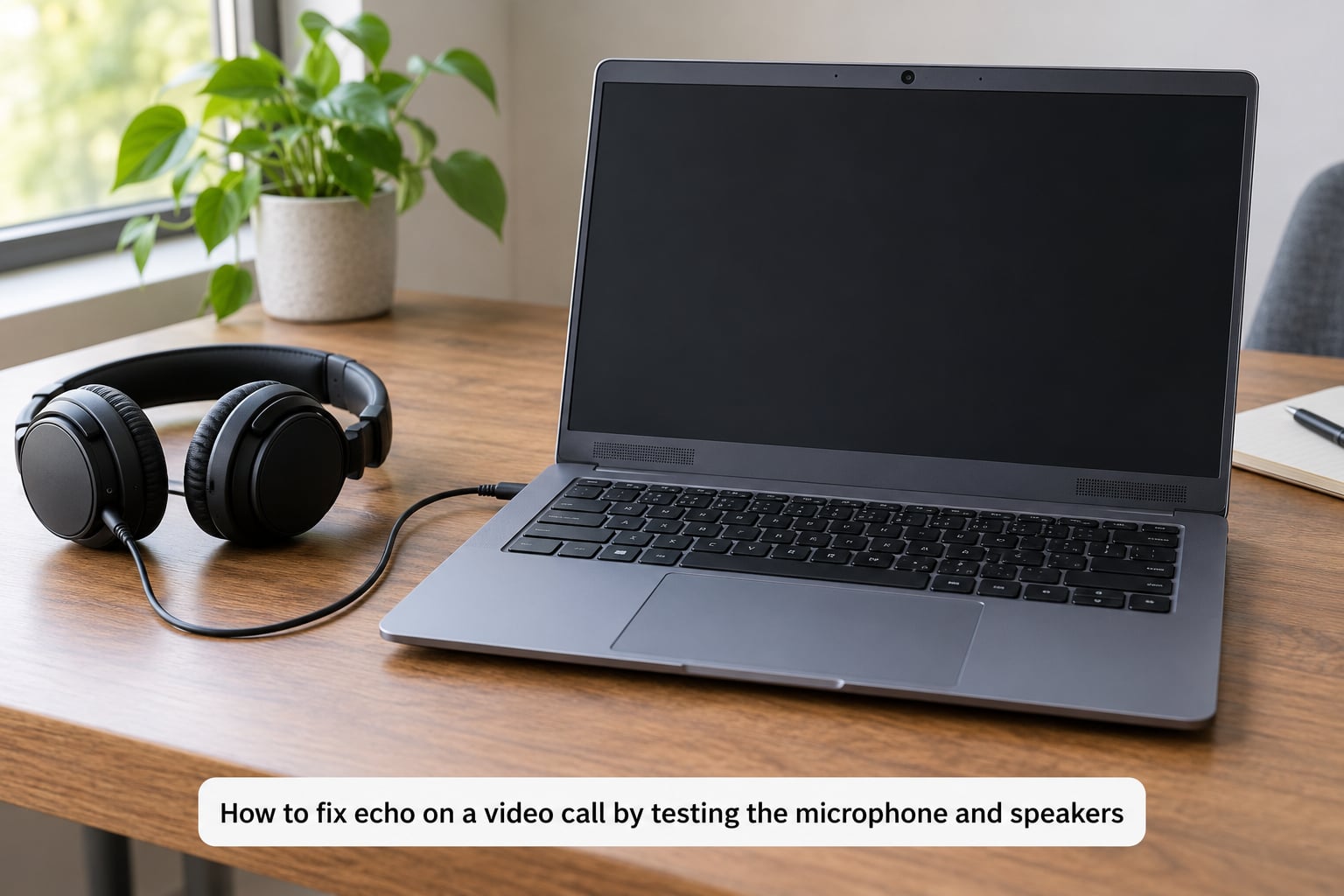
Start by muting yourself and leaving it muted for about ten seconds while the other person keeps talking. If the echo continues with your microphone fully muted, the loop is not being created at your end at all. That single test tells you where to look, and it costs nothing.
If the echo stops when you mute, the loop is yours. Plug in headphones or a wired headset with a boom microphone, and the speaker audio no longer has a path to your microphone, so the loop breaks for good. Users in tech support forums describe wired headphones as the fastest fix they know, and it is the one I reach for first.
When the loop really is yours and you are in a call with several people, isolate it like this. Ask everyone except one participant to mute, then have the call run for thirty seconds with the remaining person unmuted. Move down the list one name at a time. The first person whose return to the list reproduces the echo is your answer, and it is often not the person who seems loudest.
If the loop is not yours, the same procedure runs in reverse. Have people unmute one at a time while you listen alone, and note the point where the echo you hear appears. One user on a tech support forum pointed out the diagnostic trap plainly: the echo can appear for participants while the host hears nothing, so the only reliable test is having other people listen to you.
Next, move the microphone away from the speaker. A laptop microphone sitting a few centimetres from its own speaker grille will pick up playback no matter what software is doing. Push the laptop back, or aim a headset mic away from the speaker cone, and retry the call.
You can also test the output side directly. Play any audio through a different device, such as a phone speaker or a second pair of headphones, and have someone talk. If the echo follows their voice into the new output, the problem is your microphone picking up sound. If the echo disappears, the original output device was the source.
Hearing your own voice come back through your speakers, slightly late and hollow, is the classic signal of a feedback loop. So is hearing the same words twice with a clear gap between them.
Before you go further, make sure you are fixing echo and not something that sounds similar. Reverb and echo get reported under the same word constantly, and the fixes barely overlap.
| What you hear | What causes it | How to fix it |
|---|---|---|
| Echo: your own words or another person’s words repeated, with a clear gap | A microphone picking up speaker audio and sending it back into the call | Headphones, a boom mic, lower speaker volume, greater distance between mic and speakers |
| Reverb: a smeared, hollow room sound that decays after you stop speaking | Hard walls, glass, bare desks, and an empty room reflecting sound back to the mic | Change rooms, close a door, add soft furnishings, move the mic further from the nearest wall |
| Delay: the other person repeats themselves because you answer late | Network latency, weak Wi-Fi, or Bluetooth lag on a wireless headset | Wired connection, stronger signal, restart the router, switch to a wired headset |
| Robotic or clipped voice, cutting out mid-word | Microphone gain set too high, or an audio filter clipping the input | Reduce input gain, turn off noise suppression and original sound, retest |
Latency is the one that fools people most. A half-second lag does not sound like echo, it sounds like a frozen call, but users describe both with the same word, and a bad connection sends people off to reconfigure microphones that were never the problem.
How to fix echo on a video call by checking the selected devices
A wrong device selection quietly reintroduces the same problem over and over. One user described echo that kept coming back until they re-selected their speakers and microphone in the Mac sound settings, after which it cleared again. Check this every time the problem returns.
On Windows 11, right-click the speaker icon in the taskbar, choose Sound settings, then scroll to Choose your output device and Choose your input device. Scroll the dropdown lists and confirm the names match your actual hardware. On Windows 10, the same paths are under Sound > Devices in Settings, or in the classic Sound control panel at mmsys.cpl.
On macOS, open System Settings > Sound. The Output and Input lists sit at the top, with Input Volume below them. Raise the input volume and you will see a level meter respond as you speak, which is the quickest way to confirm the mic works.
On iPhone and iPad, Control Center holds the audio controls. Swipe down from the top right, tap the audio output name at the top of the panel, and check it points at the headset or the iPhone itself. On Android, pull down the shade, tap the media player or the gear icon, and confirm the output and microphone are the ones you intend to use.
Watch for the classic mistakes here. A monitor or TV with its own microphone can get picked up as the input, so your voice travels through the TV while you think you are using the webcam mic. A Bluetooth headset often appears twice, once as a headset and once as a hands-free entry, and the two are not interchangeable. Anyone in a meeting room with a ceiling array plus a laptop mic can end up with the app capturing both.
How to fix echo on a video call by disabling automatic audio adjustments
Every major platform now runs audio processing on your microphone before sending it. Usually it helps. Sometimes the processing layer is the problem, especially with an external USB microphone that the app does not recognise properly.
The labels to look for include noise suppression, noise removal, echo cancellation, original sound, automatic gain control, voice isolation, and audio enhancements. Each of these lives in a different place depending on the app, and switching one off takes a moment:
- Zoom: Settings > Audio > Audio options, then clear the checkboxes for Original sound for musicians, Automatic gain control, and any noise suppression entry.
- Microsoft Teams: the meeting toolbar, then More actions > Device settings, or Settings > Devices and audio in the desktop app.
- Google Meet: the three-dot menu > Settings > Audio, where noise cancellation has its own toggle on some devices.
- FaceTime on iPhone and Mac: Control Centre or the menu bar during a call, where the microphone modes cycle between standard processing and modes that emphasise voice.
On Windows, the deeper switches sit in the classic Control Panel under Sound > Recording > Properties > Listen. Tick Listen to this device and Windows routes your microphone straight back to your speakers, which creates a permanent feedback loop. Untick it if it is on, and untick it under Playback for the same reason.
What you are listening for after a change: clipping, where the voice distorts because gain is too high, a repeated word that arrives twice, or delay that makes the room sound empty. Turn one setting off at a time and rejoin a short test call, because changing five things at once means you learn nothing when it works.
How to fix echo on a video call by fixing permissions and exclusive-mode conflicts
Microphone permission problems rarely announce themselves. The app simply records silence, or it falls back to a different device without telling you.
On a browser-based meeting, click the padlock or camera icon in the address bar, confirm the microphone is set to Allow, and reload the page. On iOS, go to Settings > Privacy & Security > Microphone and check the app is enabled there. On Android, open Settings > Apps > Permissions > Microphone. On macOS, the switch sits under System Settings > Privacy & Security > Microphone, and the same list exists on Windows under Settings > Privacy & Security > Microphone.
Then close everything else that might be holding the microphone. A video editor, a voice recorder, a screen capture tool, a second meeting app left running in the tray, or a game streaming in the background can all keep the input locked. On Windows, exclusive mode can make the same device invisible to every other app once one of them has it, so quit the other app fully rather than just switching windows.
Always restart the app after changing a permission. The setting is read at launch, so an already-running meeting will keep the old value no matter what the menu now says.
Bluetooth deserves its own note. If a headset stays paired to your phone while you are on a computer call, the phone can grab the connection, or the call can route audio through the phone unexpectedly. Turn Bluetooth off on the phone for the duration of a meeting, or use the headset’s own device switch to force it onto the laptop. Mono and stereo mode changes made by an incoming call can do the same thing, and toggling the headset off and on resets it.
How to fix echo on a video call by restarting and updating the app
If the settings all look right, the app’s own audio stack may simply be in a bad state. Quit the meeting app completely, including the tray icon or the background process, and reopen it. On Windows 10 and 11 the option is usually right-click the taskbar icon > Close window; on macOS use Quit rather than closing the window.
Restart the device too. A reboot clears stuck audio drivers, which otherwise survive every app restart and keep feeding the same broken route into the call.
Check for updates in the app store on your phone or the update settings on your computer. Audio fixes land in app releases often enough that a two-year-old install of a conferencing tool is a plausible cause on its own, and the underlying operating system matters as much as the app.
Now test the scope. Make a short test call in a different app. If echo appears in FaceTime and Google Meet but not in Zoom, the problem is local to the app. If it appears in every app on that device, suspect the hardware or the drivers. If it appears on the same network in every app and device, it is a service problem and there is nothing to fix on your machine.
How to fix echo on a video call when the problem persists
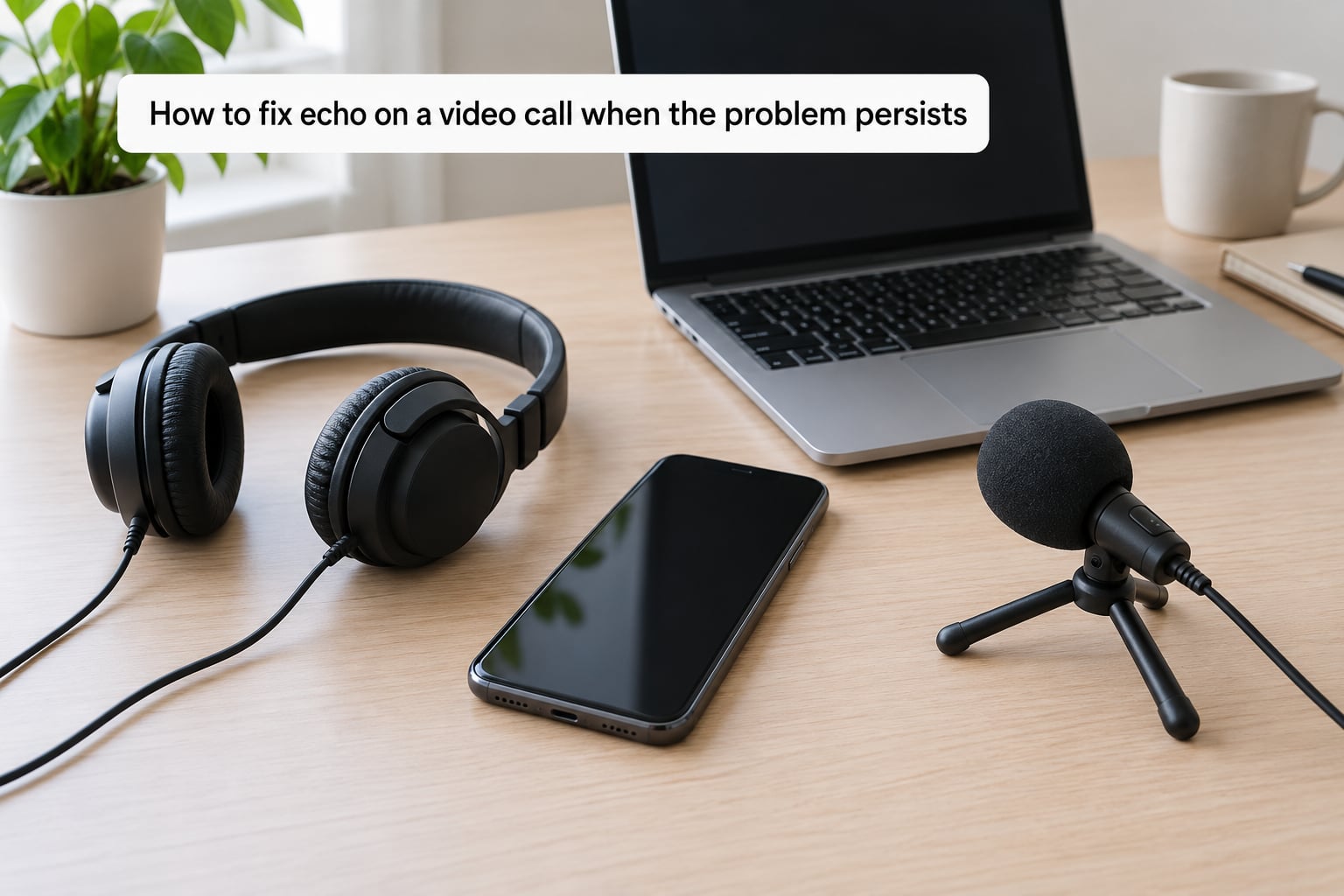
At this point you swap hardware rather than change settings. Three tests in this order isolate the failure.
First, test with a wired headset that has a single combined input and output. Wired is worth insisting on here, because Bluetooth latency can create a delay that sounds like a short echo to anyone else on the call. If the wired headset is clean and your usual device is not, the original hardware is at fault.
Second, test with a different microphone. Borrow one, or use a headset with a boom mic. If the new microphone fixes it while the built-in one does not, the built-in mic is the loop. Many cases on forums were solved by disabling the laptop’s internal microphone entirely in the sound settings once an external headset was added.
Third, fall back to the built-in camera and microphone setup with every external device unplugged. A clean result here tells you the problem is an add-on, a cable, or the app’s handling of a specific device.
Look for the physical faults while you are at it. A frayed cable, a headset connector with lint in it, or a jack that only works at a certain angle causes intermittent audio that reads as a settings problem. Wireless interference and a headset more than a few metres from the laptop produce crackle and delay rather than true echo, and the two get confused constantly.
Also consider the room. Several people sharing one laptop in a hard-walled space produce a feedback loop that no software setting can solve, because the room is the loop. Move people apart, mute everyone but the speaker, or move the call to a single person with a headset. A phone on a table with three people around it will echo every time.
Replacement is justified when a wired headset, a second microphone, and the built-in setup all fail with the same device. At that point the hardware or its driver has failed, and no further settings change will help. If a laggy connection rather than a local device is causing the symptom, a different network or wired connection fixes it, not a new microphone.
Common Mistakes
These are the errors I see repeat. Each one has a matching fix.
Testing with the microphone still live. You cannot diagnose anything while your mic is open, because you cannot tell whether the sound is live or returned. Mute first, then unmute for exactly as long as it takes to hear the result.
Using speakers and a nearby microphone. This is the feedback loop in its purest form. Headphones, or a headset with a boom mic, remove the loop entirely.
Plugging the headset into the wrong device. A headset connected to a phone while the meeting runs on a laptop is one of the most common causes. Check the port on the machine running the call, not the one nearby.
Ignoring permissions until late. If the browser never had microphone access, the app may have been using a fallback input the whole time. Confirm permissions before changing anything else.
Changing five settings at once. You fix it and learn nothing, or you break it and cannot work out which change did it. One change, one short test call, then the next.
Choosing the wrong entry in the device list. Monitors, TVs, and duplicate Bluetooth headset entries look almost identical in a dropdown. Read the full name, not the icon.
Assuming the echo is your fault. If you can hear it, the loop is arriving from the far end. Ask one person to mute and have the rest of the call listen; if the echo continues, it is not coming from you.
To keep it fixed: join calls a couple of minutes early and use the built-in audio test, keep a wired headset within reach, and mute when you are not speaking. In a shared room, one headset per person is the difference between a clean call and an unusable one. If you use the same machine for calls and for recording, close the recording software first.
Frequently Asked Questions
Why does echo happen on a video call?
Echo happens when audio loops back into the outgoing stream. Your speaker plays a voice, the microphone picks that sound up, and the call sends it out again a fraction of a second later, so listeners hear the words repeated. It is most common with a laptop microphone sitting close to its own speaker, in a reflective room, and in conference rooms where several devices share one call.
How do I stop echo in a video meeting when using speakers?
Turn the speaker volume down until the other person is barely audible, move the microphone or laptop away from the speakers, and mute yourself whenever you are not talking. If echo continues, switch to wired headphones, which remove the loop completely. Reducing microphone sensitivity or input gain also helps, since a less sensitive mic picks up less playback.
Can a Bluetooth headset cause echo during a video call?
Yes. Bluetooth adds latency, and a headset that switches between hands-free and stereo profiles mid-call can start routing audio badly. A headset still paired to your phone may also grab the connection during a computer call. If echo appears only with a wireless headset, switch to a wired one or turn Bluetooth off on the phone for the duration of the meeting.
Why can only other people hear echo on my video call?
Because the loop is created on their side, or in a shared room you are not in. If you can hear the echo, the sound is arriving at your speakers from the far end, so nothing you change locally will remove it. Ask one participant to mute while everyone else listens. If the echo continues, the cause is not that person either, and you should check the devices in the room they share.
How do I fix echo in Chrome, Zoom, or Microsoft Teams?
In Chrome, check the padlock in the address bar to confirm the microphone is allowed, then verify the input and output in the operating system sound settings. In Zoom, open Settings, then Audio, and confirm the microphone and speaker names, clearing the Original sound and Automatic gain control options. In Teams, use the meeting toolbar, then More actions and Device settings to check the same selections.
Do I need a new microphone if my video call has echo?
Rarely. Most echo is fixed by headphones, a correct device selection, or turning off a conflicting audio setting, and it costs nothing to try. Buy or repair hardware only after a wired headset, a second microphone, and the built-in setup all fail on the same device. That result points at a hardware or driver fault rather than a configuration problem.
Conclusion
Start here: mute yourself and listen for ten seconds, then plug in wired headphones and retest. If the echo survives both, check that the input and output devices selected in the app match the hardware you are actually holding.
Past that, work through permissions, then the automatic audio adjustments, then restart and update. Change one thing at a time so you know what worked.
Two symptoms point past settings. Echo that appears in every app on the same device points at hardware or a driver. Echo you can hear but cannot reproduce points at the far end of the call, where a wired headset and a spaced-out room are the only real fix. This guide stays accurate across 2026 and the platforms it covers, but menu names do shift between app versions, so check the label on your screen if one of the paths here does not match.