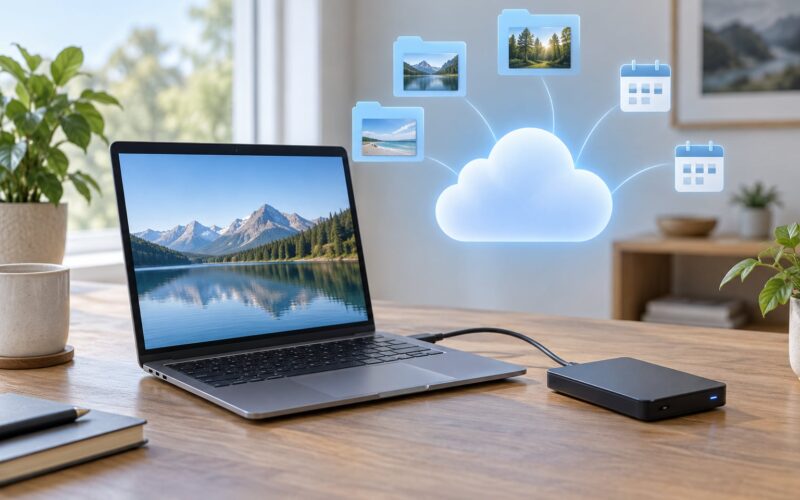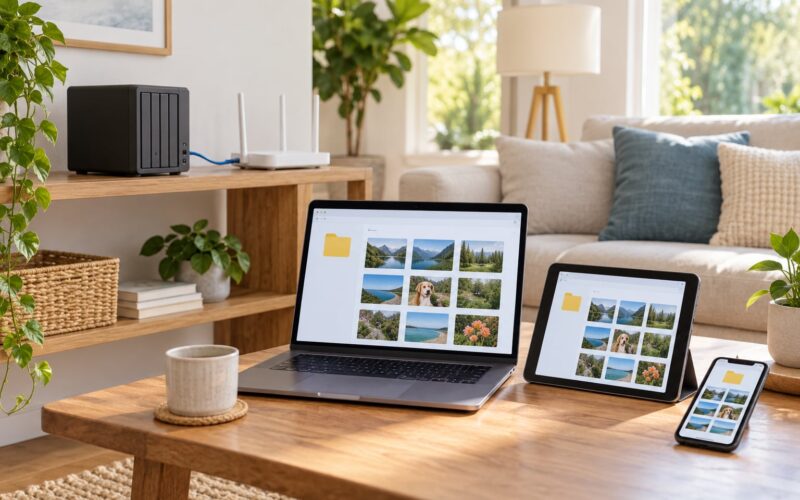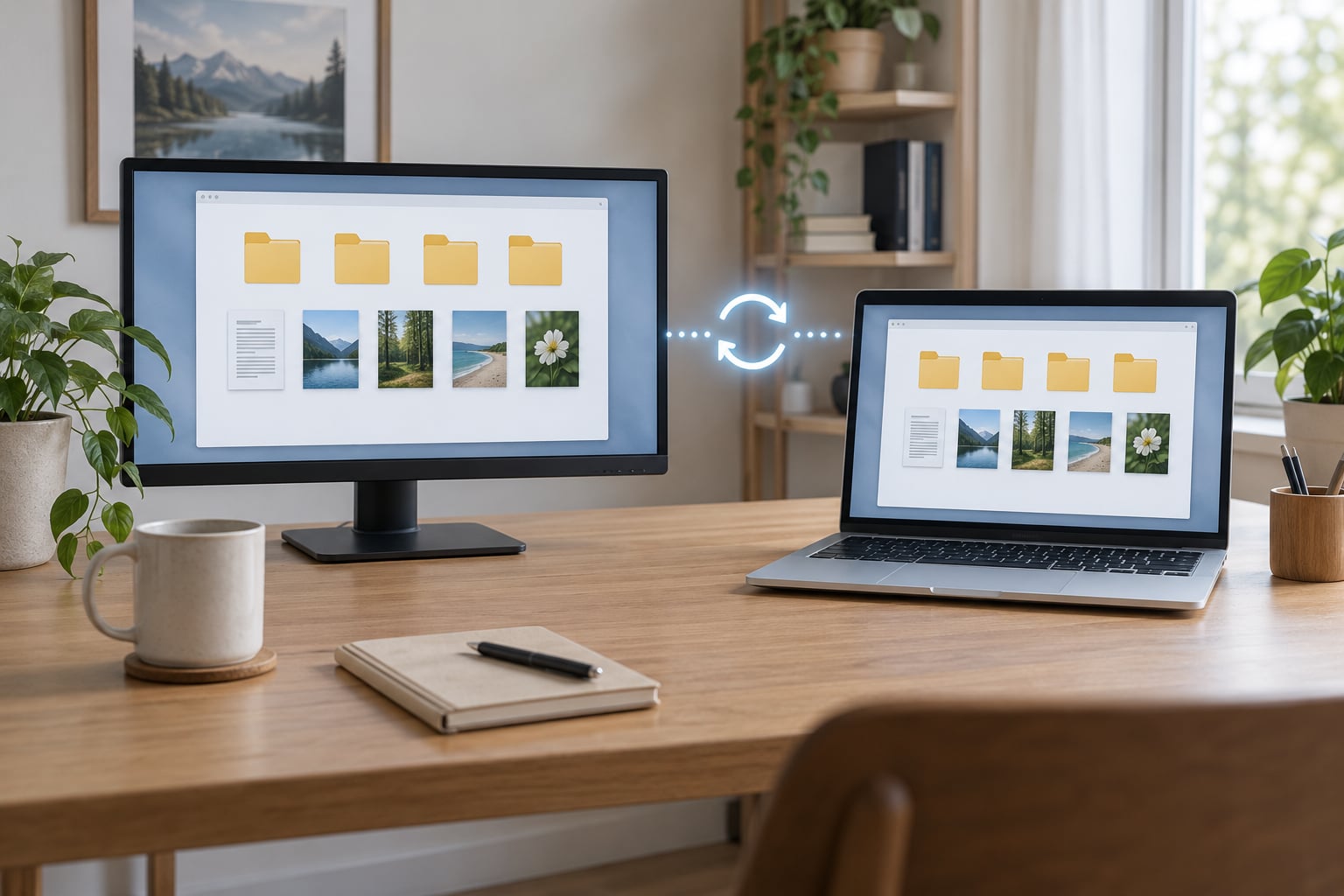
File sync copies changes from one folder on one computer to the same folder on a second computer every time you save, so a desktop and a laptop stay in step without you dragging anything. The fastest way to sync files between two computers automatically is a cloud folder like OneDrive, Google Drive, or Dropbox for most people. If you want no cloud in the middle, use Syncthing directly between the two machines, or FreeFileSync if you would rather schedule a run yourself.
Whole setup usually takes 15 minutes on both machines. I have this running between my desktop and my laptop right now, and the only thing that takes real thought is deciding where the canonical copy lives.
Table of Contents
- 1Which sync method fits your setup?
- 2What You Need
- 3Decide where the canonical copy lives
- 4Know whether both computers are online at the same time
- 5Confirm the operating systems
- 6Match the storage allowance to your folder size
- 7Decide between continuous and scheduled sync
- 8Step-by-Step: How to Sync Files Between Two Computers Automatically
- 9Choose a sync method
- 10How to sync files between two computers using cloud storage
- 11Set Up a Local Folder Sync With Syncthing or FreeFileSync
- 12Test the Connection and Resolve Changes
- 13Common Mistakes
- 14Protect Your Synced Files
- 15Frequently Asked Questions
- 16What is the easiest way to sync files between two computers automatically?
- 17Can I sync files between a Windows PC and a Mac automatically?
- 18Will automatic sync work when one computer is offline?
- 19What happens if I edit the same file on both computers?
- 20Is syncing the same as backing up my files?
- 21Can I sync a folder without using cloud storage?
- 22Conclusion
Which sync method fits your setup?
Pick the row that looks like your situation. Everything below this table walks through each option in detail.
| Your situation | Best method | Needs internet? | Cost |
|---|---|---|---|
| Desktop and laptop, mixed Windows and Mac, want it to just work | OneDrive, Google Drive, or Dropbox | Yes | Free within a storage allowance |
| Same house, same Wi-Fi, large photo or video library, no cloud wanted | Syncthing on both machines | Only when the two machines are on different networks | Free, open source |
| Two Windows PCs, you want scheduled runs and a mirror | FreeFileSync plus Task Scheduler | No, if they sit on the same LAN | Free, open source |
| Two PCs at different locations, you do not want a cloud middleman | Syncthing, or Tailscale plus a shared folder | Yes | Free for personal use |
| One machine always on, you want a permanent third copy | Sync to a NAS or a USB drive with FreeFileSync | No | Hardware plus free software |
One thing to clear up before anything else: a sync is not a backup. Sync keeps two locations identical, so a file you delete on one machine disappears from the other. A backup makes dated copies, which is the only thing that survives a bad edit, ransomware, or a dead drive. Run both if the files matter.
What You Need
Before you install anything, five decisions shape the whole setup.
Decide where the canonical copy lives
Pick one machine as the source of truth, usually the one that holds the bigger drive and stays on more. Everything else mirrors it. Without this decision you end up with two folders and no idea which edits win.
Know whether both computers are online at the same time
Cloud sync handles offline periods gracefully. A change you make on a laptop in airplane mode queues up and uploads the next time the laptop sees Wi-Fi. Peer-to-peer tools like Syncthing also queue changes locally, but they cannot hand off anything until the other device reappears on the network. This “both machines must be reachable” limitation is the one thing people complain about most, and it applies to nearly every tool in this guide.
Confirm the operating systems
Windows 11 and Windows 10 both ship with OneDrive built in. macOS has iCloud Drive plus third-party tools. Linux has Syncthing and FreeFileSync but no first-party cloud client that syncs your Documents folder by default. Cross-platform setups work, but the setup steps differ by platform, so the menus below name each one.
Match the storage allowance to your folder size
Cloud sync stores your files in a provider’s servers, so the provider decides how much fits. Free personal allowances range from roughly 5 GB to 15 GB depending on the service. Syncthing and FreeFileSync impose no limit at all because nothing but the two machines ever holds a copy, apart from relay servers carrying encrypted traffic briefly.
Decide between continuous and scheduled sync
Continuous sync watches the folder and reacts within seconds of a save. Scheduled sync runs at times you choose, which is cheaper on battery and easier to reason about with very large libraries. Most people start with continuous, then switch a video-heavy folder to a nightly schedule.
You do not need anything else. A free account is genuinely enough for most home setups, and every tool in this guide runs on Windows, macOS, and Linux.
Step-by-Step: How to Sync Files Between Two Computers Automatically
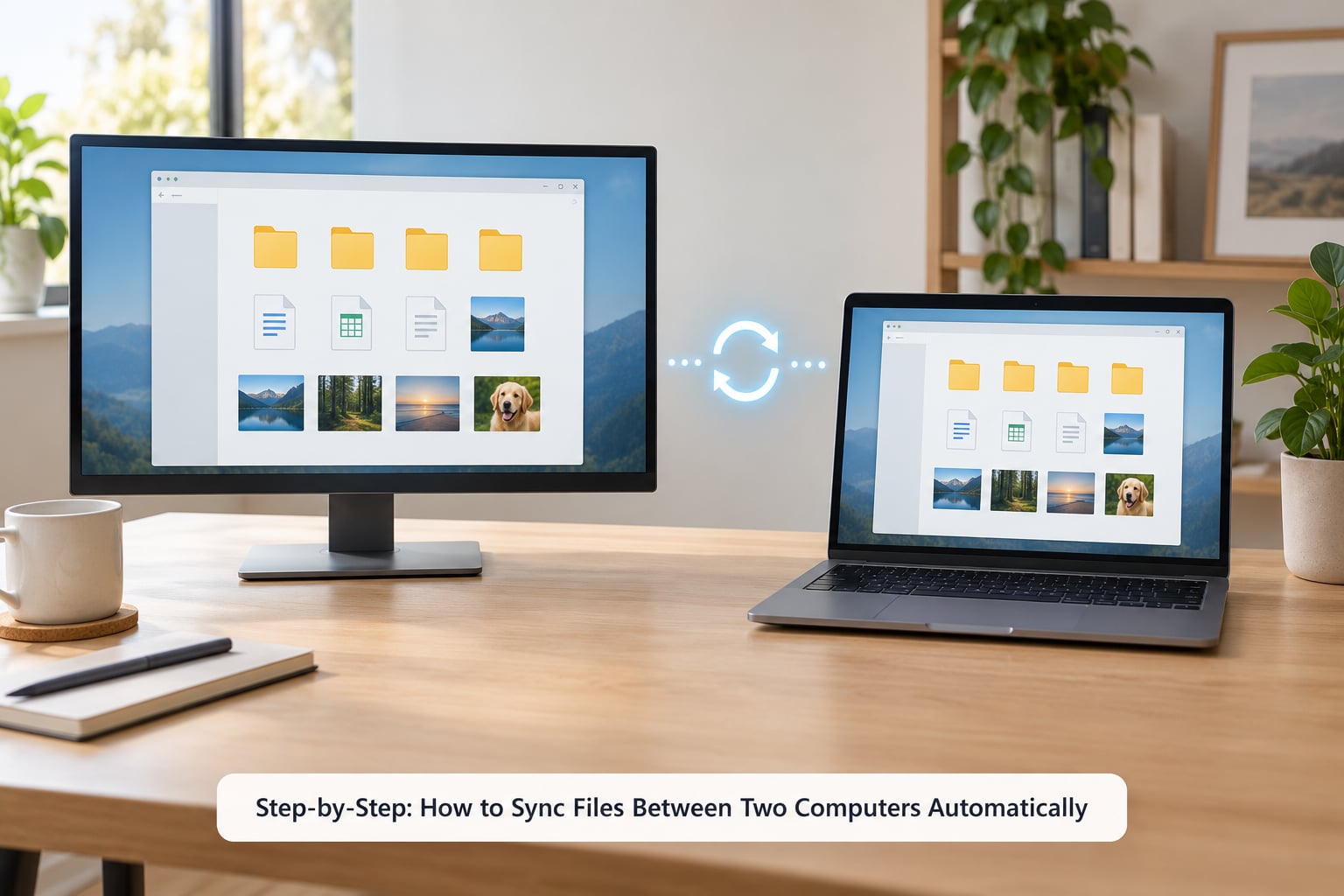
Choose a sync method
The choice comes down to whether you mind a third party holding your files. Cloud services are the least setup work and the most reliable across networks, since the transfer is the vendor’s problem. They also mean your files live on someone else’s disks, you pay after the free allowance fills, and offline access depends on the client caching files locally, which you have to turn on by hand.
Syncthing goes straight from one machine to the other, encrypted in transit, with no account and no storage ceiling. It is more setup than a cloud folder because you exchange device IDs by hand, and it needs both machines to be reachable at the same time for a handoff to happen.
FreeFileSync is a GUI over the same idea but without the continuous part: you create a job, pick a source and destination, choose two-way or mirror, and schedule it. Some people prefer that because they can see exactly what will move before it moves. Microsoft SyncToy was the older built-in answer, though it has been unmaintained for years and Windows now ships Robocopy, which covers the same ground from a command prompt.
| Tool | Platforms | Cost | Two-way sync | Scheduling | Versioning |
|---|---|---|---|---|---|
| OneDrive (Known Folder Backup) | Windows, macOS, iOS, Android | Free tier, paid tiers for more space | Yes | Continuous | 30 days on paid tiers |
| Google Drive for desktop | Windows, macOS, Linux | Free tier, paid tiers for more space | Yes | Continuous | 30 days on paid tiers |
| Dropbox | Windows, macOS, Linux | Free tier, paid tiers for more space | Yes | Continuous | 30 days on paid tiers |
| Syncthing | Windows, macOS, Linux, Android | Free, open source | Yes | Continuous | Simple versioning, free |
| FreeFileSync | Windows, macOS, Linux | Free, open source | Yes | Task Scheduler | Depends on version history config |
| Robocopy plus Task Scheduler | Windows | Free, built in | No, mirror or one-way | Task Scheduler | None |
Honest caveat on the cloud free tiers: the limits are real, and the versioning history that saves you from a bad edit usually sits behind the paid plan. That is exactly why Syncthing’s simple versioning is worth a look, since it costs nothing and keeps every replaced version in a hidden folder on the receiving machine.
How to sync files between two computers using cloud storage
This is the recommended starting workflow. Do it on both computers.
1. Sign in. On Windows 11 and Windows 10, OneDrive ships preinstalled. Open Start, search “OneDrive”, and choose “Open OneDrive”. On Windows 11, the icon usually sits in the hidden-icons area at the bottom right of the taskbar, a cloud shape. On macOS, install OneDrive from the Mac App Store, then launch it from Applications.
2. Point it at your real folders. OneDrive’s folder-picker screen has a “Back up all folders” link at the top in recent builds; clicking that adds Documents, Desktop, and Pictures to the sync set so edits on one machine appear on the other. If you only want one folder, use the “Choose folders” link instead and tick just that folder. This step is the whole trick for syncing a desktop and a laptop: your Desktop folder is only mirrored if you back it up.
3. Turn on automatic sync. Files sync as soon as you save. If you would rather keep bandwidth off during the day, open the OneDrive menu, choose Settings, then Sync and backup, then choose “Pause syncing” options or “Set up automatic device backup” separately for photos and documents.
4. Mark files as always available offline. Right-click the folder in File Explorer, choose OneDrive, then “Always keep on this device”. Without this, a laptop that is not connected sees file names but not contents, which surprises people the first time they open a document on a train.
5. Name both devices. Open the OneDrive menu, choose Settings, then Account, then “Rename this PC”. Naming the machines “Desktop” and “Laptop” costs nothing and saves confusion later when you are looking at which device caused an edit.
6. Confirm it is running. A green tick on the OneDrive cloud icon means everything is synced. A blue circular arrow means work is in progress, and a red circle with a slash means something needs attention. Hover over the icon for the tooltip explaining which.
Google Drive and Dropbox follow the same three moves: install the desktop app, sign in, then use the gear icon next to the tray icon and tick “Mirror files” under preferences if you want every change reflected on both machines. On macOS, iCloud Drive does the same job for Documents and Desktop once you enable “Desktop & Documents Folders” in System Settings, Apple ID, iCloud, Drive.
Set Up a Local Folder Sync With Syncthing or FreeFileSync
Do this when you want no third party in the middle.
Syncthing setup, on both machines:
1. Install it. Grab the build for your platform from the Syncthing site, run the installer, and let it start. On macOS the first launch asks to enable an extension. On Linux it may install as a service.
2. Copy the device ID. The Syncthing web interface opens on localhost port 8384 and shows a long device ID at the top of the Actions area. Each machine has a different one, and you need both to set up sharing.
3. Add the other device. On machine A, click “Add Remote Device” and paste machine B’s device ID. Give it a name. Repeat in the other direction. Both machines now see each other in their device list.
4. Share a folder. Click “Add Folder” on machine A, set a folder path like /home/you/Documents or D:Documents, and tick “File Sharing” to offer it. Then on machine B, accept the folder prompt that appears and set its local path. If both machines should write, tick “Accept Remote” and “Accept Local” so changes flow both ways.
5. Turn on folder versioning. In the folder’s File Versioning setting, choose “Simple” or “Staggered”. Every time a file is replaced or deleted, the old version moves into a hidden .stversions folder. This is the cheapest insurance in the whole guide and it costs nothing.
6. Check the connection type. If both machines sit behind home routers, Syncthing usually connects directly using UPnP or NAT-PMP port mapping. When it cannot, it relays encrypted traffic through a public relay server instead, which is slower but still fully private. You will see “Connected” in the device panel either way.
FreeFileSync setup, for a scheduled mirror on the same LAN:
1. Install and open it, then click Folder Pair and Add New Pair.
2. Choose Two Way for a pair of machines that both change files, or Mirror for a clean one-way copy where the destination is wiped to match. Mirror deletes extra files at the destination, which is what you want for a rebuild and is dangerous if you pick the wrong side.
3. Compare. The comparison screen lists added, changed, and deleted files on both sides. Read it before you run anything. This preview is the whole reason people like FreeFileSync over a one-click script.
4. Schedule it. Use the menu path Scheduling, then Add Scheduling Task, pick a time, and let FreeFileSync register the Windows Task Scheduler task for you. Set it to run whether the user is logged on or not if the machine must sync while locked.
5. For a first bulk transfer, copy with the mirror off. Run a one-time “Update” or a plain copy first, then switch to Mirror once you are satisfied. Mirroring an empty new drive against a full old one produces exactly the result you want, but it does it destructively if the paths are the wrong way round, so check them twice.
Test the Connection and Resolve Changes
Testing takes two minutes and saves an afternoon later.
Create a text file named sync-test.txt on the desktop of machine A with a unique line in it, like “test-1042”. Save, wait ten seconds, and look on machine B. It should appear without any action from you. Now rename it on B and confirm the rename shows up on A, which proves two-way flow rather than one-way copy.
Edit the file on B while machine A is switched off or disconnected, then bring A back. The edit should arrive once the two reconnect. This is the offline queue behaviour people are most often pleasantly surprised by.
Now the delete test. Put a file in the folder on A, let it sync to B, then delete it on A and confirm it disappears from B. If you expected a backup-style copy to remain, this is exactly where sync fails you, and it is the reason the section on protection below matters.
Conflicts happen when the same file changes on both machines before the two have talked to each other. Most services keep both versions and rename one, appending the machine name and a date to the filename, for example “report (DESKTOP conflicted copy).docx”. Syncthing behaves the same way but keeps the losing copy in the .stversions folder instead of cluttering your folder. Either way, work out early in the process that you never edit the same file on both machines at once.
Other things worth knowing when a change refuses to move:
Large files such as a 4 GB video archive take time even on fast connections. Cloud clients throttle by default, and the transfer only starts after upload, so budget in waiting rather than assuming something broke. Permissions cause quiet failures on network shares: if machine B writes a file that machine A cannot read, the sync stalls with an access denied message rather than an obvious crash. Renaming a whole folder while one machine is offline is another common trigger, because the client sees every file in it as new.
Common Mistakes
These account for nearly every sync problem I get asked about.
1. You synced the wrong folder. Selecting a sync folder does not move your Documents folder into it, it only mirrors what is already inside the folder you picked. Point OneDrive’s Back up all folders at your real Desktop and Documents folders, or move your files into the synced folder first.
2. Two accounts, two unrelated paths. If the desktop and laptop are signed into different accounts, the shared folder on each machine points somewhere different and nothing matches. Sign both machines into the same account and verify the local path under Settings, Account.
3. You treated it as a backup. Deletion propagates. If a ransomware hit or an accidental folder purge is your fear, sync is the wrong tool on its own; add versioning plus an independent backup.
4. One machine is off. Sync holds the change until the other device reconnects, so a desktop you shut down every evening will appear to lag a day behind. Set the cloud client to start at sign-in, or leave the peer-to-peer machine powered on.
5. Duplicate files from the free tier. Some services copy rather than sync at the free allowance, giving you “file (1).docx” alongside the original. Check the service’s own FAQ, because the fix differs per provider.
6. Simultaneous edits. Two people, or one person on two machines, changing the same file offline. Close one file before switching machines and keep versioning on.
7. Syncing things that should not be synced. Do not put your AppData folder, browser profile caches, or a database file that a program holds open in a sync folder. Partial files get uploaded and the program corrupts itself.
8. A first bulk transfer run through the cloud. Uploading 300 GB to a provider and back down wastes hours. Sync directly between the machines on the same LAN for the first pass, then keep syncing normally afterwards.
9. Firewall and permission blocks on a shared folder. Windows Firewall prompts for network access when you first open a share. If you clicked Cancel or Block, the share silently fails later. Open Settings, Network and Internet, Firewall, Allow an app through firewall, and tick Private networks.
10. Both machines are on guest Wi-Fi or a different network. Peer-to-peer tools need the same network or a reachable route between them. If you cannot put them on the same LAN, cloud sync or a mesh VPN is the fix.
Protect Your Synced Files
Four habits cover almost everything.
Turn on versioning everywhere it exists. Syncthing’s simple versioning is free and keeps replaced and deleted files in a hidden folder you can restore from. OneDrive, Google Drive, and Dropbox keep about 30 days of history on paid tiers, so check whether your plan includes it.
Keep the recycle bin on the receiving side. On Windows, syncing to a OneDrive folder keeps items in the recycle bin for a set period, which catches a bad mirror before it becomes permanent.
Use strong account security on the cloud side. Turn on two-factor authentication, because the cloud account is now the front door to both machines.
Keep one copy that sync cannot touch. An external drive, a NAS, or a second cloud folder with a dated rotation. If a file is irreplaceable, synced or not, it deserves a copy that no deletion command reaches.
Frequently Asked Questions
What is the easiest way to sync files between two computers automatically?
Sign both machines into the same OneDrive, Google Drive, or Dropbox account and use the folder-picker to add Desktop, Documents, and Pictures. Everything saves in both places from then on with no manual copying. It takes about ten minutes per machine and works across different networks, so the two computers do not need to be in the same building.
Can I sync files between a Windows PC and a Mac automatically?
Yes. All the main tools run on both platforms. OneDrive and Dropbox install on Windows and macOS, iCloud Drive is the smoothest option for a Mac-heavy setup, and Syncthing plus FreeFileSync work cross-platform if you want no cloud involved. Expect the folder path settings to differ in naming, but the steps are otherwise identical on each side.
Will automatic sync work when one computer is offline?
Yes. Changes made while a machine has no connection are queued locally and sent the moment it reconnects, whether that is a cloud client or Syncthing. The delay is only a problem when one machine is powered off for days at a time, since nothing can transfer until it is back online and reachable.
What happens if I edit the same file on both computers?
The tools avoid picking a winner. Most cloud services keep both versions and rename one with the machine name and date, so you merge them by hand. Syncthing does the same but files the old copy into a hidden versioning folder. The fix is prevention: do not edit one file on two machines without letting the sync finish first.
Is syncing the same as backing up my files?
No, and the distinction matters. Sync keeps two locations identical, so a deletion on one machine deletes on the other. A backup keeps dated copies of earlier versions, which is what survives ransomware, a bad edit, or a failing drive. For anything you cannot recreate, run both rather than choosing one.
Can I sync a folder without using cloud storage?
Yes, and it is the better choice for large libraries. Syncthing transfers directly between your two machines over the local network with no account and no storage limit. FreeFileSync does the same thing on a schedule you control, and a shared folder plus a mapped drive works when both machines are on the same Wi-Fi.
Conclusion
Do three things today and nothing else. Choose the method that matches your situation from the table at the top, pick one folder as the canonical copy, and run a test with a throwaway file before moving anything you care about.
If both computers can reach the internet and you want zero fuss, a cloud folder with Known Folder Backup switched on is the fastest route. If you want no third party holding your files, or your library is bigger than any free storage allowance, set up Syncthing on the two machines and turn on simple versioning. Keep a separate backup running either way, because sync protects you from forgetting a file, not from losing one.