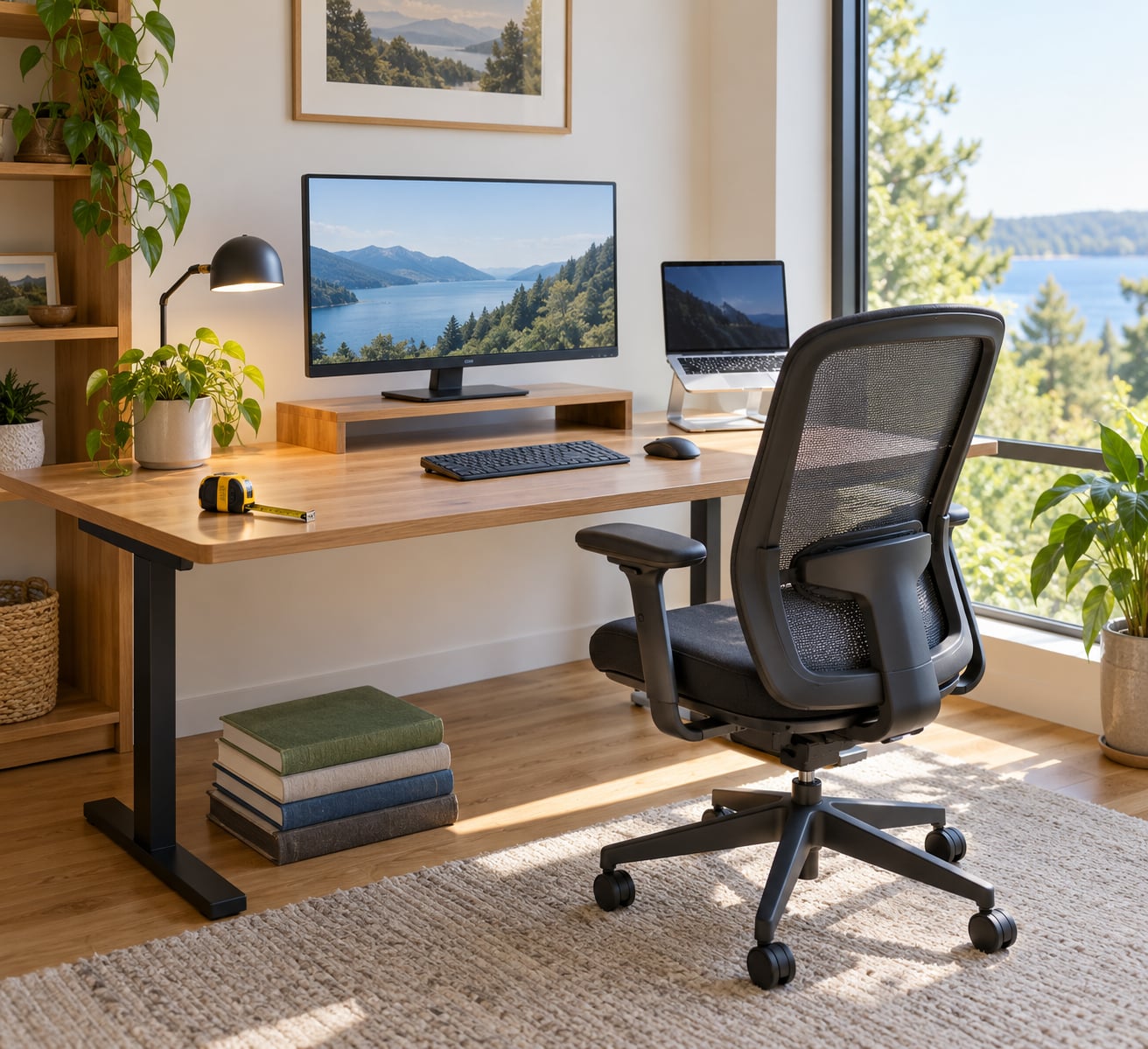
Most home desks get set up by putting the computer on top and sitting down. To set up an ergonomic desk at home, work in a fixed order instead: adjust the chair, set the desk height, place the monitor an arm’s length away with its top edge at or below eye level, then bring the keyboard and mouse close enough to keep your wrists straight.
It takes about half an hour for the first pass, plus a few minutes of tweaks every couple of months. You need a tape measure, a book or two, and whatever chair, screen and keyboard you already own. Nothing here depends on buying new gear.
Last updated: October 2026. This is general comfort and safety information, not medical advice. If pain persists after a few weeks of a better setup, a doctor or physiotherapist can tell you more than any desk ever will.
The short version, in order:
- Measure your elbow height, eye level and arm’s length before moving anything.
- Set the chair so your feet are flat, knees near 90 degrees and lower back supported.
- Match the desk to your seated elbow height, then set the screen 20 to 40 inches away.
- Put the keyboard directly in front of you and the mouse beside it, both within easy reach.
- Kill glare by turning the screen 90 degrees to any window and lighting the desk from the side.
- Add a footrest, riser or laptop stand, then re-check the whole setup over several workdays.
Table of Contents
- 1What You Need
- 2The essentials
- 3Useful later, not urgent
- 4Step-by-Step
- 51. Measure Your Space and Desk Height
- 62. Choose an Adjustable or Supportive Chair
- 73. Position the Monitor at Eye Level
- 84. Set the Keyboard and Mouse
- 95. Improve Lighting and Reduce Glare
- 106. Add Support and Fine-Tune the Setup
- 11Common Mistakes
- 12Frequently Asked Questions
- 13What is the ideal way to set up an ergonomic desk?
- 14What is the 90-90-90 rule in ergonomics?
- 15What is the 20/8/2 rule for standing desks?
- 16How high should my monitor be when working from home?
- 17How can I make my desk more ergonomic without buying anything?
- 18When should I see a doctor about desk-related pain?
- 19Conclusion
What You Need
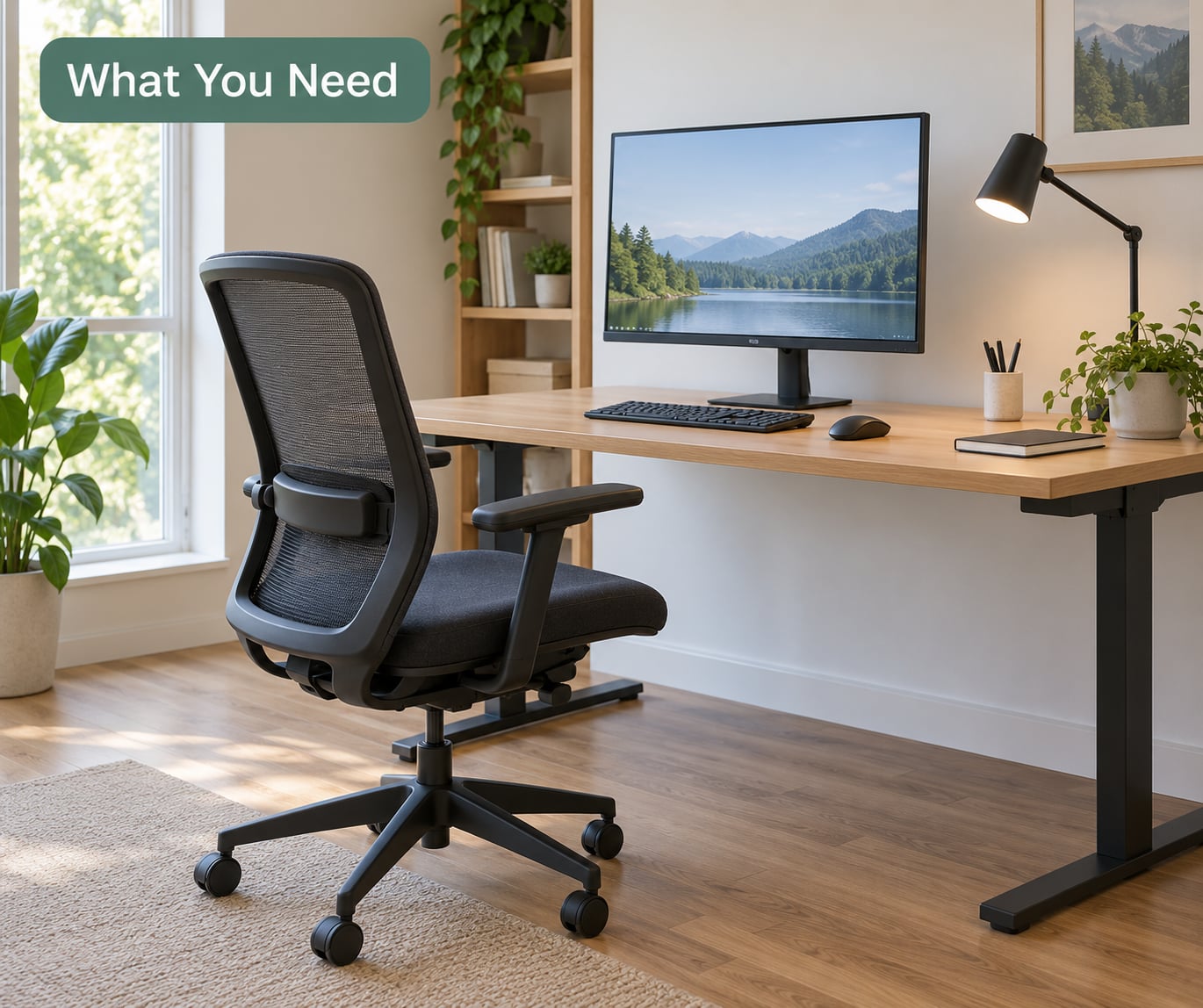
You need four things to do this properly and a handful that make life easier. The first four are non-negotiable; the rest can wait weeks or months.
The essentials
- A stable surface at roughly your seated elbow height. Anything that does not wobble works. A fixed dining table is fine if the height is close enough, which is why measuring comes first.
- A chair with an adjustable seat height and some back support. Adjustable lumbar support matters most if you work more than a few hours a day.
- A screen you can look at without craning. A monitor, a laptop on a stand, or even a tablet on a stack of books in a pinch.
- A keyboard and pointing device that sit close to your body. A full-size board with a numeric keypad pushes the mouse further out, so a tenkeyless board often fits a small desk better.
Useful later, not urgent
- A footrest, if your feet cannot reach the floor with the chair at its lowest setting. A thick hardback book works.
- A monitor riser or monitor arm, if your screen sits below eye height on the desk.
- A document holder, if you read printed material or a physical keyboard next to the screen all day.
- A desk lamp that throws light across the desk rather than onto the screen.
- Cable ties and a shallow tray to keep chargers and hubs from taking over legroom.
Notice what is missing. A standing desk is not on the list because it is not the first thing to fix, and forums like r/WFH and r/StandingDesk keep arriving at the same point: a supportive chair changes more days than an expensive frame does.
Step-by-Step
1. Measure Your Space and Desk Height
Sit down in a straight-backed kitchen chair and measure the floor to the underside of your elbow. That number is your working desk height, usually somewhere between 24 and 30 inches. If it is within an inch or so of your current desk, the desk is fine and you can skip the rest of this step.
Now measure two more things. Hold your arm straight out from your shoulder and note where your fingertips land, then look straight ahead and note your eye level above the seat. Those two numbers set your monitor distance and height later, so getting them now saves guessing.
Check legroom while you are there. Slide the chair in as if you were working and look under the desk: knees need roughly two inches of clearance, and drawers or a modesty panel that hit your shins have to go. If your desk is fixed and too tall, a cardboard box on your chair seat plus a footrest under your feet can bridge a two or three inch gap.
How to tell it worked: you can sit back against the chair with your feet supported and slide your knees forward under the desk without hitting anything.
2. Choose an Adjustable or Supportive Chair
A chair earns its keep by hitting four positions: feet flat on the floor or on a footrest, knees bent at roughly 90 degrees, lower back pressed into the lumbar support, and shoulders relaxed with armrests low enough that they do not lift your shoulders.
Set the seat height first, then the back, then the armrests, in that order. Each one changes what the others need to do. If your shoulders creep upward or your elbows point down and out, the armrests are too high. If your lower back arches away from the backrest, the seat is too deep or the lumbar support is too low, and you should be able to slide two to four fingers between the front edge of the seat and the back of your knee.
This is the 90-90-90 rule: 90 degrees at the hips, knees and ankles. It is a useful checkpoint, not a posture to hold all day. Most people are more comfortable in a slightly reclined position, around 100 to 110 degrees between the torso and the thighs, which is why a chair that reclines gently at the back beats one that locks you bolt upright.
Long-term sitting is its own risk regardless of how well the chair is set. Movement matters more than any single position, so treat the chair as a tool you shift in rather than a posture you freeze into.
How to tell it worked: at the end of a work block your lower back feels supported rather than tired, and you are unaware of your shoulders.
3. Position the Monitor at Eye Level
Put your main screen 20 to 40 inches from your eyes, about an arm’s length, with the top edge of the screen at or slightly below eye level so your gaze angles gently downward. Tilt the panel back 10 to 20 degrees to keep it roughly perpendicular to your line of sight.
Most home setups fail on height, not size. A 24-inch monitor at the wrong height causes more neck strain than a correctly placed 19-inch one, and a larger screen does not automatically mean you should sit further back. If the screen is too far away, you start leaning forward and lose the back support you just set up. If it is too close, your eyes do more work to focus and you end up blinking less.
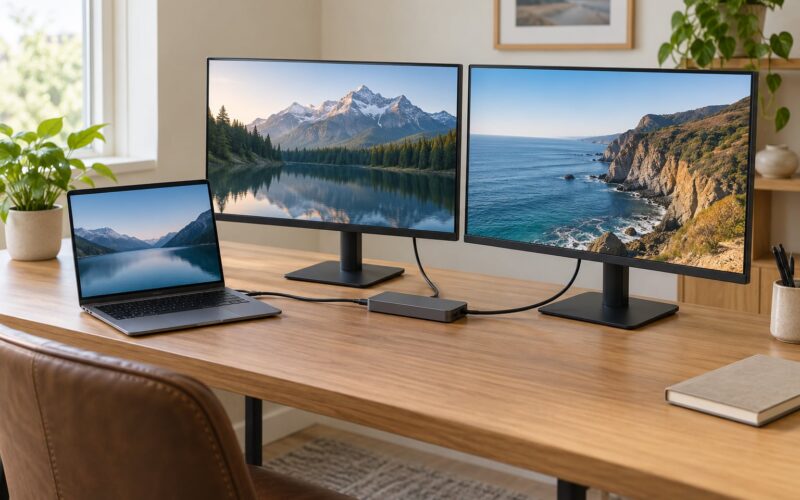
For two screens, put the one you use most directly in front of you and tuck the second immediately beside it, turned maybe 20 to 30 degrees toward you. Nesting them side by side is usually better than pushing one behind the other, which forces constant neck twisting. If your desk is not deep enough for that, a single screen is the more ergonomic choice.
With a laptop only, raise the screen to eye level on a stand or a stack of books, and use a separate keyboard and mouse at desk height. A laptop used flat on the desk for eight hours is the single most common cause of the neck and wrist complaints people describe in r/Ergonomics threads.
How to tell it worked: you can read the screen without tilting your head down or up, and the edges of the display have no glare across them.
4. Set the Keyboard and Mouse
Place the keyboard directly in front of you with the H key lined up with the centre of your body, and put the mouse right beside it on the same level. If you have to reach forward or outward to touch either one, they are too far away, and that reach is what wears out shoulders over months.
With elbows at your sides and shoulders relaxed, your forearms should sit roughly parallel to the floor with a 90-degree bend at the elbow. Your wrists should be straight, in line with the forearm, not bent up toward you. If a laptop keyboard makes you hunch, raise it on a riser or move to an external keyboard. A negative tilt keyboard tray is the opposite of what you want; a flat or slightly downward wrist position is generally kinder, and a wrist rest is for resting between keystrokes rather than pressing down on while you type.
Size the mouse to your hand. A mouse that is too large forces a tight grip and keeps your wrist angled; one that is too small makes you move your whole forearm constantly. If you develop tingling or numbness, a vertical mouse held in a neutral handshake position is worth a try before anything more serious. Switch keyboards and mouse during long document typing sessions so each hand rests more often.
How to tell it worked: your shoulders stay down, and you can type a full paragraph without noticing your wrists at all.
5. Improve Lighting and Reduce Glare
Turn your screen 90 degrees to any window. That single change removes most of the glare people complain about, because reflections come from screens facing light sources. If you have two sources, side light is the one to keep: light from behind you lands on the screen, and light from the side gives you a bright surface to look toward that your eyes are already adapted to.
Match screen brightness to the room rather than to the sun. A dark room with a blazing monitor is hard on your eyes even with perfect geometry, and daylight exposure during the day still matters for your sleep at night, so keep a window in the room open or uncovered rather than blocked by a monitor or curtain. Use a desk lamp that washes the far side of the desk instead of shining onto the display. If you wear glasses, keep them on at the desk, since they usually sit lower on your nose and tilt your head forward.
Noise and temperature belong in the same conversation. Headphones handle a noisy room, and a room that is genuinely too hot or too cold pulls your attention away from posture in a way no amount of chair adjustment fixes. A comfortable workspace is about concentration, not just joint angles.
How to tell it worked: you can squint at any part of the screen without seeing a reflection, and the room is bright enough that you are not looking into a dark panel.
6. Add Support and Fine-Tune the Setup
Add support in this order: a footrest if your feet dangle, a riser or arm if the screen is low, a laptop stand if you use a laptop, then a keyboard tray if the board is too high or too far. A shallow tray for cables and a small drawer for chargers come last, because reclaiming legroom changes nothing about your posture but does make the setup easier to live with.
If your desk raises and lowers, stand at it as often as you like, but do not stand all day in one spot. The 20/8/2 rule suggests roughly 20 minutes standing, 8 minutes sitting and 2 minutes moving per half hour, repeated through the day. People on r/StandingDesk describe alternating between a good chair and a balance board every 30 to 60 minutes as the version that actually sticks, and that matches the research on sedentary behaviour, which points at sustained stillness rather than sitting itself as the problem. Set a phone timer so the changes happen without you deciding each time.
Here is the whole setup on one page:
| Element | Target setting | How to check it |
|---|---|---|
| Chair height | Feet flat, knees near 90 degrees | Thighs roughly parallel to the floor |
| Back support | Lumbar curve filled, recline 100 to 110 degrees | Two to four fingers behind your knees |
| Desk height | Forearms parallel to the surface, elbows at 90 degrees | Shoulders are not shrugged or dropped |
| Screen distance | 20 to 40 inches, an arm’s length | Fingertips just reach the bezel |
| Screen height | Top edge at or below eye level, tilted back 10 to 20 degrees | Level gaze with a slight downward angle |
| Keyboard | Close, flat or slightly downward tilt, wrists straight | H key at the centre of your body |
| Mouse | Same level and height as the keyboard | Elbow stays at your side |
| Lighting | Screen 90 degrees to windows, lamp on the far side | No reflections from any angle |
Then stop adjusting and use it. A setup that feels wrong in five minutes can feel right after three workdays, and you cannot judge comfort while constantly fiddling. Re-check once a month, and again whenever you change desk, chair, chair depth, monitor or job pattern. Two years into remote work, the settings that were right for you are rarely the ones that are right now.
Common Mistakes
A monitor that is too low. The most common mistake, and the one most likely to end in neck pain. Raise it on a riser, an arm or a stack of books before you consider anything else.
A keyboard that pushes your wrists up. If the desk is too high, your shoulders lift and your wrists bend backwards. Solve it with a tray, a lower desk or a negative-tilt board, not by raising your shoulders harder.
A chair with no lower back support. A dining chair is fine for an hour. Slouching to compensate for no lumbar support is what turns a sore back into a persistent one.
Feet hanging. Dangling feet put load through the back of your thighs. A footrest or a firm book under the feet fixes it in a minute.
A screen backlit by a window. Rotate the desk 90 degrees, then close the blind or sheer on whichever side now faces the window.
Working in a chair that is too deep for you. If you cannot get your back against the backrest, the seat is too deep. A firm cushion rolled behind your lower back restores lumbar support on a cheap fixed chair.
Adjusting nothing for weeks. The most expensive mistake is treating a good setup as done. Bodies, desks and tasks all change, and the settings drift silently.
Chasing a standing desk first. If you can only afford one improvement, buy or fix the chair. Forum consensus on this is consistent: the chair decides how eight hours feels, the standing desk just varies it.
Frequently Asked Questions
What is the ideal way to set up an ergonomic desk?
Set things in order: adjust the chair first, then match the desk to your seated elbow height, then place the main screen 20 to 40 inches away with its top edge at or below eye level, then position the keyboard directly in front of you with the mouse beside it. Finish with lighting and glare control, and a break schedule. Each setting depends on the one before it, so working out of order means adjusting the same thing twice.
What is the 90-90-90 rule in ergonomics?
It is a starting posture for seated desk work: 90 degrees at the hips, 90 degrees at the knees and 90 degrees at the ankles, with feet flat on the floor and the lower back supported. It is a checkpoint for setting your chair, not a posture to hold for eight hours. Many people are more comfortable reclining slightly, around 100 to 110 degrees between torso and thighs, so treat the rule as a starting point.
What is the 20/8/2 rule for standing desks?
The 20/8/2 rule divides each half hour into roughly 20 minutes standing, 8 minutes sitting and 2 minutes moving about. The point is to vary your position rather than to spend the day upright, which most people cannot sustain. If standing all day sounds punishing, alternate more often, or use a footrest and shift weight between one foot and the other while seated.
How high should my monitor be when working from home?
The top edge of the screen should sit at or slightly below your eye level when you are seated in a neutral position, so your gaze angles gently downward and your neck stays long. Keep it 20 to 40 inches away, tilt the panel back 10 to 20 degrees, and turn it 90 degrees to any window. If your desk is too low, a riser, a monitor arm or a stack of books will get you there without buying a new desk.
How can I make my desk more ergonomic without buying anything?
Stack books to raise a laptop or monitor, roll a firm cushion behind your lower back on a dining chair, and use a thick hardback book as a footrest when your feet cannot reach the floor. Turn the desk so the screen is 90 degrees to the window, clear the legroom, and lower the chair and raise the keyboard so the elbows sit at 90 degrees. Most home setups improve from rearranging rather than buying.
When should I see a doctor about desk-related pain?
See a doctor or physiotherapist if pain persists for more than a few weeks despite a corrected setup, if it wakes you at night, or if you notice numbness, tingling, weakness or shooting pain in your hands or arms. Those symptoms point to nerve or joint involvement rather than a badly placed mouse, and a clinician can assess you properly. Until then, a neutral working posture with regular movement breaks is a sensible foundation.
Conclusion
If you only do three things, make them these: set your chair so your feet are flat and your lower back is supported, raise the top of your screen to eye level, and bring the keyboard and mouse close enough that your elbows stay at your sides with wrists straight. Those three cover most of the neck, back and wrist complaints that show up months after people start working from home.
Change one item at a time, live with it for several days, then decide whether to keep it. Buy the chair before the standing desk, add a riser or footrest before a whole new desk, and re-check the whole setup every few months. If pain carries on despite that, stop tuning the desk and talk to a doctor or physiotherapist.