Your router IP address is the default gateway your devices see, and it is almost always 192.168.1.1 or 192.168.0.1. To find your router IP address on any device, connect it to the router, open the network settings or run ipconfig on Windows, and read the value labelled Default Gateway. It takes about a minute on any platform.
Once you have that number, you can open your router’s admin page in a browser and change the Wi-Fi password, set up port forwarding, add parental controls, or just see which devices are currently connected. Updated for 2026.
Table of Contents
- 1What You Need
- 2How to Find Your Router IP Address on Windows
- 3Find your router IP address on Windows 11 and 10 with Command Prompt
- 4Find it from Windows Settings without typing a command
- 5How to Find Your Router IP Address on Mac
- 6Find your router IP address on a Mac in System Settings
- 7Find the gateway from Terminal on macOS
- 8How to Find Your Router IP Address on iPhone and Android
- 9On iPhone and iPad
- 10On Android, including Samsung phones
- 11How to Find Your Router IP Address on Linux
- 12Check the Router Label or Admin Page
- 13What To Do After You Find the Address
- 14Common Mistakes
- 15Frequently Asked Questions
- 16What is the default gateway on my router?
- 17Is the router IP address the same as my device IP address?
- 18Why can I not log into my router after finding its IP address?
- 19Can I find my router IP address without connecting to Wi-Fi?
- 20Why does my Windows Command Prompt show a different router address?
- 21How do I find the router IP address on an iPhone?
- 22What To Do First
What You Need
Three things, and you probably already have all of them.
- A device on the network. A laptop or phone joined to the same Wi-Fi or Ethernet network as the router. Being on a different Wi-Fi network, like a neighbour’s or a coffee shop, gives you that network’s gateway instead of yours.
- Router admin credentials. Usually printed on a sticker on the router, most often a username and password pair like
admin/admin. - A modern browser. Chrome, Safari, Edge or Firefox. A browser in private mode works fine.
Worth knowing what you’re actually looking for. The address you want is a private IP address, and every device on your network gets one from the router’s DHCP server, which also tells each device the address of the gateway. That gateway value is the router itself. Private addresses live in three ranges: 192.168.x.x, 10.x.x.x, and 172.16.x.x to 172.31.x.x. A router has two of these, one facing your devices and one facing your internet provider, and you want the first one.
This is also why searching “what is my IP” gives you a completely different number. That returns your public IP, assigned by your ISP and visible to every website you visit. It has nothing to do with the router’s settings page.
How to Find Your Router IP Address on Windows
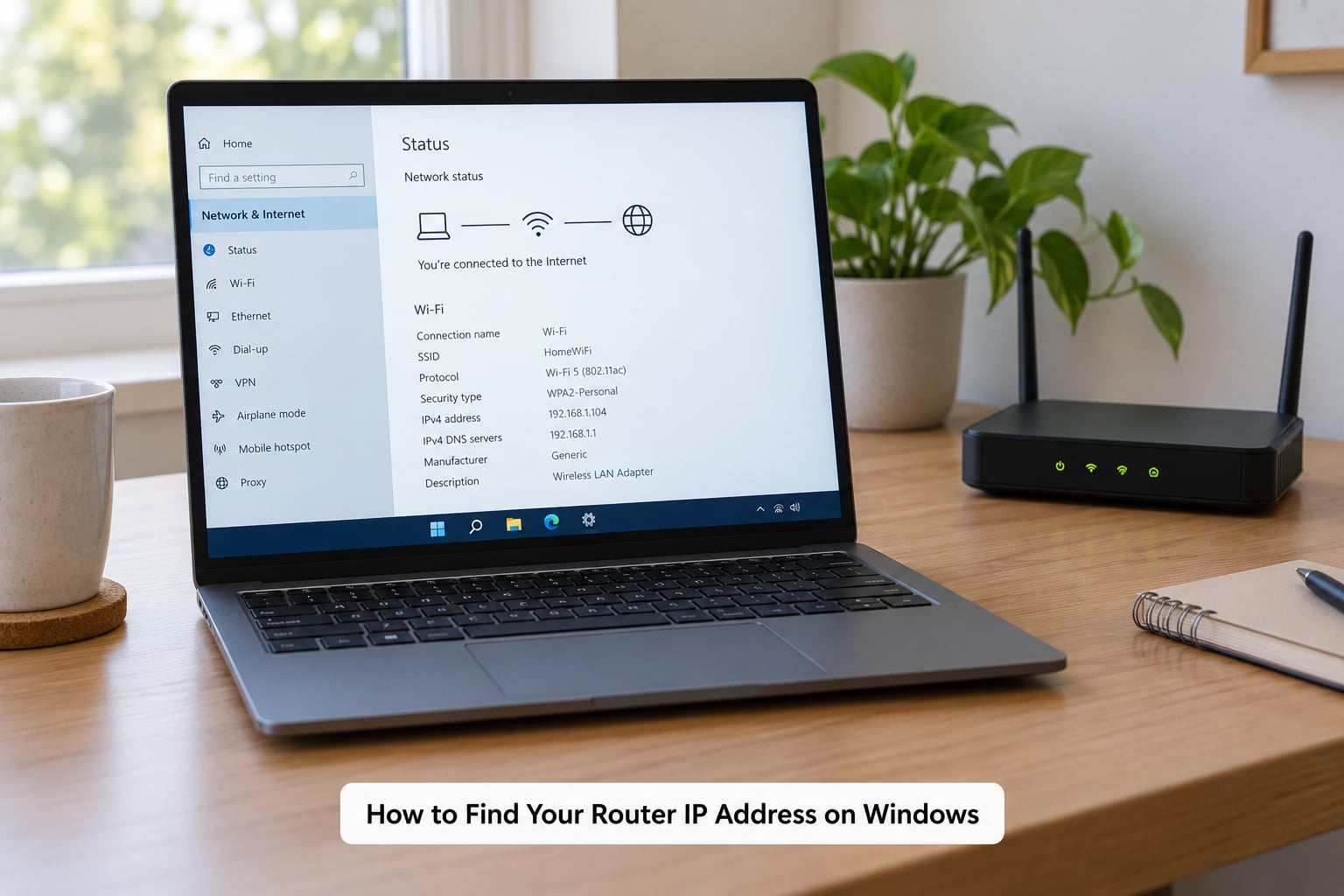
Find your router IP address on Windows 11 and 10 with Command Prompt
- Open Command Prompt. Press the Windows key, type
cmd, and hit Enter. Or right-click the Start button and choose Terminal. - Type
ipconfigand press Enter. - Scroll down to your active adapter, usually Wireless LAN adapter Wi-Fi or Ethernet adapter, and find the line reading Default Gateway.
- Type the number into your browser address bar, exactly as it appears, with nothing before or after it.
The output looks like this, and the value after the gateway label is what you want:
Default Gateway . . . . . . . . . : 192.168.1.1
If you have Ethernet and Wi-Fi both connected, each adapter has its own gateway row. They normally match, but if they differ, the one on the adapter you’re actually using is the right one. When ipconfig shows a list of blank adapters and one real one, go with the real one.
PowerShell works identically. Open it, run ipconfig, and read the same line. ipconfig /all shows a great deal more, including which device handed out your address as the DHCP server, which is useful when something is handing out the wrong gateway.
Find it from Windows Settings without typing a command
- Open Settings, then Network & internet.
- Choose Wi-Fi (or Ethernet if you are wired), then click your connected network.
- Scroll to Hardware properties and look for Default gateway.
On Windows 10, open Settings > Network & Internet > Network Connections, right-click the connection, pick Properties, and the gateway is under the Details list. The Control Panel route through Network and Sharing Center > Change adapter settings lands in the same place.
How to Find Your Router IP Address on Mac
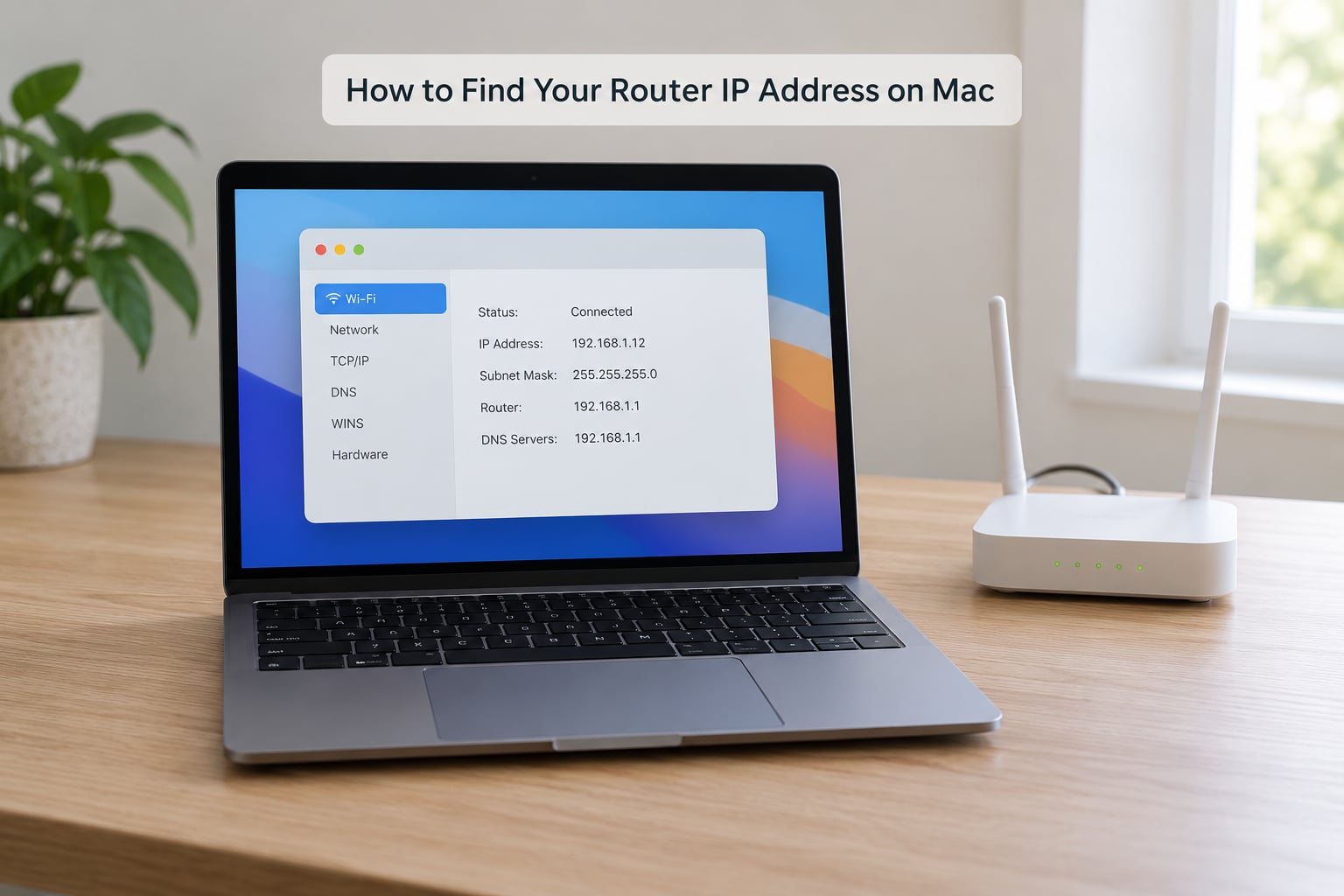
Find your router IP address on a Mac in System Settings
- Open Apple menu > System Settings, then pick Wi-Fi from the sidebar.
- Click the Details button next to your connected network name.
- Look for Router in the list. That value is your router IP address.
On older macOS versions the same information lives under Apple menu > System Preferences > Network, where you select Wi-Fi and click Advanced. There is a shortcut too: hold Option and click the Wi-Fi icon in the menu bar, and it shows the Router, IP address, and other details without opening Settings at all.
Find the gateway from Terminal on macOS
Open Terminal and run:
route -n get default
The output includes a gateway: line with the address. Another quick one is ipconfig getifaddr en0, though that prints your Mac’s own address rather than the gateway, so route -n get default is the command to remember. If you are on Ethernet or a USB adapter instead of built-in Wi-Fi, the interface name changes, and route -n get default still reports the right gateway regardless.
How to Find Your Router IP Address on iPhone and Android
On iPhone and iPad
- Open Settings and tap Wi-Fi.
- Tap the small i in a circle next to your connected network name.
- Read the value next to Router near the bottom of that screen.
That page also shows your own IP address, the subnet mask, and the DNS servers, which is handy when you want to tell them apart. Tap Cancel, not Done, to back out of it, since Cancel leaves the network untouched. Done also works and does not change anything, but Cancel is safer if you were only looking.
On Android, including Samsung phones
- Open Settings > Connections > Wi-Fi (or Settings > Network & internet on stock Android).
- Tap the connected network’s name.
- Look for Gateway, sometimes labelled Router or Default gateway under Advanced details.
Samsung phones put it behind Settings > Connections > Wi-Fi > your network > Manage router, and other manufacturers rename things too. If you can’t see a Gateway field on the first screen, tap Advanced or the three-dot menu. Android hides the details behind a couple of taps more than iOS does, which trips people up more often than anything else on this list.
How to Find Your Router IP Address on Linux
Terminal, one command:
ip route
The first line starts with default via, and the address after via is your gateway. A line like default via 192.168.1.1 dev wlp3s0 proto dhmetric src 192.168.1.42 tells you three things: the router is 192.168.1.1, the wireless interface is wlp3s0, and your own address is 192.168.1.42.
That last number is the mistake people make most often. The src part is your computer, not your router. On a NetworkManager system you can also run nmcli -f IP4.GATEWAY device show to print just the gateway.
If ip route returns nothing with default in it, you are either not connected to a network or something is forcing all traffic through a VPN. Older machines without the ip command have route -n or ifconfig instead, though ifconfig shows interfaces rather than the route, so the gateway still has to come from the routing table.
Check the Router Label or Admin Page
Before digging through menus, look at the router itself. Nearly every one has a sticker on the base or back with the model number, default admin address, Wi-Fi password, and the number of ports. Many list two addresses, one for the internet port and one for the LAN, and the LAN one is what you want.
These are the factory defaults most often printed, and they are the best guess before you check anything else:
- 192.168.1.1 on Netgear, ASUS, Linksys, Google Nest, Eero and most newer models
- 192.168.0.1 on Belkin, D-Link and older Netgear hardware
- 10.0.0.1 on some ISP-supplied gateways and older D-Link routers
- 192.168.31.1 on Xiaomi routers
- 192.168.1.254 on some ISP modem/router combos
You can also check the address while off the network. Read the sticker, look in the printed quick-start guide, or search the model number in your ISP’s app, which usually shows the gateway address directly. If someone else’s router came with the property and the sticker has faded, the model number gets you the manual, and the manual lists the factory address.
One warning: the sticker shows the factory address, not necessarily the current one. If someone changed the LAN IP after setup, the sticker is out of date. Treat it as a starting guess, not a fact.
What To Do After You Find the Address
Open your browser and type the address into the address bar. Include the full thing, starting with http://. Some newer admin pages work on https://, and a few accept either, so try both if the first one errors out.
You should get a login page asking for a username and password. The combinations that work on most hardware are admin/admin, admin/password, admin with a blank password, or in some cases admin/admin1234. Newer units print a unique password on the sticker instead, and app-based mesh systems have no web interface at all, so you manage those through their app.
Before you change anything, take screenshots of the settings you plan to touch, especially wireless security, DHCP settings, and any port forwarding rules. If a change locks you out, those screenshots are how you put things back. And if you’re setting up a second router or access point, give it a static address inside the main router’s subnet and turn its DHCP server off, otherwise the two will fight over handing out addresses.
Common Mistakes
Reading the DNS server instead of the gateway. They’re on adjacent lines in ipconfig and both look like 192.168.x.x. The gateway line is the one you want. If you have trouble telling them apart, run ipconfig /all and look at which adapter is the DHCP server.
A VPN is running. An active VPN adds its own adapter and its own default gateway to the list. Disconnect it and re-run the command, or ignore the tunnel entries and use your Wi-Fi adapter’s gateway.
Copying an incomplete address. Leaving off the last digits, or dropping the trailing period from the prompt line, gives you something that won’t load. Highlight the whole value and paste it.
Using the wrong protocol. Type http://192.168.1.1 with no slash at the end and no port number. A “connection refused” or long hang often means the page expects HTTPS instead, so try that as the second attempt.
Being on public Wi-Fi. In a hotel, a school, or an office, the gateway address is real but belongs to someone else’s network, and it almost certainly has no admin page for you to log into.
Assuming the gateway is the box you’re holding. With a mesh system, an ISP modem in front of your own router, or a router plugged into a router, the default gateway is the topmost device on the path. It may be an ISP modem you’ve never touched, and it may be showing something like 172.22.0.1 or 10.x.x.x instead of the usual addresses. That is normal, not a fault. Connect directly to the router you want to manage and it becomes the gateway for that connection.
Looking for a gateway that isn’t there. If no Default Gateway row appears at all, check airplane mode, check the Ethernet cable, and turn the VPN off. All three quietly remove the default route.
Not being able to find an old router’s address. For a second-hand router whose configured address is unknown, a hard power-cycle, holding the reset pin for ten seconds with the power off, returns it to the factory address on the sticker. That clears the custom LAN IP, so know your own Wi-Fi password before you do it.
Frequently Asked Questions
What is the default gateway on my router?
The default gateway is the private address your router uses to reach the devices on your network, and it is normally the same as the router IP address. Every device is told this address by DHCP when it joins, so it shows up as Default Gateway on Windows, Router on Mac and iPhone, and Gateway on Android. Values like 192.168.1.1, 192.168.0.1 or 10.0.0.1 are typical.
Is the router IP address the same as my device IP address?
No, they are two different addresses on the same network. Your device gets its own address, often something like 192.168.1.42, while the router holds the gateway address, often 192.168.1.1. Open ipconfig and you can see both lines. You need the gateway, not your own address, when you want to open the router settings page.
Why can I not log into my router after finding its IP address?
A few things cause this. The page may need HTTPS instead of HTTP, so try both. Public Wi-Fi gateways rarely have an admin page at all. Mesh and app-based systems have no web interface, only an app. If your own router rejects the login, the admin password was likely changed from the factory one on the sticker. A factory reset fixes access, but it clears every setting you changed.
Can I find my router IP address without connecting to Wi-Fi?
Yes, if the router still has its factory settings. Read the sticker on the base or back of the router, or look in the printed quick-start guide for the model number. Most stickers list two addresses, and the one next to the LAN ports is the one you want. If the LAN IP was changed after setup, the sticker is out of date and you will need to connect once to read the real gateway.
Why does my Windows Command Prompt show a different router address?
Most often the output lists more than one adapter. Ethernet, Wi-Fi, a VPN tunnel, and virtual machines each get their own gateway row, and the first one you read may not be the adapter you are using. Check the adapter name on each row and pick the one matching your connection. A second cause is a mesh or ISP gateway sitting above your own router, which shows an address such as 172.22.0.1.
How do I find the router IP address on an iPhone?
Open Settings, tap Wi-Fi, then tap the small i in a circle next to your connected network name. The next screen lists your own IP address, the subnet mask, the DNS servers, and a Router entry, which is your router IP address. Tap Cancel rather than Done to leave without changing anything. The Router value only appears for the network you are actively connected to, not for saved networks you are not using.
What To Do First
Connect to the router’s own Wi-Fi and run ipconfig on Windows, or tap the network name on a phone and read the Gateway field. That one value gets you to the settings page, and everything else is detail.