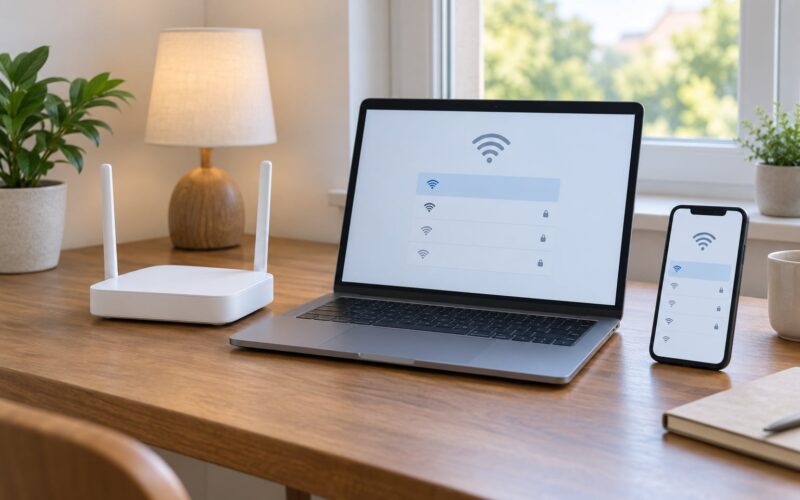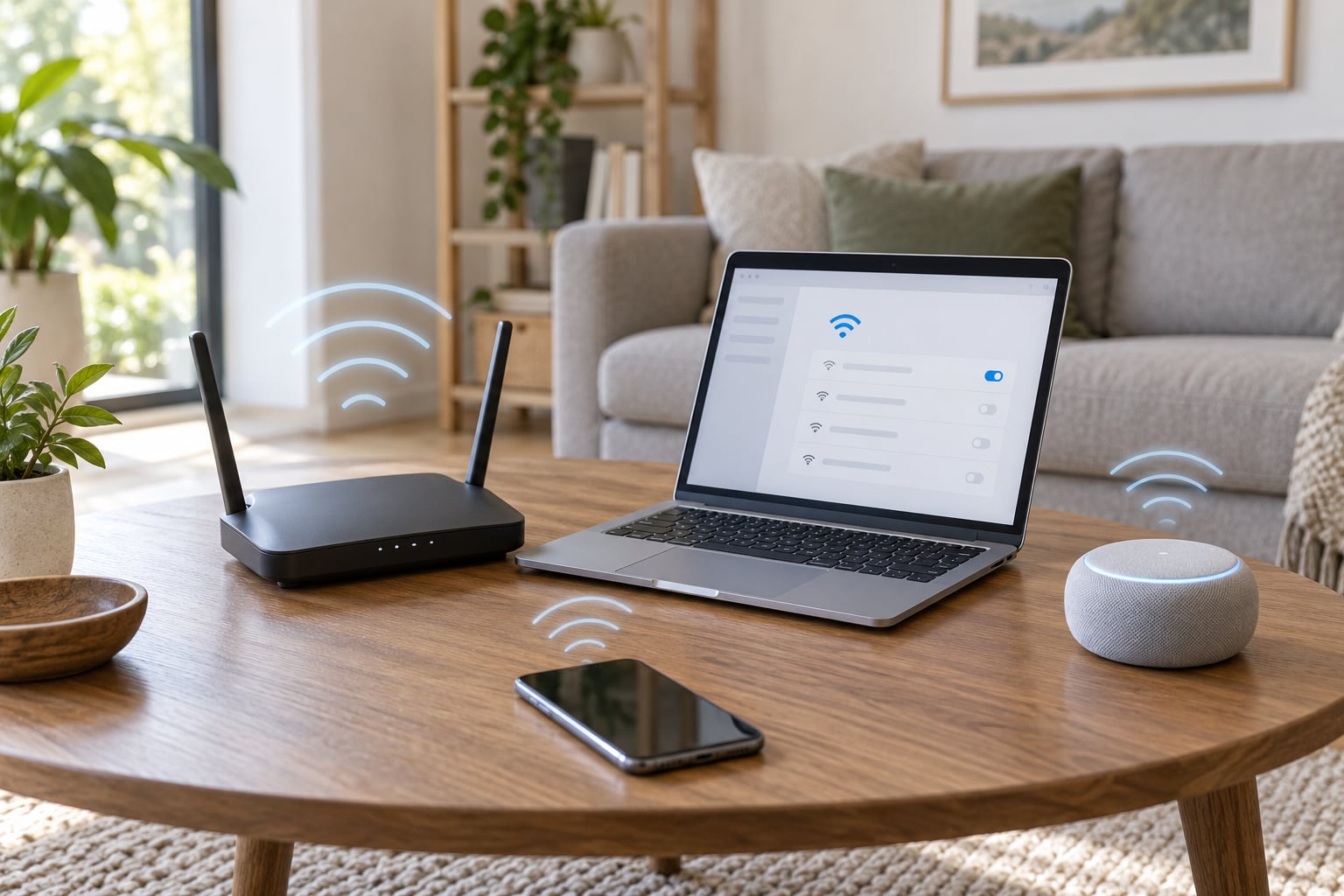
To change your wifi password, you sign into your router’s admin page from a device already connected to the network, open the wireless security settings, replace the passphrase with a new one, and save. Every device that was using the old password then has to reconnect. The router part takes about five minutes; reconnecting the rest of your gear takes a few minutes each.
Here is the whole process in five lines, before the details:
- Open a browser on a device already joined to your Wi-Fi and go to 192.168.1.1 or 192.168.0.1.
- Log in with the admin credentials printed on the sticker on the bottom or back of your router.
- Go to Wireless, Wireless Settings, Security, or Network, depending on the brand.
- Set the security type to WPA2-Personal or WPA3-Personal and type a new passphrase of 16 characters or more.
- Click Save or Apply, then reconnect each device with the new password.
The catch is that most of the work happens after the save, not before it. Your phone reconnects in seconds. The smart TV behind the television, the printer in the office, and the game console in the bedroom all wait patiently until someone tells them the new password.
Table of Contents
- 1What You Need
- 2Step-by-Step: How to Change Your Wifi Password
- 3How to Change Your Wifi Password on Your Router
- 4Update the Saved Password on Windows
- 5Update the Saved Password on a Mac
- 6Update the Saved Password on an iPhone or iPad
- 7Update the Saved Password on Android
- 8Reconnect Smart TVs, Consoles, and Other Devices
- 9Verify the New Password and Secure Your Network
- 10Common Mistakes
- 11What If the Old Password No Longer Works?
- 12Tips for Keeping Your Network Secure
- 13Frequently Asked Questions
- 14Can I change my wifi password without knowing the old one?
- 15Can I change my wifi password from my iPhone or Android phone?
- 16Will changing my wifi password disconnect all my devices?
- 17What should I do if I forget the new wifi password?
- 18Why does my new wifi password not work on one device?
- 19Conclusion
What You Need
You need four things, and one of them is only there so you do not have to do this twice.
- The router itself. Not needed for the software part, but you do need to know whether it came from your internet provider or from a store.
- The admin credentials. Usually on the sticker on the bottom or back of the router, often as a management password, admin password, or key.
- One device already on the network. A laptop or phone connected by Wi-Fi, or an Ethernet cable if the wireless password is what you are trying to recover.
- A note of your current settings. Write down the network name (the SSID), the security type, and whether a guest network is switched on before you start.
Before you touch anything, sort out the three passwords people mix up. This is the single most common reason a change appears to fail.
- Wi-Fi password (also called the passphrase, security key, or shared key). This decides who can join your wireless network. You change it in the wireless settings of the admin page, or in your ISP app.
- Router admin password. This decides who can change any router setting, including the Wi-Fi password. It lives in the router admin page and defaults to whatever is on the sticker.
- ISP account password. This is your internet service and billing login. It lives on the provider’s website or in the provider’s app, and it never belongs in the router.
One caution before you start: do not press the reset button on the router. A factory reset erases your network name, password, admin password, port forwarding rules, and any ISP settings that were provisioned automatically. Only treat it as a last resort, and the recovery section further down covers that case.
Step-by-Step: How to Change Your Wifi Password
How to Change Your Wifi Password on Your Router
Make sure the device you are working from is connected to the network you want to change. Open a browser and type 192.168.1.1 into the address bar. If nothing loads, try 192.168.0.1, then 192.168.2.1, then 10.0.1.1.
If you have no idea which address your router uses, open the router or gateway settings on your device. On Windows, go to Settings, Network & internet, Wi-Fi, then the network name, and read the gateway. On a Mac, System Settings, Network, then your connection, shows the router address in the Details panel. That address is the one to type.
Log in with the username and password from the sticker. Many older routers accept admin and admin. Newer ones print a unique password. If the login fails, move to the recovery section below before you reset anything.
Inside the admin page, look for Wireless, Wireless Settings, Wi-Fi, Security, or Network. Menu names differ by brand and by firmware version, so this is where a per-brand guide helps. The fields you want are the one labelled Password, Passphrase, Shared Key, or Security Key.
Before you type, check the encryption setting next to it. Choose WPA3-Personal if your router offers it and your devices are recent. Choose WPA2/WPA3 mixed mode if you still have older phones, printers, or cameras on the network. WEP is broken and WPA is barely better, so if either is the only option, the hardware needs replacing rather than reconfiguring.
Type the new password. Sixteen characters or more is a sensible floor, and a short phrase of four unrelated words is easier to remember and type than a string of symbols. Do not reuse a password from another account.
Click Save or Apply. The wireless radio restarts, which takes 30 to 90 seconds, and the admin page may go blank while it happens. When it comes back, save the new password somewhere you will find it, then move on to reconnecting devices.
Update the Saved Password on Windows
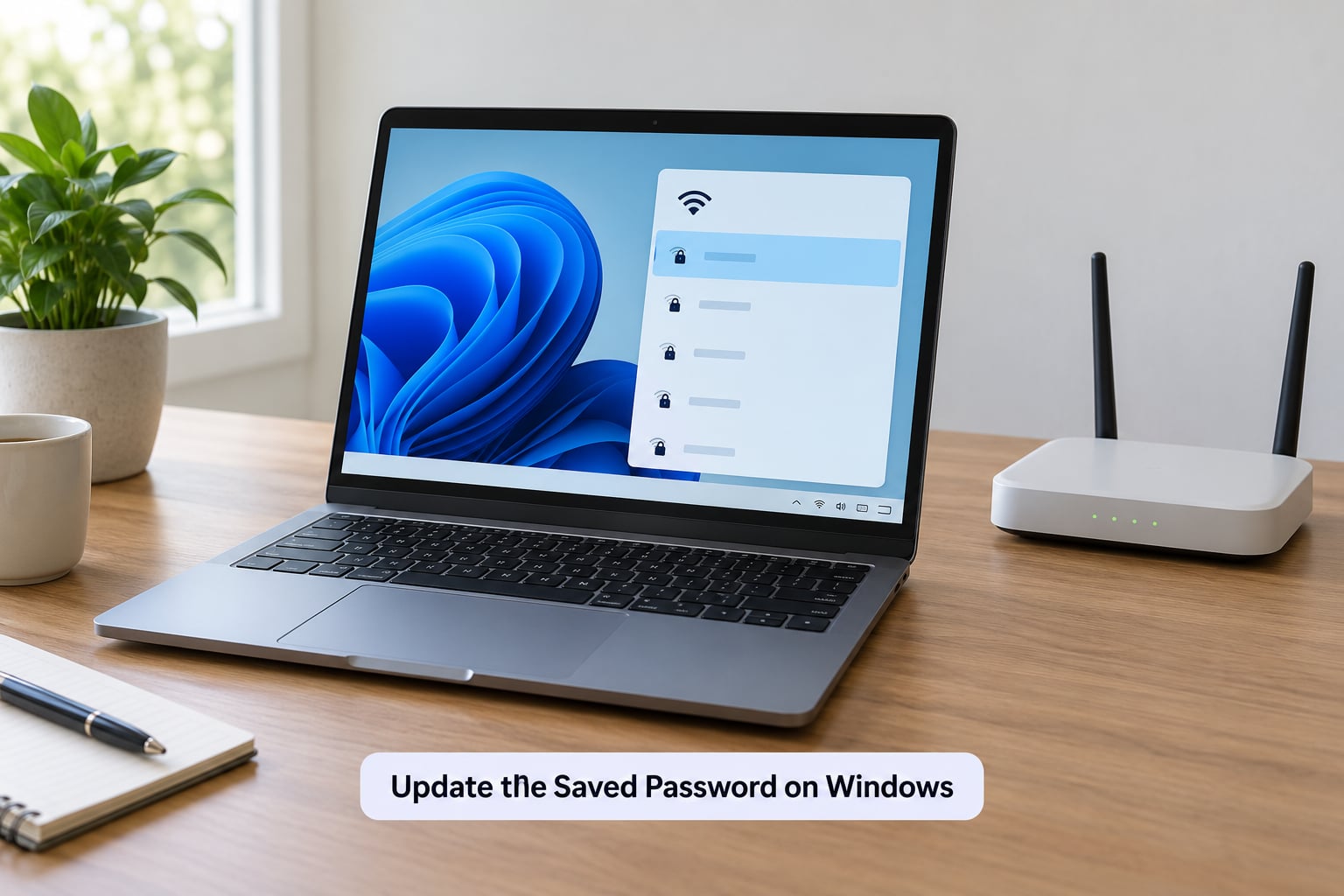
Windows stores the password for networks you have joined. On Windows 11, go to Settings, Network & internet, Wi-Fi, then click the name of your network, then the Wi-Fi security key field, then the Show Wi-Fi security key toggle to reveal it.
That panel shows the current saved password, not a box to type a new one. If you want the new password stored, the reliable route is to forget the network and rejoin it: click your network name, choose Forget, then select it again from the Wi-Fi list and enter the new password when prompted.
On Windows 10 the path is Settings, Network & Internet, Wi-Fi, then click the network name and open Properties. The properties panel has the Show characters link. Ethernet connections do not use the Wi-Fi password at all, so a desktop joined by cable stays online through the whole process.
Update the Saved Password on a Mac
On recent versions of macOS, open System Settings and click Wi-Fi in the sidebar. Select your network, click the Details button next to it, and enter the new password in the Security field if the network is already saved.
If you would rather clear the old entry first, use Keychain Access. Open it from Applications, Utilities, search for the network name, double-click the item, tick Show Password, and edit the Wi-Fi password field there. You may be asked for your Mac login password to authorise the change.
Older macOS releases use System Preferences, then Network, then the Advanced button, then the Wi-Fi tab. The password sits in the Security section under the network you want. On a Mac that has not joined the network yet, you only ever enter the new password on the join screen.
Update the Saved Password on an iPhone or iPad
The reliable sequence on iOS is forget, then rejoin. Open Settings, tap Wi-Fi, then tap the information button beside your network name, then tap Forget This Network. Confirm the prompt.
Now tap your network name in the Wi-Fi list and enter the new password. That is the whole process on current iPhone and iPad versions.
One thing to be clear about: whatever you can change inside the iOS Settings app only changes what is stored on that phone. It does not change the password on your router. The router change happens in the admin page or your ISP app.
Update the Saved Password on Android
Open Settings, tap Network & internet, then Wi-Fi. Tap the network you are connected to. On Pixel and most Samsung phones the saved network page has a Forget button; tap it, confirm, then tap the network again and enter the new password.
If your phone does not offer a Forget option, disconnect by tapping the network name and confirming Disconnect, then reconnect and enter the new password. Some Android versions show the saved network under Saved networks further down the Wi-Fi settings list.
Exact labels differ between phone makers and Android versions, so look for Forget, Disconnect, or Forget network rather than expecting one exact wording. While you are on this screen, the Share button can show a QR code containing the network name and password, which saves typing on devices without a keyboard.
Reconnect Smart TVs, Consoles, and Other Devices
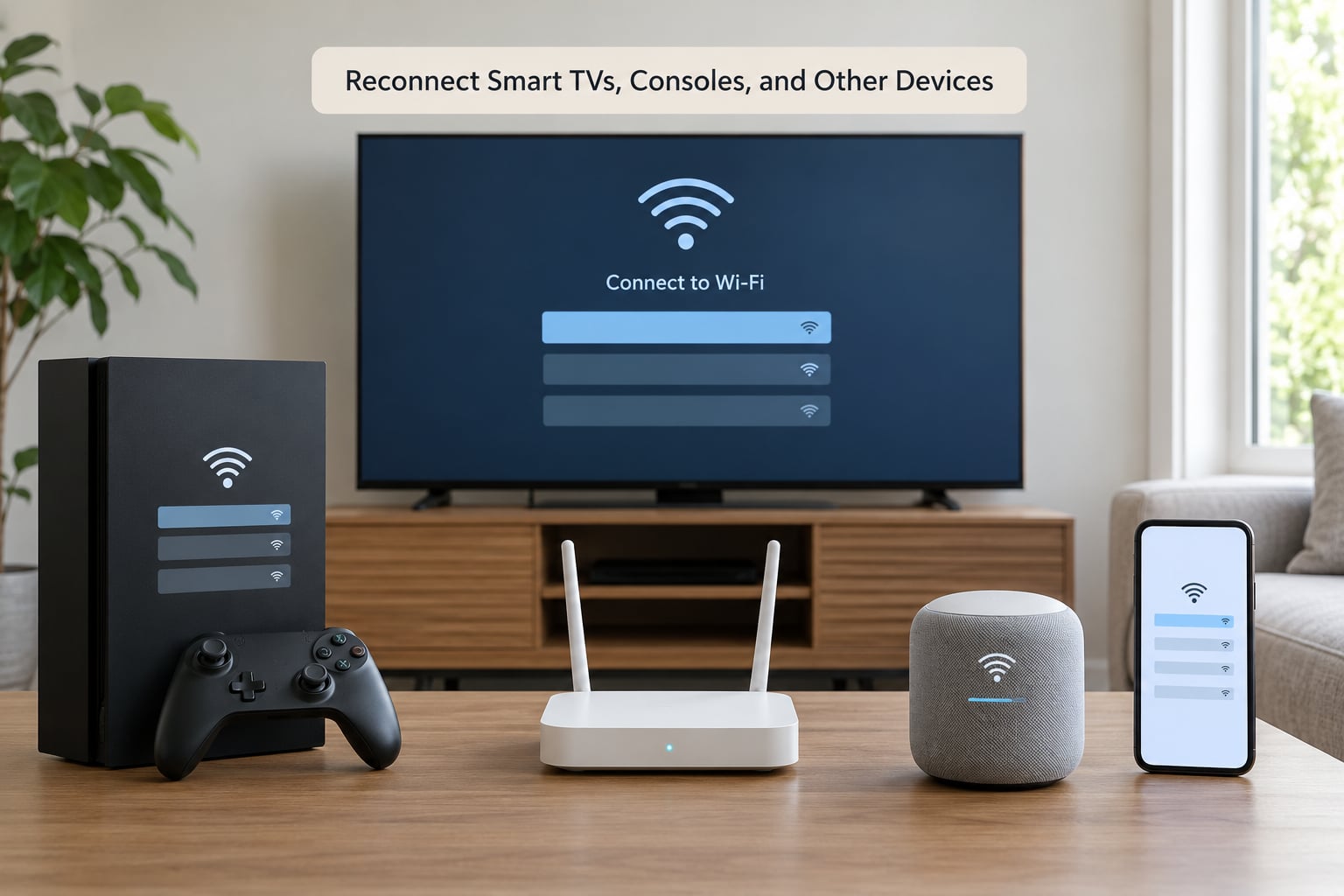
Anything without a browser and keyboard needs its own path. On most smart TVs, open the network settings, choose your network, and enter the new password when it asks. Some 2015 and older TVs only offer a forget-and-search option, which is the same thing by another name.
Game consoles are similar: console network settings, select the wireless network, re-enter the password. Printers usually want you to update the wireless settings on the printer itself, either on its screen or through the print app on your computer, rather than through the computer’s Wi-Fi settings.
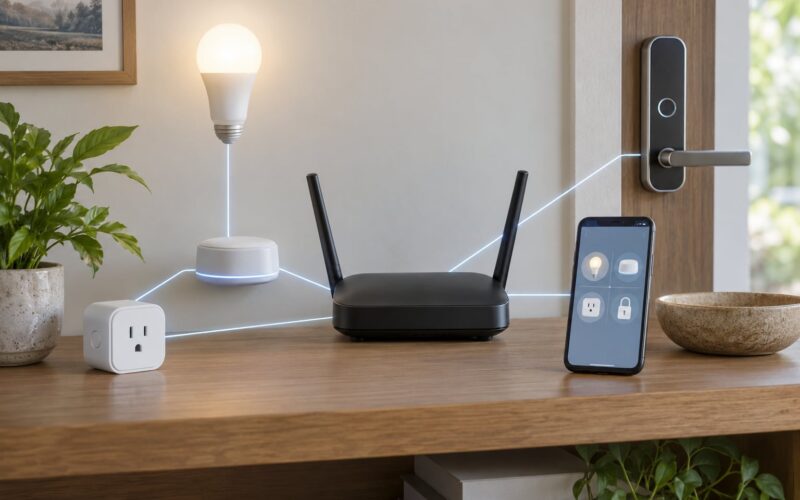
Smart speakers, cameras, plugs, bulbs, and robot vacuums are the painful ones, because most have no display. Their makers usually push updates through a phone app instead. Look in the app for network or Wi-Fi settings and rejoin the network there.
Two shortcuts make this less painful. First, if your router has a guest network with a QR code on the admin page, put guests and short-stay devices there instead of the main network. Second, when you replace a router entirely, give the new one the same network name and password and the old devices reconnect on their own.
Expect everything on the old network to drop the moment you save. If one device keeps trying to reconnect with the old password, the fix is the same everywhere: forget the saved network on that device and rejoin.
Verify the New Password and Secure Your Network
Turn Wi-Fi off and back on, or forget and rejoin the network on a second device, and confirm the new password works. Then open the admin page again and look at the client list, connected devices list, or DHCP lease table. Anything you do not recognise is worth looking into before you simply delete it.
Check that the security type says WPA2 or WPA3, not WEP. Turn off WPS, the Wi-Fi Protected Setup button that lets a device join with a PIN or a push-button press. WPS has been broken for years and it is one of the easiest ways around a strong password.
Your 2.4 GHz and 5 GHz, or 6 GHz, bands normally share one network name and one password, so one change covers all of them. Routers set up with separate names per band need each password changed separately, and the admin page will show them as separate entries.
Common Mistakes
Saving with a typo is the most frequent one, and it is obvious once you try the password on a second device. A related slip is entering the new password on your laptop but never saving it on the router, so the network is unchanged and everything still joins with the old one.
Another common error is changing the SSID instead of the password. Renaming the network from MyWiFi to MyHomeWiFi looks like a change but changes nothing about who can join with the old password. You are looking for the field labelled Password, Passphrase, Shared Key, or Security Key.
Choosing an unsupported security mode causes silent failures. A printer or an older console that cannot handle WPA3 simply never reconnects, even though your phone works. WPA2/WPA3 mixed mode solves this without weakening the network much.
Leaving the router admin password as the factory default leaves the most important door unlocked. Anyone who joins your Wi-Fi can usually browse to 192.168.1.1 and take over your network settings. Change it and store it in a password manager.
Finally, watch for a guest network that got switched on or off by accident. A guest network with the same name as your main one causes confusing dropouts, and a guest network left on with a weak password gives you less security than having none.
What If the Old Password No Longer Works?
You do not always need the old Wi-Fi password to reach the admin page. Because the admin page is a local address, any device already joined to the network can open it, and a device joined by Ethernet cable never needed the password at all.
If your router prints a QR code for the guest network on its admin page, or if your phone shows one for the saved network, that QR code usually carries the current credentials.
If the network is not joining at all, try an Ethernet cable to the router, open 192.168.1.1 from that machine, and look at the wireless settings there. ISP gateways from Xfinity, Spectrum, Verizon, and AT&T also let you change the Wi-Fi password in the provider’s phone app or account site, which works when the router page is locked down.
If the admin password itself is the problem, check the sticker again, then any label on the modem, then your paperwork. ISP support can confirm the management password for a gateway they supplied. The last resort is the factory reset: press and hold the recessed reset pin on the back for about ten to thirty seconds until the status light pattern changes. That returns the router to factory settings and wipes the network name, password, admin password, and any port forwarding or ISP provisioning, all of which you then have to set up again, sometimes with a call to your provider.
Tips for Keeping Your Network Secure
Change the router admin password as well as the Wi-Fi password. This is the one people skip, and it is the one that matters most, since the Wi-Fi password is shared with guests while the admin password should never be.
Turn on automatic firmware updates if your router offers them. Security holes get patched in the router software itself, and an unpatched router is a five-year-old problem that nobody notices.
Keep WPA2 or WPA3 on, WPS off, and remote administration off unless you have a reason for it. If your router has a remote management setting, switching it off closes a door that faces the internet rather than your living room.
Run a guest network for visitors, a separate network for smart home devices where the router supports it, and keep the main network for your own phones and laptops. Look at the connected device list every few months. Unknown entries show up faster than you would expect.
Frequently Asked Questions
Can I change my wifi password without knowing the old one?
Yes. The router admin page sits on a local address, so any device already connected to the network can open 192.168.1.1 without entering the Wi-Fi password. Plugging a laptop into the router with an Ethernet cable also works, since a wired connection never asks for the wireless password. From there you log in with the admin credentials on the sticker and set a new passphrase in the wireless settings.
Can I change my wifi password from my iPhone or Android phone?
Not by itself. You can reach your router’s admin page in the phone browser at 192.168.1.1 and log in, and some routers have companion apps where the Wi-Fi password is one of the settings. But changing a saved network in phone settings only affects that phone. If your provider supplies the router, its own app is usually the easiest route and needs no login at all.
Will changing my wifi password disconnect all my devices?
Yes, every device that was connected drops off the moment you save the change, and each one needs the new password entered again. Your phone and laptop take seconds. Smart TVs, printers, consoles, cameras, and smart plugs need to be re-authenticated individually through their own settings or a phone app. Choosing the same network name and a long password makes that second round far easier.
What should I do if I forget the new wifi password?
Look on the device you used. Windows shows it under the network properties, macOS keeps it in Keychain Access, and both phones can share it as a QR code. Failing that, connect by Ethernet cable and read it from the router’s wireless settings. If you cannot reach the admin page either, resetting the router returns it to the factory password printed on the sticker, along with all your other settings.
Why does my new wifi password not work on one device?
It is usually the device rather than the network. Forget the saved network on it and reconnect with the new password, which clears out the old credential. If it still fails, the device is likely too old for the encryption type, so switch the router to WPA2 and WPA3 mixed mode. Printers and smart home devices are the usual culprits, and they fail silently rather than reporting an error.
Conclusion
Start at the router. Sign in at 192.168.1.1 or 192.168.0.1 with the credentials from the sticker, set WPA2 or WPA3, type a new passphrase of 16 characters or more, and save. Then reconnect one primary device, confirm the new password works, and update every other thing on the network, one at a time.
While the page is open, change the admin password too and note down whether a guest network is switched on. That is the whole job, and the rest of your evening is spent telling the television and the printer the new password.