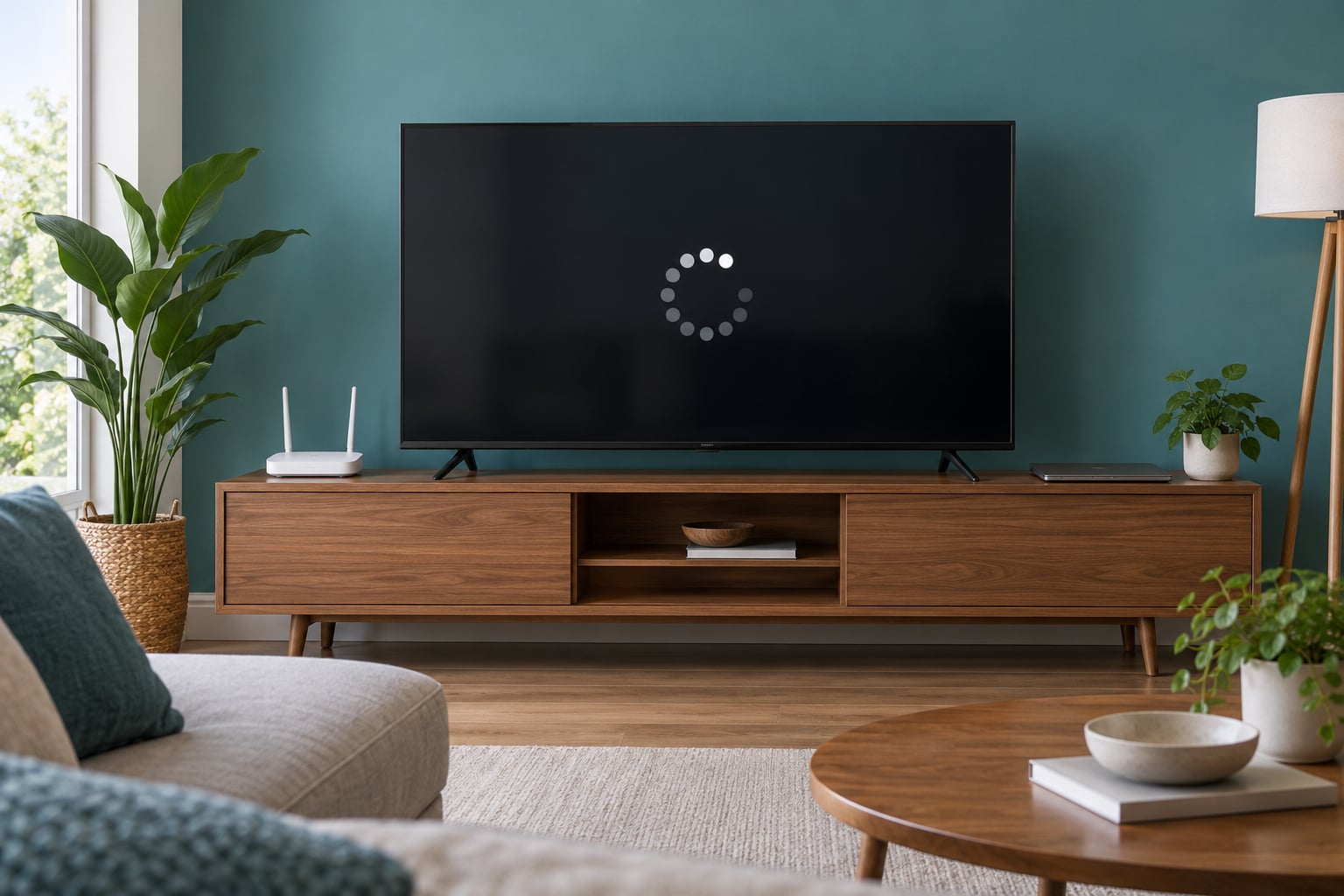
If your smart TV keeps buffering, the cause is almost always one of three things: a connection that cannot deliver enough data, a Wi-Fi signal too weak at the TV, or a TV whose own hardware is too slow to keep up. Buffering happens when the video data arrives slower than the TV plays it, so the playback buffer empties and you get the spinning circle.
The useful part is knowing which of those three you have, because the fixes are completely different and the order matters. Restart first, test a second app, and you will usually know within five minutes whether you are dealing with the network, one streaming service, or the TV itself.
Updated October 2026. I have spent a lot of time with smart TVs and streaming boxes in this house, and almost every buffering problem ended up in one of a handful of places. This guide walks the same order I use.
Table of Contents
- 1Why Does My Smart TV Keep Buffering?
- 2Quick Checks Before You Change Any Settings
- 3Check Your Internet Speed and Network Stability
- 4Fix Wi-Fi Buffering on Your Smart TV
- 5Clear the Streaming App’s Cache and Data
- 6Update the Smart TV and Streaming App
- 7Why Does My Smart TV Keep Buffering Only on One App?
- 8Change DNS Settings if Your Network Allows It
- 9Reduce Competing Network Traffic
- 10When the Problem Is the TV’s Performance or Service
- 11Frequently Asked Questions
- 12Why does my smart TV keep buffering even though my internet is fast?
- 13How much internet speed does a smart TV need for smooth streaming?
- 14Does buffering mean my TV needs to be replaced?
- 15Should I use Wi-Fi or Ethernet to fix smart TV buffering?
- 16Why does buffering happen only on one streaming app?
- 17How often should I clear the cache on my smart TV?
- 18Start With the Quick Checks
Why Does My Smart TV Keep Buffering?
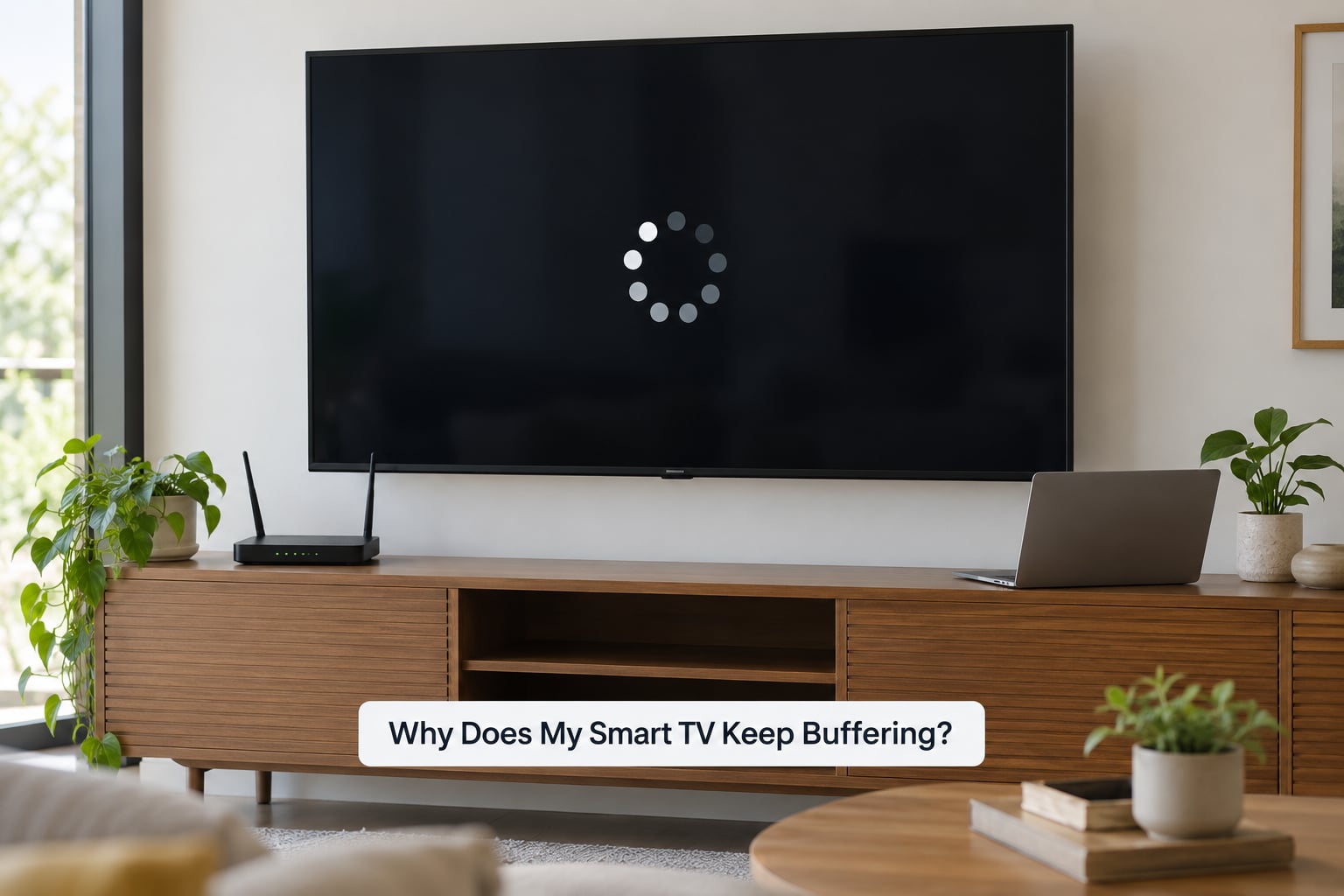
Streaming video downloads in small chunks ahead of playback. When the rate arriving at the TV drops below the rate the stream is being played back at, that pre-loaded buffer empties and playback stops while the TV waits for more data.
That single mechanism produces all the symptoms you see, from a spinning circle to a frozen frame to audio that keeps going while the picture stalls. So the causes are really about what slows the arrival of data or the processing of it.
- Not enough bandwidth. The plan or the Wi-Fi link cannot carry the bitrate the app is asking for at that moment.
- Unstable Wi-Fi. Walls, distance, and neighbouring networks weaken or drop the signal, so throughput collapses even when the underlying line is fast.
- Congestion on the network. A cloud backup, a game downloading, or four people streaming at once eats the capacity the TV needs.
- A bloated app cache. Temporary data builds up over months and the app starts struggling before the picture does.
- The streaming service itself. Servers get overloaded in the evening, or the app is throttling one account while others play fine.
- Outdated TV software. Old firmware carries old network drivers and codec handling that no longer cope with current streams.
- Weak TV hardware. Budget and mid-range sets ship with limited memory and processors that struggle with 4K, especially after an update adds weight.
- A VPN or a DNS resolver that is slow to answer. Both add delay to the very first connection, which delays the first chunk.
Storage matters too. When a TV’s internal memory is nearly full, the operating system starts evicting things it needs, and the app you are watching gets deprioritised. You will notice the menus getting sluggish well before playback breaks down.
Quick Checks Before You Change Any Settings
These five steps take about five minutes and rule out most cases. Do them in order, because each one tells you something the next one cannot.
- Pause and play for a minute. If a short pause plays instantly and the problem is gone for a while, your connection has just enough bandwidth for a steady stream but not enough to catch up after a stall.
- Open the TV’s network status screen. You are looking for whether it reports a connection at all, and what speed it thinks it has.
- Restart the TV, properly. Turning it off with the remote does not clear memory on most models. Unplug it, wait 30 to 60 seconds, and plug it back in. That power cycle clears the memory and forces a fresh network handshake.
- Try a different app. This is the branch point. If everything buffers, it is the network or the TV. If one app buffers while others are fine, it is that service or that app’s cache.
- Watch for ten minutes, including live content. On-demand video buffers when data runs short. Live channels buffer when the service is overloaded. Different cause, different fix.
If step four splits the problem, skip ahead to the one-app section below. If everything buffers, keep going with the network.
Check Your Internet Speed and Network Stability
The most common confusion on this topic is testing speed on a phone and concluding the network is fine. Your phone is sitting next to the router with a clear line of sight. The TV is across the room, behind furniture, on a wireless link that may be negotiating a much lower rate.
A phone showing 300 Mbps tells you almost nothing about what the TV is actually receiving. Read the number from the TV instead. On most platforms the path is Settings, then Network, then a connection check or an About screen that shows IP address, signal strength and measured speed.
Samsung Tizen puts it under Settings, General, Network, Network Status. LG webOS uses Settings, General, Wi-Fi, Wi-Fi Connection Test. Roku has Settings, Network, Check connection. Fire TV and Google TV both hide a connection test under Settings, Network or Applications.
Then compare what you measured against what the stream needs:
| Stream quality | Steady speed needed | Comfortable target |
|---|---|---|
| SD or 720p | About 3 Mbps | 5 Mbps |
| HD 1080p | About 5 Mbps | 10 Mbps |
| 4K UHD | 15 Mbps | 25 Mbps |
| 4K HDR | 25 Mbps | 50 Mbps or more |
Two other numbers matter. Latency shows how responsive the link is, and jitter shows how much that latency varies. A fast connection with high jitter produces exactly the stutter-and-catch-up pattern you see during live sport, even when the speed figure looks healthy.
If the TV reports a perfectly good speed and still stalls, watch for a pattern. Buffering that only appears in the evening usually means the network is fine but shared, and something else is consuming capacity at that hour.
Fix Wi-Fi Buffering on Your Smart TV
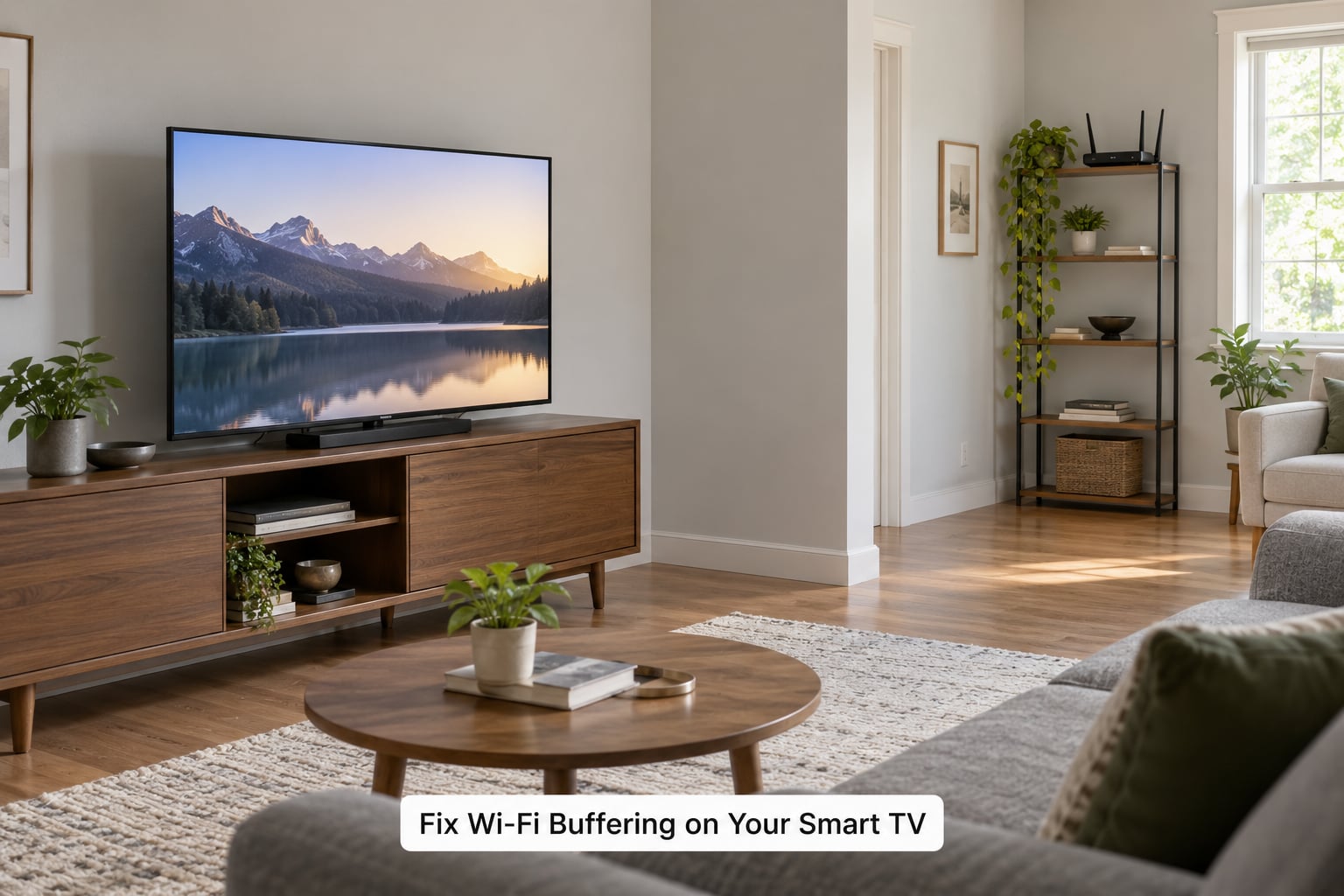
Band choice is the first thing to change. Most routers broadcast two: 2.4 GHz reaches further but is crowded and slower, while 5 GHz is faster and shorter ranged. On most routers the 5 GHz network has a name ending in _5G, though newer models merge both bands under one name and split them automatically.
Connect the TV to the 5 GHz network, and if the router has a separate SSID for each band, pick the 5 GHz one explicitly. If your router has a dedicated TV or IoT network, use that instead; many of those put connected devices on a separate band so the TV is not fighting your laptop for airtime.
Placement matters as much as band. Routers on a shelf in a far corner, behind a television, or next to a microwave will struggle. Move the router to an open spot, at roughly the same height as the TV if you can, and away from metal, mirrors and large appliances.
Walls are the main enemy. One brick or concrete wall between the router and the TV can cut a 5 GHz link badly. In a house with thick walls, a mesh node in the room with the TV solves it more reliably than any setting change.
Then forget the TV and reconnect it. Settings, Network, Connection, Disconnect, then reconnect with the password typed in by hand rather than pushed from a phone. That one step resets the DHCP lease and clears a bad address assignment, which fixes a surprising number of “the TV is broken” reports.
On Ethernet, be honest about what you gain. A wired link beats Wi-Fi for stability, which usually matters more than raw speed. But many smart TVs ship with a 100 Mbps Ethernet port rather than gigabit, and a high-bitrate 4K stream can burst above that ceiling. Check the port spec before you assume Ethernet is the automatic answer; in some homes a strong 5 GHz link genuinely outperforms the wired port.
Clear the Streaming App’s Cache and Data
The app cache is temporary data the app keeps so it can start faster. It grows quietly for months, and at some point the app spends more time managing its own storage than playing video.
Clearing it is safe. You will be signed out of that app, so have your password ready, but nothing is deleted from your account.
On Roku there is no cache button. The shortcut is a remote sequence: press Home five times, then Up once, Rewind twice, then Fast Forward twice. The screen dims while it works and returns when it is done, which usually takes 15 to 30 seconds. Owners in Roku communities describe it as the fix that works most often.
On Samsung Tizen the path is Settings, Apps, then the three-dot menu next to the app, Clear Cache or Clear Data. LG webOS uses the same shape: Settings, All Settings, Applications, choose the app, Clear Cache. Fire TV goes through Settings, Applications, Manage Installed Applications, the app, Clear Cache. Google TV and VIZIO follow the applications list pattern too.
| Platform | Clear the cache | Restart from settings |
|---|---|---|
| Samsung Tizen | Settings, Apps, app, Clear Cache | Settings, General, System Info, Restart |
| LG webOS | All Settings, Applications, app, Clear Cache | General, Quick Settings, Power Off |
| Roku OS | Home x5, Up x1, Rewind x2, Fast Forward x2 | Settings, System, Restart |
| Fire TV | Settings, Applications, Manage Installed, Clear Cache | Settings, My Fire TV, Restart |
| Google TV | Settings, Apps, app, Clear storage | Settings, System, Restart |
| VIZIO SmartCast | Settings, Apps, app, Clear App Data | Settings, System, Restart |
Menu names shift between brands, model years and app versions, so if a label is missing, look for Clear Cache, Clear Data or Clear Storage in the same screen and they mean the same thing.
If clearing the cache does not help, delete the app and reinstall it. You will need to sign in again, and downloads take a moment, but a corrupted install cannot survive a clean reinstall.
Update the Smart TV and Streaming App
Updates fix real buffering problems, usually quietly. Firmware releases carry improved Wi-Fi drivers, newer codec support for the formats services now use, and memory management fixes that stop the operating system from thrashing. Apps update the decoding logic that pairs with them.
Check the TV first. Samsung uses Settings, Support, Software Update. LG uses Settings, General, TV Information, Software Update. Roku checks automatically and prompts you, and Settings, System, Check for updates forces it. Fire TV is under Settings, My Fire TV, About, Check for updates, and Google TV sits under Settings, System, About. Update apps from the TV’s own app store, not from a phone or a browser.
One caution: install updates from the manufacturer’s settings menu or its official app store. Files pulled from third-party download sites are a well-known route for malware on TVs, and they are never a legitimate source of firmware.
Why Does My Smart TV Keep Buffering Only on One App?
This is a different problem, and the network is rarely the culprit when every other app plays smoothly. Work through these in order.
- Service load. Evening peaks overload the provider’s servers. You will see it across every service at the same hour, and it usually eases after 10 pm.
- Corrupt app data. Clear the cache for that app only. This is the most common cause and the quickest to rule out.
- Playback limits on your plan. Some tiers cap resolution or simultaneous streams. On a 4K plan viewed on a screen where 1080p looks identical, lowering quality inside the app stops the buffering instantly.
- Too many devices on one account. Sign out of the other televisions, phones and consoles, then sign in on this one. Providers limit concurrent playback.
- Playback rights and region checks. A licence check that fails leaves the app waiting for data that never comes, which shows up as a permanent spinner rather than periodic stalls.
If Netflix is the one app, open its settings and turn off the data saver option, which caps stream quality. For live sport on ESPN or a similar app, buffering that only affects live channels and never on-demand points at the service’s delivery side, not your network.
One more cause worth knowing: a VPN. Some VPNs route streaming traffic through congested servers, and many services block them outright, which produces app-specific stalls that no amount of cache clearing will fix. Turning the VPN off for a test tells you in seconds whether it is involved.
Change DNS Settings if Your Network Allows It
DNS turns a service name into an address. If the resolver your provider hands out is slow or overloaded, the first chunk of every stream arrives late, and the app may show a spinner before playback begins.
Changing it is low-risk and takes about two minutes. On most TVs the path is Settings, Network, DNS, Manual. Put in the addresses your chosen provider gives you, save, and restart the TV.
What this will not do is fix a slow line. DNS affects how quickly you start, not how fast data arrives. If your TV’s own connection test reports a low speed, no resolver on earth changes that.
Reduce Competing Network Traffic
Most households have more than one thing using the internet at once, and streaming is usually the one that gives up first because it needs a steady rate rather than a fast burst.
The usual suspects: cloud photo backups running in the background, console game downloads, a 4K video call, several people on video calls, and a second TV streaming at the same time. Each of those will happily consume the whole line.
To test it, pause everything else for one evening and watch. If the buffering disappears, you have your answer. Then fix it properly rather than by scheduling: move backups to a wired machine, pause game downloads when someone is watching, or step up to a plan sized for the number of people who stream at once.
As a rough guide, plan for about 25 Mbps per simultaneous 4K stream plus headroom. A household streaming in 4K on two devices in the evening needs comfortable headroom above that, not exactly that number.
When the Problem Is the TV’s Performance or Service
Sometimes the answer is that the television cannot keep up. Budget and mid-range sets often ship with modest memory and processors, and an update that adds new background features can push an older set past its limit.
The signs are consistent. Menus that take a second or two to respond, apps that feel sluggish to open, buffering that appears on several different services, a storage warning, or a set that buffers most on 4K while 1080p plays fine. One household, for instance, has a large Samsung set that stalls constantly on one network while a smaller set in another room plays the same content without a hitch, which points at the set rather than the line.
When you get there, an external streaming device is worth considering. A dedicated streamer has newer hardware, more memory and software that is still being maintained, and in most cases the buffering stops immediately. Treat it as a fix for aging TV hardware rather than an upgrade to the picture.
If the set is newer, check storage first and delete apps you no longer use. Freeing space resolves a surprising number of slow TVs.
Last, factory-reset the TV, but only after everything above has failed, and only knowing that it signs you out of every app and wipes your settings. If buffering survives a reset on a new network and a second app, the hardware is the likely culprit, and it is time to contact the manufacturer about service or warranty coverage.
Frequently Asked Questions
Why does my smart TV keep buffering even though my internet is fast?
Your phone speed test measures a different connection than the TV uses. The phone sits near the router on a strong link, while the TV is across the room on a weaker wireless signal, and the TV’s own Ethernet port is often limited to 100 Mbps. Read the speed from the TV’s own network status screen instead. If that number is healthy too, the cause is usually the app cache, the streaming service, or the TV’s own processor.
How much internet speed does a smart TV need for smooth streaming?
HD 1080p needs about 5 Mbps and runs comfortably at 10 Mbps. 4K UHD needs roughly 15 Mbps, and 4K HDR wants 25 Mbps or more. Aim comfortably above the number rather than exactly on it, because other devices in the household compete for the same capacity. A line that just meets the requirement will stall the moment a console starts downloading.
Does buffering mean my TV needs to be replaced?
Not usually. Buffering is far more often a network problem, a congested Wi-Fi link, or a bloated app cache, and those cost nothing to fix. Signs that point to hardware are slow menus, buffering across several different apps, and stalling only on 4K. If a factory reset on a clean network does not help, an external streaming device will confirm the answer before you spend money on a new television.
Should I use Wi-Fi or Ethernet to fix smart TV buffering?
Wired Ethernet gives the most stable result, which matters more than raw speed for video. The catch is that many smart TVs have a 100 Mbps Ethernet port, and a high-bitrate 4K stream can burst above that ceiling. Check your TV’s port specification. If it is 100 Mbps, a strong 5 GHz Wi-Fi link may perform better in practice than the wired port.
Why does buffering happen only on one streaming app?
If every other app plays smoothly, the network is not the problem. Work through it in order: clear that app’s cache, check for an app update, look for a playback limit on your subscription, sign out of other devices signed into the same account, and try again with any VPN switched off. Evening congestion on the provider’s servers also shows up as one app stalling while others work.
How often should I clear the cache on my smart TV?
Every few months, or any time an app starts opening slowly or stalling. Clearing the cache is safe and costs nothing but a sign-in. On most platforms it takes about a minute through the app’s settings. On Roku there is no menu option; the remote shortcut is Home five times, then Up once, Rewind twice, and Fast Forward twice.
Start With the Quick Checks
Unplug the TV for a minute, plug it back in, and try a second app. That single test splits the problem in half and tells you where to spend your time.
If every app buffers, work the network: read the speed from the TV’s own network screen, move to the 5 GHz band, and pause whatever else is using the connection. If only one app buffers, clear its cache, sign out your other devices, and check for a VPN.
After that, clear the cache on every app, install the pending software updates, and only then look at DNS or consider an external streaming device. Save the factory reset for the very end, because it costs you every login you have saved on that television.