
Frozen video, robotic audio, and the yellow “Your Internet Connection is Unstable” bar usually come down to one measurable thing: how to improve Zoom call reliability on slow internet by reading the upload number on a speed test, killing competing traffic, and cutting how much video Zoom has to push.
Most people check the download figure on their speed test and declare the connection fine. Zoom sends your camera and microphone upstream, so upload speed, latency, and packet loss decide how the call feels, and a plan advertised at 300 Mbps down can still run a terrible meeting on a 10 Mbps upload.
The order below is deliberate. Everything in the first three steps is free and takes under ten minutes, and you should finish each one before moving to the next.
Table of Contents
- 1What You Need
- 2Step-by-Step: How to Improve Zoom Call Reliability on Slow Internet
- 31. Run Zoom’s network test before you join
- 42. Close downloads, streaming, and cloud backups
- 53. Connect by Ethernet to improve Zoom call reliability on slow internet
- 64. Reduce Zoom bandwidth without disabling the core of the meeting
- 75. Change Zoom settings for a slower connection
- 86. Keep a reliable fallback ready for the call itself
- 97. Test on a second device or network to isolate the layer
- 10Common Mistakes
- 11Frequently Asked Questions
- 12How do I optimize Zoom for slow internet?
- 13Why is Zoom lagging even with good internet?
- 14What does Zoom’s unstable connection warning mean?
- 15How much upload speed do I need for a good Zoom call?
- 16Why does Zoom audio cut out for other participants?
- 17Conclusion
What You Need
You need four things, and three of them are already in the room. First, the Zoom desktop client or the mobile app, updated to the current version. Second, access to your router’s admin page, usually through a web address you type into a browser after signing in on the device itself.
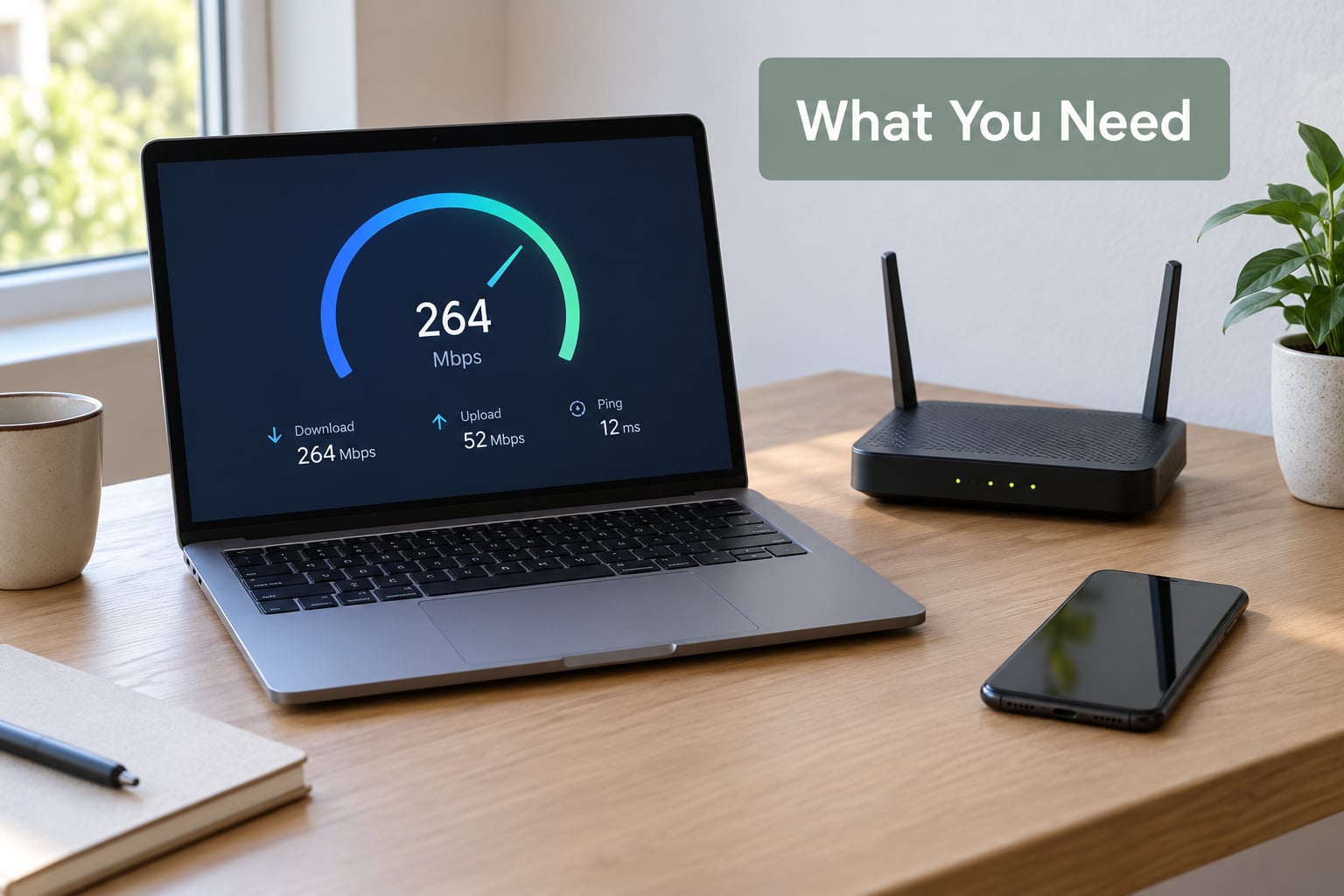
Third, a way to measure the connection. Any reputable speed test will do, run while every other device is asleep so the number reflects your line and not the household. Fourth, a second device or a phone you can put on a hotspot, which is how you find out whether the problem is your network, your computer, or Zoom itself.
It helps to know what you are aiming for. Zoom publishes minimum network requirements, and these are the figures most people are actually failing:
| What you are doing in the call | Upstream | Downstream | Latency |
|---|---|---|---|
| Audio only, one person speaking | 1.0 Mbps | 1.0 Mbps | Under 150 ms |
| Low-quality video, a few people | 1.3 Mbps | 1.3 Mbps | Under 150 ms |
| HD video with screen sharing | 3.0 Mbps | 3.0 Mbps | Under 150 ms |
| Large group or webinar stream | 3.0 Mbps per host | 600 kbps per viewer | Under 150 ms |
Those are floors, not targets. Headroom matters because something else on your network will eventually want the same pipe.
Step-by-Step: How to Improve Zoom Call Reliability on Slow Internet
1. Run Zoom’s network test before you join
Open Zoom, click your profile picture at the top right, choose Settings, then open the Advanced tab and click Network. On the desktop client this runs a pre-call test showing round-trip time, jitter, packet loss, upload, and download in about fifteen seconds. On mobile, tap Settings, then Connection, then Connection Test.
Read it like this. Upload under 3 Mbps explains poor video. Round-trip time over 200 ms gives you that half-second delay where you talk over people. Packet loss above 2 percent is the quiet killer, because Zoom drops those chunks and the audio crackles for everyone else even though your own view looks fine.
Jitter above 30 ms is the reason a call that was smooth at minute five starts stuttering at minute twenty. Fix the first number that is out of range before you enter the meeting, because everything downstream depends on it.
2. Close downloads, streaming, and cloud backups
Bandwidth contention is the single most common cause of a call that collapses the moment someone else in the house does something. Pause the streaming service, the game download, the cloud photo sync, and the large file transfer. On Windows, check for a pending Windows Update or an antivirus scan, since those run silently and can eat an entire uplink for several minutes.
Zoom needs very little bandwidth when things are quiet, which is why the call that worked fine at 9pm fails at 8pm. If you cannot control the other device, see whether your router exposes smart queue management or traffic shaping, often labeled QoS or SQM. It cannot invent bandwidth, but it stops a backup job from monopolizing the line mid-meeting.
3. Connect by Ethernet to improve Zoom call reliability on slow internet
A wired connection removes Wi-Fi interference, weak signal, and half of the jitter problem in one move. Plug a cable from the laptop to the router or to any switch feeding it, then confirm the computer is using Ethernet rather than falling back to Wi-Fi.
If you are stuck on wireless, move closer to the router and prefer the 5 GHz band over 2.4 GHz. The 2.4 GHz band reaches further but is crowded, slower, and much more prone to freezing. Pick it only when the 5 GHz signal is genuinely too weak at your desk.
Restarting the router clears a genuinely wedged connection, though it will knock offline every other device in the house, so do it when nobody else is mid-call. Restarting the router does nothing at all during an ISP outage, and no amount of power-cycling fixes a fibre cut two miles away.
4. Reduce Zoom bandwidth without disabling the core of the meeting
Video is the expensive part, audio is cheap. Turning off your camera in a large meeting frequently rescues a call that was freezing every few seconds, and most of the time nobody was watching you anyway. Screen sharing costs more than video, so avoid sharing your whole desktop when a single window will do.
Background blur, virtual backgrounds, Touch Up My Appearance, and HD audio all add processing and data. Close tabs you are not using, particularly the one running video, because a tab with a live conference in it keeps uploading on a schedule you did not authorize.
5. Change Zoom settings for a slower connection
Turn HD off at Settings, Video, Video, then uncheck Enable HD video. Menu labels differ slightly between Windows, macOS, and mobile, but the control sits under Video in every version. Then go to Settings, Advanced and switch on Low Bandwidth Mode, which asks Zoom to drop from HD to a single stream and keeps your microphone transmitting.
Two more worth turning off. In Settings, Audio, turn off Original Sound for musicians if it is enabled, since the higher fidelity mode uses noticeably more bandwidth. In Settings, Video, set Touch Up My Appearance off and choose None for the background. On Windows, hardware acceleration is worth testing both ways at Settings, Advanced, Disable hardware acceleration when video is stuttering but the network measures clean, since GPU conflicts show up as a stutter with no network cause at all.
6. Keep a reliable fallback ready for the call itself
When quality collapses mid-meeting, switch rather than troubleshoot. Turn off Wi-Fi on your phone and let it use cellular data, then join from the phone app, audio first. On iPhone and Android you can also force the call onto mobile data through the Wi-Fi calling priority setting in the cellular options menu.
If the meeting offers a dial-in number, use it. Zoom’s phone bridge is an ordinary conference call, it costs almost no bandwidth, and it keeps you in the meeting when nothing else will hold. You stay muted and unvideoed while the meeting carries on.
As host, you can also reduce what everyone sends: Settings, Advanced, then lower the maximum video quality for a low bandwidth situation, and check the participant count. Video streams up by roughly 0.6 Mbps per receiving participant, so ten people watching a sharer is not the same load as ten people talking.
7. Test on a second device or network to isolate the layer
Run the same meeting from a second device on the same Wi-Fi. If it also freezes, the problem sits on the network or with Zoom’s service. If the second device is perfect, the problem is your first computer.
Then put your phone on a hotspot and run Zoom there. Clean on the hotspot means your router or Wi-Fi is at fault. Still bad on both networks means the device or the Zoom client is. Once isolated, write down what changed so the next occurrence is obvious rather than another round of guessing.
Common Mistakes
Trusting the download number on a speed test. Zoom is an upstream workload. Read the upload figure, and run the test with other devices idle so it is not masked.
Joining on congested Wi-Fi. Hotel and Airbnb networks are often oversubscribed, meaning far more devices than the line was built for. A phone hotspot is faster and more predictable there.
Leaving HD video and background effects on. These are the first things to turn off, not the last.
Updating Zoom right before an important call. A client update can change settings or reset audio devices. Update after, never ten minutes before.
Expecting a router restart to fix an ISP outage. If the modem’s lights show no signal or the outage map lists your area, restarting changes nothing. Collect timestamps of when quality dropped, run a ping test during the call, note the packet loss, and hand that to the provider.
Buying a faster plan before checking contention. Several people streaming from one line can starve a call on a connection that would be plenty on its own. Verify the contention first.
Waiting it out on a two-hour lecture. If a call degrades after twenty minutes every time, restart the Zoom client itself rather than only rejoining the meeting, and close the apps you have accumulated during the session.
Frequently Asked Questions
How do I optimize Zoom for slow internet?
Turn off HD video, switch on Low Bandwidth Mode under Settings, Advanced, close background effects, and stop any streaming or cloud backup running on the same connection. Prefer a wired Ethernet link, or move onto the 5 GHz band if you must stay on Wi-Fi. If the call is still unstable, rejoin from a phone on cellular data or use the meeting’s dial-in number, which needs almost no bandwidth.
Why is Zoom lagging even with good internet?
Because the download number is the wrong number. Zoom streams your video upstream, so a fast download with a weak upload still produces a poor call. Other common causes are packet loss above roughly 2 percent, jitter over 30 ms, other devices consuming the same connection, and local device load from a busy CPU or GPU. A speed test run while everything else is idle will usually reveal which one applies.
What does Zoom’s unstable connection warning mean?
Zoom has dropped or delayed too many of the data packets carrying your call, so it reduces video quality before it drops the call. The message appears on wired connections too, because a cable does not prevent packet loss upstream at your provider’s network or on shared building infrastructure. Read it as a measurement of packet delivery, not as a statement that your cable is unplugged.
How much upload speed do I need for a good Zoom call?
Zoom publishes a 3.0 Mbps upstream and downstream minimum for HD video with screen sharing, 1.3 Mbps for low-quality video, and around 1 Mbps for audio only, with round-trip latency under 150 ms. Those are floors rather than targets, so aim well above them, especially if anyone in the house streams or backs up devices at the same time.
Why does Zoom audio cut out for other participants?
Other people are hearing a packet loss problem that you cannot see, because their audio is affected while your local view still looks fine. Check Settings, Audio for noise suppression and Original Sound settings, and confirm your microphone input is the device you expect rather than a Bluetooth headset that has dropped to a poor profile. Testing from a phone on cellular data tells you quickly whether the fault is your uplink or your machine.
Conclusion
Start by measuring: run Zoom’s own network test and an external speed test with other devices idle, and read the upload number rather than the download number. Next, stop whatever else is competing for the line, because a paused backup job fixes more calls than any setting change.
Then cut Zoom’s own load by turning off HD video, background effects, and unneeded tabs, and put the machine on Ethernet or the 5 GHz band. Keep a fallback in your pocket: cellular data on the phone, or the meeting’s dial-in number. That sequence covers almost every unreliable call, and when it does not, you will already know which layer to argue about with your provider.