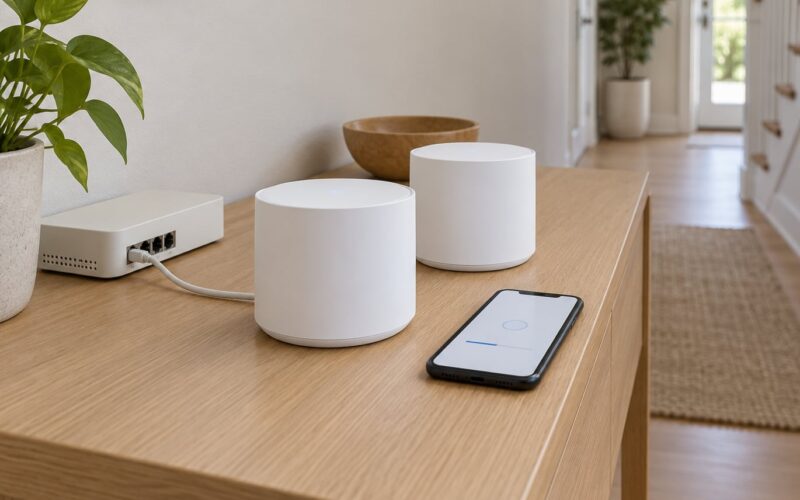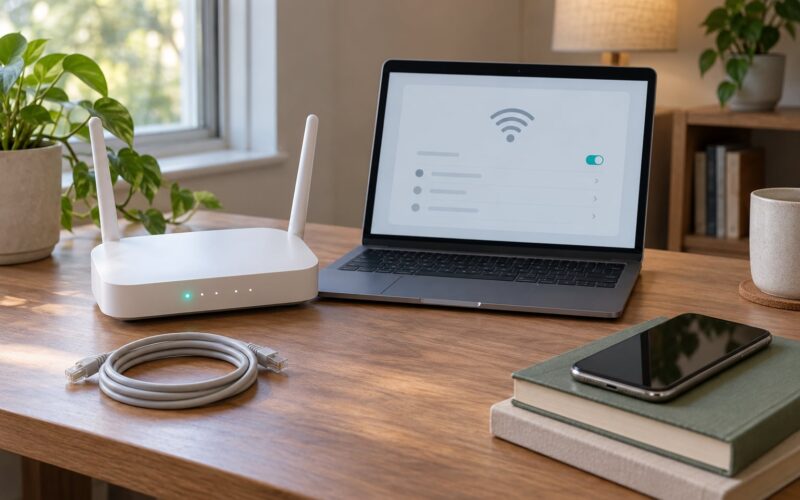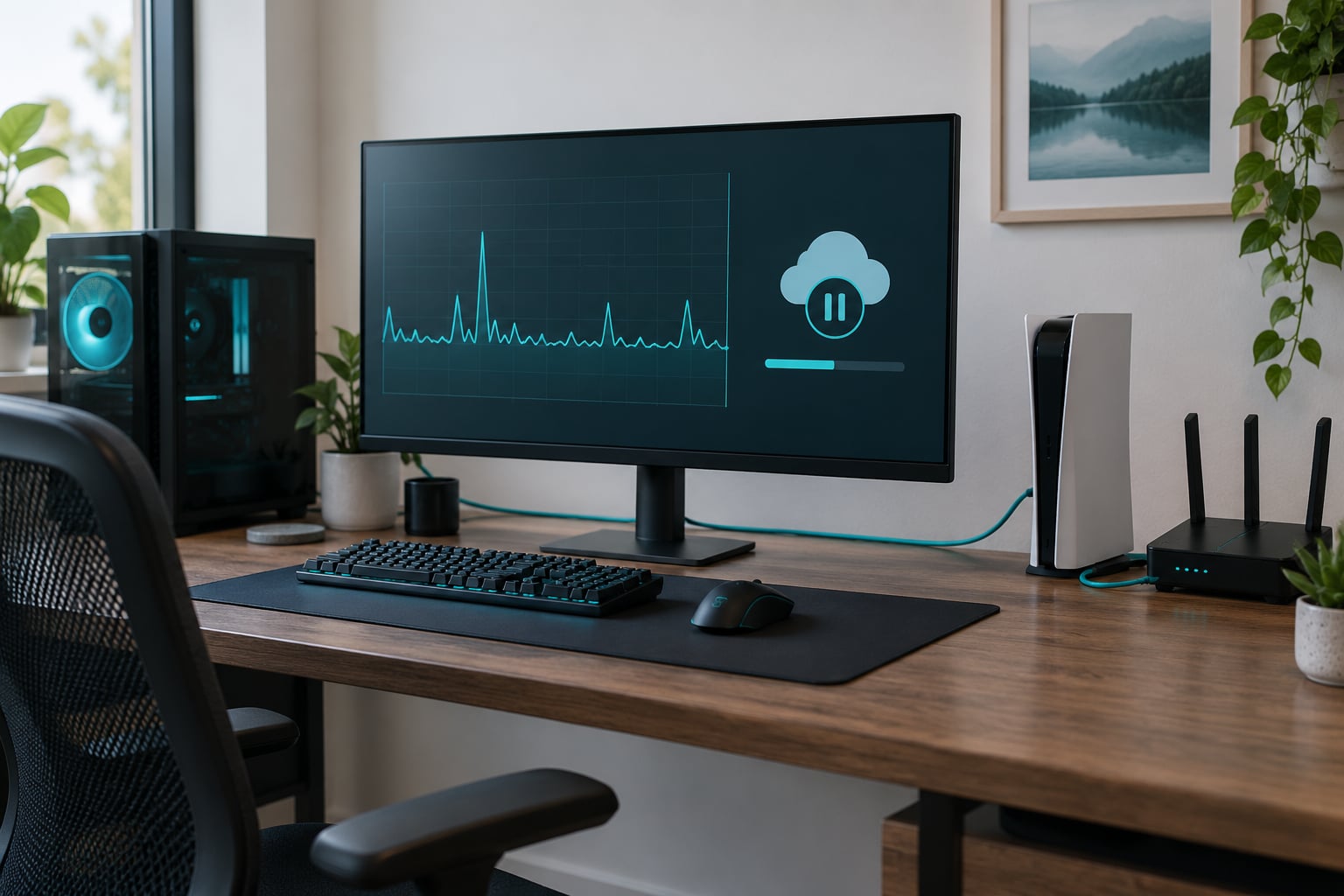
If you want to know how to fix high ping while gaming, start with two moves: put your PC or console on a wired Ethernet connection, and stop everything on your network that is downloading or uploading at the same time. That pair solves most of it, and the whole check takes about fifteen minutes.
Ping is the round-trip time between your device and the game server, measured in milliseconds. When it climbs, your inputs land late, shots miss where the enemy was, and characters rubber-band backwards. It has nothing to do with how fast your internet plan is, which is the part most people get wrong.
The steps below run from fastest to slowest, and each one tells you how to confirm it worked. Change one thing, then measure again, so you know which change actually did the work.
Table of Contents
- 1What You Need
- 2Step-by-Step: How to Fix High Ping While Gaming
- 31. Pause Downloads, Streaming, and Cloud Backups
- 42. Restart the Game, Device, and Router
- 53. Use Ethernet or Improve the Wi-Fi Signal
- 64. Check Ping, Packet Loss, and Jitter Separately
- 75. Change DNS and Network Adapter Settings
- 86. Adjust In-Game and Launch Settings
- 97. Update Drivers, Game Software, and the Console
- 108. Check the Router and Contact the ISP
- 119. Re-Test in a Clean Setup and Prevent Spikes
- 12Common Mistakes
- 13Confusing download speed with ping
- 14Changing everything at once
- 15Turning off security software permanently
- 16Blind tweaks: IPv6, jumbo frames, hidden registry values
- 17Blaming Wi-Fi without checking for loss
- 18Paying for a booster before measuring
- 19Frequently Asked Questions
- 20What is a good ping for online gaming?
- 21Should I use Wi-Fi or Ethernet for gaming?
- 22Can high ping be caused by packet loss?
- 23Does using a VPN improve gaming ping?
- 24Why is my ping high in only one game?
- 25Conclusion
What You Need
Almost everything below needs no purchases at all. You need a little access, not a new router.
- A wired connection or a spare Ethernet cable. A Cat5e cable handles gigabit speeds fine, and Cat6 is worth it if one is already in the drawer.
- Access to restart everything. That means the router, the modem or ONT, and the PC, console or phone you’re playing on.
- A way to see a ping number. Nearly every game shows one in its network settings or on its scoreboard.
- Ten minutes and a notebook. Write down the number before each change. Screenshots of a graph beat memory three days later.
- Optional: a command prompt. On Windows, right-click Start, choose Terminal or Command Prompt, and you can ping directly. No install needed.
- Optional: a phone. A 5G hotspot is the fastest way to prove whether the problem is your home line or your setup.
Administrator access on Windows 11 helps too, since a few adapter settings sit behind that prompt. If your device is managed by an employer or school, that prompt will never appear, and some of step 5 is off the table.
Step-by-Step: How to Fix High Ping While Gaming
Work down this list in order. Each step names what to do and how to tell whether it helped, so you can stop the moment your ping settles.
1. Pause Downloads, Streaming, and Cloud Backups
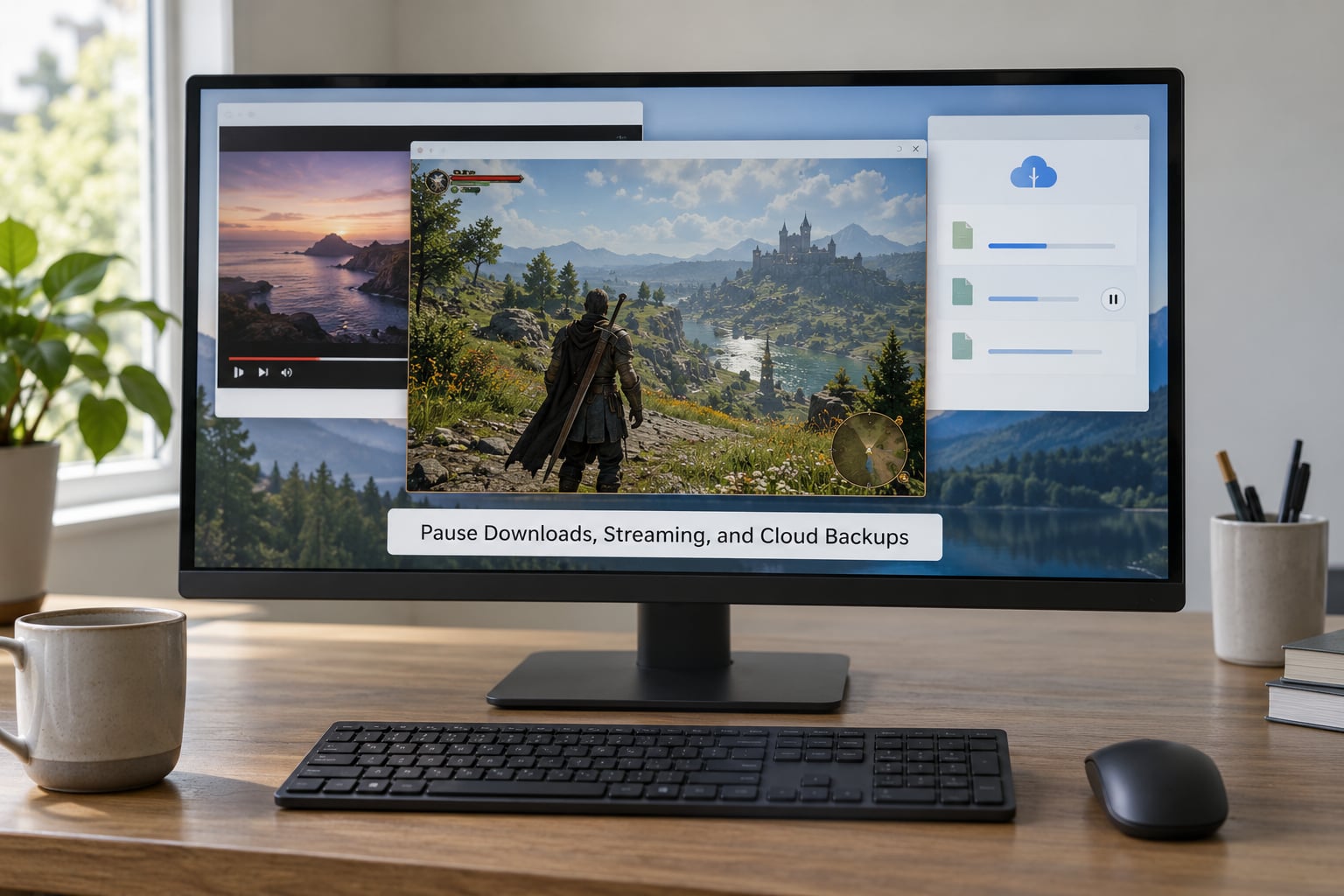
Background traffic is the most common cause of ping spikes, and it usually belongs to somebody else in the house.
Open Task Manager with Ctrl + Shift + Esc on Windows and sort the Network column. You are looking for anything sitting near your upload speed: OneDrive syncing photos, iCloud, a Steam download, a console game updating, a security camera uploading, or a 4K stream on the TV.
Pause it, close it, or disconnect that device from the router, then run your game for ten minutes and watch the ping. If the spikes vanished, you have your culprit and it is worth setting a schedule so it never collides with your evening matches again.
This matters because most home connections have far less upload headroom than download. A game needs very little bandwidth, so a 20 Mbps download can still choke the uplink that carries your aim and movement.
2. Restart the Game, Device, and Router
A full power cycle clears stuck connections and memory states that a soft reset leaves in place.
On Windows 11, go to Start, Power, then Restart. On macOS, use the Apple menu and Restart. On PlayStation 5 and Xbox Series X|S, let the console restarts run fully from the power menu rather than putting it to sleep and waking it. On a phone, restart the phone itself, not just the app.
Then the network box: unplug the router and the modem or ONT, leave both out for a full minute, plug the modem in first, wait for its lights to settle, and plug the router in second. Give it two or three minutes before you test.
Check the game ping again once everything is back up. If it is unchanged, the restart did nothing, which itself is useful information: move on instead of repeating it.
3. Use Ethernet or Improve the Wi-Fi Signal
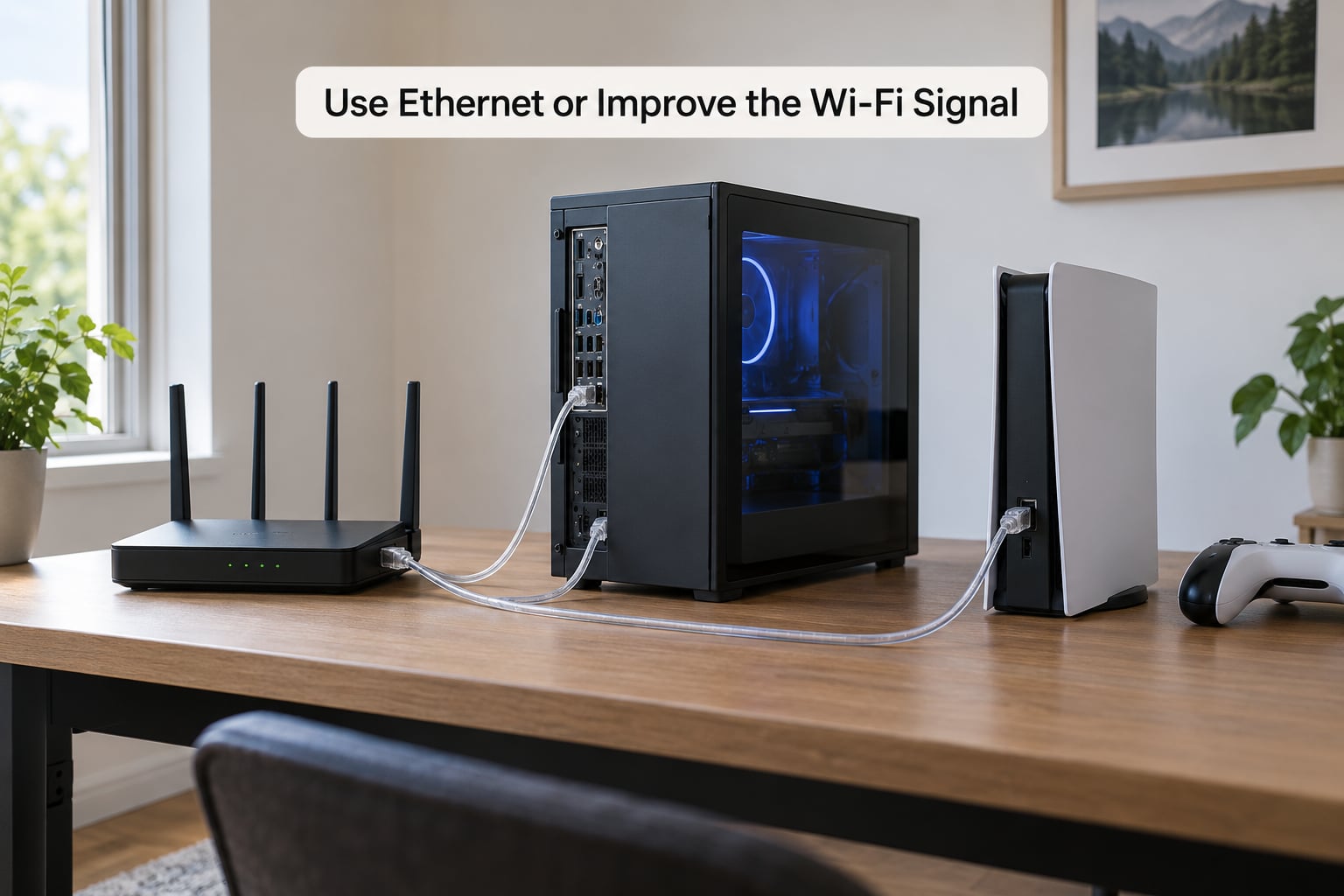
Wireless adds latency you never asked for, because every packet shares air with neighbours, microwaves and other devices.
Windows 11: Settings, Network & internet, Ethernet, then the network name. macOS: System Settings, Network, your service, Details. PlayStation 5: Settings, Network, Settings, Set Up Internet Connection. Xbox Series X|S: Settings, General, Network settings. A Nintendo Switch has to sit in the dock for the USB Ethernet adapter to register.
Test with the cable in for a full match before you blame anything else. In general, fibre plus Ethernet lands around 5 to 20 ms, cable plus Ethernet around 15 to 35 ms, 5 GHz Wi-Fi around 20 to 50 ms, and 2.4 GHz Wi-Fi around 30 to 80 ms before interference pushes it higher.
On Wi-Fi, three things help most. Move the router to an open, central spot rather than a cupboard or behind the TV. Split the bands so your gaming device gets its own 5 GHz radio, since 2.4 GHz travels further but crowds easily. And keep the 5 GHz channel wide but on the least busy channel your router’s scan tool shows.
Check the link rate, not just the bars. Half or full signal strength can still be slow if the connection negotiated down after a long evening of traffic.
4. Check Ping, Packet Loss, and Jitter Separately
Good ping with bad gameplay usually means loss or jitter, not a latency problem.
From a Windows command prompt, run ping 8.8.8.8 -n 20. If every line comes back under about 20 ms with no “request timed out”, your local network and the first stretch of your ISP’s line are healthy. Now compare that with your in-game ping. A gap of more than roughly 40 ms between the two points upstream, to your ISP or to the game’s own data centre.
Packet loss shows as missed or timed-out lines. Anything above about 1 percent during a match will produce rubber-banding no matter how good the average looks.
Jitter is the variation between your low and high numbers. A ping that sits at 45 ms most of the time and jumps to 300 for two seconds is worse than a steady 80 ms, because the server and your client lose sync every time it moves.
Log the result and move on. If the gateway itself is slow, the game server is far away, or packets are dropping, you now know which of steps 3, 5 or 8 is the one worth your time.
5. Change DNS and Network Adapter Settings
Changing DNS rarely changes your in-game ping, and it is worth being honest about that. It does affect how fast a game launcher, a patch or a store resolves, so a very sluggish resolver can add a visible delay before a match.
Windows 11: Settings, Network & internet, your connection, DNS server assignment, Edit, then Manual. Turn on IPv4 and enter 1.1.1.1 with 1.0.0.1, or 8.8.8.8 with 8.8.4.4. macOS: System Settings, Network, your active service, Details, then the DNS tab.
Adapter power management matters more than DNS in a lot of cases. Open Device Manager, expand Network adapters, right-click your Ethernet adapter, Properties, Power Management, and untick the box that lets the computer turn off this device to save power. The same setting hides in Power Options, under Change plan settings, where PCI Express Link State Power Management should be off.
If you go further into the Advanced tab and change Interrupt Moderation, Large Send Offload, Speed & Duplex or Receive Side Scaling, write down the original value first. Half of these fixes are hard to undo without it, and a wrong Speed & Duplex setting can cost you more than the problem you started with.
6. Adjust In-Game and Launch Settings
A few settings change how fast input feels without touching image quality.
Cap your frame rate, because an uncapped frame rate can push the CPU hard enough to delay input processing. Turn off overlays and background recording, since capture tools hook into the frame pipeline. Fullscreen exclusive usually helps older titles more than borderless windowed.
On the platform side, leave the console’s download priority and background rest mode alone during a session, and check for pending system updates before you start matchmaking. Every game also has a server region picker somewhere in its settings, and picking a region far from you is a self-inflicted ping problem that no router tweak will fix.
7. Update Drivers, Game Software, and the Console
Outdated network drivers cause retry storms that look exactly like packet loss.
On Windows 11, use Windows Update for the quickest pass, then check your PC or motherboard manufacturer’s site for a newer Ethernet or Wi-Fi driver. Prefer the manufacturer’s file over a random driver utility, which is a common source of the very problems people are trying to fix.
On macOS, install through System Settings, General, Software Update. For your games, verify the local files in Steam or Epic, and let PlayStation and Xbox run their own system updates on their own schedule, not at midnight before a ranked match.
If you installed a driver recently and things got worse, roll it back from Device Manager, Properties, Driver, and then start hunting somewhere else. That single action resolves more cases than people expect.
8. Check the Router and Contact the ISP
This is the step where most people stall, and it is usually the one that finally helps.
Look at the router’s admin page for how many devices are connected and whether the CPU or memory meter is pegged. An old router handling 4K streams on five devices can add latency that a restart never solves. Update the firmware from the manufacturer’s page, and check whether your provider supplied that unit before you spend money replacing it.
Before you call, gather evidence: the date, the time, the average and peak ping from step 4, and whether the pattern repeats at the same hours each evening. Peak-hour congestion on an over-subscribed line is a routing problem, and only the provider can touch it. Ask specifically about line congestion, a failing modem or ONT, and a better route to the game’s data centre.
One extra test speeds this up. Plug a laptop into a 5G hotspot and play the same game. Playable there and bad at home means your ISP line or router is the problem, and you can say exactly that on the phone.
9. Re-Test in a Clean Setup and Prevent Spikes
Once something works, confirm it survives a clean retest.
Close every background task, use the wired connection, restart nothing, and play a full match. Note the average and the worst number. Then test again at the hour you usually play, because an evening-only problem is almost always congestion rather than hardware.
Now make it permanent. Schedule cloud backups for a quiet hour, give the console a firmware auto-update window you are not playing in, keep the router elevated and uncovered, and leave Ethernet connected. If one game still misbehaves while everything else is fine, that is a server-side route and step 8 applies to that title alone.
Common Mistakes
These waste more hours than any actual fix, so here is what each one gets wrong and what to do instead.
Confusing download speed with ping
A 500 Mbps line can sit at 120 ms while a 100 Mbps fibre line sits at 8 ms. Speed is how much data moves at once, latency is how long one packet takes. Faster plans help downloads and nothing else. Buying a bigger plan to fix ping is the most expensive no-op in this whole guide.
Changing everything at once
Disable the firewall, swap DNS, install a driver and edit registry settings in the same evening, and if ping improves you still do not know why. One change, one retest, one note. If you skip that, you are guessing, and guessing is how people end up with a machine that is worse than the one they started with.
Turning off security software permanently
Disabling your firewall or antivirus may hide a bandwidth cost from a badly built updater, and it also opens the machine to everything else. If you suspect a specific program, block that one program’s network access instead, or test with the software stopped for a single session and then turn it straight back on.
Blind tweaks: IPv6, jumbo frames, hidden registry values
Disabling IPv6 or enabling jumbo frames on a network that does not support them end to end makes latency worse, and neither helps most homes. Registry edits advertised as ping tweaks come with no rollback path and rarely survive contact with a game. Leave them alone unless you have a specific measurement showing a specific fault.
Blaming Wi-Fi without checking for loss
Wireless causes real latency, but the giveaway is missed packets, not a high average. Check step 4 before you move the router. If your gateway is clean and the game is still rough, the problem is upstream and no amount of channel fiddling will touch it.
Paying for a booster before measuring
A paid VPN or routing service can genuinely help when your provider’s path to a specific game server is bad. It cannot fix a saturated uplink, a weak Wi-Fi signal or a lagging neighbour. Measure first, and spend money only when you know which problem you have.
Frequently Asked Questions
What is a good ping for online gaming?
Under 20 ms is competitive-play territory. Between 20 and 50 ms feels instant in shooters, MMOs and battle royale games. From 50 to 100 ms remains playable in most genres, though fast gunfights and fighting games start to suffer. Past 100 ms is difficult in first-person shooters, and above 200 ms most competitive play becomes a guessing game. A steady 60 ms usually plays better than one that jumps between 40 and 200.
Should I use Wi-Fi or Ethernet for gaming?
Use Ethernet whenever you can. A wired connection removes radio contention, gives you a stable link rate, and usually shaves 10 to 30 ms off ping in a typical home. Wi-Fi is fine for casual play if you put the router somewhere open and central, split the 2.4 GHz and 5 GHz bands, and connect your gaming device on 5 GHz. Test both for a full match before deciding.
Can high ping be caused by packet loss?
Not exactly, but the two travel together and get confused constantly. Packet loss means data never arrives, so the game waits for a retransmission and your ping effectively spikes. A connection can show an excellent average ping and still drop 2 percent of packets, which produces rubber-banding and desync. Run a command prompt ping test for twenty lines and watch for timed-out replies, not just the average number.
Does using a VPN improve gaming ping?
Only in one specific situation. If your provider routes your traffic badly to a game’s data centre, a VPN with a different exit path can be faster for that title. In every other case a VPN adds an extra hop or two and makes ping worse. Test before and after, using the same server region and the same time of day. Never buy a subscription hoping it will fix a saturated home uplink.
Why is my ping high in only one game?
That points at the route to that game’s servers rather than your setup. Your connection to everything else can be clean because only this title is sending traffic across a congested or distant path. Check whether the game lets you switch server region, try again at a different hour, and compare your in-game ping with a command prompt ping to 8.8.8.8. A large gap confirms the game server is the problem.
Conclusion
Start with the two minutes that cost nothing: pause every download, streaming session and cloud backup, then restart the game, the device and the router. After that, compare a wired Ethernet connection against Wi-Fi and check packet loss alongside ping, because good numbers with lost packets is its own problem.
Only once those are clean should you move on to DNS, adapter settings, drivers and console updates. And if the pattern still repeats at the same time every evening, gather your numbers and call your internet provider with evidence rather than a complaint.
Change one thing at a time, write the number down after each test, and you will find the cause in an afternoon instead of a month.