To set up quality of service on a router, you sign in to the admin page, open the QoS menu, enter your real upload and download speeds, mark the devices that need low latency, and save. That is the whole job, and it takes about fifteen minutes.
QoS does not make your internet faster. It decides who gets served first when everyone on your network wants bandwidth at the same time, which is the situation behind most “my calls keep cutting out” complaints. This guide is router-agnostic and current as of 2026 — menu names differ by brand, so I show the paths I have seen across the major ones.
Table of Contents
- 1What You Need
- 2Step-by-Step: How to Set Up QoS on a Router
- 31. Access Your Router’s Advanced Settings
- 42. Enable QoS or Traffic Prioritization
- 53. Choose a Scheduling Method for Your QoS Rules
- 64. Prioritize Gaming, Calling, and Streaming Traffic
- 75. Set Upload and Download Limits
- 86. Apply, Save, and Test the Configuration
- 9Common Mistakes
- 10Frequently Asked Questions
- 11Does QoS slow down my internet speed?
- 12Should I enable QoS on my home router?
- 13Is QoS better than setting a bandwidth limit?
- 14How do I prioritize gaming or video calls on my router?
- 15Why does QoS not seem to improve my connection?
- 16Can QoS fix an ISP speed problem?
What You Need
You need four things before you touch a setting: access to the router admin page, a wired device, an honest speed test, and a short list of which devices actually need priority.
A wired device. Use a laptop plugged in with Ethernet if you have one. Changing QoS while connected over the same Wi-Fi you are trying to improve is asking for a dropped session at the worst moment. Wireless is fine, just expect the page to hang once as settings apply.
Admin credentials. The address is almost always 192.168.0.1 or 192.168.1.1, and a few brands use a name instead: tplinkwifi.net, router.net, dlinkrouter.local. On Windows, ipconfig shows the default gateway, which is the number you want. The username and password are printed on a label on the back or underside of the router. If nobody changed them, the pair is often admin with admin, or admin with password — try those only after checking the label, and change the password once you are in.
Measured speeds, not advertised speeds. Disconnect every other device from the internet, run a speed test, and write down the download and upload numbers you actually got. You will need both, because upload is the one that breaks calls.
Your device list. Write down what you want prioritized: the game console, the laptop you take video calls on, the VoIP phone. Keep it short. Two high-priority devices is a strong setting. Twelve is not.
A DHCP reservation for each device you plan to prioritize. Device rules usually match on IP address, and a laptop that reconnects with a different address will quietly stop being prioritized. Setting a static IP for those devices takes a minute and removes the most annoying failure mode.
Step-by-Step: How to Set Up QoS on a Router
1. Access Your Router’s Advanced Settings
Open a browser and type your gateway address into the address bar, not the search box. Sign in with the admin account from the label.
Before you configure anything, check the firmware version on the same screen and update it if the router offers an update. QoS pages move between firmware generations, and half of the “I have no QoS menu” problems turn out to be a two-year-old interface that a current firmware fixes.
If the password does not work and you have never changed it, reset the router with the pinhole button and set the credentials from the label again. Any custom QoS configuration resets with it.
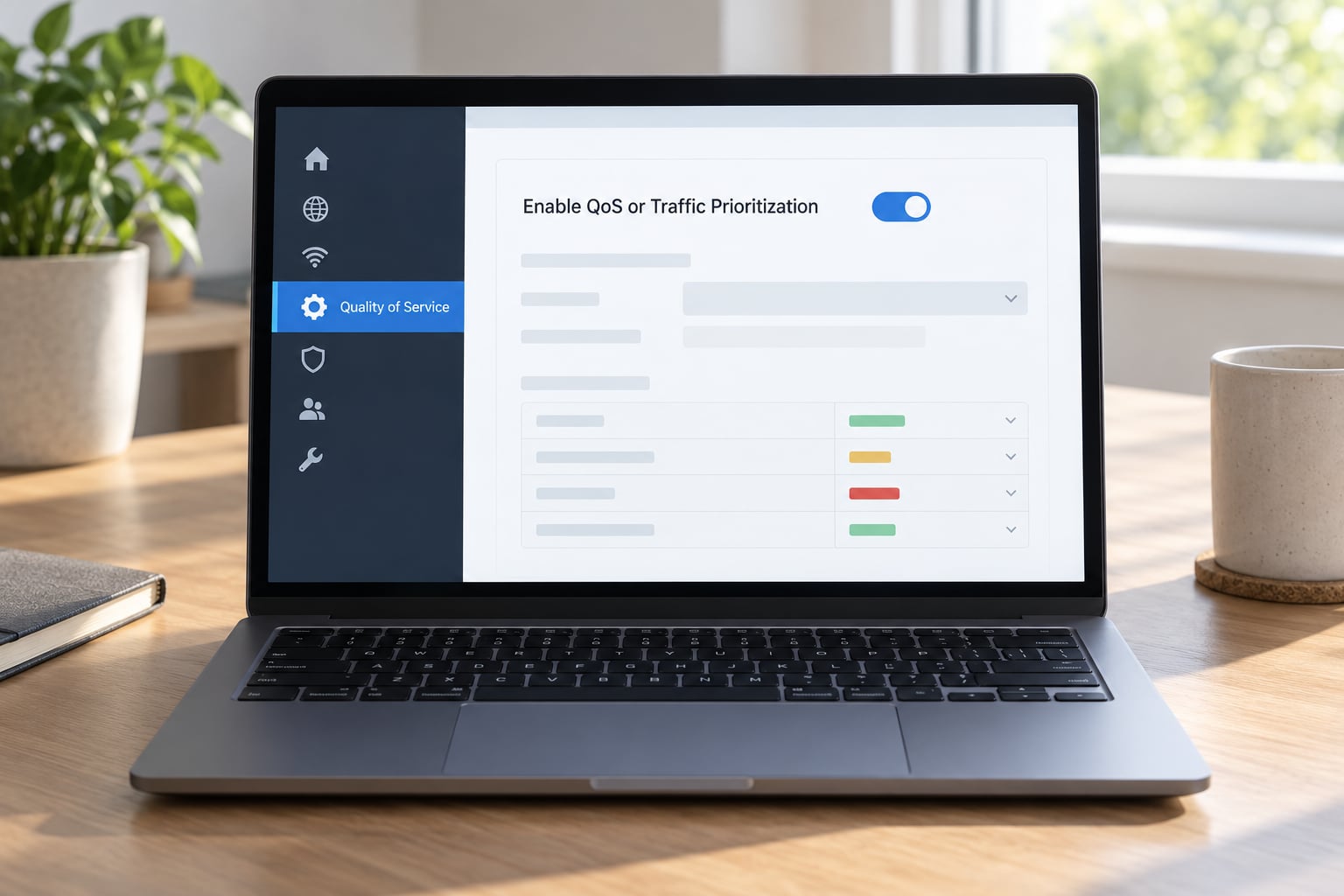
2. Enable QoS or Traffic Prioritization
Look for a menu named Quality of Service, Traffic Prioritization, Bandwidth Control, Smart QoS, Application and Device Prioritization, or — on D-Link — QoS Engine. The location moves around, so the table below is faster than hunting.
If the only thing you find is a WMM toggle, your router supports wireless QoS only. WMM is the Wi-Fi standard that prioritizes traffic over the air; router QoS shapes traffic after it reaches the router, across wired and wireless clients. On some devices that is all the QoS there is, as people on the Tom’s Hardware forums found with their hardware.
Do not confuse the QoS page with parental controls or port forwarding. Those live in similar corners of the interface and do something different.
| Router or gateway | Where the QoS settings live |
|---|---|
| TP-Link (HomeShield, Tether app) | Advanced > QoS in the web interface, or QoS inside the Tether app |
| TP-Link (HomeCare, older models) | Advanced > QoS > Application Prioritization or Device Prioritization |
| ASUS (Adaptive QoS) | Adaptive QoS > QoS List, with a bandwidth-detection button |
| ASUS (Traditional QoS) | QoS > User Defined QoS Rules, with priority levels per rule |
| Netgear | Advanced > Advanced Setup > QoS, with a Setup Wizard or Application/Device Priority table |
| D-Link | Features or Settings > QoS Engine, with devices dragged into priority slots |
| Ubiquiti UniFi | Settings > Internet > Smart Queue Management on the gateway itself |
| OpenWrt | Network > SQM, or the luci-app-sqm interface, where queue types include fq_codel and cake |
| Xfinity, AT&T, T-Mobile gateways | Often visible but locked. People running QuantumFiber report a panel they can open but not edit. |
Labels differ by model and firmware generation, so treat the table as a starting point rather than gospel. If your router is ISP-supplied and locked, the practical fix is to put your own router in front of it or switch the gateway to bridge mode.
3. Choose a Scheduling Method for Your QoS Rules
Most routers offer one of four approaches, and picking the one your hardware actually supports saves an hour of frustration.
- Automatic classification. The router inspects traffic and guesses what it is, then prioritizes interactive flows. ASUS calls this Adaptive QoS and it works well with no configuration. Start here if you can.
- Device-based priority. You pick a device by name or IP and give it a level: highest, high, medium, normal, low. This is the most common home setup and the one I would pick for most households.
- Application rules. You match on protocol or port — for example, prioritizing voice traffic or a specific port range. Powerful, and the fastest way to break something if you are not careful.
- Manual bandwidth allocation. You type a guaranteed minimum or a hard cap per device or queue. Precise, more work, and wrong numbers make things worse rather than better.
One rule-order gotcha is worth knowing before you build application rules: on ASUS Traditional QoS, the first matching rule wins, so order matters. Rules also tend to catch more than you expect. Port 80 carries plenty of programs that have nothing to do with web browsing, and a broad rule that hands it high priority can throttle ordinary browsing while the thing you meant to protect is unaffected. Put your most specific rules at the top and avoid blanket port rules.
4. Prioritize Gaming, Calling, and Streaming Traffic
Assign the highest level to traffic that breaks visibly when it is delayed: online games, video calls on Zoom or Teams, and VoIP phones. Set streaming one step down. Put large downloads, backups, syncing, and smart home devices at normal or low.
Do not give browsing top priority. Web pages are not latency-sensitive, and promoting them just moves the queue. The same goes for anything that transfers a lot of data, because a high-priority download will happily eat the whole link and starve the calls you were trying to protect.
Keep high priority to one to three devices. Some routers enforce a hard cap — D-Link, for example, allows one highest slot, two high slots and eight medium ones, and if you are not constrained yourself you will happily create a table where everything is important and nothing is.
5. Set Upload and Download Limits
This is the step people get wrong, and it is the one that decides whether QoS helps or hurts. Use 90 to 95 percent of your measured speed, never the number in the advert.
Say you pay for 300 down and 20 up, and the speed test with everything else unplugged returned 287 and 19. Enter 265 and 18. Entering the full 300 and 20 tells the router it has more capacity than the line can deliver, so it queues traffic it will never get to send — which is exactly the latency you were trying to remove. Conservative values matter most on slow lines; one person running QoS at 70 percent of a real 10 Mbps connection in a HomeNetworking thread found that setup helped while someone else streamed.
If your router has an auto-detect or test button, let it run and then subtract about 5 percent from the result. That gets you the same answer without guessing.
| Setting | Start with | Why |
|---|---|---|
| Download bandwidth | 90-95% of tested speed | Leaves headroom for overhead the router cannot deliver anyway |
| Upload bandwidth | 90-95% of tested speed | Upload is almost always the side that breaks calls and gameplay |
| High priority devices | 1 to 3 | More than that and the priority means nothing |
| Reserved bandwidth for high priority | 5-10% of total | Gives protected traffic a floor, not just a preference |
| Cap on bulk downloads or media | 80-85% of download | Stops one device from saturating the line on its own |
| Timer on temporary rules | 2 to 4 hours | Rules you set for a game night revert on their own |
If you want to see this working rather than take my word for it, measure latency under load before you save anything. Start a large upload or download on another device, then run a ping test from a wired computer. That loaded ping is your real number, and it is the one QoS is supposed to improve.
6. Apply, Save, and Test the Configuration
Hit Save or Apply, then give the router a minute or two. Many models reboot to apply QoS, and a brief blink of the status lights is normal.
Log back in afterward and confirm two things: the QoS switch is still on, and your bandwidth values and priority entries are still there. A rule that silently vanished on reboot usually means you did not save, or that the router rejected a value.
Now test in this order:
- Run a speed test with nothing else running. This is your idle baseline.
- Start a large download or upload on another device to fill the link.
- Repeat the speed test. Throughput may dip slightly — that is expected, since low-priority traffic is now being held back on purpose.
- While the link is still full, run a ping test or make a real video call. This is the number that matters.
Compare against the loaded ping you measured before configuring. If latency is flat and calls still break, walk through the mistakes below.
Common Mistakes
Entering the full advertised speed. The most common error, and the reason some people conclude QoS made their internet slower. Set it to 90 to 95 percent of what a speed test actually returned.
Prioritizing too many devices. Everything at high priority is the same as nothing at high priority. Pick the two or three that would hurt most to stall.
Treating QoS as a bandwidth cap. They solve opposite problems. A cap limits how much a device can consume; QoS decides who is served first when the link is already full. A household that needs less total bandwidth needs a plan change, not a priority table.
Forgetting to apply the changes. The page looks configured and nothing happens. Save, wait for the reboot if there is one, and log back in to confirm before you start debugging anything else.
Judging results without a baseline. A speed test on an idle line tells you nothing about whether QoS worked. The only meaningful comparison is latency under load, before and after.
Skipping the DHCP reservation. If a prioritized laptop reconnects on a new IP address, the rule quietly stops matching. Reserve the address first.
Writing rules that overlap. On interfaces that apply the first match, or that match loosely on port 80, a broad rule can capture traffic you never intended to promote. Order specific rules first.
Expecting QoS to fix a slow connection. If your plan is too small for your household, or your provider is overselling the line at peak hours, QoS redistributes what you have and cannot create more. Upgrading or switching providers is the fix at that point, and no amount of menu tuning substitutes for it.
One last habit: leave WMM enabled unless you have found a specific reason to turn it off. It is a different mechanism from router QoS and disabling it tends to make wireless worse, not better.
Frequently Asked Questions
Does QoS slow down my internet speed?
Slightly, by design, and only during congestion. QoS holds back low-priority traffic so high-priority traffic can move, so total throughput under heavy load can dip a few percent while latency for calls and gaming improves. On an idle network you will see no difference at all. If your idle speed drops noticeably after configuring QoS, you entered a bandwidth value below what your line can actually deliver, and the fix is to raise it toward 90 to 95 percent of a measured speed test.
Should I enable QoS on my home router?
Enable it if you see lag, stutter or dropped calls while other devices are using the connection, which is the only situation where it can help. Skip it if your network sits idle most of the day, or if your plan is simply too small for how many people use it. QoS manages congestion; it does not add bandwidth, and on a fast, lightly used line it only adds settings to maintain.
Is QoS better than setting a bandwidth limit?
They solve different problems, so the better question is which one you have. A bandwidth limit or cap stops one device from consuming more than its share, which helps when a single device hogs the line. QoS decides the order things get served in when demand exceeds supply, which helps when many devices compete. A busy household often wants both: a cap on the streaming box, priority for the work laptop.
How do I prioritize gaming or video calls on my router?
Turn on QoS, enter your measured upload and download speeds at 90 to 95 percent, then set the game console or gaming PC and the device you take calls on to the highest priority your router offers. Leave streaming one level below, and put downloads, backups and software updates at normal or low. Give those priority devices a DHCP reservation first, or the rule will stop matching when the address changes.
Why does QoS not seem to improve my connection?
The usual causes are entering the full advertised speed instead of your measured speed, marking too many devices as high priority, overlapping rules where the first match wins, a device whose IP address changed after a DHCP lease renewal, or an ISP gateway that displays a QoS panel but ignores changes. Check that the QoS switch is still on after a reboot, and measure latency under load rather than judging by an idle speed test.
Can QoS fix an ISP speed problem?
No, and it is worth being blunt about that. QoS reorders traffic within the bandwidth you already have. If your connection is genuinely slow, congested at peak hours, or delivering less than you pay for because the line is oversold, no router setting will recover the missing capacity. QoS can make a congested link feel far better, but the underlying fix is a different plan or a different provider.
Start with the measurement, not the menu. Run a speed test with everything else unplugged, note the upload figure especially, and measure your latency while the line is full. Those two numbers decide your settings, and everything after that is just typing them in and giving two or three devices the top priority.