You can host a simple website for free by writing plain HTML and CSS files, then publishing them on a free host such as GitHub Pages, Cloudflare Pages or Netlify. The whole job takes about ten minutes, needs no server, and ends with a working public address served over HTTPS. This guide covers the version most people actually need: one page, a few images, no database, no build step.
If that is you, follow the steps in order. If you want a booking form, a login, or pages that change per visitor, skip to the section on what free hosting cannot do before you start.
Table of Contents
- 1What You Need Before You Host a Simple Website for Free
- 2Step-by-Step: How to Host a Simple Website for Free
- 3Choose a Free Hosting Service
- 4Create the Website Files
- 5Test the Website Before Upload
- 6How to Host a Simple Website for Free With GitHub Pages or Netlify
- 7Publish and Verify the Site
- 8Common Mistakes and How to Fix Them
- 9Frequently Asked Questions
- 10Is it possible to make a 100% free website?
- 11Is Wix really free hosting?
- 12Can Google host a website for free?
- 13Can I use my own domain name with free hosting?
- 14Do free website hosts show ads or have limits I should know about?
- 15Is there a free host that runs WordPress or PHP with a database?
- 16Conclusion
What You Need Before You Host a Simple Website for Free
Five things, and you probably already have four of them.
- A text editor. Notepad, TextEdit, or a free code editor such as VS Code. Any of them will do.
- One folder for the site. Keep every file, image and stylesheet inside it, including subfolders for assets.
- A modern browser. Chrome, Edge, Firefox or Safari, for testing before and after you publish.
- An internet connection and about ten minutes.
- A free hosting account. GitHub, Cloudflare or Netlify all have a free tier that covers a small static site.
What you do not need: a server, a domain name, a credit card, a paid plugin, or any programming knowledge for a simple site. If you already write HTML, step two will feel obvious. If you have never opened a text file, the drag-and-drop path in step four skips the code entirely.
Step-by-Step: How to Host a Simple Website for Free
Choose a Free Hosting Service
Free hosting comes in a few shapes, and picking the wrong one wastes an afternoon. This table compares the options people use most, by the things that actually differ between them.
| Platform | Best for | Git required | Custom domain | HTTPS | Main catch |
|---|---|---|---|---|---|
| GitHub Pages | Portfolios, project docs, blogs you edit in an editor and push | No, you can upload files through the browser | Yes, free | Automatic | Public repositories on the free plan; site size is capped around 1 GB with roughly 100 GB of bandwidth a month |
| Cloudflare Pages | Static sites that will grow, with generous bandwidth | Optional, drag-and-drop works | Yes, free, with DNS handled on Cloudflare | Automatic | A build step is expected once you outgrow plain files |
| Netlify | The easiest first deploy, and preview links for drafts | No, drag a folder and it goes live | Yes, free | Automatic | Free tier has bandwidth and build-minute limits, and random project names you will want to change |
| Wix or Google Sites | Non-technical owners who want a visual editor | No | Usually only on a paid builder plan | Automatic | Free versions carry the platform branding and fewer editing options |
| A free PHP host | WordPress or any server-side script | No | Yes | Usually | Ads, slow, and quotas that change; a good ecosystem for small hobby sites, a poor fit for anything busy |
For a single page or a small portfolio, GitHub Pages or Cloudflare Pages are the safest starting points. Netlify is the gentlest if you would rather not deal with repositories at all. Check the current free-plan terms on the provider’s own pricing page before you commit, because these limits do shift and nobody emails you when they do.
Create the Website Files
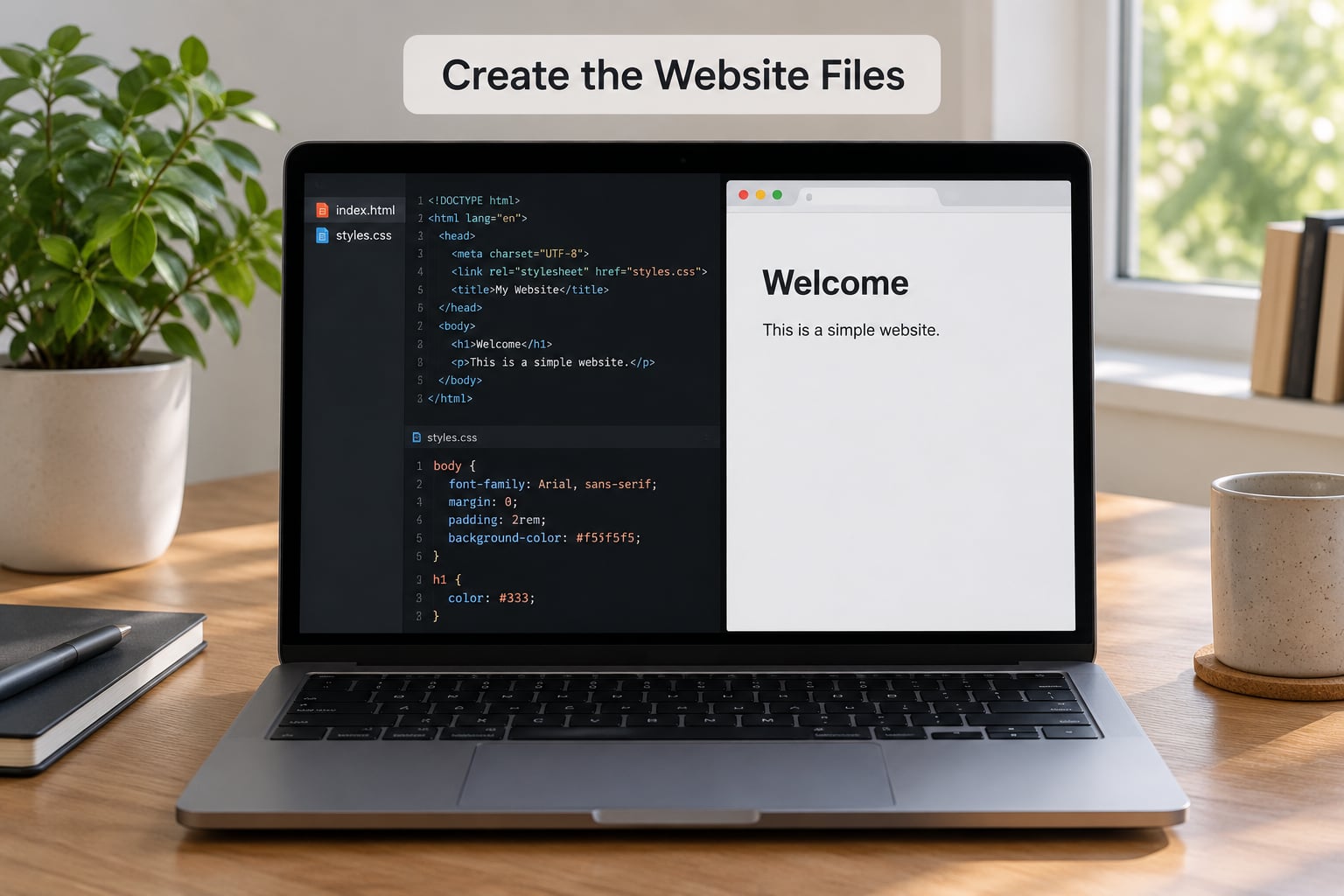
A static website is just a folder of files. The server hands them to visitors exactly as they are, with no database and no server-side code running. Two files are enough to start.
Create a folder called my-site. Inside it, make a file named index.html. Most hosts treat that exact name as the page to show when someone visits the folder address, and matching the name matters on case-sensitive systems: Index.html will not work.
<!DOCTYPE html>
<html lang="en">
<head>
  <meta charset="utf-8">
  <meta name="viewport" content="width=device-width, initial-scale=1">
  <title>Alex Doe | Photography</title>
  <link rel="stylesheet" href="styles.css">
</head>
<body>
  <h1>Alex Doe</h1>
  <p>Freelance photographer working mostly on documentary projects.</p>
  <nav>
    <a href="work.html">Work</a>
    <a href="contact.html">Contact</a>
  </nav>
</body>
</html>
</code>
Next to it, create styles.css in the same folder:
body { font-family: system-ui, sans-serif; max-width: 40rem; margin: 3rem auto; padding: 0 1rem; }
h1 { font-size: 2rem; }
nav a { margin-right: 1rem; }
Two details do most of the work here. First, the href="styles.css" in the HTML points at the stylesheet with a relative path, meaning from this folder. Write the same thing without the folder and the browser looks for the file in the wrong place. Second, keep images in a subfolder such as images/ and reference them as images/portrait.jpg, never as a full path from your computer's drive.
Add more pages any time you want by creating work.html and contact.html beside index.html and linking to them the same way.
Test the Website Before Upload
Open index.html by double-clicking it. It should render in your browser exactly as it will online, minus the address bar.
Then click every link and every image. A link that jumps nowhere usually means the file name does not match, or the file is in a subfolder you forgot about. Missing styling almost always means the stylesheet is named slightly differently, such as Styles.css or styles.css.txt after a save that added an extension.
Two habits worth forming now. Type file names in lowercase with hyphens, so about-me.html instead of About Me.html, and check the browser console for errors. It takes ten seconds and it points straight at the line that broke. Testing locally also keeps broken paths from becoming a public embarrassment once the site is live.
How to Host a Simple Website for Free With GitHub Pages or Netlify
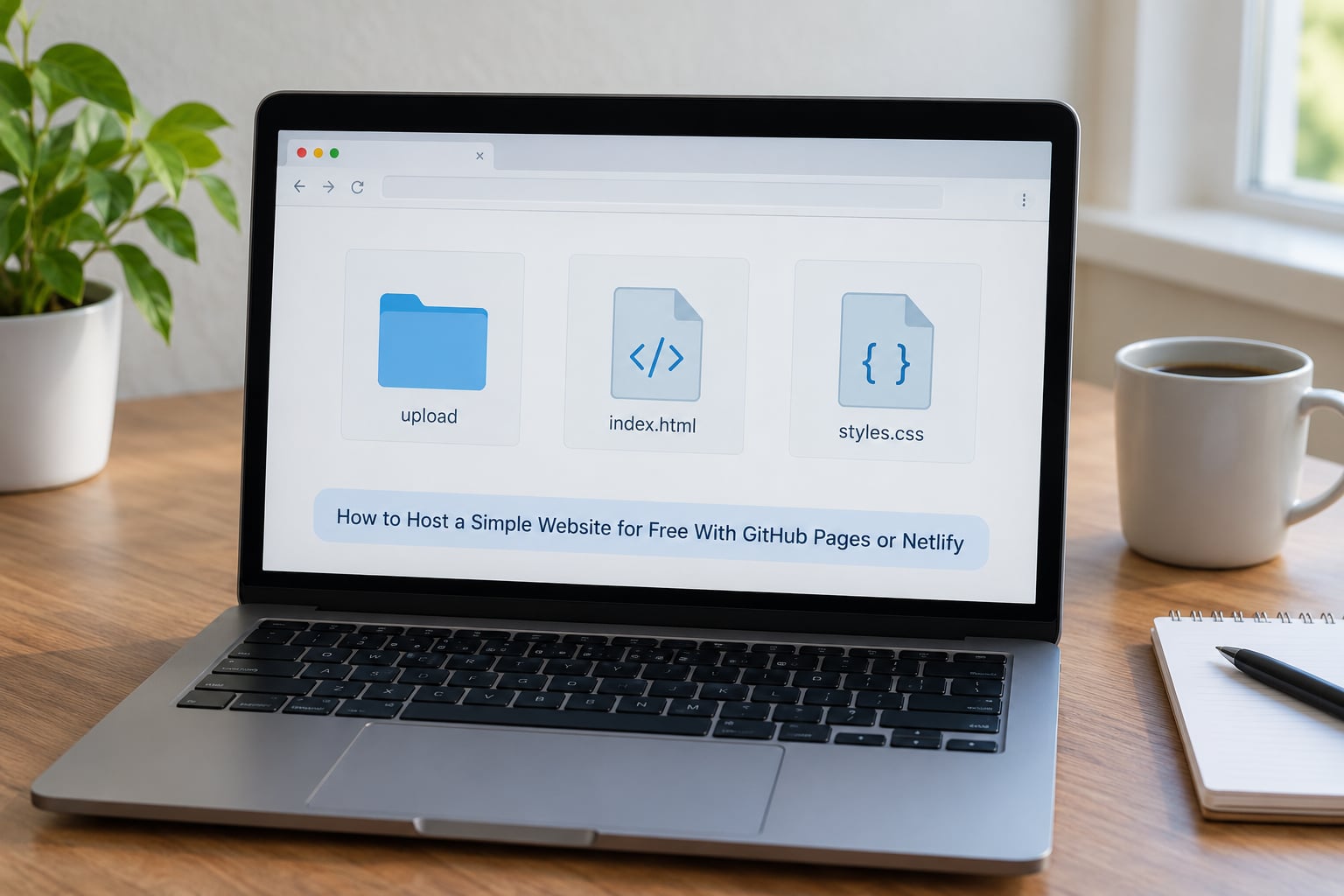
Netlify is the shortest route. Sign up, open the dashboard, choose to add a new site from a folder, and drag the whole my-site folder onto the upload area. The site is live within seconds on an address like my-site.netlify.app. Rename the project in site settings afterwards if you want a cleaner address; the random suffix is the part people complain about most.
GitHub Pages takes four more minutes and gives you a proper editing workflow afterwards.
- Create a GitHub account, then create a new repository. Name it
username.github.io, whereusernameis your actual GitHub handle. That exact naming rule is what turns the repository into a site address rather than a project page. If you already have a repository under another name, the site still works atusername.github.io/repository-name/. - On the repository, choose Settings, then Pages in the sidebar. Under Build and deployment, set the source to Deploy from a branch, pick
main, and the root folder. Save. - Upload your files with the Add file button:
index.htmlandstyles.cssin the root of the repository. Make sure they are not sitting inside an extra folder that got created by mistake. - Wait a minute or two for the build to finish. The Pages tab then shows a green confirmation and a Visit site link.
Whichever host you pick, the uploaded site is the same folder you tested locally. That is the nice part: if it worked on your machine, it works here.
Publish and Verify the Site
Your live address is either username.github.io or your-site.netlify.app. Open it in a private browser window so you are not looking at a cached version, then walk through it as a visitor would: every link, every image, and the page on a phone-sized screen.
HTTPS is on by default on all of these platforms, so visitors see the padlock without any setup. Nothing to configure, nothing to pay for a certificate.
Updating later is the part that gets easier. On Netlify, drop the folder in again and the site updates. On GitHub Pages, edit index.html in the repository, type a short commit message, and commit to main; the site rebuilds and republishes itself, usually within a minute. Learn how GitHub Pages publishes your site before you change the branch or folder settings, since those are the controls that decide what gets published.
Common Mistakes and How to Fix Them
Nearly every problem people hit is one of these, and every one has a two-minute fix.
- The site shows a 404. On GitHub Pages, the repository name is not
username.github.io, or Pages is set to a branch and folder that hold no files. Check the Pages tab for the URL it reports and compare it with your repository name. - Styling disappears after upload. The stylesheet was not uploaded, or the link is an absolute path from your computer such as
C:/Users/you/Documents/styles.css. Relative paths only, always. - Images are missing but the page loads. The image file is in a subfolder that the HTML does not reference, or the file name differs by a capital letter. Match them character for character.
- Links work on your computer and not online. You linked to
C:/Users/...or to a file that never made it into the folder you uploaded. - Refreshing a page gives you a 404. This one is specific to single-page applications built with React or Vue. Those apps need a redirect rule that sends every path back to
index.html. Providers document it as a rewrite or fallback rule, and without one the first visit works while every refresh fails. A plain HTML site never hits this. - You worry about publishing keys. A public repository shows its entire history to everyone, including anything you committed early on. Keep API keys out of the site folder, store secrets in the host's environment variable settings, and rotate anything that was already committed.
- The free plan stops being enough. Watch bandwidth and storage rather than guessing. Once you approach the published limits, you are close to a paid tier or a CDN, and it is better to find out deliberately than to have the site vanish one day.
Two maintenance habits go a long way. Keep a copy of your folder somewhere outside the hosting account, because a deleted repository takes the site with it, and re-upload after any change so the local copy and the live copy never drift apart. Add a simple title, a description and an image preview to each page while you are there; it costs nothing and it is what people see when they share your link.
Frequently Asked Questions
Is it possible to make a 100% free website?
Yes, as long as your site is static. Plain HTML, CSS, images and scripts are served by GitHub Pages, Cloudflare Pages or Netlify at no charge, with HTTPS included and no ad injection. The catch is that a free subdomain is part of the deal, and a registered domain is a separate yearly cost. If you also need a database, a login or a booking form, free hosting stops being realistic.
Is Wix really free hosting?
Wix hosts your site for free, and the free plan includes hosting, HTTPS and a subdomain. You also get the Wix branding and a banner on the live page, which most people cannot remove without paying. The editor is genuinely the easiest way to build a site visually, so it suits someone who wants to design pages rather than write files. For a hand-written site you control completely, a static host is a better fit.
Can Google host a website for free?
Yes. Google Sites builds and hosts a site at no cost, with no code, no server and no ads added to your page. It is a good fit for a one-page portfolio, class project or small group site, and it handles mobile layout well without effort. You get a sites.google.com address, and connecting a custom domain requires a paid Workspace plan. Moving to another host later means rebuilding the pages, since the content is not exportable as plain files.
Can I use my own domain name with free hosting?
You can, on GitHub Pages, Cloudflare Pages and Netlify. Register the domain anywhere, add it in the host's domain settings, then point the domain with a CNAME record to the host, or A and AAAA records where those are required. Changes usually appear within a few hours, occasionally a day or two. A domain is never free, but it is also a one-line cost that many long-time users happily accept to avoid subdomain addresses.
Do free website hosts show ads or have limits I should know about?
It depends on the platform. GitHub Pages, Cloudflare Pages and Netlify add no advertising to your pages, and each publishes clear limits for storage, bandwidth and build time. Some free PHP hosts insert their own ads because that is how they cover the service. The subtler limits are the ones that surprise people: bandwidth caps on a popular page, a sleeping server on some free app hosts, and random subdomain names on new projects. Check the limits page before you publish.
Is there a free host that runs WordPress or PHP with a database?
A few exist, including hosts that offer MySQL and PHP at no cost, usually funded by ads on your pages and generous but firm quotas. It works fine for a hobby blog and feels slow once traffic grows. Free static hosts will not run WordPress at all, because they serve files only and cannot execute PHP. If you need a database and WordPress, either accept the ad-supported free host or budget for a small shared plan instead of fighting the limits.
Conclusion
The quickest route is short: write index.html and styles.css in one folder, open the file in your browser to check it, then drag the folder into Netlify or push it to a repository and switch on GitHub Pages. You will have a public HTTPS address the same afternoon.
Start with a single static page and add features only when something actually needs them. A link hub today can become a small multi-page site later, and every step up from there is a deliberate choice rather than a rewrite.