If you want a straight answer: you need a dedicated graphics card when your current integrated GPU sits at 95-100% usage while the thing you actually do runs badly. Knowing how to tell if you need a dedicated graphics card takes about ten minutes of measuring, and most people guess wrong because they judge by screen resolution instead of by what their hardware is actually doing.
The method below covers Windows, macOS and Linux, desktops and laptops, and ends with a simple rule for deciding whether the money is worth it.
Table of Contents
- 1What You Need
- 2Step-by-Step: How to Tell If You Need a Dedicated Graphics Card
- 3Step 1: Identify Your Current Graphics Setup
- 4Step 2: Match the GPU to Your Real Workload
- 5Step 3: Test Performance Where You Notice Problems
- 6Step 4: Check Thermals, Power, and Physical Constraints
- 7Step 5: Compare the Cost Against the Expected Benefit
- 8Common Mistakes
- 9Frequently Asked Questions
- 10How can I tell if integrated graphics is the bottleneck in my PC?
- 11Do I need a dedicated graphics card for video editing?
- 12Is a dedicated GPU worth it for a laptop?
- 13How much graphics memory, or VRAM, do I need?
- 14Can upgrading the graphics card solve low frame rates?
- 15How do I know whether my power supply can support a new GPU?
- 16Conclusion
What You Need
Gather these before you test anything. Ten minutes of prep turns a vague feeling into a number you can act on.
- Your exact PC model. The service tag or model number on the base of a laptop, or the label on the back of a desktop tower. This tells you whether the graphics is even upgradeable.
- Your operating system and version. Menu paths differ across Windows 10, Windows 11 and macOS releases, so the version matters.
- The name of your graphics hardware. You will find this in a few minutes using the paths in Step 1.
- The exact workload that feels slow. One game, one editing project, one 3D scene. Not “my PC is slow” in general.
- A way to watch usage. Windows Task Manager, macOS Activity Monitor, or a monitoring tool such as HWiNFO or GPU-Z. All are free.
- Your case and power supply details. Only for desktops: the wattage printed on the power supply label, the number of free expansion slots, and the connectors leaving the unit.
- How long you plan to keep the machine. A five-year expectation changes the arithmetic more than most buyers expect.
If you only do one thing from that list, identify the specific workload. Every decision below depends on it.
Step-by-Step: How to Tell If You Need a Dedicated Graphics Card
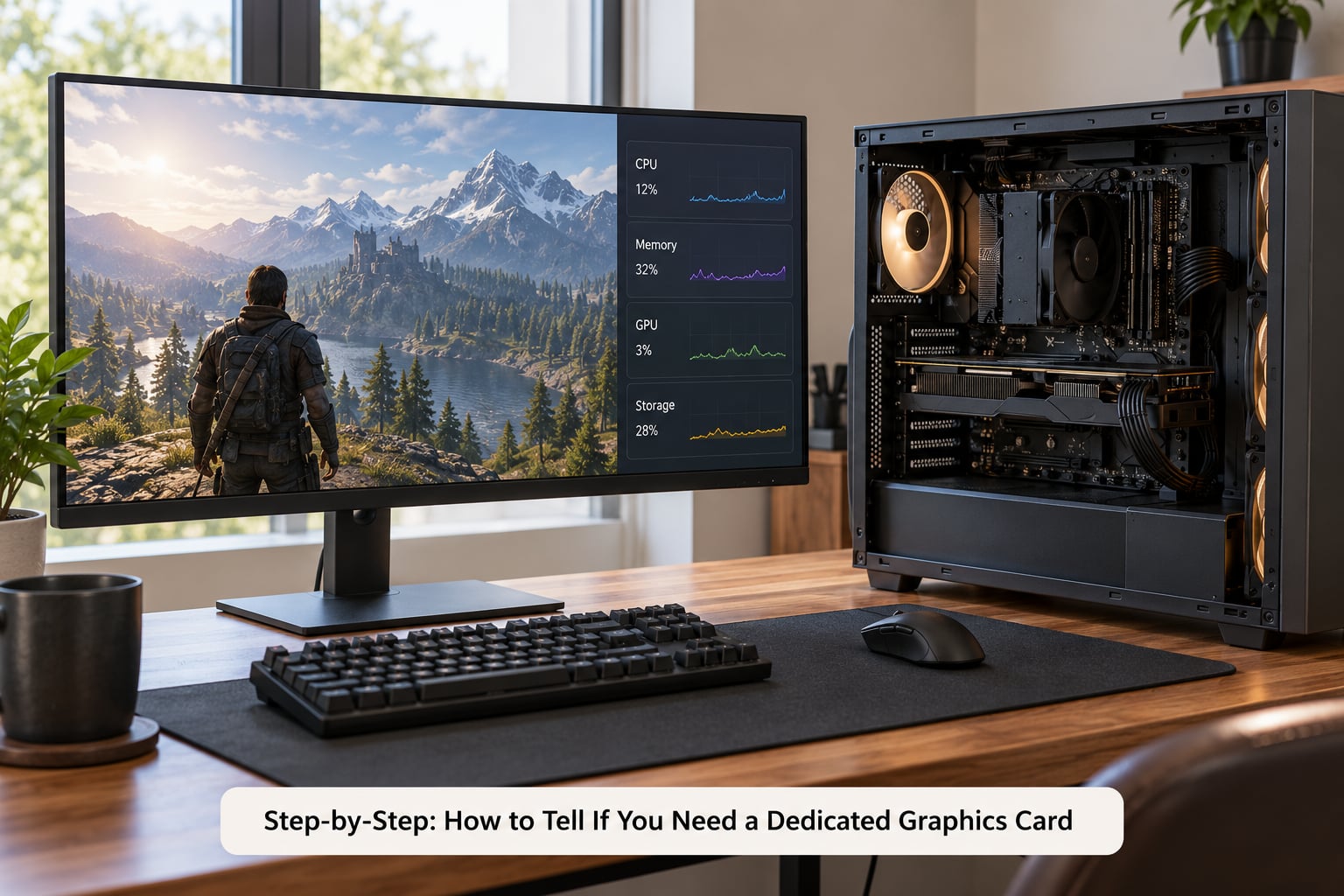
Five steps, in order. Stop as soon as one of them gives you a clear answer, because a clear answer early is worth more than the rest.
Step 1: Identify Your Current Graphics Setup
On Windows, press the Windows key, type dxdiag and press Enter. The Display tab names your adapters, and the Driver section gives you the driver date and version. For live numbers, open Task Manager with Ctrl+Shift+Esc, pick Performance, then GPU. That screen shows the adapter name, dedicated GPU memory, shared GPU memory, driver version and per-engine usage.
Device Manager gives the same answer in one line. Expand Display adapters and read the entries there. On a laptop you may see two: an integrated chip and a discrete one.
The naming convention is simple enough to learn in a minute. Intel UHD Graphics, Intel Iris Xe, Intel Arc Graphics, and AMD Radeon Graphics with a three-digit number such as 780M or 890M are integrated. Anything named NVIDIA GeForce or AMD Radeon RX with a number is dedicated.
One catch worth knowing: CPUs with an F suffix, such as Core i5-12400F, have no integrated graphics at all. If you run one of those with no card installed, you get a black screen with no display output at all.
On macOS, click the Apple menu and choose About This Mac. On Apple Silicon the GPU is built into the same package as the CPU and shares a single pool of unified memory, so there is no separate card to add. Hold Command, press Shift and U for System Information, then read the Graphics/Displays or Displays row for the chipset and VRAM details.
On Linux, open a terminal and run lspci | grep -Ei 'vga|3d|display' to list adapters, glxinfo -B for the renderer in use, and nvidia-smi if an NVIDIA card is present. intel_gpu_top gives live Intel engine load and radeontop does the same for AMD.
The most common mistake here is checking the wrong adapter. On a machine with switchable graphics, a browser window or a remote desktop session can run on the integrated chip while the game runs on the card, so Task Manager shows two rows. Watch the row for the adapter your slow app is actually using.
What this step tells you: if you already own a dedicated card and something is still slow, a second card is rarely the fix. Usually the app is running on the integrated adapter, or the limit is elsewhere.
Step 2: Match the GPU to Your Real Workload
Graphics hardware that is plenty for one job is inadequate for the next, so decide which of these describes your week rather than your intentions.
Workloads that usually benefit from a dedicated card include modern 3D games at settings above the lowest presets, anything at 1440p or 4K, ray-traced rendering, video editing on 4K timelines with colour grading or multiple effects, 3D rendering in Blender or similar tools, CAD and VFX work, running local machine learning models, and driving several high-resolution monitors at once.
Workloads that rarely need one include web browsing, documents, spreadsheets, email, video calls, watching video, ordinary photo work in Lightroom and Photoshop at moderate resolutions, older or lightweight games, and console-style titles. Builders and enthusiasts on r/pcmasterrace say the same thing in their own words: a modern integrated chip is fine for esports and light 1080p play, and the jump only matters once you move to demanding titles or higher resolutions.
One detail that explains a lot of confusing results: playback looks smooth on integrated graphics because hardware video decode is already built into the processor. Smooth 4K playback tells you almost nothing about 3D or rendering performance. It is a different engine doing a different job.
What this step tells you: if none of the demanding items on that list match your actual use, the rest of the process is academic. Integrated graphics are enough for you.
Step 3: Test Performance Where You Notice Problems
This is the step that actually answers how to tell if you need a dedicated graphics card, because it puts a number on the thing that bothers you.
Launch the specific game or project you dislike, let it reach the heaviest scene, and open Task Manager. Watch the GPU pane, which shows separate columns for 3D, Copy, Video Decode and Video Encode engines.
Read the readings like this:
- 3D at 95-100% with a poor frame rate: the graphics processor is the limit. More GPU hardware fixes this.
- 3D sitting around 40-60% with a poor frame rate: something else is. Look at the CPU column.
- CPU at 95-100%: the processor is the limit, and a faster card will barely change the frame rate.
- Copy engine high, with stutter rather than a low frame rate: the game is moving textures through shared system memory. This is a bandwidth problem, not a lack of dedicated VRAM.
- Video Decode high during smooth playback: everything is working as intended.
Record actual frame rates rather than impressions. Most games ship with a performance overlay, often toggled with Alt and F, and the Steam overlay or the vendor control panel can add one to anything else. Note both the average and the low frames, because average frame rate hides stutter and 1% lows are what you actually feel.
On macOS, Activity Monitor shows a GPU History column when you enable Window, then GPU History. Intel’s integrated chips show separate engine rows. For a second opinion on numbers, iStat Menus is the common choice.
On Linux, run nvidia-smi dmon for NVIDIA cards or intel_gpu_top in a second terminal while the workload runs. MangoHud draws the frame rate and usage over the game itself, which is the fastest way to see whether the numbers hold steady.
Here is a shortcut that settles the CPU-versus-GPU question in about a minute. Drop the resolution to something low in the game’s settings. If the frame rate climbs sharply, the graphics processor was the limit. If it barely moves, the processor was.
What this step tells you: a measured 95-100% on the 3D engine during your slow workload is the strongest single piece of evidence that a dedicated card would help.
Step 4: Check Thermals, Power, and Physical Constraints
Before spending anything, rule out the problems a card cannot fix.
Heat is the usual culprit people misread. If CPU or GPU temperatures climb into the 90s and clocks drop, you are looking at cooling and thermal throttling, and a faster card in the same airflow will throttle just as badly. Clean the dust, check the fan curve, and confirm the case has intake and exhaust airflow.
Memory is the second one. 8GB of system RAM on a machine running a game, a browser and a video call will produce stutter that looks exactly like a graphics problem. Double the memory before you blame the graphics chip.
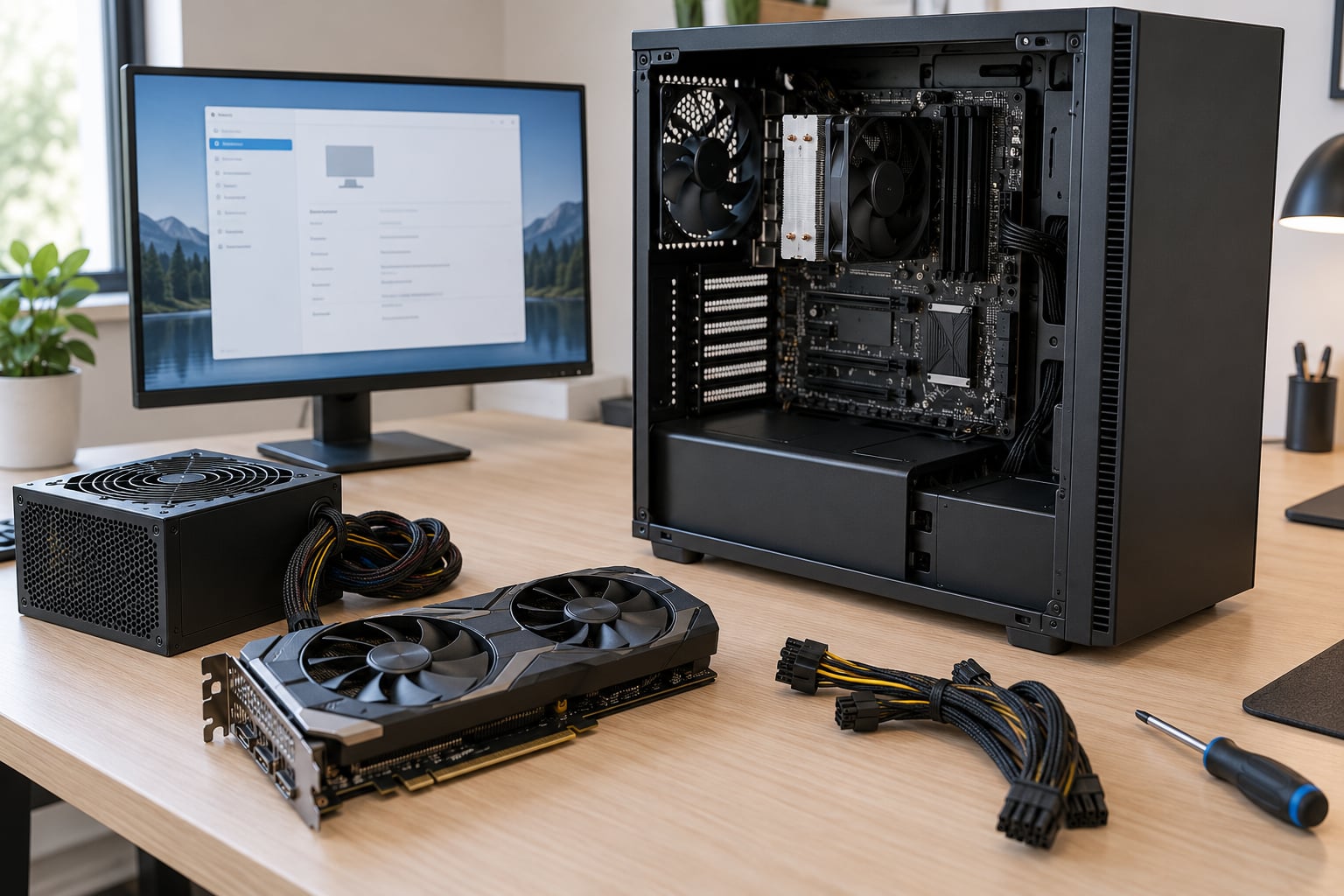
Power supply is the one that can ruin the upgrade. Read the wattage on the power supply label, add the new card’s power draw and your CPU’s draw, then leave roughly 100W for storage, fans and everything else. Check that the unit has the right connectors, that the cables reach the card at full length, and that the card physically fits: two-slot and three-slot cards need room that many older cases do not have.
For laptops the constraints are harder. Most laptop GPUs are soldered to the motherboard, and thin chassis run at lower power limits than their desktop namesakes. An external GPU over Thunderbolt or USB4 is possible and works, but the connection bandwidth sits well below an internal slot, so results vary by workload.
What this step tells you: if the problem survives this check, a card may help. If you cannot power and physically fit one, you are looking at a new machine rather than an upgrade.
Step 5: Compare the Cost Against the Expected Benefit
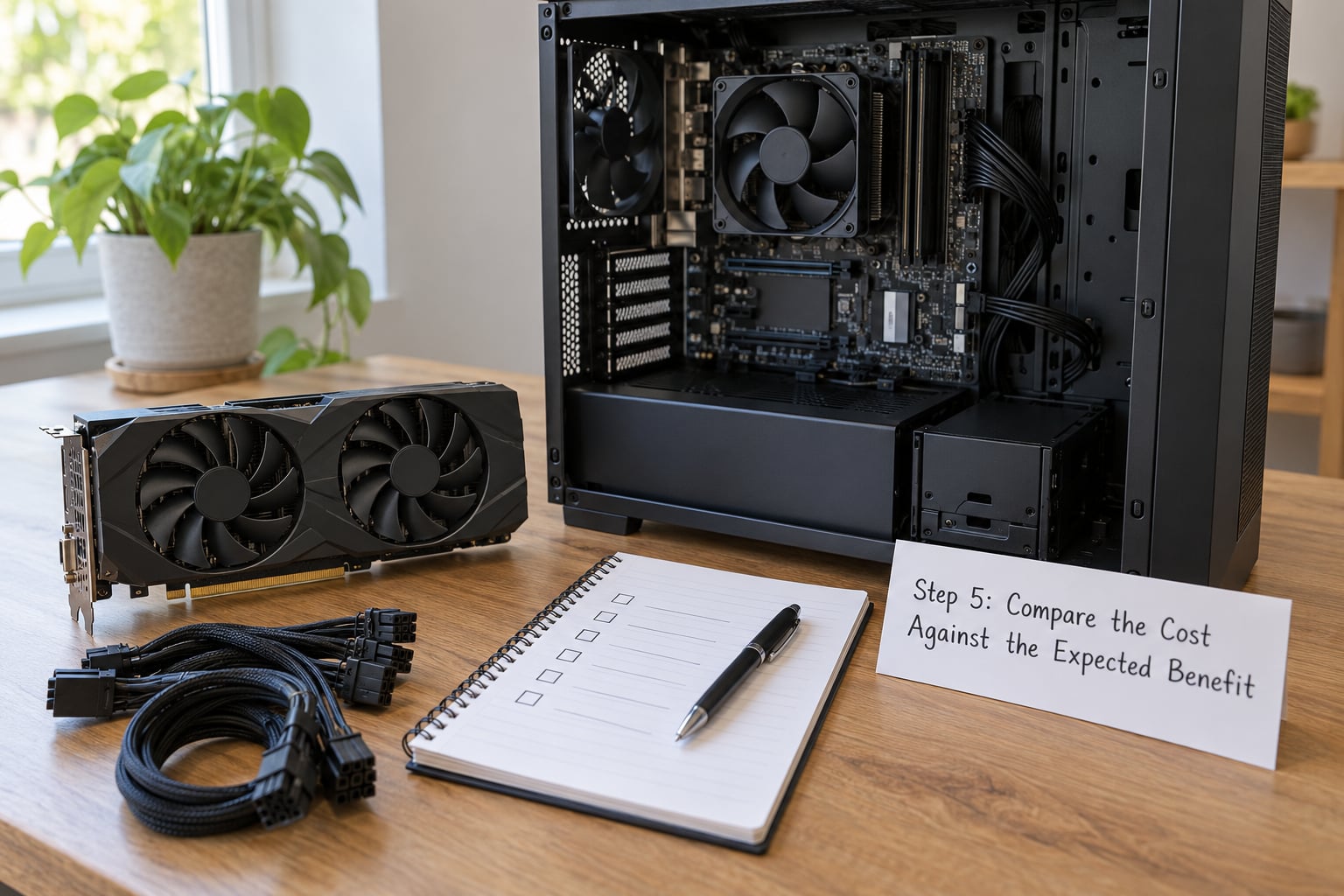
Now do the arithmetic, and keep it boring. You have a measured current frame rate in the workload that bothers you. Find frame rates for cards at your resolution and your settings, not at settings you do not play in.
The simple decision rule: upgrade when the workload consistently underperforms, the 3D engine reads 95-100% during it, and a suitable dedicated card solves a problem you actually have.
Factor in the less obvious costs. A larger card may need a power-supply upgrade and better case airflow, and it adds heat and noise to a room you sit in every day. A new card also carries a warranty and holds resale value better than most other components, which matters if you expect to keep the machine for several years. Older cards on the used market can be sensible for lighter targets, but they carry no warranty and their drivers eventually stop receiving updates.
The reverse case is worth stating plainly. Experienced builders on r/buildapc and r/RigBuild point out that most buyers overestimate the card they need, and that a low-power card is often enough for the job in front of them.
There is one more comparison people forget: a full new PC can cost less than the sum of a card, a power supply, a faster processor and more memory, and it arrives with a warranty that covers the whole machine. If your processor or memory is also near the end of its life, buying once beats upgrading twice.
What this step tells you: if the expected frame rate improvement does not change how you actually use the machine, keep the integrated graphics. That decision is a valid outcome, and it is the right one more often than buyers expect.
Common Mistakes
Judging by resolution alone. Resolution tells you the workload’s size, not whether your hardware can handle it. A 1080p game can be unplayable on integrated graphics, and a 4K desktop can be perfectly smooth.
Buying a card before checking the power supply. This is the most common way an upgrade goes wrong, and it is completely predictable with a label and a manual.
Assuming more VRAM always means better. Extra memory prevents stuttering when textures and framebuffers overrun what you have. It does not raise frame rate by itself. Typical starting points are 4-6GB for 1080p, 8GB or more for 1440p, and 12-16GB for 4K with modern texture-heavy games or heavy editing.
Ignoring laptop thermal limits. A thin laptop with the same GPU name as a desktop card will not deliver the same performance. Check independent reviews for the machine, not the chip.
Upgrading the graphics before troubleshooting the processor or memory. If the CPU column is pegged, a faster card will not help, and you will have spent money to feel the same.
Treating frame rate as the only measure. Stable frame times and low 1% lows matter more than a headline average. A game running smoothly at a lower setting is a better experience than one stuttering at a high one.
Disabling the integrated chip once a card is installed. Builders generally advise keeping it enabled as a fallback for display output, and it costs nothing to leave on.
Buying during a shortage-driven price spike. Demand for graphics cards moves with data centre and AI work, and prices follow. If the same card is available from a normal retail channel, waiting is often cheaper than panic-buying.
Frequently Asked Questions
How can I tell if integrated graphics is the bottleneck in my PC?
Open Task Manager, press the Windows key, choose Performance, then GPU, and run the program that feels slow. Watch the 3D or 3D Engine column while it runs. If that column holds 95-100% while the frame rate is poor, the graphics processor is the limit. If the CPU column is the one pinned near 100%, the processor is the problem and a faster card will barely change anything.
Do I need a dedicated graphics card for video editing?
Integrated graphics handle playback and simple cuts of 1080p footage using the hardware video engine already built into the processor. A dedicated card matters once you work with 4K timelines, colour grading, several effects at once, or 3D titles, where playback drops frames or exports drag. If your playback is smooth and exports finish when you expect them to, the extra hardware buys you very little.
Is a dedicated GPU worth it for a laptop?
On most laptops the graphics chip is soldered to the motherboard, so the only upgrade path is an external GPU over Thunderbolt or USB4. That works for many people, but the connection bandwidth is well below what an internal slot delivers and you end up carrying a second box. If the rest of the laptop suits you, a different machine with stronger graphics is often the cleaner answer.
How much graphics memory, or VRAM, do I need?
Plan on roughly 4-6GB for 1080p, 8GB or more for 1440p, and 12-16GB for 4K with modern texture-heavy games or heavy editing work. Extra VRAM does not raise frame rate on its own; it stops textures and high-resolution buffers from stuttering. Buy enough headroom for the heaviest thing you actually do rather than the biggest number on the box.
Can upgrading the graphics card solve low frame rates?
Only when the graphics processor is what is holding you back. Watch the 3D column in Task Manager while you play: pegged near 100% with a choppy frame rate means a card will help. If the CPU is pinned instead, or you are running heavy multitasking on 8GB of memory, a new card will not fix the stutter and the money will not buy you a better experience.
How do I know whether my power supply can support a new GPU?
Read the wattage on the power supply label, then add the new card’s power draw and your CPU’s draw, leaving about 100W for storage, fans and everything else. Confirm the unit has the connectors the card needs, that the cables reach the card at full length, and that the card fits the case’s free slots. A 16-pin connector must seat fully until it clicks.
Conclusion
Start by identifying the graphics hardware you already have, then run the one workload that feels slow and watch the 3D engine reading while it happens. If that reading pins near 100% and the processor is idle, graphics is the cause and a dedicated card is a real fix. If the processor is the one at 100%, or the memory is tight, or the power supply cannot take the card, fix that first. This method has held up as hardware generations have shifted through 2026, and it will still be the first thing worth checking when something feels slow.