
Registering a domain and pointing it to a host is two separate jobs, and the gap between them is where beginners lose a weekend. The domain is the address; the host is the machine that answers when someone types it. You link the two through DNS, and the whole process takes about twenty minutes of clicking plus a wait of up to forty-eight hours for the change to spread.
Here is the short version. Register the name with a domain registrar, copy the nameserver addresses your host gives you, paste those into the registrar’s nameserver field, and save. Then check with a DNS lookup tool until your domain resolves to your host’s server. If something looks broken at the end, it is almost always one of six mistakes, and they are all listed below.
Nothing here recommends a particular company. Providers change their screens and their pricing, and any guide that tells you to buy from one place is advertising, not instruction.
Table of Contents
- 1What You Need
- 2Step-by-Step: How to Register a Domain and Point It to a Host
- 3How to register a domain and check availability
- 4How to find your host DNS settings
- 5How to point the domain to the host
- 6Method A: nameservers
- 7Method B: A record
- 8How to verify that the domain is connected
- 9Common Mistakes
- 10The domain shows a registrar parking page
- 11The site does not load at all
- 12You typed https:// into a DNS field
- 13www works but the bare domain does not
- 14The wrong website loads
- 15Email stopped working
- 16Auto-renewal was never turned on
- 17Frequently Asked Questions
- 18Do I have to register my domain and hosting with the same company?
- 19How long does it take for a domain to point to a host?
- 20Should I use nameservers or an A record to connect my domain?
- 21Do I need to configure HTTPS after pointing my domain?
- 22Can I point a domain to a home or local server?
- 23What should I do if my domain shows the wrong website?
- 24Conclusion: Point Your Domain to Your Host
What You Need

You need four things, and two of them are accounts you may already have.
- A domain registrar account. This is the company that sells the name, keeps the WHOIS record, and holds the DNS settings. Registration is self-service and takes a few minutes.
- A hosting account. The host assigns your site a server with a public IP address and, usually, a pair of nameservers.
- A domain name you actually want. Checked and available in a registrar search box.
- Access to both control panels. Keep them open in two browser tabs so you can copy values rather than retype them from memory.
The domain and the hosting do not have to come from the same provider, and in practice they usually do not. Plenty of people register the name at one company and host the site somewhere else entirely. The one exception worth knowing: if your host offers a free domain with a hosting plan, that name is often locked to their DNS and costs extra to move out, so check the terms before you start.
Two terms appear constantly in this guide, so define them now. A nameserver is a server that answers the question “which computer should this domain go to?” and DNS is the whole system, the phone book of the internet, that turns names into numbers. An A record is a single line of DNS that answers the same question with a raw IP address instead of a nameserver.
Step-by-Step: How to Register a Domain and Point It to a Host
Do the four blocks below in order. Each one has a checkpoint so you know it worked before moving on.
How to register a domain and check availability
Open a registrar and search the name you want. Availability is instant, and you will see the same name available as .com, .net, .co or a dozen newer endings, sometimes with a steep first year and a much higher renewal.
Before you commit, three choices drive most of the regret people report later. The TLD matters more than people expect: a shorter and more familiar extension reads as more trustworthy, and some country codes carry residency rules. The renewal price matters more than the headline, because the cheap first year is a discount, not the real cost. And WHOIS privacy, which hides your contact details from the public lookup, is included free at some registrars and sold as an add-on at others.
To register, do the following.
- Search the exact name, then check the extension list for spelling alternatives that are easier to type.
- Pick the term. One year is the default and the right choice for a first domain.
- Turn on WHOIS privacy if it is offered, so your personal details do not appear in public records.
- Turn on auto-renewal. This is the single setting people forget, and the failure mode is a domain that quietly stops resolving on the day after its expiry.
- Enter payment details and complete the checkout.
- Confirm the registration. An ICANN email asks you to verify the contact address; until you answer it, the domain is registered but not activated.
Checkpoint: a WHOIS lookup on the name now returns your registrar, a creation date inside the last few minutes, and your contact details either visible or hidden depending on the privacy toggle.
How to find your host DNS settings
Your host will have supplied you with a nameserver pair and a server IP address, usually in a welcome email or on the first page of the control panel. Copy them. A single mistyped character in a nameserver is the most common silent failure in this whole process: the registrar accepts it, the domain keeps serving the old page, and nothing anywhere reports an error.
Where the values live depends on the control panel you have. In cPanel, open Domains and the account’s nameservers appear next to the domain or under Nameservers in the sidebar. In Plesk, the nameservers sit under Websites & Domains and then the server name. In DirectAdmin look under Account Manager. On a VPS with no control panel at all, there is no nameserver to copy: you take the server’s public IP from your provider’s dashboard or from the control panel’s network summary.
You will also want to know the document root, which is the folder your site files must land in. On shared hosting that is usually public_html. On a VPS it is whatever your web server configuration points at, commonly a path under /var/www.
Checkpoint: you have two nameserver hostnames and one IP address written down or copied, and you know which of the two methods below your setup actually needs.
How to point the domain to the host
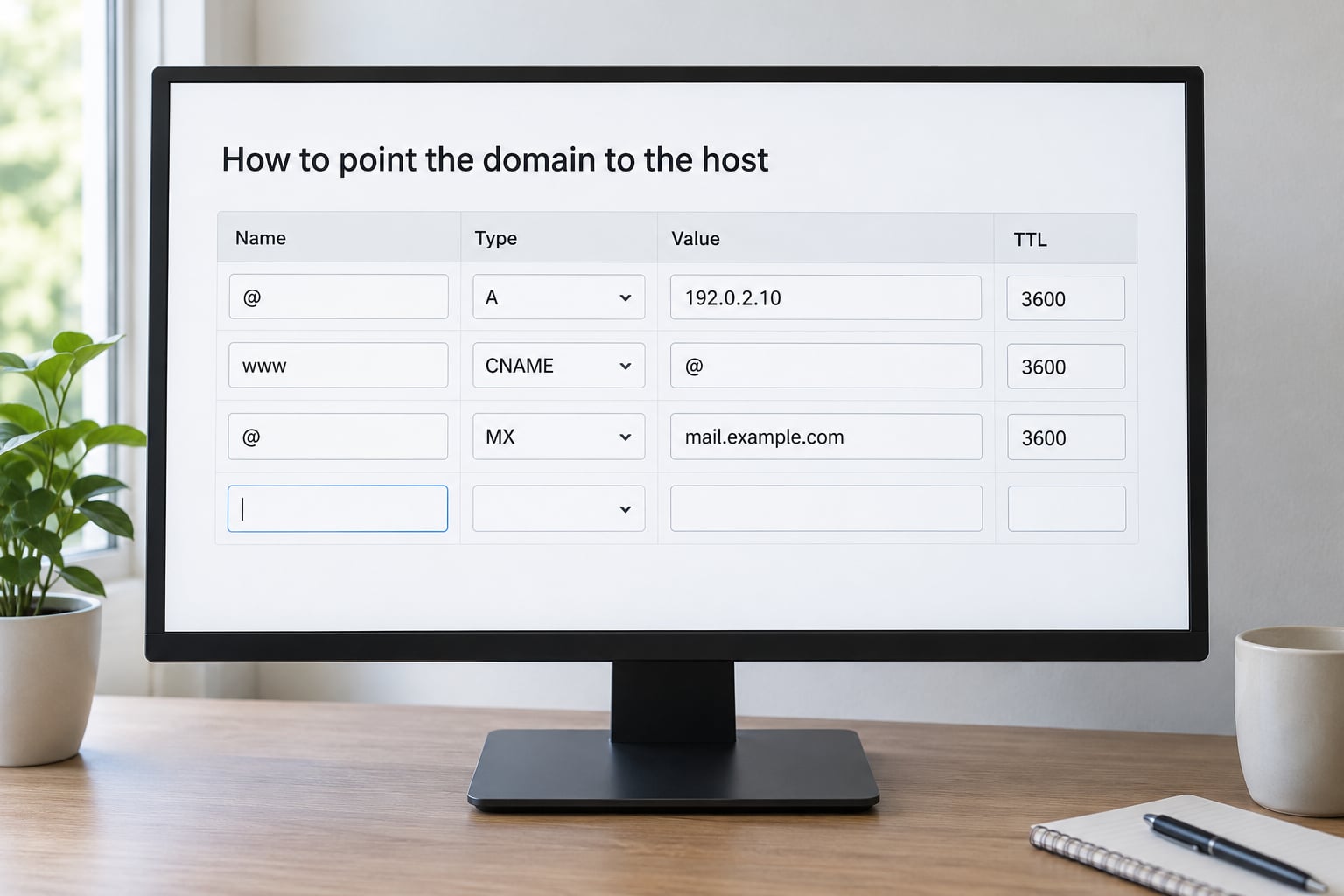
There are two ways to connect a domain to a host, and picking the wrong one gives you half a result. Use nameservers when you want the host to manage everything: it is the simpler setup, it survives an IP change, and most support teams expect it. Use an A record when your host has given you a specific IP address, when you are on a VPS, or when you need to keep email pointing somewhere else. If you are unsure, use nameservers.
Method A: nameservers
- Log in to the registrar, not the host. This is the step beginners trip on, and the panels look nothing alike.
- Open the domain, then find the nameserver screen. Labels differ: Cloudflare shows DNS and then Nameservers, Namecheap has Advanced DNS, GoDaddy has Nameservers and DNS, Porkbun has Nameservers under the domain’s settings. Wherever it is, you want a field that accepts two or more server hostnames.
- Choose the custom or manual option. Any registrar will have offered you its own default nameservers at registration, and those are the ones you are replacing.
- Enter the host’s nameservers exactly as given, one per field. No protocol, no trailing slash, no path.
- Save. Most registrars also need a TTL or cache setting, and Auto or 300 seconds is fine.
Method B: A record
- Open the registrar’s Advanced DNS or DNS Zone editor for the domain.
- Delete any existing A record for the root, the name shown as
@. A leftover record pointing at a parking service or an old host will silently win over your new one. - Add an A record: host
@, value is your host’s IP address, TTL Auto or 300. - Add a CNAME for
wwwpointing at your root domain, so both spellings reach the same place. - Save every record before leaving the page, and check the nameservers on this domain are still your registrar’s defaults. Editing zone records is only possible while the registrar is authoritative.
One DNS rule catches nearly everyone: a single name cannot be both an A record and a CNAME. If your registrar accepts that combination and the site behaves oddly, the duplicate record is the first thing to delete.
Checkpoint: the domain shows your host’s nameservers in a WHOIS lookup, or the zone editor shows your A record and www CNAME with no duplicates.
How to verify that the domain is connected
Verification is a lookup, not a guess. Online checkers such as whatsmydns.net and dnschecker.org show you which resolvers around the world have picked up the change and which have not, which is the fastest way to tell a propagation delay from a real misconfiguration. Paste your domain in, choose the A record type, and look at the results column.
From a terminal, the same check takes one line. On macOS and Linux:
dig yourdomain.com A +short
On Windows:
nslookup yourdomain.com
You want a single IPv4 address that matches what your host told you. An empty result means the record has not propagated anywhere yet. To see which nameservers are actually answering, run dig NS yourdomain.com +short.
If the lookup is right but your browser still shows the old site, the problem is on your own machine. Flush the local cache: ipconfig /flushdns in an elevated Command Prompt on Windows, sudo dscacheutil -flushcache; sudo killall -HUP mDNSResponder on macOS, and sudo resolvectl flush-caches on most systemd Linux setups. Then open the domain in a private window.
Checkpoint: an external checker returns your host’s IP for the root domain, and the domain opens in an incognito window.
Common Mistakes
Almost every failure below is a symptom you can recognise before you start guessing. Work down this list in order rather than changing things randomly.
The domain shows a registrar parking page
The most common cause is a correctly applied change that has not propagated yet, and the second is a change that was never saved. Check propagation with an external DNS checker first. If the checker returns your host’s IP and the browser still shows the parking page, it is your local cache.
The site does not load at all
An ERR_NAME_NOT_RESOLVED error means no A record is being returned. Confirm the nameservers at the registrar match the host’s values character for character, then confirm the A record exists on whichever server is authoritative. On shared hosting, the most common cause is forgetting to add the domain in the control panel, which leaves the host with no document root for it and no certificate.
You typed https:// into a DNS field
DNS fields want a bare hostname or a bare IP. https://, a trailing slash, and a path such as /index.html all get rejected or ignored. The value is ns1.yourhost.com or 192.0.2.10, nothing else.
www works but the bare domain does not
You added the CNAME but no root record, or the reverse. A root A record and a www CNAME are two separate entries, and most sites need both before you decide which one to redirect to the other.
The wrong website loads
Two A records for the same name, or an old record still pointing at a previous host. List every record in the zone editor and remove the ones that are not yours. If you are switching hosts, this is the single most common cause of a migration that looks successful and is not.
Email stopped working
Changing nameservers moves your whole zone, including the MX records that route mail. If your email lives with a different provider, copy its MX records into the new zone before you save, or keep the registrar’s nameservers and change only the website’s A record. A week of bounced password resets is a common outcome of skipping this.
Auto-renewal was never turned on
The domain expires, and the site disappears without warning. A calendar reminder the day after your renewal date is the cheapest fix available.
Before you press save, run this short check: nameservers typed exactly as the host gave them, no duplicate records for the same name, a root A record and a www entry, MX records preserved if you use separate email, auto-renewal on, and a verification email already answered. That list catches nearly every outage I have traced back to setup.
Frequently Asked Questions
Do I have to register my domain and hosting with the same company?
No, and most people do not. The registrar holds the domain name and its DNS settings; the host stores your files and serves them. You register the name with one company and point it at a host you bought elsewhere by entering that host’s nameservers or server IP. The exception is a free domain bundled with a hosting plan, which is often tied to that provider’s DNS and harder to move later.
How long does it take for a domain to point to a host?
Most changes show up within an hour or two, and a fair number are live in fifteen minutes. The upper end is forty-eight hours, and rare cases run to seventy-two. What governs the speed is the TTL value on the old records, caching by your internet provider, and how quickly the host’s nameservers are picked up. Lower the TTL to 300 seconds a day before any planned change and most of the wait disappears.
Should I use nameservers or an A record to connect my domain?
Use nameservers when your host supplies them, because the host then manages all records and an IP change needs no work from you. Use an A record when you are on a VPS with a fixed IP, when your host only gave you an IP address, or when email is hosted elsewhere and you want to leave those records alone. Nameservers are the safer default for beginners.
Do I need to configure HTTPS after pointing my domain?
Yes, in most cases. Reaching the host over the domain is what lets the certificate authority issue a certificate, so HTTPS normally starts working a few minutes after DNS resolves and the host adds the domain to your account. On cPanel look for AutoSSL or Let’s Encrypt, on Plesk it is under SSL/TLS Status, and VPS owners configure a certificate in the web server itself.
Can I point a domain to a home or local server?
You can, but you need a public IP address for the connection, and most home connections use carrier-grade NAT, which means the internet cannot reach you without extra setup. An A record pointed at a private address such as 192.168.x.x will never work from outside your network. Practical options are a port forward on the router, a dynamic DNS service for a changing address, or a tunnel service that exposes the local machine.
What should I do if my domain shows the wrong website?
Check for leftover records first. An old A record or a nameserver that still points at a previous host will keep sending visitors to the old content, and two A records for the same name cause the same symptom. Open the zone editor, remove every record that is not the one you want, confirm the nameservers, and allow for propagation. If the wrong site persists after an external checker returns the right IP, flush your local DNS cache.
Conclusion: Point Your Domain to Your Host
Start by opening your host’s control panel and copying the two nameserver addresses and the server IP into a text file. Everything after that depends on those values, and having them written down removes the single most common cause of a failed setup.
Then register the name, replace the registrar’s default nameservers with the host’s, and save. One last thing: run dig yourdomain.com +short or paste the domain into an external DNS checker. When it returns your host’s IP, the connection is done, and whatever your browser is still showing is a local cache rather than a broken setup.