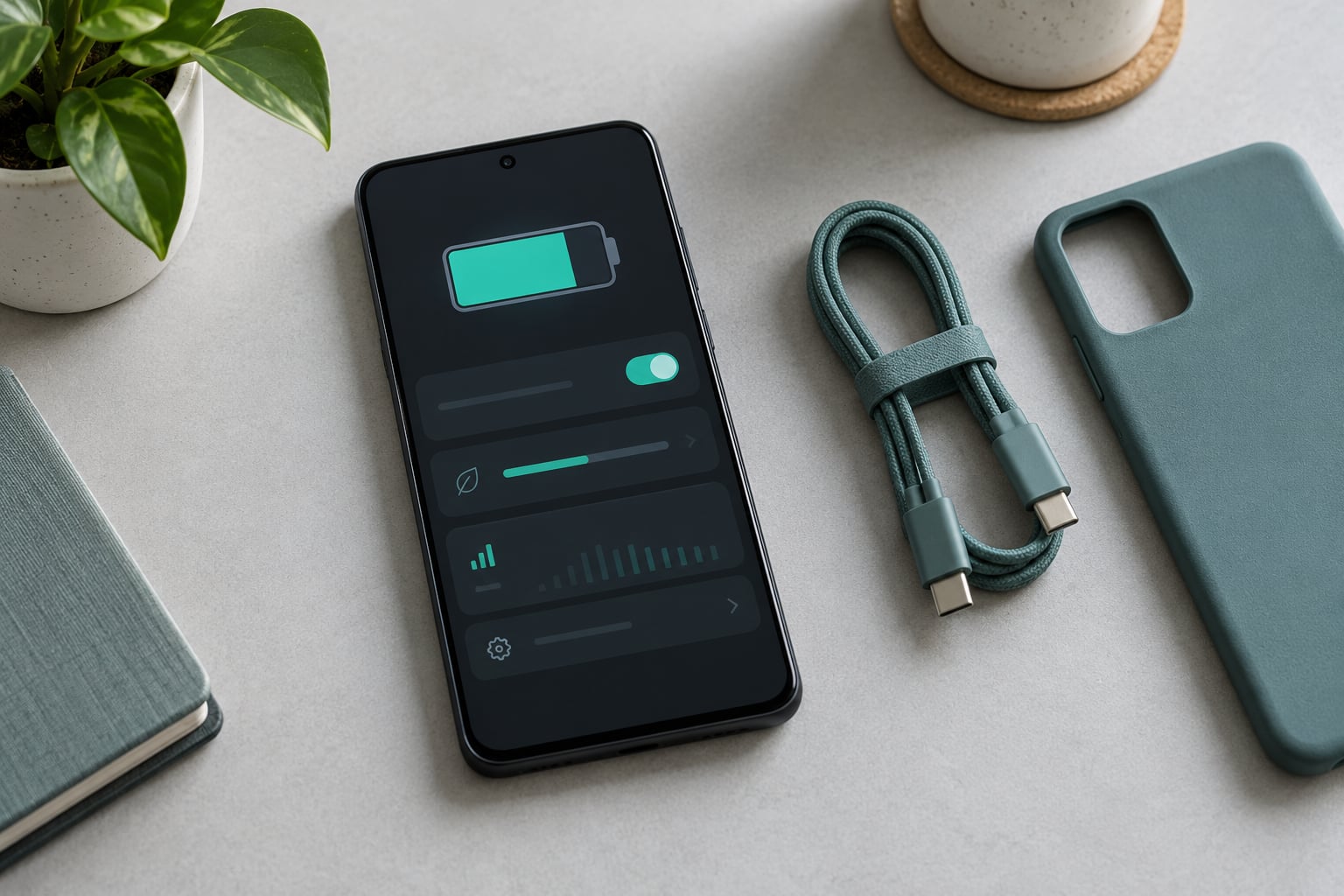
To check battery health on an iPhone, open the Settings app, tap Battery, then tap Battery Health (on iPhone 11 and later it is called Battery Health & Charging). The number under Maximum Capacity is your answer, and the whole process takes about a minute.
Two things trip people up. The label changed depending on the iOS version, and the reading only appears once a phone has been set up and used for a while. I will walk through the exact path, then explain what the number actually means.
Table of Contents
- 1What You Need
- 2Step-by-Step: How to Check Battery Health on an iPhone
- 3Check battery health on an iPhone in Settings
- 4Use iPhone Analytics for a more detailed check
- 5Understand the battery-health readings
- 6What to do if the battery-health option is missing
- 7When should you replace or service the battery?
- 8Common Mistakes
- 9Frequently Asked Questions
- 10Where can I find Battery Health on my iPhone?
- 11What percentage is considered a bad iPhone battery?
- 12Why is Battery Health missing from my iPhone?
- 13Does the iPhone Battery Health percentage mean the battery is unsafe?
- 14How do I read the iPhone battery Analytics Data?
- 15Can I improve my iPhone battery health percentage?
- 16Conclusion
What You Need
Just your iPhone and a few minutes. You need the device set up, activated on an account, and past the initial setup screens.
The menu path depends on two things: your iOS version and your model. iPhone 11 and later running iOS 15 to 17 show Battery Health & Charging. Older iPhones running iOS versions before that show a plain Battery Health menu. iPhone 15 and later add a cycle count and manufacturing date that nothing else displays.
Step-by-Step: How to Check Battery Health on an iPhone
Three steps, in order:
- Open Settings and scroll to Battery, near the middle of the list between Notifications and General.
- Tap Battery Health or Battery Health & Charging, depending on your iOS version.
- Read the percentage next to Maximum Capacity. That is your battery’s current capacity as a share of the capacity it had when new.
You should land on a screen showing Maximum Capacity as a percentage. If the percentage is not there yet, iOS sometimes needs a few days of normal use after setup before it can produce a figure, and it may show Unknown until then.
Check battery health on an iPhone in Settings
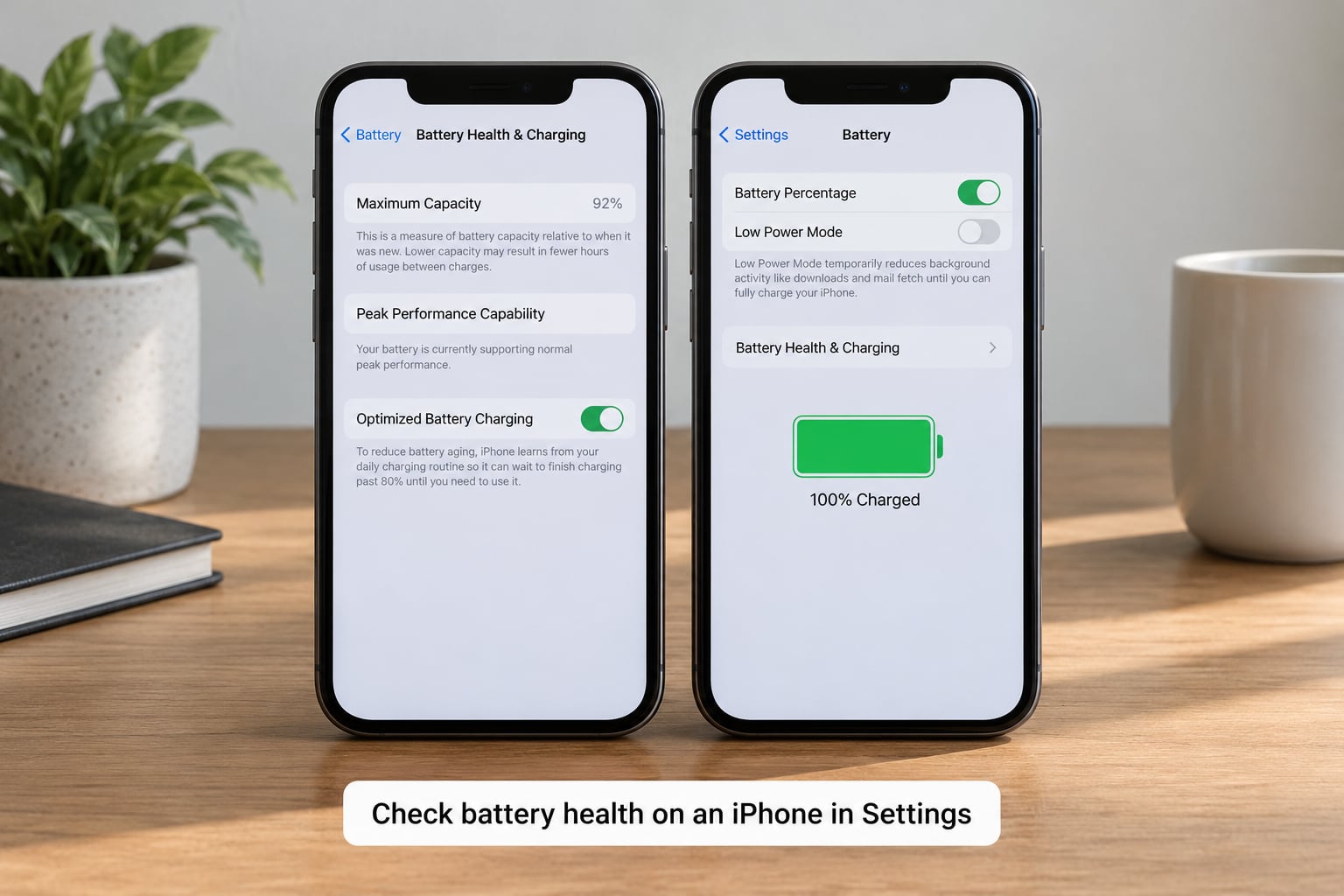
The precise path on iPhone 11 and later is Settings, then Battery, then Battery Health & Charging. In iOS 18 and later the same screen sometimes reads Battery Health and Charging instead. The location has not moved in years, so if you do not see it, keep reading: the setting is often hidden, not deleted.
One detail worth knowing. On iPhone 11 and later, Apple removed the explicit service warning from Settings. Older iPhones would display a line saying the battery’s health was below the service threshold. Modern iPhones show the percentage and the peak performance status but stay quiet about recommending service, so the 80 percent threshold is something you have to judge yourself.
Tap the percentage row and you also get Peak Performance Capability, which reports whether your battery can still handle peak power demands.
Use iPhone Analytics for a more detailed check
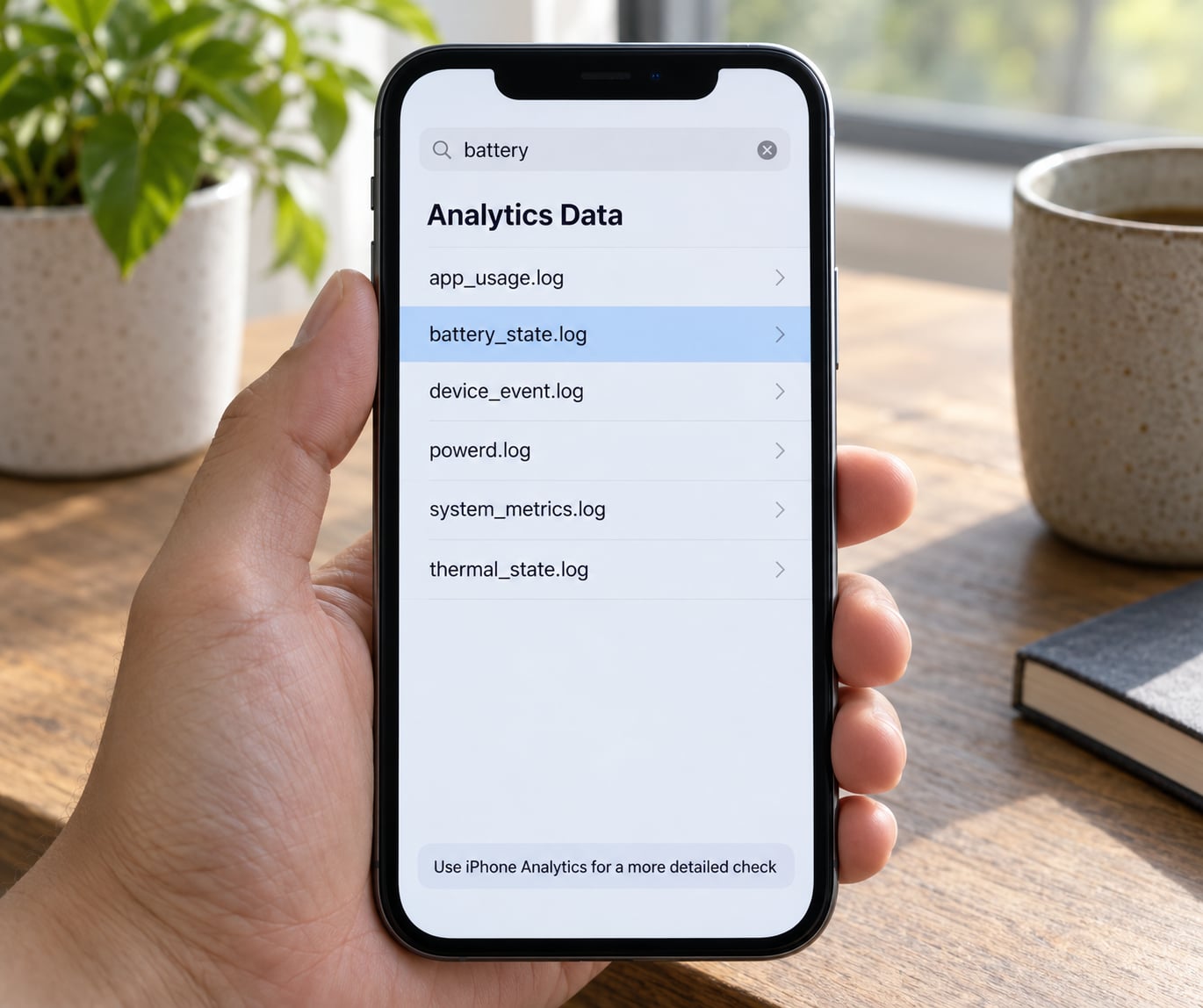
When Settings gives you nothing useful, the raw device logs do. Go to Settings, General, Analytics & Improvements, then Analytics Data. A long list of log files appears, each named like log-aggregated and timestamped.
Tap Show All if the list is filtered, then search for battery. On a recent iPhone look for a log named something like log-aggregated, which bundles daily power statistics.
Tap it and scroll to the bottom of the file. Two fields matter: BatteryLevel, the charge percentage, and DailyBatteryCapacityConsumption, roughly how much charge the day used. Some logs also report ReportReason values such as batteryLevel or lowPower, which tell you why the system logged the event in the first place.
Be careful what you read into these files. A low BatteryLevel number in a log says nothing about long-term capacity, and RawBatteryVoltage varies constantly with what the phone is doing. Analytics gives you raw data, not a verdict.
Understand the battery-health readings
Maximum capacity is the percentage of the battery’s original design capacity that remains. A phone at 90 percent holds roughly 90 percent of the charge it did on day one.
Charge cycles accumulate, not charges. You reach one full cycle by using 100 percent of a charge across a day, whether that is 100 percent to zero or five top-ups of 20 percent. Battery degradation is driven by that cycle count plus heat, and iOS rounds the displayed percentage, so a phone sitting at 89.6 percent can show 89 percent and later jump back to 90 percent without anything changing physically.
The messages on that screen each mean something specific:
- Normal – the battery is operating as expected.
- Performance management applied – the phone is limiting power draw to prevent shutdowns. It kicks in during cold weather or at very low charge.
- Performance management turned off – the limit is temporarily not active, often after a temperature or charge change.
- Service recommended – the battery has degraded far enough that Apple considers replacement worthwhile. This line appears on iPhone XS and earlier models.
- Unable to verify – a non-genuine battery is installed, so the reading cannot be trusted.
Performance management is not permanent damage. It is a temporary response to a power demand the worn cell cannot meet, and it switches off on its own once conditions improve. Genuine wear is the slow decline in maximum capacity, which never recovers.
Owners often ask whether the percentage is accurate, and the honest answer is that it is a reasonable estimate rather than a laboratory measurement. A phone still reading 100 percent after a couple of hundred cycles is not lying; it just has not crossed a reporting threshold yet.
What to do if the battery-health option is missing
If no Battery Health entry appears under Battery, work through these in order.
- Your model is too old. Battery Health arrived in iOS 11.3 for iPhone 6, 6s, 7, 7 Plus, 8, 8 Plus, X, and later. An iPhone 5s or earlier will never show it.
- Setup is not finished. A phone still on the Hello screen has no analytics. Finish setup and use it normally first.
- The reading is not ready. A fresh phone can show Unknown before iOS has enough history to calculate capacity.
- It is a managed or supervised device. Parental controls and corporate mobile device management can suppress the screen.
- The battery was replaced outside Apple. A screen may be limited or unverified, which is different from the setting being gone.
- You are looking in the wrong place. The battery usage charts, including the 24-hour and 10-day graphs and battery usage by app, all live on the Battery screen. Peak performance status and cycle count live on the Battery Health screen.
When should you replace or service the battery?
Apple treats 80 percent as the service threshold, and it is a reasonable line for everyone else too. Below that, charge time gets noticeably longer and daily runtime shrinks.
Symptoms matter more than the number on a bad day. Look for the phone dying at 20 or 30 percent, apps closing unexpectedly, the device restarting under load, or noticeably slower performance that clears after a charge.
For iPhone 15 and later, check the cycle count. Apple rates a battery for 1000 cycles before reaching 80 percent capacity under ideal conditions. A number approaching that, combined with poor runtime, is a clear signal.
Battery health also affects resale. Buyers of used iPhones check the percentage early, and a healthy reading supports a better trade-in. Keep a screenshot each month so you can show the trend rather than a single number.
One caution. The Settings percentage is not a safety diagnosis. A swollen or damaged battery needs servicing regardless of what the screen says, and for that you want Apple or an Apple Authorized Service Provider rather than reading more numbers.
Common Mistakes
Trying to improve the percentage. You cannot. Charging habits slow degradation but do not restore lost capacity. Anyone promising to raise your battery health number is describing something the hardware cannot do.
Trusting third-party app percentages. The App Store is full of battery apps showing invented health scores derived from charge speed or temperature. Useful ones, like Amperes, report charging current and cycle data that Settings hides. Their headline health percentage is not Apple’s number.
Relying on the old Shortcuts trick. For years, people read cycle counts on iPhone 14 and earlier with a Shortcuts automation pointed at the analytics files. It has broken after some iOS updates as Apple moved the log fields around. On iPhone 15 and later, cycle count appears natively and the workaround is unnecessary.
Comparing readings across generations. An 85 percent reading means something different on a two-year-old iPhone 13 and a six-month-old iPhone 16. Age, cycle count and heat history all matter, so the percentage is only meaningful alongside them.
Reading a low voltage as damage. Voltage in the Analytics logs moves constantly with screen brightness, network signal and processor load. A single low reading means nothing.
Frequently Asked Questions
Where can I find Battery Health on my iPhone?
Open Settings and tap Battery, then tap Battery Health or Battery Health u0026amp; Charging depending on your iOS version. On iPhone 11 and later it is usually called Battery Health u0026amp; Charging, and on iPhone 15 and later the same screen also shows a cycle count and manufacturing date. If you cannot find the entry, your model or iOS version may be too old to have the feature.
What percentage is considered a bad iPhone battery?
Apple considers a battery worn out at 80 percent maximum capacity, and most owners agree that is the practical point to plan a replacement. Below that, charge time climbs and daily runtime drops noticeably. A reading of 85 percent is not dangerous, but it leaves little room before you hit the service threshold.
Why is Battery Health missing from my iPhone?
The most common reasons are an older model or iOS version that predates the feature, a phone that has not finished setup, or a newly activated device where iOS has not gathered enough history yet. Parental controls and managed corporate devices can also hide the screen. A screen that appears but reads Unknown is usually a different problem from a missing one.
Does the iPhone Battery Health percentage mean the battery is unsafe?
No. The percentage measures how much capacity the battery retains, not whether it is dangerous. Most worn batteries are simply less convenient, dying earlier in the day and charging more slowly. A visibly swollen or physically damaged battery is a safety matter even at a high percentage, and that kind of issue needs professional service rather than a settings check.
How do I read the iPhone battery Analytics Data?
Go to Settings, General, Analytics u0026amp; Improvements, then Analytics Data. Tap Show All and search for battery, then open a log named log-aggregated. Scroll to the end of the file and look at BatteryLevel for charge percentage and DailyBatteryCapacityConsumption for how much charge a day used. These are raw readings, so treat them as context rather than a health verdict.
Can I improve my iPhone battery health percentage?
No, and any method that claims to is misleading you. Maximum capacity only goes down as cells age. What you can change is how fast it declines: avoid leaving the phone hot, keep daily charges between about 20 and 80 percent, and use Optimized Battery Charging or the charge limit on iPhone 15 and later to reduce time spent sitting at a full charge.
Conclusion
Open Settings, tap Battery, and read the percentage under Maximum Capacity. That single check tells you most of what you need, and it takes under a minute.
Then compare it against your model and your symptoms. On iPhone 15 and later the cycle count beside it gives you a much clearer picture. If you want to know how to check battery health on an iPhone more thoroughly, the Analytics log is where the raw numbers live, and on iPhone 14 or earlier that is also the only way to see cycle activity at all.