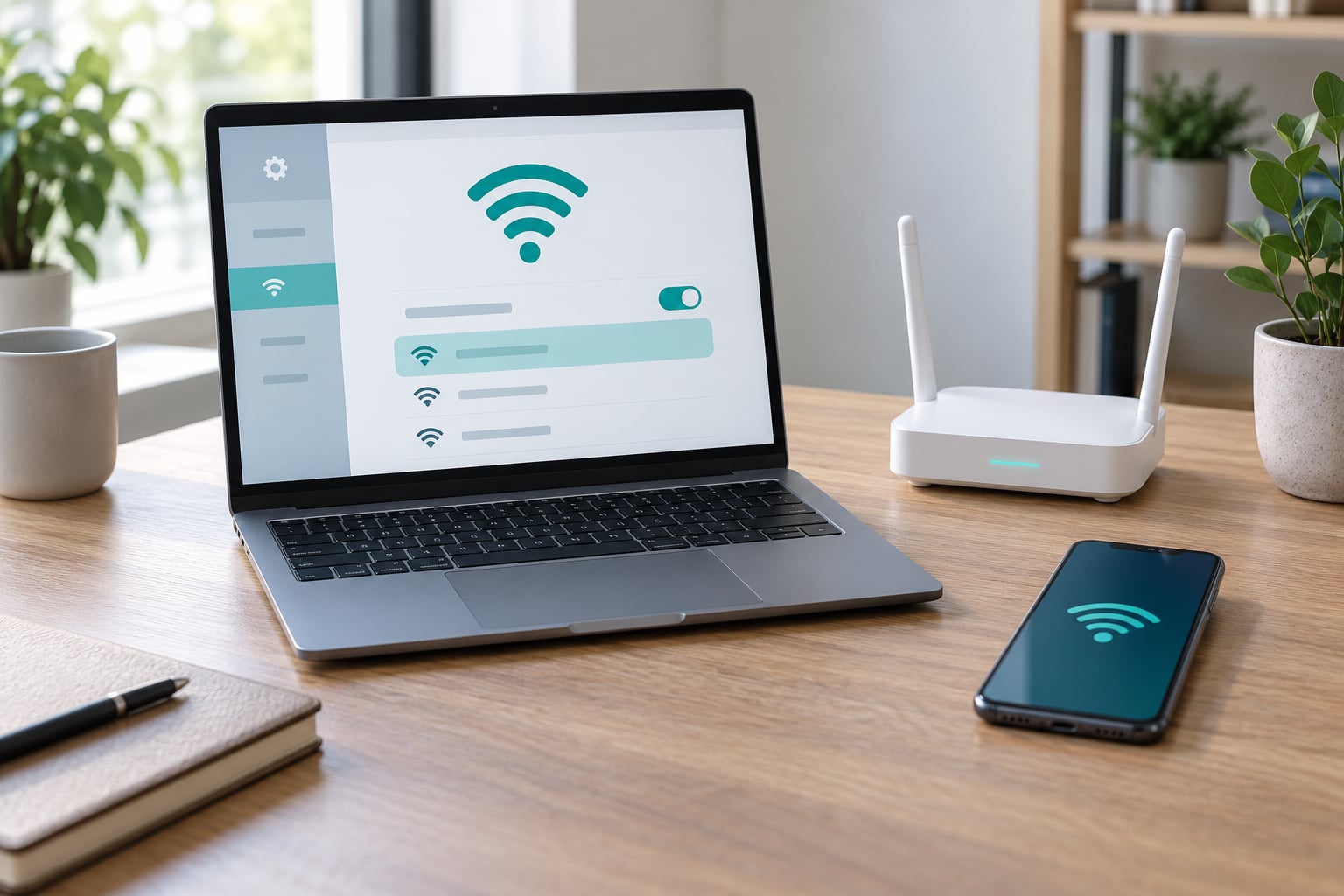
The most common cause is Windows power-managing the wireless adapter and shutting the radio down when it thinks you are on battery. On Windows 11 the fix takes about five minutes: open Device Manager, expand Network Adapters, right-click your Wi-Fi adapter, choose Properties, click the Power Management tab and untick “Allow the computer to turn off this device to save power.” That single checkbox solves the majority of cases, and it costs nothing, erases nothing and is reversible.
Not every dropout is that simple, though. The same symptom — wifi that keeps disconnecting on a laptop — can come from a router that has picked a crowded channel, a driver Windows Update installed last week, a saved network the laptop keeps hopping to, or a radio that has physically failed. The order below matters. Start with the cheapest test and stop as soon as the disconnects go away, because some of the later fixes erase saved networks and VPN profiles.
Windows 11 is the focus, with Windows 10 and macOS paths where they differ, since the query just says “laptop” and plenty of readers arrive from a Mac. If your disconnects happen the moment the lid closes or the machine wakes from sleep, jump to step 3 — power management is almost always the culprit there.
Table of Contents
- 1What You Need
- 2Step-by-Step: How to Fix WiFi That Keeps Disconnecting on a Laptop
- 31. Confirm Whether WiFi That Keeps Disconnecting Is Only Your Laptop
- 42. Check Signal Strength and Network Congestion
- 53. Set the Wi-Fi Adapter to Reconnect Automatically and Stop Power Saving
- 64. Restart the Router, Laptop, and Active Network Services
- 75. Update or Reinstall the Wi-Fi Driver
- 86. Reset Network Settings Without Erasing Personal Files
- 97. Test the Adapter in Safe Mode and Another Network
- 108. Check for a Failing Wireless Adapter
- 11Common Mistakes
- 12Frequently Asked Questions
- 13Why does my laptop Wi-Fi keep dropping even when other devices stay connected?
- 14Should I reset my Wi-Fi before trying another network?
- 15Does resetting network settings delete files on a Windows or Mac laptop?
- 16Can a VPN or antivirus program cause repeated Wi-Fi disconnections?
- 17How do I know whether the laptop’s wireless adapter is broken?
- 18Conclusion
What You Need
You need the laptop itself, its charger, and administrator credentials for the machine. On Windows that means a PIN or password belonging to an account with admin rights; on a Mac it means your normal login password. Safe Mode on macOS requires it too.
You also need access to the router, or at least to a second network you trust. A phone hotspot is ideal. Whatever the router is doing — a firmware bug, a congested channel, a dead 5 GHz radio — your laptop will do the same thing on a hotspot, and that one test removes the router from the conversation in under a minute.
A second Wi-Fi-enabled device helps too, ideally a phone. Checking whether the phone stays connected while the laptop drops is step 1 and it costs nothing.
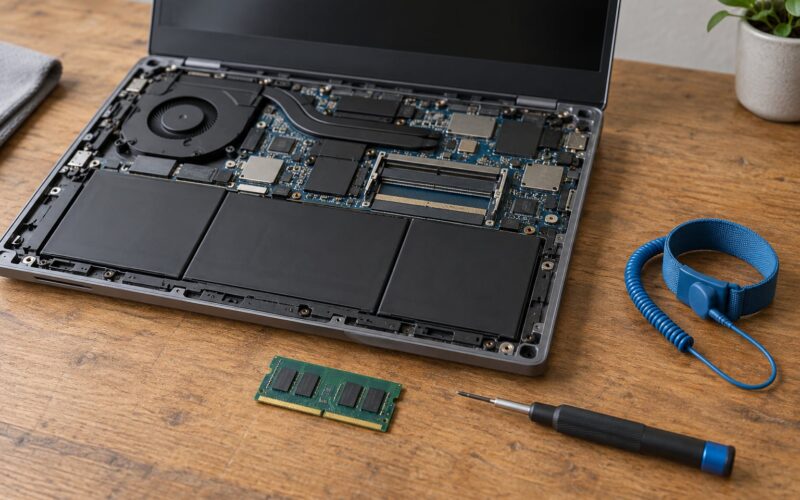
A USB Wi-Fi adapter is optional. It is only needed for the hardware test in step 8, where it tells you whether the internal radio is dead. Any standard 802.11ac or newer dongle will do; the point is diagnosis, not speed.
Finally, if Windows Update or a driver install happened shortly before the disconnects started, note the date. You will need it for the rollback in step 5.
Step-by-Step: How to Fix WiFi That Keeps Disconnecting on a Laptop
1. Confirm Whether WiFi That Keeps Disconnecting Is Only Your Laptop
Open the phone and check whether it stays connected to the same network while the laptop drops. If the phone also drops, the router or the broadband line is the problem and no amount of Windows settings will help. When every device on the network drops at once, blame the router rather than the laptop.
If only the laptop drops, the fault is on the machine. That is the most common outcome, and it means everything from here is worth doing.
Also work out which of three things is actually happening, because each has a different fix:
- Disconnected — the network drops off the list entirely, or says “Can’t connect to this network.” Points at the driver, power management or the radio.
- Connected but no internet — the name is there, the bars are there, nothing loads. Points at the router, the ISP or the DNS layer.
- Connected but slow — pages load eventually, video stalls. Points at congestion, a weak signal or a failing adapter that cannot hold a link.
A real result for this step: you know whether you are chasing hardware, the router or the software.
2. Check Signal Strength and Network Congestion
Full bars and constant dropouts are a normal pairing on a congested network. Windows shows signal strength by holding the pointer over the Wi-Fi name in the taskbar. macOS shows it by holding Option and clicking the Wi-Fi entry in the menu bar — that adds signal strength, channel, RSSI and noise to the standard list.
The band matters more than most guides admit. The 5 GHz band is fast and short-range, which makes it fragile through walls and crowded in apartment blocks. The 2.4 GHz band reaches further and punches through obstructions, but it suffers more interference from neighbouring routers, microwaves and Bluetooth gear. Switching a stubborn connection down to 2.4 GHz fixes a surprising share of post-update dropouts.
For a finer reading on Windows 11, open Command Prompt and run netsh wlan show interfaces. The signal line, the channel and the radio type tell you more than the taskbar icon does. Wi-Fi 6 and Wi-Fi 7 laptops are far more sensitive to a congested channel than older 802.11n hardware, so if you just moved into a new place, that may explain a change in behaviour.
Then move: close a few doors, step away from the router, and watch whether the drops continue. Test on both bands if your router broadcasts both. A drop that only happens in one room or on one band is a signal problem, and the answer lives in the router’s admin interface — channel selection and transmit power, not in Windows.
A real result for this step: you know whether the signal is marginal, and if so whether it is a band problem.
3. Set the Wi-Fi Adapter to Reconnect Automatically and Stop Power Saving
This is the fix that resolves most cases. On Windows 11 press Win+X, choose Device Manager, expand Network adapters and find the entry named Wi-Fi, Wireless or Wireless LAN. Right-click it and choose Properties, then open the Power Management tab.
Untick “Allow the computer to turn off this device to save power.” Apply, then unplug the charger and put the laptop on battery for a while to test. If the disconnects were happening on battery only, they are usually gone now. The cost is a little more power draw on a full charge, which matters far less than a connection that dies mid-call.
While you have the Properties dialog open, check the Driver tab. The driver date tells you when it was installed and whether the problem started after a Windows Update.
Now handle saved networks. Go to Settings > Network & internet > Wi-Fi and click Manage known networks. Any network you do not use — an old office, a neighbour’s, a coffee shop — should have “Connect automatically when in range” turned off. A saved network nearby with auto-connect on will pull your laptop off your home connection, which is exactly the behaviour people describe in support threads.
On macOS, open System Settings > Network, select Wi-Fi and click Details next to your network. Set “Join When Available” to Never for anything you do not use, and keep Automatic for your own. macOS power management lives under Battery > Options, where Low Power Mode being on is the equivalent of leaving that checkbox ticked on Windows.
A real result for this step: the adapter no longer sleeps itself off the network, and stale saved profiles can no longer hijack the connection.
4. Restart the Router, Laptop, and Active Network Services
A full restart of everything in the right order clears a surprising number of dropouts. Shutdown or restart the laptop, power off the router, leave it unplugged for a full minute, then power it back on and wait until the status lights settle before starting the laptop. That minute-long wait is doing real work — the radio and the DSL or fibre modem both need the power fully gone.
If you cannot restart the router mid-call, toggle the Wi-Fi radio instead: click the network icon in the Windows 11 taskbar, turn Wi-Fi off, wait ten seconds, turn it back on. On macOS, use the Wi-Fi entry in Control Centre or the menu bar.
Then restart the Windows service that manages wireless connections. Press Win+R, type services.msc and press Enter. Find WLAN AutoConfig, double-click it, choose Automatic in the Startup type drop-down and click Restart. If it is already set to restart on demand, that is fine.
On a Mac there is no equivalent service to restart. The nearest thing is toggling the Wi-Fi switch, or putting the machine to sleep and waking it, which restarts the network stack in a controlled way.
A real result for this step: a clean restart with the services running. If nothing changes, move on — restarting endlessly tells you nothing.
5. Update or Reinstall the Wi-Fi Driver
Go to the support page for your laptop model and download the wireless driver from there. Not from a driver-dump site. Those sites exist to sell something, and a mismatched driver can be worse than the one already installed. HP, Dell, Lenovo, ASUS and Acer all publish model-specific wireless drivers, and that is the correct source. Avoid a general-purpose driver updater entirely.
Check Device Manager > Network adapters > your Wi-Fi adapter > Properties > Driver tab. If the disconnects began right after that date, roll back instead: click the Driver tab and choose “Update driver” followed by “Browse my computer for a driver software,” then “Let me pick from a list of available drivers” and select the previous version. Rolling back beats reinstalling when a Windows Update introduced the fault.
If the fault is not tied to a date, get the OEM version and install it over the top. Right-click the adapter and choose Uninstall device, tick “Attempt to remove the driver for this device,” reboot, then install the OEM driver. Windows will rebuild the device on reboot; this is normal.
On macOS there is no driver to fetch. The Wi-Fi firmware ships with the system, so the equivalent action is installing current system updates in System Settings > General > Software Update. If the dropouts only started after an update, testing in Safe Mode tells you whether third-party software is involved, which step 7 covers.
A real result for this step: a current or restored driver, and a clear sense of whether the update was the trigger.
6. Reset Network Settings Without Erasing Personal Files
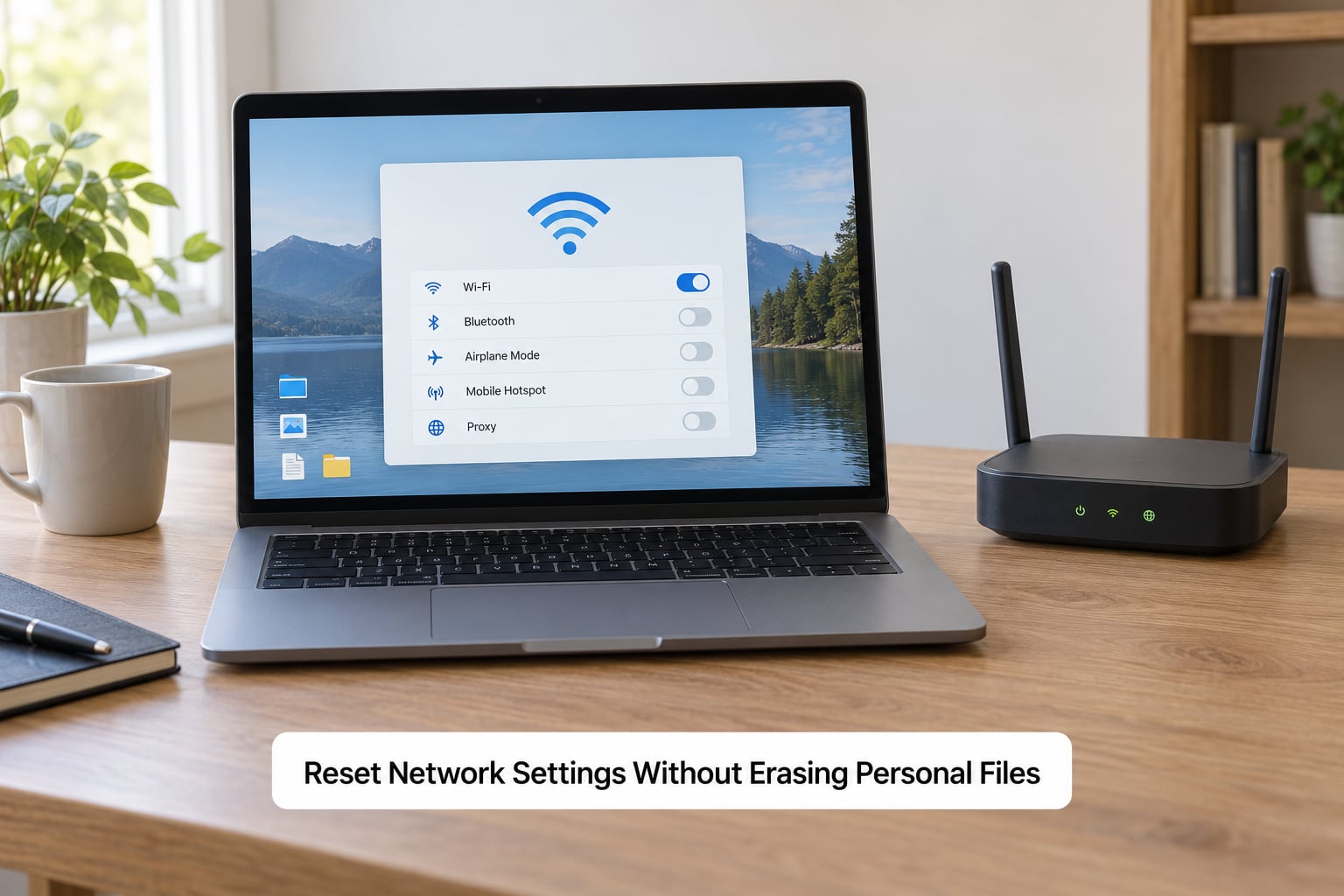
Read this before you run it. A network reset removes every saved Wi-Fi network, every VPN profile, every saved printer on Wi-Fi and any manual proxy or DNS configuration you added. Your documents, photos and applications are not touched. The password prompt loop you see right after a reset is the most common complaint, and that is simply what the reset causes: all remembered credentials go with it.
On Windows 11 you have a lighter option and a heavier one.
The lighter one: Settings > Network & internet > Wi-Fi > Advanced network settings. Reset that Wi-Fi adapter there, and toggle any known network off and on. If you have a VPN or a metered connection, check that section too — an active VPN profile can hold a stale route that makes the connection look alive but unusable.
The heavier one: Settings > Network & internet > Wi-Fi, scroll to the bottom and choose “Wi-Fi reset,” then Reset. Windows restarts the adapters, clears the TCP/IP stack and removes all saved networks.
For the manual version, open Command Prompt as administrator and run these three commands in order:
netsh winsock resetnetsh int ip resetipconfig /flushdns
Reboot afterwards. This rebuilds the network stack when saved configuration has become corrupted, which is worth trying before a factory reset of anything.
On macOS there is no equivalent of the Windows reset button. Drag the Wi-Fi service from the Network pane in System Settings > Network down to the list of services to remove it, click Reset Network Settings, confirm, then drag Wi-Fi back up. The same warning applies — saved networks and any manual configuration are removed. On Linux, NetworkManager caches connections too; nmcli connection delete "Network Name" forces a clean re-association on the network in question.
A real result for this step: a freshly built network stack. If drops continue after this, the problem is not in saved configuration.
7. Test the Adapter in Safe Mode and Another Network
Connect the laptop to the phone hotspot for an hour or two and use it normally. This is the cleanest hardware-versus-software split available. Drops on both networks point to the laptop. Drops only on your home network point to the router.
Then boot into Safe Mode to strip out third-party software. On Windows 11, hold Shift while clicking Restart, then Troubleshoot > Advanced Options > Startup Settings > Restart, and press 4 or F4. Safe Mode loads a minimal set of drivers and services. If the connection is stable in Safe Mode, a VPN client, antivirus filter driver or firewall is interfering — and Device Manager gives it away, since these often install network filter drivers of their own.
For a narrower test than Safe Mode, use msconfig: press Win+R, type msconfig, go to the Services tab, tick “Hide all Microsoft services” and restart. Re-enable your third-party entries in small groups to find the one that breaks Wi-Fi.
On macOS, restart and hold the Shift key to enter Safe Mode, then test. Activity Monitor has an Energy tab that shows which processes are keeping the Wi-Fi radio awake, which is useful when the radio drops mid-transfer.
A real result for this step: a clear verdict. Stable in Safe Mode means software. Still dropping means hardware or the router.
8. Check for a Failing Wireless Adapter
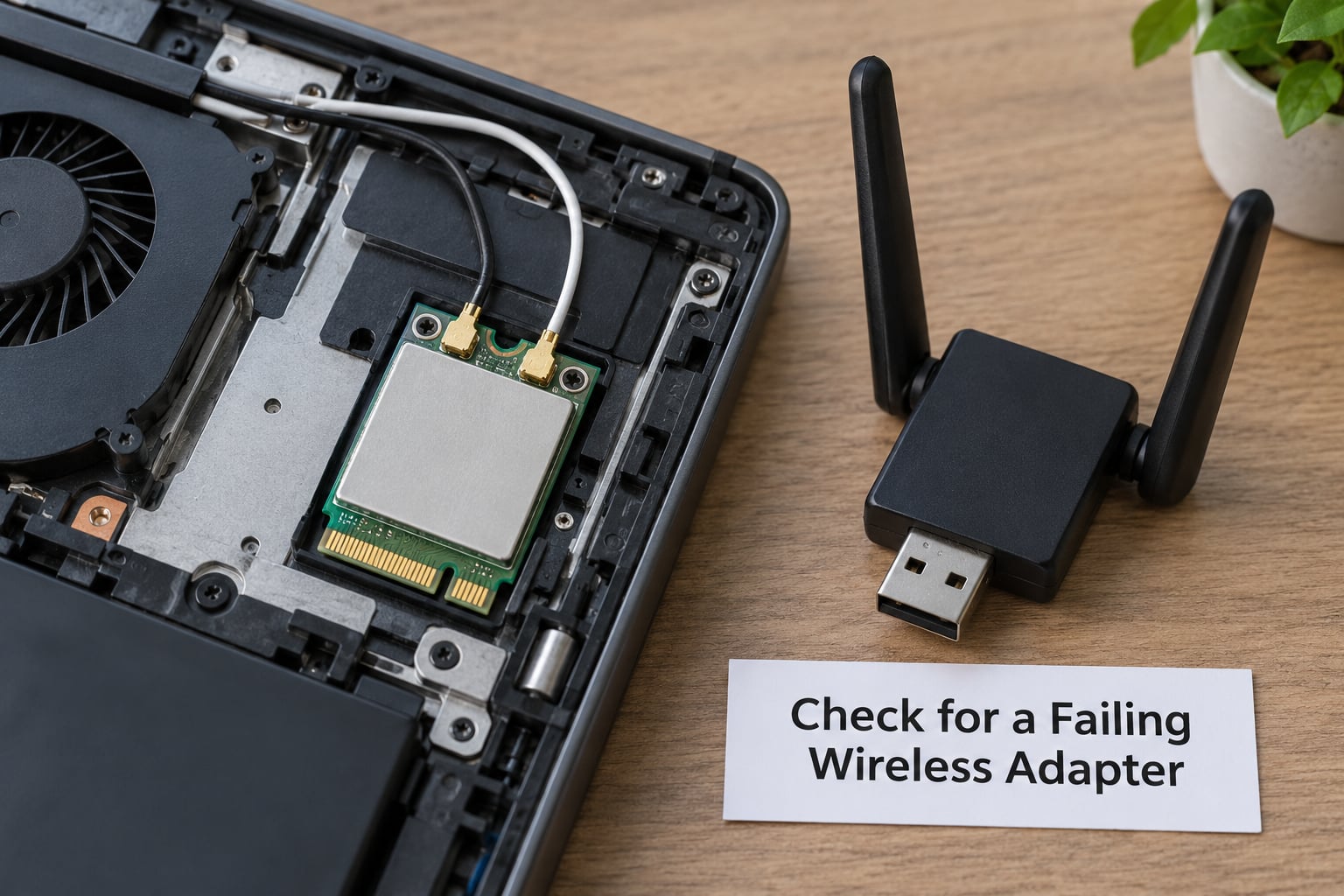
Signs that software fixes will not help: drops happen on every network and every location, including right next to the router; the adapter shows a warning triangle in Device Manager; connections fail instantly rather than degrading; or the drops began after the laptop was dropped, had liquid spilled on it, or came out of a bag with a bent corner. A radio that cannot hold a link at one metre from the router has a hardware problem.
Check the hardware error code in Device Manager. In the adapter’s Properties, open General and look at the status message. Code 10 means the device cannot start, code 43 means Windows has stopped the device, and both point at hardware or a badly corrupted driver rather than at saved settings.
Windows also keeps a plain-text diagnostic: run netsh wlan show drivers and read the driver date and the supported authentication modes. In Device Manager, View > Show by Type and Properties > Hardware Ids show the chipset vendor directly. VEN_8086 is Intel, VEN_10EC is Realtek, VEN_168C is Qualcomm. Knowing which one you own makes it much easier to describe the fault when you contact the maker.
On a Mac, hold Option and click the Wi-Fi entry in the menu bar, or open System Information and look under Network > Wi-Fi for the adapter. macOS does not surface hardware error codes the same way, so the practical test is the one below.
The ten-minute hardware test is a USB Wi-Fi adapter. Plug it in and connect using it. If the connection is rock solid through the adapter and drops through the internal radio, the internal adapter is the problem. This is the fastest way to avoid paying for a whole new laptop.
Once you have confirmed it, request service from the laptop maker. On most models the adapter is a replaceable card; on thin laptops it may be soldered, which is a job for an authorised service centre. Note whether the machine is still under warranty before paying anyone.
A real result for this step: a confirmed hardware diagnosis and a decision about repair or replacement.
Common Mistakes
Toggling Wi-Fi off and on again is the most repeated action in these threads and it almost never helps on its own. The radio comes straight back up in the same state, with the same saved profiles and the same power settings. It treats a symptom that lives in software without touching anything in software.
Running a network reset too early is the other big one. It is a destructive step disguised as a tidy one, and it throws away saved networks and VPN profiles that you will have to re-enter. Save it for step 6, after the cheap checks have ruled the obvious causes out.
Changing DNS first is a common mistake for a simple reason: it feels technical. DNS affects name resolution, so it explains slow lookups and “connected but no internet”. It does nothing at all for a laptop that drops its wireless link every few minutes, because the link never gets far enough for DNS to matter.
Trusting a USB adapter as the fix rather than the test is the quiet trap. A dongle can keep you online while the internal radio dies, but it masks a hardware fault and usually occupies a USB port you need. Use it to confirm the diagnosis, not as a permanent workaround.
Fewer things than you would think keep this from coming back. Update the wireless driver from your laptop maker when they release one, and keep router firmware current. Run one VPN client, not three — overlapping filter drivers are a common cause of phantom disconnects. Create a restore point before a major Windows update so the rollback in step 5 is available. If you travel between home, office and cafés, turn off auto-connect for the ones you do not want. And if you notice a pattern, write down what preceded it: sleep, battery, a specific band, a specific app.
Frequently Asked Questions
Why does my laptop Wi-Fi keep dropping even when other devices stay connected?
Because only the laptop is affected, the cause is on the machine rather than the router. The usual suspects are adapter power management turning off the radio, a driver installed by Windows Update, a saved network grabbing the connection, or a VPN and antivirus filter driver interfering. Work through the steps in order: isolate on a hotspot, disable power management in Device Manager, then test the driver. If it drops everywhere including beside the router, suspect the adapter itself.
Should I reset my Wi-Fi before trying another network?
No. Test on a second network first, ideally a phone hotspot, because it is free, takes two minutes and tells you immediately whether the problem follows the laptop or stays with your router. A network reset on the wrong machine wastes time and erases your saved networks and VPN profiles. Reset after you have ruled out power management, saved network profiles and the driver, not before.
Does resetting network settings delete files on a Windows or Mac laptop?
No. A Wi-Fi reset or a reset of network settings removes saved networks, VPN profiles, Wi-Fi printers, and any manual DNS or proxy configuration you added. Your documents, photos, applications and other personal files are untouched. On macOS, dragging the Wi-Fi service off the Network pane and resetting has the same effect. You will need to re-enter your Wi-Fi password and reauthenticate any VPN afterward.
Can a VPN or antivirus program cause repeated Wi-Fi disconnections?
Yes, and it is a common and easily missed cause. VPN clients and antivirus suites install filter drivers that sit between the adapter and the network stack, and those drivers can interrupt the wireless link or hold a stale route. Signs of a conflict are drops that started after installing the software, and disconnections that vanish in Safe Mode. Test by starting in Safe Mode, then narrow it down with a clean boot in msconfig.
How do I know whether the laptop’s wireless adapter is broken?
Look for drops on every network, including one metre from the router, plus a warning triangle in Device Manager. Code 10 or Code 43 under the adapter status means the device cannot start. Connections that fail instantly rather than degrading point the same way. The decisive test is a USB Wi-Fi adapter: if the connection is solid through the dongle and drops through the internal radio, the internal adapter has failed.
Conclusion
The working order is short and worth memorising: check whether other devices disconnect, look at signal strength and your saved networks, turn off adapter power management, restart the services, then update or roll back the driver. Only after that come the network reset, the Safe Mode test and the USB adapter that decides whether it is hardware.
Most people who struggle with wifi that keeps disconnecting on a laptop never run step 1, and it is the step that decides everything else. Ten seconds with your phone tells you whether you are fighting the machine or the router. Then, if the drops started right after an update, use the rollback in step 5 rather than resetting everything and hoping.
If it fails on every network, next to the router, with the adapter throwing an error code, stop and get it serviced. That is a hardware fault and no setting will change it.