A Plex Media Server is free software you install on a computer or network-attached storage box. It gathers the movies, shows, music, and photos you already own into one searchable library you can play on a television, phone, tablet, or browser. Learning how to set up a Plex media server at home takes about an hour once your files are in place, and you need nothing more exotic than a spare computer, some storage, and an internet connection.
The order that matters is this: decide where the media files live, install the server software on a machine that stays on, point Plex at the folders, then test playback locally before you think about remote access. Most frustrating Plex problems trace back to doing those steps out of order.
Below is the whole path, written for someone starting from zero. Menu names are from the current Plex Web App; when a screen differs on an older client app, the equivalent setting usually carries the same label.
Table of Contents
- 1What You Need Before You Start
- 2Step-by-Step: How to Set Up a Plex Media Server at Home
- 31. Choose a Computer for the Plex Server
- 42. Install Plex Media Server
- 53. Create and Configure Your Plex Account
- 64. Organize Your Media Files
- 75. Create Your First Plex Library
- 86. Test Playback on Your Devices
- 97. Set Up Secure Remote Access
- 10Common Mistakes
- 11Frequently Asked Questions
- 12What computer should I use for a Plex media server?
- 13Can I run Plex Media Server on Windows, macOS, Linux, or a NAS?
- 14How do I organize movie and TV files so Plex recognizes them?
- 15Do I need to forward ports for Plex remote access?
- 16Why is Plex buffering or unable to play a video?
- 17Can I use Plex without paying for a Plex Pass?
- 18Conclusion
What You Need Before You Start
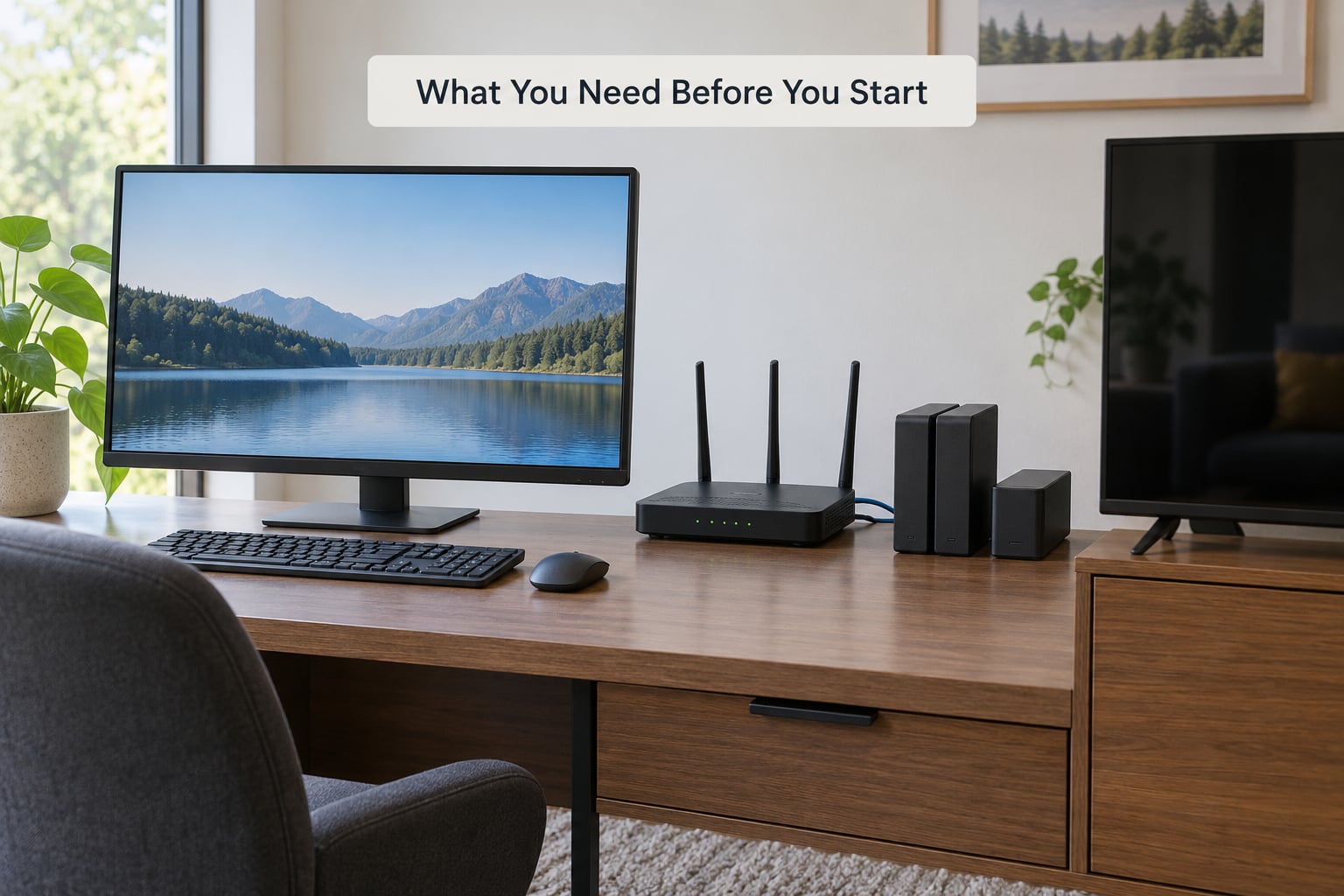
You need four things: a computer to run the server on, storage for your files, a free Plex account, and the media itself. The first item is the only one people agonize over, and it is usually the least complicated.
A dedicated NAS is not required. Most beginners set up their Plex server on hardware they already own, because the software runs happily on Windows, macOS, Linux, or a NAS operating system. A NAS becomes worth it later, once your library grows past what a single drive can hold or you want redundant drives.
The other requirements are unremarkable. Plex needs a broadband connection for account sign-in and remote access, and a wired Ethernet connection to your router is strongly preferred for the server itself. Streaming devices only need Wi-Fi on the same network as the server.
| Server option | Best for | Advantage | Trade-off |
|---|---|---|---|
| Existing desktop or laptop | Your first setup, while you learn the basics | Nothing to buy, plenty of storage already there | The machine sleeps, updates, and reboots, which breaks streaming for everyone |
| Mini PC | A quiet, low-power always-on server | Small, cool-running, cheap to leave powered on | Storage usually attaches over USB rather than inside the case |
| NAS such as Synology or TrueNAS | Large or expanding libraries, several users | Built for always-on use, supports multiple drives, runs Plex as a package | Higher cost and more setup before your first library appears |
| Raspberry Pi or similar single-board computer | Low-power Direct Play only | Draws very little power | Weak processor, so it struggles with any transcoding at all |
| Streaming device such as an NVIDIA SHIELD | A living-room box that doubles as the server | One device instead of two, strong hardware transcoding | Tied to that platform rather than a general-purpose machine |
Whichever you pick, the machine has to stay powered on and connected to your network for anyone else to stream from it. Set the power options to never sleep before you start, because a server that drops off the network for ten minutes is the single most common cause of “the server disappeared” complaints.
A note on your media: Plex is a player and a catalog, not a source. It streams files you already have legal access to. If you own a film on disc, ripping it for personal use and playing it on your own server is ordinary use; sharing copyrighted files you do not own is not, and neither is Plex’s business.
Step-by-Step: How to Set Up a Plex Media Server at Home
1. Choose a Computer for the Plex Server
Start with whatever computer is already in the room and will tolerate being on most of the time. If you have a spare desktop with decent storage, use it. If your only machine is the laptop you work on, plan to move to a mini PC before you invite anyone else to stream from you. My rule is simple: get the server off the daily driver before anyone else watches from it.
For Direct Play of your own files, almost any processor from the last decade is fine, because Plex sends the original file untouched when the client can handle it. Transcoding is the demanding job: converting a 4K HEVC file down to something an older television can display, in real time, while people watch. That needs a reasonably recent Intel or AMD processor, and on Intel systems a built-in Intel Quick Sync or Intel Arc GPU makes an enormous difference because the conversion happens in hardware instead of on the CPU.
Memory matters less than people expect. A server that only serves already-compatible files is comfortable with 8GB or even 16GB of RAM; the official guidance treats anything from 8GB upward as the realistic floor for comfortable use, and 4GB as a minimum that leaves little room for anything else on the machine.
Storage is where the real sizing happens. A high-quality movie file commonly runs 4 to 15GB depending on resolution and compression, so a 100-movie collection lands somewhere in the range of a couple of terabytes before you add television. Plan headroom rather than filling a drive to its last sector, and keep the media on a disk separate from the one holding the Plex database so a reinstall does not cost you your library.
Decide now whether this machine stays on. A server that is off cannot be reached, no matter how the software is configured. That single decision affects which hardware makes sense and whether you need to fix sleep settings later.
2. Install Plex Media Server
Download Plex Media Server from the official Plex site, choosing the build for your operating system. Choose the paid lifetime or subscription option only if you plan to use hardware transcoding; the free server is fully functional for local playback and for remote streaming of your own files under the terms Plex currently applies to personal remote viewing.
On Windows, run the downloaded installer and accept the defaults, then let it finish. On macOS, open the disk image, drag the Plex Media Server icon into Applications, and launch it from Spotlight. On Linux, download the Debian package, then install it and start the service from a terminal:
sudo dpkg -i plexmediaserver_*.deb
sudo systemctl enable plexmediaserver
sudo systemctl start plexmediaserver
On a NAS, most vendors offer Plex as an app in the NAS package centre, which handles the install for you. On TrueNAS and other self-hosted platforms, Plex runs well inside a container or app jail, and forum communities most often recommend Docker on Unraid because it makes moving to a different machine later straightforward.
How do you know it worked? Plex Media Server runs as a background service with no window, so check it the way you check any web service: open a browser and go to http://127.0.0.1:32400/web on the server machine itself. Port 32400 is the local web interface for every platform. If that page loads, the server is running.
One thing to expect: after the install, the setup screen can sit on “Starting” for several minutes while Plex contacts its servers to claim the installation. Users report this delay constantly and it is normal behaviour, not a failure. Leave it alone until it clears.
3. Create and Configure Your Plex Account
When the web interface opens, it asks you to sign in with a Plex account. Create one with an email address and password if you do not already have it. This account is what connects your server to your other devices, so use the same one everywhere from here on.
Next you name your server. Pick something recognisable and without spaces if you can, because the name becomes the identifier your TV and phone use to find it. The wizard then offers to connect your server to your Plex account so you can reach it away from home; leaving this on is the default and you can change it later in Settings, then Server, then Remote Access.
Account setup is finished when the top-left of the web app shows your server name next to a local or remote connection indicator, and the dashboard at the same address lists your server with no error banner. If the server appears greyed out or marked as unavailable, sign out of the web app completely and sign back in, which forces Plex to re-register the server against your account.
4. Organize Your Media Files
Plex matches files to database entries by reading their names and folder structure. Get this right before you build a library and you avoid the frustrating afternoon of fixing wrong posters after the fact.
For movies, put each file in its own folder named after the film, with the year in parentheses for anything released before the current year:
Movies/
  Dune (2021)/
    Dune.2021.2160p.mkv
  The Prestige (2006)/
    The Prestige.2006.1080p.mkv
For television, group episodes under a show folder, then a season folder, then the episodes themselves:
TV Shows/
  Severance/
    Season 01/
      Severance.S01E01.1080p.mkv
      Severance.S01E02.1080p.mkv
    Season 02/
      Severance.S02E01.1080p.mkv
The year in parentheses is the one detail beginners leave out most often, and it is what stops Plex from matching a film to a remake or a different release with the same title. Season folders named “Season 01” and episodes labelled S01E01 with the show name all reduce guessing.
Music and photos follow simpler rules. For music, structure by Artist then Album then track files, and make sure album folders contain an album-level image file or cover art so the library looks finished. For photos, add a folder as a photo library and Plex builds timelines from the capture dates stored inside the files.
Plex handles common video containers such as MP4, MKV, and MOV, with H.264, HEVC, or AV1 video and AAC or AC-3 audio. If a file will not appear at all, an unusual codec inside an unusual container is the first thing to check.
5. Create Your First Plex Library
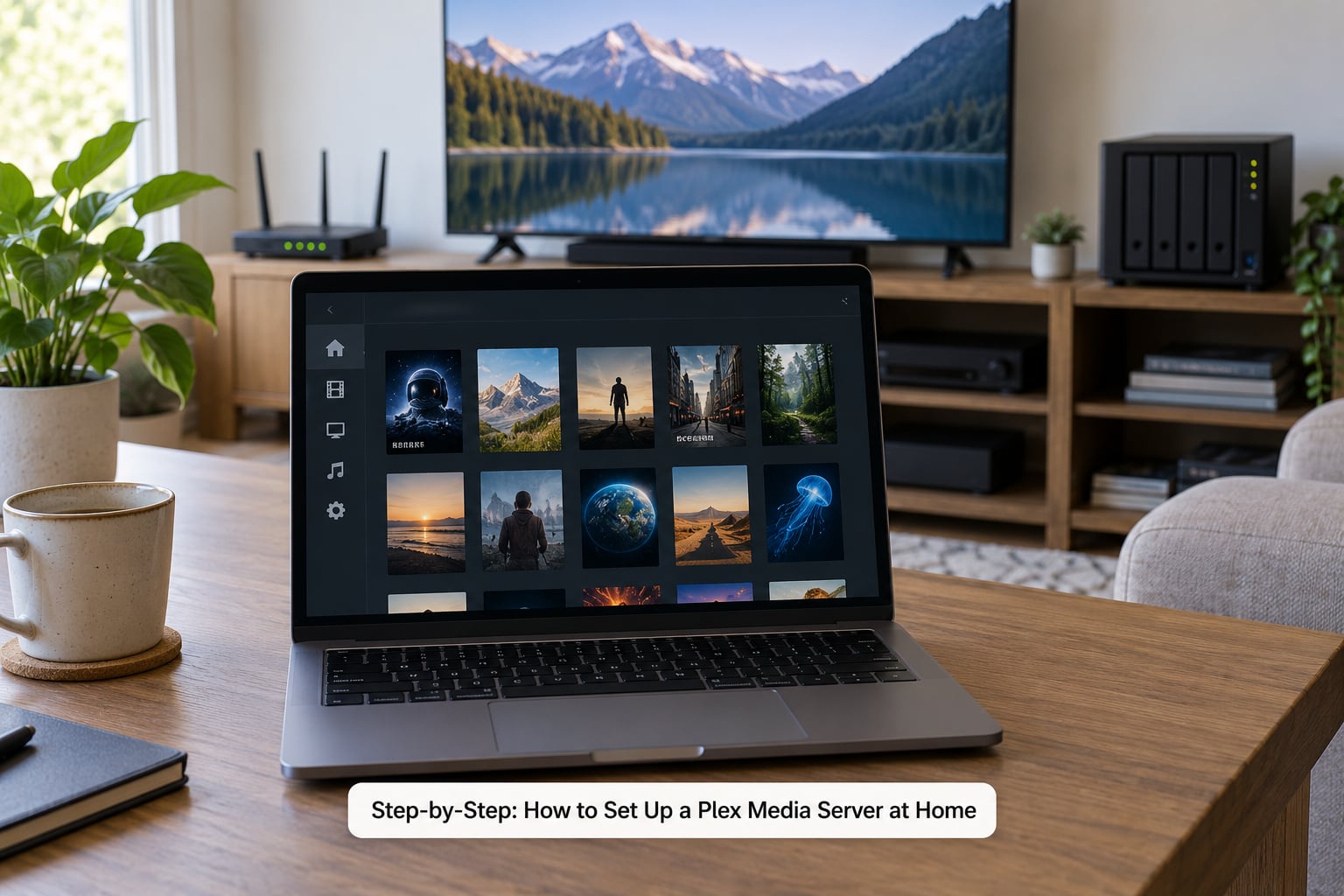
Open the Plex Web App on the server machine, choose Settings from the sidebar, then Library, then Add Library. Pick a type: Movies, TV Shows, Music, or Photos. Give it a name you will recognise on your TV, then choose Add Folders and point at the top-level folder you created in the previous step. Plex looks inside it and follows the subfolders automatically, so point at Movies, not at each individual film.
On the same screen set the scraper and language options. The default scraper settings work for most libraries; setting the preferred language keeps original titles intact rather than translating everything. If your shows use season folders that Plex does not recognise, the Season folder watcher setting is worth checking before you start scanning.
Add a second library for music or photos later rather than cramming them into the movie library. Plex handles each type differently, and separate libraries keep search results clean.
Choose Scan Library Now. Plex walks the folders, reads the file names, and looks each one up against its database. The console behind the process prints a line per file it identifies, and once the scan finishes the library shows posters, years, runtimes, and episode lists where you previously had bare filenames. A folder showing as empty after a scan means Plex found nothing it recognised, which almost always traces back to the naming conventions above.
6. Test Playback on Your Devices
Play something on the server machine first, at http://127.0.0.1:32400/web. If a film starts there, the library and the file are fine. Next, install the Plex app on your actual playback device and sign in with the same account.
The main clients cover the ground most homes need: smart televisions from Samsung and LG have Plex built in, and streaming platforms including Roku, Amazon Fire TV, Apple TV, Android TV, and Chromecast all have official Plex apps. Gaming consoles such as PlayStation and Xbox run Plex too. Phones and tablets use the Plex mobile app, and any computer can use the web app at app.plex.tv.
Sign in, choose your server from the account menu, and open a title. This is the moment to check what Plex is doing with the file, because the mode it picks explains almost every playback problem you will hit later.
| Mode | What happens | Server workload | Typical symptom |
|---|---|---|---|
| Direct Play | The original file is sent to your device untouched | Almost none | Smooth playback, identical quality to the file |
| Direct Stream | Video and audio pass through, but subtitles or metadata are repackaged | Very light | Playback fine, some subtitle options missing |
| Transcode | The server converts the file during playback to fit your device | Heavy, and the reason for buffering | Buffering, reduced resolution, dropped audio track |
You can see the mode in real time. While a video plays, open Settings, then Dashboard in the Plex Web App on your server, and the activity list shows the current session with its mode, bitrate, and transcoding decision. Forcing Direct Play on a client that cannot handle the file produces a frozen or black screen, so treat it as a test rather than a permanent setting.
If playback stalls on your home network, two causes account for most cases. The first is transcoding on a machine that cannot keep up, which the Dashboard reveals immediately. The second is the network itself, and a specific detail catches people out: many older smart televisions have only a 100Mbps Ethernet port. A 4K file running above that rate will buffer on a perfectly good gigabit network, because the bottleneck is the port in the back of the TV.
7. Set Up Secure Remote Access
Remote access lets you reach your server from outside your home, through a hotel Wi-Fi or a mobile connection. It has two separate layers, and conflating them is the source of nearly all the confusion.
The first layer is reachability: can a Plex server outside your network find and connect to your server at home? Plex handles this with its own relay and with automatic network configuration. If your router supports UPnP or NAT-PMP, Plex can usually map the needed port on its own. Your account must be signed in and the server must be online. That is the whole story for most people.
The second layer is entitlement: what the account is allowed to play when it arrives from outside. Local playback of your own files has always been free. Remote streaming of your own personal video now falls under Plex’s current subscription terms, and Plex Pass and the newer Remote Watch Pass cover different situations. Check Plex’s current pricing page for what applies to your account before you promise anyone remote access.
Manual port forwarding is only necessary when automatic configuration fails, which usually means a double NAT: your router behind a modem or extender that also routes. In that case, forward external port 32400 to your server’s local IP address on your router, and set a static lease so that IP does not change. Networks behind carrier-grade NAT, common on some mobile and fibre providers, cannot be forwarded at all, and there is nothing to fix on your end.
You will know remote access works when you test it away from home. Put your phone in cellular mode, open the Plex app, and play something. Testing over your own Wi-Fi proves nothing, because that traffic never leaves the house. If the server shows as unreachable in Settings, then Server, Remote Access, the problem is on the network layer rather than the account layer.
Securing the account itself is worth two minutes. Use a long password, and if you share the server with family or friends, invite them from Plex settings and grant access to specific libraries only. Shared users see what you allow and nothing else.
Common Mistakes
Almost every Plex problem falls into one of these categories, and each has a specific root cause rather than a generic restart.
Plex cannot see your files. Check the path first: on Linux and macOS the folder permission has to give the Plex service account read access, and a USB drive disconnected or not mounted leaves Plex scanning an empty path. If you can open http://127.0.0.1:32400/web on the server itself and the library is empty there, the problem is the disk, not Plex.
Files match to the wrong movie or show. Rename the file with the exact title and year, for example “The Thing (1982)”. If the wrong match is already saved, open the item, choose the correct entry from the results, then use Fix Match and lock it so later scans do not revert the change.
Everything buffers on the home network. Watch the Dashboard while it plays. If it says Transcode, the server is the bottleneck and hardware transcoding or a stronger machine fixes it. If it says Direct Play and it still buffers, suspect the network path, and check whether your television has a 100Mbps Ethernet port. Wi-Fi on the streaming device is the other half of these cases.
Remote streaming buffers while local streaming is perfect. This is almost always your upload speed. A typical 4K file needs a sustained upload of tens of megabits per second, and most home connections upload a fraction of that. Set a remote quality limit in Settings, Playback, so Plex scales the bitrate down before it starts.
The server is not visible on other devices. Almost always one of three things: the other device is signed into a different Plex account, the server machine is asleep or powered off, or your network has client isolation enabled on the Wi-Fi. Check the account first, then the power light, then the router.
An external drive keeps disconnecting. A bus-powered drive without its own power can drop out under sustained load. Use a mains-powered drive or a drive enclosure with its own power supply.
Five habits prevent most of the above. Pick a machine that stays on and disable its sleep and hibernation timers. Keep the Plex database on an internal drive and your media on external storage. Name files properly before you import them. Wire the server and the streaming device to the router with Ethernet where you can. And keep a separate backup of your media, because RAID is not a backup: RAID keeps a server running when a drive fails, and it cannot recover a file you deleted or a folder that got wiped.
Two things worth knowing before you commit to Plex long-term. First, the server software and local playback are free, so you can run the whole setup and never pay anything. Second, an active migration is underway in self-hosted communities toward alternatives such as Jellyfin and Emby, and forum discussion centres on remote-playback subscription requirements and paying for features that other servers include free. If most of your viewing happens at home, Plex works well. If you mostly watch away from home and dislike subscriptions, read the current terms before you build the library.
Frequently Asked Questions
What computer should I use for a Plex media server?
Any computer that stays on and has enough storage works, and most people start with hardware they already own. A spare desktop is fine to begin with. For a quiet always-on box, a modern mini PC with an Intel or AMD processor handles 4K transcoding comfortably, especially with a Quick Sync or Arc GPU. A NAS suits larger libraries with multiple drives. Avoid running the server on the laptop you use daily, because sleep and reboots interrupt everyone watching.
Can I run Plex Media Server on Windows, macOS, Linux, or a NAS?
Yes, all four are officially supported, and each has its own installer. Windows and macOS use a standard graphical installer. Linux uses a Debian package installed with dpkg and run as a service under systemd, with the web interface on port 32400. Most NAS vendors offer Plex directly from their package centre, and it also runs well inside a Docker container on platforms such as Unraid or TrueNAS.
How do I organize movie and TV files so Plex recognizes them?
Put each movie in its own folder named for the title with the release year in parentheses, such as The Prestige (2006), then name the file to match. For television, create a show folder, a Season 01 subfolder, and label episodes Severance.S01E01. Plex reads these names to look up the file, and consistent naming prevents wrong matches and missing episode data.
Do I need to forward ports for Plex remote access?
Usually not. Plex attempts automatic configuration through UPnP or NAT-PMP, so most routers need no manual work at all. Forward port 32400 to the server only when automatic setup fails, usually on a double NAT where a modem or extender also routes. Networks behind carrier-grade NAT cannot be forwarded by the customer, and those users rely on Plex relay connectivity instead.
Why is Plex buffering or unable to play a video?
Check Settings then Dashboard while it plays to see whether Plex is transcoding. Transcoding means the server is converting the file and cannot keep up, and hardware transcoding or a stronger processor fixes it. If it says Direct Play and still stalls, the network is the issue: check that the television has a full-speed Ethernet port rather than an older 100Mbps one, and prefer wired connections over Wi-Fi.
Can I use Plex without paying for a Plex Pass?
Yes. The Plex Media Server software is free, local streaming on your own network is free, and you can build unlimited libraries without paying. Some features such as hardware transcoding require Plex Pass, and remote streaming of your own personal video now falls under Plex’s current subscription terms, which may mean a Plex Pass or a Remote Watch Pass depending on how and where you watch.
Conclusion
Start by deciding where the media files live and which machine will hold them, because that choice drives everything after it. Name the files properly, install Plex Media Server on a computer that stays powered on, sign in with your Plex account, and add one library pointing at your top-level folder.
Play something locally before touching anything else. If the file runs on the television with Direct Play in the Dashboard, your setup is done. Remote access comes last, and only after you know the local experience is solid.