How to set up dual monitors on a laptop comes down to two jobs: connect each display to a separate video output, then switch the system out of Duplicate mode so the screens show different things. Ten minutes is usually enough. The only real obstacles are USB-C ports that look like video ports but carry data only, and the fact that Duplicate is the default display mode on most machines.
You need two working video outputs in total, and one of them can be your laptop’s own screen. Two native ports, or one native port plus a dock, covers almost everyone. Below is the full process for Windows 11, Windows 10, macOS and Linux, followed by the fixes for the problems that come up most often.
Table of Contents
- 1What You Need
- 2How to check whether a USB-C port actually outputs video
- 3Step-by-Step: How to Set Up Dual Monitors on a Laptop
- 41. Check the laptop and monitor connections
- 52. Connect the second monitor
- 6MacBook display limits and clamshell mode
- 73. Choose Extend or Mirror in the display settings
- 84. Arrange, resize, and calibrate both screens
- 95. Test the setup and fix any missing display
- 10Common Mistakes
- 11Frequently Asked Questions
- 12Can I use two monitors with any USB-C port on my laptop?
- 13Why is my second monitor detected but showing a black screen?
- 14How do I use my laptop screen and external monitor as two separate screens?
- 15How do I change which monitor is the main display?
- 16Do I need a docking station to connect two monitors?
- 17Why does my second monitor have a low resolution or blurry text?
What You Need
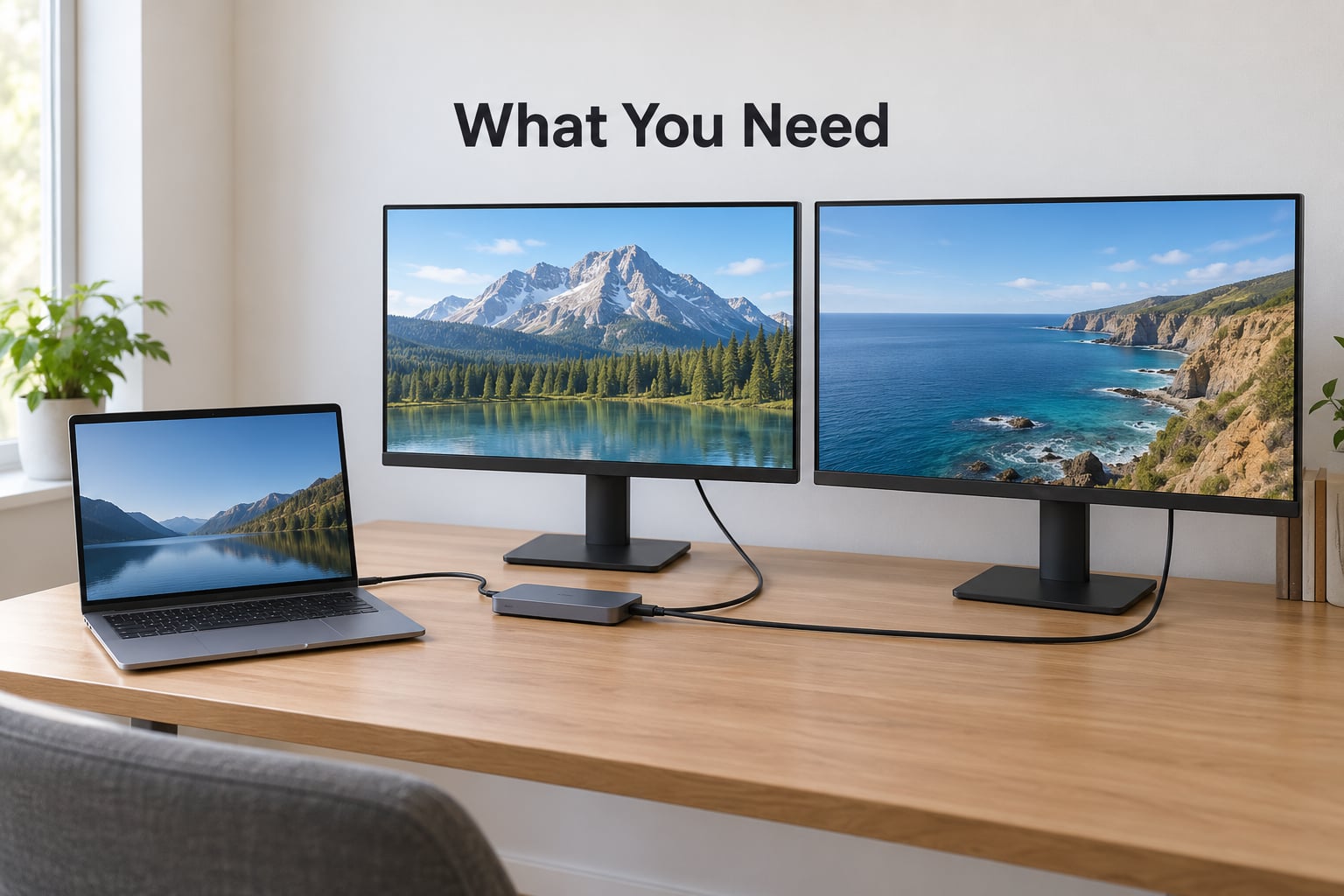
Start by looking at the ports along the sides and back of your laptop. You are hunting for anything that outputs video, not just anything shaped like a USB port.
- HDMI — the most common video port on the last decade of laptops, usually marked with a small trapezoid icon or the letters HDMI.
- DisplayPort — full-size DP is common on business and gaming laptops. Some have a mini or micro variant that needs a passive adapter cable.
- USB-C — only carries video if it supports DisplayPort Alt Mode. Thunderbolt 3 and Thunderbolt 4 ports always do.
- VGA or DVI — older or fleet-managed business laptops still turn up with these.
What you also need depends on how the numbers line up:
- Two monitors, two native ports
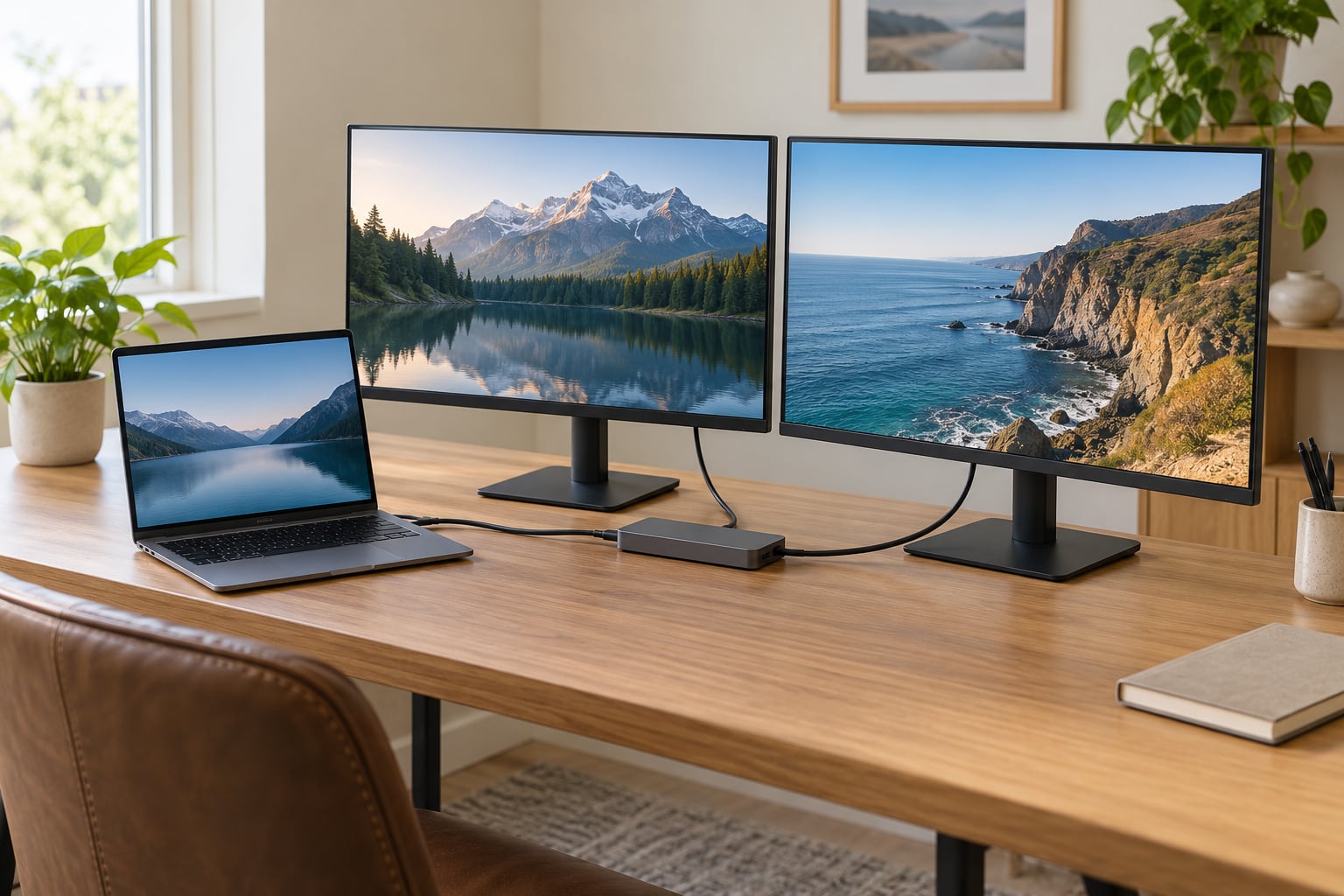
- Nothing but two cables. HDMI to HDMI, DisplayPort to DisplayPort, or a mix of both. This is the cleanest setup and the one I default to.
- One native HDMI port, two monitors
- A USB-C to dual HDMI adapter, a DisplayPort to HDMI adapter for the second screen, or a dock. Anything that turns one port into two.
- One USB-C port only
- A Thunderbolt or USB4 dock with two video outputs, or an MST hub if the port is DisplayPort 1.4 or better.
- Older VGA or mini DisplayPort
- A passive adapter cable for mini DisplayPort, an active adapter for VGA to HDMI or DisplayPort.
How to check whether a USB-C port actually outputs video
This is the single most expensive mistake people make with this setup, and it is easy to avoid. Look up your exact laptop model in the manufacturer’s specification sheet and search for the port description.
You are looking for DisplayPort 1.4 or 1.2 over USB-C, or Thunderbolt 3 or 4. If the sheet only says USB 3.1 or USB 3.2 with no video mention, that port is data only and no adapter will make it work. Some manufacturers draw the same USB-C symbol on data-only and video-capable ports, so the shape tells you nothing.
A USB-C port with an adjacent battery icon or a charging-only label is data only. Ports marked with a Thunderbolt lightning bolt handle video and data. DisplayLink adapters are a separate category entirely: they decode video in software through a driver, and they cost CPU and a little latency, but they do work on ports that cannot carry video natively.
Step-by-Step: How to Set Up Dual Monitors on a Laptop
Check the laptop’s video ports. Connect one monitor to a native port and the second to another port, dock or adapter. Open Display settings and choose Extend these displays. Press Identify, then drag the two rectangles to match where the monitors actually sit. Set the resolution, scaling and primary display for each screen separately.
1. Check the laptop and monitor connections
Confirm two things before you unbox anything: that your laptop has enough video outputs, and that your monitors accept the signal you plan to send. Every monitor has several inputs, usually HDMI, DisplayPort and sometimes VGA or USB-C, and the input must be selected correctly on the monitor itself or you get a black screen no matter what the laptop is doing.
Check the input labels printed on the monitor’s rear or underside and match them to the connector you are about to use. Most monitors ship with only one cable in the box, often HDMI. If your setup needs DisplayPort, buy the cable rather than hoping the included one is the right one.
For a laptop with a single video output, decide between three options. A dock adds video outputs plus USB, Ethernet and power delivery, and is the tidiest long-term answer. An MST hub splits one DisplayPort output into two, and costs less but adds a layer of firmware and settings. An HDMI splitter is a trap for most people: it mirrors one desktop onto two screens and cannot extend. Splitters only make sense when you genuinely want the same image on both, like a status board or a duplicated cashier display.
2. Connect the second monitor
Power the monitors on first, then plug in the video. With the monitor awake, use the buttons or joystick on the monitor bezel to open the input menu and pick the port you just used. Doing it in this order saves the ten minutes of unplugging and re-plugging that catches most people out the first time.
Plug the video cable into the laptop and the monitor, then press the monitor’s power button and select that input. If you are using a dock, connect the dock to the laptop first with its Thunderbolt or USB4 cable, then attach monitors and peripherals to the dock, then connect the dock’s power supply. A dock without a power supply often works for a light setup but has no bandwidth headroom and will not charge a laptop.
There is one habit worth adopting straight away: connect one monitor directly to a native laptop port and use the dock only for the second display and your peripherals. It is how most forum regulars set theirs up, and it removes a whole category of detection and bandwidth problems caused by cheap hubs.
If you only have one DisplayPort output and want a single-cable setup, look at daisy chaining. The first monitor needs a DisplayPort output of its own, you link the two with a DisplayPort cable, and you turn on MST in the first monitor’s on-screen menu. The limits are real: you need a GPU that supports MST, DisplayPort 1.4 at minimum, and the bandwidth ceiling is high refresh and resolution for the first screen with the second running lower. Two 4K monitors at 60 Hz need DisplayPort 1.4 with DSC or 1.2 with DSC; without it, the second screen drops to 4K at 30 Hz.
MacBook display limits and clamshell mode
Apple Silicon MacBooks have a hard ceiling on external displays, and it changed between chip generations. As of 2026, the practical rules are:
- MacBook Air M1 and M2
- One external display only. Two monitors means one external plus the built-in screen, or an expensive DisplayLink setup.
- MacBook Air M3 and later
- Two external displays, but only with the lid closed. With the lid open, one external plus the built-in screen.
- MacBook Pro 14-inch, M3 or M4 Pro or Max
- Two external displays with the lid open, plus the built-in screen. The base M3 and M4 chip also supports two external displays with the lid open.
- MacBook Pro 16-inch
- Two external displays plus the built-in screen on Pro and Max chips. Check Apple’s support page for the specific configuration you own.
Clamshell mode is the trick that gets you the second external screen on Air models. Close the lid with the monitor on a stand and the keyboard raised, connect power, and the machine keeps running on the external displays. Use it with the lid closed for a proper power and cooling setup. Leaving a closed laptop on a soft surface with a slow charger is how laptops cook themselves.
3. Choose Extend or Mirror in the display settings
Extend mode gives each screen its own desktop and is what almost everyone wants. Duplicate or Mirror mode shows the identical image on both, and it is the default on many machines, which is why a freshly connected second monitor usually just shows a copy of the first.
On Windows 11 and Windows 10, right-click any empty area of the desktop and choose Display settings, or press Win + P for the projection flyout with its four modes: PC screen only, Duplicate, Extend, and Second screen only. Extend is the one you want. In the same panel, find the Multiple displays dropdown, choose Extend these displays, then press Identify so the system labels each screen and flashes its number. On Windows 11 the identical panel lives at Settings, System, Display.
On macOS, open System Settings, then Displays. Both screens appear as draggable rectangles. If the second monitor is mirroring the first, click the Use as menu on it and switch to Use as Extended Display. Hold Option while clicking Scaled to reveal the full resolution list instead of the two or three Apple offers by default.
On Linux, GNOME in Ubuntu and Fedora uses Settings, then Displays. Each output has a mode list, a resolution list and an arrangement grid. Under Wayland, an external display at a fractional scale often renders sharper than the fractional options under X11, so if text looks soft, try toggling the display server. KDE uses System Settings, then Display and Monitor. If your second monitor is a daisy-chained one, remember that MST has to be enabled in the first monitor’s own menu before Linux sees two outputs.
4. Arrange, resize, and calibrate both screens
On Windows, press Identify in Display settings, then drag the numbered rectangles so the layout matches your desk: external monitor to the left, right, or above the laptop panel. Drag the boxes so they touch, otherwise a window dragged across the gap jumps to the far screen instead of landing where you dropped it. Then tick Make this my main display on the screen you want the taskbar, the Start menu and new windows to appear on. Choose the native resolution for each screen, and set Scale to 100, 125 or 150 percent so text is the same apparent size on both.
Mismatched resolutions are normal. A 4K 27-inch monitor and a 13-inch 1080p laptop panel at 100 percent scaling will give you tiny text on one screen and huge text on the other. Setting both to 150 or 200 percent fixes the appearance without touching hardware. Vertical orientation is also available for the second screen, which is genuinely useful for long documents, chat logs and reference material, and you can set it per monitor in the display panel.
On refresh rate, pick the highest rate the monitor lists rather than the default 60 Hz, and be aware that many docks cap the second screen at 30 Hz. On macOS, the refresh rate sits under the resolution in the same Displays panel. Color profiles, night shift and true tone live in the same place if the two screens look noticeably different in brightness or white point, and that mismatch is easier to fix in software than with the brightness keys.
5. Test the setup and fix any missing display
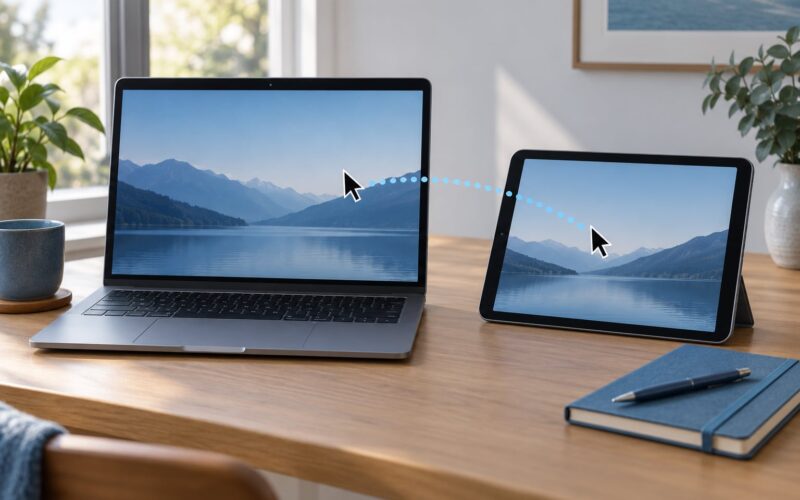
Verify the setup by opening a window on each screen and dragging it across the boundary. If it moves smoothly between them, the arrangement matches your desk and you are done. If the second screen is missing, press Win + P and select Extend, then open Display settings and use Detect. On Windows, Win + Ctrl + Shift + B resets the graphics driver, which clears a surprising number of black-screen cases at the cost of a few seconds of flicker.
Displays that vanish after sleep are usually a dock or hub that dropped the connection. Unplug and reconnect the dock’s upstream cable, and if it keeps happening, update the dock firmware and the display driver from your laptop manufacturer. Monitors left asleep often wake on the wrong input, so a quick check of the monitor’s input menu is worth doing before you blame the computer.
Common Mistakes
Work through these in order, cheapest fix first. A different cable or a different port solves more of these problems than any purchase will.
- No signal on the second monitor
- The wrong input is selected on the monitor, or the monitor is on the wrong source. Open the monitor’s input menu and pick the port you actually used. Then reseat the cable at both ends.
- Second monitor not detected at all
- The port is data only, the adapter is faulty, or the GPU does not support two outputs. Confirm DP Alt Mode in the spec sheet, try the cable in another port, and check that the graphics driver is current.
- Detected but showing a black screen
- The display is set to extend at a resolution or refresh rate the monitor cannot handle. Set the resolution to native, drop the refresh rate to 60 Hz, and re-test.
- Both screens show the same thing
- You are in Duplicate mode. Open the display panel and choose Extend these displays, or Use as Extended Display on macOS.
- Second monitor flickers or goes dark intermittently
- Usually cable margin. A long or thin cable, a DisplayPort link running at the limit, or a dock without its power supply attached. Shorten the run, use a certified cable, and power the dock.
- Low resolution or blurry text on the second screen
- The monitor is running at its default fallback rather than native. Set the resolution manually, and set scale to 125 or 150 percent so text is legible.
- Dock not recognised
- Not enough power, an upstream cable that is charge-only, or an adapter in front of the dock that has no video pass-through. Connect the dock directly, with power, using the manufacturer cable.
- VRR or high refresh rate missing through a dock
- Cheap hubs do not pass through variable refresh rate reliably. Connecting one monitor natively and the other through the dock is the usual fix.
- Merged cursor jumps across a gap
- The arrangement boxes are not touching. Drag them together in the display panel.
Two habits keep a dual-monitor setup comfortable. Put the external monitor at eye level, roughly an arm’s length away, with the top of the panel at or just below eye level, and raise it on a stand or monitor arm so you are not tilting your neck down all day. If you use the laptop screen as the second display, put the external one in front of the keyboard rather than beside it, or you will be twisting constantly.
For coding, place the editor on the external screen and documentation on the laptop. For video editing, keep the timeline on the larger monitor and scopes on the smaller. For a vertical stack, rotate one screen and set its orientation in the display panel. None of this is required, but it is the difference between a setup that helps and one you keep ignoring.
One more thing worth knowing: an HDMI splitter mirrors, it never extends. If you bought one expecting a second workspace and got a duplicated desktop, that is not a settings problem, and no amount of configuration in the display panel will change it. For extended desktops from a single port, you need an MST hub or a dock.
Frequently Asked Questions
Can I use two monitors with any USB-C port on my laptop?
No, and this catches a lot of people. A USB-C port only carries video when it supports DisplayPort Alt Mode, which is usually stated as DisplayPort 1.2 or 1.4 over USB-C, or Thunderbolt 3 or 4. Ports labelled only USB 3.1 or 3.2 are data only, and no adapter will make them output a picture. Check the specification page for your exact model before buying anything.
Why is my second monitor detected but showing a black screen?
Usually the display is set to a resolution or refresh rate the monitor cannot produce, which is common right after a dock is plugged in. Open the display settings panel, set that monitor to its native resolution, and drop the refresh rate to 60 Hz to test. If it stays black, press Win + Ctrl + Shift + B on Windows to reset the graphics driver, and check that the correct input is selected on the monitor itself.
How do I use my laptop screen and external monitor as two separate screens?
Connect the monitor, then switch out of the default Duplicate mode. On Windows, right-click the desktop, choose Display settings, find Multiple displays, and select Extend these displays. On macOS, open System Settings, then Displays, click Use as on the mirrored monitor and choose Use as Extended Display. On Linux, open Settings, then Displays and turn off Mirror. Then drag the arrangement boxes to match your desk.
How do I change which monitor is the main display?
On Windows, open Display settings, scroll to the monitor you want as main, tick Make this my main display, and click Apply. The taskbar and Start menu move to that screen. On macOS the equivalent control appears when a display is set to extended mode, under the resolution options for that screen. On Linux, select the output you want in Settings, then Displays and set it as the primary or active display in the arrangement grid.
Do I need a docking station to connect two monitors?
Only if your laptop does not have two native video outputs. With two HDMI or DisplayPort ports, two cables are all you need and nothing is faster or more reliable. A dock is worth it when you are short on ports, want one cable back to the machine, or want Ethernet and USB in the same lead. A USB-C to dual HDMI adapter is a cheaper stopgap, but it often caps the second monitor at 4K 30 Hz.
Why does my second monitor have a low resolution or blurry text?
The monitor is almost certainly running at a fallback resolution instead of its native panel resolution, which is what happens when Windows or macOS first detects an unfamiliar display through a dock. Set the resolution manually from the display panel and pick the value marked as recommended or native. If text still looks soft, raise the scaling to 125 or 150 percent so both screens render text at a similar apparent size.
Start with the free checks. Count your video outputs, confirm the USB-C port really does support DisplayPort Alt Mode, and connect one monitor directly to a native port. Then open the display settings and switch from Duplicate to Extend, which is the setting that makes the whole thing feel finished.
If something is still wrong, tell me your laptop make and model, which ports it has, and what the second monitor does when you plug it in. That combination usually identifies the cause in one reply.