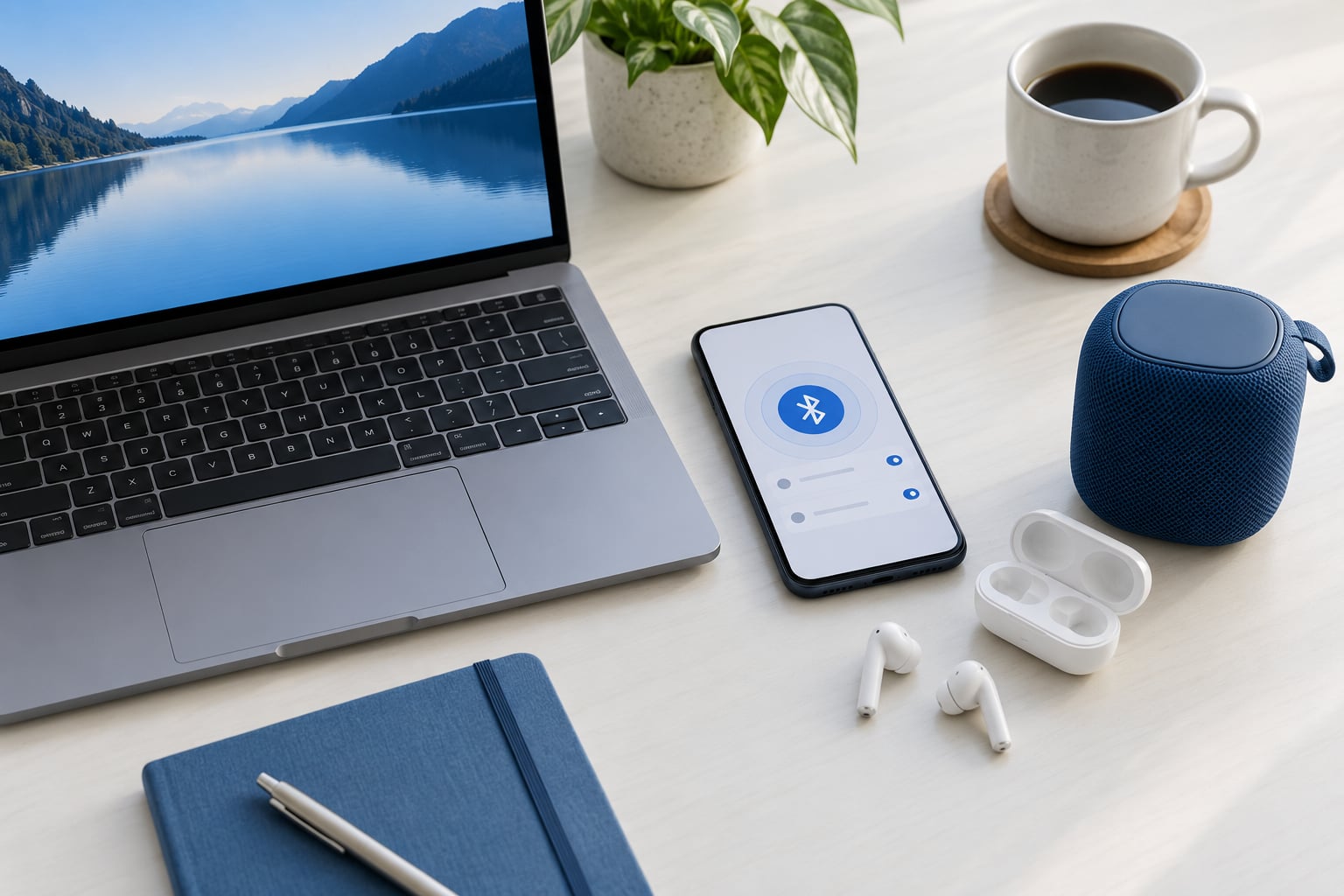
How to fix Bluetooth pairing problems? Start with the four usual causes: the accessory is not actually in pairing mode, it is already bonded to another phone or computer, the host radio is switched off or in airplane mode, or a driver or service on the host has stopped working. Which one is true decides everything that follows, so the steps below run from the cheapest check to the most invasive one. Most cases are solved in the first two minutes. Paths here follow current Windows 11, macOS, iOS and Android builds as of 2026, and menu names shift a little between versions and between hardware makers.
Table of Contents
- 1What You Need to Fix Bluetooth Pairing Problems
- 2Step-by-Step
- 3How to fix Bluetooth pairing problems on the affected device
- 4Remove the old pairing record
- 5Pair again using the correct device menu
- 6Check whether the problem affects every device
- 7Update software and restart the Bluetooth service
- 8Reset the Bluetooth stack as a last resort
- 9Run final diagnostics and check for interference
- 10Common Mistakes
- 11Frequently Asked Questions
- 12Why is my Bluetooth device not showing up when I try to pair it?
- 13How do I fix a Bluetooth device that pairs but disconnects immediately?
- 14How do I repair Bluetooth on Windows 10 or Windows 11?
- 15Why does Bluetooth pairing fail on a Linux computer?
- 16When should I reset my phone or computer to fix Bluetooth pairing?
- 17Conclusion: Start With the Simple Fixes
What You Need to Fix Bluetooth Pairing Problems
Nothing exotic. You need the device that will not pair, the accessory that will not pair with it, and ideally a second phone, tablet or computer to test with.
You also need access to the Bluetooth and device settings on the host device, plus a way to get the accessory into pairing mode, which usually means a button hold or a multi-button combination. On Windows the relevant menus are Settings, Device Manager and the Services console. On macOS and iPhone they live in System Settings and Settings. Android keeps them under Connected devices. Linux depends on your desktop, with GNOME, KDE and the bluetoothctl command line all common.
Menu names do vary by version. Windows 10 and Windows 11 split the Bluetooth page into two different places, and Samsung and Huawei Android builds add their own layer on top of stock Android. If a label here does not match your screen, the function you are looking for is almost always the one directly below it in meaning.
Step-by-Step
How to fix Bluetooth pairing problems on the affected device
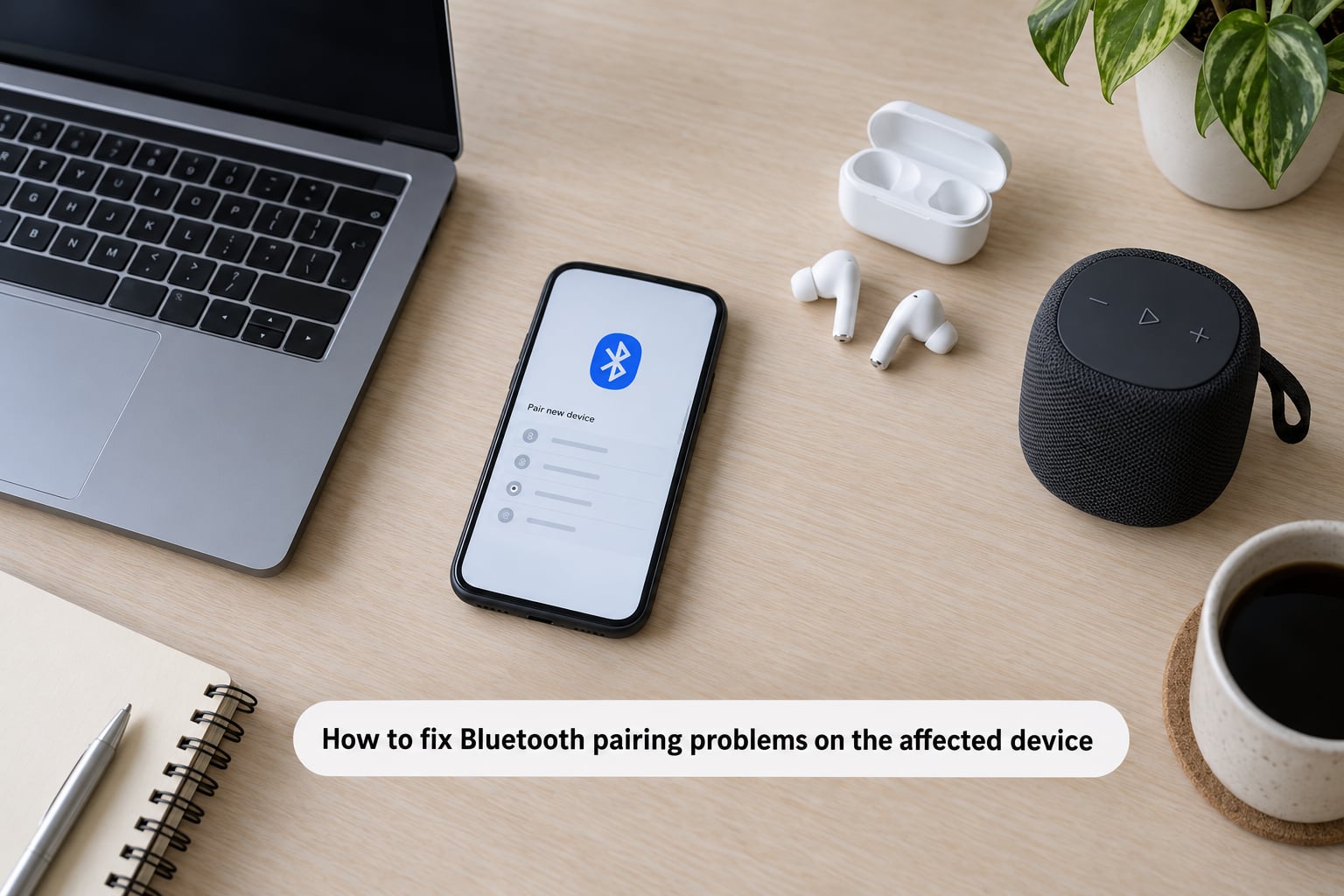
Start by confirming both devices are awake, powered and within a few feet of each other. A flat earbud battery is a genuinely common cause: many earbuds will not enter pairing mode at all when the cell is empty, and they give no indication of why.
Next, check that the accessory is in pairing mode and not merely switched on. This is the single most common mistake people make, and it is easy to miss because a switched-on device still shows up in some device lists. Pairing mode usually means holding a button until a light flashes slowly, two to three times per second, rather than pulsing once.
Then ask whether the accessory is already paired somewhere else. Many earbuds, watches and fitness trackers support a small number of simultaneous connections and will refuse a new one while they are attached to a phone in another room or a laptop in a bag. Disconnect that other device, or put it in airplane mode, and try again.
Finally, confirm Bluetooth is actually enabled on the host and that airplane mode is off. On Windows, the quick toggle lives in the system tray, next to the network and volume icons. On a phone, pull the shade down and check the Bluetooth tile. If the device appears in the list with its name and no address, it is being discovered and you are ready for the next stage.
If nothing shows up at all, do not troubleshoot further yet. A device that never appears is a different problem from one that appears and refuses to connect.
Remove the old pairing record
Forgetting a device is not the same as switching it off. Until both sides erase each other, the old security key stays on file and the next attempt inherits the same mismatch that broke it.
On Windows 11, open Settings, then Bluetooth and devices, then Devices, and pick the stuck entry to reveal Remove device. On Windows 10 the path is Settings, then Devices, then Bluetooth and other devices, with Remove device at the same spot.
On a Mac, open System Settings and choose Bluetooth, select your accessory, click the Info button next to it, then Remove. On iPhone, open Settings, tap Bluetooth, tap the information button beside the device name and choose Forget This Device.
On Android, go to Settings, then Connected devices, then Bluetooth, tap the gear icon next to the paired device and choose Forget. Some builds also offer Unpair under the three-dot menu.
On Linux, GNOME puts the same controls in Settings, Bluetooth, with a Remove Device option on the right. KDE Plasma users find it in the Discover Bluetooth panel. From a terminal, bluetoothctl gives the same power: run remove followed by the accessory address.
Remove the entry on both ends when the accessory allows it. On a car, that means deleting the phone from the head unit as well as deleting the car from the phone.
Pair again using the correct device menu
With the old record gone, add the device fresh. On Windows 11, open Settings, Bluetooth and devices, Add device, then Bluetooth. Windows 10 users go to Settings, Devices, Add Bluetooth device. Either way, the accessory has to be in pairing mode while the scan runs, and you may need to run the scan twice because the first pass often catches only devices that were already advertising.
On a Mac, open System Settings, Bluetooth and click Add Device. On iPhone, Settings, Bluetooth, then tap the accessory name from the list. On Android, Settings, Connected devices, Bluetooth, then the switch to turn Bluetooth on and tap your accessory in the Available devices list.
On Linux, switch the Bluetooth panel to On and wait for the scan, or run scan on followed by pair and the accessory address in bluetoothctl. If pairing asks for a PIN, try 0000 or 1234, which are the two most common head unit and speaker defaults.
Pairing mode differs by device class, which is why so many people think their hardware is broken. Earbuds and speakers often need the button held for five or six seconds until the light flashes fast. Over-ear headphones usually combine power and volume-down. Many mice and keyboards use a dedicated pairing key, sometimes underneath the battery cover. Watches and rings use a button press-and-hold while on the charger. Game controllers pair from a button on the controller itself once it is powered on.
Success check: the device shows as Connected rather than Paused, and its battery level appears in the list if the accessory reports one.
Check whether the problem affects every device
This is the step most guides skip and the one that actually narrows things down. Take the accessory to a second phone, tablet or computer and try to pair it there.
If it pairs on the second device, the accessory is fine and the problem sits in the first host, meaning its radio, driver, service or saved profile. If it refuses on the second device too, the accessory is at fault and you can stop fiddling with software. If a second accessory also fails on the same host, that confirms the host.
Read the results this precisely and you never have to guess. My rule is that no further changes get made to a host until I have tested with one known-good accessory.
Update software and restart the Bluetooth service
Once the software side is in play, install pending updates. Operating system updates fix a surprising number of pairing bugs, and accessory firmware updates exist for many earbuds, speakers, keyboards and game controllers even though plenty of cheap hardware has no updater at all.
On Windows, the highest-value fix lives in the Services console. Press the Windows key, type services.msc and press Enter. Find Bluetooth Support Service, double-click it, set Startup type to Automatic, then click Start. The same fix has been reported working on multiple Windows 10 machines in Microsoft’s own support threads, where pairing failed with a generic try again message.
Drivers come next. Press the Windows key and X, choose Device Manager, expand Bluetooth, right-click your adapter and choose Update driver. If that does not help, choose Uninstall device, restart the PC, and let Windows reinstall it. One trap worth knowing: Windows Update can overwrite a driver you installed manually and bring the failure back, which is why some people switch off automatic driver downloads under Control Panel, System, Advanced system settings, then Device Installation Settings.
On Linux, restart the service with sudo systemctl restart bluetooth, and bring the adapter back up with bluetoothctl power off followed by power on. Re-pair after any firmware upgrade from your laptop manufacturer, since a firmware change can clear saved pairings.
One caution. A vendor app update can break a pairing that worked for months, so if the problem started the day you installed one, uninstall it before touching anything else.
Reset the Bluetooth stack as a last resort
Resetting clears saved pairings and cached profiles, which is why it works when nothing else does and why it should not be step one.
On Windows 11 and Windows 10, run the network reset from Settings, Network and internet or Network and settings, then Advanced network settings, and choose Network reset. This restarts networking and reinstalls adapters. It also drops your saved Wi-Fi passwords and VPN profiles, so note them down first.
On macOS, forget the device and restart the Mac before going further. On iPhone, the broader reset is Settings, General, Transfer or Reset iPhone, Reset, then Reset Network Settings, which clears Wi-Fi passwords and VPN configurations too.
On Android, the lightest useful reset is switching Bluetooth off, waiting about ten seconds, and switching it back on. After that, use Settings, System, Reset options, Reset Wi-Fi, mobile and Bluetooth. It clears saved networks and Bluetooth pairings.
A full factory reset of the accessory is often the real answer. Many earbuds have a documented reset that puts them back into pairing mode and clears their own bonded list, which matters when one side is holding a key the other side has forgotten.
Resetting the whole phone or computer clears your accounts, downloads and sign-in credentials, so treat it as a last step and back up first.
Run final diagnostics and check for interference
If pairing succeeds but the connection misbehaves, suspect the environment. Keep the two devices within about 30 feet with a clear line between them. USB 3 ports and cables emit interference in the same 2.4 GHz band as Bluetooth, so move a USB hub, a wired mouse or an external drive away and retry. Crowded rooms with dozens of Bluetooth devices and Wi-Fi networks on the same band can starve a connection that otherwise looks healthy.
Check power next. A weak battery on the accessory reduces range and can stop it advertising at all, and a laptop on battery saver may throttle its radio.
If one device refuses to remember itself after sleep or hibernate, that is an auto-reconnect problem rather than a pairing problem. Leaving the host in sleep rather than shutting it down, and disconnecting other previously paired devices, both help. On some accessories a full power cycle restores automatic reconnect.
Then test with a different accessory on the same host to separate the variable, use the built-in diagnostics where they exist, and check the manufacturer’s support page for your exact model. If the accessory fails on a second device and a second accessory fails on the first, you have a hardware fault, and it is time for support or warranty rather than another reinstall.
Common Mistakes
The first mistake is assuming the accessory is discoverable because it is on. Fix: force it into pairing mode every time, and confirm with a fast-flashing light before you scan.
The second is pairing without forgetting first. Every reattempt then reuses the same stale key. Fix: remove the record on both ends, then add it fresh.
The third is expecting a firmware updater on every device. Plenty of earbuds, speakers and mice never ship one. Fix: check the manufacturer app or support site for your exact model, and do not go hunting for firmware that does not exist.
The fourth is resetting too hard too early. A full phone reset before the two-minute checks is a self-inflicted afternoon. Fix: climb the steps in order and stop at the first one that works.
The fifth is changing five settings at once and never isolating the cause. Fix: change one thing, test, and note the result before moving on.
My final tip, and the one that ends most of these sessions: power everything fully off for thirty seconds rather than just restarting. Holding the power button on an accessory until it dies clears more stuck state than any software reset, and it costs nothing.
Frequently Asked Questions
Why is my Bluetooth device not showing up when I try to pair it?
Usually the accessory is switched on but not in pairing mode, or it is already bonded to another phone or computer. Many earbuds also stop advertising when the battery is empty. Put the device in pairing mode, confirm the light is flashing fast rather than pulsing, disconnect any other host, then restart both devices and scan again. If it still never appears, the radio is off, airplane mode is on, or the adapter is disabled.
How do I fix a Bluetooth device that pairs but disconnects immediately?
That is almost always a profile or power issue rather than a pairing issue. Check the accessory battery first, because a weak cell drops the link within seconds. On a phone, open the Bluetooth list and reconnect manually once; if it holds, the profile renegotiation is the problem. Also disconnect other previously paired devices, since accessories competing for connections often flip between them.
How do I repair Bluetooth on Windows 10 or Windows 11?
On Windows 11 go to Settings, Bluetooth and devices, then Troubleshooting. On Windows 10 it is Settings, Devices, Bluetooth and other devices, then Troubleshooting. If that finds nothing, run services.msc, set Bluetooth Support Service to start automatically and start it. Then open Device Manager, expand Bluetooth, update or uninstall the adapter driver and restart. Finally, use Network reset as a last resort.
Why does Bluetooth pairing fail on a Linux computer?
The usual causes are a missing or outdated package, a disabled adapter, or a running desktop that lacks Bluetooth permissions. Install the bluez stack, then check with bluetoothctl show that the controller reports powered yes. If it reports no, run bluetoothctl power on. Restart the service with sudo systemctl restart bluetooth, and confirm your user is in the right group for the desktop environment you use.
When should I reset my phone or computer to fix Bluetooth pairing?
Reset only after the cheap checks fail: pairing mode, forgetting the device, restarting both ends, testing the accessory on a second host and updating drivers. A network reset on Windows, or Reset Network Settings on iPhone, clears Wi-Fi passwords and VPN profiles, so expect to re-enter them. A full device reset also clears apps and sign-in credentials and should be a genuine last resort.
Conclusion: Start With the Simple Fixes
Confirm Bluetooth is switched on and airplane mode is off, remove the stale pairing record from both sides, restart both devices fully, and try the shortest supported pairing path for that accessory. Work down the steps only as far as you need, and test on a second host before changing anything else. If the accessory fails on a second device and a second accessory fails on the first, stop troubleshooting and contact the manufacturer.