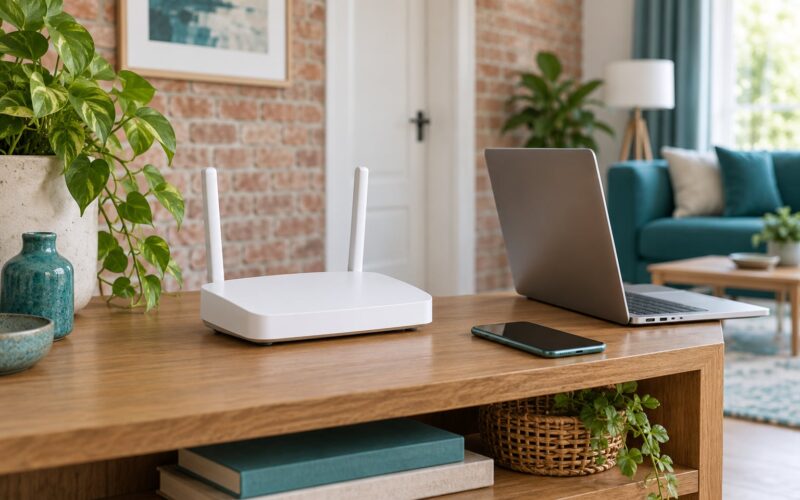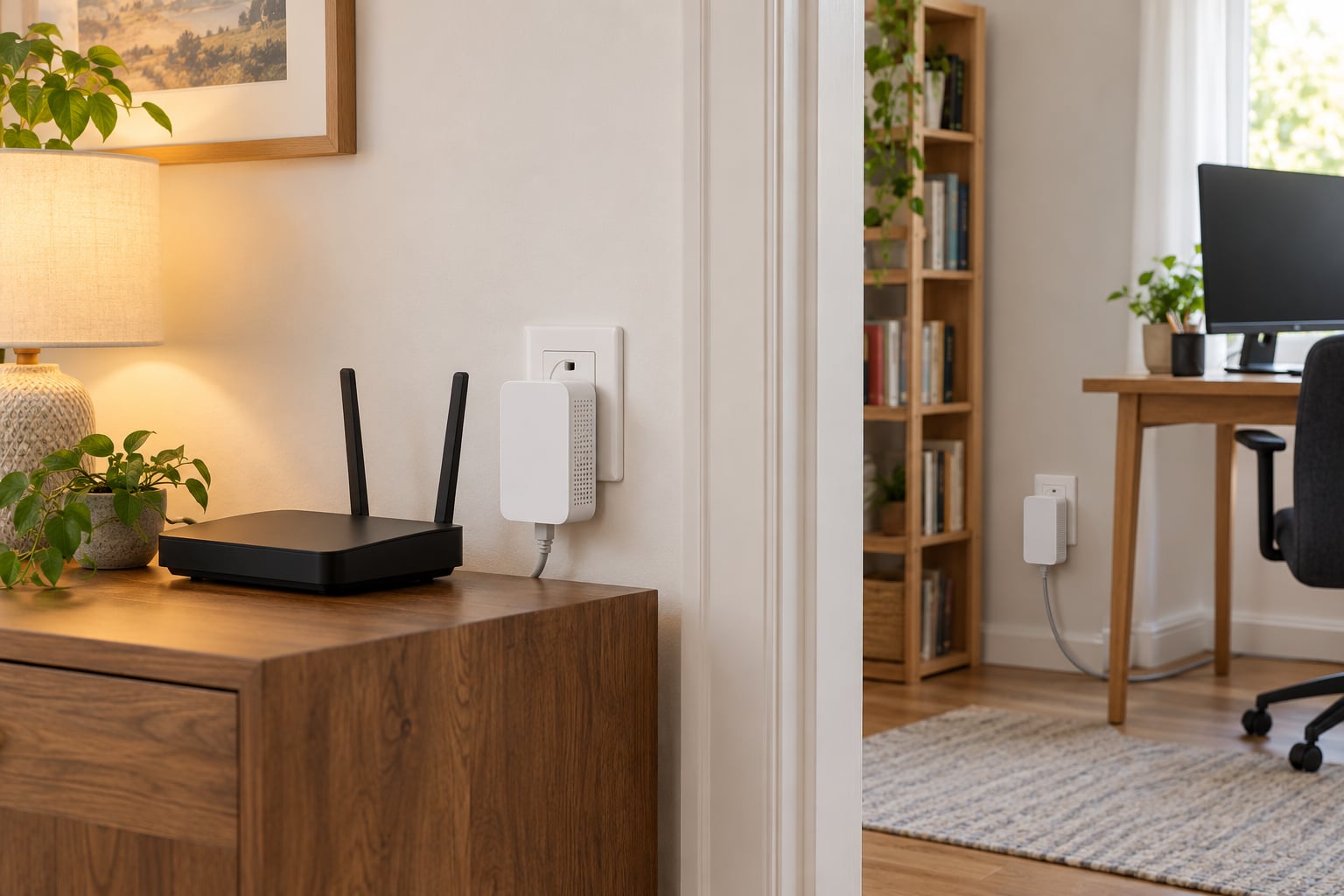
A powerline adapter carries your internet across the electrical wiring already inside your walls, so you get a wired Ethernet connection in a room where Wi-Fi struggles. Plug one adapter into an outlet near your router, plug the other into the room you want, press the pair button on both, and you are connected. The whole job takes about 15 minutes and needs no new cabling.
Powerline is the right tool when you cannot pull cable through a wall and you need a steady, low-latency link for a smart TV, a gaming console or a home-office desktop. It is the wrong tool when you expect the adapter’s rated speed to show up on your speed test, or when your wiring is old enough that the connection barely holds together.
Table of Contents
- 1What You Need
- 2Step-by-Step: How to Use Powerline Adapters for Internet
- 3Plan Where the Adapters Will Go
- 4Connect the Adapter Near Your Router
- 5Pair the Adapters
- 6How to Use Powerline Adapters for Internet in Another Room
- 7Confirm Internet Access
- 8Optimize and Test Performance
- 9Common Mistakes
- 10Troubleshoot a Failed or Slow Connection
- 11Pairing Failures Across Circuits and Phases
- 12Speeds That Never Match the Box
- 13Wi-Fi Expectations, Power Strips and Interference
- 14Frequently Asked Questions
- 15Do powerline adapters work through a whole-house circuit?
- 16Can I use a powerline adapter to extend Wi-Fi?
- 17Why is my powerline adapter slower than advertised?
- 18Should powerline adapters be plugged into a surge protector?
- 19Do all powerline adapters work together?
- 20How many powerline adapters can I install?
- 21Conclusion
What You Need
Most kits ship with everything required. Buying the second adapter separately is common if you only need one extra room.
- Two powerline adapters from the same manufacturer. Mixing brands is risky even when both claim HomePlug compliance.
- A free LAN port on your router or modem for the adapter nearest the router.
- Two Ethernet cables — one from router to adapter, one from the far adapter to your device.
- A wall outlet in each room, and a circuit breaker you are comfortable reaching.
- Optional: a plug-in outlet tester to confirm an outlet is wired and live, plus a laptop or phone you can move between rooms to check speeds.
Speed classes matter when you plan to buy a second adapter later. AV500 and AV1200 adapters can share a network, but the slower class caps what the network can deliver to everything on it. If you can, match the class you started with.
Step-by-Step: How to Use Powerline Adapters for Internet
Plan Where the Adapters Will Go
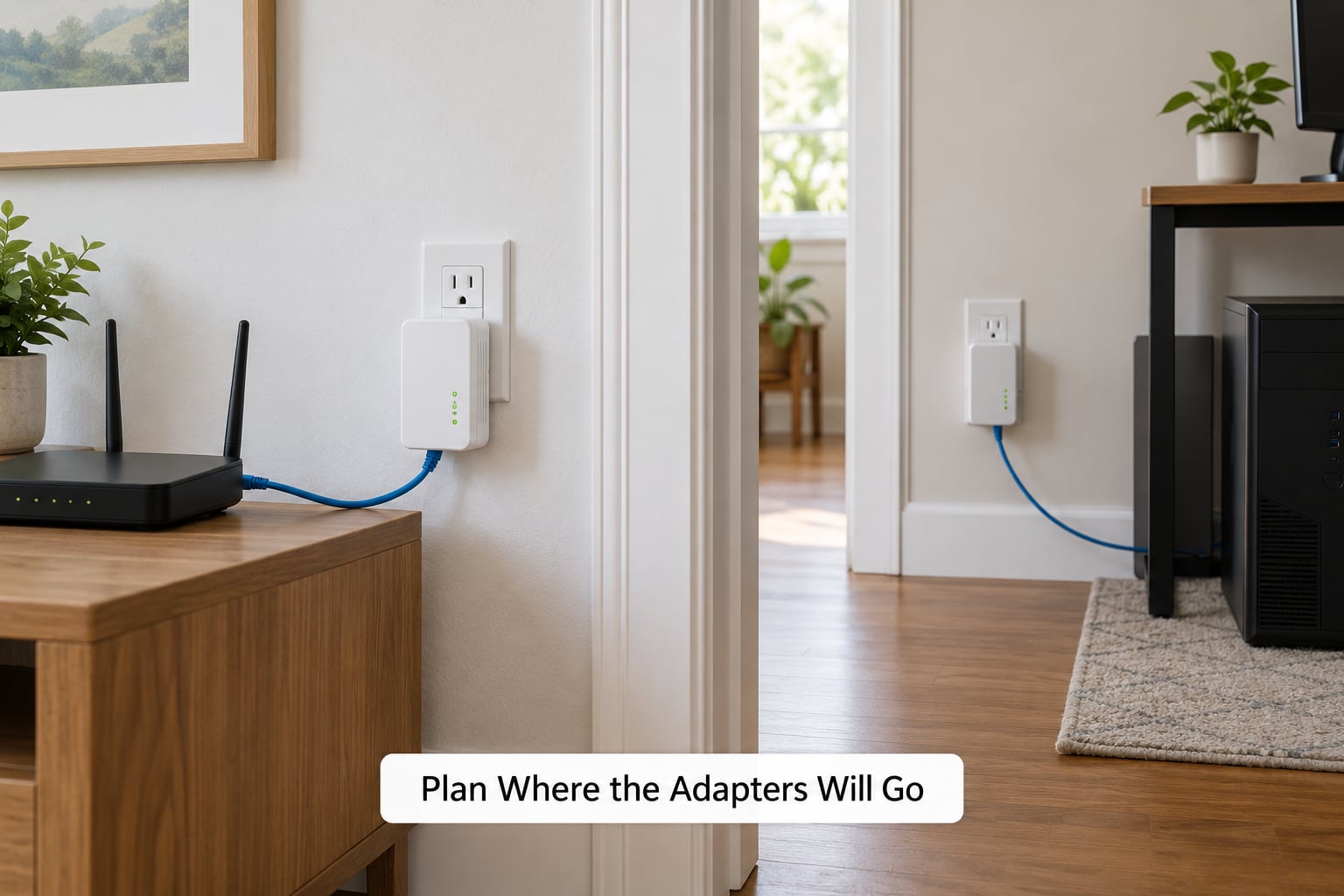
Decide the two outlets before you unbox anything, because placement matters more than the hardware. The adapter near the router wants a low-traffic outlet. The far adapter wants the outlet closest to where your device actually sits.
Avoid running the far end through a long stretch of extension cord, a power strip, or an outlet shared with a heavy load such as a washing machine, microwave or space heater. Those loads add noise to the same wiring your data rides on.
Also think about walls. Powerline travels through electrical wiring, not through plaster, so masonry, foil-backed insulation and thick plasterboard cost you throughput rather than blocking it outright. Basements, garages and 1970s-plus extensions are where performance usually falls off first.
You will know your placement is reasonable once the pair light comes on solid and stays on. No light, or a light that blinks forever, means the wiring path between those two outlets is too noisy or too far apart.
Connect the Adapter Near Your Router
Plug the first adapter straight into a wall outlet. Not a power strip, not a surge protector, not an extension lead — the manual for every major brand says this, and it is the single most common reason setup goes wrong.
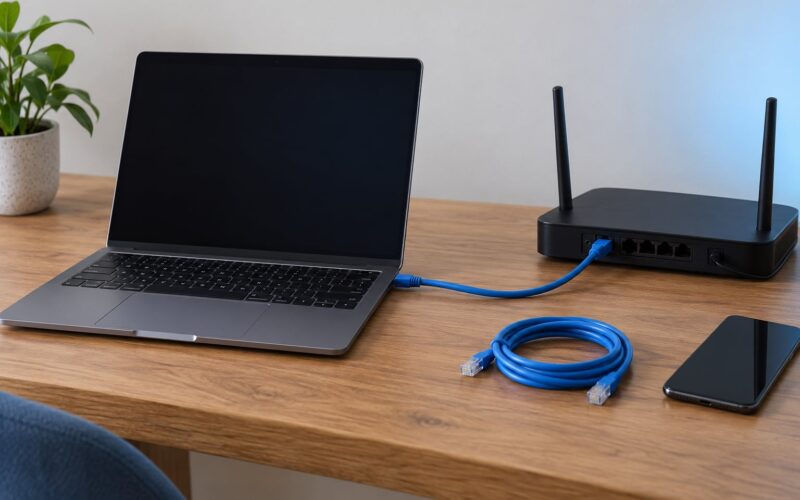
Run an Ethernet cable from that adapter into an open LAN port on your router. A standalone modem connects the same way. If the router has only one free LAN port and you also need a wired desktop in the same room, put a small switch between them.
Do not switch off your router Wi-Fi yet. Keeping it on while you test gives you a working fallback if pairing fails and you need to reach the router’s admin page.
Pair the Adapters
Pairing links the two adapters so they ignore other powerline traffic on your wiring. Most models use the same sequence: press and hold the pair button on the first adapter for about one second, release it, then press and hold the pair button on the second adapter for about one second.
You have roughly two minutes to finish the second adapter after you press the first one. Older units want a longer press — between three and eight seconds — so hold until the pairing light starts blinking rather than guessing at the timing.
Some newer kits pair through a phone app instead of a button. If the app is part of your kit, install it first, plug both adapters in, and let it guide the pairing. Either way, both adapters end in the same state: the pairing light solid, not blinking.
If nothing happens at all, unplug both adapters, wait 30 seconds, and start again with the devices side by side on the same outlet. Pairing on the same circuit first is the fastest way to separate a broken adapter from a bad wiring path.
How to Use Powerline Adapters for Internet in Another Room
Run a second Ethernet cable from the far adapter to the device you want wired. A desktop, game console, smart TV, network printer and most smart-home hubs all have a plain Ethernet port.
Some adapters have a passthrough socket on the front so you can still use that outlet for a lamp or a phone charger. Others include Wi-Fi and act as a small access point, which turns them into a wired-to-wireless bridge. That second type is genuinely useful in a room with no usable Wi-Fi from the router — it repeats the network rather than extending the existing radio signal, so it does not suffer the usual extender halving problem.
Smart TVs are the fiddliest. Some need the adapter plugged into the TV before you start the TV’s network setup, and some only see a wired connection when DHCP is handled by your router rather than the adapter.
Confirm Internet Access
Check the connection in this order: adapter pairing light solid, Ethernet light on at both ends, device shows a wired connection, then a page loads. Working through the lights first tells you which layer is broken instead of guessing.
Distinguish an internet problem from an adapter problem quickly. Plug the same device straight into the router’s LAN port with the same cable. If it works there, the cable is fine and the fault sits on the powerline link. If it fails there too, move the cable to another port or another device before touching the adapters.
A blinking Ethernet light with no traffic usually means the far end is not linked yet — often a pairing that never completed.
Optimize and Test Performance
Run one speed test with a direct Ethernet cable into the router, then run the same test over the powerline network. Comparing the two numbers is the only honest measure, because the first one is the ceiling for the second.
Real-world throughput commonly lands around 40 to 60 percent of the rated speed on modern wiring. On older or noisy wiring, people report figures nearer 120 to 200 Mbps from an adapter advertised at 1 Gbps — that range comes up repeatedly in r/techsupport threads. r/HomeNetworking consensus is blunt about it: powerline is easy when it works, and it is not Ethernet.
If the number disappoints, work down this list. Try the far adapter in a different outlet, preferably on the same electrical circuit as the router-side adapter. Move it away from large appliances. Test with the router Wi-Fi switched off so no other device is competing. If you have more than two adapters online, remember they share the available bandwidth.
The manufacturer’s own test utility, where one exists, reports link quality and lets you compare outlets without moving your computer. Use it before you assume the hardware is faulty.
Common Mistakes
Troubleshoot a Failed or Slow Connection
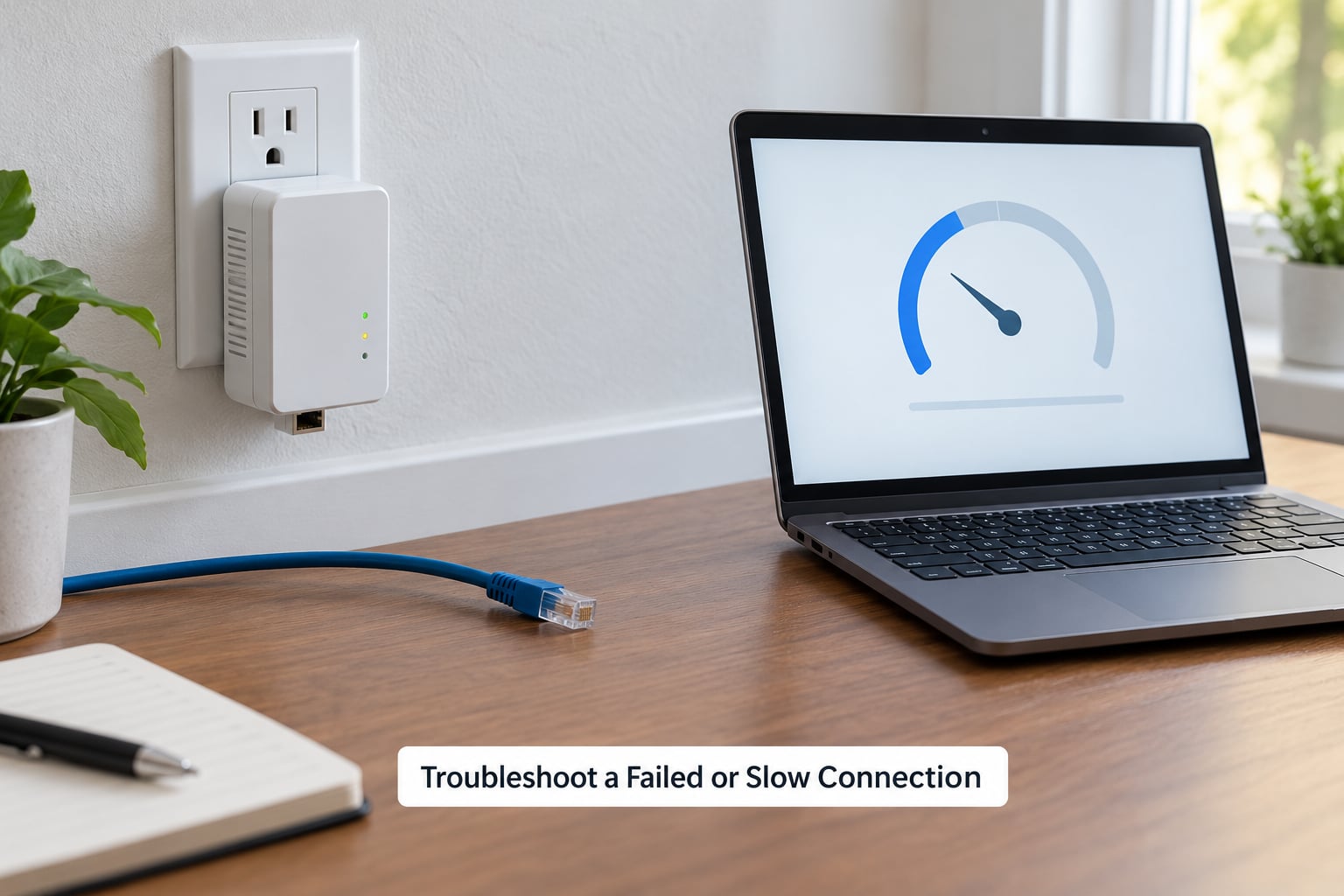
Work in order instead of re-plugging things at random. Confirm both pairing lights are solid. Check that neither adapter sits in a power strip or surge protector. Test both outlets with a plug-in tester. Then factory-reset both units — most models hold the pair button for about ten seconds until the light blinks — and pair them again.
If pairing still refuses, try the same circuit. Move the far adapter to an outlet on the same electrical panel leg as the router adapter and try once more. If it pairs there, you have a circuit problem rather than a hardware problem, and that is a real answer, not a shrug.
Update the adapter firmware while you are at it. Older firmware on an AV500 unit paired with a new AV1200 unit is a common cause of unstable links that eventually settle into poor throughput.
Pairing Failures Across Circuits and Phases
Powerline travels across your whole electrical system, including between circuits and, in many homes, across the panel from one phase to the other. Crossing that boundary is where performance collapses, because the signal has to pass through the mains transformer.
The symptoms are recognizable: adapters find each other but the link is unstable, or a paired link drops as soon as traffic picks up. Some pair across phases and deliver a fraction of their rated speed; some will not pair at all.
You cannot rewire your panel casually. If same-circuit placement fails, the realistic choices are a different outlet, an electrician’s assessment, or a different technology. That is the moment to stop spending weekends on it.
Speeds That Never Match the Box
Rated speed is a theoretical ceiling measured in a laboratory with ideal wiring. It is not a promise about your house. Any figure above roughly 500 Mbps on real wiring should be treated as a marketing number.
Two things drag a mixed network down. The first is a slower adapter class sharing the same network — the network settles at the pace of its weakest node for anything crossing it. The second is shared bandwidth: with three or more adapters sending data at once, they divide what is available.
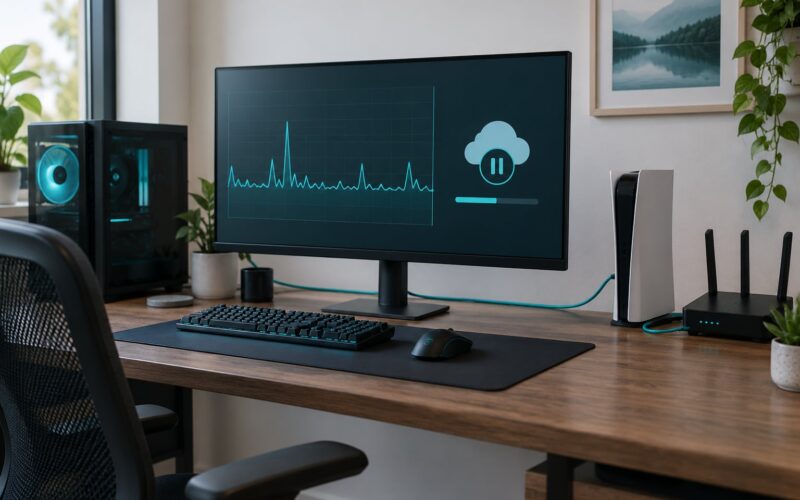
For gaming, latency matters more than headline speed, and powerline beats Wi-Fi on latency in most rooms. For 4K streaming it is usually fine. For sustained multi-gig transfers, only real cable will do.
Wi-Fi Expectations, Power Strips and Interference
The most common misunderstanding is that a powerline adapter improves Wi-Fi coverage. It does not. It gives you an Ethernet port somewhere Wi-Fi was weak, which is a different and more useful fix.
If your adapter includes Wi-Fi, that is a wired access point rebroadcasting a connection that already reached the adapter by cable. It is a genuinely different product from a Wi-Fi extender, which re-receives a radio signal and halves the throughput each hop.
Second misunderstanding: power strips and surge protectors filter the signal. Plug directly into the wall. Third: leaving the router’s Wi-Fi broadcasting on the same channels as your phones and TVs adds contention. Switch the router’s Wi-Fi off once powerline is carrying your devices and the air gets quieter for everyone still on it.
Frequently Asked Questions
Do powerline adapters work through a whole-house circuit?
Usually yes, but performance depends on the path. Adapters on the same circuit and the same panel leg deliver the best results. Crossing into another circuit often still works, with slower speeds. Crossing from one phase to the other means the signal passes through the mains transformer, and throughput can drop sharply or pairing can fail outright. If your link is unstable, try an outlet on the router’s own circuit before anything else.
Can I use a powerline adapter to extend Wi-Fi?
Not in the way a Wi-Fi extender does. A standard powerline adapter only provides an Ethernet port, and you connect a device to it with a cable. Some models include built-in Wi-Fi and act as an access point, rebroadcasting a connection that already reached the adapter over wiring. That avoids the speed loss you get from a radio extender repeating a radio signal, but it is still an access point rather than true coverage extension.
Why is my powerline adapter slower than advertised?
Because rated speed is a laboratory ceiling, not a real-world promise. In practice, throughput often lands around 40 to 60 percent of the rating on modern wiring, and older homes with noisier circuits settle nearer 120 to 200 Mbps from adapters rated at 1 Gbps. Distance, crossing circuits, large appliances sharing the wiring, power strips, and mixed speed classes all reduce the number further.
Should powerline adapters be plugged into a surge protector?
No. Plug adapters directly into a wall outlet. Power strips, surge protectors and extension leads filter the signal running over the wiring, and they are the most common cause of failed pairing and disappointing speeds. If you need the outlet free, choose an adapter with a passthrough socket, which keeps a usable socket on the front without putting the data signal through the strip.
Do all powerline adapters work together?
Not reliably. Adapters from the same manufacturer and the same speed class interoperate best. Mixing classes such as AV500 and AV1200 usually pairs but caps the whole network at the slower rate for traffic crossing it. Mixing brands from different manufacturers carries more risk, since HomePlug compatibility is only partly standardized. If you can, keep one manufacturer and one class across every adapter you install.
How many powerline adapters can I install?
As many as your wiring tolerates in practice, but each one adds noise and they all share available bandwidth. Two is the reliable starting point. Three or more can work, but if performance drops once you add an adapter, the slower unit or the added traffic is usually the cause. Keep them on the same speed class, place each one on a sensible outlet, and re-test speed after every addition.
Conclusion
Start with one adapter plugged into a wall outlet beside your router, an Ethernet cable into a free LAN port, then pair it with the second adapter in the room you care about. Confirm the pairing light goes solid and the connected device loads a page, then run a speed test and compare it against a direct Ethernet connection.
If that link holds up, adding a third or fourth adapter is straightforward. If it does not, move to a different outlet on the same circuit before you buy anything else — and if same-circuit placement fails, mesh Wi-Fi or running real cable is the better use of your weekend.