To test your internet speed properly, plug a laptop into the router with an Ethernet cable, pause every download, stream and cloud backup, then run a browser test against a server in your own city three times and record the results. Compare your typical download figure against 80% of your plan speed, and read ping and upload alongside it. Five minutes of setup, and you get a number you can actually trust and quote.
The trouble is that most bad numbers are caused by the test, not the connection. A laptop on 2.4 GHz Wi-Fi two rooms away, a phone quietly pulling a cloud backup, a test server on the other side of the country, or a VPN doing its job will all produce a figure that says nothing useful about the line coming into your house.
I’ve watched people replace a perfectly healthy router because a single 40 Mbps reading in the evening looked like a hardware problem. It took ten minutes of proper setup to show the connection was fine. This guide is that ten-minute routine, plus how to read what comes back, and what to do when the number is genuinely bad. Steps last checked in 2026.
Table of Contents
- 1What You Need
- 2How to Test Your Internet Speed Properly: Step-by-Step
- 3Step 1: Pause downloads and other network activity
- 4Step 2: Use an Ethernet connection to test your internet speed
- 5Step 3: Choose a nearby test server
- 6Step 4: Measure download, upload, and latency
- 7Step 5: Run the test at least three times
- 8Step 6: Compare results with your internet plan
- 9Common Mistakes
- 10Frequently Asked Questions
- 11What is a good internet speed?
- 12Should I test my internet speed with Wi-Fi or Ethernet?
- 13Is 100 Mbps fast enough for my household?
- 14Why does my upload speed test differ from my download speed?
- 15Why does my internet speed test vary each time?
- 16When should I contact my internet provider?
- 17Conclusion
What You Need
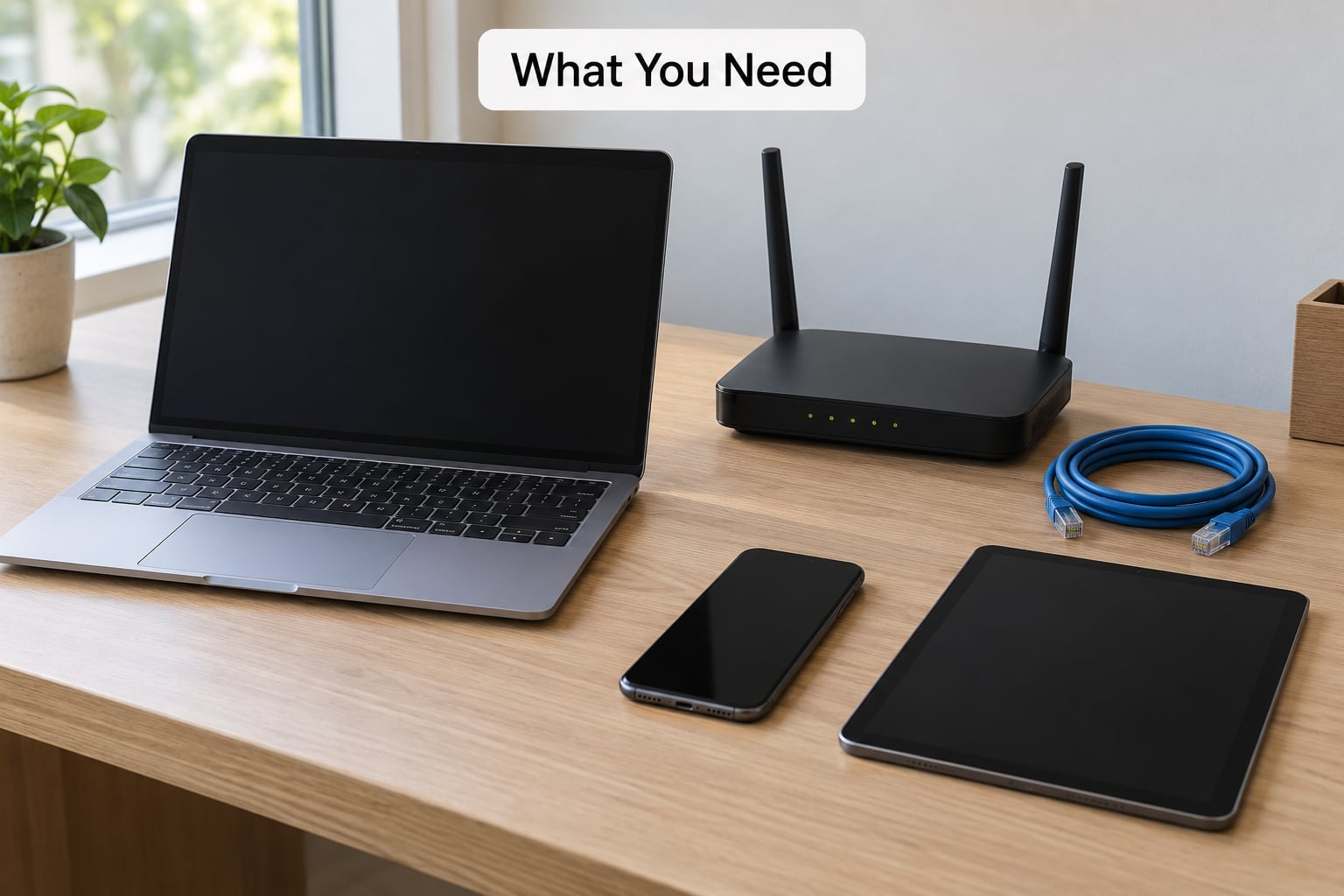
- A modern browser. Chrome, Edge, Firefox or Safari on a laptop or desktop. In-app browsers on phones are fine for a rough check, but not for a number you plan to argue with.
- An Ethernet cable and a free LAN port on the router. Any Cat 5e or Cat 6 cable does the job. That is the single biggest thing you can change before a test.
- Strong Wi-Fi if Ethernet is impossible. 5 GHz band, same room as the router, no walls or appliances in between.
- A test service. Speedtest by Ookla, Fast.com and the Cloudflare test at speed.cloudflare.com are the three most used. Any of them is fine; what matters is that you use the same one every time you measure.
- An idle device. Nothing streaming, uploading, downloading, syncing or updating on that machine, and ideally not on the rest of the network either.
- A way to log results. A screenshot and a note with the date, time and server name. This is what turns “it’s slow” into something a support agent cannot wave away.
You do not need anything else. A ten-second check of the network tab in Windows Task Manager or the Network tab in macOS Activity Monitor will tell you if something is quietly eating your bandwidth, and that is the only diagnostic tool genuinely worth having open.
How to Test Your Internet Speed Properly: Step-by-Step
Step 1: Pause downloads and other network activity
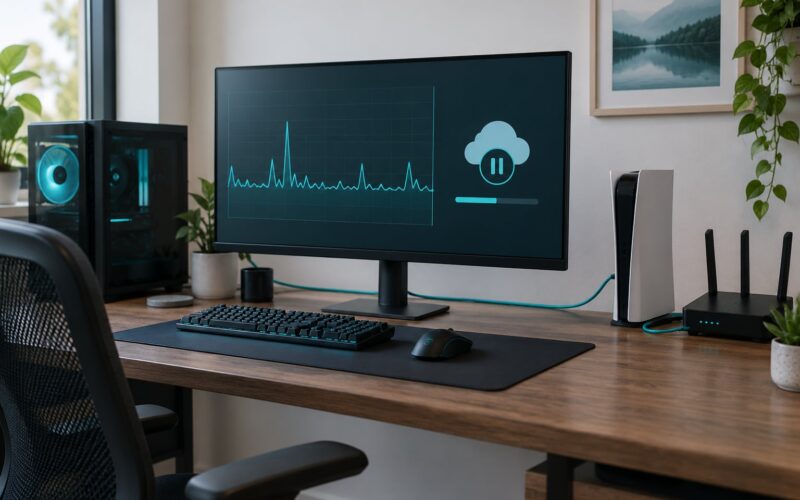
Any traffic on your network during the test divides your bandwidth between the test and whatever else is hungry. A single 4K stream pulling 25 Mbps on a 100 Mbps line is enough to make a healthy connection look underperforming.
Before you start, stop video streaming, cloud photo backups, game downloads, torrent clients, video calls and operating system updates. On consoles, pause downloads too. If you have a NAS or a backup service that syncs on a schedule, wait for it or disable it for the test.
Two settings catch people out regularly. A VPN routes your traffic through someone else’s server, so you are measuring the tunnel and not your line. A metered connection on Windows, or Data Saver on mobile, throttles background traffic and occasionally the browser too. Turn both off, run the test, and turn them back on afterwards.
Quick way to confirm the line is quiet: open Task Manager on Windows, select the Performance tab, click Wi-Fi or Ethernet, and look at the Send and Receive rates. Both should sit near zero. On macOS, the Network tab in Activity Monitor shows the same thing.
Step 2: Use an Ethernet connection to test your internet speed
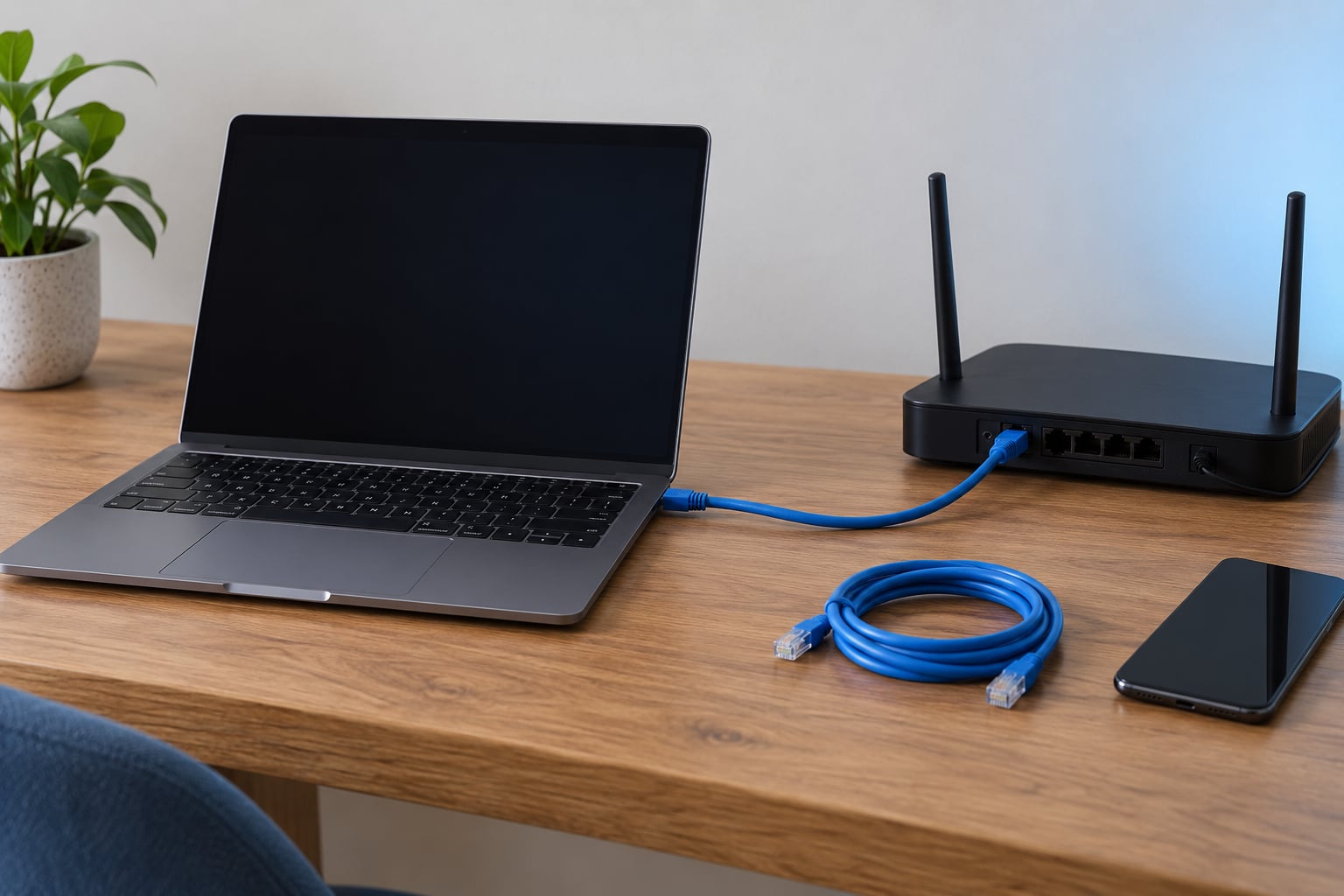
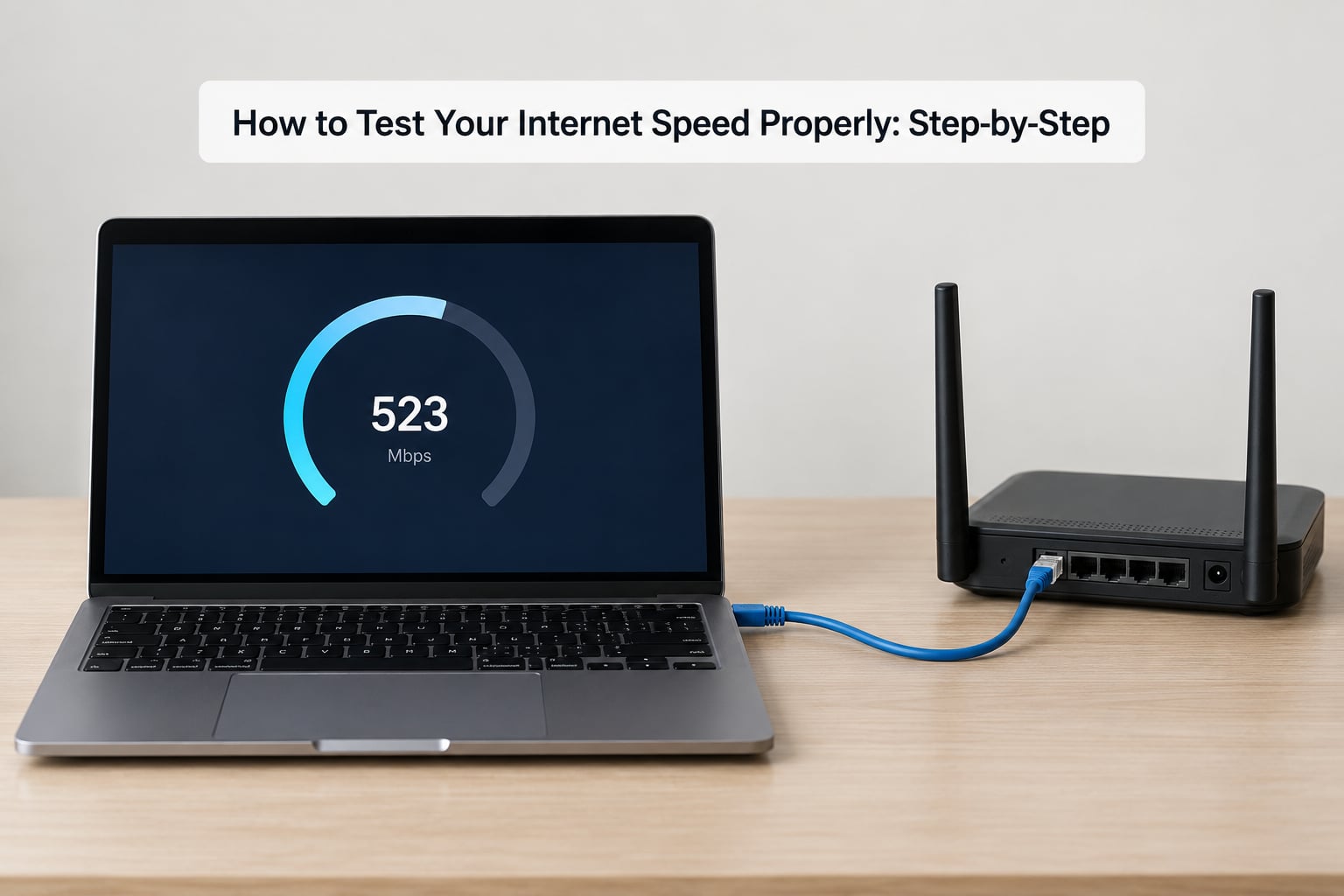
A wired connection removes every wireless variable at once: distance, walls, interference, band congestion, and the radio in your device. If you want to know what your ISP is delivering, this is the only honest setup. Plug the cable into the router rather than straight into the modem, because a router in the path adds its own limits.
Wi-Fi results are still worth having, they just answer a different question. How you set up changes what you are actually measuring.
| Setup | What it measures | Good for |
|---|---|---|
| Wired Ethernet | The line from your ISP to the house, with no wireless loss | Comparing against plan speed, disputing a bill, diagnosing a fault |
| Wi-Fi, 5 GHz, same room | Your internet line plus a strong wireless hop | Checking speed on a laptop you actually use every day |
| Wi-Fi, 2.4 GHz, other room | The weakest link in the whole chain | Finding dead zones before you buy a mesh system |
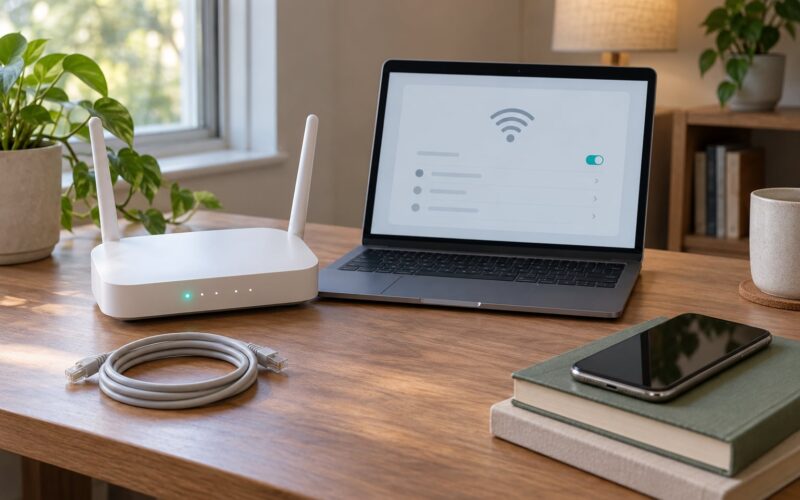
If you must test over Wi-Fi, stay in the same room as the router, prefer the 5 GHz band over 2.4 GHz, close doors between you and the router, and note that the result is a floor rather than a ceiling. Users on r/HomeNetworking reach for iperf3 or a large file transfer between two machines when they want to measure the wireless link itself, which is a different question from what the internet delivers.
One oddity worth naming: sometimes Wi-Fi reports a higher speed than the Ethernet cable. It is not magic. It usually means the cable is faulty, the port is negotiating at 100 Mbps instead of 1 Gbps, or the router itself is the limit. Check the negotiated link speed in your network adapter settings before you believe the wireless number.
Step 3: Choose a nearby test server
A speed test measures the route between you and the server it uses. Sending data 1,500 miles and back adds delay and gives up throughput before your line is ever the constraint, so let the test pick the closest server and confirm it picked one in your own city before you trust anything.
If a result looks low, run it again against a different server. A congested or throttled test server can never show your true speed, and that is a known complaint from people who wondered why their gigabit line never moved past 300 Mbps until they switched servers. Two runs on two nearby servers tell you which number to believe.
For technical readers, the same idea with a command line: a `ping` to your gateway first, then to a public DNS server, separates local problems from upstream ones, and a `pathping` shows you where along the route latency is added. On Linux, the Ookla CLI client gives the same download, upload and ping figures in a terminal, which is handy for scripted or scheduled logging.
Step 4: Measure download, upload, and latency
Most browser tests report four numbers, and they describe different things. Download and upload are throughput, measured in megabits per second. Ping and jitter are responsiveness, measured in milliseconds, and they matter far more than throughput for calls and games.
- Download speed (Mbps) is how fast data arrives: streaming, web pages, file downloads.
- Upload speed (Mbps) is how fast data leaves: video calls, cloud backup, publishing large files.
- Ping or latency (ms) is the round-trip delay to the test server. It is responsiveness.
- Jitter (ms) is how much that delay varies from one moment to the next. Steady 40 ms is calmer than swinging between 8 and 90.
Units trip people up constantly. Mbps is megabits per second, MBps is megabytes per second, and there are 8 bits in a byte. A 100 Mbps connection moves about 12.5 MB per second. If a download shows 12.5 MBps, that is 100 Mbps, not a disappointment.
Results normally appear on the page the moment the test finishes, often as a dial, a bar or a circle that fills, with the server name and provider printed underneath. Take a screenshot straight away, including the server, the date and the time.
Step 5: Run the test at least three times
One run is a data point, not a measurement. Run the test three to five times, spaced a minute or two apart, and record each download, upload and ping figure. The number you quote should be the one that keeps showing up, not the best of the set.
If one run is dramatically higher or lower than the others, something was in flight. The largest reading is often the most flattering and the least representative, and it is usually the one people screenshot. Median of three is a sensible, defensible summary.
Then test again during the evening hours, typically 7pm to 10pm, when a neighbourhood is actually using the internet. A connection that hits plan speed at 10am and 40% of it at 9pm points to congestion in your provider’s network, which is a completely different problem from a fault in your house and gets fixed by a completely different phone call.
Step 6: Compare results with your internet plan
Compare your measured download against your plan speed, not against some vague idea of what you “should” have. A useful rule: hitting at least 80% of your advertised speed on a wired test, against a nearby server, with everything else paused, is a normal, healthy result.
Falls short of that, and the gap is usually explained by one of four things. First, providers advertise “up to” speeds, which are maxima measured under ideal wired conditions with a clean line, not a floor you are entitled to at 9pm. Second, shared neighbourhood lines lose throughput as more people connect. Third, some plans cap upload far below download. Fourth, a phone or laptop Wi-Fi radio will never reach a gigabit line’s number, and neither will an older network adapter.
Judge on the combination, not one figure. Plenty of people with modest download speeds are perfectly happy, and people with gigabit connections still have unusable latency if the ping is 90 ms.
| Ping | What it feels like |
|---|---|
| Under 20 ms | Excellent, remote work and competitive gaming are unnoticeable |
| 20 to 50 ms | Good, everything feels normal |
| 50 to 100 ms | Acceptable for browsing, noticeable in voice and shooters |
| Over 100 ms | Laggy calls, character movement and input lag |
Jitter is worth watching too, ideally under 30 ms. And if download looks fine but upload crawls, the cause is usually the plan, not your setup: residential lines are frequently provisioned with upload at a small fraction of download.
Isolating blame comes next. Repeat the wired test on a second device. If the second device gets the same number, your home network and router are doing their job and the loss is upstream. If one device is fast and the other slow, it is a Wi-Fi or network adapter problem on that machine, not an ISP problem.
When a wired test is consistently short of 80% of plan speed, restart the modem and router, reseat every cable, and retest. If the result holds after a few attempts, contact your provider with your screenshots, timestamps and server names in hand.
Common Mistakes
- Testing over Wi-Fi from another room. Walls, microwaves and neighbouring networks on 2.4 GHz will drag the number down. Fix: use Ethernet, or 5 GHz in the same room, and treat any wireless figure as a floor.
- Leaving streaming or cloud backup running. A 4K stream needs roughly 25 Mbps on its own, and backups are silent about it. Fix: pause everything and confirm with Task Manager or Activity Monitor.
- Other devices sharing the line. A phone updating an app or a TV pulling a feed is invisible but expensive. Fix: disconnect them for the test, especially if the slowdown only happens in the evening.
- Using a distant or busy test server. Route distance and server load cap what you can see. Fix: check the server name is in your city, and cross-check on a second service.
- Leaving a VPN connected. You are measuring the tunnel. Fix: disconnect it, test, reconnect.
- Metered connection or Data Saver enabled. Both can throttle the browser or background transfers. Fix: turn them off in Windows network settings and in mobile data settings before testing.
- Outdated router firmware or an old network adapter. A 10-year-old adapter that negotiates at 100 Mbps will never show more, whatever the line delivers. Fix: check the negotiated link speed, update firmware, and test again.
- Testing on a phone. Phone results swing with the radio, signal strength and cellular handoff, which is why the numbers feel wonky. Fix: use a phone only as a rough sanity check, never as evidence.
- Confusing Mbps with MBps. It is a factor of eight. Fix: multiply or divide by 8 before you decide anything.
- Judging one run, usually the best one. Fix: three runs, quote the median, and test again at peak time.
One more habit pays off: log the date, time, server and result every time you test. A single slow evening is an anecdote. Five slow evenings spread over three weeks, with timestamps and screenshots, is a pattern, and a pattern is what actually moves a provider.
Frequently Asked Questions
What is a good internet speed?
It depends on how many people and how many devices, but as a rough guide 25 Mbps supports one or two people browsing, streaming in HD and making video calls, while 100 Mbps comfortably covers a household of four with several 4K streams running at once. Judge the number on ping and jitter as well as throughput, since a fast line with 90 ms latency feels slow in a call. For gaming, raw speed matters far less than a steady, low ping.
Should I test my internet speed with Wi-Fi or Ethernet?
Ethernet, whenever you can. A wired test removes distance, walls, interference and your device wireless radio, so it is the only setup that reliably shows what your provider delivers and whether you are getting what you pay for. Test over Wi-Fi when you want to know whether a particular room or device gets good service, or when Ethernet is simply not an option. Just stay on the 5 GHz band in the same room as the router.
Is 100 Mbps fast enough for my household?
For most homes, yes. 100 Mbps comfortably covers four or five people browsing, HD and 4K streaming, video calls and cloud backups as long as they are not all happening at the same instant. A rough guide is about 5 Mbps per HD stream and about 25 Mbps per 4K stream, plus a few Mbps each way for a video call. If your upload is low, remember that video calls and backups depend on upload, not download.
Why does my upload speed test differ from my download speed?
Because most residential plans are asymmetric by design. Providers allocate far more capacity downstream than upstream, so a line sold as 300 Mbps down might carry only 10 or 20 Mbps up, and that is a provisioning choice rather than a fault. Some plans now offer symmetric speeds at a higher tier. Check the upload figure on your plan, and keep in mind that a slow upload will make video calls, cloud backups and publishing large files feel slow even when download is excellent.
Why does my internet speed test vary each time?
Because the test measures a live path to one particular server, and that path changes. Other traffic on your network, the distance and load of the test server, evening congestion in your provider’s network and wireless interference all move the number slightly. Variation of a few percent between runs is normal. A swing from 300 Mbps to 90 Mbps means something changed between the tests, so pause other devices, confirm the server, and run at least three times before drawing a conclusion.
When should I contact my internet provider?
Contact them when repeated wired tests against a nearby server stay below roughly 80% of your plan speed across several days and different times, especially if the gap widens in the evening. Restart the modem and router and reseat the cables first, so you can say you did. Bring timestamps, server names and screenshots to the call, and ask what speed they are seeing on their end of the line, because a mismatch between their reading and yours usually means a fault rather than a plan issue.
Conclusion
Start here: pause every download, stream and backup, plug in Ethernet, and run three browser tests against a server in your own city. Write down the typical download, upload and ping figures, and compare them against 80% of your plan speed. If you clear that, your connection is doing what you pay for. If you don’t, restart the modem and router, retest, and call your provider with timestamps and screenshots attached.