The short answer: capture ideas, not words. Type shorthand bullets into one fixed structure, paraphrase as you listen, and review and edit the notes within 24 hours. How to take better notes on a laptop is a structure problem far more than a typing-speed problem, and the app you pick matters much less than the habit of coming back to what you typed.
The failure I hear about most in study forums is the transcript trap. Someone types every sentence of a lecture, feels productive for the whole hour, and two days later cannot recall a single slide. Notes you never revisit are nearly worthless, because you processed them once at lecture speed and never tested what stuck.
None of this needs a new laptop or a paid subscription. Spend about 20 minutes setting up a template, then five minutes of review per session, and the system starts paying back inside the first week.
Table of Contents
- 1What You Need to Take Better Notes on a Laptop
- 2Step-by-Step: The Before, During, and After Workflow
- 31. Choose a note system you can use quickly
- 42. Prepare your laptop and keyboard shortcuts
- 53. Capture ideas without breaking attention
- 64. Turn raw notes into an outline
- 75. Review and edit within 24 hours
- 86. Back up, organize, and share selectively
- 9Common Mistakes
- 10Frequently Asked Questions
- 11Is it better to take notes on a laptop or with paper?
- 12How can I type notes faster during a class or meeting?
- 13What is the best note-taking app for a laptop?
- 14How should I organize notes so I can study them later?
- 15Can I use one note-taking system on both Mac and Windows?
- 16How do I keep laptop notes private and backed up?
- 17Conclusion
What You Need to Take Better Notes on a Laptop
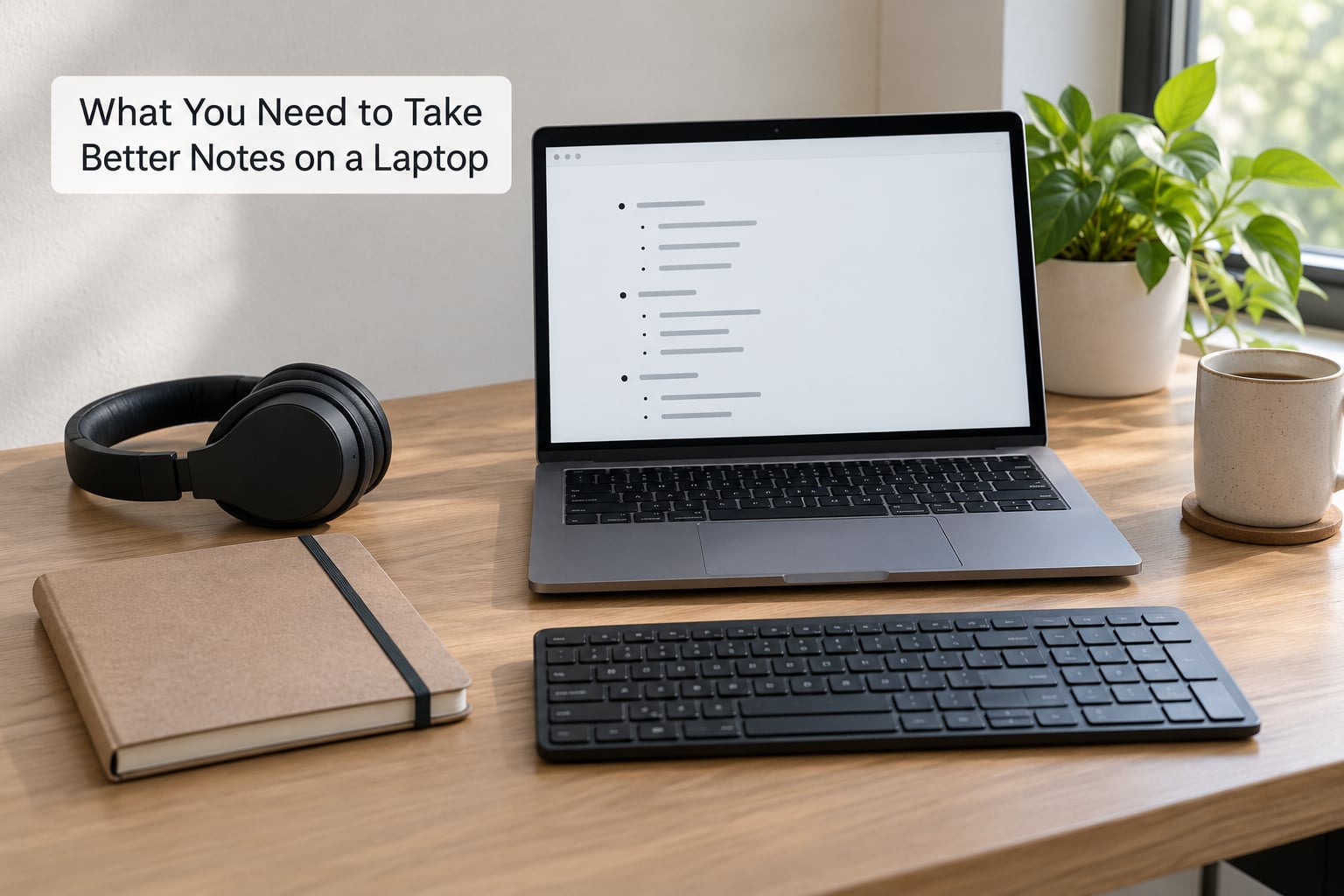
You need four things: one note app you can open in under five seconds, a template that decides where every line goes, a backup that runs without you thinking about it, and a review slot in your calendar.
- An app that starts fast. Obsidian, Joplin, Logseq, Notion, OneNote, and Apple Notes on Mac all work, as does a plain Markdown editor like VS Code. Launch speed matters more than feature lists, because the app competes with attention.
- A template that fixes the layout. The Cornell three-pane layout, an outline skeleton, or a dated session header. Decide once and stop redesigning it.
- Two keyboard shortcuts you can hit blind. One to create a new note, one to switch to a distraction-free view. On macOS that is Command, on Windows and Linux it is Control.
- Headphones, if the room is noisy or the session is recorded. A few typed keywords next to timestamps beats a full transcript every time.
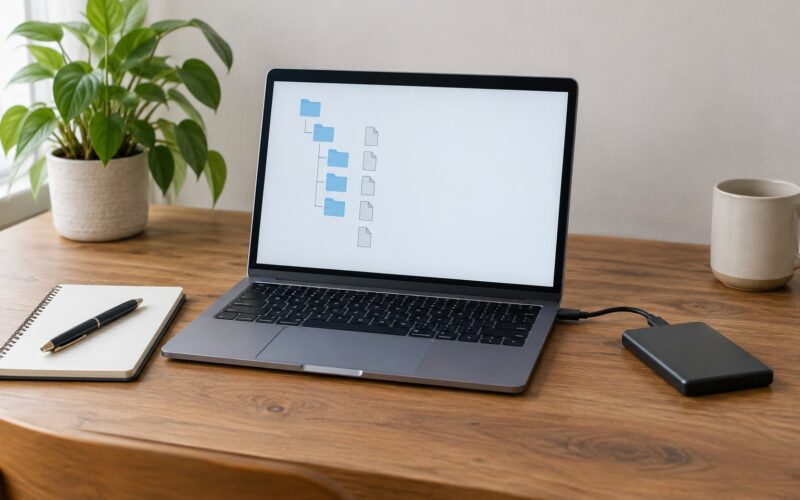
- Storage and sync. A folder that lives on the laptop plus an automatic copy to cloud storage or an external drive.
- Privacy basics. Full-disk encryption switched on, and one backup that exists offline.
What you do not need: a stylus, a drawing tablet, a color-coding system, or better hardware. Forum threads on r/NoteTaking and r/ProductivityApps keep returning to the same conclusion in different words, that the app does not matter nearly as much as the method, and consistency beats features every time.
Step-by-Step: The Before, During, and After Workflow
The workflow runs in three phases, and only the last one turns notes into knowledge. Here is the version that holds up on a 13-inch laptop in a noisy lecture hall and in a one-hour meeting.
1. Choose a note system you can use quickly
Pick the format you can open, type into, and close without thinking about it. The fastest format is the one you will actually use at 9am with the lecturer already talking.
Plain text in Markdown is the safest default. It stays searchable years later, works on any platform, and exports cleanly. Outlines and bullets are the fastest to capture into, which makes them the best everyday format for meetings and lectures. Mind maps and concept maps show relationships well but are awkward to build linearly while someone is talking, unless you type on a tablet with a stylus. Multimedia documents, where you paste in a diagram, a screenshot, or a code block, pay off in STEM subjects and reading-heavy research.
Five structures cover almost everyone:
- Outline and bullets work best for lectures, meetings, and daily use. One heading per topic, short indented bullets underneath. The weakness is that it misses relationships between topics.
- The Cornell method suits study-heavy courses: a main notes column, a narrow cue column on the right, and a summary box along the bottom. It takes a few minutes to set up properly, which is most of the cost.
- Mind and concept maps handle systems, biology, and theory. A central node with branching keywords shows structure that bullets cannot, but it is slow to build while someone is speaking.
- Multimedia documents fit STEM, literature, and code work: bullet text with embedded images, tables, and PDF annotations. The files grow large and syncing gets slow.
- Progressive summarization suits long research projects: bold what matters, highlight the sentence that carries the idea, then write one summary line on top. It only works on notes you already have.
The test is simple: open a blank page and start typing within ten seconds. If you spend longer choosing a template than you spend taking notes, the setup is wrong.
2. Prepare your laptop and keyboard shortcuts
Set the machine up once, then leave the settings alone. Sleep timers, text size, and notification controls all live in different menus depending on your operating system, and the paths below reflect current versions of each.
On macOS, display sleep and the prevent-sleep option are in System Settings, then Lock Screen, where you can set the display to turn off after a set number of minutes and keep the machine awake on power. Text size sits in System Settings, then Accessibility, then Display, and the setting also scales text inside most apps. Global shortcuts live in System Settings, then Keyboard, then Keyboard Shortcuts.
On Windows 11, screen and sleep timeouts are in Settings, under System, then Power and battery. Text scaling is in Settings, under Accessibility, then Text size, and it applies across apps rather than just the one you are using. Do not disturb is in Settings, under System, then Notifications.
On Linux, the exact location depends on your desktop. GNOME users find screen blanking in Settings, under Power, and GNOME also has a Do Not Disturb toggle in the quick settings menu. KDE Plasma keeps the same options in System Settings, then Power Management. Sleep, battery, and privacy defaults differ across versions and hardware, so check yours rather than assuming the defaults suit a three-hour lecture block.
Then set the two shortcuts. Most note apps print their own shortcut list behind a key symbol in preferences, which is the fastest way to learn what is available. Map one to new note and one to a full-screen or focus view that hides sidebars and menus. Test both by taking your hands off the keyboard entirely.
3. Capture ideas without breaking attention
Capture the point of each idea in your own words, tag it with a symbol, and move on. The moment you start reproducing the speaker’s exact phrasing, you have stopped listening and started copying.
A few rules make this faster. Write one short sentence per idea rather than fragments of the sentence. Drop the articles and filler words, so “the effect on the sample size” becomes “effect -> sample size”. Use timestamps in meetings and lectures, because they turn your notes into a navigable index later. Use headings as signposts, one per topic shift, so the file is readable before you have read anything of it. And keep a personal shorthand key at the top of the file, roughly ten abbreviations you actually use, so you never invent a new one mid-sentence.
Voice capture helps when a session is dense, but only with permission from everyone present. Record, then type a few keywords and timestamps alongside the audio reference. Unconsented recording creates real problems in meetings and classrooms, and it is not worth the convenience.
Here is a fragment from a 45-minute planning meeting: 09:12 pricing change -> ask for the churn numbers, 14:05 legal review, ? owner unassigned, 31:20 pilot in two regions, ! before launch. The symbols are arbitrary but consistent: question mark for something unclear, exclamation for something urgent, arrow for an action item.
The success check comes at the end of the session. Open search and find one specific point you remember from ten minutes ago. If it takes more than about 30 seconds, your capture structure needs more headings.
4. Turn raw notes into an outline
Raw capture is a transcript with structure. The outline is what you keep and study from, so converting one into the other is a real step rather than tidying.
The Cornell method translates cleanly to a laptop screen. A three-column layout gives you the main note column, a narrow cue column for questions and keywords, and a summary row at the bottom. Most note apps also support a split view, so you keep the source material or slide deck on the left and your typed outline on the right, which is far more useful than one window covering both.
Separate what the speaker said from what you think. Mark your own interpretation with a short prefix, a couple of words is enough, and keep it visually separate. Add references while they are fresh: page numbers for a reading, timestamps for a recording. Then write descriptive headings, so Pricing change beats Notes part 2, because that is the text search will actually match later.
Before: pricing – they said new tiers, team concerned, will look at again, legal maybe, data not final yet. After: it becomes a pricing change heading, a bullet on the three proposed tiers, a bullet flagging churn data as unverified, a cue-column question asking who owns the legal review, and an action item naming the person who pulls the data.
5. Review and edit within 24 hours
A 20-minute review the same evening beats an hour the night before the exam. Put it in your calendar as a recurring appointment at a fixed time, because an unscheduled review is a review that does not happen.
Start by filling gaps. Anything marked unclear during the session gets rewritten or turned into a question. Then convert the parts that will be examined into questions with answers on the back, which is the cheapest flashcard system there is.
The technique doing the work here is active recall: closing the notes and producing an answer from memory before checking it. Spaced repetition is the scheduling half, revisiting the same material at widening intervals rather than in one long cram. The reason both matter is the Ebbinghaus forgetting curve, the finding that retention drops steeply in the first days unless memory is revisited, which is why notes that sat untouched for three weeks feel strangely familiar and completely unusable.
Progressive summarization is the editing half: bold what matters, then highlight the sentence that carries the core idea, then write a single summary line above the whole block. Three passes, each one cheaper than the last to read.
Check that the review worked by covering the page and writing down what you remember. Compare, and note the section where you came up short. That section is the one to re-read tonight and re-check tomorrow.
6. Back up, organize, and share selectively
Organization should be boring: one file per session, a naming pattern you can read at a glance, and a backup that happens on its own.
Naming does the heavy lifting. Put the date, the subject, and the topic on one line, such as 26-10-03 Neurochemistry Action potentials, and it sorts correctly, searches cleanly, and never collides. Decide whether you keep one notebook per course or a single vault with tags, because mixing both is how notes sprawl. One notebook per course is simpler; a single vault scales better if you take notes across many subjects or clients.
Set the backup to run automatically, to cloud storage or an external drive, and keep one copy that exists without a network connection. Local-first tools such as Joplin, Logseq, or an Obsidian vault stored on your own drive are worth considering when privacy matters or when lecture-hall wifi is unreliable, since they work offline and sync later. Enable version history if your app offers it, because it rescues a note overwritten by a bad edit.
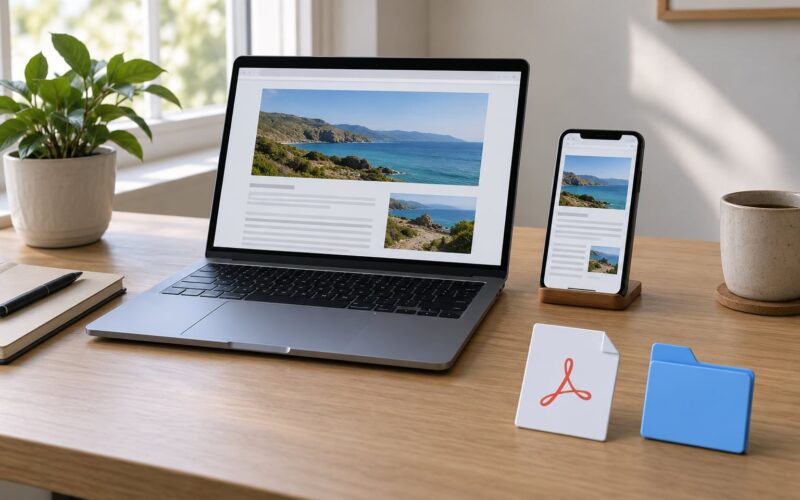
Before sharing, export rather than share the live link. PDF for people who do not have your app, Markdown for anyone who wants to reuse the text. Open the export, check that headings, links, and images survived, and strip anything private, including other people’s names and anything you recorded without permission.
Common Mistakes
Most bad laptop notes come from a handful of habits, and each one has a straightforward fix.
- Typing everything verbatim. Fix: paraphrase each idea into your own words. If you cannot restate it, you were not listening to it.
- Using five formatting styles at once. Fix: pick one. Heading, bullet, and one symbol system is plenty.
- Keeping notes on one laptop only. Fix: automatic backup plus one offline copy, set up the same day you start.
- Postponing review. Fix: a fixed 20-minute calendar slot the same day, with no flexibility.
- Recording without asking. Fix: ask everyone in the room first, and note the answer in the file.
- Sharing full notes publicly. Fix: export the relevant section, remove private names, and share the export rather than the notebook.
- Over-organizing before taking a single note. Fix: a flat folder and a naming pattern beat a deep hierarchy you never finish building.
- Typing fast while the app lags. Fix: close everything else, keep documents small, and avoid embedding large media during the session.
One habit ties it together: spend ten minutes every Friday opening the week’s files and tidying headings, renaming anything unclear, and clearing the action items you finished. The system only stays useful while someone maintains it, and that someone is usually you.
Frequently Asked Questions
Is it better to take notes on a laptop or with paper?
Handwriting slows you down, which forces paraphrase and better listening. Typing is faster to edit, search, and copy. Studies on memory effects point in mixed directions, so neither wins outright. If your laptop tempts you to chase every word, paper wins. If you want searchable, reorganizable notes you can reuse across projects, typing wins.
How can I type notes faster during a class or meeting?
Drop filler words and articles, keep a ten-abbreviation personal shorthand key at the top of the file, and use one keystroke for question mark so you never break rhythm looking for it. Type short sentences, not full ones. Practice touch typing 15 minutes a day, and set one shortcut to create a new note so you never lose your place in the app.
What is the best note-taking app for a laptop?
There is no single winner, so judge on five things: how fast it launches, whether it works offline, whether it exports to PDF or Markdown, whether it syncs across your devices, and whether it stays fast as a notebook grows. Obsidian, Joplin, Logseq, Notion, OneNote, and Apple Notes each satisfy those for different people. Pick one, use it for a month, then judge.
How should I organize notes so I can study them later?
Keep one file per session, name it with the date, subject, and topic on one line, and end every file with a short summary and a list of open questions. Write descriptive headings so search matches them. Use tags sparingly, since a dozen tags replace organization with noise. Reviewing from the summary and the questions gives you the highest-value 5 minutes in the file.
Can I use one note-taking system on both Mac and Windows?
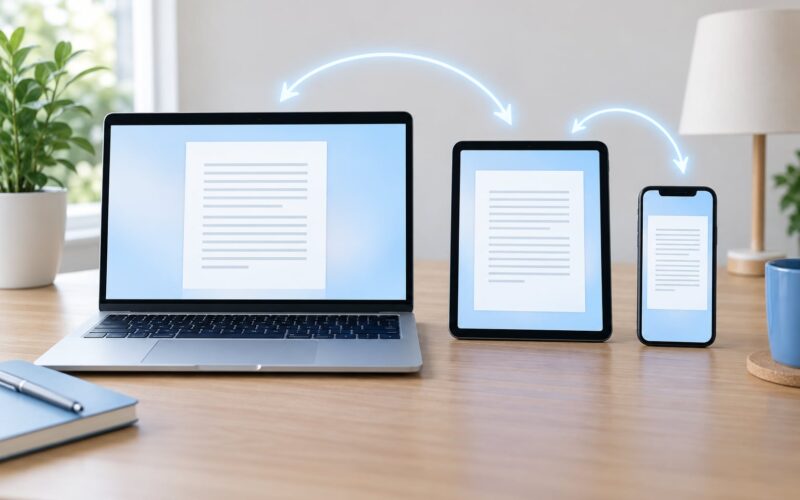
Yes, provided the tool runs on both. Plain-text Markdown is the most portable choice, since a folder of files opens in any editor on any operating system. If you prefer a database app, check that it has current builds for both platforms and that sync works without a proprietary connector. Test it on the second machine for a week before you rely on it in class.
How do I keep laptop notes private and backed up?
Turn on full-disk encryption, which means FileVault on macOS, BitLocker on Windows, and full-volume encryption on Linux. Use a local-first app when notes are sensitive or the wifi is unreliable. Keep one backup that syncs automatically and one copy on an external drive that does not need a network. Export anything sensitive to PDF and store it separately before sharing.
Conclusion
Better laptop notes come from three habits, in this order: capture ideas instead of words, convert the raw capture into a structured outline, and review it the same day. Everything else, the app, the shortcuts, the cloud sync, is support for those three.
Start tonight. Create one notebook, configure two shortcuts, and take the next class or meeting using the outline structure. Twenty minutes of setup, then a five-minute review each session, is enough to fix how to take better notes on a laptop for good.