Learning how to choose a privacy focused browser comes down to four things: who you are actually hiding from, how hard the browser blocks tracking, whether it resists fingerprinting, and whether the sites you use every day still load properly with protection switched on. Brand names matter far less than those four. This guide is a repeatable process, updated for 2026, that takes about an hour the first time and ten minutes every time you reconsider.
One more thing worth saying up front. No browser makes you invisible, and any page that promises otherwise is selling something. What a good privacy browser does is shrink the amount of information a site can collect in the first place, and make the defaults sensible enough that you do not have to think about them.
Table of Contents
- 1What You Need
- 2How to Choose a Privacy Focused Browser: Step by Step
- 31. Decide What Privacy Means to You
- 42. Check Which Trackers the Browser Blocks
- 53. Review Fingerprint and Automation Protections
- 64. Verify Security and Update Practices
- 75. Make Sure Your Accounts and Extensions Work
- 86. Test Everyday Websites and Workflows
- 97. Compare Free, Paid, and Account-Based Models
- 108. Run a Privacy Settings Checkup
- 119. Choose a Main Browser and a Specialist Backup
- 12Common Mistakes
- 13Frequently Asked Questions
- 14What is the best privacy focused browser for everyday use?
- 15Are browser extensions better than a privacy-focused browser?
- 16Do I still need a VPN if I use a privacy focused browser?
- 17What privacy settings should I change on a mobile browser?
- 18Can a privacy focused browser stop identity theft?
- 19Conclusion
What You Need
Before comparing anything, write down what you actually need. The list is short and it does the heavy lifting later, because it turns a vague preference for privacy into something you can score options against.
- Your must-have protections. Tracker blocking, fingerprint resistance, no default telemetry, HTTPS-only mode, automatic third-party cookie rejection.
- Your non-negotiables. Password manager support, multi-account containers, a private search engine built in, screen reader and translation support if you rely on them.
- Your device list. Write down every machine and phone you sign in from. Several hardened browsers have no mobile build at all, and that alone can end the conversation.
- Your real website list. Bank, work portal, streaming, the two social sites, the shopping site with the annoying login. Ten URLs is plenty.
- A spare browser profile or second browser. You will need somewhere safe to test a candidate without losing your current setup.
- About an hour. Longer if you are moving bookmarks and passwords across.
Keep that list visible while you read the rest. Every step below exists to fill in one of those blanks.
How to Choose a Privacy Focused Browser: Step by Step
Work through the nine steps in order. Skipping ahead to picking a favourite brand is the most common way people end up with a browser that blocks their bank and nothing else.
1. Decide What Privacy Means to You
Privacy means different things to different people, and browsers are good at different ones. Sorting this out first prevents you from picking an anonymity tool when you really wanted a quiet everyday browser.
- Tracking protection stops third-party scripts, pixels and cookies from following you between sites. This is the baseline most people want.
- Advertising reduction removes ad requests and the malformed ones that slow pages down. It is visible and satisfying, which makes it easy to overvalue.
- Fingerprint resistance stops sites from identifying you by the shape of your screen, your fonts, your graphics card or your audio stack.
- Data minimization means the browser’s own maker collects as little as possible about you: no telemetry, no account required, no search queries leaving in a monetised form.
- Compartmentalization keeps your identities separate, so a shopping site cannot connect your work account to your personal one.
- Anonymity hides your network position as well as your browser identity. Almost nothing except a specialist anonymity network does this well.
Map that to a rough threat model. Someone who just wants fewer ads and less profiling has different requirements from a journalist working on a sensitive story, and the gap between those two is enormous.
Forum discussion on this is consistent: the crowd converges on Firefox with hardened settings as the sensible everyday default, treats Tor as a specialist tool rather than a daily driver, and argues about Brave more than anything else. That is a reasonable read of the trade-offs, not a settled verdict.
2. Check Which Trackers the Browser Blocks
This is the criterion most likely to decide your choice, because it is the one you feel daily. Look for blocking that is on by default, lists that update on their own, and controls at the cookie level rather than only an ad-block list.
Check four things: whether third-party cookies and cross-site requests are blocked out of the box, whether popup and script blocking is available, whether you can set per-site permissions instead of an all-or-nothing switch, and whether the lists include fingerprinters and cryptominers rather than ads alone.
Chromium’s Manifest V3 shift is the reason this matters more in 2026 than it used to. Blocking extensions built for the old manifest lost much of their capability in Chrome and Edge, so the browser engine has to carry the load. That is why a Firefox-based browser with a mature content blocker still behaves differently from a Chromium browser with the same extension installed.
If someone tells you a browser is private because of its ad blocker, ask what happens when the blocker is unavailable. A browser that loses protection when an extension is disabled was never really protecting you.
3. Review Fingerprint and Automation Protections
Fingerprinting works by measuring your browser: canvas rendering, audio output, installed font lists, screen dimensions, hardware concurrency, timezone. Stack those signals and a site can usually single you out again, even with cookies blocked.
Strong browsers handle this in one of two ways. They normalize characteristics to a common value so you blend into a crowd, or they randomize them per session so you stay unpredictable. Tor Browser and the Mullvad Browser take this furthest by also standardizing the window size and other details, which is a large part of why they break some sites.
Note the difference between reducing fingerprinting and being anonymous. Resistance stops a site from building a durable profile of your device. It does not hide your IP address, your ISP’s view of your traffic, or the fact that you exist at all. Read claims about fingerprint protection as device-level hygiene, not as cover.
4. Verify Security and Update Practices
Privacy features built on an insecure browser are decoration. Check the security fundamentals before the privacy checklist: automatic updates, sandboxing, exploit mitigation for speculative execution bugs, HTTPS-only mode, and rapid response to published vulnerabilities.
Then look at the boring signals. Is the code open source and auditable, or proprietary with a published policy? Does the maker publish a privacy policy in plain language, and has it been changed recently? Has an independent researcher looked at the code? Do extensions go through review before installation?
Patch speed deserves special attention with smaller Chromium-based forks. Users on r/LibreWolf raised real concerns when a Chrome security fix took a long time to reach the fork, which is exactly the scenario where a small team’s advantage in size becomes a liability. Ask how long that project takes to deliver a critical fix, not just how many features it has stripped out.
Do not skip updates themselves. A hardened browser that is not patched is worse than a mainstream one, because the hardening also removes the fallback behaviours that limit how far an exploit can reach.
5. Make Sure Your Accounts and Extensions Work
A browser that blocks your bank or your video calls is not a privacy browser, it is a broken one. Before you commit, confirm that logins, passkeys and two-factor prompts work, that your password manager integrates, and that your work web apps and developer tools still function.
Extension support is the sharpest trade-off in the category. The Mullvad Browser deliberately ships with no extension support at all, which removes supply-chain risk but also removes your password manager and ad blocker. That trade is reasonable for some people and unacceptable for others, and it is not a defect.
Plan for the breakage. When a blocker stops a site from working, the right fix is narrow: allow the specific script on that domain, relax fingerprint resistance for that one site, or move the task to your second browser. Disabling protection globally to make one page behave is how a privacy setup quietly stops existing.
6. Test Everyday Websites and Workflows

Reading about compatibility is not the same as experiencing it. Install two or three finalists in a separate profile and give each one the same thirty-minute workout: your most-visited news site, your default search, webmail, a streaming service, maps, a shop, a social site, and one web app you rely on for work.
Keep a short log. Note whether the layout renders correctly, whether video and audio autoplay, whether a CAPTCHA appeared out of nowhere, whether a login succeeded, and whether anything failed silently in the background. Silent failures are the dangerous kind, because you only notice them when a form does not submit.
Do this in the same week, on the same network, with the same extensions enabled. Comparing two browsers across different days produces noise, not evidence.
7. Compare Free, Paid, and Account-Based Models
Who pays for the browser tells you a lot about who it serves, so make business model one of your criteria rather than an afterthought.
- Free and open source. Firefox, LibreWolf, Tor Browser and the Mullvad Browser are free and auditable. No account, no purchase, no upsell path. The trade-off is often slower patch cycles or rougher site compatibility.
- Ad-supported with a block list. Brave and DuckDuckGo block third-party requests by default and make money some other way. Fast, familiar, and worth reading the ownership and revenue questions before you commit.
- Paid subscription. Some options charge for VPN bundling, extra shields or sync. You are buying a company relationship, not just a feature.
- Account ecosystems. Sync, cross-device history and cloud features usually require signing in. That is a real, if modest, privacy cost, and you should accept it consciously.
Worth naming plainly: several of the top-ranking pages for this query are published by VPN and privacy vendors selling subscriptions. That is a business model, not proof of bad advice, but it is a reason to read a recommendation asking what the author gains from it.
8. Run a Privacy Settings Checkup
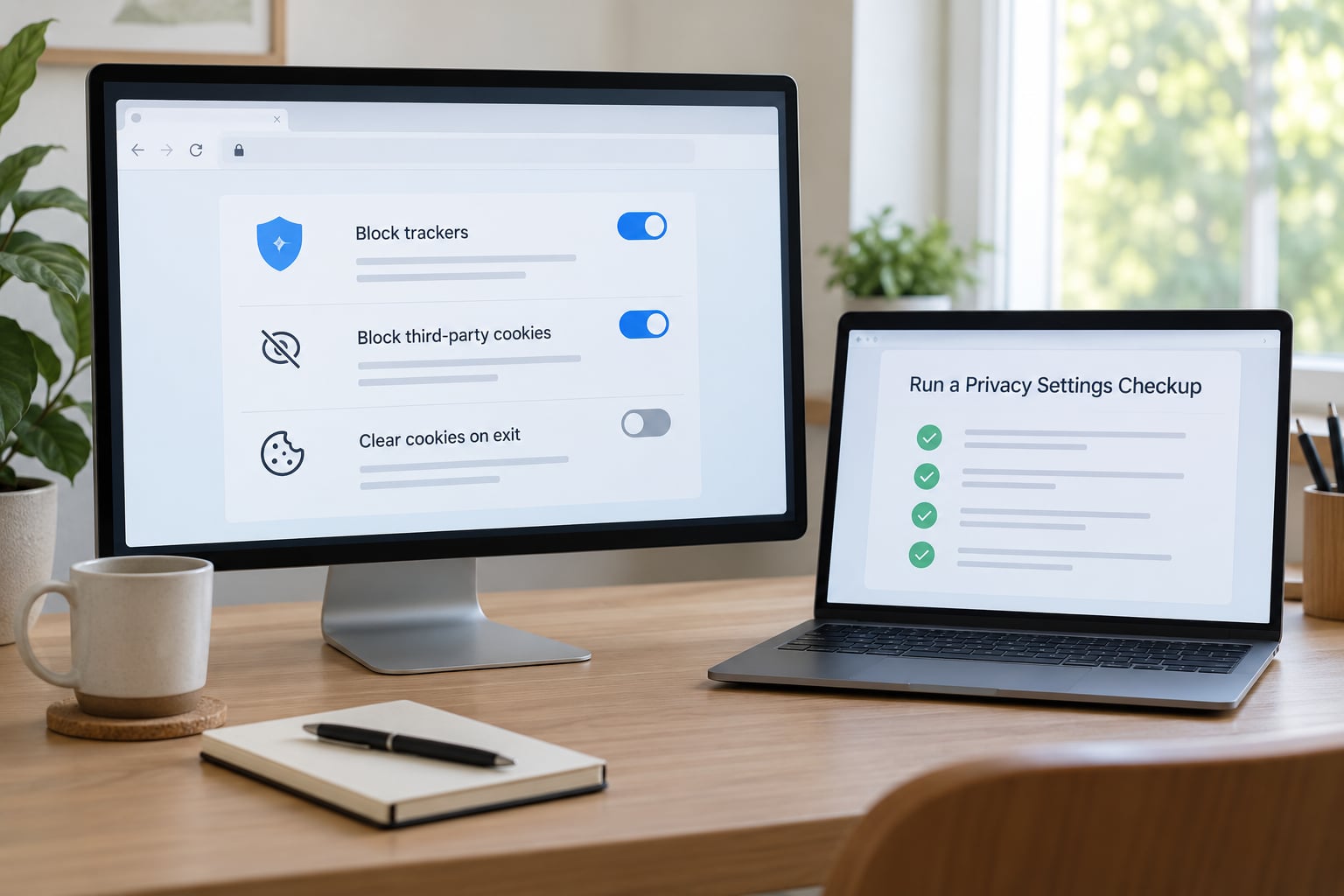
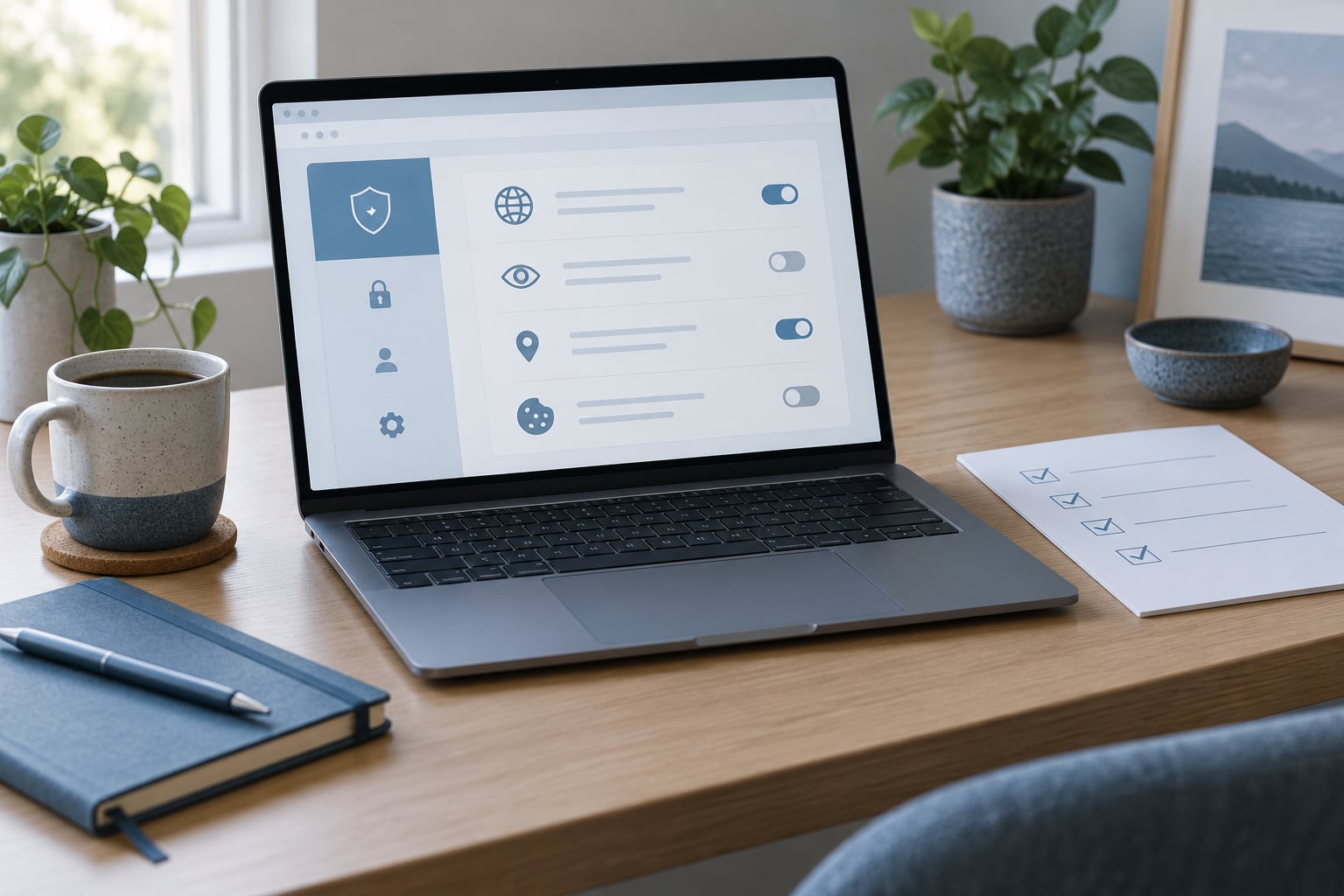
Out of the box is a starting point, not a finished configuration. Spend fifteen minutes on the finalist you like most: set tracking protection to strict, choose what happens to third-party cookies, turn on HTTPS-only mode, change the default search engine to one that does not monetise queries, review site permissions for camera, microphone, location and notifications, and check whether the maker collects telemetry and whether that can be switched off.
Look at DNS while you are there. Encrypted DNS settings such as DNS over HTTPS stop your resolver queries from being read in transit, and a WebRTC leak test tells you whether your real address is exposed to sites that should never see it.
Mobile deserves its own pass. On a phone, change the default search engine, restrict permissions to the sites that genuinely need them, keep the tracker blocking on, and avoid signing into a personal Google or Apple account inside the browser you are using for private browsing. On iOS, be realistic about the ceiling: every browser is built on the same system engine, so options for hardening are narrower there than on a desktop.
Finally, verify rather than assume. Run EFF Cover Your Tracks and the Electronic Frontier Foundation’s Privacy Badger on the finalist. They are quick, free, and they turn a marketing claim into a measurement you can repeat on the other candidates.
9. Choose a Main Browser and a Specialist Backup
The final call weighs five things: how strong the protection is, how reliably it handles your sites, how fast updates arrive, how easy it is to get help, and whether the cost, if any, is worth it to you. Privacy first is only right if you will actually keep using the browser.
Then keep a second one. Hardened browsers break logins, CAPTCHAs, banking and streaming sites more often than mainstream ones, by design. Having a separate general-purpose or specialist browser for those tasks costs you nothing and lets you keep strict defaults everywhere else. Isolation is a better answer than turning protection down.
If a candidate only works when protection is relaxed sitewide, it is the wrong candidate. Pick the one where the exceptions are per-site and few.
Common Mistakes
Assuming a privacy browser makes you anonymous. It does not. It reduces what a site can learn about you. Hiding your network position takes something else entirely, and conflating the two leads people to trust a configuration that was never designed for the risk they actually have.
Treating HTTPS as anonymity. HTTPS encrypts the connection between your browser and a site. It stops a café Wi-Fi operator from reading the content in transit, and it stops nobody from seeing which domains you are connecting to. Encrypted and private are different properties.
Treating a VPN as a replacement. A VPN hides your IP address from sites and hides most of your traffic from the local network. A privacy browser reduces what sites can collect and what your browser maker sends. You want both, or neither is complete on its own.
Disabling protection for a whole site. A per-site exception for a script is a small, reversible trade. Turning off tracking protection or fingerprint resistance for an entire domain to fix one broken checkout is not.
Reading benchmark scores as verdicts. Cover Your Tracks and Privacy Badger capture a moment, a default configuration and a specific set of test pages. A browser that scores well on a test can still ship default telemetry, and one that scores middling may simply block a popular test script. Use the numbers to compare candidates on the same day, not to declare a winner forever.
Accepting a free VPN bundle without reading it. A bundled VPN run by the browser’s maker means the same company sees both your browsing behaviour and your network traffic. That is a concentration of trust, not a privacy upgrade.
Ignoring extension permissions. Extensions can read every page you visit. Install sparingly, review permissions when an update asks for more, and remember that some browsers have switched off extensions users depended on, which is what happened to a number of people who found their tools quietly disabled as unsupported.
Believing incognito mode is private browsing. It is a local history reset on your own machine. The sites you visit still see you, and your employer, your provider and your operating system can still see traffic.
Ignoring the update channel. The most common complaint about small forks is not missing features, it is the gap between a published security fix and its arrival in the fork. Check that before you commit to a project with a small team.
Frequently Asked Questions
What is the best privacy focused browser for everyday use?
Most people end up with Firefox configured strictly, because it pairs a mature content-blocker ecosystem with controls you can actually reach. If you would rather not configure anything, a browser with third-party blocking on by default is easier to live with. Hardened forks such as the Mullvad Browser or LibreWolf protect more by default but break more sites. Test two finalists on the sites you actually use before deciding.
Are browser extensions better than a privacy-focused browser?
Extensions give you control, but only as much as the browser engine allows. Chromium’s Manifest V3 change stripped a lot of blocking power from ad-blockers in Chrome and Edge, while Firefox-based browsers still support the older approach. Extensions also add supply-chain risk, since each one can read the pages you visit. Built-in blocking cannot be disabled by a crash or an update, which is why it is the more reliable baseline.
Do I still need a VPN if I use a privacy focused browser?
Yes, because they hide different things. A privacy browser limits what a site can collect about your device and identity, but your internet provider can still see the domains you connect to. A VPN covers that network view and hides your IP address from sites. Neither replaces the other. An onion-routed browser covers both, at the cost of speed and the occasional broken site.
What privacy settings should I change on a mobile browser?
Start with the defaults: switch the search engine, keep tracker blocking on, and limit camera, microphone, location and notification permissions to the sites that genuinely need them. Avoid signing into a personal account inside a browser you use for private work, and clear cookies and site data on a schedule. On iPhone, expect a lower ceiling, since every browser runs on the same system engine and offers fewer hardening options.
Can a privacy focused browser stop identity theft?
No. A privacy browser reduces one channel only: tracking and fingerprinting between sites. Identity theft usually starts somewhere else, with a breached database, a phishing page, reused passwords, malware or oversharing on a social network. Pair your browser with a password manager, multi-factor authentication, automatic updates and credit freezes. Those do far more for your identity than any browser setting.
Conclusion
Start by writing down the protections you cannot give up, then take two or three candidates through a real week of your own sites. Measure the finalists with the same tools, in the same week, and keep a second browser for the tasks that break.
That is how to choose a privacy focused browser without guessing: the answer is whichever one survives your own test run. A good configuration you keep is worth more than a perfect one you abandon in a fortnight.