Setting up a personal knowledge base takes about an hour, and most of that hour goes to two decisions: where things live and what you call them. Pick one dependable home for your notes, one inbox for capture, a short list of tags, a way to search, and a backup that runs without you thinking about it. Everything past that is optional. This guide shows how to set up a personal knowledge base that you will still be using six months from now, whether you are on a Mac, on Linux, or bouncing between both.
I have rebuilt this system more times than I care to admit. What survived every rebuild was boring: shallow folders, descriptive titles, and a monthly cleanup. What never survived was a taxonomy I designed on a free Saturday and then abandoned by Wednesday.
Everything below works with plain text files in a folder. If you would rather use Obsidian, Notion, Logseq, or Apple Notes, the same seven steps apply and I point out where the menus differ.
Table of Contents
- 1What You Need
- 2Step-by-Step
- 31. Choose Where Your Knowledge Base Lives
- 42. Create an Inbox and a Small Folder Structure
- 53. Define Note Types and Tags
- 64. Add Titles, Metadata, and Useful Context
- 75. Link Notes and Build Connections
- 86. Make Search and Retrieval Work
- 97. Back Up, Sync, and Maintain the System
- 10Common Mistakes
- 11Frequently Asked Questions
- 12What is the easiest way to set up a personal knowledge base?
- 13Should I use Obsidian, Notion, Apple Notes, or plain text files?
- 14How many folders and tags should a personal knowledge base have?
- 15How can I keep my knowledge base private and backed up?
- 16Can I use my phone to capture notes for a Mac or Linux knowledge base?
- 17How do I migrate notes from Evernote or another note app?
- 18Conclusion
What You Need
A working knowledge base needs five things, and you probably already own four of them.
- One storage destination. A folder on your machine, a note application, or a cloud workspace. Exactly one. Not three.
- A capture inbox. A single place where unprocessed material lands so you can save in under five seconds.
- A small structure. A handful of folders and a handful of tags, defined once and then left alone.
- A search method. Built-in full-text search in most apps, plus a grep or find command if you are working in plain files.
- A backup. Something that copies your notes to a second physical place on a schedule.
That is the minimum. Markdown, bidirectional links, graph views, plugins, an AI assistant — all nice, all skippable on day one. I built a graph-view habit for two years and never once used the graph to find anything. Full-text search did all the work.
One note on cost: every tool named in this guide has a usable free version, so nothing here needs a purchase before you decide the system is worth keeping.
Step-by-Step
1. Choose Where Your Knowledge Base Lives
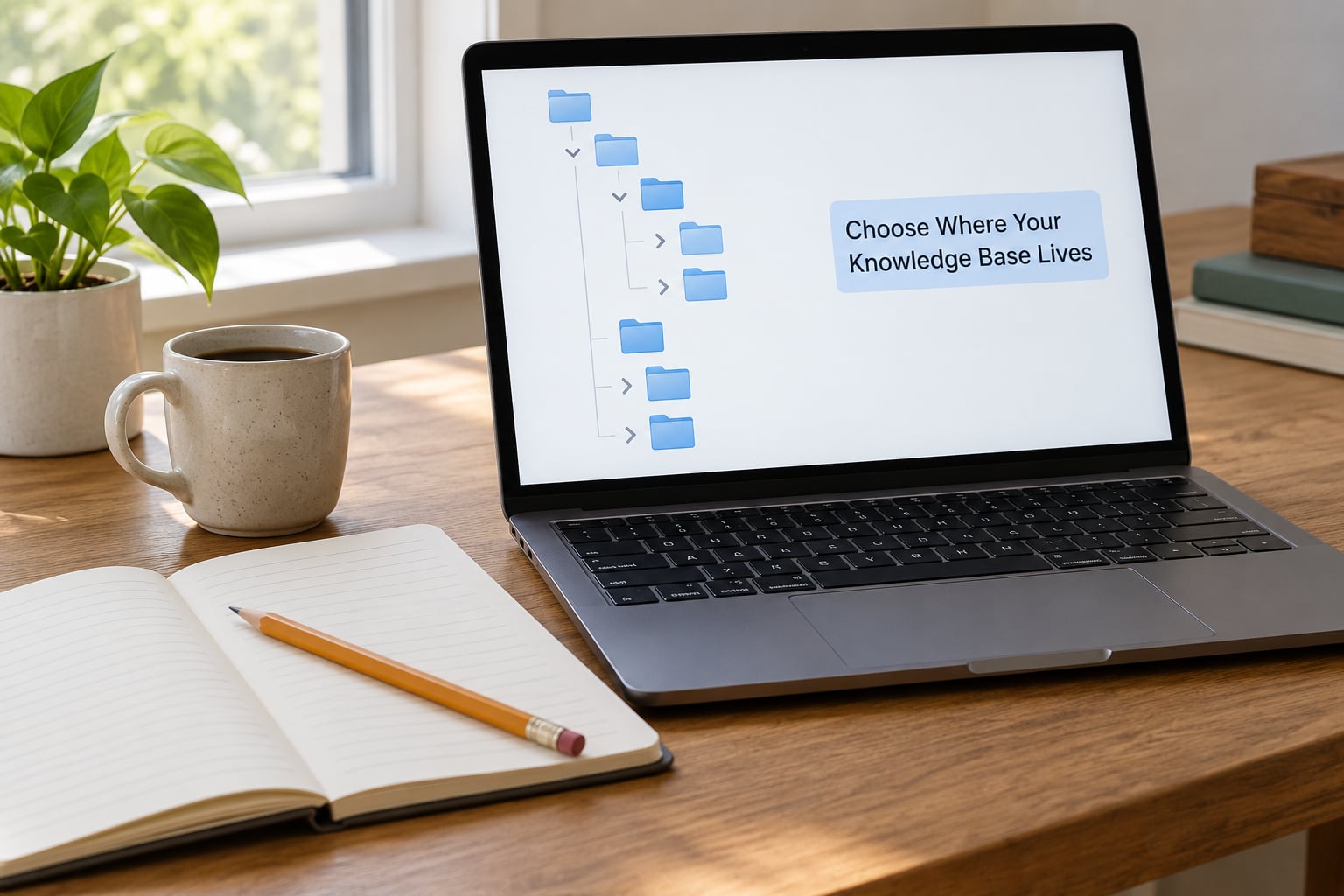
The single biggest decision is where the files live, and the wrong answer is “wherever I happen to be working that day.” Pick one home and put everything there, including the messy stuff.
On macOS, that can be a folder in iCloud Drive or a local folder in your Documents directory, opened in Finder or in a Markdown editor like Typora. Apple Notes works too if you want zero setup — it syncs across your devices and searches well, with folders standing in for tags.
On Linux, the same choice in Files or a text editor. A folder in your home directory is searchable from the terminal in seconds:
grep -ril "keyword" ~/knowledge-baseCross-platform options like Obsidian (local Markdown files, desktop apps for Mac, Windows and Linux, plus a mobile app) or Logseq (outliner style, daily notes, local Markdown) keep the files on your disk, which means they are readable in twenty years with any text editor. Notion puts everything behind a browser and a login, which is comfortable but means your notes stop existing if you stop paying.
How to tell it worked: you can open your knowledge base on your main computer and create a new note without asking yourself where to put it.
2. Create an Inbox and a Small Folder Structure
Create one folder called Inbox. Everything unprocessed goes there, and nothing else does. When you read something worth keeping or have an idea mid-conversation, it lands in the Inbox in seconds. You sort it later, on a schedule you control.
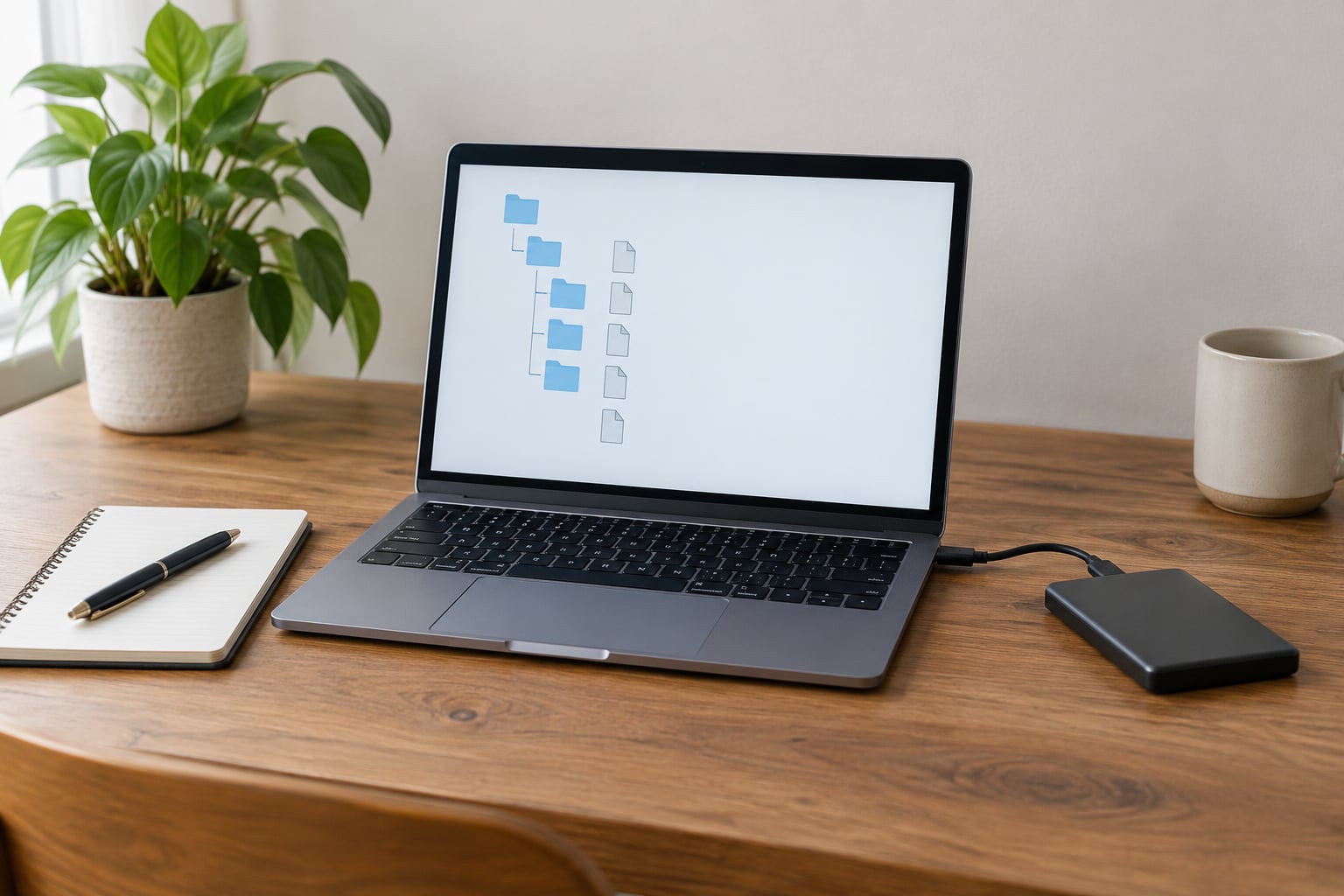
Next, make four folders and stop there: Projects for anything with a deadline or a defined end, References for material you consult but do not act on, Learning for subjects you are actively studying, and Personal for everything else.
In Obsidian these become top-level folders in the vault. In Notion they become top-level pages with sub-pages inside. In a plain folder tree they are directories you create with mkdir Projects References Learning Personal Inbox. Keeping the hierarchy shallow is deliberate — a note should be two clicks from the top, not buried six folders deep.
How to tell it worked: you can drop a file into the Inbox in under five seconds without opening anything else first.
3. Define Note Types and Tags
Tag by what a note is, not by every subject it touches. A working set looks like this:
- source — something you read or watched, with a link or citation
- idea — something you thought of, not yet validated
- how-to — a procedure you want to repeat
- question — something you do not understand yet
- evergreen — written in your own words, stable, worth keeping long term
A single note can carry more than one. “Fixing a slow Ubuntu boot” gets how-to and evergreen. A half-formed thought about building a side project gets idea and question, and you move it to evergreen only after you have actually used it.
In Markdown tools, tags go in the note body as #how-to or in a metadata block at the top of the file. In Obsidian, open Settings, then Tags, to define which tags appear in the sidebar tag pane so the list stays short. Resist the urge to add a tag per topic — twenty topic tags is how a knowledge base turns into noise.
How to tell it worked: clicking any single tag returns a short, useful list rather than hundreds of notes.
4. Add Titles, Metadata, and Useful Context
The title is the single highest-value thing you type. “Meeting notes” tells you nothing six months later. “Pricing change for Q3 renewal, decided with Dana” tells you everything. Write titles as if you are searching for the note, not filing it.
A small template keeps this from taking effort on every note:
---
title: Fixing a slow Ubuntu boot after an upgrade
source: https://forum.example.com/thread/12345
date: 2026-09-14
status: evergreen
tags: [how-to, evergreen]
---
The fix was clearing the old initramfs; boot time dropped from 90 seconds to about 8.
That first line after the metadata block is the one-sentence summary. Write it the day you capture the note, not later. If you cannot summarise something in one sentence, that is a signal the note is not ready to file.
In plain text files, that header block sits at the top of the .md file. Obsidian reads it as properties in the Properties panel and can display it above the note. Apple Notes does not support metadata blocks, so put the date and source as the first two lines under the title instead. Logseq uses its own property syntax, similar to the block above.
How to tell it worked: search for a word you only used in the body, and the note still has a title that makes sense out of context.
5. Link Notes and Build Connections
Linking is what turns a pile of notes into a knowledge base. Without links, you are just making slower bookmarks.
In Markdown, a link is one line:
The related decision is in [[Choosing a sync method for two machines]].Most editors, Obsidian included, turn that into a live link and add a backlink on the target note automatically. That backlink is the part people underuse — open any note you already wrote and read the backlinks at the bottom. Half an hour of following backlinks is worth more than any graph view, because it surfaces connections you made deliberately and forgot.
When two notes share real content, do not copy the content. Link them and keep the full version in one place. Two copies drift apart within a month, and then you trust the wrong one. Related-note fields in Notion, page links in Logseq, and backlinks in Obsidian all serve the same purpose here.
How to tell it worked: every evergreen note has at least one link in and at least one link out.
6. Make Search and Retrieval Work
An untested knowledge base is a guess. Test yours with questions you would genuinely ask, not with words you know are in the notes.
Try four searches: a command you ran once (rsync --delete), a concept you half-understand (what actually is a systemd service, not “systemd”), a project decision (“why did we drop the old sync”), and a saved article by its title fragment. If a search returns nothing, either the note does not exist or the title does not describe the content. Both are fixed by rewriting the title, not by adding more folders.
Combine the layers you already have. Filter by folder for a broad area, then by tag for status, then read the title. Full-text search inside a note body catches anything your titles missed, which is exactly why the one-sentence summary matters. If you use plain files, grep -ril "sync" ~/knowledge-base/Projects does the same job from a terminal.
How to tell it worked: you answer four out of five test questions in under a minute.
7. Back Up, Sync, and Maintain the System
Backup first, sync second. They are different jobs. Sync keeps devices current; backup means a second copy exists somewhere your laptop cannot reach.
The simple version that works on both Mac and Linux: enable your system backup tool for the folder (Time Machine on macOS, Déjà Dup or a scheduled rsync on Ubuntu), and point it at an external drive or a cloud folder that is not your primary workspace. Run it weekly at minimum. Then add a second copy off the machine — an encrypted cloud folder works well if you want encryption at rest, and a versioned backup tool gives you a way back from a bad edit.
For syncing between a Mac and a Linux machine, iCloud Drive has historically been awkward outside Apple platforms. Syncthing handles file-level sync between Linux, Mac and Android directly, and it runs in the background — the tradeoff is that you need to understand conflict copies, which show up as file (conflicted copy 2026-09-14).md when two devices edit the same file offline. Keep it simple: let one device be the editor for a given folder.
Then set the maintenance rhythm. Weekly: empty the Inbox, delete anything you saved and never read. Monthly: skim for duplicate notes, broken links and outdated instructions — an old setup step that no longer applies is worse than no note at all. Quarterly: check that the backup actually restored by opening a file from it.
How to tell it worked: you have restored a note from the backup on purpose at least once. Until you do, you have a theory, not a backup.
Common Mistakes
Over-organizing on day one. Building a twenty-folder taxonomy before capturing anything is the single most common failure. The folders describe a system you have not used yet. Fix: start with Inbox plus the four folders above, and only add a folder when you have ten notes that genuinely do not fit. Maintenance tip: review the folder list monthly and merge anything under five notes.
Using too many tags. Thirty tags is thirty decisions per note, and you will stop making them. Fix: cap the system at five to seven tags, delete the rest, and tag by note type rather than subject. Maintenance tip: if a tag holds more than 30 notes, it is not a tag, it should be a folder or a link.
Saving without a title or source. A note called “read this later” with no link is a note you will never revisit. Fix: require a title and a source line before anything leaves the Inbox. Maintenance tip: any Inbox note older than 30 days gets read, filed, or deleted — no fourth option.
Running parallel systems. Notes in Apple Notes, a separate tool for reading highlights, task lists somewhere else, bookmarks in the browser. Fix: consolidate. Pick one home for notes and let the browser handle bookmarks with one folder. Maintenance tip: check monthly that nothing new has started living somewhere untracked.
Neglecting the backup. Sync is not backup, and a synced folder on one laptop is one disk failure from gone. Fix: enable a scheduled copy to a second location and verify a restore once. Maintenance tip: put the restore test on your calendar, quarterly.
Treating it as an archive. A knowledge base that only stores has no value; the payoff comes from retrieving and reusing. Fix: require one use per note per month — act on it, link it, or delete it. Maintenance tip: ask the “would I search for this now?” question at filing time.
Adding features instead of habits. Plugins, AI assistants, elaborate dashboards. They feel like progress and produce no notes. Fix: go thirty days with no configuration changes at all. Maintenance tip: write down every customisation you add and the date, so you can see which ones you actually use.
Frequently Asked Questions
What is the easiest way to set up a personal knowledge base?
Start with a single folder and a single Inbox subfolder, use the five note tags above, and enable the search already built into your system. Plain text files in one folder are the lowest-friction option and open on Mac, Linux and Windows. Add structure only after you have a few hundred notes, not before. Most of the difficulty people describe with setup is tool choice rather than the actual steps.
Should I use Obsidian, Notion, Apple Notes, or plain text files?
Plain text files suit anyone who wants permanent ownership and does not want configuration. Obsidian suits readers who want backlinks and a plugin ecosystem while keeping local files. Apple Notes suits people who want zero setup and solid device sync. Notion suits teams and people who like databases and templates, but your notes live behind a login and a subscription. Pick on how you want to retrieve things, not on feature lists.
How many folders and tags should a personal knowledge base have?
Four to six folders and five to seven tags is the range that works for almost everyone. Enough to separate active work from reference material and personal notes, shallow enough that you remember it all. If a folder holds fewer than five notes, fold it into its parent. If a tag returns more than 30 notes, it needs to become a folder. The limit matters more than the exact number.
How can I keep my knowledge base private and backed up?
Local files with a cloud folder you control beat a hosted workspace for privacy, because the encryption and access decisions stay yours. Turn on disk encryption, keep the backup folder encrypted, and avoid tools that scan note content for advertising. Back up on a schedule to a second location and test a restore quarterly. Keep one exported copy in a standard format so nothing locks you out later.
Can I use my phone to capture notes for a Mac or Linux knowledge base?
Yes, and this is where most systems quietly break. Install the mobile app for your chosen tool, sign in to the same local-first or synced folder, and test capture before you leave the house. Keep one capture habit only: save to Inbox with a title, sort it later on a computer where filing is fast. Android users often pair Syncthing with a local folder; iPhone users usually rely on the tool’s own sync or a shared cloud folder.
How do I migrate notes from Evernote or another note app?
Export everything first, usually as HTML with attachments in a folder, or as Markdown where the tool supports it. Keep the original export untouched as an archive before you touch anything. Move the files into your new folder structure, then rewrite titles and add source lines as you go, because old notes usually lack both. Delete nothing for a month. Expect to triage roughly a third of what you import.
Conclusion
Do one thing today: create the folder, create the Inbox, and capture five notes. Give each a real title and a source line. That is the whole setup, and everything past it — tags, links, sync, backup — gets added the week after you start using it.