A slow browser usually has nothing to do with your internet connection. The four things that cause it are extensions you forgot about, too many open tabs, cached data that has bloated, and a setting that changed without you noticing. Learning how to speed up a slow browser takes about ten minutes of checking, and most people fix it in the first two steps.
Menu labels shift with nearly every browser release in 2026, so the paths below are written for current versions of Google Chrome, Microsoft Edge, Mozilla Firefox and Safari. Work through them in order and stop when the browser feels normal again.
Table of Contents
- 1What You Need
- 2Step-by-Step: How to Speed Up a Slow Browser
- 31. Close Unneeded Tabs and Restart the Browser
- 42. Disable or Remove Heavy Extensions
- 53. Clear the Browser Cache and Site Data
- 64. Check Downloads, Autoplay, and Background Activity
- 75. Update the Browser and Operating System
- 86. Test With a New or Clean Browser Profile
- 97. Reset Browser Settings as a Last Resort
- 10Common Mistakes
- 11Frequently Asked Questions
- 12How do I fix a laggy browser?
- 13What causes poor browser performance?
- 14What does disabling hardware acceleration do?
- 15How do I stop Chrome from taking up so much memory?
- 16Does clearing cache and cookies log me out?
- 17Why is my browser slow on iPhone and Android?
- 18Conclusion
What You Need
You do not need any paid tool, and nothing here requires a reinstall to start. Before you change anything, take two minutes to gather the things you will want on screen.
- About ten minutes of uninterrupted time for the quick checks.
- The list of tabs you currently have open, so you know what you can close without losing work.
- Access to your extension or add-on list, plus your saved password manager.
- A rough idea of when the browser last felt fast: after an OS update, after a browser update, or after you installed something new.
Platform differences matter here. Chrome and Edge share a Chromium codebase, so their paths are nearly identical and both run on Windows, macOS and Linux. Firefox labels things its own way and is the only one of these with a built-in about:config panel. Safari exists on Mac, iPhone and iPad, hides its controls in the top macOS menu bar instead of the address bar, and offers far fewer switches to adjust.
One warning before you start. On a work or school machine, an IT policy can lock the settings panel, so any greyed-out option is not something you can fix from your seat. Note which ones are locked and hand that list to your administrator.
Step-by-Step: How to Speed Up a Slow Browser
Each step below ends with a success check, so you know whether to move on. Stop as soon as the browser feels right; the remaining steps are still valid, just no longer needed.
1. Close Unneeded Tabs and Restart the Browser
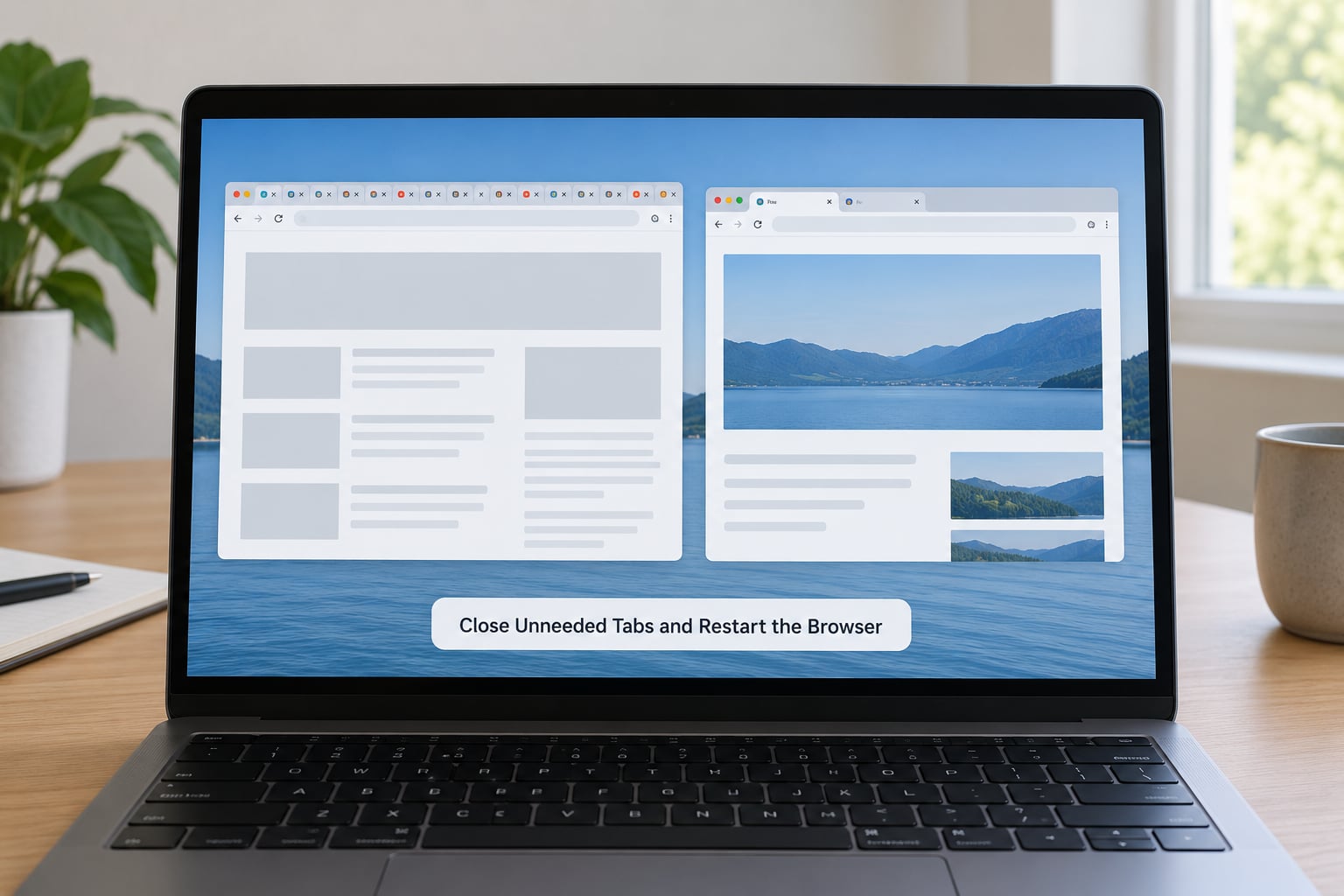
Every open tab holds its own chunk of memory, and background tabs keep refreshing themselves so they look current when you switch back. Thirty tabs on a dashboard-heavy site will quietly eat several gigabytes.
Then quit the browser fully rather than closing the window. On a Mac press Cmd+Q, which actually ends the process. On Windows, closing the window is not enough for Chrome and Edge, because their background apps are allowed to keep running; quit them from the tray icon or press Ctrl+Shift+Esc and end the process. In Firefox, closing the last window ends the session.
Success check: startup should reach your first page noticeably faster, and reopening your handful of important tabs should not immediately reproduce the lag. If slowness returns within a minute of reopening the same tabs, the tabs are not the cause and you move to step 2.
2. Disable or Remove Heavy Extensions
This is the single most common cause, and it is the first place to look when you ask how to speed up a slow browser. Extensions inject their own code into every page you load, so their cost multiplies across each tab rather than staying fixed.
- Chrome: click the puzzle piece icon at the top right of the toolbar, or type
chrome://extensionsin the address bar. - Edge: click the puzzle piece icon at the top right, or type
edge://extensions. - Firefox: open the hamburger menu and choose Add-ons and Themes, or type
about:addonsin the address bar. - Safari: on a Mac, use Safari then Settings, then the Extensions tab. On iPhone and iPad, tap the page-menu button in the bottom bar and find Manage Extensions.
Do not uninstall anything yet. Toggle your suspects off one at a time and reload a heavy page after each change, because a single unknown offender is usually easier to isolate than thirty at once. If that fails, open an incognito or private window, which loads with no extensions running, and compare the same site there.
Readers on r/chrome and r/software keep landing on the same isolation test: disable every extension, reload the page, then re-enable them in small groups until the lag comes back. If a window with no extensions runs fine, you have your culprit. Delete anything you do not recognise, and check whether it came from a site you visited rather than from the add-on store.
Success check: the page that was stuttering renders normally with your suspects switched off.
3. Clear the Browser Cache and Site Data
The cache stores copies of images, scripts and styles so pages can load faster on your next visit. A bloated cache on a slow drive can reach many gigabytes, and stale entries sometimes conflict with a fresh page.
- Chrome and Edge: open the three-dot menu, choose Settings, then Privacy and security (Chrome) or Privacy, search, and services (Edge), then Clear browsing data.
- Firefox: hamburger menu then Settings, then Privacy and Security, then Clear browsing data, or simply press Ctrl+Shift+Delete.
- Safari on Mac: the Safari menu, then Clear History, then Clear History and Website Data. For automatic clearing, open Safari then Settings then Advanced and turn on Clear history and website data when Safari is closed.
- Mobile Chrome on Android: three-dot menu, History, then the Clear browsing data icon.
Know what you are deleting before you tick boxes. Removing cookies and other site data signs you out of every site, including webmail, banking and social accounts, and it clears anything saved in your browser rather than in your password manager. Cache and cookies are separate: clearing only cached images and files keeps you logged in and costs nothing but one slow re-download per site.
This fix is also the one people over-trust. On r/chrome, posters repeatedly report clearing their cache with little or no improvement, and they are usually right: cache clearing helps pages that load badly, and it does nothing for high memory use or high CPU.
Success check: pages you visit often load on their second visit at least as fast as before. No change at all is normal, and it tells you to keep going rather than to keep clearing.
4. Check Downloads, Autoplay, and Background Activity
Browsers quietly keep working after you think they are closed, which drains laptop battery and holds memory.
- Chrome: Settings, then System, then turn off Continue running background apps when Google Chrome is closed. In the same section, Performance holds Memory Saver, which unloads inactive tabs to free memory.
- Edge: Settings, then System, performance and efficiency, where Startup boost, Sleeping tabs and Preload pages each have their own switch.
- Firefox: Settings, then General, then scroll to System, then uncheck When Firefox launches, show the Start page in a new window, or Restore your previous session. Type
about:configin the address bar to reachnetwork.prefetch-nextif you want the finer controls. - Safari on Mac: Safari then Settings then Advanced has separate toggles for loading pages in the background after you close a window and for downloading files automatically.
Also check your downloads folder and permissions for autoplaying video, since a stalled download or a looping clip keeps the tab active and busy. Chrome and Edge list both under Settings, then Downloads; Firefox puts them under General, then Files and Downloads, and asks about autoplay in Permissions.
Success check: after you close the browser, the process disappears from your activity monitor instead of lingering.
5. Update the Browser and Operating System
Browser updates fix crashes, memory leaks and rendering bugs, and skipping them means inheriting the bugs other people already reported. A browser that turned sluggish right after an update usually improves on the next one, which is why the how to speed up a slow browser checklist puts this step before any reset.
Chrome and Edge update through the three-dot menu, then Help, then About Google Chrome or About Microsoft Edge. Firefox updates through the hamburger menu, then Help, then About Firefox. Safari updates with macOS or iOS itself: on a Mac, the Apple menu, then System Settings, then General, then Software Update; on iPhone and iPad, Settings, then General, then Software Update.
Restart after installing. On a company-issued Mac, managed profiles can block browser updates entirely, which is worth knowing before you spend an afternoon on browser settings.
Success check: the About page reports that you are up to date, and the browser has restarted on the new version.
6. Test With a New or Clean Browser Profile
A profile holds everything your browser has learned: saved logins, per-site preferences, sync state and corrupted history. A damaged profile can slow the browser with no visible cause, and it is impossible to spot by reading settings.
Test without losing anything. Open an incognito or private window with Ctrl+Shift+N in Chrome and Edge, or Ctrl+Shift+M in Firefox, and load your slowest site. On Mac, Safari has File then New Private Window. If that page is fast, the problem lives in your profile rather than in the browser itself. You can also try a second browser entirely, such as Firefox or Brave, which takes a minute and gives you a clean comparison.
If a fresh private window is fast, create a second profile rather than wiping the old one. In Chrome, use the avatar icon at the top right and choose Add; Edge and Firefox work the same way through their profile menus. Keep your old profile until the new one proves itself.
Success check: the private window and the new profile are both fast on the pages that were failing.
7. Reset Browser Settings as a Last Resort
Use this only when steps 1 to 6 have not worked. A reset returns options like your homepage, search engine and startup behaviour to factory defaults, and it throws away your preferences.
- Chrome: Settings, then Reset settings, then Restore settings to their original defaults.
- Edge: Settings, then About, then Reset, then Restore settings to their default values.
- Firefox: Help, then Troubleshooting Information, then Refresh Firefox, which reinstalls the browser while keeping bookmarks and passwords.
- Safari on Mac: there is no single reset button. Move caches and website data out of your user folder, or remove Safari from Applications and reinstall it from the Mac App Store.
Export or sync your bookmarks and confirm your saved passwords are recoverable before you start. Anything you have only ever saved inside the browser is the thing most at risk here.
Success check: the browser opens to default settings and stays fast for a week, which points to a setting that was changed rather than to hardware.
Common Mistakes
Clearing all browsing data before checking your passwords. Some people wipe cookies and site data and then discover that a saved login is gone. Sign in to your password manager first, or select only cached images and files.
Disabling every extension permanently instead of testing them. A password manager or accessibility tool that you rely on can knock you out of important sites. Turn them off in batches, find the offender, and keep the rest.
Assuming a slow browser means slow internet. Open your device’s built-in speed test in any window. A slow connection and a slow browser feel similar but need opposite fixes, and a video buffering while everything else loads fine usually points at the network.
Deleting the whole profile first. That is the single fastest way to lose work. A private window or a second profile gives you the same diagnosis without destroying anything.
Changing six settings in one go. When nothing improves, you learn nothing. Make one change, reload, note the result, then move to the next. The final practical tip is to keep a small note of what you changed, because the fix that holds for a month tends to work again when the browser drifts back to slow.
Frequently Asked Questions
How do I fix a laggy browser?
Start with the two cheapest checks: close extra tabs and quit the browser fully, then disable your extensions and reload the same page. If that does not help, clear cached images and files only, update the browser, and turn off background apps. An incognito window tells you in seconds whether your profile is the problem. Most cases are fixed by step two or three.
What causes poor browser performance?
The usual causes are extensions running code on every page, too many open tabs each holding memory, a bloated cache, background apps running after you close the window, and a hardware acceleration conflict with your graphics driver. Outdated browsers and malware add to the list. High CPU use points more toward extensions and background work, while slow page loads point more toward cache and network.
What does disabling hardware acceleration do?
Hardware acceleration lets your graphics card render pages instead of your CPU. Turning it off moves all rendering back to the processor, which uses more CPU but can fix stuttering video, black or blank areas, and crashes on laptops with older or switched graphics drivers. It is worth testing both ways if your browser feels worse after an update, since drivers change with new hardware.
How do I stop Chrome from taking up so much memory?
Turn on Memory Saver under Settings, then System, then Performance, so inactive tabs release their memory. Press Shift+Esc to open Chrome’s own task manager and see which tab or extension is heaviest, then close it. Also turn off Continue running background apps when Google Chrome is closed, and add Sleeping tabs or similar limits in Edge if you use it.
Does clearing cache and cookies log me out?
Yes for cookies and site data, no for the cache alone. Clearing cookies signs you out of every site and removes anything a site stored in your browser, but your saved passwords stay in your password manager unless you also delete sign-in data. Clearing only cached images and files keeps you logged in and only costs you one slow reload per site.
Why is my browser slow on iPhone and Android?
Mobile browsers suffer from small amounts of memory and far more background work per tab. Close the apps you are not using, since each one holds a browser process in the background. Inside the browser, clear site data for apps you rarely open, remove extensions if your system supports them, and update the operating system, which fixes most of the lag.
Conclusion
Close the tabs, quit the browser properly, then switch off your extensions and reload the page. Those two steps settle the majority of slow-browser cases, and everything after that in this guide is for the ones they do not fix. Note what you change, one item at a time, so you can back it out if it does not help.