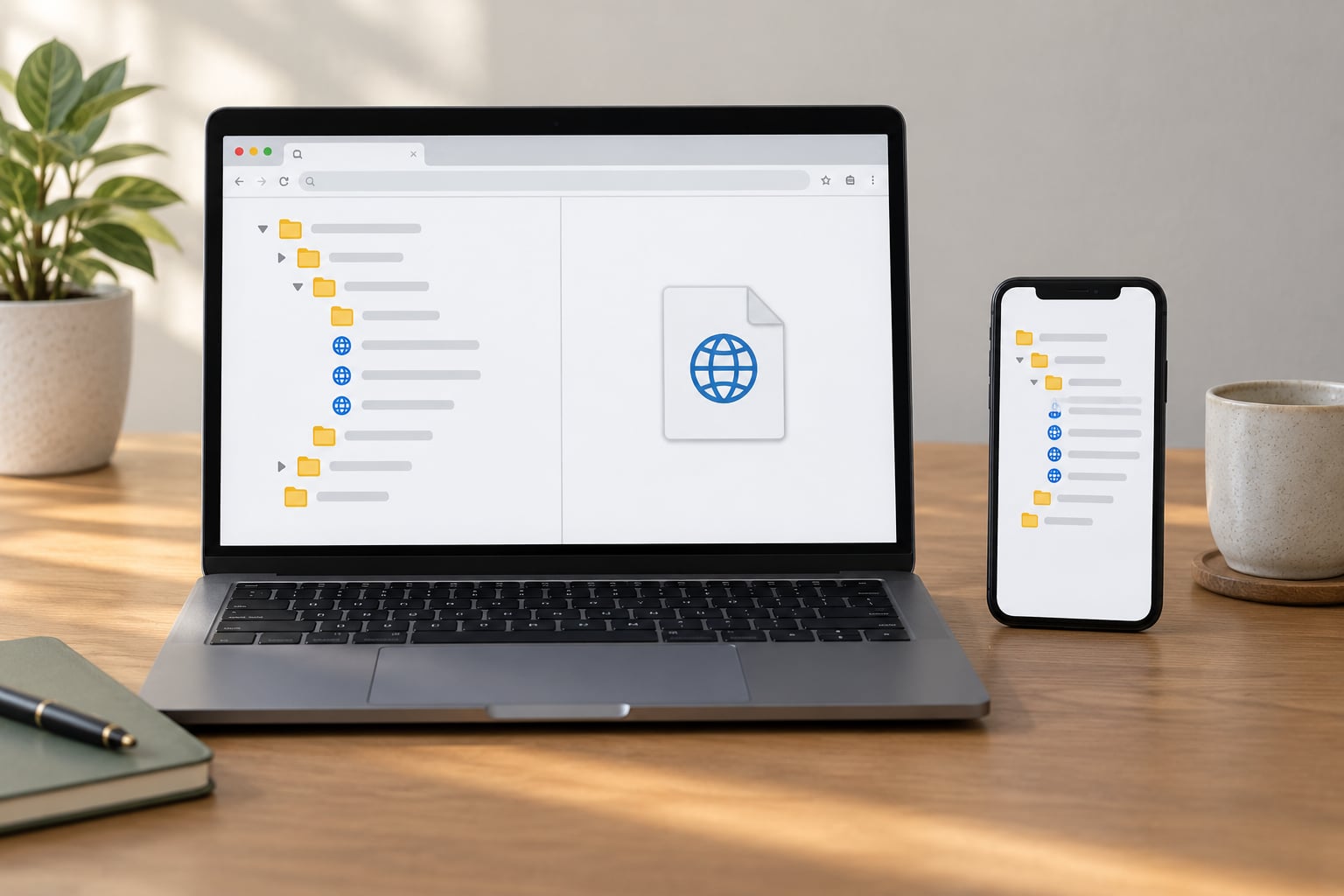
The reliable way to move bookmarks from one browser to another is a file transfer: export your bookmarks from the source browser as an HTML file, then import that file into the destination browser’s bookmark manager. Chrome, Edge, Firefox, Safari, Brave and Opera all read the same Netscape-format HTML file, so folders, subfolders and links come across intact. The whole job takes about five minutes on a desktop.
What it does not carry over matters just as much. Passwords, extensions, cookies, history and open tabs each need their own separate move, and one Firefox button famously refuses the file everyone else accepts. Menu paths below were checked against current desktop browser versions in 2026; on Windows, the shortcut is Ctrl+Shift+O everywhere, while Mac uses Cmd+Shift+O.
Table of Contents
- 1What You Need
- 2Step-by-Step: How to Import Bookmarks Between Browsers
- 3Step 1: Export Bookmarks From Your Old Browser
- 4Step 2: Open the Destination Browser’s Bookmark Manager
- 5Step 3: Import the HTML Bookmark File
- 6Mobile: How to Import Bookmarks Between Browsers on Android and iPhone
- 7Step 4: Organize and Verify the Imported Bookmarks
- 8Common Mistakes
- 9Frequently Asked Questions
- 10Can I import bookmarks from Chrome into Firefox or Safari?
- 11Can I import bookmarks from one browser to another on my phone?
- 12Do bookmark transfers include saved passwords and browsing history?
- 13Why are my imported bookmarks duplicated or missing after the transfer?
- 14Should I import bookmarks through the HTML file or browser account syncing?
- 15What should I do if the browser says it cannot import my bookmark file?
- 16What To Do First
What You Need
Before touching anything, confirm you have these four things in place. Skipping the backup is how collections get lost, and it takes one minute to avoid.
- Both browsers available. The one holding your bookmarks, plus the destination browser, installed and signed into its own account.
- A current export. Export on the day you plan to move. An HTML file from six months ago is missing everything you saved since.
- A backup of the source. Keep the original browser profile untouched until you have counted the imported bookmarks.
- The file itself. For a cross-browser move that is a
.htmlbookmark file. Move it however you like: USB stick, email to yourself, cloud drive, network share.
One warning before you start. Firefox’s Restore button replaces everything currently in that profile, so export a backup first if the destination Firefox already has bookmarks you care about.
Step-by-Step: How to Import Bookmarks Between Browsers
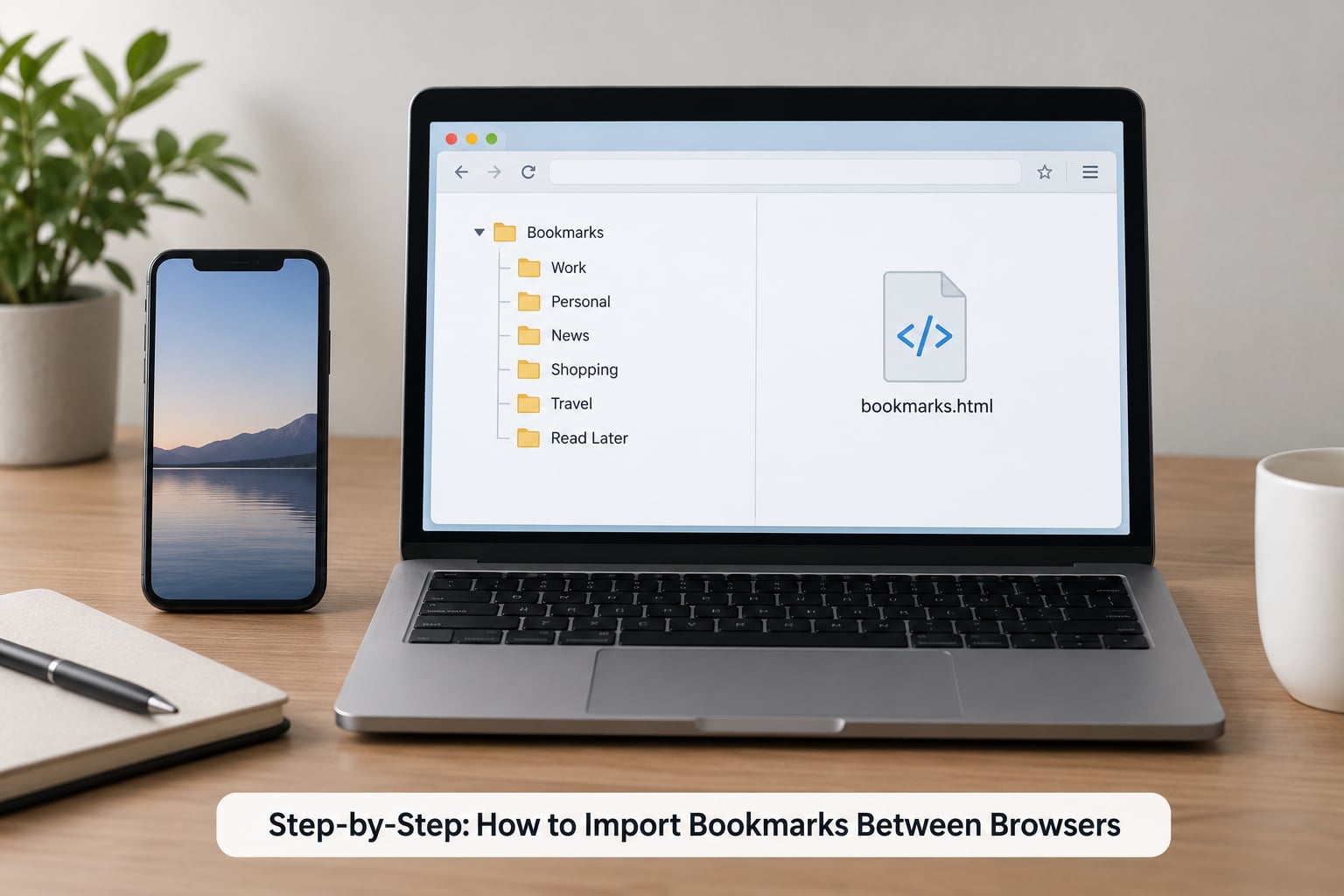
The universal method, in four steps:
- Open the source browser’s bookmark manager and export its bookmarks as an HTML file.
- Open the destination browser’s bookmark manager and choose its import option.
- Select the exported HTML file from your computer or phone.
- Verify the folder count and structure, then reorganize the imported folder.
Step 1: Export Bookmarks From Your Old Browser
Every path below lands you in the bookmark manager, and every one of them has an Export command. Pick the row that matches your browser.
| Source browser | Path to export | Menu labels to look for |
|---|---|---|
| Chrome | Ctrl+Shift+O, or paste chrome://bookmarks in the address bar | Three-dot menu in the top right of the manager > Export bookmarks |
| Microsoft Edge | Ctrl+Shift+O, or paste edge://favorites | Three-dot menu > Export favorites |
| Firefox | Ctrl+Shift+O | Three-dot menu > Import and Backup > Export Bookmarks to HTML |
| Safari (Mac) | File > Export > Bookmarks | Saves a Bookmarks.html file |
| Brave | Ctrl+Shift+O | Same layout as Chrome > Export bookmarks |
| Opera | Ctrl+Shift+O, or paste opera://bookmarks | Three-dot menu > Export bookmarks |
Chrome and its Chromium relatives also offer a faster route: Settings > Bookmarks and lists > Bookmark manager > Import and export > Export bookmarks. The file picker that opens will ask where to save, and the default name is bookmarks_<date>.html. Save it to your Desktop so you can find it again.
Firefox deserves its own warning box because it is the single most common reason an import fails. Firefox’s Import and Backup panel has two different commands. Export Bookmarks to HTML produces a portable file for other browsers. Backup produces a bookmarks-yyyy-mm-dd.json file that only Firefox’s Restore button will accept. People click Restore on an exported HTML file, nothing happens, and they conclude the feature is broken. It works fine, it just wants a different file.
Step 2: Open the Destination Browser’s Bookmark Manager
Get the destination browser’s bookmark manager open before you hunt for the file. Each of these can be typed straight into the address bar, which is faster than digging through menus.
| Destination browser | Address to paste | Menu path |
|---|---|---|
| Chrome / Brave / Vivaldi | chrome://bookmarks | Three-dot menu > Bookmarks and lists > Bookmark manager |
| Microsoft Edge | edge://favorites | Three-dot menu > Favorites > Manage favorites |
| Firefox | Ctrl+Shift+O | Bookmarks menu > Manage bookmarks, then Import and Backup |
| Safari (Mac) | No internal URL | Bookmarks > Show Bookmarks, or File > Import From |
| Opera | opera://bookmarks | Bookmarks > Manage bookmarks |
Take a look at the folder tree while you are there. Chrome creates an Imported folder for you. Safari appends the new items after your existing bookmarks. Knowing which behavior to expect makes the next step much easier to read.
Step 3: Import the HTML Bookmark File
With the manager open, find the import command and choose the HTML file.
Chrome: three-dot menu > Import and export > Import bookmarks. A dialog offers From HTML file or From another browser. Pick From another browser only when the source browser is installed on this machine, since it reads that browser’s data directly. From HTML file works with any export, including one you moved across from a laptop that no longer exists.
Edge: three-dot menu > Favorites > Import, then choose the Favorites HTML file type in the dropdown and select your file. Edge also lists other installed browsers automatically under Import from.
Firefox: Import and Backup > Import > Bookmarks HTML File. Note that this is a separate command from Restore. Restore refuses HTML files entirely.
Safari on Mac: File > Import From has two relevant choices. Import From Browser lists Chrome, Firefox and Edge, but only when that browser is installed on the same Mac. If you uninstalled Chrome years ago, Safari will not offer it. The reliable option is Import From > Bookmarks HTML File, which accepts any exported file.
Here is the pairing matrix, so you can find your exact route in one look.
| Moving from | To Firefox | To Chrome or Brave | To Edge | To Safari on Mac |
|---|---|---|---|---|
| Chrome | HTML file via Import | HTML file or direct import | Favorites HTML file | File > Import From Browser |
| Firefox | HTML file, or JSON backup with Restore | HTML file via Import | Favorites HTML file | File > Import From Browser |
| Edge | HTML file via Import | HTML file or direct import | Favorites HTML file | Import From Browser, or HTML file |
| Safari | HTML file via Import | HTML file via Import | Favorites HTML file | Not applicable |
Mobile: How to Import Bookmarks Between Browsers on Android and iPhone
Mobile is where this gets patchy, and the reason is worth knowing before you plan around it.
On Android, Chrome’s bookmark manager has an Import command and it will read an HTML file you have saved to Downloads. Firefox for Android has no import button at all, and neither does Brave for Android. The workable path is to import on a desktop and then turn on Firefox Sync or a Google account, or to move the HTML file onto the phone and use Chrome there.
On iPhone, Safari has no bookmark import feature anywhere in iOS. There is no menu to find, so anyone promising a settings path is guessing. Three workarounds actually hold up. Import into Safari on the Mac first and let iCloud carry the folders to the phone. Or install Chrome or Edge on the iPhone, sign in with the account that already holds the collection, and browse there instead of Safari. Or use a third-party bookmark manager app that reads the HTML file directly.
Separately, browsers on different accounts cannot share sync. That is why file-based transfer exists, and why the export-and-import route is the one to trust when your devices are on different networks.
Step 4: Organize and Verify the Imported Bookmarks
Spend five minutes checking the result before you close the source browser. Right-click a top-level folder in the destination, choose Count, and compare that number with the source folder count you noted before exporting.
Then check the parts that routinely get lost. Bookmarks sitting loose on the bookmarks bar rather than inside a folder sometimes land in a different place, and separator lines between groups of links often disappear, which leaves your toolbar looking wrong even though nothing was lost.
Duplicates are the other common sight. If you ran the import twice, sort a folder by name and delete the repeated run, or use the manager’s own duplicate finder where it exists.
| What you have | Comes across? | Notes |
|---|---|---|
| Bookmarks and folders | Yes | Nested folders survive the round trip |
| Saved passwords | No | Needs a separate CSV export or a password manager |
| Browsing history | Only in Safari’s direct import | The HTML file contains no history |
| Extensions and add-ons | No | Reinstall each one by hand |
| Cookies and logins | No | Sessions do not transfer |
| Open tabs | No | Save them as a bookmarks folder first |
| Reading lists | Varies | Apple-only feature elsewhere |
Keep the original browser installed until you are satisfied. If something is missing a week later, you can export again rather than trying to rebuild from memory.
Common Mistakes
Almost every failed bookmark transfer is one of these six things.
| Symptom | Likely cause | Fix |
|---|---|---|
| Nothing happens after clicking Restore | Restore only accepts a Firefox JSON backup, not an HTML file | Use Import instead of Restore, or take a fresh JSON backup from the source |
| Pick Save instead of Import | The export command writes a new file, it never adds to another browser | Export first, then import the saved file in the destination |
| Folders flattened or missing | Safari’s direct browser import can flatten nested folders | Use the HTML file route, which preserves nesting |
| Every bookmark appears twice | The import was run more than once | Sort by name in the folder and remove the repeated block |
| Local changes vanished | Sign-in to the browser account started syncing and overwrote the local copy | Disconnect the account first, import the file, then reconnect and choose merge |
| Firefox asks for a primary password during import | A primary password blocks reading the logins file | Import bookmarks first in a separate pass, then handle passwords |
Two more situations come up regularly. If your work browser is managed by an employer, extensions and third-party apps are usually blocked, so the file route is your only option. And if a dead machine still has the old profile on its drive, Firefox keeps a rolling copy of the bookmarks file called Bookmarks.bak in the profile folder, which is often the only surviving copy of hand-built folders.
Frequently Asked Questions
Can I import bookmarks from Chrome into Firefox or Safari?
Yes. Export your Chrome bookmarks to an HTML file from Chrome’s bookmark manager, then open Firefox and use Import and Backup Import Bookmarks HTML File. For Safari on a Mac, use File Import From Browser Google Chrome, which works only while Chrome is still installed, or use File Import From Bookmarks HTML File for the reliable route.
Can I import bookmarks from one browser to another on my phone?
On Android, Chrome can import an HTML file you have saved to Downloads, but Firefox and Brave for Android have no import button. On iPhone, Safari has no bookmark import feature at all. Import on a desktop first, then let iCloud, Firefox Sync or a Google account carry the collection to the phone.
Do bookmark transfers include saved passwords and browsing history?
No. A bookmark transfer moves links, folders and folder names only. Saved passwords need a separate CSV export from the browser’s password manager, and Firefox will refuse to import Chrome passwords while a primary password is set. Browsing history transfers only through Safari’s direct browser import, not through an HTML file.
Why are my imported bookmarks duplicated or missing after the transfer?
Duplicates usually mean the import ran twice, so sort the folder by name and delete the repeated block. Missing items are most often separators and bookmarks that sat loose on the bookmarks bar rather than inside a folder. Importing twice can also be caused by signing into a browser account, which syncs and overwrites local changes.
Should I import bookmarks through the HTML file or browser account syncing?
Use the HTML file for a one-time move between different browsers, since no browser syncs with a competitor’s account. Use account syncing when every device runs the same browser family, because it keeps changes flowing in both directions automatically. Devices on separate networks, or different accounts, can only be migrated with the file route.
What should I do if the browser says it cannot import my bookmark file?
Check that you selected the import command and not the export or save command, and confirm the file really is the HTML export rather than a Firefox JSON backup. Firefox’s Restore button accepts only a JSON backup taken with its Backup command. If the file still fails, open it in a text editor and check it starts with the Netscape bookmark header.
What To Do First
Start by exporting an HTML file from the browser that currently holds your bookmarks, and save it to your Desktop. Do not touch the destination browser’s account sign-in until the import is finished and counted, otherwise sync can quietly undo what you just moved.