The best way to organize files and folders is to give every file one predictable home: a shallow folder tree built from a handful of top-level categories, a filename format you repeat every time, and a short weekly maintenance habit. Start by moving everything out of Desktop and Downloads into one main storage folder, then rename by date plus description.
Most people lose time in the same way. A file was saved somewhere sensible three months ago, and now it lives in Downloads as invoice (1).pdf next to a screenshot from two years ago nobody remembers taking. You do not need a fancier system than that, and you certainly do not need new software.
This guide works the same on a Mac, a Windows 11 PC, a Linux desktop and an iPhone. It takes about two hours the first time, then fifteen minutes a month. If you are picking up the thread after five years of neglect, skip to step 4 and process the backlog as you go rather than trying to rescue everything in one weekend.
Table of Contents
- 1What You Need
- 2What not to touch on Windows or macOS
- 3Step-by-Step: How to Organize Files and Folders on Any Device
- 4How to Organize Files and Folders by Type
- 5Step 1: Choose One Main Storage Location
- 6Step 2: Create a Small Number of Top-Level Folders
- 7Step 3: Use Consistent File Names
- 8Step 4: Sort Files Into Folders and Subfolders
- 9Step 5: Add Search, Filters, and Shortcuts
- 10Step 6: Create a Simple Maintenance Routine
- 11Common Mistakes
- 12Frequently Asked Questions
- 13What is the best way to organize files and folders?
- 14Is there an app that can organize my files?
- 15How do I get a list of all folders on my computer?
- 16Should I use folders or tags to organize files?
- 17Is there an AI that can organize my files?
- 18Start With One Folder Cleanup
What You Need
Four things, and none of them cost money. You already own all four.
- A file manager. Finder on macOS, File Explorer on Windows 11, the Files app on Ubuntu, the Files app on iPhone. These are built in and good enough.
- A clear picture of where your files are right now. Open Desktop, Downloads, Documents and any external drive side by side. Most people are surprised by the result.
- Awareness of your backup and sync setup. If OneDrive, Google Drive or Dropbox is syncing Desktop and Documents, your next move will create thousands of sync operations. Know about it before you move.
- A short list of your most common file types. Documents, spreadsheets, PDFs, invoices, receipts, photos, video, code, coursework. This list drives your top-level folder names.
What not to touch on Windows or macOS
Only organize inside your own user folder. On Windows that is C:UsersYourName. On macOS it is your Home folder, reachable from Finder’s sidebar.
Never move, rename or delete anything inside C:Windows, C:Program Files, C:Program Files (x86), the AppData folder, or ProgramData. On macOS, stay out of /System, /Library, /Applications and /private. Installed software keeps its libraries there, and a stray move usually means a reinstall or a broken application.
If a tool asks for administrator permission to reorganize anything, that is a signal to close it.
Step-by-Step: How to Organize Files and Folders on Any Device
How to Organize Files and Folders by Type
A useful folder tree has four to six top-level folders. More than that and you spend more time deciding where something goes than doing the work.
A structure that works for most people, personal or work:
01_Documents— anything you created and might edit again02_Photos— pictures and video, sorted by year inside03_Projects— one folder per active effort, closed ones move to Archive04_Finance— invoices, receipts, tax records05_Reference— manuals, certificates, reference PDFs you never edit99_Archive— everything finished, out of the way but kept
The numeric prefixes are not decoration. They force a consistent order no matter which computer opens the folder, and on Linux and macOS they sort correctly straight away.
Keep nesting to three levels maximum: Projects, then Redesign, then 2026-04-15-launch-assets. Anything deeper means you are making a category your own search bar could handle faster.
Step 1: Choose One Main Storage Location
Pick one place where your working files live, and treat everything else as temporary. For most people that is a folder on the internal drive. If you work across devices, pick the sync folder that your desktop already mirrors, so a file is present whether you are at the desk or on the sofa.
Before you move anything, search for duplicates. Look in Downloads, Desktop, Documents, iCloud Drive or Google Drive, and any external disk. The same tax receipt often exists in all four places under slightly different names, which is exactly why version confusion shows up later.
When a cloud drive is syncing your Desktop, tidy Desktop first and let the sync finish. Renaming or moving hundreds of files mid-sync is the reliable way to produce a folder full of Report (1).docx and Report (2).docx copies.
Decide what to do with the old external drive before you start. Either it becomes a backup target or it gets archived and unplugged. A half-used drive you are not sure about is a future source of duplicates.
Step 2: Create a Small Number of Top-Level Folders
Create your four to six folders inside the main location, and leave them empty. Empty folders are cheap to delete and easy to change, which is why you build the structure before you move a single file.
The test for a good top-level folder is whether you could name it out loud from memory. Six names you know beats forty you have to look up. A fixed structure plus a few simple rules also beats automation in my experience, because a rule you cannot remember still works at 9pm on a Friday.
Two patterns worth copying. The first is a handful of root folders with every file carrying a datestamp in its name. The second pairs a date-first filename pattern such as 2026-10-9-filename-v2 with folders arranged by topic. Either works, as long as you pick one and use it for a year.
Add one Active versus Archive habit to each folder that grows over time. When a project ends, the whole folder moves to 99_Archive rather than being deleted. That keeps your working view small without pretending old work does not exist.
Step 3: Use Consistent File Names
A filename has three parts in my own setup: date, description, and version where it matters. That is enough.
| Use case | Pattern | Example |
|---|---|---|
| Client deliverable | YYYY-MM-DD-client-topic-v# | 2026-04-15-northwind-logo-v3.indd |
| Invoice | YYYY-MM-DD-client-invoice-amount | 2026-03-01-northwind-invoice-2400.pdf |
| Receipt | YYYY-MM-DD-vendor-purpose | 2026-02-18-adobe-monthly.pdf |
| Photo | YYYY-MM-DD-place-subject | 2026-04-11-lisbon-tram-01.jpg |
| Scan | YYYY-MM-DD-document-source | 2026-01-09-passport-scan.pdf |
| Draft version | name-v1, name-v2, name-final | lease-agreement-v2.docx |
Use ISO dates in the form YYYY-MM-DD. They sort chronologically in every file manager on every platform, which means dragging to type or sorting by name gives you date order for free.
Avoid spaces, and avoid / : * ? " < > | entirely. Those characters break command-line tools, web uploads and scripts. Use hyphens instead. CapitalCase or lowercase-with-hyphens both work fine, and the same advice holds up on Windows as on Linux.
Stop using Final_v2_ACTUAL_USE_THIS.docx. Versions belong in the name as v1, v2, v3, and the final one is simply the highest number. If two files are genuinely identical, delete one.
One more rule that saves real time: name the file when you save it, not later. Renaming a batch of 200 files is a 20-minute job. Naming them as they are created costs nothing.
Step 4: Sort Files Into Folders and Subfolders
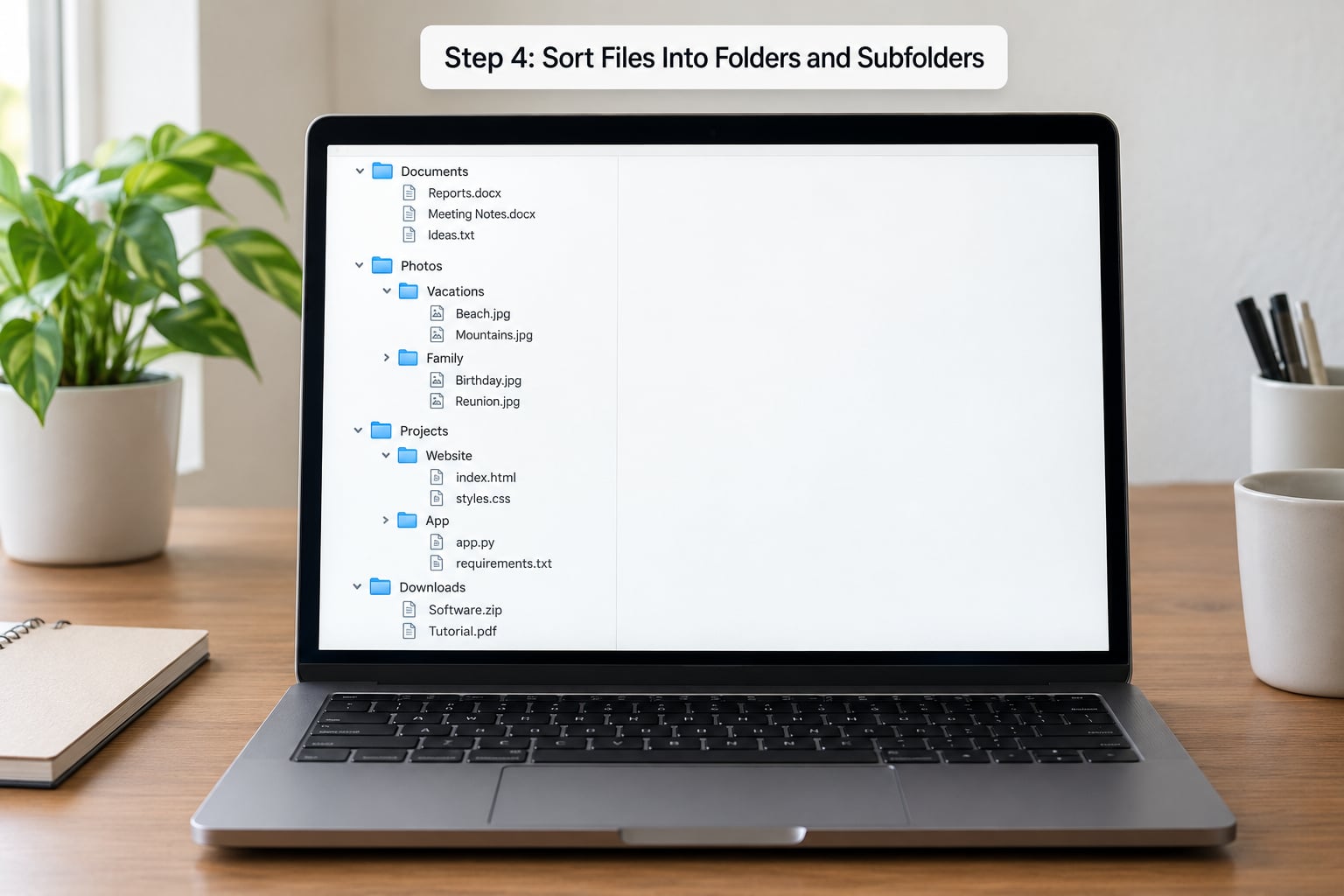
Start with the biggest wins. The Desktop and Downloads folder usually hold most of the volume, so clear those two first, then work outward.
macOS Finder. Open your Home folder, then View, then Show View Options and turn on the folder preview. Create a new folder with File, New Folder, then Command-Shift-N for a nested one. Select several files and drag them into place. To add tags, open Get Info (Command-I) and use the Tags field. Recent items live under Go, then Recent Folders, and Command-Space opens Spotlight search.
Windows 11 File Explorer. Open This PC or your Documents folder. To show the Documents, Downloads and Desktop folders together, click the three-dot menu in the toolbar and tick Home. Create folders with Control-Shift-N. Select files, then use the Move to button in the Organize menu so you always choose the destination consciously rather than dragging blindly. Details pane (View, Show, Details pane) lets you add a Tags column, and the Windows key plus S starts search across indexed locations.
Ubuntu Files or Nautilus. Open Files, press Control-H to show hidden items if you need them, and create folders with right-click, New Folder. The search button in the toolbar indexes by file content, not just name, which finds more than the equivalent Windows search. Tags are available in Nautilus through the right-click menu.
iPhone Files app. Open Files, tap Browse, then the account name at the top to see On My iPhone, iCloud Drive and any third-party app storage. Tap Edit, then Add New Folder. Swipe left on a file to rename it in place. If it is saved to the Files app rather than the photo library, iOS lets you move it into any folder you like, and it stays editable.
For an existing backlog, use bulk rename instead of one-by-one work. Every platform has a built-in version, and the pattern is the same: select a group of files, rename the first one with the pattern, then use the batch rename dialog on the rest.
- Windows: select the files, press F2, type the base name, then on the next screen choose Replace text in file names, add the string, and confirm. Add the date by typing into the Add prefix or suffix boxes.
- macOS: select the files, right-click, Rename, then choose Rename items matching to a pattern. You can insert sequential numbers and date values, and preview the result before committing.
- Nautilus: select the files, press F2, and use Find and Replace text across all selected names.
Both built-in tools show a preview of the new names before applying them, and both support a single undo step. Do the renaming on a small batch first, open two or three files to confirm nothing broke, then apply it to the rest. If you want a safety net beyond undo, copy the folder to your backup drive before you start.
Step 5: Add Search, Filters, and Shortcuts
Folders tell you roughly where something is. Search gets you the exact file. Use both, and you stop needing deep trees.
macOS indexes your files with Spotlight, which searches file contents as well as names. Windows 11 search covers indexed folders and respects your Tags column. Nautilus search by content works well on Linux. All three are fast enough that a file you cannot name is still findable.
Tags earn their keep when one file belongs to several projects and you refuse to duplicate it. Tag a contract northwind, legal and 2026, and it shows up in three searches while existing in one place. On Windows, tags appear in the Details pane and in search. On macOS, tags show as colored dots and Power Query in Finder filters by them. Stick to a shared vocabulary, or the tags themselves become clutter.
Pin what you use daily instead of moving it somewhere faster. Drag frequently used folders into Finder or the Windows sidebar to create favorites, and rely on Recently Added for the last week of work. Add smart folders for queries you would otherwise repeat: everything modified this month, everything over 50 MB, every file with a specific tag.
Need a full inventory? On macOS, open Terminal and run find ~ -type d -not -path "*/Library/*". On Windows, open PowerShell and run Get-ChildItem -Path "$env:USERPROFILE" -Directory -Recurse to list every folder under your user profile. On Linux, find ~ -type d does it. Each returns a plain list you can save to a file, which is useful before a big migration.
Step 6: Create a Simple Maintenance Routine
Systems decay. What works on day one falls apart in six weeks unless something puts files back where they belong.
Run a fifteen-minute reset once a week. Empty Downloads, confirm Desktop holds only current work, and file anything still sitting loose. Anything you downloaded and did not need gets deleted without guilt. The habit that sticks is processing files as you go rather than batching them for a free Saturday.
Once a month, spend a little longer: move finished projects into 99_Archive, check that your backup ran, and look at your storage use. If a folder has grown to several hundred items, archive by year rather than adding another subfolder.
Backups belong in the system, not beside it. The 3-2-1 rule is a good target: three copies of your data, on two different kinds of media, with one copy somewhere else. An external drive you plug in monthly plus your cloud sync covers most personal setups. The important part is verifying a backup actually exists, since a sync folder is not a backup if the same deletion syncs everywhere.
Common Mistakes
These are the habits that undo the work, in the order they tend to appear.
Keeping two copies of the same tree. You organize Documents properly, then a copy turns up in Downloads or iCloud Drive, and you stop trusting either one. Pick one home. Everything else is a backup destination, not a working location.
Nesting deeper than three levels. Every extra layer costs a click and a decision. It also runs into Windows’ 260-character path limit on older systems and the MAX_PATH issues in some tools, where the file simply stops being openable.
Vague names. Untitled Document, Scan, IMG_4827 and New Folder (3) all mean nothing six months on. A date and four words of description fix that permanently.
Using the Desktop as storage. It looks like a folder but has no structure, no rules and no backup by default. Desktop items sync to the cloud in some setups, so every stray screenshot becomes a sync operation too.
Reorganizing while cloud sync is running. This is the fast route to duplicated files with bracketed numbers. Let the sync go idle before you start, and again before you finish.
Reorganizing without a recovery plan. Deleting and moving with no backup means a single misdrag can take out a document you cannot get back. Copy the folder to your backup drive before the first move, and keep that copy until the new structure has been used for a few weeks.
Over-engineering the system. Elaborate structures built in a note app or a knowledge base tend to collapse within a fortnight of real work. Six folders, one naming pattern and a weekly reset survive contact with a real week. If your system needs a manual to remember, it is too big.
On paid tooling: an app can automate renaming and rule-based filing, and for thousands of near-identical files it earns its cost. But most people get through fine with the built-in rename and search tools on all four platforms, which cost nothing. Fix the structure first, then decide whether you still need software.
Frequently Asked Questions
What is the best way to organize files and folders?
Give every file one predictable home. Keep four to six top-level folders, nest no deeper than three levels, name files with an ISO date plus a short description, and clear Desktop and Downloads once a week. Search and tags handle the rest, so you do not need a complex tree. Most people finish the initial cleanup in about two hours.
Is there an app that can organize my files?
You probably do not need one. macOS Finder and Spotlight, Windows 11 File Explorer, and Ubuntu Files all support bulk renaming with a preview, tags, smart folders and content search. Add-ons are worth it when you regularly handle thousands of similarly named files or need rule-based auto-filing. Otherwise the built-ins handle the job for free.
How do I get a list of all folders on my computer?
On macOS, run find ~ -type d in Terminal. On Windows, open PowerShell and run Get-ChildItem -Path “$env:USERPROFILE” -Directory -Recurse. On Linux, find ~ -type d lists every folder under your home directory. Redirect the output to a text file if you want to keep the list for a migration or an inventory.
Should I use folders or tags to organize files?
Use folders for where a file belongs and tags for what a file is. A project folder holds one project’s files; tags like client name, year or legal cross-reference files that live in several places. You avoid duplicating anything, and you can search either system. Keep the tag vocabulary short and shared, or it becomes its own clutter.
Is there an AI that can organize my files?
AI tools can suggest names, classify documents and draft folder rules, but they cannot know that a file named March Final belongs to last year’s tax folder. They also need permission to read your documents. Fix naming and structure manually first, then use AI for repetitive bulk work where the pattern is obvious, and keep backups running either way.
Start With One Folder Cleanup
Do this today, in one sitting. Choose the single storage location where your files will live, create the four to six top-level folders inside it, and move the twenty files you actually use most into their proper place. Rename them on the way with the date-plus-description pattern.
Then put a fifteen-minute weekly reset in your calendar and a thirty-minute monthly archive pass in the one after it. Keep a backup running from day one, and do not reorganize again while a cloud sync is catching up.
If you follow how to organize files and folders this way, search stops being stressful. You will open the folder you already know the name of, or type a few words and let the search index find it. That is the whole goal.