If you want to know how to make a WordPress site load faster, start here: fix your hosting, then turn on page caching, then fix your images, then cut the plugins you do not need. Those four changes fix most slow WordPress sites I have worked on, and none of them require you to touch code.
This guide is written for hobbyists, students, and small-business owners rather than developers. Menu names shift between hosting panels and plugin versions, so I name the setting you are looking for instead of promising the exact click path is identical everywhere. Last updated October 2026.
Before you change anything, know one thing most people get wrong: almost every slow site I have diagnosed was slow for one of three reasons. The server took too long to respond, the page shipped far too many bytes, or WordPress rebuilt the same page from scratch on every single visitor request. Fix those in that order and you will not waste a weekend chasing settings that cannot help.
Table of Contents
- 1What You Need
- 2Administrator access to WordPress
- 3A recent backup
- 4A staging environment for testing
- 5Access to your host dashboard
- 6Your browser’s developer tools
- 7A baseline measurement
- 8Step-by-Step: How to Make a WordPress Site Load Faster
- 91. Measure the Current Site Speed
- 102. Use a Fast WordPress Host
- 113. Install a Lightweight Caching Solution
- 124. Optimize Images and Other Media
- 135. Reduce Plugin and Theme Work
- 146. Clean Up WordPress Content and Database
- 157. Minimize JavaScript, CSS, and Font Loading
- 168. Test and Monitor the Improvements
- 179. Common Mistakes
- 18Frequently Asked Questions
- 19How long should a WordPress site take to load?
- 20Are WordPress caching plugins safe?
- 21Can a free plugin really improve WordPress speed?
- 22How often should I measure my WordPress site speed?
- 23Does changing my WordPress theme make the site faster?
- 24When is it time to move to a different WordPress host?
- 25Conclusion
What You Need
You need administrator access to WordPress, a current backup, and a way to undo changes. Everything else is optional but helpful.
Administrator access to WordPress
You need the ability to install and deactivate plugins, upload media, and edit themes. If someone else manages the site for you, they will need to do the hands-on parts.
A recent backup
Most hosts offer a one-click backup in their control panel, and most of them keep a rolling set of copies. Take a fresh one right before you install a caching or optimization plugin. If a plugin breaks the layout, the backup is your fastest way back.
A staging environment for testing
Staging is a private copy of your site at a separate address where logged-out visitors cannot reach it. Many hosts build one with a single click. If your host does not offer staging, a staging plugin that makes a duplicate of the site is a reasonable stand-in.
Access to your host dashboard
You want to see CPU usage, memory usage, PHP version, and any resource limits your plan sets. This is where you find out whether your server is actually the bottleneck.
Your browser’s developer tools
Right-click anywhere on a page and choose Inspect in Chrome, Edge, or Safari. The Network and Performance tabs are where you confirm a change worked. If you have never used them, the free Lighthouse panel inside PageSpeed Insights does most of the same work without the learning curve.
A baseline measurement
Run a speed test before you touch a setting, then run the exact same test afterward. Without a before number you cannot tell whether a change helped or whether the site was just having a quiet afternoon.
Step-by-Step: How to Make a WordPress Site Load Faster
Work through these in order. Each step tells you where to click and how to confirm it actually helped.
1. Measure the Current Site Speed
Measure the site before you change anything, and record the numbers. Speed work without a baseline is just guessing.
Start with PageSpeed Insights, Google’s free tool at pagespeed.web.dev. Paste your URL and it runs a lab test, giving you a Performance score out of 100 plus Core Web Vitals readings. Run it on your homepage, one typical blog post, and your most important business page, such as a product or booking page. Those three cover the patterns most sites have.
Then run WebPageTest or GTmetrix for the waterfall view. The waterfall is the single most useful diagnostic screen in WordPress performance work. It draws every request in order and shows exactly where the time went, so you can see whether the delay sits in the orange server-response block or in the transfer of images and scripts.
Record three things for each page: the server response time, the Core Web Vitals values, and the total page weight in kilobytes. Here are the thresholds Google grades against.
| Metric | Good | Needs improvement | Poor |
|---|---|---|---|
| Largest Contentful Paint (LCP) | 2.5 seconds or less | 2.5 to 4.0 seconds | Over 4.0 seconds |
| Cumulative Layout Shift (CLS) | 0.1 or less | 0.1 to 0.25 | Over 0.25 |
| Interaction to Next Paint (INP) | 200 milliseconds or less | 200 to 500 milliseconds | Over 500 milliseconds |
Server response time, often called TTFB for time to first byte, is the fourth number worth watching even though it is not a Core Web Vital. Under roughly 600 milliseconds is comfortable. If it sits above a full second before any content loads, hosting is your first problem and no plugin will fix it.
How to confirm you got a fair reading: run the test three times and compare. The first run is often cold, because the page cache is empty and the server has not touched that page recently. The second and third runs tell you what real returning visitors experience.
2. Use a Fast WordPress Host
A slow server caps every other improvement you make. If your host is slow, you are optimizing the delivery time of a letter that arrives late.
Look at your host dashboard for CPU usage and memory usage over the last 24 hours. Sustained CPU near the plan limit, or a memory limit warning, tells you the plan is too small for your traffic and plugin load. It also tells you that buying a cache plugin will buy you very little.
Here is roughly what each tier gives you. For a small blog with a few hundred visitors a day, shared hosting with a decent provider is fine. For a business site with a page builder and a contact form, managed hosting with automatic caching and staging is worth it. For a busy store or a site getting traffic spikes from a promotion, dedicated resources and a content delivery network are the realistic option.
- Small blog: budget shared hosting, PHP 8.2 or newer, and any reputable host with a good reputation for support response times.
- Business site or page-builder site: managed WordPress hosting where caching, staging, and backups are built in and tested by the host.
- Store or high traffic: a plan with dedicated CPU and memory, plus a content delivery network in front of it.
Where to check: in your host control panel, look for Resource Usage, CPU Load, or a similar graph. WordPress plugins such as Query Monitor or a server-status page also show whether your PHP processes are queueing. If queries are slow but CPU is idle, the database is the constraint instead.
When you compare hosts, test on a staging or temporary address first and keep the domain, the URLs, and the theme identical. A host that looks fast on a stripped-down test site can still be slow with your theme and your plugins installed. Do not change the domain name while you are testing, and do not switch permalinks during the move, because either one undoes your search rankings.
3. Install a Lightweight Caching Solution
Caching is the single biggest speed win available to most WordPress sites. It stores the finished HTML so the server stops rebuilding the page for every visitor.
Choose one caching plugin and configure it. Running two at once is the most common way to break a site into a blank white page, and it is the mistake people make when a plugin they installed later turns out to be a caching tool too.
If your host runs LiteSpeed or nginx with a caching layer, use the cache plugin your host provides first. On LiteSpeed servers that usually means the LiteSpeed Cache plugin, which stores page cache on disk at the server level and is faster than a plugin-only cache because it skips PHP entirely for cached pages. On hosts with Redis or Memcached available, an object cache plugin reduces database queries on pages that cannot be cached as full HTML, such as logged-in dashboards and WooCommerce carts.
Configure these settings first and leave the rest alone:
- Enable page caching for all visitors who are not logged in.
- Enable browser caching so returning visitors re-download less on repeat visits.
- Exclude logged-in users, the cart, the checkout, and any page that shows personal data.
- Set a sensible cache lifetime, commonly a few hours to a day, with automatic purging when content changes.
The exclusions matter more than the toggle. A cache that serves one customer’s cart page to the next visitor is not a speed win, it is a data leak, and it is the reason people end up with a broken checkout.
How to confirm it worked: open your site in a private or incognito window so your logged-in session does not confuse the result. Load the page once to fill the cache, then reload it. The second load should show a much shorter server response time in the waterfall, and there should be a cache hit indicator in the plugin’s own stats panel if it provides one. If the timings are identical, the cache is not storing that page, and the most common reasons are a conflicting caching plugin, an exclusion rule you did not mean to add, or a page that is genuinely dynamic.
4. Optimize Images and Other Media
Images are usually the largest share of a typical WordPress page’s weight, so this is where byte reduction pays off most directly.
Start by looking at page weight in your waterfall. If images account for more than half of the transferred data, that is your target. Four changes handle most of it:
- Resize uploads to the dimensions actually displayed. A phone camera image uploaded at full resolution and squeezed into a 600-pixel column still ships the full file.
- Convert to WebP where the format suits the image. Most compression and image-optimization plugins can convert existing uploads in bulk, not just new ones.
- Compress lossy files moderately. Squashing an image far beyond recognition to save a few kilobytes is not a trade worth making; readers notice.
- Lazy load below the fold so images lower down the page wait until a visitor scrolls toward them.
One warning that costs a lot of sites their LCP score: never lazy load the hero image or anything in the first screenful. Delaying the largest above-the-fold element directly delays Largest Contentful Paint, and if the browser reserves no space for it, the layout shifts and CLS suffers too. Modern WordPress already skips lazy loading on the first few images, so leave that setting alone unless you have confirmed the hero image is being delayed.
Video is the other heavy item. A self-hosted autoplaying background video can easily outweigh every other asset on the page combined. Compress it, set it not to autoplay on mobile, and give it a static poster image as a fallback.
Where to check: the exact control names differ by plugin, so look in your image optimization plugin for WebP conversion and bulk compress, and in your theme settings for image sizes and lazy loading toggles. If your host already compresses images at the network level, running a second aggressive compressor on top can over-compress them, so pick one approach.
5. Reduce Plugin and Theme Work
Every active plugin adds work to each page load, even the ones you think are harmless. Trimming the list is unglamorous and often the biggest remaining win after caching.
List your plugins in wp-admin under Plugins and sort by anything you like, because there is no useful default sort. Ask for each one: does this run on the front end, on every admin page, or only sometimes. A plugin that loads a library and its admin interface on every public page is doing work no visitor benefits from.
Watch for four categories. Contact form plugins that each bundle their own duplicate libraries. Slider and animation plugins, which are among the heaviest things you can install. Several analytics tools counting the same traffic separately. And page builder add-ons left enabled for a section you deleted months ago.
To test a suspect, deactivate it and measure again with the same three-page test. Change one thing at a time, because a single combined change tells you nothing about which part worked. If a plugin is genuinely needed, look for a lighter replacement before considering removal.
For themes, the same logic applies. A full site builder theme with bundled templates and font libraries is heavier than a plain block theme even when only a few templates are in use. For a content site that does not need a builder, a block theme with a small footprint will usually outperform a builder-driven theme.
One caution: never delete a plugin outright to test it. Deactivate first. Deleting can remove its data and settings, and it removes your easy way back.
6. Clean Up WordPress Content and Database
WordPress keeps a growing pile of old revisions, expired transients, orphaned media, and spam comments, and a bloated database makes every query slower.
Start in wp-admin under Media, where you can search for attachments not attached to any post and bulk delete them. Check the Comments section for spam and trash, and empty both. Then look at post revisions: if your site has thousands of them, a cleanup plugin can strip old ones safely.
Scheduled tasks are the less obvious culprit. WordPress runs cron jobs on page loads, and a site piled up with expired transients or a misbehaving scheduled task will feel slow in ways a page-weight reading cannot explain. A maintenance plugin from a reputable developer can clear expired transients and review what is scheduled.
Use a trusted plugin, not a random one. Look at install count, last update date, and support forum activity before you grant a plugin database access.
Do this after a backup, not before, and run your speed test afterward. The improvement is usually modest but real, and it keeps the site from degrading further over the years. Skip database table repair unless a support technician tells you to; it is a repair task, not a routine speed task.
7. Minimize JavaScript, CSS, and Font Loading
Large scripts and stylesheets that must download before the page can paint are render-blocking resources, and removing them speeds up the moment content appears.
Work in this order, from safest to riskiest. First, load Google Fonts through your host or a privacy-friendly font host instead of your own server, and reduce the number of font families and weights to what the design actually uses. Fewer font files means fewer requests. Second, turn on defer or delay for JavaScript that is not needed to draw the first screen, in whichever optimization plugin you already run. Third, enable CSS and HTML minification, which strips whitespace and comments. Minification is safe in a single tool. Combining files is where sites break, so save that for last and test carefully.
What breaks, and how you will know: a slider that stops sliding, a menu that will not open, a checkout button that does nothing, or a form that silently fails. Any of these mean something essential was deferred, so exclude that file from deferral.
Host controls and plugin controls are different layers. Compression settings such as Brotli or GZIP are usually a host or CDN setting, not a plugin one. Page builder controls live inside the builder. Optimization plugin controls live in the plugin. Change one layer at a time and check the result, because two tools doing the same job will undo each other.
Where to verify: open developer tools, go to the Network tab, and reload. The CSS and JavaScript request bars should be visibly shorter, and the first contentful paint in the Performance tab should arrive earlier. Then click through your menus, forms, and any interactive element on the key pages before you call it done.
8. Test and Monitor the Improvements
Repeat the same three-page test you ran at the start and compare the numbers directly. That is the only reliable way to know what changed.
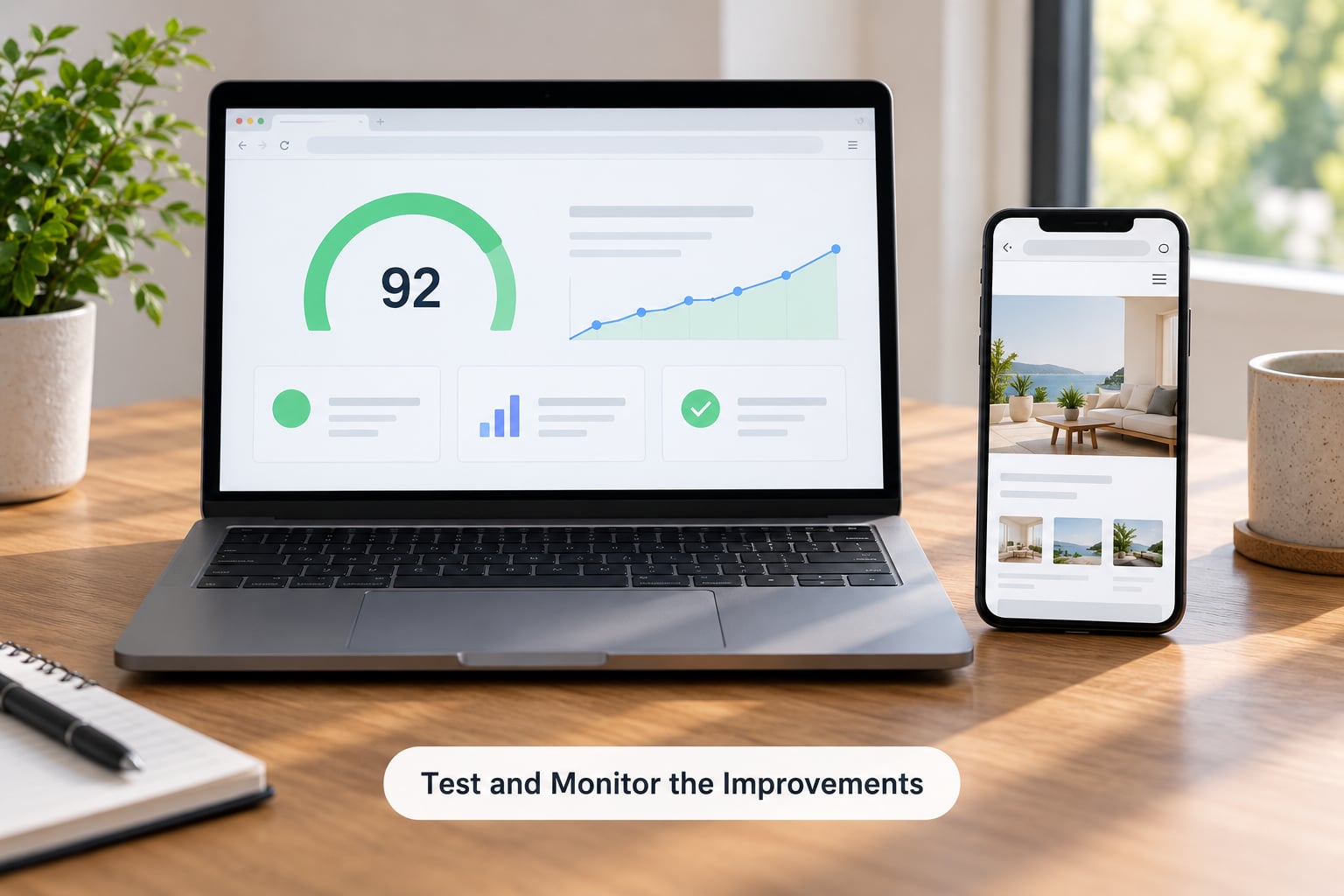
Test mobile separately from desktop. PageSpeed Insights lets you switch between mobile and desktop throttling, and most of your visitors are on phones. A site that scores in the nineties on desktop can still fail on mobile if the hero image is heavy and scripts are not deferred.
Watch the Core Web Vitals field data in Google Search Console under Experience, not just the lab scores. Field data comes from real visitors and reflects your actual traffic, including the connections you cannot reproduce on your office connection. Lab tests are for comparison before and after; field data is for the truth.
Keep a small log: date, change made, before score, after score, and whether anything broke. When a score drops three weeks later, that log is usually the reason you can find the culprit in minutes.
The best outcome is a site that is consistently faster on real phones and real connections with no broken pages, working forms, working checkout, accurate analytics, and readable text. A fast site that lost a contact form is not a fast site.
9. Common Mistakes
These are the mistakes that waste the most time and sometimes make a site slower than it started.
- Installing several optimization plugins at once. Two caches, or a cache plus a general optimizer, fight each other and produce blank sections. Pick one tool per job.
- Forgetting to purge the cache after changes. You edit a page, the old HTML keeps serving, and you conclude the change did nothing.
- Optimizing without a backup. Every aggressive setting is a gamble until you have a way back.
- Leaving tracking scripts unmanaged. Analytics and ad tags add requests you do not control. Audit them, drop the ones you do not use, and load them after the page content.
- Assuming the host is always the problem. People switch hosts and see no change. Check the waterfall before you migrate; unoptimized images and plugin bloat are the more usual culprits.
- Judging desktop results only. If most visitors are on phones, desktop scores are close to irrelevant.
- Changing five things in one afternoon. When something breaks you will not know which change caused it.
- Lazy loading above-the-fold images. It delays the biggest paint and can worsen layout shift.
If you only remember one habit from this list, keep a change log and test one change at a time. That alone will make you faster at this than most people who follow the same plugins.
Frequently Asked Questions
How long should a WordPress site take to load?
Aim for under 2.5 seconds to largest contentful paint on mobile. Total page load time under three seconds is a reasonable target because research suggests many visitors leave after that. Judge your site by the mobile score in PageSpeed Insights, not the desktop one, since phone connections and slower processors expose problems a desktop test hides.
Are WordPress caching plugins safe?
They are safe when you use one reputable plugin, take a backup first, and exclude the cart, checkout, and logged-in pages. Problems usually come from running two cache plugins together or from caching pages that show personal data. Verify by testing a form submission and a full checkout in a private window before you trust the setting.
Can a free plugin really improve WordPress speed?
Yes, for page caching, image compression, and cleanup. Most of the useful basics exist in free plugins and in free tiers of paid ones. What free versions tend to gate are layout shifts of convenience, like delay-JavaScript rules, critical CSS, and database cleanup. Start free, measure, and pay only for a specific limit you actually hit.
How often should I measure my WordPress site speed?
Measure after every change you make, then on a regular monthly schedule once the site is stable. Also check Core Web Vitals field data in Google Search Console whenever traffic spikes or drops, because field data reflects real visitors rather than a lab test. Keep a short log of each change with its before and after score.
Does changing my WordPress theme make the site faster?
Sometimes, significantly. If your current theme bundles a page builder, sliders, and several font families, a lighter block theme can cut page weight dramatically. If your theme is already lean and the bottleneck is hosting or unoptimized images, switching themes will not help. Check the waterfall first so you know which layer is slow.
When is it time to move to a different WordPress host?
Move when your server response time stays above roughly a second, when your host dashboard shows CPU or memory limits being hit regularly, or when support tickets go unanswered. Do not move because a score dipped once. Test the new host on a staging address with your real theme and plugins installed before committing the domain to it.
Conclusion
Your first action is to measure: run PageSpeed Insights on your homepage, one post, and your most important business page, then write the numbers down. Everything after that is fixing hosting, caching, images, plugins, database, and code in that order, with a test after each change.
Keep the work honest. Speed work should make the site faster without breaking forms, checkout, analytics, accessibility, or anything else you built. If a change does not move the numbers, revert it and move to the next step.