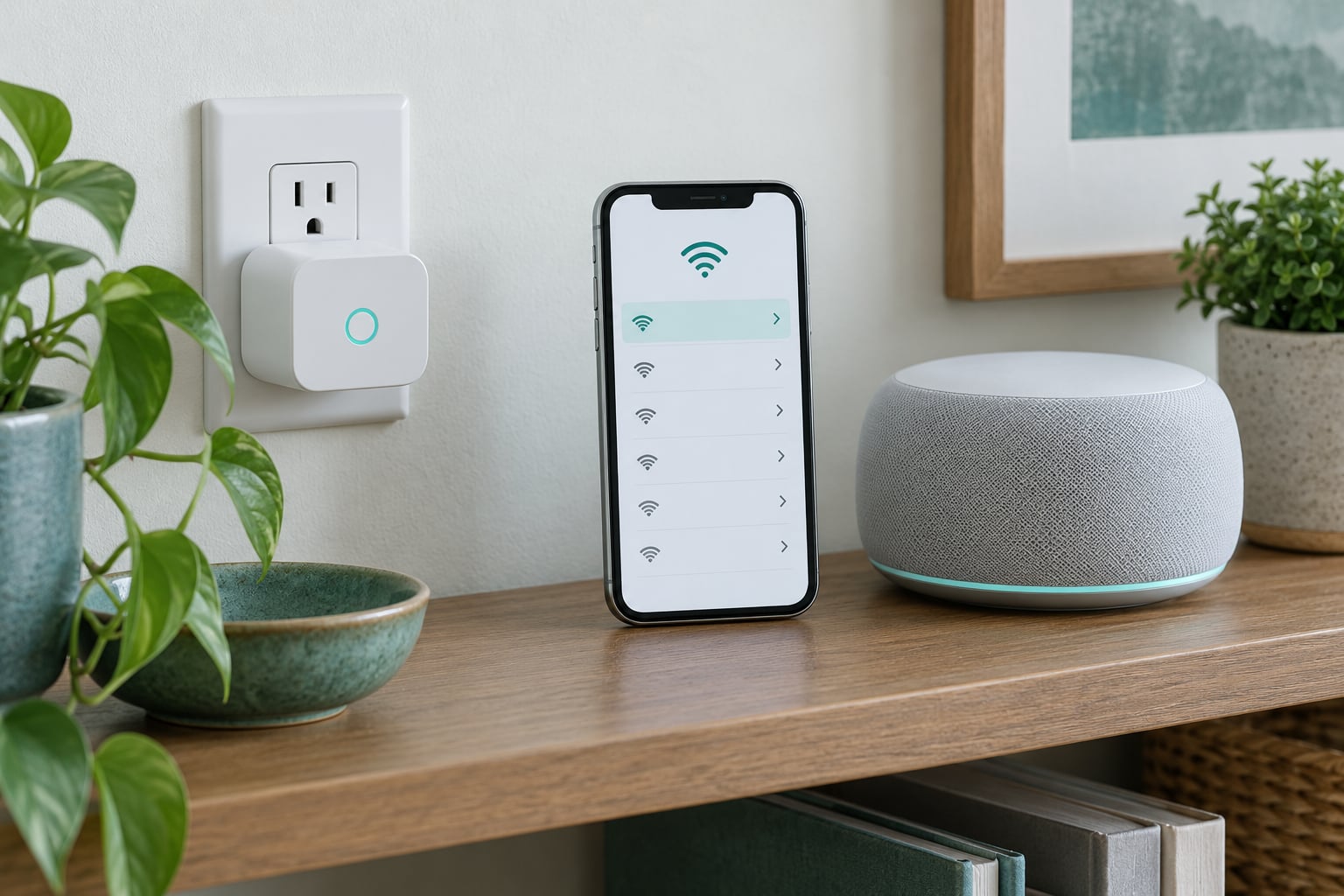
Most plugs that keep dropping off are not broken. They are on the wrong band, stuck behind a router setting that blocks devices, or sitting where the signal is too weak. Work through power first, then the 2.4 GHz network, then the app, and only factory reset as a last step. The whole check takes about fifteen minutes.
That order matters, because the fix people find first online — unplugging it and plugging it back in — never actually solves anything. It also silences the real problem until the next power cut.
Table of Contents
- 1What You Need
- 2Step-by-Step: What to Check, in What Order
- 31. Confirm the Smart Plug Has Stable Power
- 42. Check That Your Phone Can Use the Required Network
- 53. Reconnect the Smart Plug in the Manufacturer App
- 64. Test the Plug on the Same Network as the App
- 75. Improve the Connection Without Moving the Load
- 86. Reset, Re-add, and Test the Automations
- 9Common Mistakes
- 10Frequently Asked Questions
- 11Can a smart plug connect to 5 GHz Wi-Fi?
- 12Why does my smart plug keep going offline after I reset it?
- 13Is it safe to connect several smart plugs to one outlet?
- 14Why does Alexa say my smart plug is unavailable?
- 15When should I contact the manufacturer or an electrician?
- 16Conclusion
What You Need
You need very little to run this down, and none of it costs anything.
- The smart plug itself and the manufacturer app that controls it (Kasa, Smart Life, Wyze, eufy, the Alexa app, and so on).
- A 2.4 GHz Wi-Fi network with a strong signal in the room where the plug lives.
- The exact Wi-Fi password, including capital letters and symbols. Check it in the router settings rather than typing from memory.
- The phone or tablet you use for setup, with Bluetooth and local network access switched on.
- The voice-assistant app, if you control the plug through Alexa or Google Home.
One note before you start. Some newer Matter and Thread devices do not use this setup path at all. If your plug pairs through a hub, a HomePod, or an Echo over Matter, follow that device’s own instructions instead.
Step-by-Step: What to Check, in What Order
1. Confirm the Smart Plug Has Stable Power
Test the outlet first, because a plug on a weak or shared circuit reports itself as offline even though the network is perfect.
Unplug the device before you inspect anything. Plug a known-good lamp or your phone charger into the same outlet and leave it for a few minutes. If the light flickers or the charger cycles on and off, the circuit is the problem, not the plug.
Watch the status light after you plug the smart plug back in. A light that stays steady means power is fine. A light that restarts, or blinks in a repeating pattern, points to an unstable supply or an overloaded strip.
Avoid putting high-power heating appliances — space heaters, kettles, hair dryers — on a smart plug. They pull a lot of current on start-up, and that surge is a frequent reason plugs behave erratically. If the outlet is warm to the touch or smells faintly scorched, stop and call an electrician.
2. Check That Your Phone Can Use the Required Network
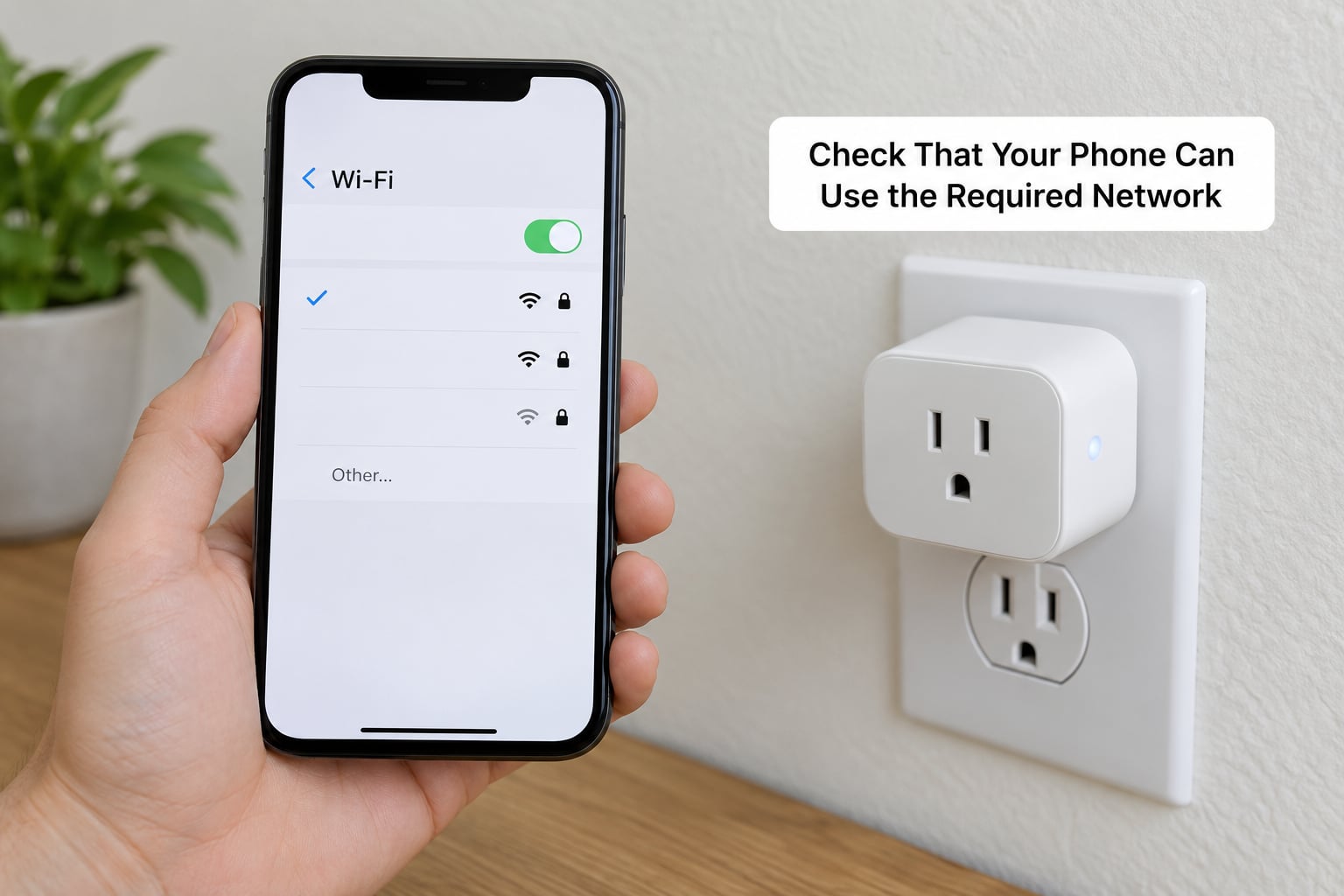
Most compact smart plugs only support 2.4 GHz, so your phone has to be on the same band while you pair.
Turn mobile data off, disconnect from any guest network, and open your Wi-Fi settings. If your router combines both bands under one name, split the bands temporarily so you can pick the 2.4 GHz network on purpose.
Plugs generally cannot join a 5 GHz-only network, a guest network, a network that needs a web page login before it lets you through, or many office and school networks that require a certificate or a login each time you connect. A phone that connects fine is not proof the plug can — the two use different radios.
Stand in the room with the outlet and confirm the network still works there. If your phone drops to one bar at that spot, the plug has the same problem.
Once the phone is on the right network with a usable signal, the pairing step usually behaves itself.
3. Reconnect the Smart Plug in the Manufacturer App
Remove the offline device from the app first, then add it again from scratch — the menu names change with every app release, so treat the paths below as a starting point rather than a fixed map.
In Kasa and Tapo, open the app, tap the plus icon, pick the outlet or plug accessory, and enter the 2.4 GHz name and password. Smart Life and Tuya Smart work the same way from their plus button. In the Alexa app, go to More, then Add Device, then Plug, and let the app hand off to the manufacturer’s app on your phone.
Enter the password carefully and wait for the confirmation screen. If the app hangs on a percentage, times out, or says authentication failed, the credentials are the likely cause — a wrong password is far more common than a faulty plug.
4. Test the Plug on the Same Network as the App
A plug that works in the app but shows as unavailable in Alexa or Google Home is usually on a different network than the hub.
Check that your phone, and the hub your assistant uses, are both on the same non-guest network. In the Alexa app, look under Devices and Wi-Fi, then Your Wi-Fi Networks, to see which network the Echo is on. Google Home shows the hub’s network under device settings. Apple HomeKit hubs join during setup, so a home that changed routers often has a hub stranded on the old network.
Here is the trap: a voice service that can reach your plug over the internet proves the cloud link works, not that the plug and hub share a local network. Those are two different paths.
5. Improve the Connection Without Moving the Load
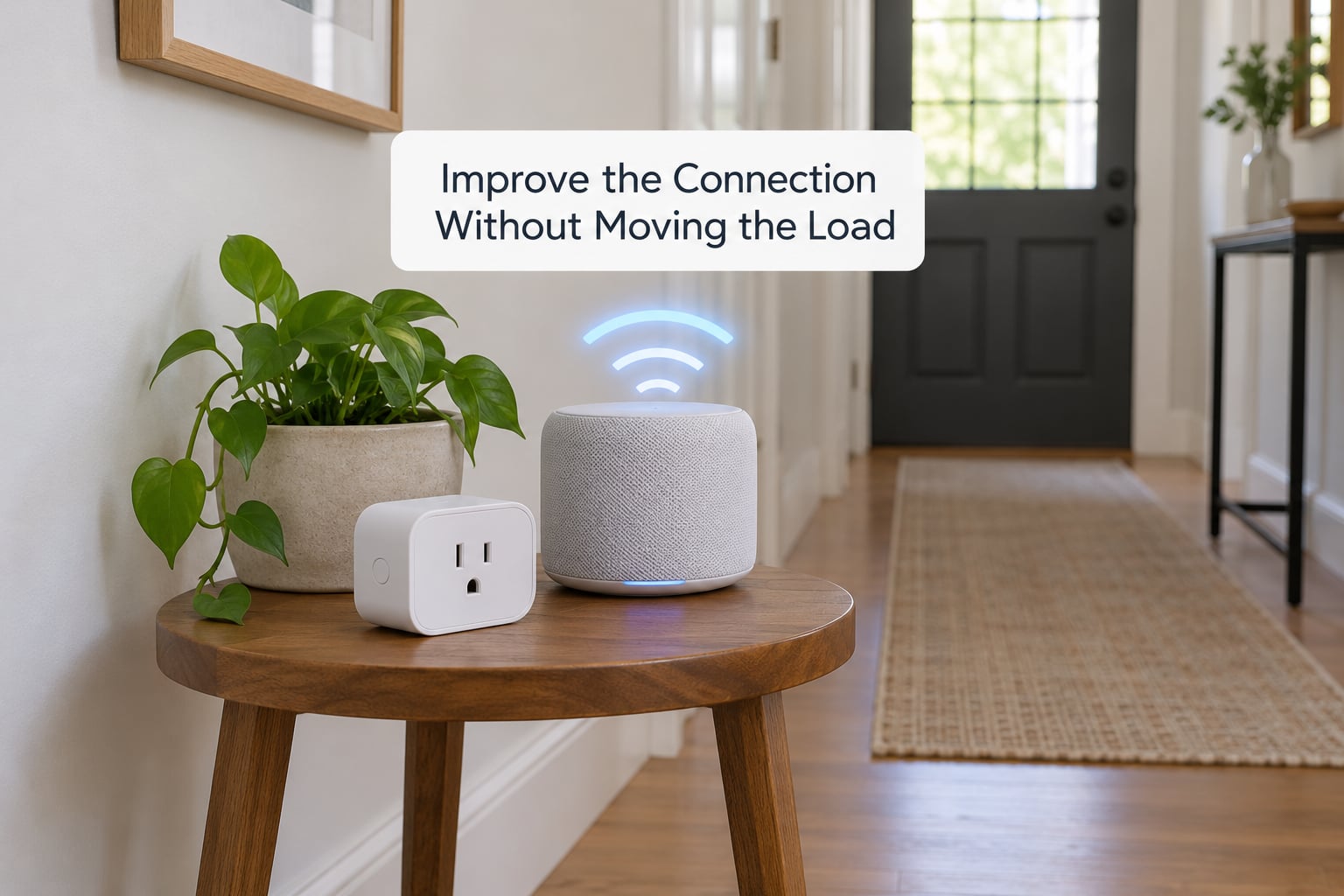
If the plug connects but drops again within hours, the problem is usually signal strength or congestion in that specific spot.
Move your phone next to the plug and check the network there. If the signal falls off sharply, the outlet sits in a dead zone — behind a bed, past a microwave, or on the far side of a thick wall.
Move a mesh node or the router itself toward that room, lower the 2.4 GHz channel width to 20 MHz, and set the channel to 1, 6, or 11 so it does not sit next to your neighbours’ networks. Restart the router before you touch the plug again.
While the plug is powered off, take the load off it for a moment. If it stays online through several short power cycles and responds without a delayed offline notice, you have found the cause.
Local control is worth knowing about, too. Plugs that work through a hub, a Matter controller, or a local API on your own network keep working when the internet is out. Cloud-dependent plugs report offline the moment the connection drops.
6. Reset, Re-add, and Test the Automations
Reset only after the checks above fail. This is the step that erases your work, so note it first.
Before you reset, write down or screenshot your schedules, routines, scenes, and the plug’s room and name. A factory reset clears all of them. Also grab the model number, your router make, and the app version — support will ask for all three.
Hold the physical button on the plug to put it into pairing mode. Most manufacturers land somewhere around five to ten seconds, and some go to fifteen. The manual is the authority here; treat any number you find online as a starting point. Watch for the LED to change colour or start blinking steadily, which means pairing mode is active.
Then add the plug in the app as in step 3, test a manual on-off command, then one routine, then one voice command. Test them in that order so you know which layer failed.
Contact the manufacturer if the plug fails on a strong 2.4 GHz network right after a clean reset. Call an electrician if the outlet is hot, buzzing, discoloured, or trips the breaker.
Common Mistakes
Almost every recurring problem is one of these eight.
- Setting up on 5 GHz. Split the bands and connect the phone to the 2.4 GHz network first.
- Using a guest network. Guest networks isolate clients from each other and from your main devices. Pair on the main network.
- Forgetting the 2.4 GHz password. Networks with separate passwords have a different one. Copy it from the router.
- Changing networks after pairing. A new SSID, password, or security type means the plug must be re-added, even when the name looks the same.
- Creating duplicate devices. Adding the same plug twice leaves an orphaned entry that always shows offline. Delete the old one from the app before re-adding.
- Skipping Bluetooth or local-network permission. Some apps need Bluetooth to hand credentials to the plug and local network access to find it afterwards. Deny either and pairing stalls.
- Pushing the signal past what the room can hold. If a plug fails in one location while identical plugs nearby are stable, treat it as a placement problem and move the coverage.
- Resetting the wrong thing. A button on the plug resets that plug. Resetting the wrong accessory leaves the problem exactly where it was.
One more that causes real damage: automating a high-power appliance on a smart plug. Heating appliances should sit on a normal outlet on their own circuit.
Before any deeper troubleshooting, update the manufacturer app and the plug’s firmware. Out-of-date firmware is a common reason a plug that used to hold a connection starts dropping, and the update costs nothing.
Frequently Asked Questions
Can a smart plug connect to 5 GHz Wi-Fi?
Most compact smart plugs are 2.4 GHz only and will not appear on a 5 GHz network at all. A few newer Matter or Thread models support both, but check the manual first. If your router combines the bands under one name, split them temporarily so your phone can pick the 2.4 GHz network before you pair. Pairing on the wrong band is the single most common reason a plug never connects.
Why does my smart plug keep going offline after I reset it?
A reset clears the stored network details, so a plug that drops again afterwards is telling you the original cause was never removed. Usually it is a weak signal, a router setting such as AP isolation or band steering, or congestion on the 2.4 GHz channel. Leave the plug near the router for ten to fifteen minutes after pairing. If it stays online there but fails in its normal room, the plug is fine and the room is the problem.
Is it safe to connect several smart plugs to one outlet?
It depends on the loads, not the plugs. A double outlet with two low-draw plugs — lamps, a fan, a charger — is generally fine. Stacking several adapters so they physically overlap is not, because heat builds up where they meet. Never put a heating appliance on a smart plug. If the outlet face feels warm, the plug is buzzing, or the breaker trips, unplug everything and have an electrician look at the circuit.
Why does Alexa say my smart plug is unavailable?
Usually the hub and the plug are on different networks, or the cloud link between them failed while the plug stayed online locally. In the Alexa app, check Devices and Wi-Fi to see which network your Echo uses, and confirm it is not a guest network. If the app shows the plug online but Alexa does not, it is a cloud or hub problem rather than a Wi-Fi one. Removing and re-discovering the device in the Alexa app usually clears it.
When should I contact the manufacturer or an electrician?
Contact the manufacturer when a plug fails on a strong 2.4 GHz network after a clean reset, when the app shows an authentication or timeout error repeatedly, or when the model and firmware are older than the app expects. Call an electrician for anything involving heat, buzzing, scorch marks, discolouration on the plug, or a breaker that keeps tripping. Those are hardware or circuit faults, and no amount of network troubleshooting touches them.
Conclusion
Start with the simplest thing: steady power, a supported 2.4 GHz network, and a signal that survives in the room where the plug actually sits. Nearly every recurring offline problem is one of those three, and a factory reset is never the first move.
If you do reset, screenshot your routines first — the reset erases them, and rebuilding a schedule from scratch is the reason people give up on the fix. As of 2026, the apps involved still change their menus often, so check the manufacturer’s own guide for the exact path in your version.
And if you ever see heat, buzzing, discolouration, or a breaker that keeps tripping, stop troubleshooting the network and call a qualified electrician.