If you want to know how to speed up a Windows laptop that is slow to boot, start by locating the delay: press Ctrl+Shift+Esc to open Task Manager and check the Startup tab for a large number of enabled apps, and run a drive check to confirm whether the boot drive is an SSD or a mechanical hard drive. Most slow laptops are slow for one of two reasons: too many programs launching at sign-in, or a hard drive that cannot read Windows quickly. Everything else is a smaller variation on those two.
Most of the work takes 20 to 30 minutes and costs nothing. The order below matters, because changes that look like improvements can make a slow boot worse if you apply them before you know where the time is going.
Table of Contents
- 1What You Need to Speed Up a Windows Laptop That Is Slow to Boot
- 2Step-by-Step
- 3Measure the Current Boot Time
- 4Disable Startup Apps You Do Not Need
- 5Check for Windows Updates and Pending Restarts
- 6Free Up Drive Space on the Boot Drive
- 7Run the Windows Security Scan
- 8Change Windows Power and Boot Options Carefully
- 9Update or Reinstall Essential Device Drivers
- 10Test the Result and Know When the Problem Is Hardware
- 11Common Mistakes
- 12Frequently Asked Questions
- 13How long should a Windows laptop take to boot?
- 14Why is my Windows 11 laptop slow to start even when startup apps are disabled?
- 15Can I make my old Windows laptop boot faster without buying a new one?
- 16How do I find out which programs are slowing down startup?
- 17Should I leave Fast Startup enabled on a slow Windows laptop?
- 18When is a clean Windows install better than trying to speed up boot?
- 19Conclusion
What You Need to Speed Up a Windows Laptop That Is Slow to Boot
You need administrator access to your laptop, which means an account that can approve a User Account Control prompt. If you are signed in with a standard account, you will hit a password wall on the first change.
Before you touch anything, copy anything you cannot lose to an external drive or cloud folder. None of the steps in this guide normally delete personal files, but a backup costs ten minutes and removes the anxiety.
Plug the laptop in. A laptop that is running on battery throttles its processor, and boot times measured on battery are not comparable to boot times measured on mains power.
Finally, write down the programs you actually need at every sign-in. Typical keepers are your antivirus, audio software, keyboard or touchpad utilities, and any VPN or work tool. Everything else is a candidate. People skip this step, disable twenty things by reflex, and then discover their VPN no longer runs.
Step-by-Step
Measure the Current Boot Time
You cannot tell whether a fix worked unless you have a number first. On Windows 11, open Task Manager with Ctrl+Shift+Esc, go to the Performance tab, click CPU in the right-hand pane, and read the line labelled Last BIOS Time under the Up time chart. That figure is the seconds spent before Windows took over. Anything under 10 seconds is normal; 30 seconds or more points at firmware, memory training or a drive that is slow to spin up.
On Windows 10, press Win+R, type msinfo32, and press Enter. In the System Information window, find System Boot Time for the current boot, then subtract it from the current time for a rough total. The split between firmware and Windows matters more than the total, because it tells you which half of this guide to work through.
Watch the boot itself once as well. Hold Ctrl+Shift+Esc as you press the power button and you will see Task Manager over the boot sequence. Note what happens at each stage: a long pause on the manufacturer logo is firmware, a pause with a spinning circle is Windows loading itself, and a pause after the password screen is startup programs.
Write the number down. You will repeat this measurement at the end.
Disable Startup Apps You Do Not Need
This is the highest-value change on an SSD and one of the smaller ones on a mechanical hard drive, where the drive itself is usually the limit. Open Task Manager, click the Startup apps tab, and read the Startup impact column. High impact means the app adds several seconds to sign-in. Low impact means roughly nothing.
Disable the High impact entries you do not recognise, and disable vendor extras that only exist to check for other vendor software. On many laptops this is where HP Support Assistant, MyASUS, Lenovo Vantage or similar suites sit, and none of them need to run at every sign-in.
Leave alone: your antivirus, your audio driver software, touchpad and keyboard utilities, and anything your employer manages. Disabling those causes the exact kind of small breakage people end up paying a shop to undo.
To see the fuller list that Task Manager hides, run shell:startup from the Run dialog, or use Autoruns from Microsoft Sysinternals if you want the services view. Neither is required to fix a normal slow boot.
Test it by signing out and back in rather than doing a full restart. Watch the seconds between the password screen and a usable desktop. If you need the old behaviour back, re-enable the same entries; nothing here is permanent.
Check for Windows Updates and Pending Restarts
A boot that used to take 25 seconds and now takes four minutes often follows a large Windows update. Go to Settings, Windows Update, and check for pending downloads or a restart required notice. In Windows 11 the same page is reached with Win+I then Windows Update; in Windows 10 it is Settings, Update and Security, Windows Update.
Finish the download and restart. Do this with your files saved and your charger connected, because a large feature update can take several restarts before it settles.
While you are in Windows Update, run Check for updates, then open Advanced options and inspect Optional updates. A handful of driver and language packs sit there and can sit forever; they are not what makes a boot slow, so do not chase them.
If the slowdown started within a day or two of an update, this is the most likely cause, and it costs nothing to rule out.
Free Up Drive Space on the Boot Drive
Windows needs working space on the system drive to stage updates, build the page file and write temporary files. When the C: drive drops below roughly 10 percent free, boot time climbs and general responsiveness suffers with it. Open File Explorer, right-click This PC, and check the free space on your system drive first, because that single number explains more slow boots than anything else in this section.
Search for Disk Cleanup in the Start menu, choose the system drive, and run Clean up system files. Tick the categories you recognise: Temporary files, Delivery Optimization Files, the Windows upgrade log files, and Previous Windows installation(s) if you have already confirmed your machine boots correctly. The last one only becomes selectable after a recent upgrade, and it frees several gigabytes.
Read the Downloads and Previous installations rows before ticking them. Both can hold files you still want, and Disk Cleanup will not ask twice.
The same tool exists in Windows 10, where it lives in the Administrative Tools folder of the Start menu, and in Windows 11 as Storage cleanup under Settings, System, Storage.
Run the Windows Security Scan
Malware that starts with Windows will slow the boot noticeably. Open Windows Security from the taskbar, go to Virus and threat protection, and run a Quick scan. If you want to catch things that hide from a normal scan, use the Scan options link and choose Microsoft Defender Offline scan, which restarts the machine and checks outside the running system. Your laptop takes longer to restart that once, then comes back normally.
If a scan finds something, let it quarantine it and then restart, because a full cleanup often needs a second pass.
Skip any paid or ‘optimizer’ utility that offers to clean your registry, defragment your drive or boost your RAM. Built-in tools cover the useful work, and those utilities exist to sell you the subscription.
Change Windows Power and Boot Options Carefully
Two settings are worth checking, and one is worth changing only if you know why. First, the power mode. In Windows 11 go to Settings, System, Power and battery, Power mode and pick Best performance when you are plugged in. In Windows 10 the equivalent is Control Panel, Hardware and Sound, Power Options, then Choose or change a power plan, High performance. Balanced is the sensible default on battery, and Best performance costs you battery life during use.
Second, Fast Startup. Search for Power options, click Choose what the power buttons do, then Change settings that are currently unavailable, and untick Turn on fast startup. Fast Startup saves the kernel session to the drive when you shut down, so the next power-on resumes rather than cold boots. If your laptop is slow on shutdown-then-power-on but quick on restart, that difference is Fast Startup, and you are measuring two different things.
Turn it on again if sleep or shutdown misbehaves. If after disabling it the machine takes a noticeably longer power-on, that is the expected trade, not a fault.
Update or Reinstall Essential Device Drivers
Storage, chipset and graphics drivers are the ones that affect boot. Windows Update often provides them, but for a laptop the manufacturer’s support page is the better source because it can include firmware versions Windows does not carry. Go to your laptop maker’s support site, enter the model number, and install storage and chipset drivers from the current package. Dell, HP, Lenovo, ASUS and Acer all publish per-model pages rather than one generic download.
Do not use a driver download site you found through a search ad. Wrong drivers cause crashes and blank screens, and the recovery path is longer than the original problem.
If a device shows a yellow warning triangle in Device Manager, reinstall that specific device’s driver rather than updating everything at once. Note which device it was so you can undo it if the new driver misbehaves.
Test the Result and Know When the Problem Is Hardware
Restart the laptop and re-measure the boot time the same way you did at the start. Anything in the Task Manager Startup tab marked High should now be disabled, and the number should reflect it. On a laptop with an SSD you would expect a usable desktop inside half a minute for a handful of essential apps; on a mechanical drive, one to three minutes is still normal and no setting change will push it much lower.
Check what kind of drive you have. In Task Manager, Performance, Disk, the model name at the top right will tell you whether it is an SSD or a hard disk. If it is a 5400 RPM mechanical drive, the honest answer is that the software is done and the hardware is the ceiling. Replacing it with an SSD is the single change that fixes boot time for these machines, and it usually helps more than every setting on this list combined.
Use the same check to spot a failing drive. Open Event Viewer, go to Windows Logs, System, and look for disk and storahci errors, or notices that Windows took longer than expected to start. Repeated filesystem errors and a boot that hangs on the manufacturer logo for a minute point at a drive failing rather than a setting being wrong. Back up before you go further, because that failure usually ends in sudden loss of the drive.
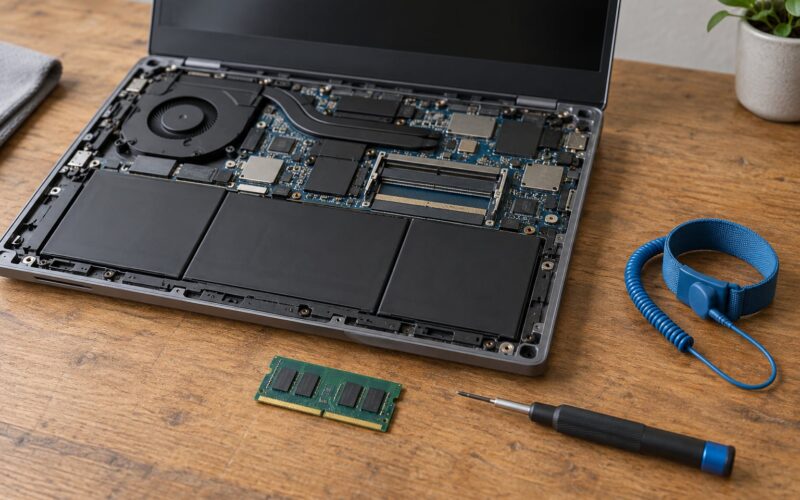
If you have 4 GB or 8 GB of memory and Windows is paging heavily, more RAM makes the machine feel faster once loaded, but the improvement at boot is small. A drive swap is the better purchase for boot time specifically.
Stop troubleshooting and get professional help when the drive reports errors, when the logo screen hangs for more than a couple of minutes, when you see blue screen stop errors during boot, or when Windows will not start at all. Those are faults, not settings.
Common Mistakes
Deleting files from the Windows folder because a tutorial said System32 is clutter breaks the operating system. The correct fix for a full or slow drive is Disk Cleanup on the categories you recognise, plus moving large personal files off the system drive.
Disabling Windows Defender, the Windows Update service or other core services to save a few seconds removes protection and usually saves nothing at boot. The correct approach is to remove startup applications, not the operating system’s own machinery.
Running registry cleaners and RAM booster utilities is the most common mistake on these threads. They cannot make a drive read faster, and the ‘boost’ they advertise is freed memory that Windows was already managing. The fix is a free disk and a smaller startup list.
Defragmenting an SSD makes it slower, because solid state drives need TRIM rather than defragmentation, which Windows handles on its own schedule. Defragmenting a mechanical drive still helps, and it is one of the few maintenance jobs that does.
Deleting drivers in Device Manager because one shows a warning triangle leaves you with no working component. Right-click the device and choose Update driver, and use the manufacturer’s package. Uninstalling a device that is actually fine is a slow way to create a problem.
Turning Fast Startup on or off with no plan for what happens next leaves some machines unable to sleep or shutdown properly. Change it once, test a full power cycle, and know which checkbox to put back.
Frequently Asked Questions
How long should a Windows laptop take to boot?
A laptop with an NVMe or SATA SSD should reach a usable desktop in about 15 to 45 seconds, plus a few seconds per startup app you keep. A mechanical hard drive commonly takes 60 to 180 seconds, and that range is normal for that hardware. With 4 GB of memory and paging, add more again. Anything past three minutes on an SSD, or past five on a hard drive, is worth troubleshooting.
Why is my Windows 11 laptop slow to start even when startup apps are disabled?
If the Task Manager Startup tab is already clean, the delay is almost always outside Windows. Check the Last BIOS Time figure in Task Manager: 30 seconds or more means firmware or a drive that is slow to initialise, not startup programs. A mechanical drive, a failing drive or a memory-training pause all show up here. Also check Windows Update for a pending restart, which behaves the same way.
Can I make my old Windows laptop boot faster without buying a new one?
Usually yes, and the order matters. Disable High impact startup apps, finish any pending Windows update, clear temporary files, scan for malware and check the drive type in Task Manager. On a mechanical hard drive those steps help, but the ceiling stays high. Replacing the drive with an SSD is usually the change that makes an old laptop feel new again, and it often costs less than the machine is worth.
How do I find out which programs are slowing down startup?
Open Task Manager with Ctrl+Shift+Esc and choose the Startup apps tab. The Startup impact column ranks everything by delay: High impact entries add several seconds each, and Low impact ones add very little. Disable the High impact items you do not need, then sign out and back in to measure the change. For the longer list that Task Manager hides, run shell:startup from the Run dialog.
Should I leave Fast Startup enabled on a slow Windows laptop?
Leave it on if you want a shorter power-on time, because Fast Startup saves the kernel session when you shut down. Turn it off if you need a true cold boot, if you are diagnosing a boot problem, or if sleep and shutdown are misbehaving. It also makes boot times hard to compare, because a shutdown and a restart no longer follow the same path. Test with it off for one full power cycle before deciding.
When is a clean Windows install better than trying to speed up boot?
A clean install makes sense when the fixes change nothing, when Windows Update has been failing or the machine was bought second-hand with a full drive, or when disk and storahci errors keep appearing in Event Viewer. Back up your files first and use Reset this PC with the Keep my files option, which reinstalls Windows but leaves your documents and most settings alone. If a failing drive is the cause, replacing it comes before the reinstall.
Conclusion
Start with the reversible changes, in this order: measure the boot time, disable the High impact startup apps, finish any pending Windows update, clear temporary files, run a Defender scan, and measure again. Each one can be undone on the same screen where you changed it, and you keep a before-and-after number the whole way.
When none of that moves the figure, look at the drive rather than the settings. A mechanical hard drive sets a floor that no amount of tuning reaches, and a drive throwing errors in Event Viewer is a hardware fault worth backing up and replacing. Escalate to a repair visit or Reset this PC only after the drive is confirmed healthy.
This guide covers Windows 10 and Windows 11, including the 24H2 and 25H2 releases. Menu names differ slightly between the two, so use the path for your version and check the other if a button is not where you expect it.