If you want to know how to tell if a hard drive is failing, start with two things: listen to the drive, and read its S.M.A.R.T. log. A clicking or grinding noise, files that will not open, and a boot drive the BIOS cannot see are the clearest signs, but plenty of dying drives never make a sound. This guide walks through the checks in a safe order so you copy your files before you stress the hardware.
Most of the process takes ten minutes with tools already built into Windows, macOS or Linux. The difficult part is not running the tests. It is knowing when a result means back up tonight and when it means something else entirely.
Table of Contents
- 1What You Need Before Checking a Failing Drive
- 2Step-by-Step: How to Tell If a Hard Drive Is Failing
- 31. Back Up Files Before Running Intensive Checks
- 42. Check for Clicking, Grinding, and Other Noises
- 53. Read the Drive’s S.M.A.R.T. Health Data
- 64. Look for Filesystem, Boot, and Application Errors
- 75. Compare Performance and Run the Built-in Disk Checker
- 8Common Mistakes to Avoid
- 9Frequently Asked Questions
- 10What are the signs that my hard drive is failing?
- 11How do I run a S.M.A.R.T. test on a hard drive?
- 12What is the average lifespan of a hard drive?
- 13Can a failed hard drive be fixed?
- 14Does a failing SSD make noise or show warning signs?
- 15Can a hard drive fail suddenly with no warning?
- 16Conclusion
What You Need Before Checking a Failing Drive
You need somewhere for your files to go before you need any diagnostic tool. Pulling a copy off a suspect drive writes to it, and that is exactly the wrong thing to do.
Gather these four things:
- Backup storage. A second internal drive, an external drive, or network storage with more free space than the data you are copying.
- The computer the failing drive is installed in. S.M.A.R.T. data is often only readable while the drive is still connected, so check it before you swap anything.
- The built-in disk utility. Disk Utility on macOS, Check Disk on Windows, and
fsckorsmartctlon Linux. - A USB enclosure or adapter if the drive is external, or if you plan to move a desktop drive to another machine to test it.
A dedicated health tool helps too. CrystalDiskInfo is the standard free choice on Windows, GSmartControl reads the same attributes on Linux, and smartmontools covers both Linux and macOS from the command line. If you already use a monitoring tool such as iStat Menus on a Mac, it can show S.M.A.R.T. attributes in its drive pane.
Step-by-Step: How to Tell If a Hard Drive Is Failing
1. Back Up Files Before Running Intensive Checks
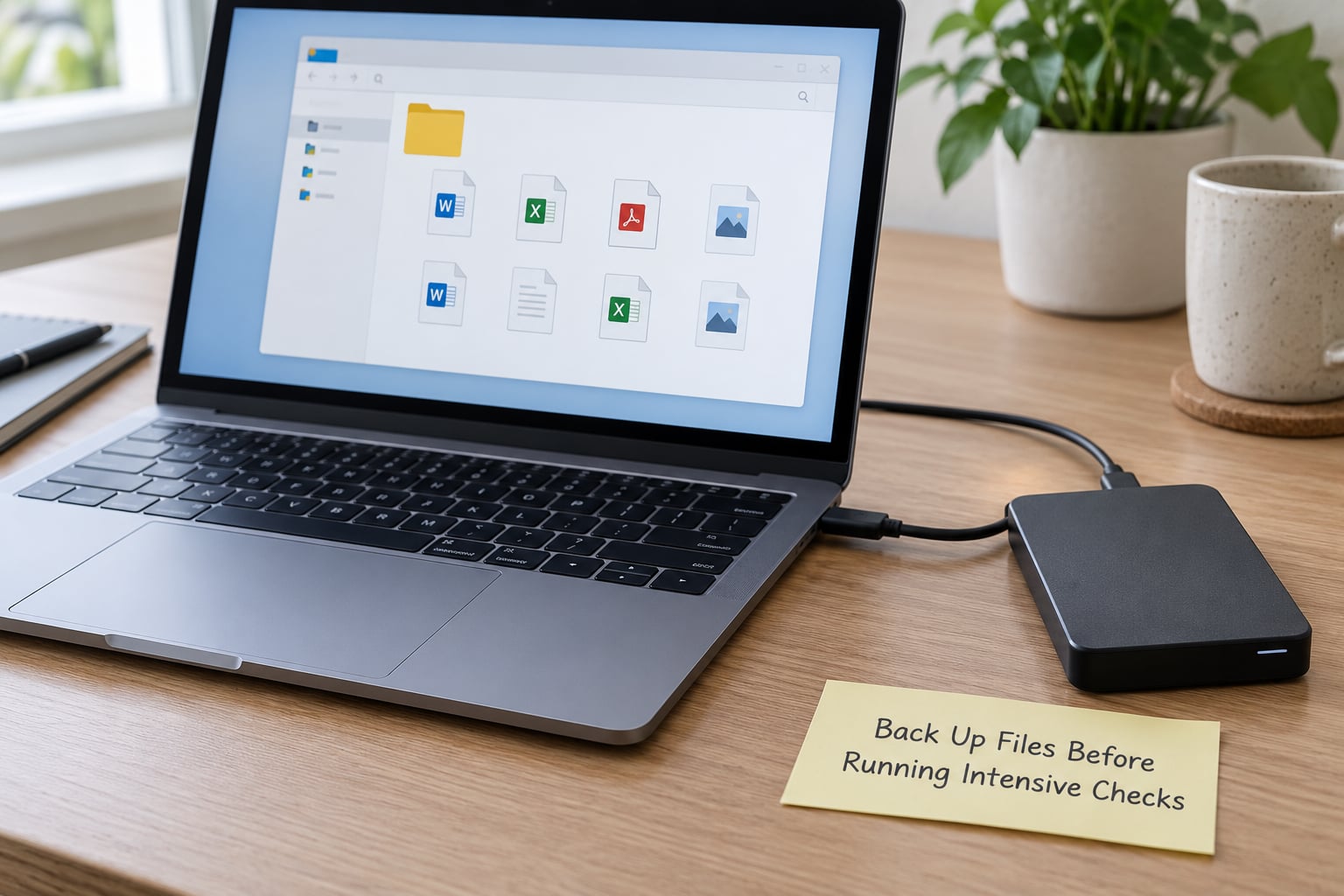
Copy the irreplaceable files first: photos, documents, anything with no other copy. Copy the whole folder rather than opening files one at a time, because reading and saving each file separately is far more work for a drive that is struggling.
A backup that fails halfway is information, not an inconvenience. Read-only errors, files that will not copy, and folders that vanish partway through all point at unreadable areas of the drive, and those get worse every time the platters are asked to find them again.
Between backups, stop writing to the drive. Pause downloads, move app libraries off it, and avoid using it as a scratch disk for anything you can put elsewhere. Downloads and temp files filling a failing drive can tip it over the edge.
2. Check for Clicking, Grinding, and Other Noises
Listen to the drive during a normal boot and during a large file copy, when the platters are doing the most work. A healthy mechanical drive has a steady low whirr, and many have a soft rhythmic thump as the heads move in and out.
| Sound | What it usually means |
|---|---|
| Steady whirr, soft thump | Normal for a mechanical drive |
| Repeating click or tick | Head cannot find its track. Power down now |
| Chirping, squeaking | Actuator or bearing problem. Stop using the drive |
| Grinding or scraping | Heads contacting the platter surface |
| Starts then stops, or never spins | Seized spindle motor, which sometimes frees with a gentle free-spin, usually not |
| Complete silence during access | Drive not spinning at all, or a cable and power problem |
If you hear clicking, grinding or scraping, shut the machine down properly and do not run scan tools on it. Every extra pass forces the actuator to retry a position it cannot reach, and repeated retries are what turn a recoverable sector problem into a mechanical one. Do not open the drive either. A hard drive needs a cleanroom to open, and a scratched platter surface does not care how careful you were at the kitchen table.
The old trick of putting a drive in the freezer to fix stiction is internet folklore. Condensation forms on the electronics as it warms up, and the drive usually ends up worse than before. Ignore it.
3. Read the Drive’s S.M.A.R.T. Health Data

S.M.A.R.T., short for Self-Monitoring, Analysis, and Reporting Technology, is data the drive keeps about itself. It tracks things like how many sectors it has had to remap, whether reads have timed out, and how many spin-up attempts failed. A healthy drive reports it every day without anyone asking.
On Windows 11 and 10, the fastest read-only check runs in PowerShell:
Get-PhysicalDisk | Select-Object FriendlyName, MediaType, HealthStatus, OperationalStatusHealthStatus of Healthy with an OperationalStatus of OK is the result you hope for. For a full attribute list, install CrystalDiskInfo, run it as administrator, and read the raw values rather than the coloured badge. On Windows 10 the older one-liner still works:
wmic diskdrive get statusOn macOS, open Disk Utility, select the drive in the sidebar and click the Drive Information tab, then the S.M.A.R.T. Status button. For raw attributes, install smartmontools through Homebrew and run:
smartctl -a /dev/disk2On Linux and NAS, smartmontools is standard and gives the clearest output:
sudo smartctl -a /dev/sdaLook for the SMART overall-health self-assessment test result line near the top, then scroll to the attribute table. On a NAS, run the same command over SSH, or check the storage manager’s health column, which reads the same attributes.
These attributes matter most:
| ID | Attribute | When to worry |
|---|---|---|
| 5 | Reallocated sector count | Any growth. A jump of hundreds in a week is a replacement trigger |
| 187 | Reported uncorrect | Anything above zero |
| 188 | Command timeout | Anything above zero |
| 197 | Current pending sector | Any value, and especially one that keeps rising |
| 198 | Offline uncorrectable | Anything above zero |
| 10 | Spin retry count | Non-zero, or rising on a USB drive |
| 7 | Seek error rate | Rising raw value, particularly on external drives |
The trap here is trusting the pass or fail badge. Plenty of drives report an overall PASS while reallocated sectors climb steadily, and that is the single most common contradiction people run into on forums. Raw values with thresholds beat a coloured icon every time. If CrystalDiskInfo says Good but a surface scan turned up even a couple of red sectors, treat the drive as failing.
Write down the reallocated and pending counts and look at them again in a week. A stable count of zero or a slow drift means you have time. A number that roughly doubles every few days does not.
4. Look for Filesystem, Boot, and Application Errors
Corruption shows up in the file system first. Files that will not open, documents with garbled characters, folders that appear empty, and errors naming a file or directory as unreadable all point at sectors the drive can no longer read cleanly.
Crashes count too, especially when they happen during disk-heavy work. On Windows, these stop codes most often trace back to physical drive trouble:
| Stop code | Usual cause |
|---|---|
| INACCESSIBLE_BOOT_DEVICE | Drive not found at boot, often a cable or a dying controller |
| NTFS_FILE_SYSTEM | File system damage, sometimes from unreadable sectors |
| KERNEL_DATA_INPAGE_ERROR | Data could not be read from disk in time |
| CRITICAL_PROCESS_DIED | System process lost access to files it needs |
On a Mac, the equivalent is a kernel panic rather than a blue screen, and repeated panics during file access deserve the same suspicion. In Windows, Event Viewer under Windows Logs, System is where storage errors pile up, and each event names the disk that produced it.
In a machine with several drives, work out which physical disk is actually complaining before you buy a replacement. The reliable method, and the one people in home-lab and NAS communities settle on, is matching the serial number in the software to the serial printed on the drive label. In Windows, Device Manager, Disk drives, then Properties gives you the model and serial. CrystalDiskInfo lists the same numbers in its top-left drop-down. The BIOS or UEFI setup screen shows the same identifiers for every drive it detects.
If a drive vanishes from the BIOS entirely, suspect the cable and the power connector before the drive. A SATA cable costs almost nothing, a loose power plug is free to fix, and both produce symptoms indistinguishable from a dead disk. Powering down one suspect 2.5-inch drive and seeing whether the errors stop is the quickest isolation step there is.
5. Compare Performance and Run the Built-in Disk Checker
A drive that is slow but still alive has its own tell. On Windows, open Task Manager, Performance, Disk, and watch the active time percentage while nothing else is running. A healthy idle drive sits near zero. Sustained high disk activity with no application running usually means the drive is retrying reads that fail.
The built-in file system checkers are useful, with a caveat. On macOS, run Disk Utility, select the volume, click First Aid, then Run. On Windows, chkdsk C: /scan runs online and read-only, which is safer than the old /f /r. On Linux, sudo fsck -n /dev/sda2 checks without changing anything.
Run them read-only first. Repair on a physically failing drive forces the drive to read every damaged sector and mark it unusable, and if the file system metadata is what sits on those sectors, the repair can take the data with it. If a scan reports errors you cannot live with, back up and replace rather than repairing.
For a drive that seems slow rather than dying, benchmark tools give numbers you can compare over time. CrystalDiskMark measures sequential and random throughput, and HD Tune’s Error Scan reads every sector and shows a red block where reads fail. Two bad blocks on a drive that reports healthy S.M.A.R.T. status is a replacement trigger, not a curiosity.
SSDs fail differently. There is no head to crash and nothing to make noise, so you lose the earliest signal. Instead you see sudden disappearance from the system, a drive that mounts read-only, or error rates climbing on wear-related attributes. Check SSD health with the vendor tool first, Samsung Magician for Samsung drives and the equivalent from Crucial, Kingston or WD, then fall back to CrystalDiskInfo in NVMe mode.
Heat matters more than people expect. Aim to keep an operating drive between 25C and 45C, and treat anything sustained above 50C as a problem worth fixing. External drives in a poorly ventilated enclosure run hot enough to shorten their lives, which is the argument for a drive with a proper airflow path rather than a tight plastic sleeve.
Common Mistakes to Avoid
Ignoring the noise. People search for the sound on YouTube, conclude it is a normal hum, and keep using the drive for months. Normal hum and thumping are common and harmless. A distinct clicking or chirping is not, and it is the one sound that means stop.
Running repair over and over. Each chkdsk /f /r pass or Disk Utility First Aid run on a failing drive stresses it further. Diagnose once, then decide.
Using the suspect drive as a backup destination. Copying from a failing disk to the same failing disk leaves you with two copies of nothing. Use different hardware.
Confusing a full drive with a failing one. A drive at 100 percent used will feel slow and will throw errors. Check free space before you start diagnosing hardware.
Replacing a drive before copying what is still readable. The new drive will arrive blank and the old one will not, so copy first. If reads are failing outright, a disk imaging tool with error skipping can pull most of the drive into one image file before you touch it.
Blaming the drive for a cable or power fault. Swap the SATA cable and reseat the power connector before you conclude anything. External drives get the same treatment with a different USB port and a different cable.
Running disk cleaner and optimiser tools. Defragmenting a drive with bad sectors pushes large amounts of data through failing areas. There is no maintenance schedule that saves a dying drive.
One more habit pays off: check your S.M.A.R.T. data on a schedule rather than waiting for symptoms. A monthly glance at reallocated sector counts catches a slow degradation long before a user notices, and it costs nothing.
Frequently Asked Questions
What are the signs that my hard drive is failing?
The signs that a hard drive is failing are repeating clicks or grinding noise, files that will not open or turn to garbled text, folders that come up empty, sudden extreme slowness, crashes or stop codes during disk-heavy work, and a drive the BIOS sometimes fails to detect. Read the S.M.A.R.T. log too: growing reallocated sector count, pending sectors above zero, or any uncorrectable errors mean replace it regardless of how well it still seems to work.
How do I run a S.M.A.R.T. test on a hard drive?
On Windows, open PowerShell and run Get-PhysicalDisk | Select-Object FriendlyName, MediaType, HealthStatus, OperationalStatus. On macOS, open Disk Utility, pick the drive, then click Drive Information and the S.M.A.R.T. Status button. On Linux or a NAS, install smartmontools and run sudo smartctl -a /dev/sda. For raw attribute values, use CrystalDiskInfo on Windows or GSmartControl on Linux, and read the raw numbers rather than the pass or fail badge.
What is the average lifespan of a hard drive?
Consumer mechanical drives commonly last somewhere in the range of three to five years, and large-scale operator data puts failure rates low in the first couple of years and then climbing sharply after year four or five. Longevity depends far more on temperature, vibration and power quality than on how often you use the drive. Treat four to five years as a replacement window rather than a guarantee, and keep backups running on a schedule.
Can a failed hard drive be fixed?
Sometimes, and it depends entirely on which part failed. A drive that is merely unresponsive can come back after a gentle free-spin of the platters with the power disconnected. A drive with failing firmware can sometimes be revived with manufacturer tools, and a healthy drive with a dead PCB can often be transplanted onto the failed board. Once the platters or heads are damaged, only a cleanroom lab can attempt recovery, and there is no guarantee. Replace the drive regardless.
Does a failing SSD make noise or show warning signs?
No, an SSD has no moving parts, so you will not hear clicking or grinding. Warning signs are sudden disappearance from the system, a drive that mounts read-only, freezing during large writes, and rising error counts on wear-related attributes. Check health with the manufacturer tool first, then with CrystalDiskInfo in NVMe mode, and compare percentage used against total writes. Failing SSDs often give much less notice than mechanical drives.
Can a hard drive fail suddenly with no warning?
Yes, though usually not without leaving a trace. Sudden death is more common with SSDs than with mechanical drives, and it can also follow a power surge or a drop while a laptop drive was spinning. A mechanical drive with reallocated sectors growing quickly can go from working to unreadable in days. That is why backups matter more than diagnosis: a monitoring tool tells you a drive is degrading, but only a tested backup protects you when it stops.
Conclusion
Here is how to tell if a hard drive is failing in practice: copy what you cannot replace, listen for anything other than a steady whirr, read the raw S.M.A.R.T. attributes, and match the serial number to the physical drive if you have several. Stop running repair tools on a drive that is already struggling.
If you see confirmed hardware signs, a growing pending sector count, or errors that keep multiplying, back up the readable data today and replace the drive. A drive that fails quietly is far more expensive than one you retired early.