Cleaning up your email inbox for good takes two separate jobs: clear the thousands of messages already sitting there, then install filters and rules so new mail sorts itself instead of piling up. The purge takes about an hour for a large mailbox. The setup takes another thirty minutes, and it is what makes the cleanup stick.
Most people do the first half. That is why their inbox looks identical six months later. Here is the fastest path if you want the short version: unsubscribe from everything you do not read, delete mail older than a year in batches by sender, archive what you might want later, empty the trash, then build three or four rules that handle newsletters, notifications, and mailing lists automatically.
The instructions below cover Gmail, Outlook (the new Outlook, Outlook.com, and classic Outlook for Windows), and Apple Mail on iPhone, iPad, and Mac. I use Gmail personally, so where the three platforms behave differently I say so rather than pretending they are the same.
Table of Contents
- 1How to Clean Up Your Email Inbox for Good: What You Need
- 2Step-by-Step
- 31. Protect Important Messages Before You Purge
- 42. Empty the Inbox in Smart Batches
- 53. Create a Small Set of Useful Labels
- 64. Build Filters That Handle Repetitive Mail
- 75. Turn Messages Into Action or a Deadline
- 86. Set Rules for New Messages
- 97. Run a Weekly Reset to Clean Up Your Email Inbox for Good
- 10Common Mistakes
- 11Frequently Asked Questions
- 12How do I stop getting newsletters I do not read?
- 13Should I delete or archive old emails?
- 14How can I get rid of unread emails without missing something important?
- 15What is the best way to organize email folders and labels?
- 16How often should I clean up my email inbox?
- 17Start With a 15-Minute Inbox Reset
How to Clean Up Your Email Inbox for Good: What You Need
You need about 60 to 90 minutes for a first pass on a mailbox with thousands of messages. Do it on a laptop with a real keyboard, not on your phone. Swiping works for a morning glance, not for a mass purge.
Three things make this much safer and faster:
- A desktop browser signed into the account you want to clean. Working in a mail app on a slow connection can time out halfway through a big delete.
- Ten minutes to protect what matters before anything gets removed permanently.
- A rough sense of what you keep — receipts, tax records, anything from your employer or your bank, medical mail, and account recovery messages.
It also helps to know the five words people mix up, because each one does something different:
- Delete removes it from the inbox and eventually from the account, once the trash is emptied.
- Archive removes it from the inbox but keeps it searchable forever at zero inbox cost. This is the most underrated button in every mail client.
- Snooze hides a message until a date you pick, then puts it back in the inbox. Useful for “reply to this Thursday.”
- Report spam or junk teaches the filter that future mail from that sender is unwanted.
- Filter or rule runs automatically on arriving mail, with no action from you.
Here is the same job on each platform, so you can find your version fast:
| Job | Gmail | Outlook | Apple Mail |
|---|---|---|---|
| Archive | Archive button or the E key | Archive button; Archive folder in classic Outlook | Move to Archive on iOS, Archive mailbox on Mac |
| Create an automatic rule | Settings, then Filters and Blocked Addresses | Settings, then Rules, or Tools then Rules and Alerts in classic Outlook | Settings, then Rules on iOS; Mail then Preferences then Rules on Mac |
| Bulk delete without recovery | Shift+Delete | Shift+Delete, then empty Deleted Items | Delete, then empty Trash |
| Auto-empty unwanted mail | Delete spam and trash older than 30 days | Junk mail options, delete after 30 days | Junk is emptied after 30 days by default |
| Manage subscriptions | Manage subscriptions in the sidebar | No equivalent list; use rules by sender | No equivalent list; filter by sender |
| Search by sender | from:[email protected] | from:[email protected] | from:[email protected] |
Updated for October 2026 against the current versions of all three clients. Menu names do shift between releases, so if a path below does not match what you see, the feature almost always exists one level up or one level down from where this says it does.
Step-by-Step
1. Protect Important Messages Before You Purge
This is the step people skip and regret. Ten minutes now saves you from the 2 a.m. panic later.
Start in Gmail by searching is:starred. That pulls every message you have ever flagged. In Outlook, search is:flagged; in Apple Mail, look at the Flagged smart mailbox. Read through the results and confirm you can find everything you would be upset to lose.
Next, check how long your trash keeps things before it disappears. Gmail holds trash and spam for 30 days and purges automatically after that. Outlook holds items in Deleted Items for a set number of days, often 14 or 30, but a workplace or school account can be configured differently and you usually cannot change it yourself. Apple Mail moves junk to Trash after 30 days.
Download anything with real value in it: tax forms, insurance documents, medical records, contracts, warranty confirmations. Save those attachments to your drive or a folder outside email. An attachment saved once is worth more than ten years of searchable mail that a password reset can take away.
If you have a large mailbox and a nervous streak, export a copy first. Google Takeout exports your Gmail data, Outlook for Windows can save a mailbox as a personal folder file through File, then Open and Export, and Mac Mail stores messages in the Mail folder inside your home Library directory.
How to tell it worked: you can name every category of mail you are keeping without opening it. If that feels true, move on.
2. Empty the Inbox in Smart Batches
The fastest way to clean up thousands of emails is to stop reading them one at a time. Three passes get you through almost anything.
Pass one, archive what you might want. Search older_than:1y in Gmail or Outlook, and the same query works in Apple Mail. Select everything, then hit Archive. Old conversations, order confirmations, and travel itineraries leave your inbox but stay findable. In Outlook this is Archive as well, which keeps messages in All Mail or the Archive folder while removing them from the inbox view.
Pass two, unsubscribe at the source. Gmail has a built-in page for this: in the sidebar, open Manage subscriptions. You get one list of every newsletter you receive, grouped by sender, with one-click unsubscribe on each row. Unsubscribing matters more than deleting, because deleting fixes today and unsubscribing fixes every future message from that sender.
Pass three, delete the rest. Search by sender for the worst offenders — from:[email protected] — select the results, and delete. If you are certain you will not want them back, Shift+Delete skips the trash entirely. On a mailbox with tens of thousands of messages, work in batches of roughly 500 to 1,000 and pause between them; one giant selection on a very large mailbox can freeze the tab or time out on mobile.
Deleting does not free storage until you empty the trash. In Gmail, deleted mail sits in Trash until you empty it or until 30 days pass. In Outlook, clearing Deleted Items is what actually reclaims space. So finish with an empty trash, then check your usage meter.
How to tell it worked: your inbox shows only messages from the last few months, and searching for an old order number still finds the confirmation.
3. Create a Small Set of Useful Labels
Most inboxes are broken because someone created forty folders and then could not find anything in any of them. Five labels is plenty.
A workable set: To Do, Waiting, Receipts, Newsletters, and Archive. To Do holds anything with a deadline. Waiting holds what you sent and are waiting on. Receipts is the one folder you actually keep indefinitely. Newsletters is a parking lot you skim weekly. Archive is where the bulk of your mail should end up.
In Gmail, create labels from the Settings menu, then Labels, then the Create new label button. In Outlook for Windows and Outlook.com, use the folder pane, right-click Mailbox or Inbox, and choose New folder; new Outlook puts folders under Mail and folders on the left. On Apple Mail, choose Settings then Labels on iOS, or Mail then Preferences then Labels on Mac.
Skip nested structures. If you find yourself creating a second level of folders, stop and ask whether the message could simply live in Archive with a search you would actually type later.
How to tell it worked: a colleague asks about a project from March and you find it in under a minute without remembering a folder name.
4. Build Filters That Handle Repetitive Mail
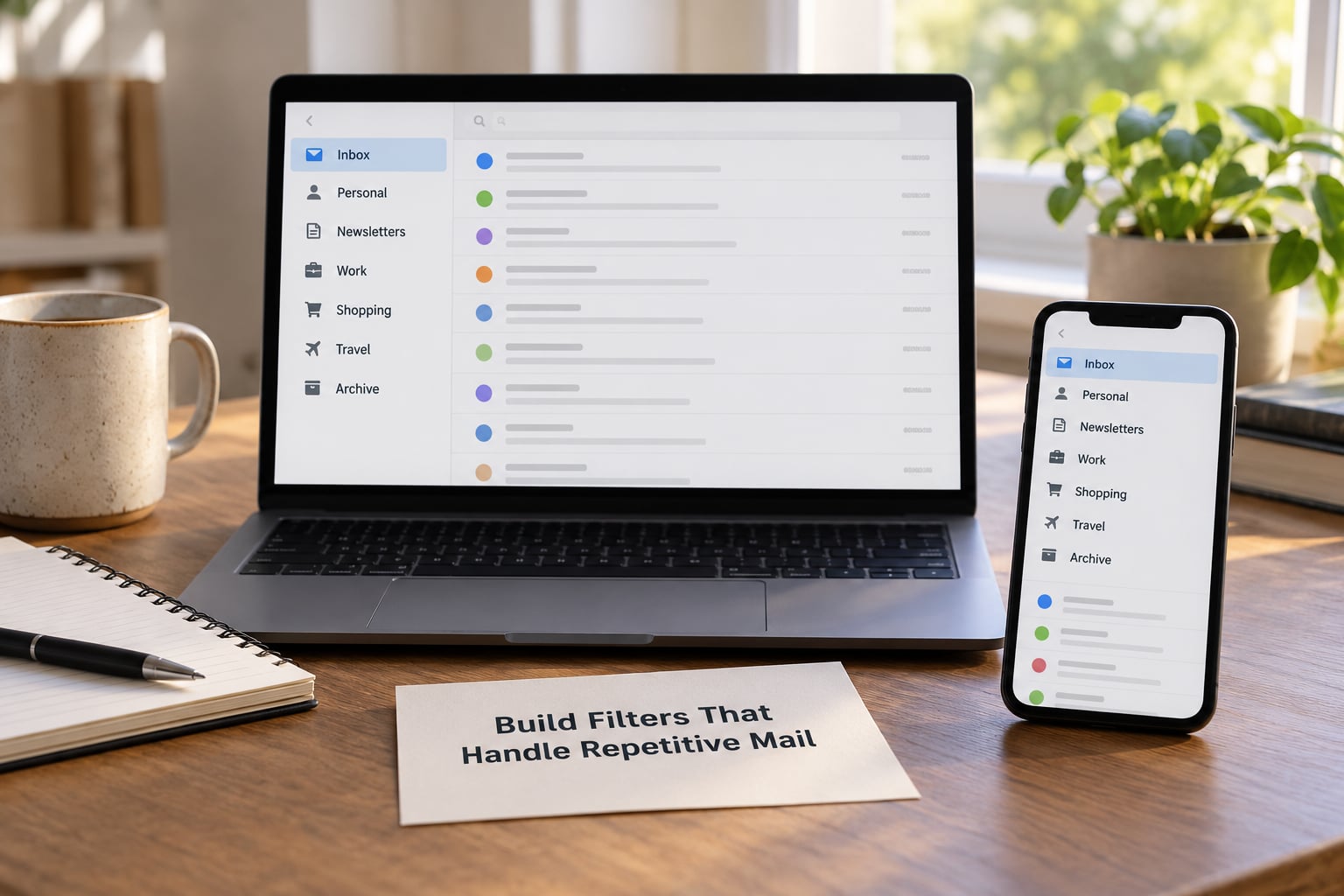
This is the step that makes the cleanup permanent. A filter or rule runs while you sleep.
In Gmail, open any message from a newsletter you want handled automatically, click the More button at the top of the message, choose Filter messages like these, then Create filter with this search. Give the filter a name, check Also apply filter to matching conversations so it also catches everything already in your mailbox, then pick Skip the Inbox and a label such as Newsletters. Save the filter. Repeating this for your ten noisiest senders takes about fifteen minutes.
For automatic deletion, the same dialog lets you choose Delete it instead of skipping the inbox. Use that for the sources you will never miss, and keep everything else on archive.
In Outlook, open Settings, then Rules and Alerts in classic Outlook, or Settings, then Rules in the new Outlook, then Add a new rule. Name it, choose a condition such as The sender address includes, enter the address, then set the action to Move to a folder or delete. Choose Run this rule on new messages and then On. In new Outlook the same rule editor lives at Settings, Rules, Add new rule.
Apple Mail rules work the same way. On Mac, open Mail then Preferences then Rules, click the plus button, add a condition, then an action such as Move to a folder or Mark as read. On iPhone and iPad, go to Settings, then Rules, tap the add button at the bottom, and pick a condition and an action.
Never apply an auto-delete rule to a whole domain like a company or school. One rule per sender address, and skip anyone whose mail you would miss if it vanished.
How to tell it worked: send yourself a test message from an address you have filtered, wait a minute, and confirm it landed in the right place without you touching anything.
5. Turn Messages Into Action or a Deadline
An inbox is a to-do list you never wrote. Anything sitting in it still has an action attached to it, and the message itself is not a good place to keep it.
Move real work out of email. If your system supports tasks or reminders — Microsoft To Do, Todoist, Things, or a plain paper list — capture the action there, then archive the message. Flag or star anything with a date attached, so a single search for flags returns your deadlines without reading everything.
Most clients can bring a message back on a schedule. Gmail has Snooze, which hides a message until you choose and returns it to the inbox. Outlook has a Schedule Send option and a reminder toggle on each message, and classic Outlook has a Schedule Items feature under the Message tab. Apple Mail has Remind Me in the message toolbar, and flagging a message with a date shows it in the Flagged smart mailbox.
Snooze is for genuine time-based work only. Anything you snooze without a date comes back tomorrow, which is a slower way to fail.
Once a month, clear old flags. A flag from three weeks ago is either done or abandoned, and both cases are a two-second fix.
How to tell it worked: your flagged list contains fewer than ten items and every one has a real date next to it.
6. Set Rules for New Messages
Cleaning the inbox once is half the job. Now stop the rebuild at the source.
Start with senders you never want to miss. Gmail has star-like priority contacts, and you can also create filters that never skip the inbox for specific addresses. Outlook has priority people or a Focused Inbox setting you can adjust, and safe senders. On Apple Mail, a rule with no skip action keeps those messages in the inbox no matter what else you automate.
For people you have decided to hear from less of, use mute rather than block where your client offers it. In Gmail, open the conversation, click More, and mute the thread. Blocking is for harassment and impersonation.
Report spam rather than deleting it. The report button tells the provider’s filters about the sender; a plain delete does not. If spam arrives addressed to a name you never gave, or mail from contacts arrives unexpectedly, change the account password and turn on two-factor authentication, since a compromised address gets you both spam and mail you cannot explain.
One honest limit: filters should organize mail, not hide people. Auto-archiving a message from your manager is the kind of convenience that turns into a missed deadline. Automate senders, never relationships.
How to tell it worked: a week passes and your inbox is still under the size where you dread opening it.
7. Run a Weekly Reset to Clean Up Your Email Inbox for Good
Two short passes a day beat one long Saturday. Fifteen minutes in the morning and fifteen in the evening is enough once the filters exist.
Morning pass: process new mail only. Reply, delegate, defer, or archive. Anything needing action under two minutes, do now. Anything else goes into To Do or gets a date.
Evening pass: empty Spam and Promotions, skim the Newsletters label for anything worth keeping, and check for messages you are waiting on so your Waiting list stays accurate.
Weekly, ten minutes: open the flags list, confirm upcoming deadlines, unsubscribe from anything new that slipped through, and glance at your rules to see if one is filing something you still read.
On your phone, the pass is shorter and it is about decisions, not processing. In the Gmail app, swipe right to archive, left to snooze, and tap the notification shade first so non-important senders do not interrupt you. On iPhone, pull down in the Mail app to reveal the message list, then open Flagged to handle the day’s deadlines. Both apps archive cleanly when you swipe, and both let you undo a swipe within seconds, so the risk of a mistake on mobile is lower than it feels.
Nobody has inbox zero every day. The goal is a system that catches you up in one sitting, not a permanent state of an empty inbox.
How to tell it worked: a new message arrives on Saturday and it sits in its label by Sunday morning without you touching anything.
Common Mistakes
Deleting everything unread. Unread is a flag, not a verdict. Search is:unread older_than:2y and archive rather than purge; anything you actually needed will surface in search.
Creating too many folders. Forty folders make search slower than the mess you replaced. Five labels and a good search habit beat a filing system you cannot remember.
Filtering people you know. A rule that archives every message from a colleague, a client, or family is how you miss the one that mattered. Automate senders and mailing lists; leave people alone.
Treating archive as delete. Archive is the tool most people never find, and it is the answer to is it worth deleting old emails. Yes for clutter that has zero future value, no for anything you might need to prove later.
Cleaning once and quitting. A purge without filters is a pause, not a fix. Set the rules first if you are short on time, even a single rule for your loudest sender.
Three habits keep the system alive: pick a fixed time, make it small, and never break the streak over a weekend. Fifteen minutes that always happens beats two hours that happen twice a year. And review your rules every few months, since filters built for last year’s subscriptions just add another layer to search through.
Frequently Asked Questions
How do I stop getting newsletters I do not read?
Gmail has a built-in solution: open Manage subscriptions in the left sidebar and you get every newsletter you receive, grouped by sender, with a one-click unsubscribe on each row. Outlook and Apple Mail have no equivalent list, so unsubscribe inside each email, then create a rule or filter for that sender that archives or deletes future mail. Bulk unsubscribe services exist, but each one you connect needs mailbox access, so weigh that trade-off before granting it.
Should I delete or archive old emails?
Archive anything you might want to look up later, such as order confirmations, itineraries, and old conversations. Archive removes the message from your inbox while keeping it fully searchable at no inbox cost. Delete only what has no future value: newsletters you will never reread, duplicate confirmations, and obvious junk. If you are unsure, archive, since archived mail costs you nothing until you empty it permanently.
How can I get rid of unread emails without missing something important?
Do not judge by unread status. Archive or delete in bulk by age and sender instead, starting with mail older than a year. Search is:unread older_than:2y in Gmail and Outlook, then archive the batch rather than purging it. The messages that genuinely matter will show up when you search for them, and archived mail remains searchable for as long as the account exists.
What is the best way to organize email folders and labels?
Keep it small: To Do, Waiting, Receipts, Newsletters, and Archive. Anything else you create will slowly be forgotten, which makes search slower than the mess it replaced. Give every message one home, skip nested folder structures, and let filters assign labels automatically. If a message does not fit any of the five, Archive is almost always the right answer.
How often should I clean up my email inbox?
Twice a day for about fifteen minutes each, plus ten minutes a week. The morning pass handles new mail and anything under two minutes of work. The evening pass empties spam and promotions and checks what you are waiting on. The weekly pass reviews flagged deadlines and your rules. Consistency matters far more than length, and a short routine you keep beats a long purge you avoid.
Start With a 15-Minute Inbox Reset
Do this now, not on a Saturday you keep postponing. Search is:starred and read it, so nothing irreplaceable is on the line. Then delete the obvious clutter and archive everything older than a year. Finish by creating one filter for your loudest sender and emptying the trash.
That is fifteen minutes and the inbox is usable again. The three rules that come next prevent the rebuild, and a fifteen-minute pass twice a day is what keeps it that way. A simple system you actually keep beats a clever one you abandon in a month.