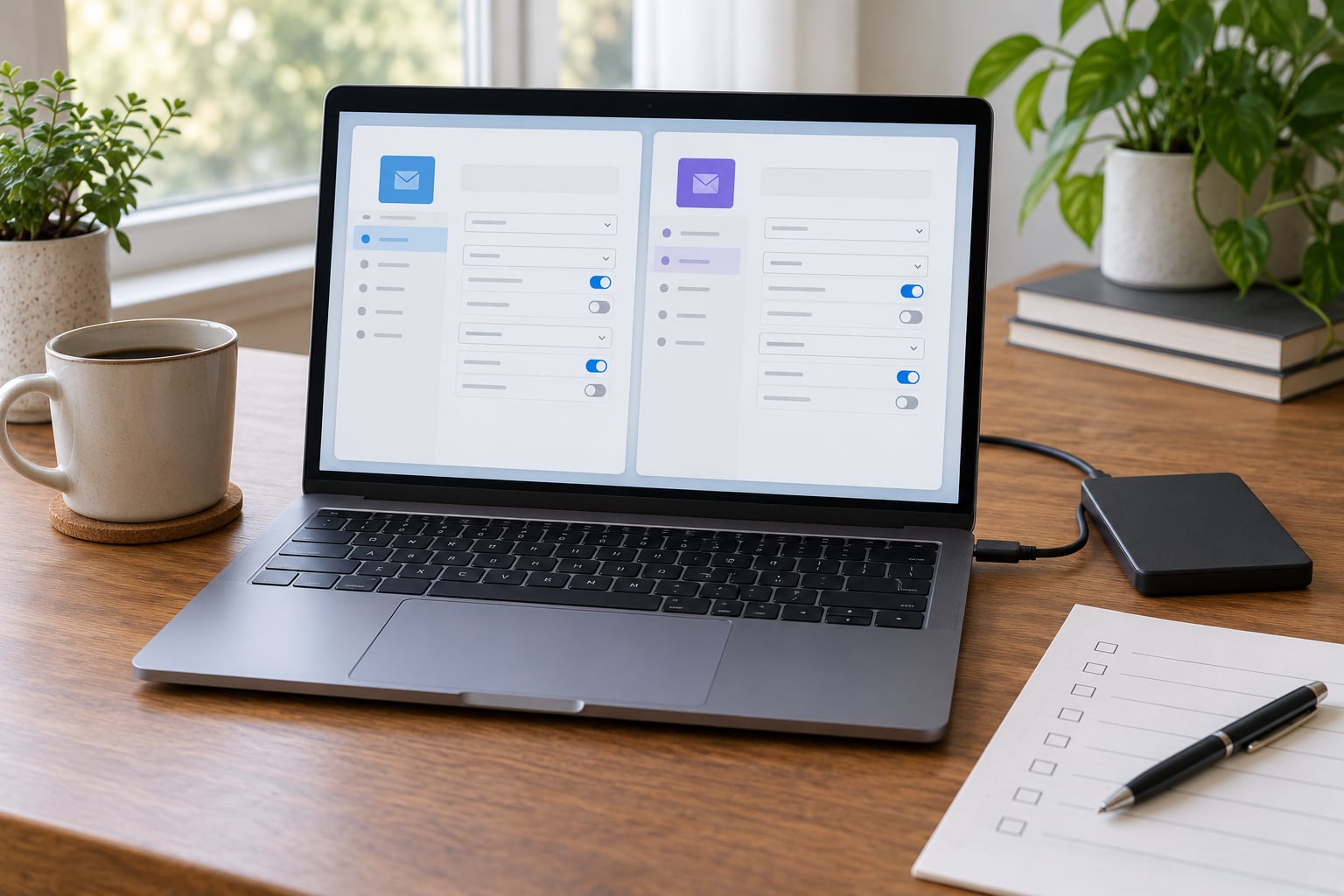
Migrating email to a new provider means copying your existing messages to a new mailbox, then pointing your mail routing at that new host. If you have a custom domain you do it by changing MX records; if you own a consumer address like Gmail or Outlook you leave the old address in place and forward or import from it. Most people can get through it in an afternoon, plus a day of watching DNS.
The rule that prevents nearly every disaster is simple: import first, verify receiving works second, change routing third. Do it in a different order and you spend a morning wondering whether the mail is lost or just slow.
Table of Contents
- 1What You Need
- 2Step-by-Step: How to Migrate Email to a New Provider
- 31. Audit and Back Up the Existing Mailbox
- 42. Prepare the Destination Account
- 53. Choose a Transfer Method
- 64. Run a Small Test Transfer
- 75. Transfer the Full Mailbox
- 86. Update DNS, Routing, and Signatures
- 97. Test the New Account and Cut Over
- 108. Retire the Old Account Safely
- 11Common Mistakes
- 12Frequently Asked Questions
- 13Can I migrate email without changing my email address?
- 14How long does it take to migrate a large mailbox?
- 15Should I use IMAP or my new provider’s transfer tool?
- 16Will migrating email preserve folders, attachments, and calendars?
- 17How do I keep receiving email while transferring it?
What You Need
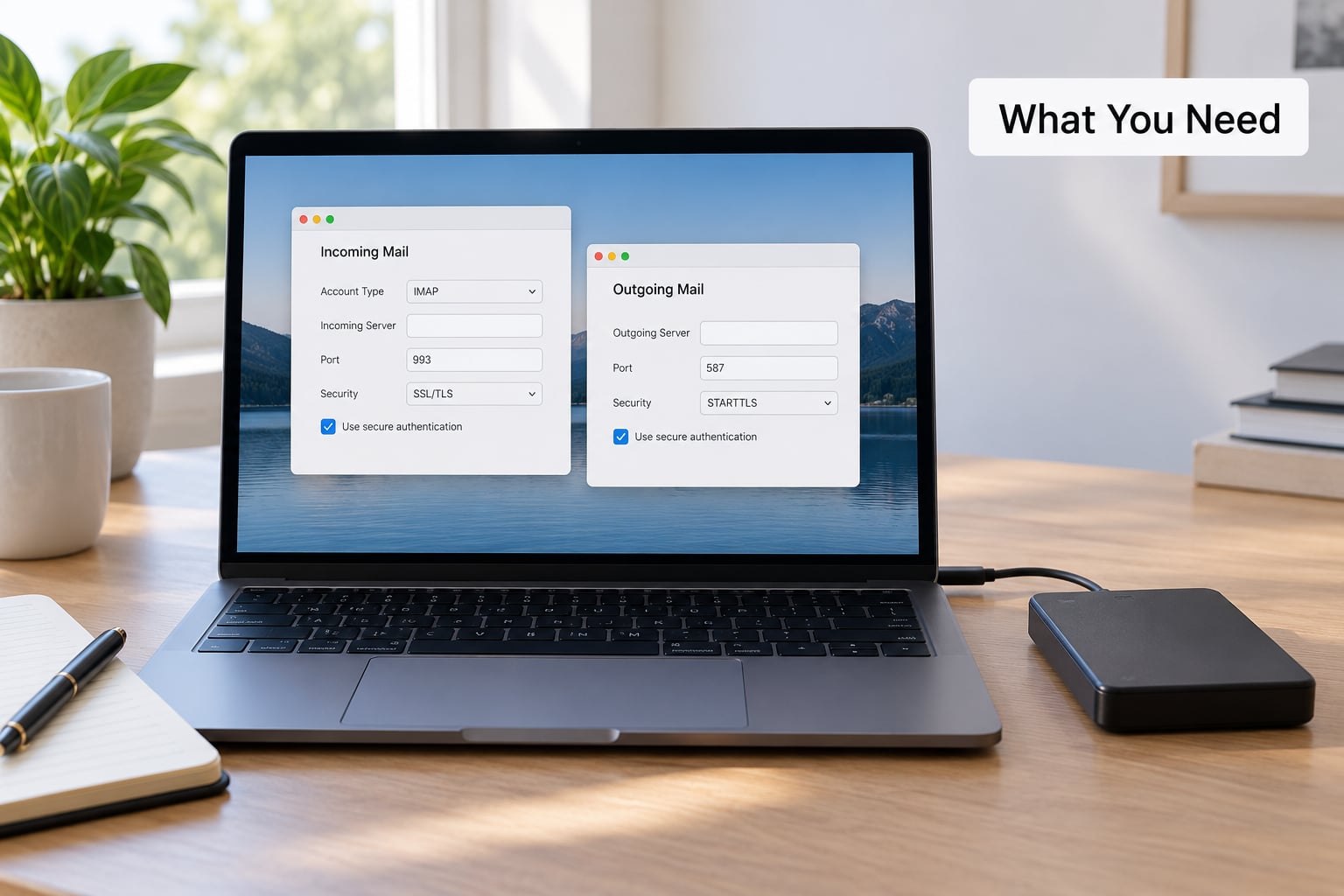
To migrate email to a new provider you need the old account credentials and the new account credentials, an authenticating device, and enough free storage on the new side to hold the whole archive plus whatever else lands there. App-specific passwords matter too, because most providers will refuse to hand you an IMAP login from your normal account password once two-factor authentication is on.
Gather these before you start:
- The email address you are moving, the password, and any app-specific password or OAuth access
- The new provider account, created and confirmed, with its incoming server hostname and port noted
- A laptop or desktop running the transfer tool, because phone apps cannot move a mailbox
- Your domain registrar login, if you own a custom domain, for the MX and DNS work
- A recovery email address that you actually control, for the new account
- Free space roughly equal to your current mailbox size, for the backup and the copy
- Optional third-party migration software, if the built-in utility will not handle your folder structure
One thing worth being clear about, because people conflate the two constantly: moving your mail and changing your account name are separate jobs. Migrating email to a new provider copies messages, folders and history. Whether your address itself survives depends entirely on who owns the domain name.
If the address ends in your own domain, the address stays identical no matter which host serves it. If it is a consumer address on a provider like Gmail, Outlook or Yahoo, that address belongs to the provider and cannot be transferred. You keep it, and you either forward from it or switch to an address at the new provider and tell people about the change.
Step-by-Step: How to Migrate Email to a New Provider
1. Audit and Back Up the Existing Mailbox
Count what you have before you touch anything. Log into the old webmail, note the number of folders including nested subfolders, the approximate number of messages, and the total size with attachments. Then list the things people usually forget: contacts, calendar events, server-side filters, forwarding rules, autoresponders, aliases and any delegated access a colleague or assistant holds.
Write it down. That inventory is the only way you will know later that something is missing, and you will not remember which filter did what six months from now.
Export a copy you can actually open without the provider’s help. On desktop Outlook for Windows, export the mailbox to a PST file. Thunderbird can save a local MBOX folder, and Gmail offers a Takeout export in MBOX format. For contacts and calendars, export vCard and ICS files. If your provider has already disabled IMAP and desktop access, webmail-only export to EML is often the only route you have, and it is slow but it works.
Try opening the backup file in a mail client before you trust it. An unreadable backup is not a backup, and finding that out on day two of the migration is a bad way to spend an afternoon.
Finally, note how you currently sign in. If you are using app-specific passwords, record which ones so you can revoke them later. If you are on POP3, stop and read the next section, because POP3 will make the transfer much harder.
2. Prepare the Destination Account
Create the mailbox at the new provider and check its storage limit against your estimated transfer size. Leave headroom, because the copy is not the only thing arriving once your clients start syncing again. Set the recovery address to something you control, and turn on two-factor authentication. Many providers require an app-specific password or OAuth consent afterwards, which is exactly what you will need in step 5.
Confirm the new address, or the domain plus the address you want, can be used to sign in without changing anything else. With a custom domain you may need to add the domain to the new account first, and that is usually a verification step involving a DNS record.
Server settings live in different places depending on the client:
- Outlook on Windows: File, Account Settings, Account Settings, then Server Settings under your account
- Outlook on Mac: Outlook, Preferences, Accounts, Server
- Apple Mail: Mail, Settings, Accounts, select the account, then Server, then Advanced
- Thunderbird: Account Settings, Server Settings, with Outgoing Server as a separate pane
- Webmail providers: usually an IMAP server on port 993 with SSL or TLS, and an SMTP server on port 587 with STARTTLS
The port numbers come from the provider, not from me, so read the settings page they give you rather than assuming. Some small hosts use unusual ports and non-standard hostnames.
3. Choose a Transfer Method
Three approaches cover almost every situation. The provider’s built-in migration utility is the least work when it exists and your folders are conventional. An independent desktop tool is more flexible with unusual folder structures and large archives. A plain IMAP copy or a two-way sync is the fallback when the old provider refuses to cooperate or you want to control exactly what moves and when.
| Method | Best for | Downtime | Skill level |
|---|---|---|---|
| Provider migration utility | Straightforward consumer moves, single mailbox | None, runs in background | Low |
| IMAPSync or similar tool | Large archives, custom folders, multiple mailboxes | None | Medium |
| Drag folders between two accounts in a client | Small mailboxes, one-off moves | None | Low |
| Webmail import button | Quick move with a few thousand messages | None | Low |
| EML export and re-import | Locked-out mailboxes with no IMAP access | None | High |
IMAPSync and similar open-source tools are free on the desktop and are the usual answer when someone asks for a free email migration tool. They copy between two accounts over the network, so mailbox size is your real time cost. One caution from people who run these migrations for a living: rehearse on two throwaway accounts first. Every admin I have read recommends doing exactly that before touching a live mailbox.
4. Run a Small Test Transfer
Move one folder first, not the whole mailbox. Take something representative, ideally a folder with nested subfolders and a few attachments, and let the tool do its thing.
Then open the copy and check the parts that quietly break. Message bodies render, line breaks and formatting survive, timestamps still show the original date rather than today, attachments open and are the right size, subfolders kept their nesting, sent items came across, spam and trash are either present or not present but not silently empty, and any labels or flags carried over.
Send a test message from the new account to an address outside both providers, and have someone reply to confirm inbound delivery. Send one the other way too, so you know both directions work before any routing changes.
If the tool offers a resync or re-run, use it rather than starting over. A second pass on the same folder should not duplicate anything, and if it does, the tool is misbehaving and you want to know that on a test folder instead of a full archive.
5. Transfer the Full Mailbox
Run the chosen tool with conservative settings: no aggressive deletion on the source, no date filtering unless you deliberately want a partial move, and a connection limit low enough that you do not trip rate limits. Then let it run.
Watch progress without interfering. Avoid sending important new mail and avoid deleting anything on the old account while the copy is running, because either can produce gaps or duplicates in the destination.
If the transfer stalls, check the oldest verification line in the tool’s log first. Expired passwords, changed server names and full source mailboxes are the usual culprits, and they show up as an authentication error rather than a silent hang. If the source mailbox is near its quota, deleting old mail there can unblock it, which is one more reason the backup from step 1 matters.
Plan on real time for real data. A mailbox measured in gigabytes with thousands of attachments takes considerably longer than the provider’s optimistic estimate suggests.
6. Update DNS, Routing, and Signatures
Reduce the TTL on your existing MX record to 300 seconds at least a day before cutover. Long TTLs, sometimes a day or more, are why migrations feel like they hang on the old server after you think the change has landed.
Then add the new domain through your registrar, and create the records the new provider gave you: an MX record pointing at their mail servers, an SPF record listing every service allowed to send as your domain, and DKIM records for signing. Providers supply the exact values, and copying them wrong is the most common cause of silent deliverability problems later.
Leave the old records in place until you are ready to switch. DNS only controls where new mail arrives, so nothing changes for senders until you remove or repoint the old MX entries.
Update the things that assume the old service exists: your From address and display name, any reply-to behaviour, your signature and contact details, your calendar and contact integration, and every third-party service that sends through your address, including a CRM, help desk, contact form, password manager or ecommerce platform. Bank alerts and login codes are the ones people notice immediately, because some of them ignore forwarding and deliver only to the old address.
7. Test the New Account and Cut Over
Send and receive test messages from outside both providers. Confirm SPF and DKIM actually pass rather than assuming they do, check where your outgoing mail lands in the recipient’s spam folder, and open an attachment and a large file from the new account.
Verify calendar and contact integration too, since these break more often than mail itself. Then update every device: desktop clients, phones, tablets, and any older hardware that sends mail, like printers and scanners with scan-to-folder addresses.
One warning worth repeating: a successful login proves your credentials work, not that your DNS cutover is correct. You can be perfectly authenticated and still be delivering to the old server. Check the headers on an incoming message to see which server actually accepted it.
8. Retire the Old Account Safely
Keep both accounts running through a defined testing period. For a custom domain, a couple of days is a reasonable floor, and longer if you have transactional senders. For a consumer address you keep, a much longer window makes sense, because you may not have noticed every service still using it.
At the end of that window, take a final archive, then revoke old app passwords and delete old forwarding rules and aliases so nothing keeps copying mail sideways. Downgrade rather than cancel if you want a cheap emergency fallback until you are certain.
To avoid accidental duplicate sending during the overlap, make sure only one account has an active autoresponder, and only one is listed as your send-as address in mail clients and websites. Two out-of-office replies or two confirmations for one signup is the classic overlap bug.
If you own the domain, you can add the old address as an alias or a catch-all on the new host so replies to the old name keep arriving. If you do not own the domain, the old address stays with its original provider permanently, and forwarding from it is your only bridge.
Common Mistakes
Mail still arriving at the old server after the switch. Almost always TTL or propagation. Check the live MX records with a public checker, and remember that recursive resolvers outside your own network may still hold the old value for hours. Waiting it out is the only real fix.
Duplicate messages everywhere. Usually two IMAP runs, or a client left syncing while the tool was also copying. Remove the duplicate account from the mail client first, then delete one copy of each duplicated message, otherwise they come straight back.
Missing folders or attachments. Some tools skip empty folders, custom labels or very large attachments. Run a second pass scoped to the folders that came up short, and check the source mailbox for a quota warning that truncated a folder.
SPF or DKIM failures. Two causes dominate. Either you forgot to include the new provider in the SPF record, or your DMARC policy is still set to reject and the alignment is wrong. Publish both records before cutover, not after.
Desktop client authentication errors that look like wrong settings. Refresh the account with the app-specific password rather than editing hostnames. If the new provider blocks standard IMAP for encrypted accounts, the error is about the architecture, not your password, and the provider’s own bridge tool is the way around it.
Forgotten aliases and forwarding rules. Grep your old account settings before closing it and reproduce every rule you still need. Anything you miss will surface as a report from someone who expected a reply.
Transfer timeouts. Slow links, an unstable VPN, or a source account being throttled. Run the tool from a wired connection, one mailbox at a time, and resume rather than restart.
Deleting the old account too early. This is the one that is hard to undo. Keep it until you have searched sent mail for old conversations, confirmed your clients all point at the new host, and checked that nothing bounces.
The locked-out case. If the old provider has already disabled IMAP and desktop access, export from webmail to EML, and take contacts and calendars as vCard and ICS. Bulk-import the EML files into the new account. It is tedious rather than impossible.
A couple of security habits cover most of the rest: revoke every app-specific password you created once the new clients are working, and never type your credentials into a migration site you found through an ad. Legitimate tools run locally or through the provider’s own OAuth consent screen.
Frequently Asked Questions
Can I migrate email without changing my email address?
Yes, if you own the domain in the address. Point your domain’s MX records at the new provider and the same address keeps working for everyone who emails you. If your address ends in a consumer domain such as Gmail, Outlook or Yahoo, that address belongs to the provider and cannot move. You keep it there and either forward from it or begin using a new address at your chosen provider.
How long does it take to migrate a large mailbox?
Plan on hours rather than minutes once you pass roughly 10 GB, and treat provider estimates as optimistic. The deciding factor is attachment volume, since a mailbox full of photos and videos transfers far slower than one full of text. A small mailbox can finish in minutes, while multi-gigabyte archives often run for several hours over a normal home connection. Delete nothing at the source until the backup from step 1 is verified.
Should I use IMAP or my new provider’s transfer tool?
Use the provider’s built-in tool when it exists and your folder structure is ordinary, because it asks for the least configuration. Use an IMAP-based tool such as IMAPSync when folders are unusual, when you are moving several mailboxes, or when the old provider blocks direct migration. Whichever you pick, run one folder as a test first and confirm bodies, dates and attachments survive before starting the full mailbox.
Will migrating email preserve folders, attachments, and calendars?
Messages, attachments and the folder tree normally survive an IMAP copy, including timestamps, so old mail keeps its real dates. Filters, forwarding rules, aliases, signatures and read or unread state are the things most likely to be lost, because they live in settings rather than in the messages themselves. Contacts and calendars move only if you export them separately as vCard and ICS and import them at the new provider.
How do I keep receiving email while transferring it?
Keep the old account active and untouched while the copy runs. Nothing about an IMAP transfer interrupts delivery, because mail still flows to whichever servers your MX records point at, and you change those only after the import is verified. For a custom domain, import first, confirm receiving works, then switch the MX records and lower the TTL a day ahead so propagation is quick.
If you take one thing from this, back up the mailbox before anything else and run a single test folder through your chosen tool before the full run. Everything after that is verification, and verification is what keeps a migration from becoming an outage.