A digital legacy plan is a written record of your online accounts, the tools or credentials needed to reach them, who should manage each one, and what should happen to them after you die or can no longer manage them yourself. Setting one up takes about an hour: inventory your accounts, move credentials into a password manager, turn on each platform’s own legacy feature, name a trusted person, and reference the plan in your will.
This is not only about dying. Most digital estate planning disasters happen after a stroke, a diagnosis, or a long hospital stay, when the person is alive and locked out of everything that used to run their life.
Most people learn this the hard way. On Reddit, one user described spending years trying to become legacy contact for a mother who had already died, with no way in. That is the default outcome if you skip this, so it’s worth an afternoon now.
Table of Contents
- 1What You Need
- 2Step-by-Step: Set Up a Digital Legacy Plan for Your Accounts
- 3Step 1: Decide What You Want to Preserve
- 4Step 2: Choose a Trusted Contact
- 5Step 3: Create a Master Account Inventory
- 6Step 4: Store Passwords and Recovery Codes Securely
- 7Step 5: Configure Trusted Access to Important Services
- 8Step 6: Preserve Photos, Files, and Personal Memories
- 9Step 7: Handle Financial and Subscription Accounts
- 10Step 8: Test the Plan Without Exposing Passwords
- 11Step 9: Review and Update the Plan
- 12Common Mistakes
- 13Frequently Asked Questions
- 14Should I give my family my password manager master password?
- 15Do I need a lawyer for a digital legacy plan?
- 16What can a legacy contact actually see on Facebook?
- 17Can my family access my email after I die?
- 18What happens if my trusted contact is unavailable when I need one?
- 19Is a paper copy of my digital legacy plan necessary?
- 20Start With Your Most Important Account
What You Need
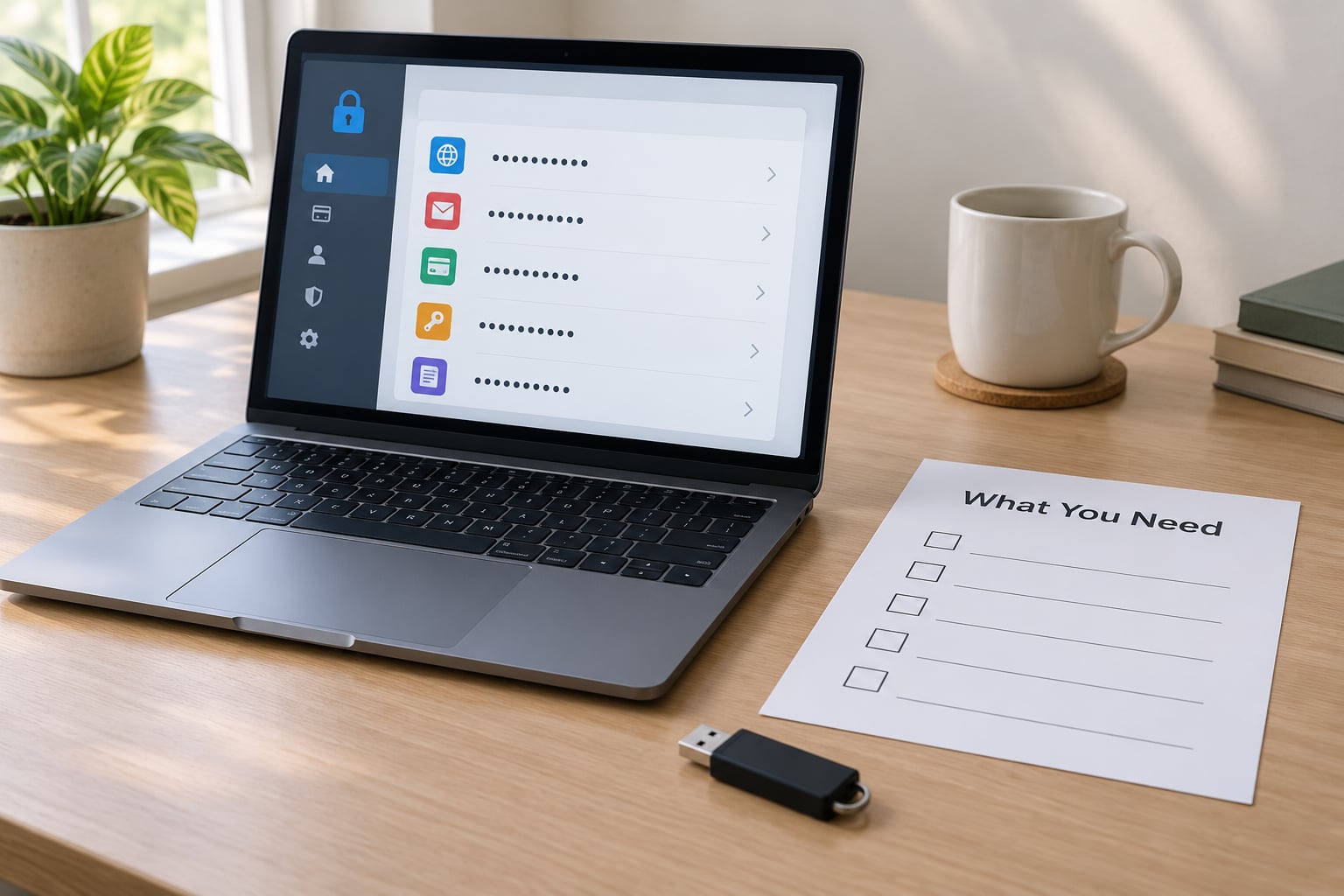
Gather five things before you change a single setting. Without them you’ll end up halfway through and stuck.
- A trusted contact. One person, or a small group, who is organised enough to follow instructions and honest enough not to go through everything. Some people name a spouse as primary and a sibling as backup.
- A current account inventory. Even a rough list of every email, bank, photo service, and subscription you can remember.
- A reputable password manager. A vault that stores logins and recovery codes in one encrypted place.
- Backups of irreplaceable files. Photos of people, scanned documents, home videos, and anything with no physical copy.
- A place to keep the finished plan. A paper copy in a fireproof safe, a sealed envelope with your attorney, or an encrypted file with a printed recovery copy somewhere else.
Write down the decisions before you start: who gets access, what stays private, and what you want deleted. People who skip that part end up sharing far more than they intended.
Step-by-Step: Set Up a Digital Legacy Plan for Your Accounts
Step 1: Decide What You Want to Preserve
Sort your accounts into two buckets before you worry about access mechanics. The first bucket is essential: primary email, cloud photos, documents, banking, anything tied to your identity or your livelihood. The second is everything optional: streaming profiles, forums, old game accounts, a domain you parked years ago.
Then decide what stays off the list. Medical portals, dating profiles, and work accounts with an employer’s ownership attached usually do not belong in a family handover. Deciding now avoids renegotiating with a grieving person later.
Step 2: Choose a Trusted Contact
Pick someone with judgment and follow-through, not just someone you love. The person may need to request access from a hospital, argue with a bank’s identity team, and keep a secret you wanted kept.
Name a backup. People move, marriages end, and the friend you chose at 30 may not be the right person at 70. Most platforms allow more than one contact for this reason.
Write down what each person is authorised to do: view photos but not medical records, access email but not delete the account, manage subscriptions but not financial accounts. Ambiguity creates conflict later.
Step 3: Create a Master Account Inventory
Build a single spreadsheet with one row per account. Keep it simple: service name, username or email on file, recovery method, who inherits it, and what happens to it. A spreadsheet you will actually update beats a beautiful document you abandon in March.
Search your email for “welcome”, “verify”, “your account”, “receipt” and “password reset” to surface accounts you have forgotten. Check your phone’s saved logins, your browser’s stored passwords, and old devices in a drawer. People routinely find a decade-old account that still bills them.
Step 4: Store Passwords and Recovery Codes Securely
Put every credential and every two-factor recovery code into your password manager. Never write passwords into a will or a document that will be filed with a court, because wills commonly become public record after probate.
Use the emergency access feature rather than handing over your master password. In 1Password and Bitwarden this works the same general way: you name an emergency contact, they request access, and after a waiting period you lose access unless you extend it. The waiting period is the point, because it prevents a stranger from grabbing the vault the day after you set it up. KeePass, being an offline file, has no such feature, so plan a sealed copy and a stated handover process instead.
For your main Apple ID and Google account, confirm that the recovery phone number and recovery email are current. A plan that depends on a phone number belonging to someone else is not a plan.
Step 5: Configure Trusted Access to Important Services
Each big platform ships its own mechanism. Paths shift with app versions, so check the official help page if a menu differs from what you see.
Google Inactive Account Manager. On the web, go to myaccount.google.com, open the Data & privacy tab, then Settings, then Inactive Account Manager. On Android or iOS, open the Google app, tap your profile picture, then Google Account, then Personal info, then Inactive Account Manager. Choose Add, then Add a trusted person. You set a timeout between 3 and 18 months and choose which data to share: Gmail, Google Drive, Google Photos, or your YouTube activity. If you share nothing, Google simply deletes the account after the timeout.
Apple Legacy Contact. On iPhone, go to Settings, then your name at the top, then Sign-In & Security, then Legacy Contact under Personal Information. On macOS, use System Settings, your Apple Account, then Sign-In & Security. You choose between granting access immediately after Apple receives a death certificate and sharing only iCloud data, photos, and contacts in a limited way. Apple generates an access key; you give that key to your contact, and they need a death certificate plus the key to proceed.
Facebook Legacy Contact. In the Facebook app, go to Menu, then Settings & privacy, then Settings, then Account Centre or Accounts Centre, then Personal details, then Legacy contact. You must be 19 or older to add one. After Facebook confirms a death, the legacy contact has roughly a three-month window to accept before the account is permanently deleted.
Microsoft account. Microsoft does not offer a self-service legacy contact. The route runs through Microsoft’s process for closing a deceased or incapacitated person’s account, which requires documentation.
Samsung accounts have no equivalent tool. Neither does LinkedIn, which handles account closure after death through its own verification process.
One warning that surprises people: platforms set their own rules, and those rules can override what your will says. A dead man’s switch that deletes your email after inactivity may destroy records your family is legally entitled to. Decide which you want to win, and keep the record of your choice with your plan.
Step 6: Preserve Photos, Files, and Personal Memories
Account access is not the same as file preservation. If someone gets into your Google Photos but you never shared it, they see an empty library. Decide per library who is responsible for it: you share the iCloud Photos or Google Photos album with that person specifically, or you export the library to an encrypted external drive and hand it over physically.
Keep originals outside the single account. One drive, one cloud account, one phone is one failed password away from losing everything. Two copies, in two different places, is the standard and takes an evening.
Mark clearly whether a library should be inherited, copied, or deleted. Some photos belong to other people in them, and their wishes matter.
Step 7: Handle Financial and Subscription Accounts
Bank, brokerage, and card accounts rarely use platform legacy features. They run on beneficiary designations, payable-on-death and transfer-on-death registrations, and joint ownership. Ask each institution directly what registration it supports and put the answer in the spreadsheet.
Institutions will want their own documents. A death certificate, or letters of administration if you are handling a probate estate, is usually the starting point, and some ask for the specific account number first. Rules vary by institution and by state, so ask rather than assume.
Subscriptions are the small money leak that annoys survivors most. List every recurring charge, note which ones carry family plans or shared logins, and decide which someone should cancel versus keep paying for. Do not cancel them yourself before you are certain nobody else needs access.
If you hold cryptocurrency, note the wallet type, whether keys exist in a password manager, and who holds the recovery phrase. Private keys are not recoverable through any platform feature, and hardware wallets with no written seed information are effectively gone.
Step 8: Test the Plan Without Exposing Passwords
Testing means verifying the plan works, not handing your accounts to someone to poke around. Sit down with your trusted contact and walk through the spreadsheet together. Can they find the sealed envelope? Do they know which institutions to call first?
Confirm each backup by opening a random file from it. Backups you have never restored are a hope, not a plan.
Check that each platform actually shows the contact you named. Screenshots of the confirmation page, stored with the plan, save an argument later. Never send credentials through ordinary email or chat, and never change account ownership as a test, because ownership changes can trigger tax, billing, and identity-verification consequences you do not want.
Step 9: Review and Update the Plan
Put a recurring reminder in your calendar for the same month each year. A short yearly checklist: new accounts opened in the last 12 months, credentials changed, new devices with authenticator apps, trusted contacts who moved or died, and any platform that changed its policy.
Re-run the inventory after big life events, a new job, a move, or a business change. Domains, page admin rights, and small business accounts expire quietly and are easy to forget.
Common Mistakes
Sharing one master password. It is the most common shortcut and the worst one. Use emergency access features and per-account delegation instead, so you keep control and leave an audit trail.
Keeping the whole plan inside one email account. If the email is locked or deleted, the instructions vanish with it. Store a printed copy outside your digital estate.
Assuming every service supports legacy access. Samsung, LinkedIn, and many banks have no self-service tool. Those accounts need the paper-and-notarised route, which is slower, so start those first.
Skipping backups because the cloud is the backup. A cloud account is one login away from nothing. Keep a second copy somewhere with no dependency on your accounts.
Never testing recovery. Untested recovery details are wrong about half the time, and an old recovery phone number is the classic failure.
Confusing digital access with legal authority. Giving someone a password does not make them your executor, and it does not override a will. Authority comes from the legal documents; platform tools handle what the law cannot reach.
Two privacy habits go a long way. Share the minimum scope each platform allows rather than everything, because a legacy contact who can see Drive can see a lot more than photos. And re-check those scopes annually, since platforms have widened what a legacy contact can view over time.
Frequently Asked Questions
Should I give my family my password manager master password?
No. Use the emergency access feature in 1Password or Bitwarden instead. You name a contact, they request access, and a waiting period passes before they can read the vault. That delay exists so nobody can take over your accounts right after you set it up. Offline vaults like KeePass have no equivalent, so agree a handover process in writing and keep a sealed copy.
Do I need a lawyer for a digital legacy plan?
Not for the technical setup. You can configure platform legacy features and build an inventory on your own, and it costs nothing. You do want an estate planning attorney for the legal side: naming a digital executor in a will, handling RUFADAA issues, and deciding how conflicts between platform deletion rules and your documents get resolved. A short consultation covers the overlap.
What can a legacy contact actually see on Facebook?
A Facebook legacy contact can choose to memorialize the account, post a final message, update the profile picture, and manage friend requests, depending on the account’s settings. They cannot read the person’s private messages or password. You must be 19 or older to add one, and after Facebook confirms a death the contact has roughly three months to act before the account is permanently deleted.
Can my family access my email after I die?
Only if you set it up in advance. Without a plan, email providers generally freeze an account and release nothing to relatives, regardless of a will. Google’s Inactive Account Manager handles this: name a trusted person, pick a timeout between 3 and 18 months, choose which data to share, and add a recovery email that stays under your control. If you share no data, the account is deleted after the timeout instead.
What happens if my trusted contact is unavailable when I need one?
Nothing triggers, and that is the risk. Most services then fall back to their own timelines, which usually means deleting the account after a set period or holding it frozen pending legal documentation. Name a second contact for every major platform, and tell that person they are a backup. Verify annually that both names still show in each account’s settings.
Is a paper copy of my digital legacy plan necessary?
Yes, keep one. Encrypted digital copies can fail through a locked vault, a forgotten password, or an account you cannot reach. A printed summary with account names, institution contact numbers, and where the sealed passwords live belongs in a fireproof safe or with your attorney. Do not print passwords themselves unless you accept that risk deliberately.
Start With Your Most Important Account
Do one thing this week. Open your primary email account, find the legacy or inactive-account setting, and add a trusted contact with the data sharing you actually want. Google calls it Inactive Account Manager, Apple calls it Legacy Contact, and both take about five minutes.
Then move your passwords and recovery codes into a password manager and turn on emergency access. After that, build the account spreadsheet and store a printed copy somewhere real.
Put the yearly review in your calendar now, while you are thinking about it. In 2026, most digital estate planning still does not exist, and an afternoon of setup is what stands between your family and a locked vault.