Deleted files are usually still on the drive until new data overwrites them, so recovering one on Windows is often a five-minute job. Start with the Recycle Bin, then work through File History, OneDrive version history, Previous Versions, and Microsoft’s free Windows File Recovery tool in that order. The single most important thing you can do first is stop using the drive.
This guide covers Windows 10 and Windows 11, and it works the same whether you pressed Delete, used Shift+Delete, emptied the bin, or lost files to an update or antivirus quarantine. Every method below is built into Windows or free to download from Microsoft.
Here is the short version, fastest first:
- Open the Recycle Bin and use Restore.
- Try Ctrl+Z in the app where you deleted the file.
- Check OneDrive, SharePoint, or Dropbox recycle bins and version history.
- Restore an older copy with File History.
- Look for Previous Versions on the original folder.
- Run Windows File Recovery (winfr) from the command line.
- Only then consider third-party recovery software.
Table of Contents
- 1What You Need
- 2Step-by-Step: How to Recover a Deleted File on Windows
- 3Check the Recycle Bin first
- 4How to Recover a Deleted File on Windows When the Recycle Bin Is Empty
- 5Check OneDrive, SharePoint, or other cloud history
- 6Look for Previous Versions on the original folder
- 7Use Windows File Recovery for a recently deleted file
- 8Stop writing to the affected drive
- 9The mistakes that ruin recovery chances
- 10Common Mistakes
- 11Frequently Asked Questions
- 12Can I recover a file after permanently deleting it from the Recycle Bin?
- 13Is it possible to recover a deleted file from an SSD?
- 14How can I recover a file deleted from a phone connected to Windows?
- 15Can I restore a Windows file created on a Mac with Windows File Recovery?
- 16Will antivirus software recover files that were deleted?
- 17Conclusion
What You Need
Before you touch any menu, gather five things. First, the affected device: the PC, laptop, or external drive the file lived on. If you no longer have it, everything below is irrelevant.
Second, the original location. Windows keeps a per-drive index of deleted items, so knowing whether the file sat in Documents, a project folder, or an SD card tells you which drive to check. A rough file type helps more than you would think — knowing it was a 4 GB video narrows the search dramatically.
Third, permissions. Your own Documents folder needs nothing. Anything under C:Windows, System32, or Program Files needs an elevated prompt, and a work or school PC may block recovery entirely if you are not an administrator.
Fourth, somewhere else to put the recovered data. A USB stick or a second drive with free space. Restoring a file onto the same drive it was deleted from can overwrite the very blocks you are trying to rescue, which quietly ends the recovery.
Fifth, patience for a thirty-second honesty check. Every deleted file is not recoverable. If the data was overwritten, if a drive is physically failing, or if ransomware encrypted it without giving you a key, no tool gets it back. Knowing when to stop saves a lot of money and stress.
Step-by-Step: How to Recover a Deleted File on Windows
Check the Recycle Bin first
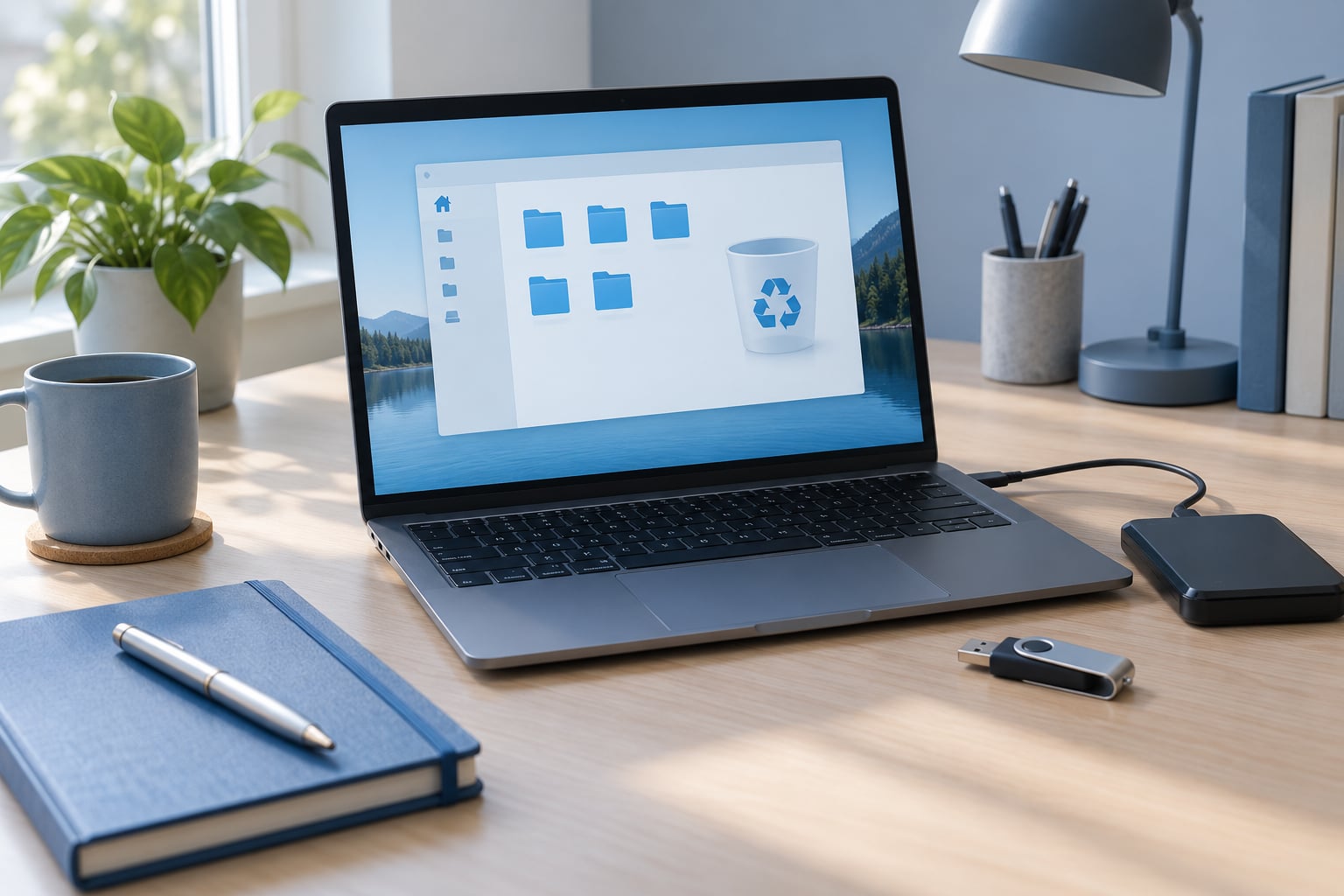
Open the Recycle Bin and look for your file. In Windows 11, click the Start button, type Recycle Bin, and press Enter. In Windows 10, click Start, expand All apps, and choose Recycle Bin. The quickest keyboard route in both is Win + R, then type shell:RecycleBinFolder and press Enter.
Sort by Date deleted so the newest items sit on top. Right-click the file, choose Restore, and Windows puts it back exactly where it came from. You will see a confirmation flash, and the file reappears in its original folder with its original name.
If nothing is there, that tells you something useful. Files deleted with Shift+Delete skip the bin entirely. So do files deleted from USB sticks, SD cards, and many network shares, because those devices often have no bin at all. Files larger than the bin’s configured size limit get deleted permanently too, and the default limit is small enough that a big video can trip it.
There is also a per-drive behaviour to know: the bin belongs to the drive, not the account. If you deleted something from drive D and then look in the bin, you are looking at the C drive’s bin. Click the drive letter in the bin’s address bar to switch.
How to Recover a Deleted File on Windows When the Recycle Bin Is Empty
Before touching recovery software, use Ctrl+Z in the program that deleted the file. Open the folder you deleted from, click the address bar, and press Ctrl+Z. If you deleted the file from File Explorer, Word, Excel, or Photos moments ago, this puts it straight back.
Ctrl+Z has real limits. It works on the last action in the current app session, it does not survive closing the app, and it will not help if the app was closed automatically by a Windows update. It also cannot reach the Recycle Bin: once a file is in the bin, the Undo button in your app has nothing left to undo.
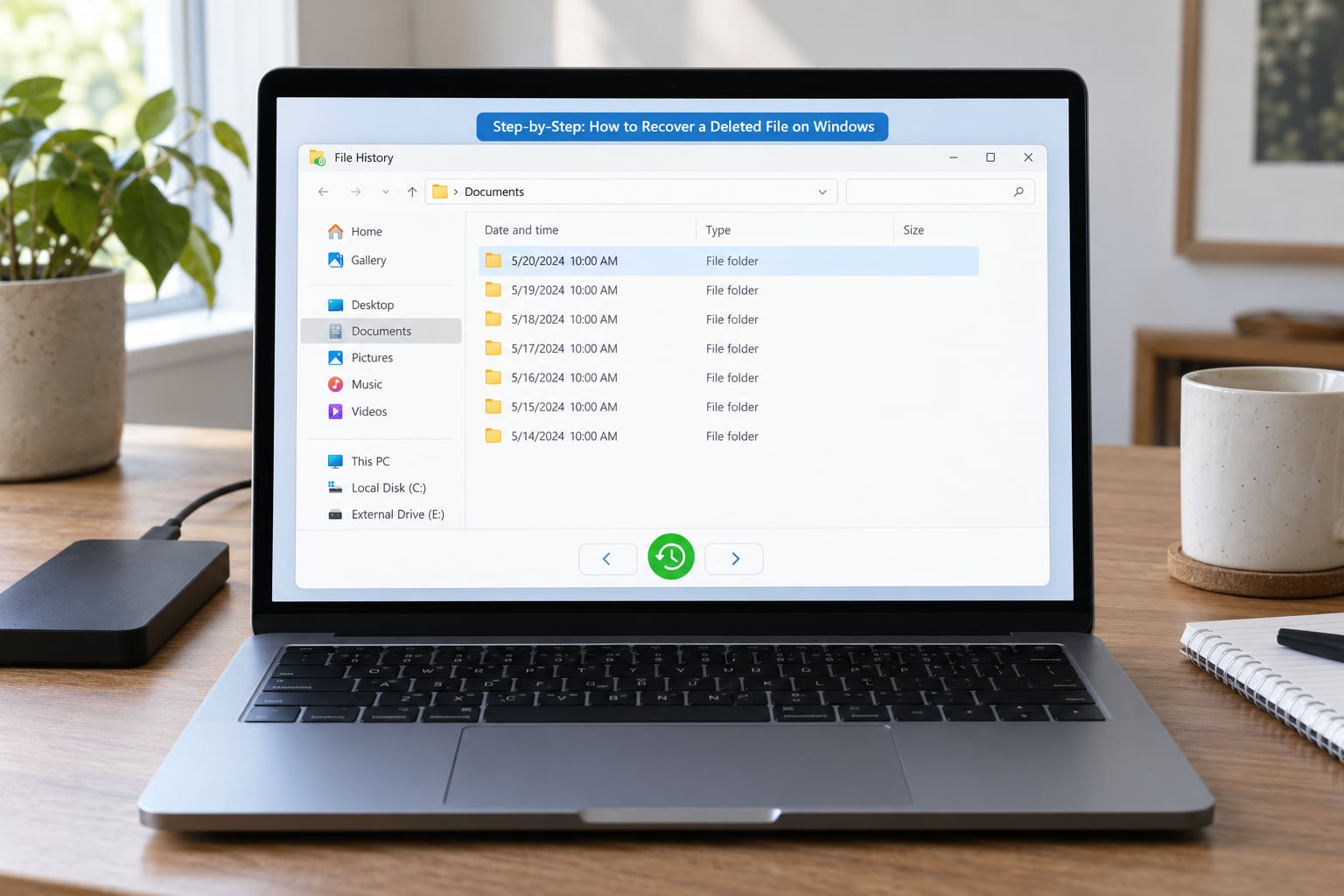
If Ctrl+Z does nothing, the next real option is File History. Plug in the drive File History backs up to — usually an external disk — and open the Control Panel. Search for File History, choose Restore personal files, and browse by date. You will see the folder exactly as it looked when the backup ran, including the deleted file.
Open the dated version and copy the file you need to your desktop or a USB stick. Do not restore the whole folder over your current one. Restoring the lot overwrites everything you have done since that backup date, and people lose weeks of work that way.
On Windows 11 you can also reach File History through Settings, at System > Storage > Advanced storage settings > Backup. On Windows 10 it lives in the Control Panel under Backup and Restore (Windows 7) > Back up files. That older-looking control panel is not a mistake — it is the same engine, and it is the fastest way to browse a system image backup too.
Check OneDrive, SharePoint, or other cloud history
If the file lived in a synced folder, it is probably still on the server even if it is gone from your PC. Go to onedrive.live.com, sign in with the Microsoft account that syncs the folder, and look in the left sidebar under Recycle bin. Personal OneDrive keeps deleted items for 30 days by default, longer on some plans.
Right-click a file in the recycle bin to restore it, or open it and pick a version from Version history if the current copy is damaged rather than missing. Restoring from the cloud bin replaces the local copy too, so check the current file first if you have edited it since.
For work or school accounts, the answer lives in SharePoint rather than OneDrive. Go to the Microsoft 365 admin center or your tenant’s SharePoint site, open the library, select the item, and choose Version history from the item menu. Every saved version is listed with its author and timestamp, and you can download an earlier one without disturbing the current file.
Dropbox, Google Drive, and Box all keep their own trash with their own retention windows, usually 30 days and sometimes longer. The same rule applies: check the trash before assuming the file is gone.
Look for Previous Versions on the original folder
Windows keeps periodic snapshots called shadow copies, and any folder that was included can show dated versions. It is the fastest route when a file was overwritten or damaged rather than deleted, and it can bring back an entire folder as it stood last week.
Open the folder that used to hold the file. Right-click it, choose Properties, and on Windows 10 click the Previous Versions tab. On Windows 11, that tab is hidden behind Show more options at the top of the Properties dialog.
Pick a dated version from the list and choose Open to look inside it, or Restore to copy the version into a new folder named something like MyFolder – Restored. The Restore option is the safer one because it does not overwrite what you have now.
One caveat worth knowing: Previous Versions depends on System Protection being switched on, and the tab is often empty on Windows Home. On Pro, Enterprise, and Education editions it works if System Protection is enabled for the drive. If the tab is blank or greyed out, System Protection is off for that volume and there are no shadow copies to browse.
Use Windows File Recovery for a recently deleted file
Windows File Recovery is Microsoft’s own command-line tool, available from the Microsoft Store and free. It exists for one situation: a file was permanently deleted, nothing is in the bin, no backup covers it, and you are acting early.
Install it from the Microsoft Store by searching for Windows File Recovery, then open Terminal or Command Prompt as administrator. The syntax is winfr source-drive: destination-drive: [/mode] [/switches]. The first drive is where the file was deleted from. The second is where the recovered copy will be written.
The two drives must be different. A USB stick or external drive is the usual destination. Recovering to the same drive you deleted from can overwrite the data before the tool finds it.
A worked example for a file deleted from your C drive, restoring to a USB stick shown as E:
winfr C: E: /regular /n UsersYourNameDocuments
Press Enter and wait. The regular mode is faster and suits NTFS drives where the file was deleted recently. Use /extensive for a bigger, slower search of every file type, or /deep for a thorough scan of a heavily fragmented drive.
One warning about the tool itself: it scans and repairs at the same time, and running it on a failing drive can make a bad situation worse. If the drive clicks, stutters, or drops off the system entirely, skip software and get a professional image made first.
Stop writing to the affected drive
Deleted data lives in the gap between what is stored and what is listed. Every new file, every update, every browser cache write fills some of that gap. On an old spinning hard drive you might have weeks; on an SSD with TRIM enabled, the drive is told to clear those blocks itself, sometimes within minutes.
So the moment you realise a file is missing, close apps and stop using that drive. If it is an external disk or SD card, unplug it. If it is the system drive and you need to keep working, at least stop downloading, installing, and syncing large files to it.
On a phone connected over USB, the answer is different: the phone’s own storage controller handles the flash, and MTP mode exposes files one at a time. Pulling photos off a phone that was recently wiped usually means the phone’s own backup or cloud library, not desktop scanning.
Once a recovered file opens and shows the right contents, copy it somewhere else immediately, then verify the whole folder before formatting anything. A file that opens without an error is a good sign, not proof — open a second and third file from the same batch.
Time to call a professional: the drive makes clicking or grinding noises, Windows shows a corrupt file system and offers to format it, the volume disappeared from Disk Management, or you have no backup of a large amount of irreplaceable work. Data recovery services charge real money and cannot fix physical failure, but they can read media that a DIY approach will only finish off.
The mistakes that ruin recovery chances
Running a dozen recovery tools in a row. Each scan reads and writes to the disk, and the one that finally would have found your file may be preceded by eleven that overwrote it.
Restoring a backup over your only copy. File History’s restore can replace a folder wholesale. Always browse, copy out the single file you need, and keep what you already have.
Installing recovery software on the drive holding the lost data. The installation itself writes thousands of files. Install it on a different drive and let it scan the original as a source.
Running chkdsk with the /r switch on a drive holding recoverable files. chkdsk repairs the file system by reallocating clusters, which is exactly where unsorted deleted data was sitting. A plain chkdsk without /r is safer, and a full disk scan is not a recovery tool in the first place.
Trusting “98 percent recovery rate” claims. Recovery software advertises what it can do, not what your situation allows. Any program promising a fixed success percentage is telling you something about its marketing, not your drive.
Running winfr with the source and destination on the same drive. The tool refuses this for a reason. Pick a separate drive or USB stick.
Common Mistakes
You pressed Delete and the Recycle Bin is empty. Confirm you were on the right drive, then check whether Shift+Delete was used or the file exceeded the bin’s size limit. If neither applies, move to File History and the cloud bins.
You need a file larger than 4 GB. exFAT and FAT32 both fail at that size by design, so the file could never have existed on them. On NTFS, skip the bin and go straight to backup versions or Windows File Recovery.
The file lived on a network drive or a server share. Your Windows bin is not involved. Ask whoever administers the share to check the server’s own recycle bin or the previous version list, which often keeps items for 90 days or more.
The volume is BitLocker-protected. You need the recovery key or your Microsoft account to unlock it after reinstallation. Without the key the data is still there but mathematically unreadable, so recover the key first, then attempt any restore.
Windows Defender removed a file. Open Windows Security, go to Virus and threat protection, and choose Protection history. Quarantined items can be restored from there directly, which is the actual answer to a surprising number of “someone deleted my files” reports.
Files vanished after a big Windows update. Profiles and application folders sometimes move. Look under C:Users for an older profile folder with your files still in it, and check the update’s rollback in Settings, since undoing the update often restores everything at once.
The file was never actually on this computer. If the original machine is gone, a phone sync failed, or the file lived on a colleague’s drive, there is nothing for any recovery tool to read. The search has to happen where the data was, not where you remember it.
One habit prevents most of this. Turn on File History now, before you need it, and put it on a drive you do not use daily. Add OneDrive for documents you cannot afford to lose, and learn where its recycle bin lives before you need it.
Frequently Asked Questions
Can I recover a file after permanently deleting it from the Recycle Bin?
Sometimes, yes, but not always. When you empty the Recycle Bin, Windows removes the reference to the file while the data itself usually stays on the drive until new data overwrites it. Check File History, OneDrive recycle bin, SharePoint version history, and Previous Versions first, since those are guaranteed copies. After that, Windows File Recovery or a recovery tool can scan the free space, with better odds on an old hard drive than on an SSD with TRIM enabled.
Is it possible to recover a deleted file from an SSD?
Harder than on a hard drive, and less predictable. SSDs run TRIM, which tells the controller to erase blocks immediately, so deleted data can be gone within minutes instead of lingering. If TRIM is disabled, or you are on a drive where it never took effect, a scan can still find the file. You can check the state with the fsutil behaviour query DisableDeleteNotify command run as administrator. Act fast on any SSD, and treat backup copies as the only reliable answer.
How can I recover a file deleted from a phone connected to Windows?
Start with the phone, not the computer. Check the phone’s Recently Deleted album in Google Photos, the Recently Deleted folder in iCloud, or the trash in the phone’s own Files app, which usually keeps items for 30 days. Then look for a backup: iCloud, Google backup, Samsung Cloud, or a desktop copy in the Pictures folder. Desktop recovery tools rarely help with phone storage because the phone’s flash controller manages deletion through MTP, and a full backup is the only dependable route.
Can I restore a Windows file created on a Mac with Windows File Recovery?
Sometimes, yes, if you are recovering it on a Mac or have formatted that disk as exFAT and are now reading it on Windows. Windows File Recovery can read exFAT and NTFS volumes, and FAT32 where the file fits under 4 GB. What it cannot do is convert an APFS volume from a modern Mac, because Windows has no driver for that file system and winfr cannot format or read it. If the file was made on an Apple Silicon Mac, you need a Mac or a cloud copy.
Will antivirus software recover files that were deleted?
Not files a person deleted. Antivirus does not restore anything; it removes or quarantines files. What it can do is hand back the ones it took. Open Windows Security, go to Virus and threat protection, select Protection history, and restore any item that was quarantined in error. Microsoft Defender has a recurring habit of flagging developer tools, scripts, and cracked software, so a batch of vanished project files is worth checking there before you assume anyone deleted them.
Conclusion
If you are mid-panic right now, do three things in order. Stop using the drive — close apps, unplug external disks, and do not install anything onto it. Open the Recycle Bin and look. Then work outward through File History, your cloud recycle bin, and SharePoint version history, because those are copies that already exist and will restore cleanly.
Only when all of those come up empty is it worth running Windows File Recovery, and even then recover to a second drive rather than the one the file was deleted from. If the drive is clicking or Windows is demanding a format, stop and get a professional image made before any software touches it.
None of this is hard to set up, and all of it is a pain to retrofit at the worst moment. Turn on File History and a cloud sync today, while your files are still where you left them.