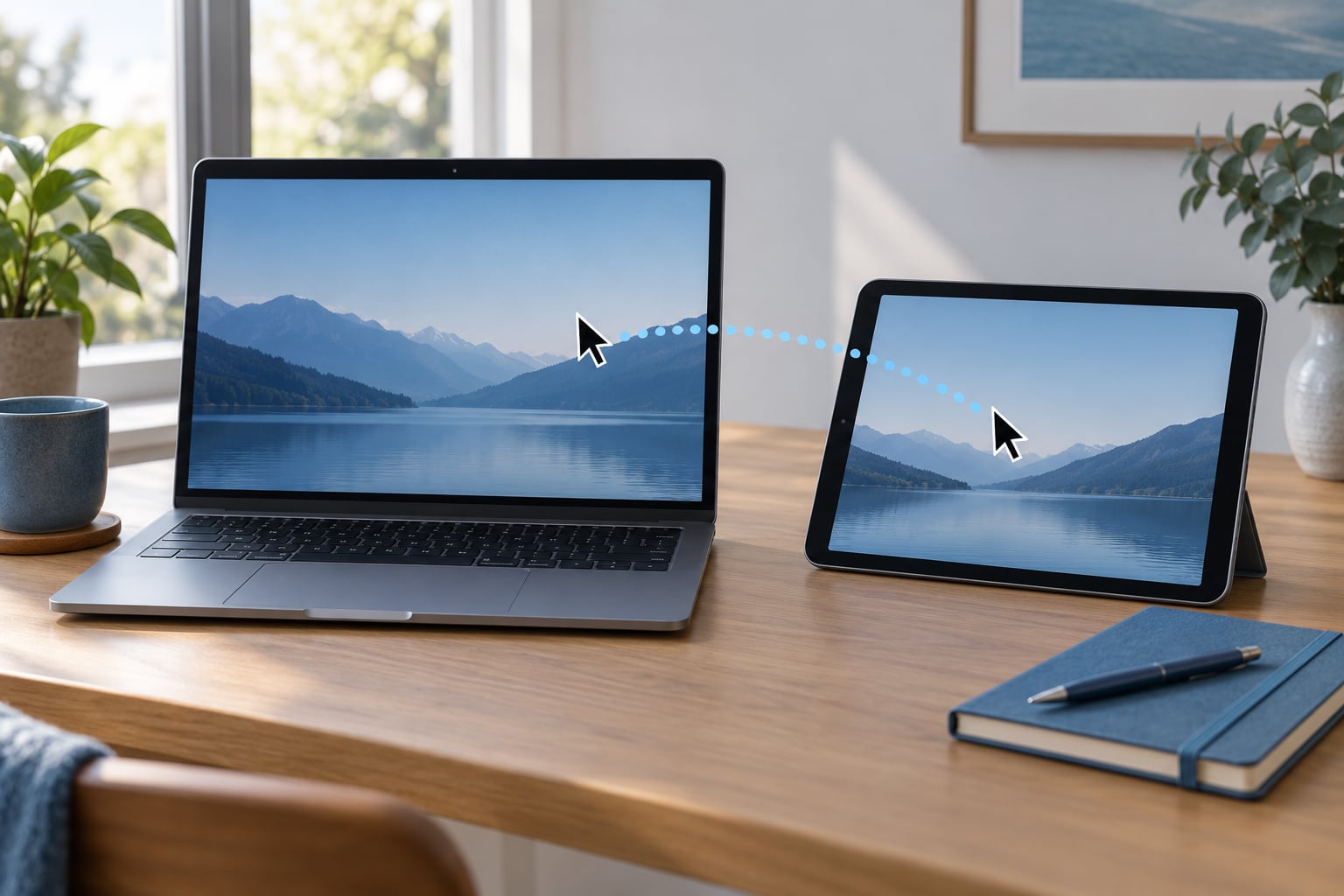
Universal Control lets one keyboard, mouse, or trackpad drive your Mac and iPad at the same time, so you can push the cursor off one screen and carry straight on in the other. Learning how to use Universal Control between Mac and iPad takes about ten minutes of setup, and it works on any supported Mac and iPad signed into the same Apple Account. You need macOS 12.4 or later and iPadOS 15.4 or later, with Wi-Fi, Bluetooth, and Handoff switched on.
I set this up on a MacBook Pro and an iPad Pro and immediately lost count of how many times I reached for a keyboard that was not there. If you have been treating the iPad as a standalone tablet, this changes how the desk works.
Table of Contents
- 1What You Need
- 2Step-by-Step: How to Use Universal Control Between Mac and iPad
- 31. Check Compatibility and Requirements
- 42. Enable Universal Control on Your iPad
- 53. Turn On Universal Control on Your Mac
- 64. Use the Same Apple Account
- 75. Move Your Cursor and Keyboard Between Devices
- 86. Confirm It Worked
- 9Common Mistakes and Fixes
- 10Tips for Using Universal Control
- 11Frequently Asked Questions
- 12Can Universal Control work with different Apple IDs?
- 13What Mac and iPad models support Universal Control?
- 14Why is my iPad not appearing on my Mac?
- 15Can I drag files from my Mac to my iPad with Universal Control?
- 16Do I need the Mac and iPad to be on the same Wi-Fi network?
- 17What is the difference between Universal Control and Sidecar?
What You Need
Universal Control is part of Apple Continuity, the same family that gives you AirDrop, Handoff, Universal Clipboard, and Sidecar. It needs a handful of things switched on, and most connection failures trace back to one of them being off.
- A Mac running macOS 12.4 or later. Every Mac sold in the last several years qualifies, including Intel models.
- An iPad running iPadOS 15.4 or later. iPad Pro, iPad Air, and iPad mini are all supported.
- The same Apple Account signed in on both devices, with two-factor authentication turned on.
- Wi-Fi and Bluetooth enabled on both, connected to the same network, with the devices within about 10 metres of each other.
- Handoff switched on, which is the toggle the feature actually rides on.
Handoff is worth understanding before you go further. The setting labeled “Allow Handoff between this Mac and your iCloud devices” lets nearby Apple devices pick up where the other one left off. Universal Control uses that same handshake to discover your iPad, so Handoff switched off means the iPad simply never appears, no matter what the Displays settings say.
Two devices can be joined at once, or three in total across the desk. Phones do not take part. Neither do PCs or Android tablets.
Here is the model spread:
| Mac models | iPad models | Minimum software |
|---|---|---|
| MacBook Pro, MacBook Air, iMac, Mac mini, Mac Studio | iPad Pro, all generations since 2015 | macOS Monterey 12.4 |
| Any Mac released from roughly 2015 onward | iPad Air, all generations since 2015 | iPadOS 15.4 |
| Intel Macs are supported, not just Apple silicon | iPad mini, all generations since 2015 | Same Apple Account on both |
Both devices need to be on the same Apple Account, and that account cannot be a managed or supervised business or school Apple Account. Those accounts block Handoff and Universal Control by design.
Step-by-Step: How to Use Universal Control Between Mac and iPad
Work through these in order. Each step has a visible sign that it worked, so you can stop as soon as you see that device show up somewhere unexpected.
1. Check Compatibility and Requirements
On the Mac, click the Apple menu and choose About This Mac to see your macOS version, then on the iPad open Settings, tap General, then About to check the iPadOS version. Anything below 12.4 on the Mac or 15.4 on the iPad has to be updated first, through Software Update in System Settings or Settings.
Next confirm Wi-Fi and Bluetooth are on for both devices and that they are attached to the same Wi-Fi network. Then check the Handoff toggle: on the Mac it lives in System Settings, under General, next to AirDrop and AirPlay; on the iPad it sits in Settings, under General, in the AirPlay & Handoff panel.
Finally, sign in to iCloud on both devices with the same Apple Account and make sure two-factor authentication is active. You can check that from the same iCloud pane.
2. Enable Universal Control on Your iPad
On the iPad, open Settings, tap General, then tap AirPlay & Handoff. Some iPadOS versions label this panel AirPlay & Continuity, and older iPadOS versions have the toggle directly in the Face ID & Passcode section, so look there if the panel is missing.
Turn on three things in that panel:
- Cursor and Keyboard lets a nearby Mac drive the iPad. This is the main switch.
- Automatically reconnect and push through the edge of a display makes the iPad join the Mac automatically and accept the cursor when you push it past the screen edge.
- Handoff lets the Mac offer to continue where you left off on the iPad.
How you can tell it worked: the iPad now shows up in the Mac’s display list, and on some setups an extra strip appears in Control Center. If not, the panel in step 3 on the Mac is the likely culprit.
3. Turn On Universal Control on Your Mac
On the Mac, open System Settings, go to Displays, click the Advanced button on the right, and turn on “Allow your pointer and keyboard to move between any nearby Mac or iPad”. Two further checkboxes appear underneath: one to reconnect automatically, and one to push through the edge of a display.
Leave both of those on unless you have a reason not to. Automatic reconnect is what makes the feature feel invisible once it is set up, rather than something you toggle every morning.
The iPad should appear as a second display almost immediately, with a grey rectangle representing it in the Displays layout editor. That rectangle is where you position it. Drag it to either side of the Mac display so the arrangement matches where the iPad physically sits, and if you want it above or below, drag it to the top or bottom edge.
How you can tell it worked: the iPad now appears under Displays in Control Center, and the layout editor shows two screens instead of one.
4. Use the Same Apple Account
Both devices must be signed into the same Apple Account with two-factor authentication on. When the accounts differ, the devices simply do not see each other; there is no error message and no partial connection, which is why this confuses people for hours.
If one device is signed into a work or school account, you have two options. Change that device’s iCloud account to your personal one, which usually means signing out of iCloud on that device, or use a separate Apple Account on that device and accept that the two devices will not link.
The second catch is stranger. A second macOS user account that is still logged in on the Mac will silently break Universal Control even when the Apple Accounts match, because the two accounts cannot see each other’s Handoff state. Users on Reddit’s r/iPadOS describe this as the fix nobody mentions. Log every other account out of the Mac, or restart the machine and do not sign into the second account before testing.
5. Move Your Cursor and Keyboard Between Devices
Push the mouse pointer or trackpad cursor hard against the right or left edge of the Mac display, past the arrow itself. It keeps travelling instead of stopping, and a small iPad icon appears beside the pointer. Click, and the cursor lands on the iPad.
From there everything works as you would expect on a single machine. Drag files, images, text, and screenshots between the two devices. Copy something on the Mac with Command-C, tap the iPad, and paste with Command-V. Type with your Mac keyboard and edit with your Mac mouse or trackpad, including in apps such as Notes, Mail, Pages, and Numbers.
One rule catches people out: to drag a file from the Mac to the iPad, a compatible app has to be open on the iPad first. Open Photos on the iPad before dragging a JPEG over, or the drop will bounce back.
Scroll direction follows each device’s own setting rather than your Mac’s, so a Mac trackpad set to natural scrolling can feel inverted when the cursor crosses onto the iPad. It reads as a bug the first time, and it is just the iPad’s own preference.
6. Confirm It Worked
There are three clear signals of a healthy connection. The iPad shows up in the Mac’s display list with its own thumbnail in the layout editor, Control Center on the Mac lists the iPad under Displays, and the pointer crosses between screens on its own once you push it past the edge.
Drag a file across as the final test. If it lands, everything underneath is working, including Handoff and Universal Clipboard.
To disconnect, click the Displays icon in Mac Control Center and choose the iPad. The devices also drop the connection by themselves when the Mac locks or goes to sleep, and reconnect when you wake it. To force a manual link, click Displays in Control Center and choose Link Keyboard and Mouse, then pick the iPad from the list.
Common Mistakes and Fixes
Work down this list in order rather than restarting things at random. The first four causes account for most failed setups, and the VPN one in particular costs people whole evenings.
| Symptom | Likely cause | Fix |
|---|---|---|
| iPad never appears anywhere | A VPN is running on either device | Disconnect the VPN and test again |
| iPad missing from the Mac | Personal Hotspot or cellular tethering is active | Turn the hotspot off |
| Connection drops immediately | A second macOS user account is logged in | Log the other account out and restart the Mac |
| Settings greyed out or missing | Handoff is off, or devices are on managed accounts | Turn Handoff on in both iCloud settings panes |
| Broke right after an update | A known post-update Continuity regression | Restart both devices, then toggle the Mac setting off and on |
| Pointer stutters as it crosses | Intermittent behaviour, not a settings fault | Nothing fixes it reliably; push the cursor faster |
| Scroll feels reversed on iPad | iPad uses its own scrolling preference | Change it in Settings, then Accessibility |
| Shift or other modifiers ignored | Full Keyboard Access is off | Enable it in Settings, then Accessibility, then Keyboards |
| Mouse side buttons do nothing | Custom buttons do not transfer to iPadOS | Use the two main buttons and the scroll wheel only |
A VPN is the single most common hidden cause. Users in r/mac and r/MacOSBeta repeatedly report that Universal Control fails silently behind a VPN or when a phone hotspot is the active connection, and that it works instantly once both are switched off. Neither the Mac nor the iPad tells you this is why.
Post-update breakage is the second pattern. After a major macOS or iPadOS release, some users report the connection dropping the moment the devices find each other, and others report a Mac screen that stays frozen after waking while the cursor still reaches the iPad. Restarting both devices fixes it some of the time. The community workaround for the frozen case is to take control back with the Mac’s own trackpad, then re-push the cursor across.
If modifier keys are being ignored when you type on the iPad, particularly with a Bluetooth third-party keyboard, Full Keyboard Access is the setting people miss. Turning it on in Settings, then Accessibility, then Keyboards restores Shift and the other modifiers.
One thing worth stating plainly, because it saves repeat posts: Apple Pencil does not carry across, iPhones do not join the session, and two iPads cannot link to each other without a Mac in the middle. Third-party mice work for the basic clicks and scroll wheel only, so custom side buttons and wheel shortcuts do nothing on the iPad.
Tips for Using Universal Control
Arrange your displays before you start working, not after. The grey rectangle for the iPad in System Settings, Displays is a physical map. Get it to match your desk and the cursor will appear where your eyes expect it instead of jumping across the room.
Drag and drop beats AirDrop for anything multi-file, and beats iCloud Drive because nothing uploads first. Select a group of files on the Mac and drag them across in one motion, with the right app open on the iPad. Pulling a sketch made in Keynote on the iPad back into Keynote on the Mac works the same way in reverse.
Keep all three Universal Control toggles on. Automatic reconnect and pushing through the display edge are what turn the feature from something you set up into something you never think about.
Know when to reach for something else. Sidecar turns the iPad into a real extended Mac display, so Mac windows and menu bar extras sit on it, but it only gives you part of the iPad’s screen to Sidecar and takes over the whole thing while it is active. Universal Control leaves the iPad running iPadOS with its own apps, which is better for reading documents, handwriting notes with a Pencil, or keeping a reference article open while you work.
Use AirPlay when you want to mirror rather than extend, such as showing a slideshow to a room.
Frequently Asked Questions
Can Universal Control work with different Apple IDs?
No. Both devices must be signed into the same Apple Account with two-factor authentication enabled, because the handshake relies on your iCloud identity. Different accounts produce no error and no connection at all. A second macOS user account logged into the Mac also breaks it. Managed or supervised work and school accounts block Universal Control entirely by design.
What Mac and iPad models support Universal Control?
Any Mac running macOS 12.4 or later, including Intel models and MacBook Air, MacBook Pro, iMac, Mac mini, and Mac Studio. On the iPad side, iPad Pro, iPad Air, and iPad mini models from 2015 onward running iPadOS 15.4 or later work. Managed Apple Accounts are the exception. If a device will not update, it is too old for the feature.
Why is my iPad not appearing on my Mac?
Work through the causes in order: turn off any VPN, turn off Personal Hotspot and cellular tethering, confirm Handoff is on in iCloud settings on both devices, check both are signed into the same Apple Account, and log out any second macOS user account. Keeping the devices within about 10 metres and on the same Wi-Fi network covers the rest.
Can I drag files from my Mac to my iPad with Universal Control?
Yes, and it is one of the better reasons to use it. Files, images, text, and screenshots can be dragged between devices, with multiple files at once, and copied with Command-C and pasted with Command-V. The one catch is that a compatible app must already be open on the iPad, such as Photos for an image or Files for a document, or the drop bounces back.
Do I need the Mac and iPad to be on the same Wi-Fi network?
They need to be on the same network, both with Wi-Fi and Bluetooth switched on, and within roughly 10 metres of each other. A VPN or an active phone hotspot can block discovery even on the correct network, which is why disconnecting both is a standard troubleshooting step. Devices also drop the link when they sleep or the Mac locks, then reconnect on wake.
What is the difference between Universal Control and Sidecar?
Sidecar turns the iPad into an extended display for Mac windows, with a Mac-style desktop and menu bar, but it takes over the whole iPad screen while active. Universal Control leaves the iPad running iPadOS and only moves your cursor, typing, and drag-and-drop across. Use Sidecar for extra desktop space, Universal Control for native iPad apps such as Notes and Pencil markup.
Start with the Mac: System Settings, Displays, Advanced, then turn on the toggle that allows your pointer and keyboard to move between any nearby Mac or iPad. Do the same on the iPad in Settings, General, AirPlay & Handoff with Cursor and Keyboard switched on. If the iPad does not show up, the first thing to kill is your VPN.