Most people searching why AirDrop is not working and how to fix it hit the same four causes: the receiving device is set to Contacts Only, Bluetooth or Wi-Fi is switched off or tangled up with a Personal Hotspot, a software update left discovery broken, or a Screen Time restriction is quietly blocking it. Work through the fixes below in order and most failures clear in under ten minutes. Updated for October 2026.
AirDrop uses Bluetooth to find nearby devices and then hands the actual file over a peer-to-peer Wi-Fi connection. That two-radio handshake is exactly why a locked phone, a flat battery, a laptop in a far room, or a hotspot can each kill a transfer that otherwise looks configured perfectly.
Table of Contents
- 1What You Need Before You Start
- 2Step-by-Step: How to Fix AirDrop Not Working
- 3Step 1: Check the basics before you change any setting
- 4Step 2: Set AirDrop to Contacts Only or Everyone for 10 Minutes
- 5Step 3: Confirm the other device shows up in the share sheet
- 6Step 4: Restart Bluetooth, Wi-Fi, and both devices
- 7Step 5: Check your Apple Account, contacts, and privacy settings
- 8Step 6: Forget a stale Bluetooth record or reset network settings
- 9Step 7: Update software, retest, and know when to call Apple
- 10The Five Reasons AirDrop Stops Working
- 11Common Mistakes That Keep AirDrop Broken
- 12What to Do When AirDrop Refuses to Work at All
- 13Frequently Asked Questions
- 14Why does my iPhone not show up in AirDrop on my Mac?
- 15Why does AirDrop say u0022No people foundu0022?
- 16Can I use AirDrop without Wi-Fi?
- 17Does AirDrop work between two different Apple Accounts?
- 18Why is AirDrop unavailable when I am connected to CarPlay?
- 19What do I do when an AirDrop transfer freezes halfway?
- 20Conclusion
What You Need Before You Start
AirDrop needs two Apple devices close together, both switched on and unlocked, with the radios live. Anything older than an iPhone 5, iPad 4, 5th-generation iPod touch, or a Mac from 2012 running OS X Yosemite or later simply cannot do it.
On iPhone and iPad, Wi-Fi and Bluetooth both need to be on even when you are not connected to a network, because AirDrop borrows the Wi-Fi radio. On Mac, the same applies in System Settings, not the old System Preferences name that most guides still print.
Sign in to your Apple Account on both devices. Contacts Only matching depends on the Apple Account email and phone number stored in your address book, so a device signed out of iCloud will show up to almost nobody.
One more thing worth knowing: a Personal Hotspot that is switched on silently breaks AirDrop. Managed or school iPads often have AirDrop restricted at the device level, and no amount of toggling in Settings will change that.
Step-by-Step: How to Fix AirDrop Not Working
Step 1: Check the basics before you change any setting
Confirm both devices are within about 10 metres, or roughly 33 feet, of each other and fully unlocked. A locked screen ends discovery immediately, and that is the single most common reason a device vanishes from the list.
On iPhone, pull down Control Center from the top-right corner and confirm Wi-Fi and Bluetooth are on. If Personal Hotspot is running, turn it off; you will find it under Settings, Cellular, or in Control Center by pressing and holding the cellular tile.
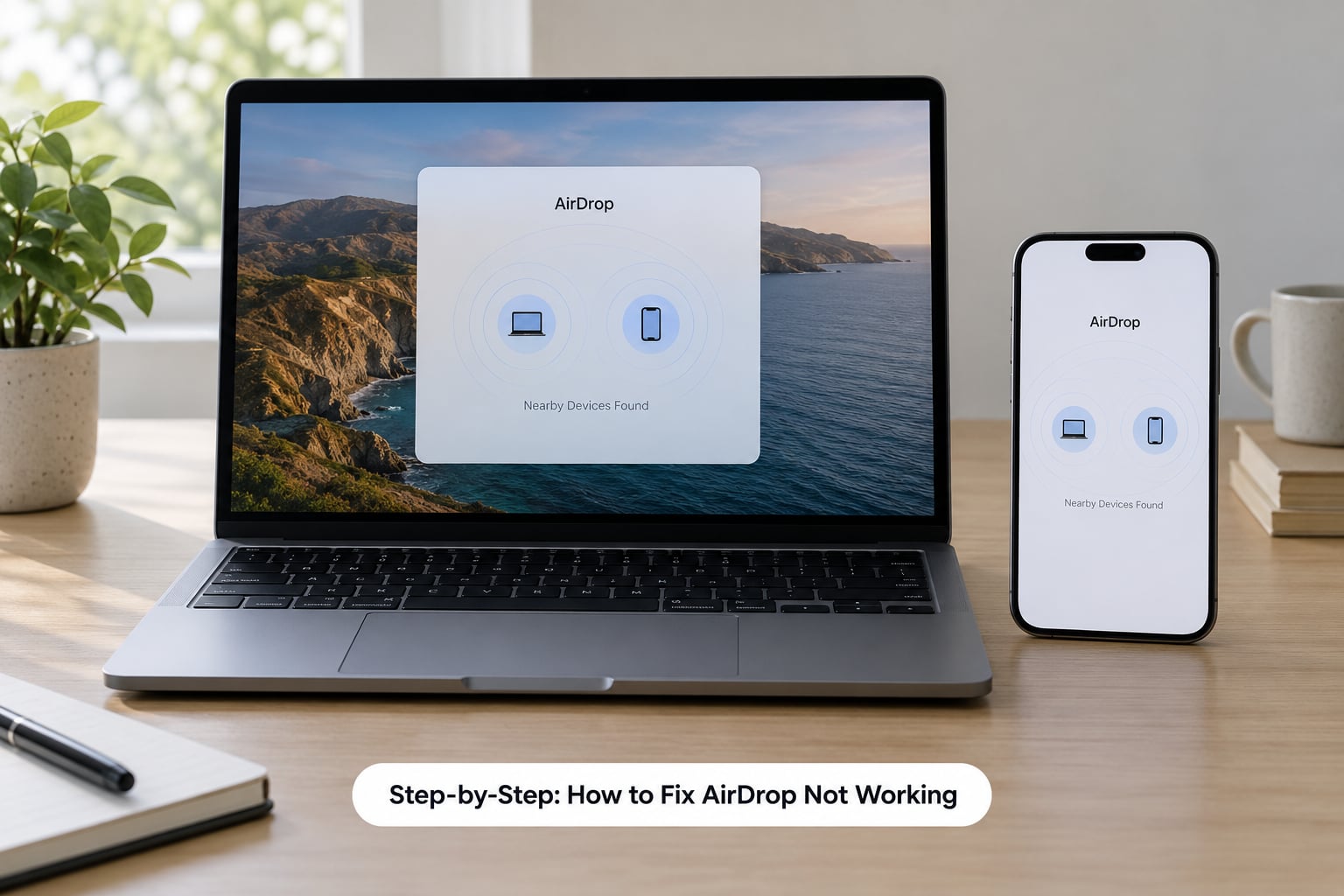
Success looks like this: both devices see each other in Finder under Go, AirDrop, or the other device shows up in the share sheet. If they do not, move on.
Step 2: Set AirDrop to Contacts Only or Everyone for 10 Minutes
On iPhone and iPad, open Settings, then General, then AirDrop. Pick Everyone for 10 Minutes as a test. The setting reverts on its own, so nobody is left permanently exposed.
On Mac, open System Settings, then General, then AirDrop, and set Allow me to be discovered by. Only Mac shows that exact wording; iPhone uses the three-option list instead.
Contacts Only needs a matching Apple Account, phone number, or email in your Contacts. Everyone for 10 Minutes is the fastest way to tell a visibility problem apart from a hardware or network problem, and it is worth using while you test rather than assuming. If you are stuck on why AirDrop is not working and how to fix it, this is the first setting worth changing.
Step 3: Confirm the other device shows up in the share sheet
Open Photos, Files, or Notes, tap Share, and look for AirDrop in the top row. Expand the AirDrop bubble with the small upward chevron if the list is compressed, then wait a few seconds for discovery to finish.
Tap the receiving device’s name and confirm the device asks to accept the transfer. A progress bar at the top of the screen means the handshake worked. If names never appear, the problem is discovery, not the file.
Step 4: Restart Bluetooth, Wi-Fi, and both devices
Toggle Bluetooth off, wait ten seconds, then toggle it back on. Do the same for Wi-Fi. Force-close the share sheet or Finder window, and retry before anything heavier.
Still nothing? Restart both devices properly rather than locking and waking them. Multiple threads on r/applehelp and the Apple Support Community describe an unexplained Transfer Failed state clearing the moment both sides were restarted.
For a fuller reset, hold the side button plus the volume down button until the slider appears, then drag it and wait for the Apple logo. On iPhone 7 or earlier, hold the side or top button plus the volume down button instead.
Step 5: Check your Apple Account, contacts, and privacy settings
Open the Contacts app and look at your own card. If the phone number and email there differ from what the other device has saved, Contacts Only will never match you. Edit your card so both agree, then allow the other person to refresh their copy.
On iPhone, check Settings, Privacy and Security, then Bluetooth, and make sure your device is allowed to show nearby devices. On Mac, review System Settings, Privacy and Security, then Bluetooth, for anything blocking discovery.
If the other device is a managed school or work iPad, AirDrop may be restricted through Screen Time or an MDM profile rather than by a setting you own. Screen Time, Content and Privacy Restrictions, and the Allowed Apps list are where that surfaces. An IT administrator can usually grant an exemption through a device group, as administrators describe on the Jamf community forum.
Step 6: Forget a stale Bluetooth record or reset network settings
Sometimes a half-finished pairing leaves the radios confused. On Mac, open System Settings, Bluetooth, click the info button next to the device, then Forget This Device. Pair again by tapping Share, AirDrop, and the device name.
On iPhone, go to Settings, Bluetooth, tap the info icon beside the entry, and choose Forget This Device.
Last resort before a full reset: Settings, General, Transfer or Reset iPhone, then Reset, then Reset Network Settings. This clears saved Wi-Fi passwords, VPN profiles, and Bluetooth records, so expect to rejoin every network afterwards.
Step 7: Update software, retest, and know when to call Apple
Check for updates on iPhone and iPad under Settings, General, Software Update, and on Mac under System Settings, General, Software Update. Several people on iOS 26 report AirDrop failing on both devices immediately after updating; if that is your situation, install the newest release and test again.
Retest with a second Apple device to rule out one broken phone. If AirDrop still fails across devices and accounts, note the exact error message, your iOS or macOS version, and what you already tried, then reach Apple Support or book a Genius Bar appointment.
The Five Reasons AirDrop Stops Working
Matching your symptom to a cause saves most of the guesswork. These are the messages people describe most often, paired with what is actually going wrong.
| What you see | What is causing it | Where to fix it |
|---|---|---|
| No people found | The other device is set to Contacts Only and you are not in each other’s address books, or it is out of range | Settings, General, AirDrop, then Everyone for 10 Minutes |
| Waiting for Other | Discovery works but the recipient never accepts, often a locked screen or a Do Not Disturb or Focus mode | Unlock the device and check Focus settings |
| Transfer Failed | A Screen Time restriction, a Personal Hotspot, or a firewall blocking incoming connections on the Mac | Content and Privacy Restrictions, and System Settings, Network, Firewall Options |
| AirDrop greyed out or missing from the share sheet | AirDrop is set to Receiving Off, the account is signed out, or the file type cannot be shared | Settings, General, AirDrop, and confirm the Apple Account is signed in |
| Works between your own devices but not with other people | Contacts Only matching on two different Apple Accounts, which is expected behaviour rather than a fault | Switch the receiver to Everyone for 10 Minutes |
AirDrop is fastest between devices signed into the same Apple Account. Sending to someone else’s phone relies on contact matching, which is why stranger-to-stranger transfers fail far more often than the guides suggest.
Common Mistakes That Keep AirDrop Broken
Trying to send to a locked phone. A locked screen cannot accept anything. Ask the other person to unlock it and leave the screen on until the transfer finishes.
Leaving the set to Contacts Only. Nobody appears because nobody matches. Everyone for 10 Minutes exists for exactly this.
Leaving the phone on a Personal Hotspot. One of the most-reported silent causes. Turn Allow Others to Join off, then retry.
Opening the wrong share sheet. AirDrop has to be in the app that holds the item, not in some generic share view.
Forgetting Bluetooth. Turning Wi-Fi on alone is not enough; discovery runs over Bluetooth and the transfer runs over Wi-Fi. Both must be on.
Skipping the update. When AirDrop dies the day after an update, install the current release before changing any settings, because you are debugging a known-broken build.
Assuming a huge file will go through. Very large videos and full-resolution camera clips can time out partway and report Transfer Failed even though discovery was perfect. Split the file or use a wired transfer.
A fast diagnosis trick: test with Everyone for 10 Minutes and a small image file. If that works, the problem is contacts, size, or restrictions. If it fails, the problem is radios, distance, or the software.
What to Do When AirDrop Refuses to Work at All
AirDrop has no reset switch of its own, so a full reset means resetting the things it depends on. Restart both devices, then Reset Network Settings, and only then look at beta or managed-device restrictions.
While that is sorted, use a fallback. iCloud Drive moves files between an iPhone and a Mac signed into the same Apple Account with no cables. A USB or Lightning cable with Finder or the Apple Devices app handles big video files and works offline.
For transfers to a Windows or Android machine, AirDrop does not exist on those platforms, so third-party tools such as LocalSend or Nearbose Share over the same local network are the practical option. SharePlay is another route for photos and videos between two Apple devices in the same room.
If none of that works and the devices are current, contact Apple Support or visit a Genius Bar with your error message and software versions written down. Requests raised on the Apple Support Community about persistent AirDrop failures on iOS 26 were commonly resolved by walking through exactly these steps.
Frequently Asked Questions
Why does my iPhone not show up in AirDrop on my Mac?
Usually the Mac cannot discover it, not the other way round. On the Mac, open System Settings, General, AirDrop and set Allow me to be discovered by to Contacts Only or Everyone for 10 Minutes. Unlock the iPhone, keep it within about 10 metres, confirm Bluetooth and Wi-Fi are on, and turn off any Personal Hotspot. If the phone uses a different Apple Account and does not appear in your Contacts, Contacts Only will never show it.
Why does AirDrop say u0022No people foundu0022?
No people found means discovery is working but no device matches your visibility setting. The receiver is set to Contacts Only and you are not in their address book, or they are not in yours, or the other device is out of Bluetooth range. Set the receiver to Everyone for 10 Minutes on both iPhone and Mac. If that works, the problem is contact matching, not your radios.
Can I use AirDrop without Wi-Fi?
Not in the usual sense. AirDrop uses Bluetooth to discover nearby devices, then moves the file over a peer-to-peer Wi-Fi connection, so both radios need to be switched on. You do not need to be joined to a Wi-Fi network, and being connected to one is fine, but the Wi-Fi radio itself must be active. Turning Wi-Fi off on an iPhone is one of the fastest ways to make AirDrop fail.
Does AirDrop work between two different Apple Accounts?
Yes, but the conditions change. With two different Apple Accounts, discovery relies on your Contacts matching the phone number or Apple Account email the other person has saved for you. If either side is set to Contacts Only and no entry matches, the device stays invisible. This is the most common forum complaint about AirDrop and the reason Everyone for 10 Minutes exists.
Why is AirDrop unavailable when I am connected to CarPlay?
CarPlay can change which radios are available and which Focus modes are active, and AirDrop disappears from the share sheet when the system is busy with the car connection or when a driving Focus mode is running. Disconnect CarPlay, turn off the active Focus mode, then reopen the share sheet. If it only fails in the car, check whether the car system is holding the connection rather than your phone.
What do I do when an AirDrop transfer freezes halfway?
Cancel the transfer on both devices and check the receiving screen is still unlocked and awake. Very large video files are the usual culprit, so split the file or switch to a wired or cloud transfer. Restart both devices if the freeze repeats, and confirm a Personal Hotspot is off. If small files go through fine every time, the size or format is the problem rather than AirDrop itself.
Conclusion
Why AirDrop is not working and how to fix it comes down to four checks, done in this order: both devices nearby and unlocked, Bluetooth and Wi-Fi on with the hotspot off, AirDrop set to Everyone for 10 Minutes for testing, and the share sheet reopened. Restart both devices if the name still does not appear.
Past that point you are into account matching, privacy permissions, software updates, and possibly a managed-device restriction. If none of it holds and the error message stays the same across two different Apple devices, write down your iOS or macOS version and the exact message, then take it to Apple Support or a Genius Bar.