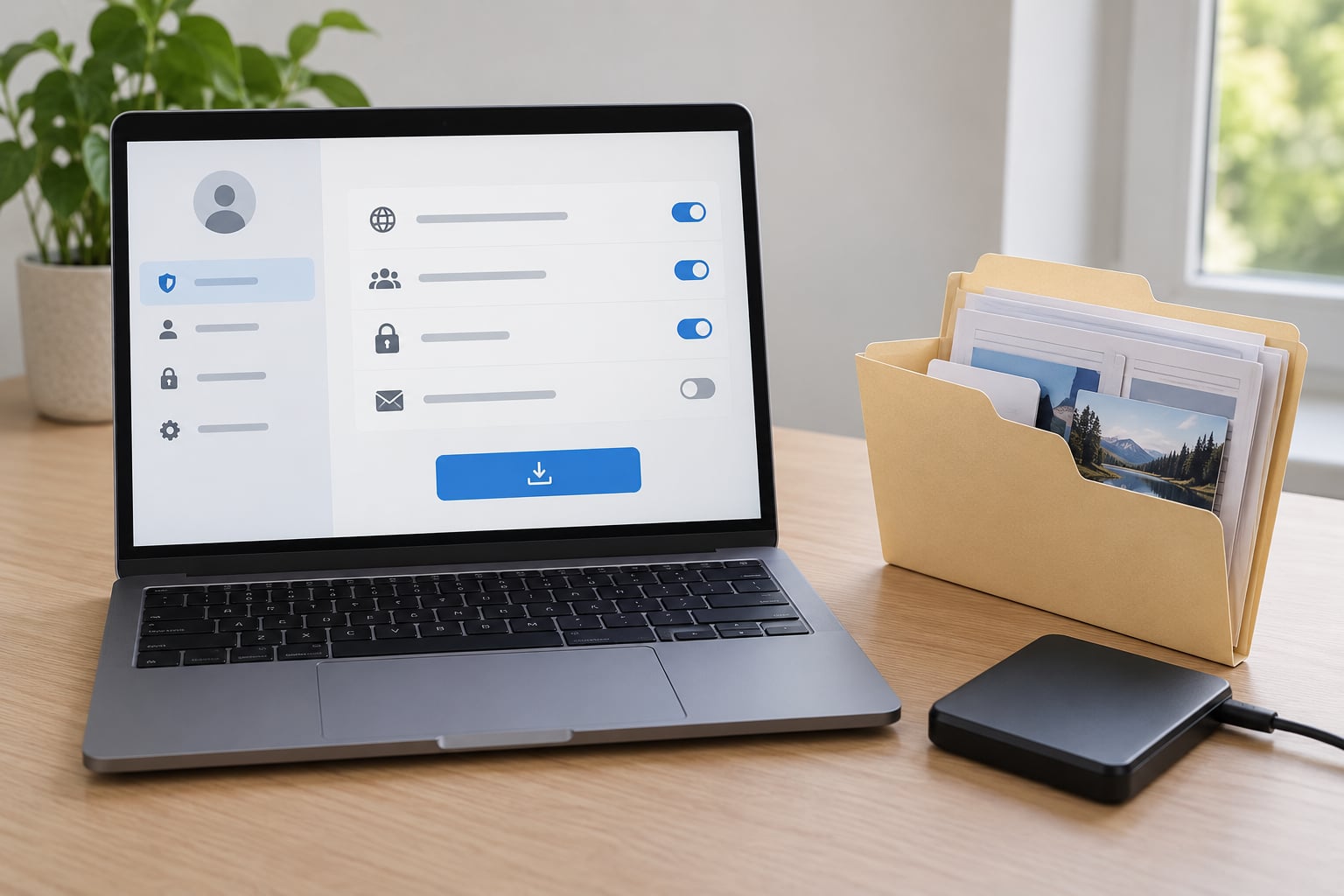
Every major social platform has a free data export, and on Facebook it lives under Settings, then Your information and permissions, then Download your information. You pick the categories and date range, the platform builds a ZIP file in the background, and a download link lands in your inbox. Here is how to export your data from a social media account on all eight platforms that matter.
Last verified: October 2026. Platform menus get shuffled around more often than people expect, so if a button below is not where I say it is, search the settings menu for the words I have quoted. They are the labels platforms use themselves.
Before the step-by-step, one thing worth saying plainly: an export does not move your content anywhere. It hands you a copy. The copy is only useful if it lands on a drive you control and you can still open it in ten years, which is why the organizing and storage steps at the end matter as much as the clicking at the start.
Table of Contents
- 1What You Need
- 2How to Export Your Data From a Social Media Account
- 3Use the Account’s Built-In Download Tool
- 4Choose What to Export From Your Social Media Account
- 5Request and Download the Archive
- 6Open and Organize the Downloaded Files
- 7Check What You Want to Keep
- 8Protect or Delete the Archive
- 9Common Mistakes
- 10Frequently Asked Questions
- 11How long does a social media data export take?
- 12What is actually inside a social media data export?
- 13Can I read the exported files without any special software?
- 14Will an export bring back deleted messages and deleted posts?
- 15Should I export my data before deleting my account?
- 16How do I keep an exported archive private and safe?
- 17Conclusion
What You Need
You need six things, and only the first two are hard to get around.
- The correct account. This catches people constantly. If you have two Facebook profiles or an old account you forgot about, exports go to whichever one you are signed into. Confirm the name and email on the settings page before you request anything.
- Your login, plus a way into your email. The download link comes from the address on the account, not the one you typed into the request. Have both in reach.
- A desktop web browser. Most platforms bury the export option in the full web app rather than the phone app. Facebook, X, LinkedIn and Pinterest all hide or simplify it on mobile, and Instagram routes you through Meta Accounts Center where the mobile experience is the most reliable route of the eight.
- A current browser. Older versions choke on large downloads and mis-render the settings menus, which sends people down the wrong path entirely.
- Free disk space. A ten-year-old account at high media quality can produce a ZIP file measured in gigabytes, and it is often several times larger than the final extracted content. Thirty to sixty gigabytes free is a comfortable floor for old accounts; a young account needs a fraction of that.
- A destination you control. Not the Downloads folder on a laptop you may lose. An external drive or a cloud folder under your control is better, and you will want a second copy before you start deleting anything.
Two-factor authentication is worth having switched on before you start, not because exporting requires it, but because the email confirmation and the download link are both moments where somebody else could try to intercept the session.
How to Export Your Data From a Social Media Account
Every platform does this the same way underneath, even though the menus are worded differently. You open a privacy or account settings page, find the export or download option, choose what you want and how you want it formatted, submit the request, wait, then download a ZIP file from a link that arrives by email. The wait is the part nobody warns you about.
Here is how the eight platforms compare before I walk through the steps.
| Platform | Where the export lives | Formats offered | Typical wait | What you usually get |
|---|---|---|---|---|
| Settings > Your information and permissions > Download your information | JSON or HTML | Minutes for a small account, 24 to 48 hours for a large one | Posts, photos, videos, messages, comments, reactions, likes, profile, login history, connected apps | |
| Facebook Business Page | Page settings > Download your information | JSON or HTML | Same range as a personal profile | Page posts, insights, ad data, messages to the page |
| Meta Accounts Center > Your information and permissions > Export your information | JSON or HTML | Up to 48 hours, usually much sooner | Posts, reels, stories, saved collections, comments, likes, direct messages, search history | |
| X (Twitter) | Settings and privacy > Your account > Download an archive of your data | JSON only | A few hours, occasionally a day | Tweets and replies, direct messages, likes, follower and following lists, saved items |
| TikTok | Profile > Menu > Settings and privacy > Account > Download your data | JSON and media files | Usually under an hour, longer for big accounts | Videos, likes, comments, direct messages, watch history, personal info |
| Me > Settings & Privacy > Data privacy > Get a copy of your data | CSV and JSON | About 10 minutes, occasionally up to a day | Profile, connections, positions, education, messages, activity, invitations | |
| YouTube and Google | Google Takeout at takeout.google.com | ZIP, original file formats | Several hours to several days for large accounts | Watch history, search history, comments, subscriptions, playlists, channel data, and any Google data you select |
| Settings and privacy > Privacy and data > Your account > Download your information | JSON and CSV | Usually minutes, sometimes a few hours | Saved pins, boards, created pins, comments, profile, board lists | |
| Snapchat | Profile > Settings > My Account > Download your information | JSON and media files | Hours to several days depending on Snap history size | Snaps and stories, chats, memories, locations, saved content, friend lists |
Two notes on that table. Wait times scale with account age and with the media quality you pick, not with how fast your internet is. And Snapchat in particular can take days, because the archive includes your full Snap history rather than just the current camera roll.
Use the Account’s Built-In Download Tool
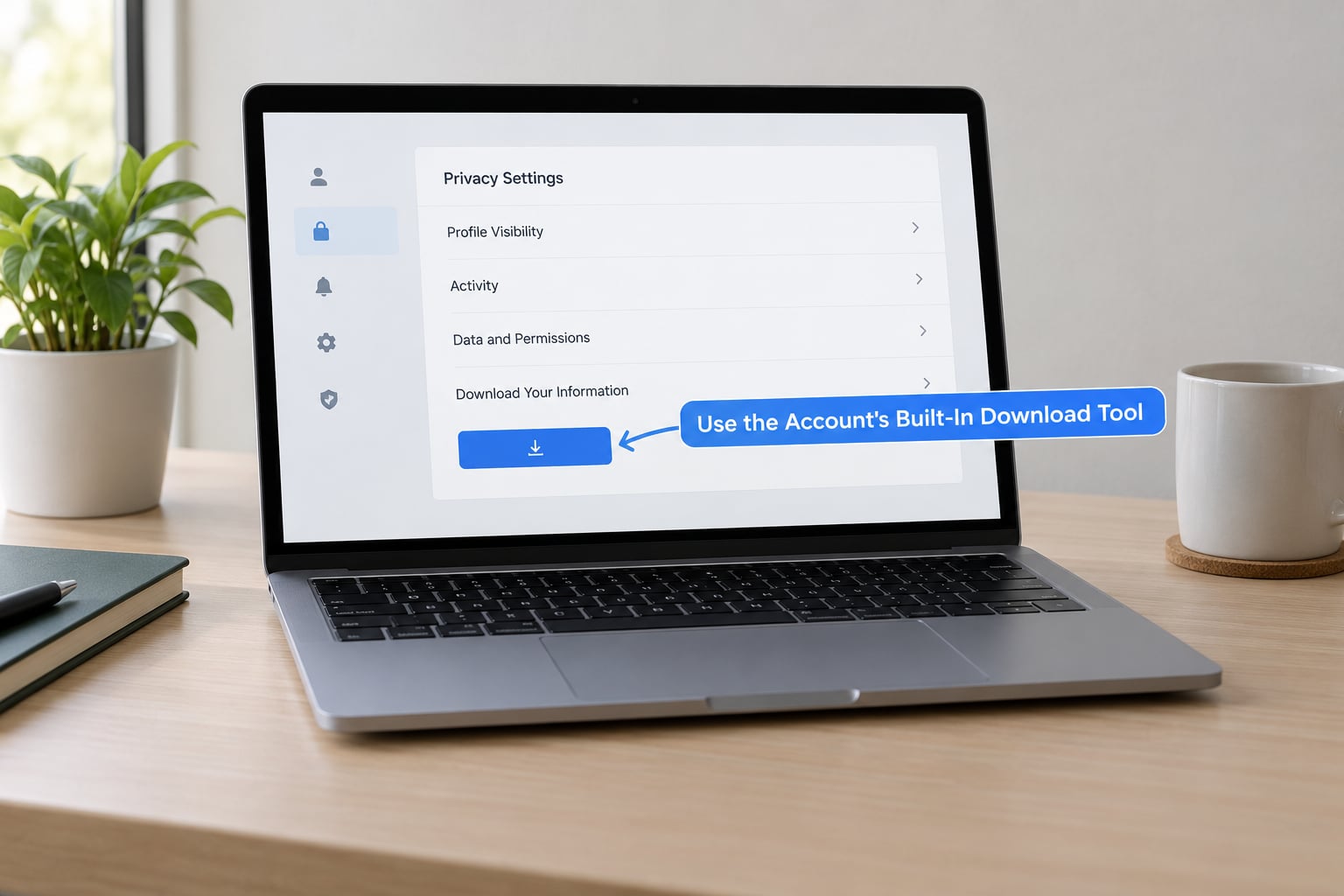
The universal path on the web runs like this. Open the site in a browser while signed in to the account you want. Go to Settings, or to a privacy or account section. Look for wording like Download your information, Download or transfer information, Get a copy of your data, or Request archive. Choose the account or profile from a list. Pick the information type, date range, format and media quality. Submit. Wait for the email. Download.
On Facebook specifically, click your profile picture at the top right, then Settings and privacy, then Your information and permissions, then Download your information. Under a Business Page it is different: open the Page, choose Page settings, and the export option sits alongside the publishing and ad tools rather than in your personal profile settings. Page managers mix those two up constantly, because the export lives with the page, not with the person running it.
On Instagram, the export is inside Meta Accounts Center now. Open the app or accounts.instagram.com, tap the two lines at the top left, choose Accounts Center, then Your information and permissions, then Export your information. You pick Instagram from the list of accounts shown, and Instagram data is packaged alongside Facebook and Threads if you ask for more than one. This is the one platform where doing the request on your phone is straightforward.
On X, the labels are Settings and privacy, then Your account, then Download an archive of your data. There is no format choice. You get a ZIP of JSON files, and X assembles it slowly on big accounts.
On TikTok, open Profile, tap the menu at the top right, go to Settings and privacy, then Account, then Download your data. TikTok asks you to confirm by entering your password in the app before it will start the request.
On LinkedIn, the path is Me, then Settings and privacy, then Data privacy, then Get a copy of your data. LinkedIn will email the archive to the address on your account. If you have a Premium subscription, you can also transfer your data to another service directly instead of downloading a file.
For YouTube, the export lives in Google Takeout at takeout.google.com rather than in YouTube itself. Sign in with the Google account that owns the channel, click Deselect all, then select only YouTube and any other Google products you want. Choose your archive format, either a ZIP or a set of files in a drive, and request it. Excluding Drive, Gmail and Photos keeps the size manageable.
On Pinterest, go to Settings and privacy, then Privacy and data, then Your account, then Download your information. You choose which account data to include, and Pinterest shows an estimated file size before you confirm. That estimate is worth reading.
On Snapchat, go to your profile, then Settings, then My Account, then Download your information. Snapchat lets you select the account type and a date range, and it tells you roughly how long the request will take before you submit it.
If you only have your phone, X, LinkedIn, Pinterest and Facebook all push you toward a desktop browser or give you a stripped-down version of the export screen. Instagram and TikTok both work fine on mobile. When a page on your phone does not offer the option, that is not a bug you can work around, it just means the request needs the full web app.
Choose What to Export From Your Social Media Account
Selecting everything on an old account is tempting and often a mistake. A full-history, high-quality export on a fifteen-year account can run to tens of gigabytes of video you will never open. Decide what the archive is for first.
What categories are on offer. Facebook and Instagram give you a long checkbox list: profile information, posts and stories, photos and videos, comments, reactions, likes, saved items and collections, messages, search history, login history, connected third-party apps, ads and interests, and account settings. X gives you posts, messages, likes and follower lists. LinkedIn gives you profile, connections, positions, education, messages and activity. Snapchat gives you snaps, memories, chats and locations. Every platform includes some account and activity data, and most include a login history worth reading.
The date range. This is the biggest lever on file size. A one-year export is fast and small. A full-history export on an old account will sit in pending for days, which is the single most common complaint in the communities I read about this. If you only need the last few years, set the range and take the wait out of the equation.
HTML or JSON. Facebook, Instagram and TikTok offer both, and this trips people up. JSON is the raw data, one text file per category, readable in a text editor and easy to load into a spreadsheet or script. HTML is a set of pages that open in any browser and look roughly like the site did, which is friendlier if you just want to read your old messages. Choose JSON if you plan to move or analyse the data, HTML if you plan to look at it once. X, LinkedIn, Pinterest and Snapchat give you no meaningful choice here, so pick the richest option they offer instead.
Media quality. Facebook and Instagram let you choose low, medium or high. Low quality files are a fraction of the size and fine for scrolling through old memories. High quality keeps the original resolution and is the only choice if these are the last copies of photos from a camera you no longer own. This one setting explains most of the difference between a 2 GB download and a 30 GB one.
Posts versus everything else. If the goal is a privacy audit rather than an archive, deselect media entirely. You can still get your login history, connected apps, ad interests, search history and account settings without downloading a single photo.
Request and Download the Archive
Submit the request and the platform starts working in the background. You get a status that reads something like pending, generating or processing, and an email when it is done. Watch your email inbox and the spam folder for the whole wait, because the message sometimes lands in promotions and looks like junk.
Before you click anything in that email, check the sender domain and the link. It should point at the platform’s own domain. A data export link that routes through a shortened URL or an unrelated domain is not something to open, and no legitimate platform needs one.
Click through and the archive starts downloading immediately. There is no resume button and no pause, so a multi-gigabyte file on an unstable connection can fail partway and start again from zero. This is where a download manager earns its keep: something like a browser extension or a desktop download tool can pick up where it left off. Make sure the destination drive has the room before you click, not after.
Download links expire. Facebook in particular gives you a limited window, commonly a few days, and after that the link stops working and the only fix is to request the whole export again. Download it as soon as the email arrives rather than leaving it sitting there, and keep the ZIP file unopened somewhere safe once you have it.
One thing downloads never do: nothing is removed from your account by exporting. Your posts stay up, your photos stay public, your account stays active. Requesting a copy is read-only.
Open and Organize the Downloaded Files
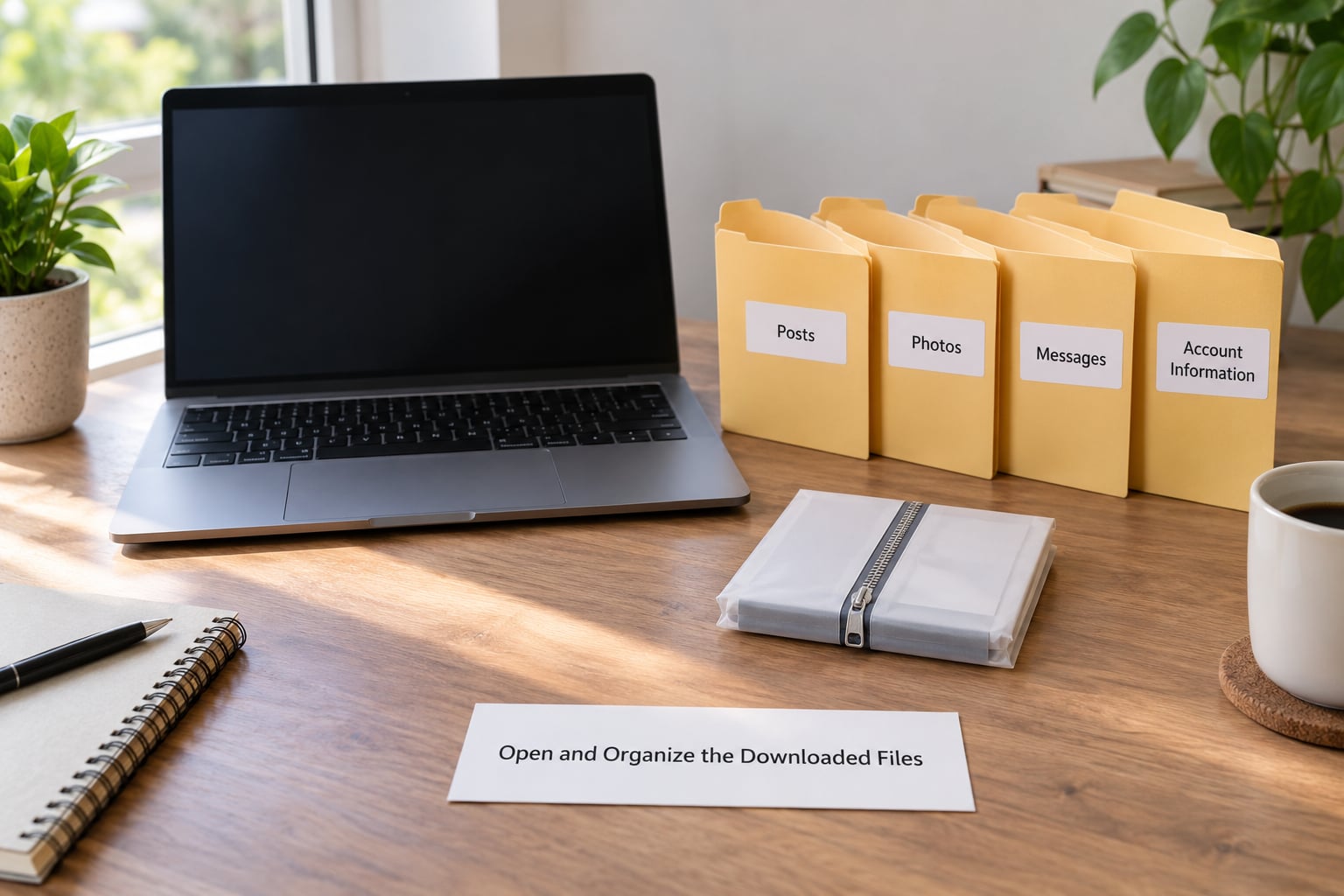
You will receive a ZIP archive. Unpack it with the archive tool built into your operating system rather than anything you downloaded to do it, since the contents are untrusted files. Right-click the ZIP on Windows, or double-click it on macOS.
What you get depends on the format you chose.
- HTML exports unpack into folders per category, each holding web pages you can open in a browser, plus a folder of media files at full original resolution.
- JSON exports unpack into one text file per category, named things like posts.json or messages_1.json. Some platforms split large categories across numbered files.
- JSONL files are one record per line, which is common for message histories on several platforms. Any text editor opens them, and each line is a complete entry.
- CSV exports show up on LinkedIn and Pinterest for tabular data like connections and boards. These open directly in Excel, Numbers or Google Sheets.
- Media files keep their original names and formats in most exports, and most retain their EXIF data, which means the original capture date and often the device. That is the metadata worth preserving.
Do not rename files or reorganize them before you have copied the archive somewhere safe. Make a simple folder structure instead: one folder for posts, one for media, one for messages, one for account information, all inside a dated parent folder. Naming the parent folder with the date of the export pays off the second time you do this and cannot work out which is which.
If you want the photos as ordinary picture files rather than buried in a hierarchy, the media folder already has them. Copy that folder out on its own and you have a normal photo library, which is usually the real reason people ran the export in the first place.
Check What You Want to Keep
Open a handful of files before you trust the archive. Check that posts from a few different years are there, that your message history includes the conversations you care about, and that the media folder contains what you expected. Twenty minutes of checking now beats discovering a gap when you no longer have access.
Now the part nobody tells you: a large amount of what people hope is in the archive is not, and no export will get it back.
- Deleted messages and deleted posts do not come back. This is the most searched question in the space and the answer is consistently no. If it was deleted before the export was generated, it is not in the file, even when the platform itself removed it rather than you.
- Story viewer lists are not included. You get the story media and metadata, not a list of who watched it.
- You do not get unfollower data. No platform will tell you who stopped following you, and this is not something you can derive from an export by comparing two files, because follower lists are snapshots, not change logs.
- Private content from other people is excluded. A deleted or hidden post by someone else will not surface in your archive, because it was never your data to begin with.
- Content from other accounts you manage is generally not bundled into a personal export. Export each Page, business account or channel separately.
- Some ad and inference data is rounded or summarised rather than given to you raw, particularly around ads interests.
If the first export leaves a real gap, the fix is usually a narrower second request with a different choice rather than a different tool. A longer date range, the other file format, or a per-account export for a Page you forgot you ran can close it. What no export will do is recover deleted material.
Protect or Delete the Archive
An export is not a harmless folder of pictures. Facebook and Instagram archives routinely contain your phone number and address, private message histories, precise location history, contact lists with phone numbers, login history with IP addresses and device names, and in some cases recovery contact details. Treat the ZIP like a set of passwords.
Three things to do with it. Encrypt it if it sits on a laptop that travels, using your operating system’s disk encryption or a password-protected archive. Keep at least two copies, one local and one somewhere else, following the same logic you would apply to any file you cannot recreate. And keep a record of the date and the platform, so a future you knows what the folder is.
Deleting the archive is fine when you have extracted the photos you wanted and have no interest in the account activity data. Clear it from Downloads, empty the trash, and if the platform is encrypted, that covers the local copy. Remember the email link to the online copy is still live until it expires, so delete that from your inbox too.
Two more things people want to know. First, sequencing: request and download the export before you deactivate or delete anything. Deactivating locks you out of the export tool and any pending link, and deletion makes the archive unreachable. Export first, delete second, always. Second, if a platform’s self-service export comes back incomplete, you may have a legal fallback. Data portability rights under GDPR and several US state privacy laws entitle you to a machine-readable copy of your personal data, and a support request citing that right gets a different response than a polite one.
Common Mistakes
Exporting the wrong account. The most common and the most annoying, because you only find out after a two-day wait. Open Settings and check the name, handle and email at the top before you request anything, especially if you have a secondary or old profile still signed in.
Never seeing the email. Check spam, promotions and any filtered folder before assuming the request failed. Add the platform’s sending domain to your contacts. Also confirm the request actually registered, since some platforms show a success screen without emailing anything if the account has no verified address.
Waiting and never hearing back. Check the status page inside the export tool itself rather than only your inbox. A request sitting in pending for four days usually means a large media set, not a fault. If it passes a week, cancel it, switch media quality to medium, shorten the date range, and submit again.
Expecting deleted messages to reappear. They do not, on any platform. This one is pure expectation management, and it is worth settling before you spend three days waiting for a file that was never going to contain them.
Trying to export from the phone app and finding nothing. On Facebook, X, LinkedIn and Pinterest the mobile app either hides the option or shows a reduced version. Switch to a desktop browser. Instagram and TikTok are the two that handle a mobile request properly.
Letting the download link expire. Links commonly last a few days. If you missed the window, the export has to be built again from scratch, which is why copying the ZIP somewhere safe matters.
Running out of disk space mid-download. The ZIP plus the extracted contents plus a second backup copy can be triple the archive size. Clear space first, and download to the drive with the most room rather than the default one.
Opening an unexpected link. Data export messages are a known phishing template. If the sender domain or the domain after the redirect is not the platform’s own, delete the email and go request the export again from the settings page yourself.
Assuming every platform exports the same thing. They overlap heavily on posts, media, messages and profile data, but the categories differ enough that two exports of the same person will not look alike. Treat each one as platform-specific rather than as a single unified record of your life.
Frequently Asked Questions
How long does a social media data export take?
Most small accounts finish in minutes to a couple of hours. Accounts with years of history, especially at high media quality, commonly take 24 to 48 hours, and Snapchat can take several days because it builds your full Snap history. The wait happens on the platform’s servers, so a faster connection will not speed it up. Set a shorter date range or medium media quality if you need it faster.
What is actually inside a social media data export?
Usually posts and their photos and videos, stories, comments, reactions, likes, saved items, direct messages, your profile and account settings, follower and following lists, search and watch history, login history, connected third-party apps and ad interests. The exact categories vary by platform, and each platform lets you choose what to include. Media comes at full resolution unless you pick a lower quality.
Can I read the exported files without any special software?
Yes. An HTML export unpacks into web pages that open in any browser. A JSON export is plain text you can read in a text editor or open in a spreadsheet. CSV files open directly in Excel or Google Sheets. You need an archive tool to unpack the ZIP first, but the operating system already has one built in.
Will an export bring back deleted messages and deleted posts?
No. Anything deleted before the export was generated is gone from the archive, including messages and posts removed by the platform itself. Exports also exclude story viewer lists and unfollower information. You will get your current posts, current messages and the media that still exists, which makes the archive an excellent record but a poor recovery tool.
Should I export my data before deleting my account?
Yes, always. Deactivating an account blocks the export tool and invalidates any pending download link, so the request has to come first. Download the archive and copy it somewhere you control before you deactivate, then delete the email containing the link once you have it stored. Deleting the account first means the data leaves with it.
How do I keep an exported archive private and safe?
Assume the archive holds your phone number, address, private messages, precise location history, contact lists with numbers, and login history with IP addresses and device names. Encrypt it if it travels on a laptop, keep two copies in different places, and delete both the extracted folder and the email holding the download link when you no longer need them.
Conclusion
The first thing to do is open the platform’s own settings on a desktop browser and find the option labelled Download your information, Get a copy of your data, or Request archive. Choose a date range you actually care about, pick HTML if you want to read the archive and JSON if you want to move the data, and turn media quality down unless the photos exist nowhere else. Then submit and go check your email, including spam, every few days until the archive arrives.
Download it immediately, because the link expires. Unpack it somewhere with room, pull the media folder out as plain photo files if that is what you needed, and keep one copy off the device you exported from. If you are planning to deactivate or delete the account, finish all of that before you touch the delete button, because the moment you deactivate, the export tool goes with it.
Doing this once is good. Doing it every few months takes twenty minutes and quietly builds you an archive that no platform shutdown, acquisition or accidental password reset can take away.