Most people don’t fail at using a calendar app because the app is bad. They fail because everything lands on the same calendar, tasks sit there without a time attached, and nothing gets reviewed after week one. Learning how to use a calendar app to actually stay organized comes down to three things: put commitments on a clock, put work in time blocks, and keep it current on a schedule.
Set aside about an hour for the first setup, then ten minutes every Sunday or Monday for maintenance. The system below works the same in Google Calendar, Apple Calendar, or Outlook, with exact menu paths for each one where they differ.
Table of Contents
- 1What You Need
- 2What Goes on the Calendar and What Goes in a To-Do List
- 3Step-by-Step: How to Use a Calendar App to Actually Stay Organized
- 4Step 1: Choose One Main Calendar and One Place for Tasks
- 5Step 2: Set Up Separate Color-Coded Calendars
- 6Step 3: Add Events With the Details You’ll Actually Need
- 7Step 4: Schedule Tasks Instead of Wishing You Had Time
- 8Step 5: Protect Focus Time and Energy
- 9Step 6: Review and Adjust the Week
- 10Common Mistakes
- 11Frequently Asked Questions
- 12What is the best calendar app for staying organized?
- 13Should I use Apple Calendar, Google Calendar, or Outlook Calendar?
- 14How do I stop putting too many events on my calendar?
- 15How many reminders should I set for each task?
- 16Can I use one calendar app for work and personal events?
- 17How do I plan my week when everything is urgent?
- 18Conclusion
What You Need
You need one calendar app to act as the single scheduling hub, and a clear list of everything you are committed to before you start filling in blanks. Decide which app that is first, because everything else hangs off it.
The main app. Google Calendar on the web, Android, or iOS for most people. Apple Calendar if you live entirely in the iPhone, iPad, and Mac world. Outlook Calendar if Microsoft 365 is where your work lives. Notion Calendar is worth a look if your tasks already live in Notion and you want those to appear on a shared schedule, and Cal.com handles booking with other people rather than tracking your own week. Pick one. Two half-used apps are worse than one good one.
Your commitment list. Before opening the app, write down every recurring thing in your life: work hours, commute, classes, gym, church, the school pickup, the dog walk. That list becomes your recurring events in about ten minutes, and it’s the foundation everything else sits on.
A place for tasks that have no time yet. A to-do app or a plain notes list. This is the part most guides skip, and it’s the reason calendars turn into junk drawers. The calendar holds things that own a specific slot of time. The to-do list holds everything else. Mixing them is what produces a wall of undifferentiated entries with no start times and no deadlines.
Optional helpers. A notes app for prep details that are too long for an event title, and a password manager if you share a family or partner calendar and want a shared login rather than passing invitations around.
What Goes on the Calendar and What Goes in a To-Do List
| Item | Where it belongs | Why |
|---|---|---|
| Client meeting, lecture, dentist appointment | Calendar, fixed start and end | Someone else or a place depends on this time |
| “Write quarterly report” | To-do list first, then a calendar block | It has no time until you give it one |
| Gym, lunch, stand-up, date night | Calendar, recurring | Routines need protected time, not reminders |
| “Reply to Sam about the invoice” | To-do list | Ten minutes, no fixed slot, easily batched |
| Deep work like writing or editing | Calendar block, 90 minutes | Only deep work survives if it has a start and an end |
| Someone else’s schedule, like a partner’s shift | Shared or subscribed calendar | You can’t plan around time you can’t see |
If an item has no start time, it is not a calendar event yet. It becomes one only when you decide when you’ll do it.
Step-by-Step: How to Use a Calendar App to Actually Stay Organized
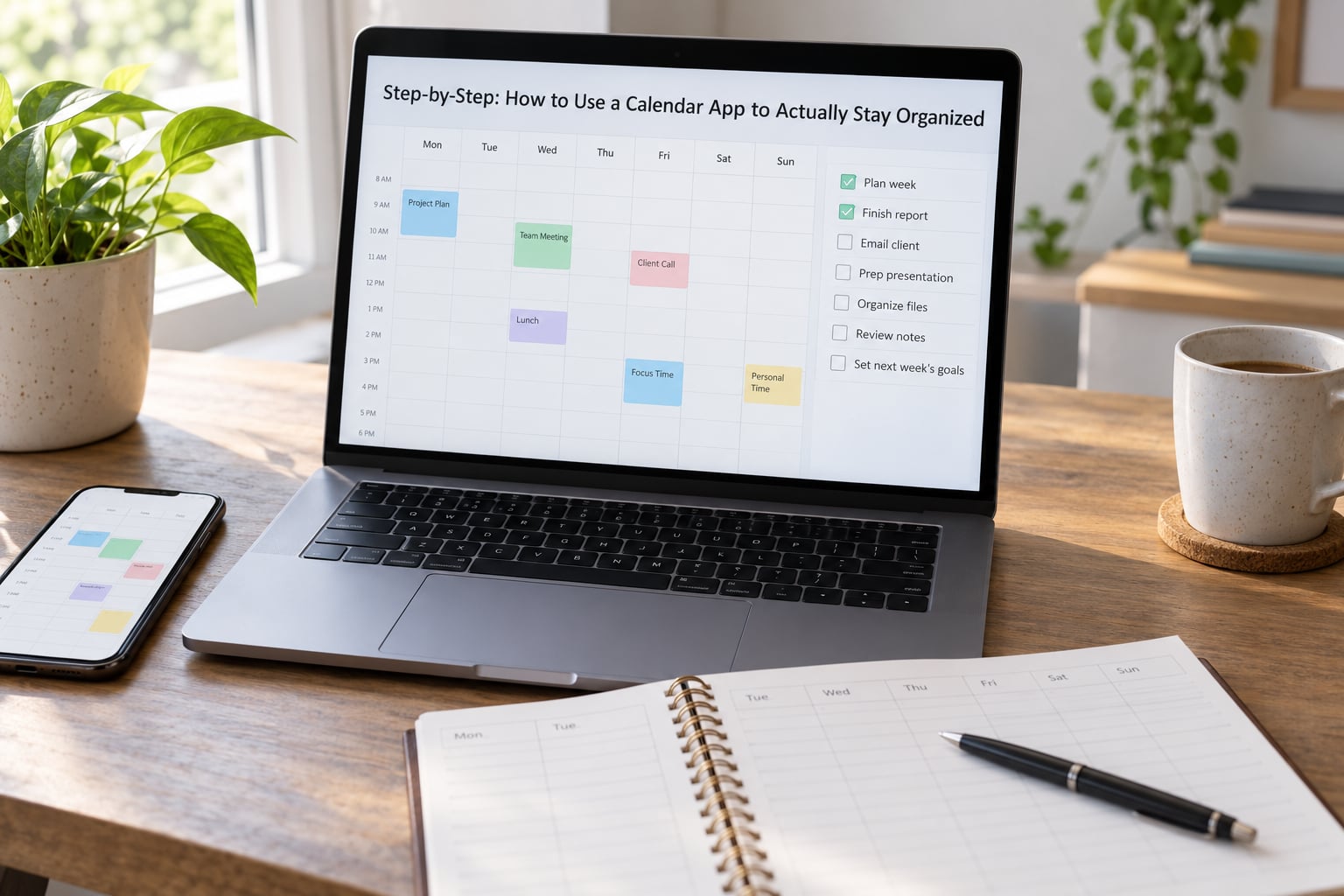
Step 1: Choose One Main Calendar and One Place for Tasks
Pick the app you’ll actually open every morning and turn off the others. In Google Calendar, this is settings you don’t have to hunt for; on Apple devices it matters more because Calendar, Mail, and Safari can each hold events and Reminders can quietly become a second, unsynced to-do system.
Once you’ve chosen, check how many accounts are already attached. On iPhone, open Calendar, tap Calendars at the bottom of the screen, and you’ll see every subscribed account listed. On the web, open Google Calendar and click the three-dot menu beside a calendar in the left sidebar to see its settings. Most people’s first surprise is that they have two or three calendars subscribed that nobody has looked at in a year.
How to tell it worked: your week view shows every commitment you currently have, with no duplicates and no mystery accounts in the sidebar.
Step 2: Set Up Separate Color-Coded Calendars
Create one calendar per category of your life and give each a color that means something to you. Keep the number small: work or school, personal, family, health, and a single catch-all for appointments. Five is usually enough.
Google Calendar: click the gear icon, choose Settings, then Calendars in the left sidebar, then Add calendar and Create new calendar. Right-click the calendar name in the sidebar and pick a color.
Apple Calendar on iPhone and iPad: open Calendar, tap Calendars at the bottom right, then tap Add Calendar at the bottom. Tap the new calendar’s color square at the top to change its color. If your events live in an iCloud or Google account, you can also add sub-calendars from the account itself: tap the account name at the top of the Calendars screen, then Add Calendar.
Apple Calendar on Mac: open Calendar, choose Calendar in the menu bar, then Add Calendar and pick iCloud or On My Mac. To rename or recolor it, right-click the calendar in the left sidebar.
Outlook: in the new Outlook on the web, click Settings, then Calendar, then Shared calendars to create and rename a group. In classic Outlook on Windows, use the Calendar ribbon tab, then Share Calendar.
Turn off the checkbox beside any calendar you don’t want cluttering your view without deleting it. On Google Calendar, right-click and choose Display this only to isolate a single calendar when you’re focusing on one part of life.
How to tell it worked: glance at a week and tell within a second which parts of your life are heavy. If every block is the same shade, the colors aren’t doing their job.
Step 3: Add Events With the Details You’ll Actually Need
An event titled “Dentist” at 3pm is useless when you’re at your desk an hour later. Add what you need to act on: the location, the link, the person, and how long it takes to get there.
Give every event a description. In Google Calendar, click inside the description field under the time and type; @ mentions add guests or rooms. On Apple Calendar, double-click an event to open it and use the Notes field. A five-minute habit, and it’s the difference between rescheduling and remembering.
Build travel and transition buffers into the schedule rather than assuming them away. If a meeting ends at 10:00 and the next starts at 10:30 in a different building, you have no real gap. Either move the second meeting or put a 15-minute placeholder between them.
Set reminders as a ladder rather than a single alarm. A useful default is a day before, an hour before, and ten minutes before, and you can scale it by importance: short ladder for routine appointments, longer ladder for things you cannot be late to.
In Google Calendar: open the event, then use the Add more reminders link. For app-wide defaults, go to Settings, General, and change Default reminders.
On iPhone and iPad: open an event, tap Alert on the edit screen, then Add Alert for each level. For app-wide defaults, go to Settings, then Apps, Calendar, then Default Alerts.
In Outlook: open the event and use Add Reminder in the ribbon. For the default, click Settings, Calendar, Events and invitations, and set Default reminders.
How to tell it worked: pick any event in the next seven days and ask whether you could get there on time without thinking. If you can’t, the details are missing.
Step 4: Schedule Tasks Instead of Wishing You Had Time
This is the step that separates a calendar that works from one that decorates. A task without a time is a wish. Put it on the calendar with a start and an end, even if the block is only 25 minutes.
Take your top two or three to-do items and drag them onto the calendar. Google Calendar and Outlook both support dragging from a task list straight onto a time grid, and Apple Calendar gets the same result if you use Reminders with a due date, then create the time block manually. Thirty minutes, honestly estimated, is a better number than the two hours you hope it takes.
Break large work into pieces that fit a real sitting. “Write the report” becomes “outline the three sections,” “draft section one,” “fix the numbers.” Each of those can be scheduled; the original can’t.
Sort work into two piles. Hard deadlines get scheduled first, close to the deadline, with no flexibility. Everything else gets placed in the nearest open gap that suits your energy, which usually means harder work in the morning and admin in the afternoon.
How to tell it worked: at the start of each day you can name what you’re doing next without checking a task app. If you can’t, your to-do list is still doing the scheduling for you.
Step 5: Protect Focus Time and Energy
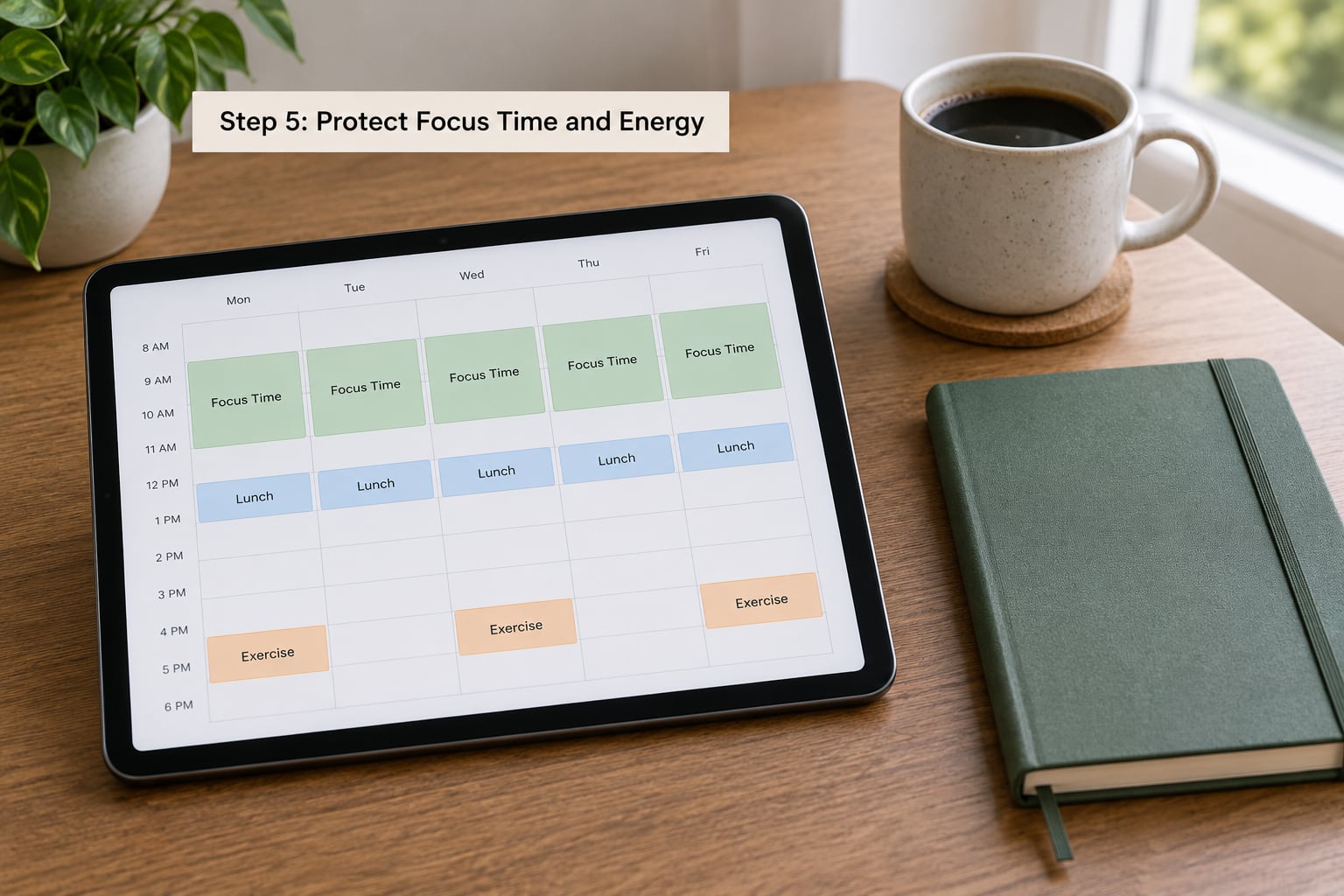
Recurring events are what stop a schedule from draining by Thursday. Set the gym, the meals, the walk, the admin hour and the deep work blocks as repeating entries so they stop needing a decision every day.
Block non-working hours so colleagues can’t book your evenings. In Google Calendar, open Settings, then General, and set your Working hours. Then create one recurring event titled something like Not available that spans your off-hours and set Show this as to Busy. On iPhone and Mac, Apple Calendar has no working-hours feature, so a recurring busy event is the practical equivalent. In Outlook, click Work Week in the calendar view header, then Settings, and enter your hours.
Give deep work a 90-minute block and defend it. If you own the hour yourself, that’s a Focus block; if colleagues can drop into it, that’s a soft hold and you should expect to move it.
Turn down notification noise. In Google Calendar, go to Settings, General, Notifications and untick Email notifications, leaving popup alerts on. On iPhone, use Settings, Focus and turn on Do Not Disturb or a Focus mode for your work hours. In Outlook, use Settings, Calendar, Notifications, and decide which events are worth interrupting you for.
Time blocking has real downsides, and you should know them before you commit. Rigid blocks break the moment someone moves a meeting, and they punish you for underestimating. The fix isn’t to abandon blocking, it’s to leave one open block every day and to re-plan at the start of each week rather than pretending Wednesday’s schedule survived Tuesday.
How to tell it worked: you finish most days with something to show, and you can still get to a workout or a dinner without doing arithmetic.
Step 6: Review and Adjust the Week
Ten minutes, once a week, is what keeps a calendar from rotting. Most calendars die in week three because nobody ever removed anything.
Sunday evening or Monday morning:
- Open the next seven days and look for conflicts. Any day with more than six booked hours is a day to fix, not a day to survive.
- Move anything that no longer matters. Deleting an event takes the same tap as keeping one, and an empty-looking calendar is the point.
- Reschedule unfinished tasks into real gaps rather than pushing them to tomorrow.
- Check recurring events. Anything you’ve skipped three weeks running should be deleted or reduced.
- Confirm anything time-sensitive: travel, deadlines, appointments that need a confirmation call.
Keep the calendar visible. The single strongest predictor of whether people actually maintain one is whether they see it without opening the app. On iPhone, press and hold the home screen, tap Edit, then Add Widget and choose Calendar. On Android, long-press an empty area of the home screen, open Widgets, and find Calendar.
How to tell it worked: when someone asks what you’re doing Thursday, you answer from memory because you checked on Monday.
Common Mistakes
Almost every broken calendar fails the same way. Here’s what goes wrong and the specific fix.
Treating the calendar as a to-do list. This is the big one. Everything lands on the grid, days look impossibly full, and nothing has a priority. Keep tasks in a task app and schedule them as time blocks.
Setting every event busy. If all your blocks show as busy, nobody can find a slot to meet with you and you get booked edge to edge. Set personal items to Free and leave the visible gaps where you want them.
Setting ten reminders for one event. You turn the sound off, then miss everything. Three levels is plenty, and only the important ones deserve the full ladder.
Back-to-back meetings with no gaps. A zero-minute transition means you’re late to the next thing every single time. Insert 15-minute buffers, or make the last meeting of the day 30 minutes shorter than everyone else’s.
Declining nothing. Accepting every invite is how a week fills up and disappears. In Google Calendar, you can hold time without explaining yourself by creating a personal event and setting Show this as to Busy.
Never reviewing. A calendar you never prune becomes a record of what you used to plan, not what you’re doing. Ten minutes on Sunday.
Duplicating events across two accounts. If work and personal calendars are both connected and both hold the same meetings, everything shows twice. Keep the work account connected but set its visibility to unchecked on your personal devices, or vice versa.
Letting the time zone shift under you. In Google Calendar, go to Settings, General, Time zone and untick Automatically determine time zone, then pick your home city. Travel will then use your local time instead of silently moving every event two hours.
Sharing a family calendar without limits. When you share a calendar in Google Calendar, you choose an access level: see free and busy times only, see all event details, or make changes. Set family members to the middle option unless they genuinely need editing rights. Anyone sharing one account can otherwise end up moving or cancelling everyone else’s events, which is exactly what a permissions level exists to prevent.
Sync conflicts. Two devices editing the same event offline can produce duplicates. In Google Calendar, right-click a calendar, open Settings, and use the Delete events tab with its duplicate-detection filter to clear the copies.
One more honest note: some people organize better on paper. A written list or a paper planner works well for plenty of people, and that’s a fine outcome. The test is whether you look at it. If your schedule works and you trust it, the format doesn’t matter.
Frequently Asked Questions
What is the best calendar app for staying organized?
Google Calendar is the safest default because it syncs across Android, iPhone, desktop, and the web, handles shared family calendars well, and costs nothing. Apple Calendar is a close second if you are all-in on Apple devices. Outlook wins when Microsoft 365 handles your work invitations. The app matters far less than the habits inside it: separate color-coded calendars, tasks given real time, and a weekly review.
Should I use Apple Calendar, Google Calendar, or Outlook Calendar?
Choose whichever one already holds most of your invitations, because migrating events is tedious and sync problems follow you. Use Apple Calendar if every device you own runs iOS, iPadOS, or macOS. Use Google Calendar if you mix platforms or want the easiest shared family calendar. Use Outlook if your employer issues Microsoft 365 mail and books your meetings there. Two apps is workable if you keep one for work and one for life.
How do I stop putting too many events on my calendar?
Set your working hours, mark events inside them as Busy, and mark personal or tentative items as Free so colleagues can find the gaps. Review each incoming invitation against what is already booked, and decline anything that does not earn the hour. Keep one open block a day with no events at all. If a day shows more than six booked hours, move something before you accept something new.
How many reminders should I set for each task?
Three levels works for almost everything: a day before, an hour before, and ten minutes before. Routine appointments need only the hour and ten-minute reminders, because you already know they are happening. Anything you cannot be late to deserves the full ladder plus a note about what to bring. More than three reminders on a single event trains you to ignore the sound entirely.
Can I use one calendar app for work and personal events?
Yes, and it is usually better than two. Keep separate work and personal calendars inside the app, then hide or uncheck the personal one on your work devices and the work one on your personal phone. In Google Calendar this is the checkbox beside each calendar in the sidebar. Sharing a calendar means picking an access level, so use free and busy only unless the other person needs to edit.
How do I plan my week when everything is urgent?
Rank by consequence, not by who shouted last. Fixed deadlines go first because they cannot move. Then pick the two or three items that would cost you the most if they slipped, give each a realistic block of 30 to 90 minutes, and schedule them before anything optional. Everything that does not fit gets moved to next week on purpose rather than squeezed in as a half-hour you will abandon on day two.
Conclusion
Start tomorrow, not Monday. Create four color-coded calendars, move your recurring commitments into them, and put your three most important tasks on the calendar as real time blocks this week. Then set ten minutes aside each Sunday to look at the week ahead and cut what does not need to be there.
That is the whole method. Learning how to use a calendar app to actually stay organized stops being about the app the moment you separate what has a time from what does not, and start looking at next week before this one fills up.