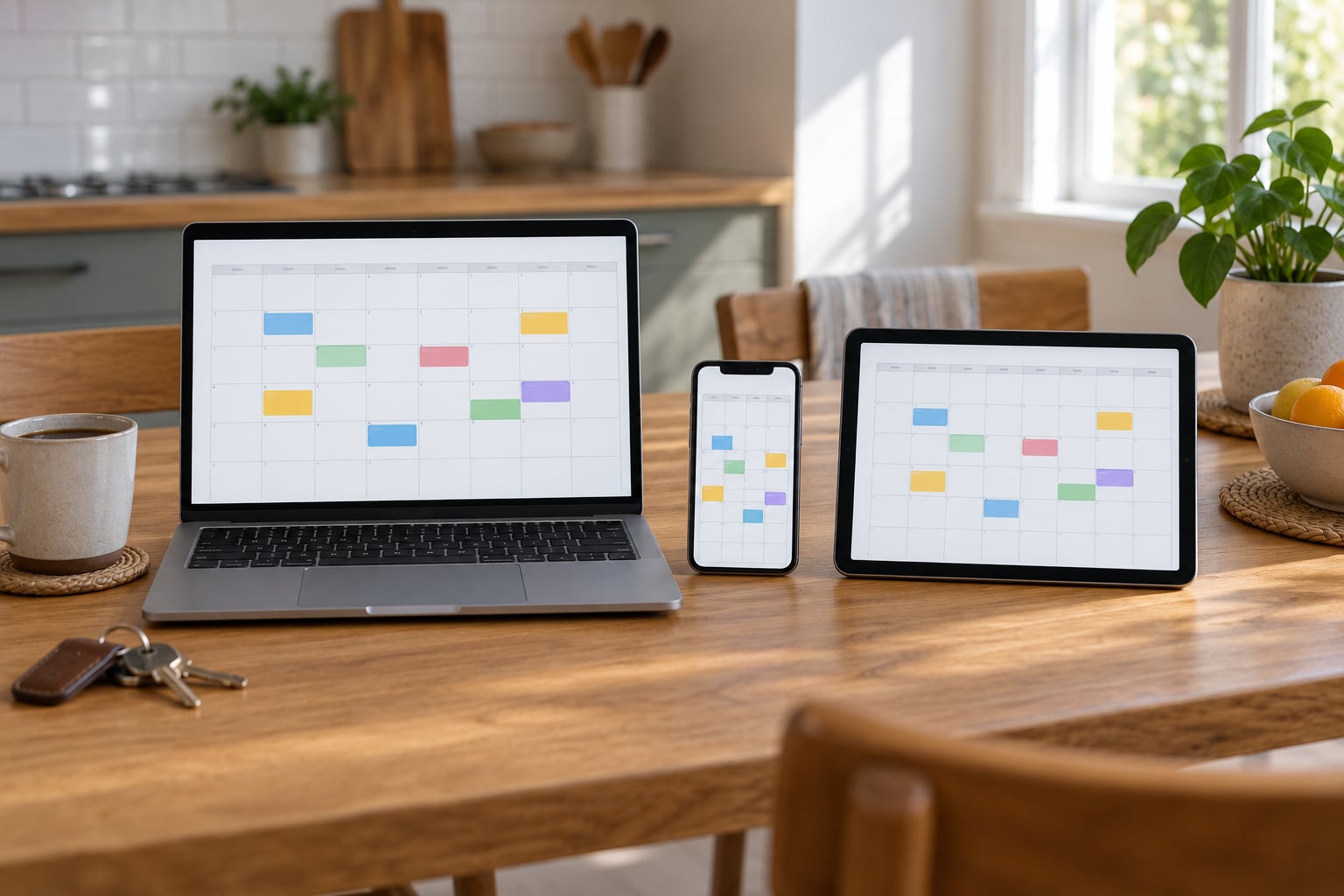
To share a family calendar across platforms, create one dedicated family calendar on the account that most household members already use, then invite each person by email and add that shared calendar inside their own app. Apple and Android can both read a Google Calendar or an iCloud calendar. The one limit to know up front: a calendar added by subscription link is view-only, so editing from a different provider needs a shared account or a dedicated family app.
Set aside about 20 minutes the first time. After that, maintenance is a couple of minutes a week, and the whole thing runs on free tiers if you host the calendar on Google or iCloud.
Below is the setup I would walk a family through, the menu paths for every platform, and the fixes for the four sync problems that come up most often.
Table of Contents
- 1What You Need
- 2Step-by-Step: How to Share a Family Calendar Across Platforms
- 3Choose a Shared Calendar Service
- 4Create the Family Calendar
- 5Invite Family Members and Set Permissions
- 6How to Add the Shared Calendar Across Platforms
- 7Test Notifications, Sync, and Privacy
- 8Common Mistakes
- 9Tips for Keeping a Shared Family Calendar Useful
- 10Frequently Asked Questions
- 11Can you sync Apple and Google calendars together?
- 12Why isn’t my shared Google Calendar showing up on my iPhone?
- 13Can I use a family calendar in Google Calendar on an iPhone?
- 14Can two people both own the same Apple shared calendar?
- 15How do I share a family calendar with grandparents who use an old phone?
- 16What happens if an app stops working or a family member loses access?
- 17Conclusion
What You Need
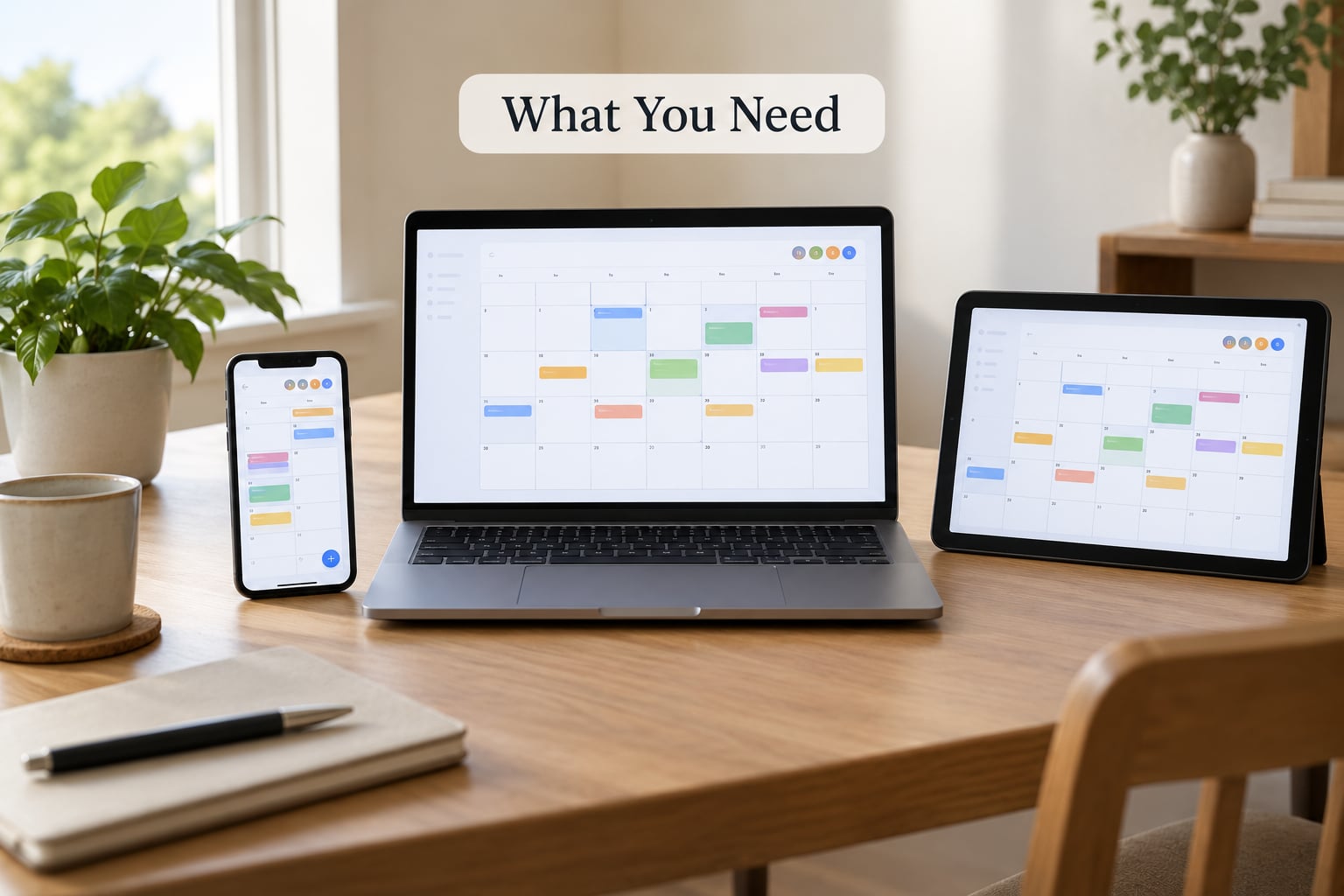
You need three things, and honestly only the first is a real requirement: a calendar account to host the family calendar on, one email address per person you want to invite, and the calendar app each of them already uses.
The hosting account matters more than anything else in this guide. Google Calendar, iCloud and Outlook each work best when they own the calendar. Pick the provider that the most people in the house already log into, not the one with the nicest features.
Before you start, check these four things:
- A stable email for each member. A free webmail account is enough. Anyone who does not have one can sign up in a couple of minutes, and the invitation will not arrive without it.
- The current app version on every device. Outdated calendar apps are the most common cause of sharing that half-works. Update Apple Calendar, Google Calendar and Outlook on each phone and computer first.
- A decision about which calendars stay private. Work calendars, medical appointments and anything else personal should never be inside the family calendar. Decide now, not after you have already shared the wrong one.
- The home time zone. Kids’ sports and grandparents’ visits are where a wrong time zone causes real confusion. Set it once on the family calendar.
Nothing here requires new hardware. A phone, a laptop and the accounts you already have are enough. If someone in the family has no email account at all, skip ahead to the section on members without accounts.
Step-by-Step: How to Share a Family Calendar Across Platforms
Choose a Shared Calendar Service
The short version: Google Calendar wins mixed-device households, iCloud wins all-Apple households, and Outlook wins households already inside Microsoft 365. Here is the full picture per pairing.
| Household setup | Best approach | Two-way editing? |
|---|---|---|
| Everyone on Google (Android, iPhone, laptop) | Shared calendar in Google Calendar | Yes |
| Everyone on Apple (iPhone, iPad, Mac) | Shared iCloud calendar via Family Sharing | Yes |
| Apple and Android mixed | Google Calendar hosted, Apple Calendar subscribed | Yes, with Google Calendar added on Apple devices |
| Google and Outlook mixed | Google Calendar hosted, add the account in Outlook | Yes |
| Apple and Outlook mixed | Subscribe with a public URL, or use a cross-provider app | Usually no |
| Outsider on any platform (grandparent, sitter) | Public URL subscription, view-only | No |
Before choosing, one concept that causes most of the confusion. Three different things get called syncing, and they behave differently.
| Term | What it actually is | Editing |
|---|---|---|
| Shared | Your app reads the events live from the owner’s account each time it refreshes | Full edit for everyone you allow |
| Subscribed | Your app pulls a public iCal feed on a timer and keeps a local copy | View-only |
| Synced | Two accounts hold identical copies and push changes both ways | Full edit, but you can drift out of step |
Google support threads make this point repeatedly: a shared calendar is not a synced copy, and that is why there is nothing to merge and nothing to refresh manually. It is a live view of the other person’s account.
Create the Family Calendar
Create the family calendar on the hosting account, separate from your personal one. Keeping it separate is what lets you share everything in it without exposing a single private event.
In Google Calendar on the web: click the plus sign next to Other calendars, choose New calendar, name it something everyone recognises like Smith Family, pick a colour, and leave the time zone on automatic so it follows your location.
In the Calendars app on iPhone: scroll to the bottom of the calendar list, tap Add Calendar, tap Add New Calendar, then set the name, colour and notifications. In iOS 17 and later the same control lives in Settings, then Apps, then Calendar, then Calendar Accounts.
In Outlook on the web: go to the Calendar section, choose Add calendar, then Create new calendar. Name it the same way. Outlook groups calendars by colour, so a distinct colour here matters more than in Google.
Set a notification default while you are in there. Google Calendar lets you set default reminders per calendar, and changing it once saves every future event from needing a manual reminder.
Invite Family Members and Set Permissions
Inviting people is a two-step job: the owner invites, then the guest accepts. Until the guest accepts, they have no access, and that is where a lot of first-time sharing goes wrong.
Google Calendar: hover over the family calendar in the left sidebar, click the three dots, choose Share, type the email address, choose a role, then send. On mobile, open the calendar from the hamburger menu and use the same share icon.
iCloud: open the Calendar app, right-click the calendar or long-press it on iPhone, choose Share Calendar, enter the address, pick permission level and how alerts should work, then send. Anyone in your Apple Family Sharing group appears in that list automatically, which is the whole point of using Family Sharing instead of typing addresses.
Outlook: right-click the calendar in the left pane, choose Share Calendar, enter the address, then choose what they can do. Microsoft separates who can edit the calendar from who can see it, and you need to set both.
Permission levels differ more than the button labels suggest:
| Level | What they can do | Good for |
|---|---|---|
| Owner | Everything, including deleting the calendar and managing members | One adult only |
| Can edit | Add, change and delete any event in this calendar | Co-parents, a second adult |
| See all details | Read event titles, times and locations, cannot change anything | Grandparents, older teens |
| Free/busy only | Sees that you are busy, nothing else | Colleagues and clients, not usually family |
Give kids edit access to the family calendar, but not to anything else. A child who can edit the family calendar can delete next month’s dentist appointment.
Revoking is the same path in reverse: open sharing settings, click the contact, choose Remove or change to Stop sharing. On iPhone, long-press the shared calendar and tap Share Calendar again. Removal takes effect immediately, though a person who was already viewing it may still see cached events until they refresh.
How to Add the Shared Calendar Across Platforms
This is the step that decides whether editing works. The rule is simple: to edit, add the shared calendar from its owner. To just look, paste the subscription link.
Apple Calendar on iPhone and iPad: tap Calendars at the bottom, tap Add Account, choose iCloud, sign in, then tap Shared Calendars or Shared with You. Tap the family calendar to switch it on. You can also use Share menu in any event and tap Add Calendar.
Apple Calendar on Mac: open Calendar, choose Calendar in the menu bar, then Subscribe to Calendar, or Add Account for iCloud. Shared calendars arrive in a Shared section you can tick on.
Google Calendar app on iPhone or Android: tap the profile icon, scroll to Add account or Other accounts, choose Google, sign in with the invited address, and tick the family calendar in the list. This is the path people miss, and it is why an iPhone user says a shared Google calendar never showed up for them.
Outlook on Windows: in the new Outlook or classic Outlook, go to Calendar, then Add Shared Calendar or Manage Calendars, and pick Add from account. In the new Outlook it is Add calendar, then Shared from account.
Microsoft Outlook mobile app: tap the calendar icon, then the three dots, choose Add calendar and Add shared calendar. Note that Outlook on iOS often uses its own account system, so sign in again there even if Apple Mail already has the account.
Anyone on any platform, view-only: the owner opens sharing settings, copies the public calendar URL, and sends it. On the receiving side: Google Calendar web, the plus sign next to Other calendars, then From URL. On iPhone, Calendars, Add Account, Other Subscribed Calendars, then paste. On Outlook web, Add calendar, then From web.
One thing to know about subscriptions: refresh happens on a timer, often up to 24 hours, and an app or system update can break the feed with a refresh error. Shared calendars added through an account do not have that problem. Treat subscriptions as a fallback, not a foundation.
Test Notifications, Sync, and Privacy
Spend five minutes testing before you tell anyone to rely on it. This is the step most guides skip, and it is the one that saves you a month of arguing about why the pickup time was wrong.
Run through this list:
- Add a test event on the hosting account from a second device and confirm it appears on the other person’s phone within a minute.
- Add an event from the other person’s phone. Confirm the host can edit it, not just see it.
- Check that both events show the correct local time on both devices.
- Confirm each person gets a notification, and that they get it only for the family calendar rather than every calendar.
- Check the private side: an event on the host’s personal calendar should not appear for anyone else.
- Confirm free/busy-only members see busy blocks and no titles.
If step 2 fails, you almost certainly subscribed instead of adding the calendar from its owner. That is the single most common setup error, and it looks exactly like a broken sync until you know what to look for.
Common Mistakes
The calendar never appeared for the person who was invited. They added their own account but did not tick the shared calendar in the account list. On iPhone in Google Calendar, this is inside Add account, Other accounts, then the tick box list.
They can see the events but cannot edit them. They subscribed to a public URL instead of adding the shared calendar. Look for the calendar sitting in a Subscribed or Other section rather than in a Shared section.
Duplicate events everywhere. The household has both the owner sharing the calendar and everyone subscribing to its public URL. Pick one method and remove the other, or the same events will keep arriving twice.
Changes take hours to show up. That is subscription refresh, not syncing. There is no manual refresh button on iPhone. Remove the subscription and re-add it from the account instead.
iCloud says syncing has stopped. Usually an expired password or a storage-full problem. Go to Settings, tap your name, then iCloud, check that Calendar is switched on, and confirm there is free space. On Apple devices you can also check system status at systemstatus.apple.com before you start changing settings.
A shared Google calendar will not show on an iPhone. Almost always the app, not the sharing. Reinstall or update the Google Calendar app, or add the calendar through the iOS Calendar app, which pulls the same iCloud-hosted Google account.
Work meetings appear for the whole family. You shared the wrong calendar. Put work on its own calendar account, or set that calendar to private and share only the family one.
Times are off by a few hours. The event was created in a different time zone, or a flight itinerary changed the device time zone mid-trip. Open the event, check the time zone field, and set the family calendar to your home zone.
Tips for Keeping a Shared Family Calendar Useful
A shared calendar dies from neglect, not from bad settings. These habits are what keep one alive for years.
Name events so a glance tells you who is involved. I use the first name of the person, then the thing: Maya swimming, Dad airport 6:40pm. Combined with a colour per person, the week reads at a glance.
Give one person ownership of entry. The calendar’s owner handles adds and deletes; everyone else can add their own events. Without this, two adults end up maintaining two overlapping calendars.
Put recurring items in with real rules. School pickup, swimming lessons and bin night belong as recurring events with end dates, not as weekly retyped notes.
Check the notifications setting per person, not globally. Grandparents usually want every event; your teenager usually wants none.
Export a backup once a quarter. In Google Calendar, open Settings, then Import and export, then Export. Save the zip somewhere your family can reach. If someone leaves the household, an export is how you keep the history.
Keep children’s calendars separate. A second calendar called Kids lets you hand a child edit access to their own activities without exposing the whole family schedule.
For members with no email account, use the public URL on a shared device. A spare tablet on the fridge, locked to a kiosk browser showing the subscribed calendar, works well for a sitter or a grandparent.
Frequently Asked Questions
Can you sync Apple and Google calendars together?
Yes, but only one direction gives you editing. If a Google Calendar is shared with iCloud or with an Apple Calendar account, Apple devices can see and edit it. If an iCloud calendar is subscribed inside Google Calendar, you get a view-only copy, and changes made in Google never flow back to Apple. That one-way limitation is the reason the Apple plus Outlook combination is the hardest of all.
Why isn’t my shared Google Calendar showing up on my iPhone?
The iPhone user usually signed in but never switched the shared calendar on. On iPhone, open the Google Calendar app, tap the profile icon, choose Add account, then Other accounts, sign in with the invited address and tick the family calendar in the list. If it is ticked and still missing, update the app from the App Store, then try adding the same Google account through the iOS Calendar app instead.
Can I use a family calendar in Google Calendar on an iPhone?
Yes, and it works better than most people expect. Install Google Calendar from the App Store, sign in with the address that received the invitation, and the shared family calendar appears in the list under Other calendars with a tick box. Tap the tick to display it, then drag it into the coloured area under My calendars if you want it alongside your personal events.
Can two people both own the same Apple shared calendar?
With iCloud you get one owner and a list of invitees, and even Family Sharing members cannot delete the calendar or change its sharing settings. If you need two equal administrators, either accept that one adult owns it and the other has full edit rights, or host the family calendar in Google Calendar, which allows several people to be given owner access to one calendar.
How do I share a family calendar with grandparents who use an old phone?
Use the public calendar URL rather than an email invitation. The owner copies the link from the sharing settings screen and sends it by text or writes it down. The grandparent pastes it into whatever calendar app they have using the From URL or Subscribe option. It is view-only, refreshes about once a day, and works on devices that were never updated, which is exactly what you want for someone who only needs to see pickup times.
What happens if an app stops working or a family member loses access?
If the owner leaves or loses the account, everyone loses write access at once, because a shared calendar lives inside the owner’s account rather than in a neutral place. Export a copy before anyone changes phone, email or account so you keep the event history. For long-term or co-parenting situations, a cross-provider family app such as Cozi or FamilyWall is a safer home than a single person’s Google account.
Conclusion
Start by creating one dedicated family calendar on the account that most of your household already signs into, then invite everyone by email. Google Calendar covers most mixed-device homes, iCloud Family Sharing covers all-Apple homes, and both are free for a family.
Have each person add that shared calendar from its owner rather than pasting a subscription link, and give it five minutes of testing in both directions before anyone depends on it. If you need a subscriber who never edits, a public URL is the right call. Everything else about how to share a family calendar across platforms comes down to that one choice between a live shared calendar and a read-only feed.