Updated for October 2026
Processor speed, listed in gigahertz (GHz), is how many clock cycles a CPU completes each second. A 3.5 GHz chip runs roughly 3.5 billion cycles per second, which sets the ceiling on how fast it can execute instructions. That ceiling matters for everyday tasks, but it is only one factor, and the number on a spec sheet is rarely the whole story.
Here is the short version before the detail:
- A higher GHz number only means a faster processor when you compare two chips of the same generation and architecture.
- A newer chip at 2.0 GHz routinely beats an older chip at 4.0 GHz, because it does more useful work per cycle.
- Browsing, email and video calls are held up by memory, storage and your internet connection far more often than by the CPU.
- The base clock on a spec sheet is a starting point, not the speed you will actually see.
- For typical home and office work, roughly 2.0 GHz and up on a recent chip is plenty. Single-core speed and thermals matter more than the headline figure.
Table of Contents
- 1What Processor Speed Really Means for Everyday Tasks
- 2What Is Processor Clock Speed?
- 3How GHz Relates to Real-World Performance
- 4Architecture and IPC decide the work done per cycle
- 5Cores and threads decide how much can run at once
- 6Cache and memory decide how fast the core gets fed
- 7Cooling decides how long the speed lasts
- 8Software decides how much of the work reaches the CPU
- 9Why the spec sheet shows the lower number
- 10Does a Faster Processor Mean a Better Computer?
- 11How Processor Speed Compares for Common Tasks
- 12What Processor Speed Do Different Users Need?
- 13Home users and browsers
- 14Students
- 15Office workers
- 16Creators
- 17Developers
- 18Gamers
- 19Battery life
- 20How to Check What Your Current Computer Can Do
- 21Frequently Asked Questions
- 22What does GHz stand for and what does it measure?
- 23Is a 1.7 GHz processor fast enough for everyday use?
- 24Which is better, 1.8 GHz or 2.2 GHz?
- 25Is 4.7 GHz fast for a CPU?
- 26Is a 10 GHz CPU possible?
- 27Is it better to have more RAM or a faster processor?
- 28Conclusion: Choose Performance for the Work You Do
What Processor Speed Really Means for Everyday Tasks
What processor speed really means for everyday tasks is narrower than most spec sheets imply. It tells you how fast one core can issue instructions. Whether your browser feels snappy, whether a spreadsheet recalculates quickly and whether a video call holds its frame rate depends on a chain of parts, and the CPU is only one link.
The mental model most people carry comes from the early 2000s: higher number, faster machine. That model still works inside a single product line. It breaks the moment you compare across generations, which is exactly what happens when a new laptop lists a lower GHz figure than the machine it replaces.
What Is Processor Clock Speed?
Clock speed is a count of timing pulses, and one of those pulses is what the industry calls a clock cycle. A small oscillator built into the processor sends an electrical signal to coordinate its components, and every component does its work in step with that signal.
One cycle is not one instruction. Inside a cycle the processor fetches an instruction, decodes it, runs whatever arithmetic or logic the instruction asks for and writes the result. A modern core can retire several instructions per cycle, and how many depends on the design of that core.
Measured in hertz, that count tells you cycles per second. Kilohertz is thousands, megahertz is millions and gigahertz is billions. So 2.8 GHz means 2.8 billion clock cycles every second, which is why a video of a processor’s clock is really just a way of counting pulses.
Here is the important part. A cycle is a time slot, not a result. A 4.0 GHz processor that completes four useful instructions per cycle does more work per second than a 2.0 GHz processor that completes one, even though the second chip ticks half as often. That efficiency is usually called instructions per clock, or IPC, and it is the number that explains most of the surprises buyers run into.
How GHz Relates to Real-World Performance
Clock speed sets the ceiling; other factors decide how close you get to it. Five of them come up constantly.
Architecture and IPC decide the work done per cycle
Every new generation of processors reworks its internal design, and the redesign usually completes more instructions per clock than the last one. That is why the number alone misleads across years.
Real part numbers make this easy to see. An AMD Phenom II X2 560 Black Edition runs at 3.3 GHz, and an Intel Core i3-2100 runs at 3.0 GHz. On everyday work the Intel chip wins, and the reason is per-cycle efficiency, not the clock. Users on the Tom’s Hardware forum keep landing on the same rule: GHz is meaningful within the same architecture, and close to meaningless outside it.
That is also why a current low-clock mobile chip feels quicker than the high-clock laptop it replaced. Efficiency gains per generation have been large enough to more than cancel a drop in frequency.
Cores and threads decide how much can run at once
A core is one complete processor sitting on the same silicon package. More cores means more work happening simultaneously, which is why export jobs, compiling and video rendering care about core count far more than frequency.
Most everyday work is the opposite. Opening a document, scrolling a page, joining a call: those run on one thread and lean on single-core speed, which is where clock frequency still earns its keep. Many chips also present two logical threads per physical core through a feature called SMT or hyper-threading, which helps when a workload is waiting on something rather than computing.
Cache and memory decide how fast the core gets fed
Cores do not pull instructions straight from RAM. They pull from cache, a small block of very fast memory on the chip itself, and a larger cache means the core spends more of its cycles computing instead of waiting.
When your clock speed is high but memory is small or slow, the extra cycles stall. Opening twenty browser tabs on a machine with too little RAM is the classic case, and no amount of GHz fixes it.
Cooling decides how long the speed lasts
Chips push out a lot of heat, and heat forces them to slow down. In a thin laptop with a small cooling system, a processor advertised at 4.5 GHz may sit well below that once a heavy load has run for a few minutes. This is called thermal throttling, and it is the reason a quiet laptop can feel slower than a chunky desktop with a lower number.
Desktop cases move air better and usually cool harder, which is why desktop chips hold their boost clocks while laptop chips fade. Anyone comparing a laptop to a desktop on GHz alone is comparing two different cooling worlds.
Software decides how much of the work reaches the CPU
An extension-heavy browser, a chat client running in the background and a sync tool all consume cycles whether or not you are looking at them. Forum users on Tom’s Hardware and Reddit regularly point out that perceived sluggishness during multitasking is usually background processes rather than a weak processor.
Why the spec sheet shows the lower number
Two clock numbers appear in processor specs and they mean different things. The base clock is the speed the chip is guaranteed to hold, and it is the number printed on laptop spec sheets. The boost clock, also called turbo frequency, is how far the chip can go on one or more cores when there is thermal headroom.
A laptop listed at 1.6 GHz base might boost to 4.0 GHz on a light load and sit at 2.8 GHz under sustained pressure. All three numbers are correct. Comparing the base figure against another brand’s boost figure is the single most common spec-sheet mistake buyers make, and it is why a machine can look slower on paper and feel quicker in the hand.
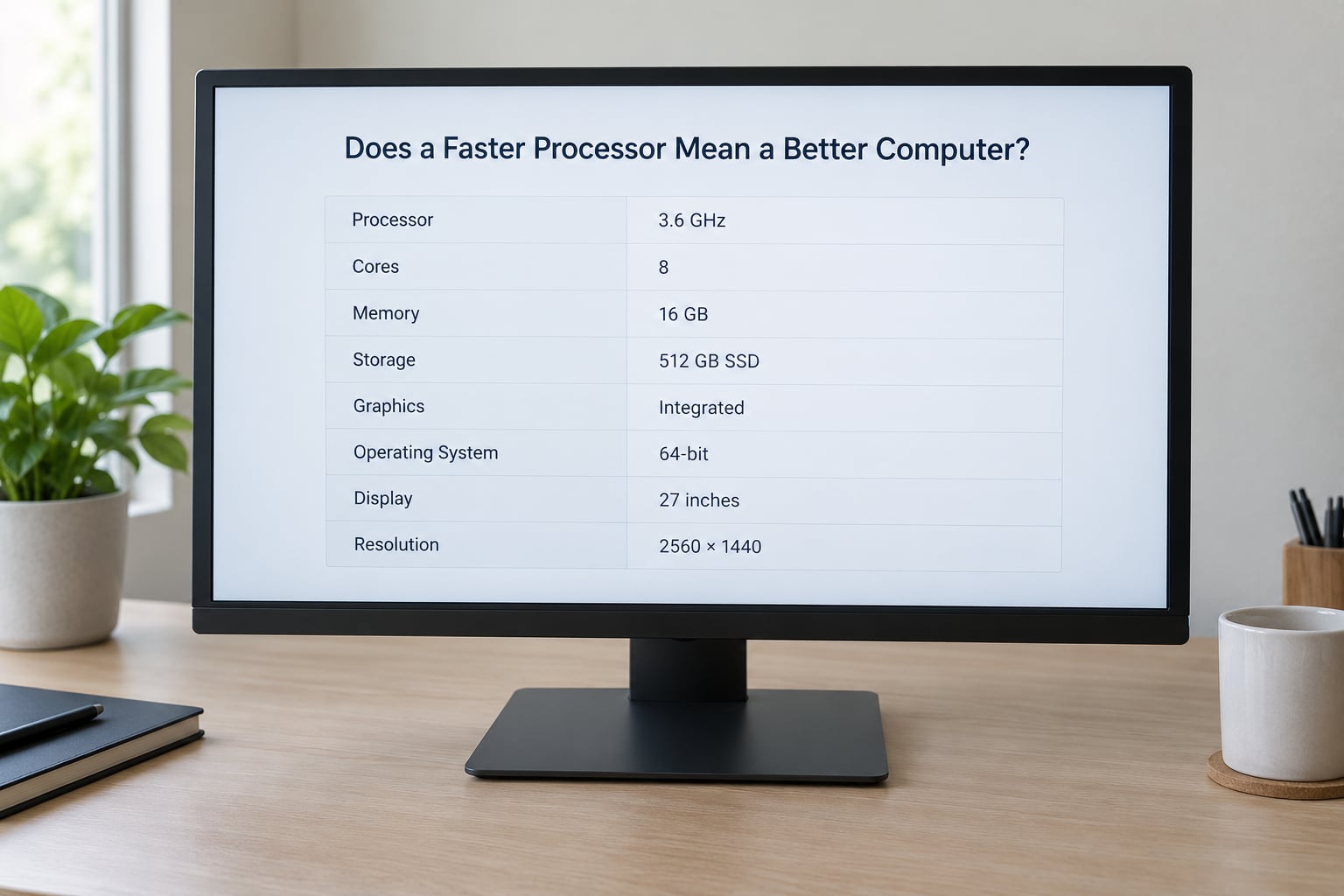
Does a Faster Processor Mean a Better Computer?
Only when the processor is the actual bottleneck. Plenty of everyday frustration has nothing to do with GHz.
The useful move is to match the symptom to the part causing it.
| What you notice | What is usually responsible | Does a faster processor help? |
|---|---|---|
| Pages load slowly, everything else feels fine | Your internet connection and the website | No |
| Slow to switch between browser tabs and apps | Not enough RAM, or too many background apps | Only a little |
| Stuttering video playback, files opening slowly | A hard drive instead of an SSD | No |
| Choppy video calls, one fan spinning loudly | Thermals and background bandwidth use | Sometimes |
| Stutter in games, poor frame rates | The graphics processor, then the CPU | Depends on settings |
| Typing lag, menus hanging while a big file is loading | Background work, usually storage or sync | Sometimes |
| Exports and renders crawling | Core count, then memory capacity | Yes |
Notice how many rows end in no. Web browsing, which is where most people form an opinion about computer speed, is usually waiting on the network. No processor makes a slow connection load pages faster.
Swapping in a faster chip also cannot rescue a machine short on memory. More RAM is what fixes a computer that stalls every time you open a second heavy app, and an SSD is usually the cheapest large improvement you can make to an older machine.
How Processor Speed Compares for Common Tasks
This is the table most buyers are actually after. The ranges assume a processor built within the last few years, since an old chip at the same speed will behave differently.
| Everyday task | Clock speed that is comfortable | What actually matters most |
|---|---|---|
| Web browsing and email | 1.0 GHz and up | Network speed and RAM |
| Streaming video | 1.5 GHz and up | Graphics and network |
| Word and Excel documents | 2.0 GHz and up | Single-core speed |
| Video calls with the camera on | 2.0 GHz and up | Cores for encoding, thermals |
| Light photo editing | 2.5 GHz and up | Single-core speed and RAM |
| Programming and compiling | 3.0 GHz and up | Single-core speed, then core count |
| 1080p video editing | 3.0 GHz and up | Core count and sustained clocks |
| 4K video editing | 3.5 GHz and up | Core count, cooling, memory |
| Running virtual machines | 3.5 GHz and up | Core count and memory capacity |
| Comfortable modern gaming | 4.0 GHz and up | Graphics, then single-core speed |
Read the last column before the middle one. Several tasks on this list will not get meaningfully faster no matter how high the frequency climbs, and two of them are limited by parts you cannot upgrade at all.
A 1.7 GHz chip from the last few years handles browsing, documents and calls without trouble. Forum users asking whether 1.7 GHz is fast enough are usually comparing it to a 2008 machine, and that comparison is the problem. Generation matters more than the number.
What Processor Speed Do Different Users Need?
Match the tier to the heaviest thing you do, not the heaviest thing you might do once.
Home users and browsers
If the machine runs a web browser, email and streaming, 2.0 GHz on a recent chip is more than enough. Put any leftover budget into memory and an SSD instead, which is where the actual improvement lives.
Students
Research, documents, video calls and shared documents push the same way, so 2.0 GHz and up again. The exception is a course with heavy software, and those are worth checking the recommended specification rather than guessing from the GHz figure.
Office workers
Large spreadsheets and many apps open at once make core count and memory more important than frequency. 2.5 GHz with 16 GB of memory will feel considerably better than 3.5 GHz with 8 GB.
Creators
Photo work wants single-core speed, so 2.5 GHz and up. Video work wants cores, sustained clocks and a cooling system that can hold them, so 3.5 GHz is a fair starting point and the machine’s thermals decide the rest.
Developers
Compiling and container builds are multi-threaded, while code editing and autocomplete are single-threaded and very sensitive to frequency. Modern laptop chips in the 2.5 to 3.5 GHz range cover both well. Do not expect many cores to compensate for weak single-threaded speed, because that is the part you stare at all day.
Gamers
This is the one case where the highest clock on the list tends to pay off, and where the graphics processor is usually the deciding part. 4.0 GHz and up is a reasonable target, with the caveat that a high-clock chip in a badly cooled laptop will not hold that number.
Battery life
There is a trade-off here that rarely gets mentioned. Higher-clocked chips draw more power, and a processor running near its peak uses noticeably more battery than the same chip idling lightly. Community discussion of modern efficiency curves puts the sweet spot for battery-friendly performance around the middle of the range rather than at the top, which is one good reason not to chase the largest number available.
How to Check What Your Current Computer Can Do
You can find out what you have and what it really does in about five minutes. Paths below are for current versions of each platform and the naming shifts slightly between releases.
On Windows, right-click the Start button, choose Task Manager, then open the Performance tab. CPU sits on the left, and the top-right corner shows the current clock in GHz along with the base speed underneath. Watch it while you work: the number moves constantly.
Still on Windows, Settings, then System, then About, lists your processor model name. That model name matters more than the GHz figure, because it tells you the generation and the efficiency level.
On macOS, open Apple menu, then System Settings, then General, then About. The window shows the chip name and the core count. Apple has moved the clock display around over the years, so if you want the live figure, open Activity Monitor from Spotlight, pick the CPU tab and enable the frequency column.
On Linux, run lscpu in a terminal. The output includes the model, the core count and both the minimum and maximum clock. cat /proc/cpuinfo gives the per-core detail if you need it.
For a real performance picture, run a benchmark and compare it only against results from the same test on comparable hardware. Numbers from different benchmark tools are not interchangeable, and a single score tells you less than watching the clock during your own actual work.
On Windows you can also add a small hardware information window with CPU-Z, which reports the current and rated clock plus the multiplier. On macOS, Intel Power Gadget and the powermetrics command line tool both show live frequency. Linux users generally already have what they need built in.
Frequently Asked Questions
What does GHz stand for and what does it measure?
GHz means gigahertz, a unit of frequency. It measures how many clock cycles a processor completes each second, so a 3.0 GHz chip runs three billion cycles per second. Each cycle is one timed slice in which the CPU can fetch and execute instructions. The number sets an upper limit on speed rather than describing overall performance, since architecture, core count, cache and memory all change how much work happens inside a cycle.
Is a 1.7 GHz processor fast enough for everyday use?
Yes, if it is a recent chip. Browsing, email, documents, streaming and video calls all run comfortably on 1.7 GHz from a processor built in the last few years, because per-cycle efficiency has improved enough that the number no longer means what it did a decade ago. If the machine struggles, check whether it has an SSD and enough memory before blaming the processor. A 1.7 GHz chip from the early 2010s is a very different machine from one built in the last few years.
Which is better, 1.8 GHz or 2.2 GHz?
Within the same family of processors, 2.2 GHz is the faster one, usually by around twenty percent in single-core work. Across different generations the answer changes completely, because the newer chip completes more instructions per cycle, so a 1.8 GHz part can easily outperform a 2.2 GHz part. The only reliable comparison is the full model number, checked against a benchmark run of the same test on both machines.
Is 4.7 GHz fast for a CPU?
4.7 GHz is a high clock speed and among the fastest figures you will see on a consumer processor, typically reached on a single core under light load. For everyday tasks that number is far more than you need, and it is not a reason to buy a particular machine. Judge the processor by its model name, its single-core benchmark result and whether the cooling system can hold the boost clock, not by the peak figure on the box.
Is a 10 GHz CPU possible?
Not in a way that would be practical. Reaching 10 GHz in a large general-purpose processor would require enormous power, and the chip would have to be held at a low voltage that memory and interconnect designs could not sustain, which would cause errors. Designers add clock speed only until heat, power and signal limits stop it. That is why recent gains have come from doing more work per cycle rather than from raising the frequency.
Is it better to have more RAM or a faster processor?
If the machine is short on memory, add RAM. When memory runs out the system constantly moves data to storage, and every app you open feels slow no matter how fast the processor is. If you already have 16 GB and your work is browser tabs, documents and calls, the processor is rarely the problem, and an SSD usually makes a bigger visible difference than either upgrade. Match the fix to the symptom you actually notice.
Conclusion: Choose Performance for the Work You Do
Start with your heaviest recurring task, not with the largest number on a spec sheet. Then work out what is actually slowing you down, using the symptom table above, and fix that part first. Judge a processor by its model name, its single-core result and the core count your work needs, since clock speed is only one of those terms. For ordinary browsing, documents and calls, a recent chip around 2.0 GHz or higher is genuinely enough, and anything above that is a bonus rather than a requirement.