The blue screen of death looks final, but most of the time it is a fixable problem. Knowing how to fix the blue screen of death on Windows 10 or 11 comes down to one habit: read the stop code before the screen vanishes, then work down a fixed order of repairs instead of guessing. Nearly every case ends at a recent driver, a failed Windows Update, a couple of damaged system files, or faulty RAM.
These steps are written for Windows 10 and Windows 11 on both desktops and laptops. No prior technical knowledge is assumed, and every fix is labelled so you know whether it is safe or destructive before you run it.
Table of Contents
- 1What You Need
- 2Step-by-Step: How to Fix the Blue Screen of Death
- 3Confirm the Error and Record the Stop Code
- 4Start Windows in Safe Mode
- 5Uninstall a Recent Update or Problem Update
- 6Repair Windows System Files
- 7Update, Roll Back, or Reinstall Device Drivers
- 8Test the RAM and Storage Hardware
- 9Perform a Clean Boot and Startup Troubleshooting
- 10Use Advanced Repair or Reset Windows as a Last Resort
- 11Common Mistakes
- 12Tips to Prevent Another Blue Screen
- 13Frequently Asked Questions
- 14Is the blue screen of death always caused by a hardware problem?
- 15How do I fix the blue screen of death without reinstalling Windows?
- 16How do I find out which driver caused my blue screen?
- 17Should I disable Windows Update after getting a blue screen?
- 18Can a virus cause the blue screen of death?
- 19When is it safer to repair the PC rather than troubleshoot it?
- 20Conclusion
What You Need
You need very little to start. A pen or a phone camera, an hour or two, and a way to back up the files that matter to you before touching anything with a Reset button in its name.
- The exact stop code. Photograph the screen with your phone before it disappears, or write down the hexadecimal code and the line underneath it.
- Administrator access where possible. Steps that need it fail without it, so use a personal account rather than a standard one.
- A known-good backup. At minimum, copy your documents and photos to an external drive before running chkdsk or Reset this PC.
- Access to another computer if Windows will not start normally, since you may need to download a driver from the manufacturer’s site.
- The laptop or desktop charger and a clear surface. Crashes that vanish when plugged in are often power-related, not Windows-related.
Step-by-Step: How to Fix the Blue Screen of Death
Work through these in order. Stop after each step and use the machine normally for a day before moving on, because a fix you have not tested is not a fix.
Confirm the Error and Record the Stop Code
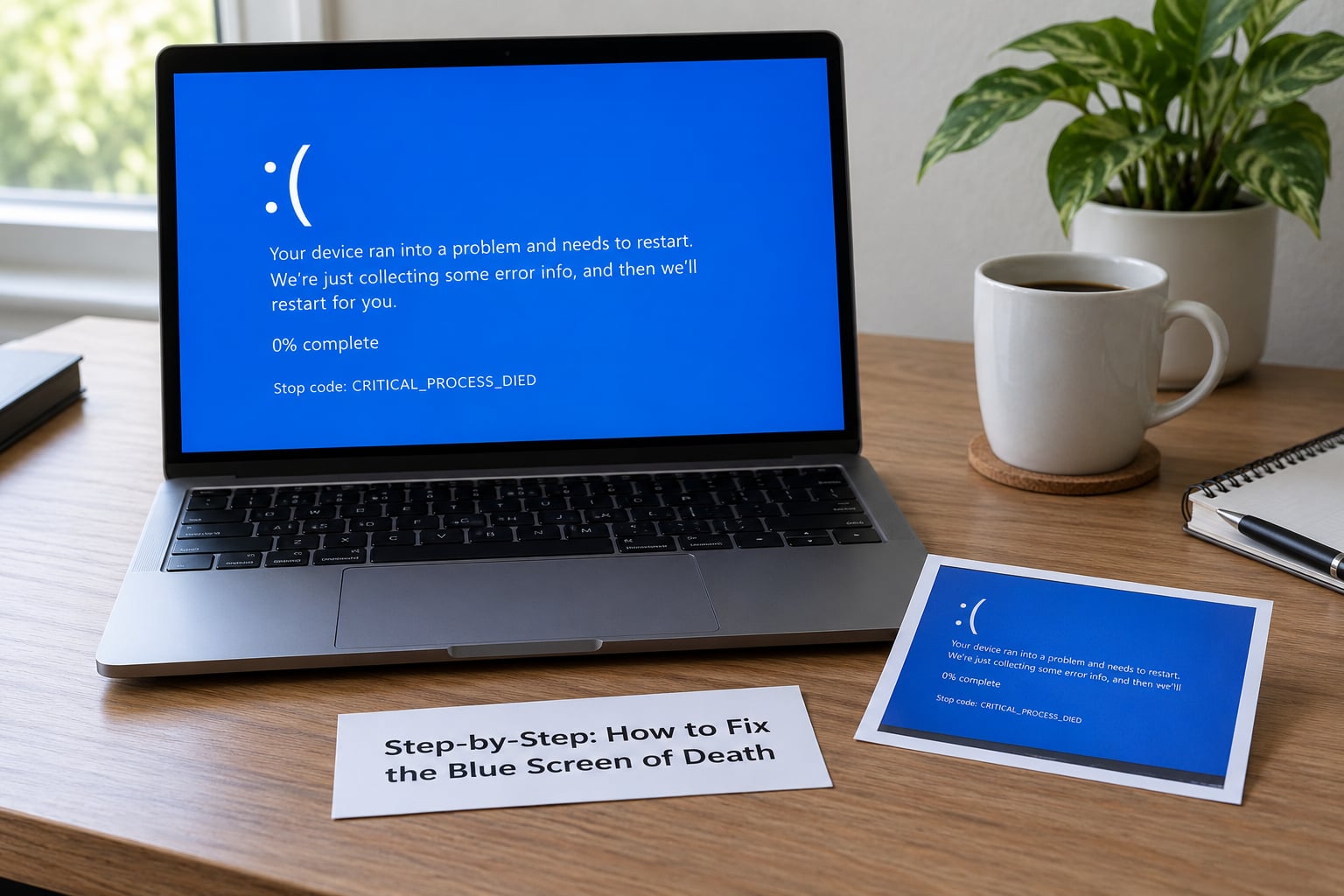
Everything else depends on this, and it takes 30 seconds. The blue screen shows a stop code such as CRITICAL_PROCESS_DIED or 0xc0000145, the parameter lines beneath it, and a QR code linking to a Microsoft support page.
Take the photo before Windows restarts. The screen is often gone in five seconds, and the QR code only carries a generic support article, not your specific error. Note whether the same code appears every time or whether the code changes on each crash, because a different code each time usually points at memory or power rather than software.
Search the exact code name before you act. Guessing from a vague description is what turns a 15-minute fix into a reinstall.
Start Windows in Safe Mode
Safe Mode loads Windows with almost no third-party drivers or startup programs, which tells you quickly whether software is to blame. On Windows 10 and 11, F8 rarely opens the menu on modern hardware, so use the interruption method instead.
Start the PC and hold the power button for 5 to 10 seconds as soon as the Windows logo appears. Repeat this a second time. Windows should drop you into the Windows Recovery Environment, or WinRE.
From there choose Troubleshoot, then Advanced options, then Startup Settings, then Restart, and pick Safe Mode or Safe Mode with Networking. Networking is the useful one, since you may need to download a driver. On Windows 11 the same path is Settings, then System, then Recovery, then Advanced startup, then Restart now.
If Windows still blue screens inside Safe Mode, software is unlikely to be the cause. Move to the hardware steps below.
Uninstall a Recent Update or Problem Update
Crashes that start within a day or two of an update are common, and update rollback is the highest-value early check. In Safe Mode, open Settings, then Windows Update, then Update history, then Uninstall updates.
Remove the most recent quality update, restart, and test. On Windows 11 the same list is under Windows Update, then Update history, then Uninstall updates. If the crash started after a driver shipped through Windows Update, use Device Manager to roll that driver back instead.
In WinRE, the equivalent path is Troubleshoot, Advanced options, Uninstall updates. Undo both the update and any driver that installed in the same session if you are not sure which one caused it.
Repair Windows System Files
Corrupted system files cause a large share of stop errors, and both repair tools are free and safe. Open Command Prompt or Windows Terminal as administrator and run DISM first, because SFC needs a working component store.
DISM /Online /Cleanup-Image /RestoreHealth
Wait for it to finish, then run:
sfc /scannow
DISM repairs the Windows image itself; SFC then replaces the individual protected files that do not match. Restart afterwards. If SFC reports that it repaired files, that was the cause and you are done.
Update, Roll Back, or Reinstall Device Drivers
Drivers cause more blue screens than anything else. Open Device Manager and look for any device with a yellow warning triangle, or one listed under Other devices with an error code.
Get the driver from the device manufacturer for your exact model, or from Windows Update. Avoid third-party driver download sites, which routinely install outdated or modified drivers. When a driver installed recently, right-click the device, choose Properties, then the Driver tab, then Roll Back Driver, which returns you to the previous version.
Restart and confirm the device works before you install anything else. Update one driver at a time, or you will not know which change fixed it.
Test the RAM and Storage Hardware
Run the built-in memory diagnostic by pressing Windows key plus R, typing mdsched, and choosing Restart now. Windows Memory Diagnostic will flag faulty RAM modules, though a clean result does not rule out a marginal module.
From an elevated terminal, check the drive and file system:
chkdsk C: /f /r
This forces a full scan with repair and bad-sector recovery, and it needs a restart. Read the System logs at Event Viewer, Windows Logs, System, and look for disk and ntfs errors just before the crash time, or use Reliability Monitor to see the recorded hardware error.
If crashes keep happening with different stop codes each time, and a clean Windows install still crashes, stop troubleshooting Windows and test the RAM, storage, and power supply. Users in the r/techsupport community reach the same conclusion for that pattern. If a different stop code appears every single boot, the hardware is the suspect, not the software.
Perform a Clean Boot and Startup Troubleshooting
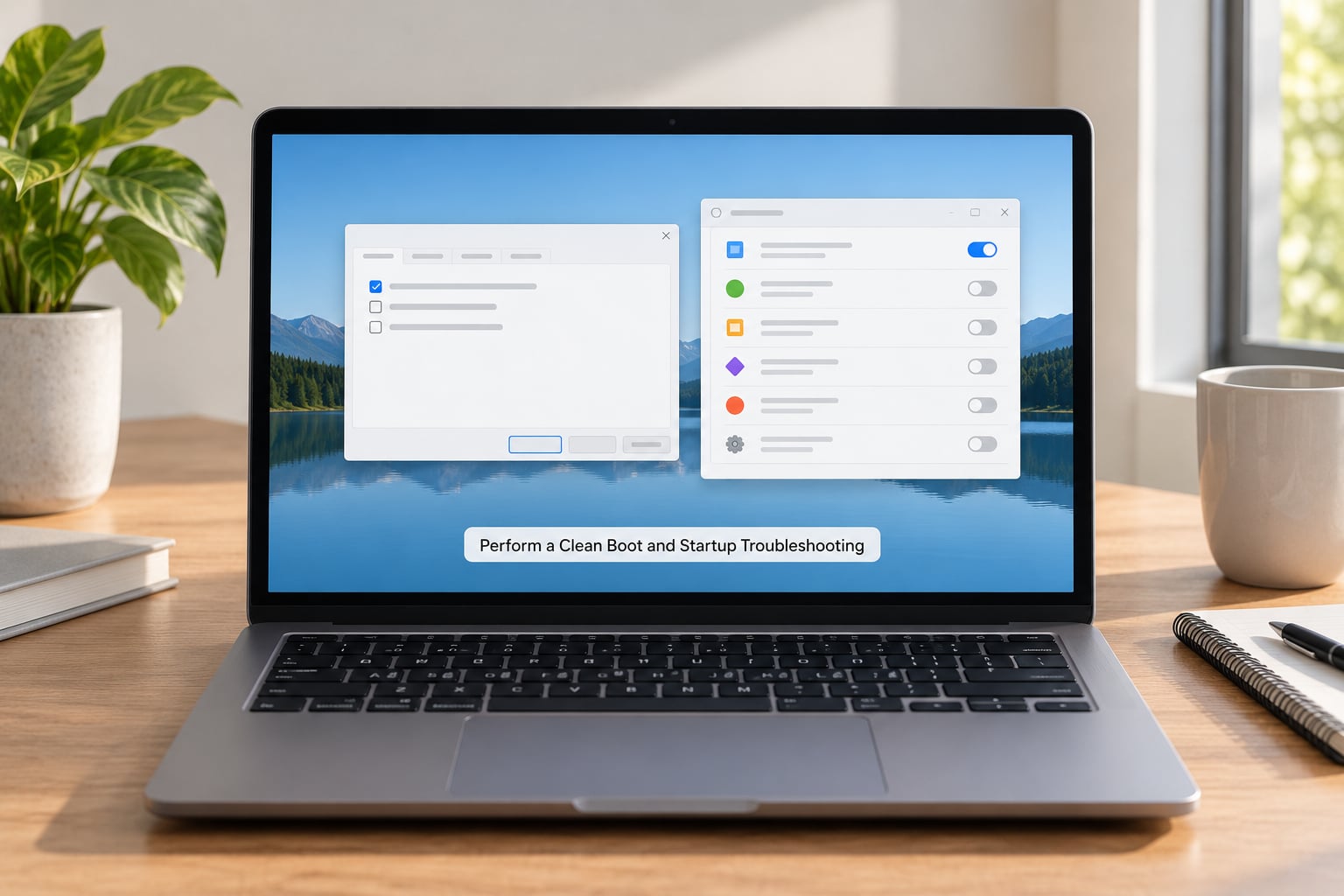
A clean boot strips the machine back to Microsoft services only, which isolates a startup conflict. Open the Run box with Windows key plus R, type msconfig, and go to the Startup tab. On Windows 10 also open Task Manager and disable everything under the Startup tab.
Reboot and use the PC normally for a day or two. If the blue screens are gone, re-enable groups of items one at a time until the culprit shows itself, then remove or update just that program.
Uninstalling the offending program is cleaner than leaving it disabled forever, and a software vendor release often fixes the underlying driver conflict.
Use Advanced Repair or Reset Windows as a Last Resort
These steps change a lot, so back up first. In WinRE, start with Startup Repair under Troubleshoot, then Advanced options. It repairs boot configuration and startup files without touching your personal files, and it often clears an automatic repair loop.
Next, try System Restore to a point from before the crashes started. This is the least destructive option that undoes many software changes, but it only works if restore points are enabled and it will not touch hardware faults.
Reset this PC with Keep my files is the next rung. It reinstalls Windows while keeping documents, photos, and most settings, but apps you installed are removed, and it can take a few hours. A clean install from a USB stick is the final step, and it wipes everything on the system drive.
If the crash appeared on a brand-new machine during the Windows installation itself, suspect the hardware or the BIOS storage mode rather than Windows. A mismatched RAID or AHCI setting, an unseated CPU power connector, or a faulty power supply all produce crashes at exactly that moment, and no amount of reinstalling will fix them. Check with the manufacturer before returning it.
Common Mistakes
Most failed repairs come from doing things out of order, or from fixing a problem that was never there. These are the errors that cost people their data.
- Resetting Windows before backing up. Reset this PC with Keep my files is usually safe, but Remove everything does not ask twice. Back up first, every time.
- Installing drivers from download sites. These are a common malware vector and frequently ship versions older than the ones Windows already has.
- Deleting files or registry keys you do not recognise. Forum advice to delete a random system folder is how a bootable machine becomes an expensive paperweight.
- Skipping the stop code. Guessing at the cause means you will likely repair the wrong thing and declare the fix a failure.
- Ignoring heat and failing drives. Overheating and a dying SSD or hard drive produce recurring crashes that no software repair will touch.
- Following F8 advice from 2005. On most Windows 10 and 11 hardware, F8 does nothing. Use the interruption method instead.
Tips to Prevent Another Blue Screen
- Install Windows updates promptly, and let drivers come from the device maker first, then Windows Update, never a third-party site.
- Install one program at a time and give it a day, so a new tool has a clear link to any crash that follows.
- Keep airflow clear and watch temperatures under load, especially after a few years of dust.
- Leave 15 to 20 percent of your system drive free, since a nearly full disk causes its own failures.
- Shut down properly rather than cutting power, and avoid overclocking or undervolting until stability is boring.
- Keep one tested backup of anything you cannot replace.
Frequently Asked Questions
Is the blue screen of death always caused by a hardware problem?
No. Most blue screens trace back to software: a faulty device driver, a bad Windows Update, or a program that conflicts with the kernel. Hardware such as failing RAM or a power supply is a smaller share of cases. The clue is whether the crash happens with third-party software disabled. If Safe Mode is stable, treat it as software; if it crashes there too, test the hardware.
How do I fix the blue screen of death without reinstalling Windows?
In most cases, yes. Rolling back a recent update or driver, running DISM followed by sfc /scannow, doing a clean boot, and using System Restore resolve the large majority of blue screens. A reinstall only becomes sensible after those steps fail and the stop code keeps pointing at system files you cannot repair.
How do I find out which driver caused my blue screen?
Read the stop code first, then open Event Viewer, Windows Logs, System, and look at the events logged in the minutes before the crash. A faulty driver usually names a file ending in .sys. You can also check Reliability Monitor for the recorded failure, and roll back the last driver change in Device Manager to test it without needing a definite answer.
Should I disable Windows Update after getting a blue screen?
Usually not, because updates carry security fixes and disabling them leaves the machine exposed. If crashes consistently follow an update, uninstall that specific update instead and turn on pause updates for a week while you troubleshoot. Once the underlying driver or hardware fault is fixed, let updates run again so you do not fall behind on patches.
Can a virus cause the blue screen of death?
Rarely directly. Malware can corrupt system files or install a faulty driver, which then causes a stop error, so an infection shows up as a blue screen that keeps coming back. Run a full offline scan with Microsoft Defender or another reputable tool after you repair the system files. Removing the malware before repairing the system files matters, or the damage simply returns.
When is it safer to repair the PC rather than troubleshoot it?
Stop troubleshooting when the machine blue screens during a clean Windows install, when the stop code changes every time, when Safe Mode also crashes, or when a new machine crashes before setup finishes. Those patterns mean the fault is hardware or firmware. At that point, warranty service or a technician with hardware tools beats hours of driver work that cannot succeed.
Conclusion
Start by photographing the stop code before the screen disappears, then interrupt the boot twice to reach the Windows Recovery Environment and load Safe Mode with Networking. From there undo the most recent change, run DISM and sfc /scannow, and test the hardware if the crash survives all of that. Reset this PC and reinstalling Windows come last, after a backup, not first.