Yes, you can fill out a form PDF on your phone. Both iPhone and Android come with a PDF viewer that can type into fillable fields, add a signature, and save the finished file, so no app download is needed for most forms. You need the PDF itself, roughly two minutes, and a way to send the completed copy back.
The step that catches people is knowing which kind of PDF you have. A fillable PDF has tappable boxes and checkboxes. A flat or scanned PDF is just a picture of a form, and tapping it does nothing until you use a fill-and-sign tool that draws text on top. Here is how to fill out a form PDF on a phone either way.
Table of Contents
- 1What You Need
- 2Step-by-Step: How to Fill Out a Form PDF on a Phone
- 3Fill and Complete the PDF on an iPhone
- 4Fill and Complete the PDF on Android
- 5Sign, Save, and Share the Completed Form
- 6Use a Mobile PDF App When the Built-in Editor Is Limited
- 7Common Mistakes
- 8Frequently Asked Questions
- 9Can I fill out a PDF form on my phone without installing an app?
- 10Why are the fields in my PDF not working on my phone?
- 11How do I add my signature to a PDF on a phone?
- 12Will filling out a PDF on my phone change its formatting?
- 13How do I save a completed PDF form and send it to someone else?
- 14Conclusion
What You Need
You need the form PDF on your phone already, a PDF viewer, a signature, and whatever personal details the form asks for. Most failures happen when one of those four is missing.
- The form PDF saved to your phone, either downloaded from email, a messaging app, or a link in a browser.
- A PDF viewer. iPhones have Preview and the Files app. Android phones ship with Google Drive’s viewer, Chrome, and often Samsung’s own app.
- Enough free storage. Saving a copy creates a second file. Scanned forms with photos attached can run several megabytes.
- Your details ready to type. Legal name exactly as printed, address, date of birth, phone, email, and any ID numbers.
- A pen for the signature if you do not have a fingertip or stylus that produces a clean line on glass.
One quick test tells you what you are dealing with. Open the PDF and tap a blank area inside a box. If a cursor appears and the keyboard slides up, the form is fillable and you can stop worrying.
Step-by-Step: How to Fill Out a Form PDF on a Phone
This is the workflow that works on either platform, using the viewers already installed. Each step has a quick way to confirm it actually worked.
- Make a copy before you touch anything. In the Files app on iPhone, or My Files on Android, long-press the PDF and choose Duplicate or Copy To. You want a spare, because most viewers overwrite the file when you tap Save. You know it worked if you now see the same file name twice.
- Open the copy in a viewer, not in a chat thread. Tap the file once from the Files app, My Files, or Google Drive. You know it worked if the page fills the screen with a zoom control and a share icon in the toolbar.
- Tap the first field and type. Tap directly inside a text box and the on-screen keyboard appears. Type your answer, then tap the next field rather than hunting for a Next button. You know it worked if your text scrolls with the field instead of floating on top of the page.
- Handle checkboxes and drop-downs. A checkbox toggles with one tap. A drop-down opens a list when you tap it, and you pick an option rather than typing. Some radio-style buttons are mutually exclusive, so tapping one clears the other in the same group.
- Add your signature. Use the Markup tool on iPhone or a draw or fill-and-sign tool on Android, then sign in the box labelled with your name. You know it worked if the signature sits inside the printed line and moves with the page when you zoom.
- Save, then verify. Save to Files, Save a Copy, or Download a copy, keeping a new filename such as “W-4 signed”. Reopen that saved file and check one text field and the signature before you do anything else.
- Send it back. Use the share icon, pick Mail or Messages, and attach the saved file as a document rather than a photo. Email or upload is usually a requirement for these forms.
That verification step at number six is the one people skip. Saving writes your answers into the file, but a viewer that crashes or runs out of memory mid-save can write a partial file instead.
Fill and Complete the PDF on an iPhone
On an iPhone, the built-in path runs through the Files app and Preview, and it handles fillable AcroForm fields without any extra software.
- Open Files and find the PDF, then tap it. It opens in Preview.
- Tap the page where a blank box appears. Preview highlights the field and the keyboard opens.
- Type your answer. Above the keyboard you will often see an AutoFill suggestion, a shortcut that drops in your saved name, address or phone number instead of typing it again.
- Tap the Markup icon, the pen tip in a circle in the toolbar, to add a signature or draw on the page.
- In the Markup toolbar, tap the plus sign at the top of the screen, then Signature, and draw with a finger or Apple Pencil. Tap Done.
- Tap Done, then Save to Files, or use Share to send a copy.
Preview also has a Form Filling control in some iOS versions, shown as a cursor inside a box in the top toolbar. If you see it, tapping it switches Preview into a dedicated form mode where the next unfilled field highlights as you scroll. You know form mode is active because the field outlines turn blue and tapping anywhere jumps to the next one.
If your iPhone has no Files app content because everything lives in iCloud Drive, open the Files app first and browse iCloud Drive before searching for downloads.
Fill and Complete the PDF on Android
Android is less consistent than iPhone, because each maker ships a different set of viewers. The good news is that the Google Drive viewer on almost every Android phone can fill standard form fields for free.
- Open the Google Drive app. If the form is not in Drive yet, tap the plus button, choose Upload, and pick the PDF from your device. Tap it once to open it in the Drive viewer.
- Tap a text field. The keyboard appears and the field outlines turn blue, which is how you know Drive is in form-filling mode.
- Type your answer, then tap the next field. Checkboxes toggle with one tap, and drop-downs open a list when tapped.
- To sign, tap the pencil or edit icon in the top bar to switch into drawing and text tools, draw your signature, and tap Save.
- Tap the three-dot menu and choose Download a copy or Share to save the completed file to your device or send it.
Chrome on Android annotates but does not reliably type into form fields, so if a field will not accept your keyboard, switch to the Drive viewer. Samsung Internet and the Samsung One UI file viewer behave the same way, with a handwriting tool that draws ink over the page instead of filling fields. On a Samsung Galaxy, look for My Files rather than the Files app when hunting for the original PDF.
Google Pixel phones route PDFs through Files by Google, which hands the file straight to the Drive viewer, so the steps above work without opening Drive manually.
Sign, Save, and Share the Completed Form
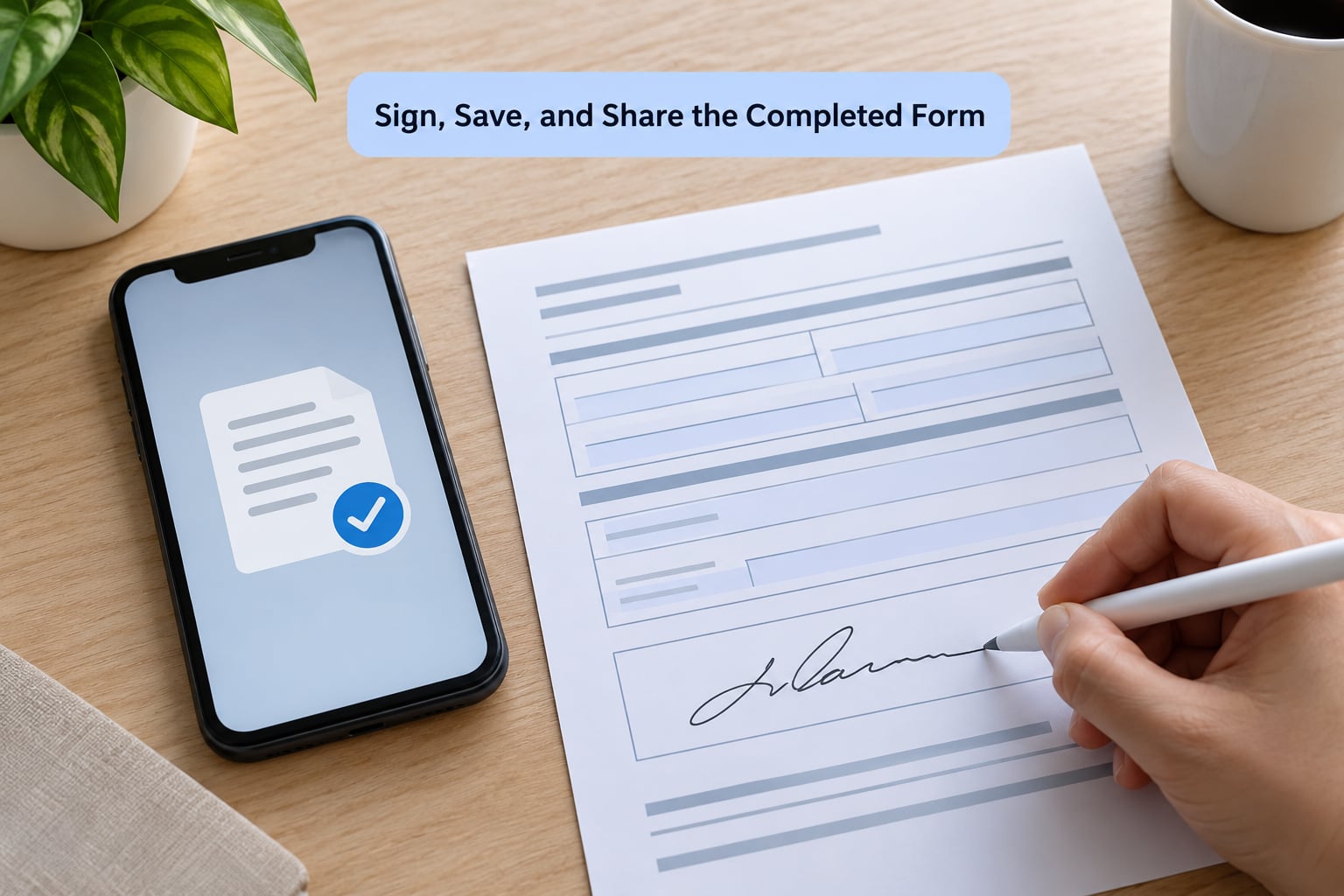
Signing is where most people realise the form is not finished, because many forms will not accept a submission without a signature line completed.
On iPhone, tap the Markup pen icon, then the plus sign, then Signature, and draw with one continuous stroke. A thick, uneven line reads as more deliberate than a thin careful one. On Android, open the edit or pencil mode inside the Drive viewer and draw with the same approach. If your screen smears your fingerprint, use a stylus or the side of your hand.
Position matters more than style. Sign inside the printed line, at the size of the surrounding text, and do not cover labels like “Signature” or “Date signed”. To place the date, tap the print date field on iPhone and pick from the calendar rather than typing, because typed dates often do not match the format the form expects.
Saving is where you protect your work. Tap Save to Files or Download a copy, and give it a new name. If your viewer only offers Save and no copy option, that is fine as long as you saved a duplicate before you started. Confirm the save by reopening the file from your Files or My Files folder and scrolling to the signature. If the signature vanished, the save failed or you are looking at a cached preview rather than the stored file.
Share from the saved file rather than from the viewer, so you attach the stored copy and not a link. In the share sheet pick Mail or Messages, then use the attachment icon to add the PDF, type a short line about what it is, and send. Renaming it something like “Signed lease agreement” saves the recipient guessing.
Use a Mobile PDF App When the Built-in Editor Is Limited
Install a dedicated PDF app when the built-in viewer stops you, not before. The common reasons are a flat PDF with no fields, an XFA government form that renders as a blank page, a need to flatten a finished form so nobody can edit it later, or regular multi-document work.
What to look for in a fill-and-sign app: a fill-and-sign mode that types over flat pages, signature saving so you can reuse your mark, a clear form or clear field command for mistakes, and an export that does not stamp a watermark on the output. Check whether the app asks for an account before you start typing. Forced sign-in halfway through a form is the most common complaint people post in forums when choosing between these apps.
Where to get them. On iPhone, open the App Store and search the app name, then check the developer and the most recent update date. On Android, open Google Play and do the same. Avoid third-party download sites entirely; they are the main route for the cracked PDF tools that show up in search results.
A word of caution on browser-based fillers. Uploading a tax form, a medical intake sheet, or anything with a bank account number to an unfamiliar website means the document sits on a server you do not control. Adobe’s own online tools and large, established providers are a different matter from a random “free PDF filler” page. For sensitive documents, stay on the native viewer or a store-installed app.
Free options worth trying first on iPhone include Adobe Acrobat Reader and Xodo. On Android, Adobe Acrobat Reader and Xodo cover the same ground, and Fill and Sign does one job well. Paid apps such as PDF Expert add form-field handling, clearing tools and flattened export, which matters if you work with forms daily rather than once a year.
Common Mistakes
Almost every problem people hit falls into one of these eight. The cause column tells you whether the PDF or the viewer is at fault.
| Problem | Cause | Fix |
|---|---|---|
| Nothing happens when I tap the form | Flat or scanned PDF with no form fields | Use a fill-and-sign mode that adds text boxes over the page, or print the form and scan it back with a built-in scanner first |
| The PDF will not open on my phone | Partial download, or the file is still opening as an email attachment | Save the attachment to your device first, then open it from Files or My Files rather than from the Mail app |
| Fields are greyed out | XFA form, a dynamic format most mobile viewers do not support | Try a different viewer, but expect to open these on a computer instead |
| My edits disappeared | Saved nowhere, or you reopened the original instead of the copy | Always Save a Copy with a new name, then reopen that file to verify |
| Text moves when I zoom | The viewer overlaid text on a flat page instead of filling a real field | Zoom to 100 percent and reposition the text box before saving |
| The form is a blank page | XFA or a corrupted download | Download the form again from the original source, then reopen |
| The signature is the wrong size | Drawn too large or too small for the printed line | Undo, then redraw to match the text height next to the line |
| The attachment will not send | Attached from a viewer holding a temporary copy | Share the file from your Files or My Files folder instead |
Two habits prevent most of that list. Duplicate the file before you type, and save to a new name before you send. Everything else is a small retry.
One more situation deserves its own note: if the form is a scan of a paper document, no viewer can make it fillable by itself. You have two routes. Fill-and-sign tools draw text over the scan, which looks fine for signatures and short answers. Or use the note-scanning feature built into Apple Notes, Google Drive, or Samsung Notes to scan a paper copy into a cleaner PDF, then fill that.
Converting a flat PDF into a genuinely fillable form is a different job and normally needs a desktop tool. On a phone you can overlay answers, but you cannot reliably create working form fields.
Frequently Asked Questions
Can I fill out a PDF form on my phone without installing an app?
Yes, for most fillable forms. On iPhone, open the PDF from the Files app and it loads in Preview, where tapping a field brings up the keyboard. On Android, open it in the Google Drive viewer, which fills standard AcroForm text fields, checkboxes and drop-downs. You only need an app when the form is flat, uses XFA, or needs a signature added over a page with no fields.
Why are the fields in my PDF not working on my phone?
Three causes cover nearly every case. The PDF is flat or scanned, meaning it is a picture with no form fields, so taps do nothing until you use a fill-and-sign tool. It uses XFA, a dynamic format most phone viewers cannot render, which often shows a blank page. Or you are in a viewer that only draws on pages, such as Chrome on Android, so switch to the Google Drive viewer.
How do I add my signature to a PDF on a phone?
On iPhone, open the PDF, tap the Markup pen icon, then the plus sign, then Signature, and draw with a finger or Apple Pencil. On Android, open the file in Google Drive, tap the pencil or edit icon, and draw in the drawing tool. Sign inside the printed line at roughly the height of the surrounding text, then save to a new filename before sharing.
Will filling out a PDF on my phone change its formatting?
Not if the form is genuinely fillable, because text goes into the existing fields and the layout is untouched. Problems appear when a viewer overlays a text box on a flat page, where zooming and repositioning can shift your answer, or when a scan is reflowed to a different page size. Reopen the saved file after saving and check that everything still lines up before sending it.
How do I save a completed PDF form and send it to someone else?
Duplicate the file before you start, then save with a new name such as signed lease agreement, so the blank original stays intact. Reopen the saved file and confirm your entries and signature are visible. Share from your Files or My Files folder rather than from the viewer, choose Mail or Messages, attach the PDF as a document rather than a photo, and give the file a descriptive name.
Conclusion
Start by opening the form in your phone’s document viewer rather than inside the email app, and make a copy before you type. Fill each field, sign inside the printed line, save under a new name, reopen it to confirm everything stuck, then share from your Files or My Files folder. The steps above match the current iOS and Android viewers as of 2026, and the differences between them are the only thing that tends to trip people up.