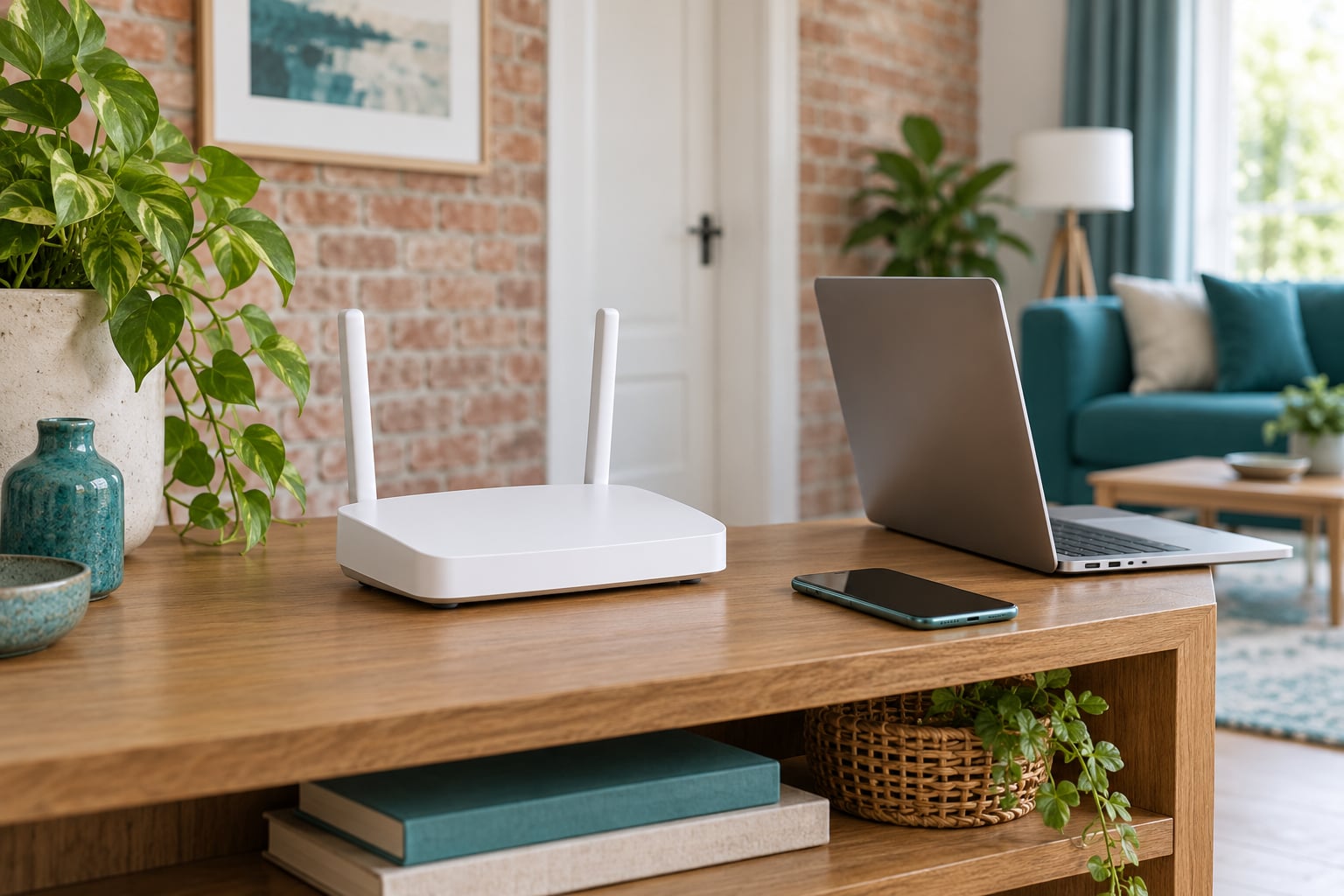
If your Wi-Fi is fast in the living room and painful in the bedroom, the reason is almost always signal falling off with distance and being absorbed by whatever sits between the router and that room. Walls, a floor, a mirror or a run of foil-backed insulation will do it. On top of that, the far side of the house usually drifts onto a slower band or a crowded channel.
Here is why your WiFi is slow on one side of the house, in ranked order: the router sits off-centre, the far room loses the 5 GHz band and drops to 2.4 GHz, walls and floors eat the signal, neighbouring networks crowd the same channels, one repeater or extender is re-broadcasting an already weak link, or too many devices are sharing that link at once.
The good news is that most of it is fixable in an afternoon without buying anything. Walk the steps below in order and change one thing at a time, so you know which change actually helped.
Table of Contents
- 1What You Need
- 2Step-by-Step: Why Is My WiFi Slow on One Side of the House
- 31. Confirm the problem is coverage, not the device
- 42. Test which Wi-Fi band is performing better
- 53. Check where the router is positioned
- 64. Look for interference and physical obstacles
- 75. Run a speed and signal test in both locations
- 86. Improve coverage on the slow side of the house
- 9Common Mistakes
- 10Frequently Asked Questions
- 11Why does my WiFi work in one room but not another?
- 12Should I use 2.4 GHz or 5 GHz on the slow side of the house?
- 13How can I tell if my internet is slow or just my WiFi signal?
- 14Will a WiFi extender help on one side of the house?
- 15Is a mesh system better than a WiFi extender for uneven coverage?
- 16When should I contact my internet provider instead of changing my router settings?
What You Need
- Your router’s admin address, which is usually 192.168.0.1 or 192.168.1.1 from a browser on the same network
- One phone or laptop you can carry from room to room, ideally one that works fine near the router
- A speed test tool you trust, run on that same device so the comparison is fair
- An Ethernet cable if you have one, plus a spare wall port, to separate a Wi-Fi problem from an internet problem
- A Wi-Fi analyzer app, which are free on Android, iOS and desktop and will show you channel congestion and signal strength in dBm
- Ten spare minutes, and a way to note down results as you go
Step-by-Step: Why Is My WiFi Slow on One Side of the House
1. Confirm the problem is coverage, not the device
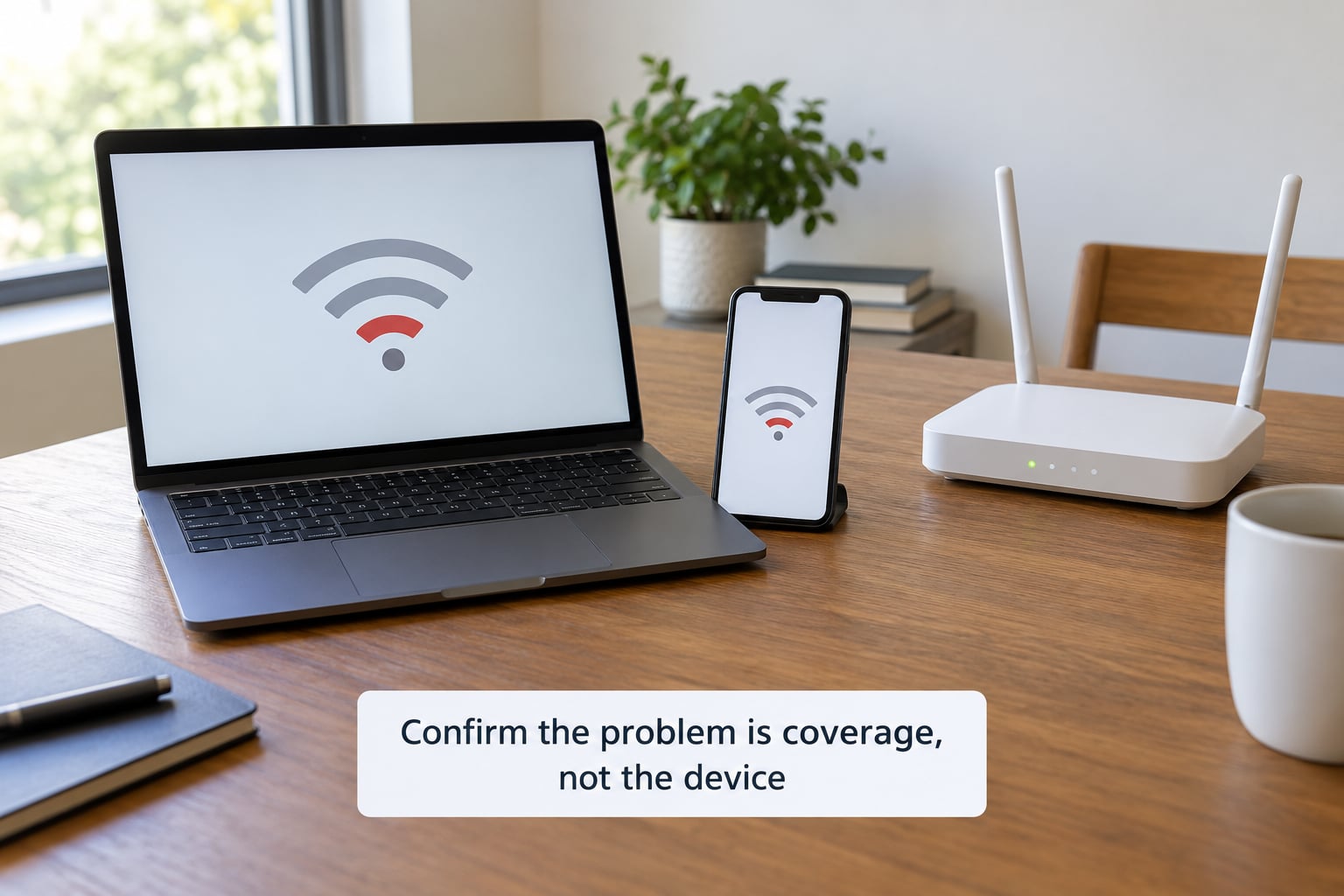
Start by ruling out the boring explanations before touching any settings. Take the same phone that works fine near the router, connect it to Wi-Fi, and run the same speed test in the slow room. Then repeat with a second device.
If every device is slow in that room, you are looking at coverage or interference. If only the laptop is slow, the router is probably fine and you have a device problem instead, such as a background sync, a VPN running, or a driver stuck on a power-saving Wi-Fi profile.
Windows users can check the band being used in Settings, Network & internet, Wi-Fi, then the network properties. On iOS, open Settings, Wi-Fi, tap the info button beside the network name. On Android it is under the connected network’s details, usually labelled band or Wi-Fi preferences.
2. Test which Wi-Fi band is performing better
Most routers broadcast two or three bands at once, and devices decide for themselves which one to use. That automatic choice is often the wrong one at the far end of the house.
The 2.4 GHz band travels further and punches through walls better, but it is crowded and slow. The 5 GHz band is much faster and cleaner but gives up distance quickly, so a room two walls away may drop it entirely. 6 GHz on Wi-Fi 6E and Wi-Fi 7 routers is faster still and barely reaches past the room it is in.
Force the device in the slow room onto a specific band and see what happens. Most routers let you split the bands by giving them separate names, which shows up as two network names in your Wi-Fi list, like Home and Home_5G. Some routers also offer band steering, which pushes capable devices to 5 GHz automatically but can leave older phones stuck on 2.4 GHz.
If the slow room is a home office or anywhere you care about latency, keep it on 5 GHz even if the bars look worse. If it is a smart TV or a sensor in the far corner, 2.4 GHz reach matters more than speed.
3. Check where the router is positioned
A router is often put wherever the coax or fibre line enters the house, which is frequently a basement, a hall cupboard, or the corner of the living room where the line enters. That single decision explains a lot of lopsided houses.
Signal travels best outward into open air, roughly level with where people are standing, so an elevated spot near the middle of the ground floor gives you the most even footprint. Off the floor and away from cabinets, microwaves, televisions, washing machines and anything with a motor or a metal box in it.
If your provider supplied the gateway, check whether the coax or fibre cable can physically reach a better spot before you plan around it. Often it can, and often the router is just sitting behind a television for no good reason. Where you genuinely cannot move it, that changes which fixes make sense later on.
4. Look for interference and physical obstacles
Distance is only part of the story. Materials differ a lot in how much radio signal they take out of the air, and in older homes the insulating material can be the single biggest cause of a slow side.
| Obstacle | What it does to the signal |
|---|---|
| Drywall and wood studs | Mild loss, usually fine |
| Brick or concrete block | Noticeable loss, walls are thick |
| Poured concrete, concrete floor | Severe loss, common between floors |
| Metal studs or foil-backed insulation | Severe loss, can act like a shield |
| Mirrors, glass, metal appliances, TVs | Reflects or absorbs, especially mirrors |
| Closed doors and long hallways | Blocks the direct path |
Interference works the other way, adding noise rather than removing signal. The 2.4 GHz band only has three non-overlapping channels in most countries, 1, 6 and 11, and in an apartment building or a crowded street every neighbour is on them. Microwaves, cordless phones and baby monitors also sit in that band, and a microwave running in the kitchen can wipe out a nearby 2.4 GHz connection.
Open an analyzer app near the router on a quiet evening and look at how many networks are stacked on each channel. If you count six or seven on one channel, switch your 2.4 GHz radio to 1, 6 or 11 and see whether the far room improves. On 5 GHz there is far more room, and channels 36, 40, 44 and 48 are the usual low-traffic starting points.
5. Run a speed and signal test in both locations
This is the measurement that actually settles it. Run the same speed test at three points: sitting next to the router, halfway to the slow room, and in the slow room itself. Record download speed, upload speed, ping and the signal reading from your analyzer app at each stop.
| What you see | What it means | What to do next |
|---|---|---|
| Fast everywhere, one slow device | Not a coverage problem | Check that device’s VPN, downloads and driver |
| Fast near router, weak at halfway already | Signal or interference, not distance alone | Fix placement and channel choice first |
| Fast download, high ping | Congestion or a busy channel | Change channels, cut device load, check for bufferbloat |
| Slow everywhere, including next to the router | Line, gateway or device limit | Test over Ethernet and call the provider |
| Full bars but slow speed | Weak signal dressed up as strong | Read the dBm figure, not the bar icon |
Signal strength reading matters more than the bar icon. Roughly, -30 dBm is excellent, -50 is strong, -67 is the minimum a modern client handles well, and anything past -80 is a connection you should not expect real speed from. A phone showing four bars can sit anywhere from -45 to -75 dBm depending on the bar scale, which is exactly why the icon misleads you.
Ping tells you a different story from speed. High download numbers with a ping of 80 ms means the link is congested, and that is why video calls and games break before a buffered stream does. If ping climbs in the evening while your neighbour is streaming, you are seeing shared airtime, not a faulty router.
6. Improve coverage on the slow side of the house
Now you know whether you are dealing with weak signal, a wrong band, a crowded channel or a congested link. Pick the fix that matches, cheapest first.
- Reposition the router toward the centre of the home, elevated and clear of appliances. This is still the fix that solves the most problems.
- Change channels and split the bands so you can choose per device. Free, takes about ten minutes.
- Reduce load in that room. One console or a 4K TV downloading can eat a whole connection, and a smart-home full of battery-powered sensors adds constant chatter to 2.4 GHz.
- Add a mesh node placed in a middle room, not in the dead zone. The node needs a good link back to the main router, so run a speed test right next to the node first.
- Use a wired access point if you can run Ethernet to the far side. It behaves exactly like the main router, so there is no second network to think about.
- Reuse existing cable with an adapter that runs Ethernet over coax or phone wiring if you cannot fish new cable through the walls.
One rule covers extenders and mesh alike: put the node before the weak spot, never inside it. A repeater sitting in a dead zone receives a damaged signal and re-broadcasts that damage across the room. Single-radio repeaters also share airtime between your devices and the link back to the router, which cuts real throughput roughly in half. That is why an extender can make one room slower while the problem looks solved.
If you want a single recommendation: a mesh system with one node placed in a middle room, or a wired access point if cable is possible. Skip the extender unless you have no other option.
Common Mistakes
- Buying a new router before diagnosing. A newer router in the same corner hits the same wall. Move the router first; the result is often a permanent fix on hardware you already own.
- Testing one device. A single slow laptop tells you about the laptop. Two devices in the same room tells you about the room.
- Trusting the bar icon. Four bars can sit anywhere from very strong to barely usable. Read dBm in an analyzer app instead.
- Placing the extender in the weak room. It has to sit where the signal is still good, roughly halfway to the problem area, so it has something decent to repeat.
- Leaving two routers broadcasting. An old router still sitting there with the same network name will fight the new one. Turn its Wi-Fi off or rename it.
- Skipping firmware updates. Router firmware fixes roaming bugs, stability problems and airtime handling, and an ISP gateway on five-year-old firmware can be badly limited.
- Ignoring the channel. Dozens of neighbours on one 2.4 GHz channel will drag everyone down. Pick 1, 6 or 11 and check again at night.
- Rebooting and calling it fixed. A reboot clears a stuck queue, which is why it works sometimes. If the slow side comes back every few days, the reboot was hiding the real fault.
Frequently Asked Questions
Why does my WiFi work in one room but not another?
Because signal strength falls off with distance and drops sharply through walls, floors and metal. Rooms close to the router get a strong link and clean airtime, while the far room gets a weaker signal competing with more noise and neighbours on the same channels. Full bars can still hide a slow connection, because bars measure signal, not usable throughput. Testing the same device in both rooms is the fastest way to confirm.
Should I use 2.4 GHz or 5 GHz on the slow side of the house?
Use 5 GHz for anything that needs speed or low latency, such as laptops, video calls and streaming, as long as the connection holds. Use 2.4 GHz for devices far from the router, such as cameras, printers and sensors, because it travels further and survives walls better. If the far room drops the 5 GHz band entirely, forcing it onto 5 GHz will not help; move the router or add a node instead.
How can I tell if my internet is slow or just my WiFi signal?
Plug a laptop into the router with an Ethernet cable and run your speed test. If the wired number matches what your plan promises, the line is fine and the problem is wireless. If the wired test is also slow, the problem is upstream with the gateway or the provider line. Then walk the house with the same device on Wi-Fi and note speed and signal in dBm at each point to map the weak areas.
Will a WiFi extender help on one side of the house?
Sometimes, but placement decides the result. An extender should sit where the signal is still decent, roughly halfway to the weak area, never inside the dead zone itself. A single-radio extender shares airtime between your devices and the link back to the router, which can halve real throughput. For one slow room, a single mesh node placed in a middle room usually beats an extender and avoids roaming between two network names.
Is a mesh system better than a WiFi extender for uneven coverage?
For uneven coverage across several rooms, yes. Mesh gives you one network name and hands devices off between nodes as you move, which removes the manual switching extenders cause. Extenders are cheaper and fine for extending into one dead room, provided they sit outside the weak zone. Either way, both do best when the link back to the main router is strong, so test speed next to the node before blaming the hardware.
When should I contact my internet provider instead of changing my router settings?
Call the provider when a wired Ethernet test next to the router is also well below your plan speed, or when the gateway light keeps resetting. Those point to the line, the modem or the gateway rather than your Wi-Fi settings. Also worth raising if your gateway has Wi-Fi disabled or locked with no channel or band controls. Before you call, note down the wired speed test result so the conversation starts with evidence.
Start with the free work: plug in an Ethernet cable, run a speed test next to the router, then walk the house with the same device and note down where it drops. That single walk usually points at the real cause within fifteen minutes.
If the router can move, move it to the middle of the house and re-test before you spend anything. If it cannot, put one mesh node in a middle room, or run a cable and add an access point. Remember the placement rule: the extra coverage should start where the signal is still good, not where it has already died.