Most data loss is boring. A drive dies, somebody drags a folder to the trash, a laptop goes through a car window. Why the 3-2-1 backup rule matters is that it is built for exactly that: each of those events takes out one copy, so you keep three of them, on two kinds of storage, with one somewhere else entirely. Here is what the rule actually says, which part of it stops which disaster, and how to prove a restore works before you need it.
- 3 — keep three copies of your data
- 2 — store the copies on two different types of storage media
- 1 — keep one copy offsite
That is the whole rule. The rest of this guide is about why those three numbers are doing so much work, and where people get them subtly wrong.
Table of Contents
- 1What Does the 3-2-1 Backup Rule Mean?
- 2Why the 3-2-1 Backup Rule Matters
- 3How Three Copies Reduce the Risk of Data Loss
- 4How the 3-2-1 Backup Rule Splits Your Copies
- 5Why a synchronised folder is not a complete backup
- 6What Should Count as a Separate Backup Copy?
- 7How to Protect Sensitive Files in a 3-2-1 Plan
- 8How to Test a Backup Before You Need It
- 9Common Backup Mistakes to Avoid
- 10Frequently Asked Questions
- 11How often should I back up my files with the 3-2-1 rule?
- 12Does cloud storage count as one of the three backup copies?
- 13Are external hard drives reliable enough for the 3-2-1 backup rule?
- 14Should I encrypt my backups, and which files need extra protection?
- 15What should I do first if my laptop, phone, or backup drive is lost?
- 16Conclusion: Start With One Verified Backup
What Does the 3-2-1 Backup Rule Mean?
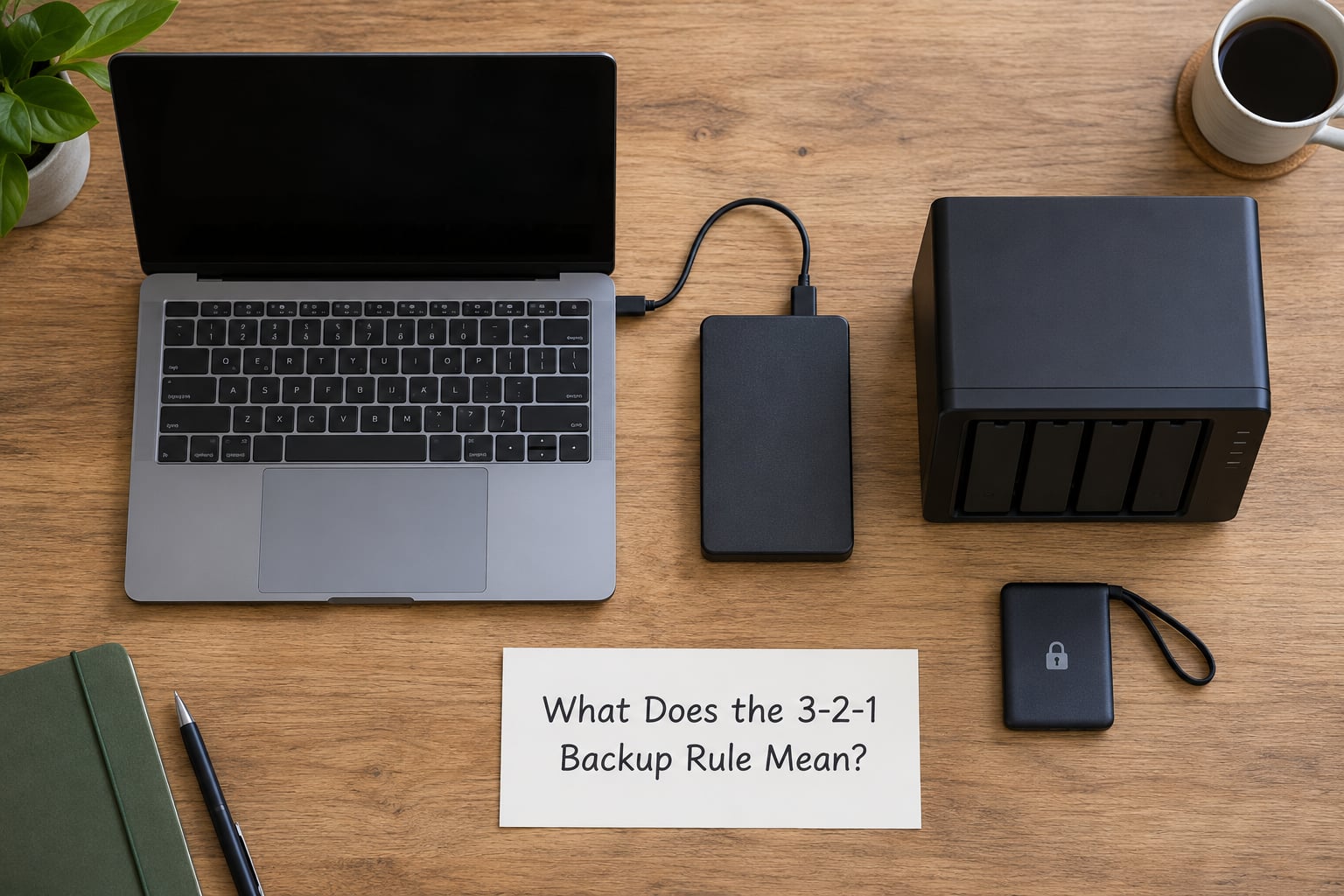
The 3-2-1 backup rule, originally popularised by photographer Peter Krogh, asks you to keep three copies of any data you would hate to lose. One of them is the live copy you work on. The other two are backups, and they have to sit on different media than each other, with at least one of them somewhere physically distant.
The mistake most people make is reading that as “three copies of my Documents folder”. It is not a count of folders, it is a spread of failure modes. Each part of the rule exists to defeat a different kind of loss.
| Element | What it means | What it looks like at home |
|---|---|---|
| 3 copies | The live working copy plus two backups | Your laptop’s home folder, a nightly backup, and a weekly offsite backup |
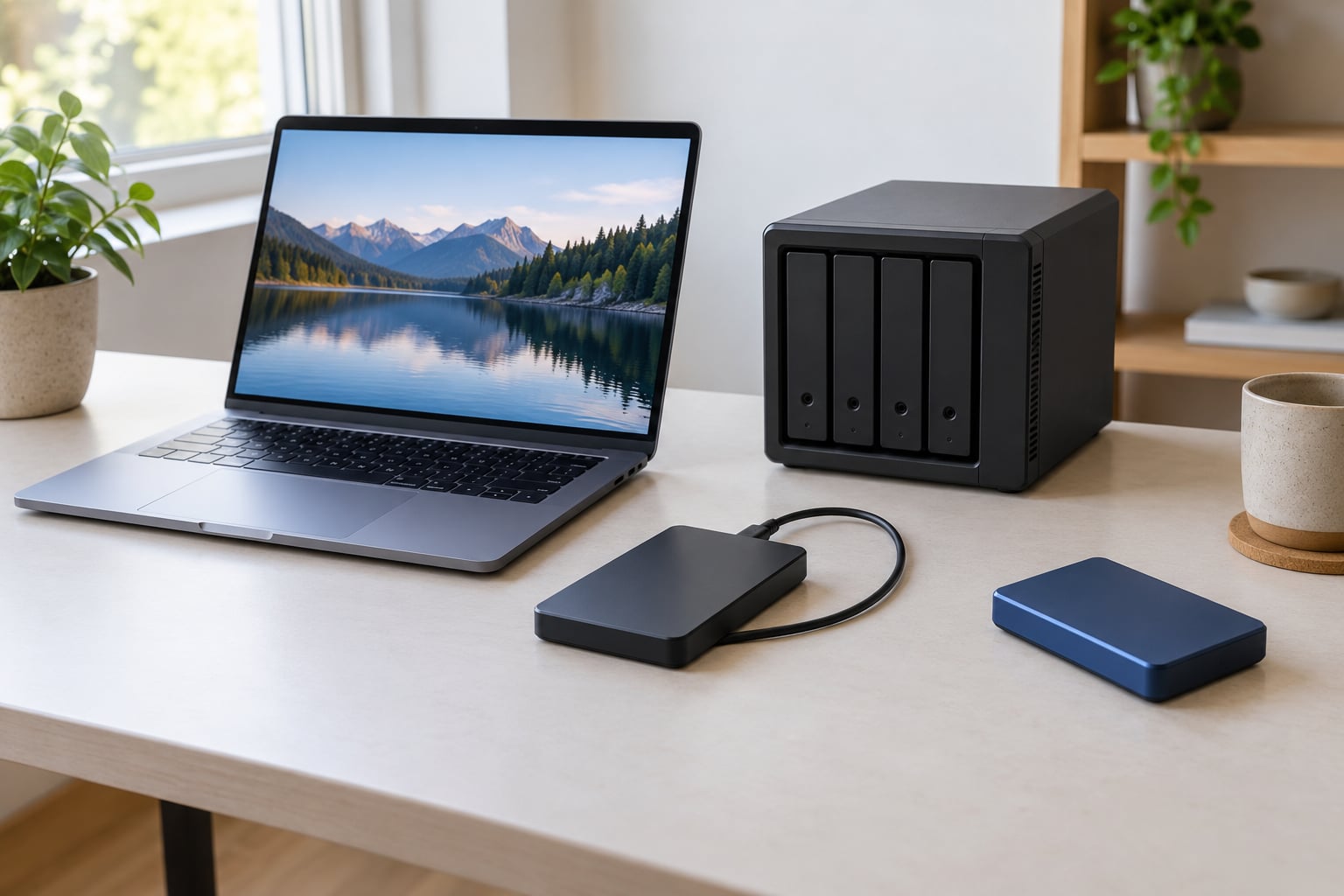
| 2 media types | Backups on physically different storage, not two folders on one disk | Internal SSD for live data, an external drive or NAS for one backup, a different system or cloud object storage for the other |
| 1 offsite | One copy that a fire, flood, theft or power surge at your desk cannot reach | Encrypted cloud storage, or a drive at a relative’s house rotated on a schedule |
A phone complicates things slightly because most people never move files off it. Camera roll lives in one place, gets deleted by an errant swipe, and syncs to a service that happily mirrors the deletion. Treat the phone as a capture device and get the photos onto two other systems on a schedule you automate.
Why the 3-2-1 Backup Rule Matters
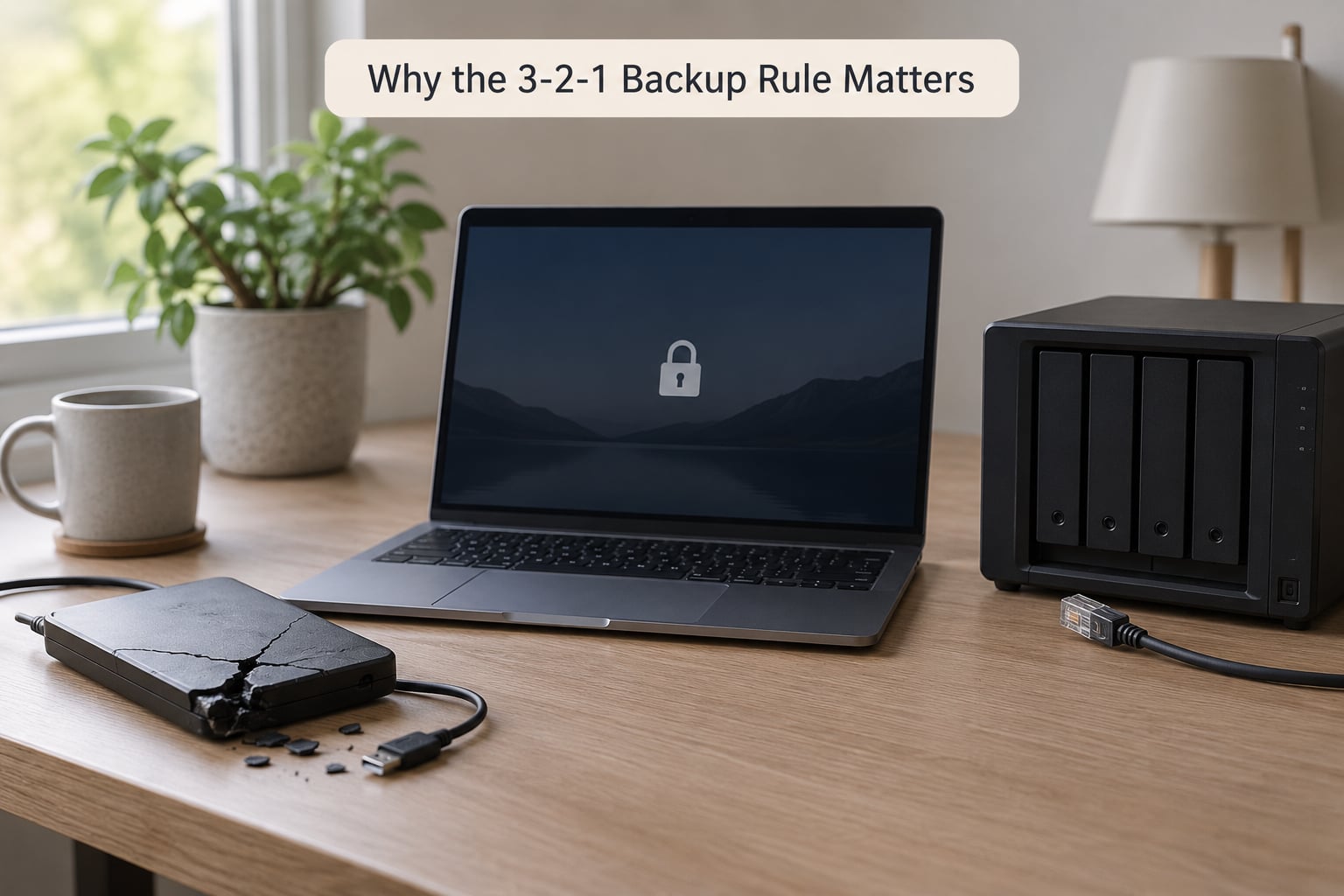
Backups matter because data loss is not a rare catastrophe. It is a Tuesday. Drives spin down and controllers die, laptops get stolen from cafe tables, and every year someone learns that a folder deleted on a synced laptop is also deleted in the cloud, because that is what sync does.
A single copy fails in exactly one way, and it always fails at the worst moment. Three copies arranged along three axes fail in different ways, so an event has to be unusually thorough to take all of them.
| What goes wrong | What usually takes the copy with it | Which part of the rule saves you |
|---|---|---|
| Drive or SSD failure | The single disk holding both live data and a “backup” | Two different media types |
| Accidental deletion | Empty trash, a bad script, a dropped folder | Three copies with retention |
| Ransomware | Anything mounted or reachable, including a NAS on the same network | One copy offline, encrypted, or read-only |
| Theft of a laptop | Unencrypted local storage goes with the machine | Encryption plus an offsite copy |
| Fire, flood, or a power surge at the building | Everything physically inside it | The offsite copy |
| Expired credentials or a lapsed subscription | The only backup you forgot you had | A second, independent copy |
On a backup.education thread, one user described losing weeks of work because the primary drive and the only backup lived on the same hardware. It is the single most common failure pattern in the forums, and it is exactly what the media-diversity half of the rule exists to prevent.
How Three Copies Reduce the Risk of Data Loss
How the 3-2-1 Backup Rule Splits Your Copies
Think about what each copy is actually for, because they do different jobs.
The live copy keeps you working. It is fast, it is where your day-to-day edits happen, and it is the only copy you interact with directly. It also disappears the moment something goes wrong, which is why it does not count as protection on its own.
The first backup is the fast one. A nightly job to a locally attached drive or a NAS means a bad afternoon costs you an afternoon, not a week. This is your redundancy layer, and for most people it is the copy that actually gets used.
The second backup is the slow one that saves you. It runs less often, it goes somewhere else, and it is the copy you touch maybe twice a year. When ransomware encrypts the NAS sitting two metres away, or the house burns, this is the one still standing.
That split is what separates local redundancy from disaster recovery. Redundancy keeps the lights on. Disaster recovery is getting your files back from a place that no longer exists.
Why a synchronised folder is not a complete backup
File sync services are excellent at keeping the same bytes on two devices, and they propagate changes, including deletions and the encryption of ransomware. If you delete a folder, the cloud copies the deletion. If malware encrypts a document, the encrypted version replaces the good one everywhere.
That makes sync a mirror, not a history. A backup tool takes a copy, keeps earlier versions, and ideally takes them on a schedule you do not have to remember. Many tools do both jobs, but only if you turn versioning on and check that it is actually running.
What Should Count as a Separate Backup Copy?
This is the most argued point in every backup forum, so it is worth being precise. A copy is the same data stored somewhere that can fail independently. A medium is the physical or logical technology holding it.
Two folders on the same disk are one copy with bad labelling. Two drives in the same enclosure, or a NAS plus a USB drive plugged into the same always-on machine, are better but still share a power supply, a network, a router and a set of credentials. Practitioners on r/DataHoarder keep landing on the same honest answer: it is better than nothing, but it is not finished.
So compare the three common options:
- Local external storage — cheap, fast, and it fails in the same building as everything else. Excellent as the first backup, weak as the only one.
- Network-attached storage — great for automatic versioning across machines, and a real single point of failure because anything with network access can reach it.
- Cloud object storage — genuinely offsite, survives theft and fire, and its version history is what rescues you from a bad delete. The trade-off is bandwidth on restore and the fact that your data sits somewhere you do not control.
Independent retention is the part people skip. A copy that is rewritten in place from the live data every night holds only today’s mistakes, not last month’s. Look for versioning, snapshots, or a rotation scheme where older versions are kept and cannot be overwritten by the current run.
How to Protect Sensitive Files in a 3-2-1 Plan
Three copies of your data is three copies of anything sensitive in it, so the plan needs a security layer as well as a durability layer.
Encrypt at rest first, on every device in the chain. On a Mac, turn on FileVault under System Settings, Privacy and Security, FileVault. On Windows, BitLocker is set up when you enable device encryption, and can be added later through Settings, Privacy and security, Device encryption. On Linux, LUKS via cryptsetup covers the physical disk; for an external drive you can create a LUKS container and write to the mapped volume instead of the raw device.
Encrypt the backup targets too, with something other than the same key. macOS encrypted APFS or encrypted sparsebundles work well for AirPort-connected drives. For a NAS, use its own volume encryption or a client-side encrypted container. Restic and Borg can encrypt repositories, and cloud providers will encrypt at rest on their side, which does not help if the account itself is compromised.
Then separate the accounts. If one password unlocks the laptop, the email account and the backup service, a single phishing page takes the whole chain. Use a password manager, give the backup service its own long random password, and require a second factor or a hardware key for anything holding the only remaining copy of your files.
Restrict permissions as well. A backup that every account on a shared machine can read is a liability when that machine is borrowed by a friend or compromised by something you never scanned for.
Finally, match the service to the threat model. Consumer cloud storage is fine for family photos and documents. It is not the right home for client records, medical files or anything under a compliance obligation, where you need a service that signs a data processing agreement, keeps region-specific copies, and can produce an audit trail.
How to Test a Backup Before You Need It
A backup you have never restored is a hope, not a plan. Verification turns monitoring into something you can rely on, and it takes about twenty minutes once a quarter.
Start by restoring something. Pick a folder that matters, restore it to a scratch location on a different machine, and open a handful of files including the oldest one. Old files are where archive corruption shows up first, because they were written by older software to older media.
Then check counts. Compare the number of files and the total size between source and destination. With rsync you can run rsync -n -c --itemize-changes to do a dry run with checksums and see exactly what would transfer, which catches truncated or silently corrupted files. Note the numbers today so next quarter has a baseline.
Two terms make this concrete. Your recovery point objective is how much data you are willing to lose, expressed in time: hourly backups give you an RPO of an hour, daily backups give you a day. Your recovery time objective is how long you can be down: if a photo library of a terabyte needs three days to pull down, and you can only tolerate one, the backup does not meet your needs no matter how successful it was.
Write the restore steps down while you are at it. The worst time to discover that the archive password lives in a password manager you cannot unlock is the week the drive fails. A short runbook, even three lines, removes the panic.
Finally, schedule it. A recurring calendar reminder for a Sunday afternoon does more for reliability than a fancier tool, because the person running it stays honest.
Common Backup Mistakes to Avoid
These are the patterns that show up again and again in home setups and small teams.
- Treating sync as backup. Deletions and ransomware encryptions propagate. Fix: turn on version history, or add a tool that keeps dated snapshots.
- Keeping every copy in one building. A fire, a burst pipe or a stolen NAS takes all three. Fix: put one copy offsite and check that it really is somewhere else.
- Using one password everywhere. One stolen credential now unlocks the whole chain. Fix: a password manager plus a second factor on the backup service.
- Never testing a restore. Broken archives, expired certificates and changed paths surface only at the worst time. Fix: a quarterly drill that restores a real folder.
- Forgetting the drive that lives in a drawer. Backups on removable media fail quietly as they age. Fix: plug it in monthly and run a read check, and replace drives every few years since they wear out.
- Letting current versions overwrite history. A backup that mirrors today keeps only today’s mistakes. Fix: retention that keeps weeks or months of earlier versions.
- Backing up everything at the same time. If the backup shares the same schedule as your work, one failure loses the day twice. Fix: stagger schedules and use different accounts for each copy.
Practitioners in a Hacker News ransomware discussion described crews that hunt for and delete backup infrastructure first, then encrypt production. Their recommendation was consistent: the copy that survives is the one ransomware cannot reach, which means offline, read-only or credential-separated rather than merely nearby.
Frequently Asked Questions
How often should I back up my files with the 3-2-1 rule?
Often enough that losing the newest changes would not hurt. Documents and photos suit a nightly copy, mail and chat archives daily, and anything work-critical every few hours if you can. The 3-2-1 backup rule says nothing about frequency, because it is about how many copies survive, not how fresh they are. Pick a schedule you would actually keep, automate it, and check the job ran.
Does cloud storage count as one of the three backup copies?
It counts as the offsite copy, and it is a good one, since it survives theft, fire and flood and usually keeps version history. It does not count as the whole plan: a synced drive mirrors deletions and ransomware-encrypted files unless versioning is on. Use cloud as copy three, and keep a local copy on different media as copy two.
Are external hard drives reliable enough for the 3-2-1 backup rule?
They are fine as one part of the rule, not as all of it. Mechanical drives and SSDs both wear out, and a drive stored in a drawer is not verified data. Use an external drive or SSD as your fast local copy, keep a second copy on different media, and put one copy offsite. Run a read check monthly so a silent failure is caught early.
Should I encrypt my backups, and which files need extra protection?
Encrypt everything, because three copies of a sensitive file is three chances to lose control of it. Turn on FileVault on Mac, BitLocker on Windows or LUKS on Linux, and encrypt backup targets with a separate key. Give medical records, tax files, identity documents, client contracts and anything under a compliance obligation a password-protected container inside the backup, not just a synced folder.
What should I do first if my laptop, phone, or backup drive is lost?
Do not wipe or return the device yet, and stop writing to any service that syncs from it. If it is encrypted with a strong key, the data on it is unreadable, so change the account passwords first. Then restore from the offsite copy onto a clean machine, verify the files open correctly, and only afterwards report the device lost or wiped. This is the moment the 3-2-1 backup rule pays off.
Conclusion: Start With One Verified Backup
Why the 3-2-1 backup rule matters comes down to one thing: every disaster takes out a different copy, so keeping three of them on two media types with one offsite means no single failure ends your data. It is a short list, and it works because it separates failure modes rather than just counting files.
Today, list the files you would genuinely be upset to lose. Copy them to a different kind of storage than the machine you use, push one copy offsite, and restore a single file from it to confirm the path works. That last step is the one everybody skips, and it is the one that decides whether the other two are backups or just copies.