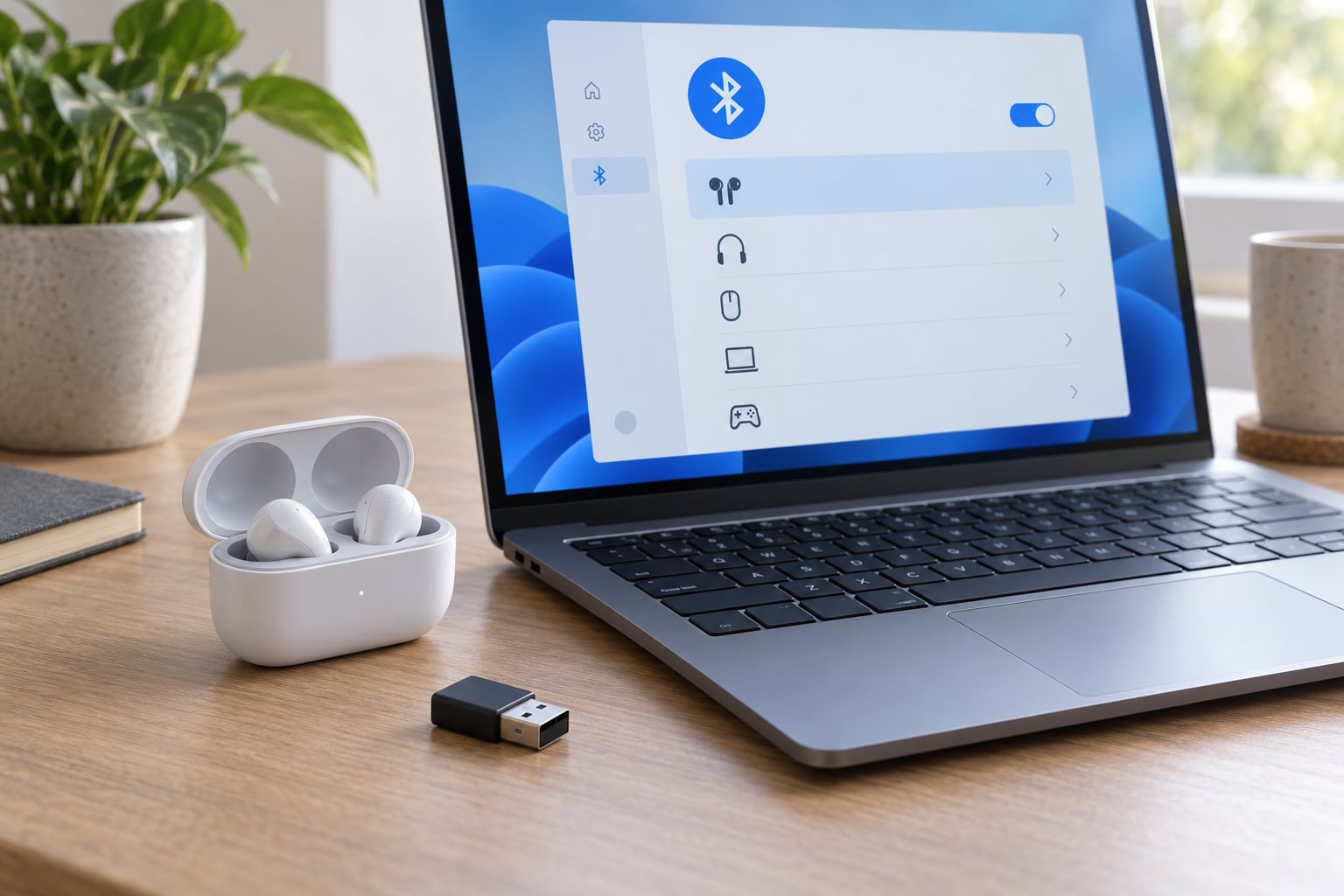
To connect AirPods to a Windows PC, open the charging case, hold the setup button until the status light flashes white, then go to Settings, open Bluetooth and devices, choose Add device, select Bluetooth, and pick your AirPods from the list. It takes about a minute.
Windows treats AirPods as ordinary Bluetooth headphones, so there is no Apple software to install. The fiddly parts are getting them into pairing mode and then making sure Windows actually plays sound through them. Those two things cause almost every failure I see, so here are the short steps first and the longer walkthrough after.
Quick answer, five steps:
- Open the charging case with both AirPods inside and the lid up.
- Hold the setup button on the back for three to five seconds until the light flashes white.
- On your PC, press Windows Key + I to open Settings, then pick Bluetooth and devices.
- Click Add device, then click Bluetooth and wait for your AirPods to appear.
- Click the AirPods name, then set them as the output device if no sound plays.
AirPods Max owners: there is no setup button on the back of that case. Hold the noise control button until the light flashes white instead.
Table of Contents
- 1What You Need
- 2Step-by-Step: Connect AirPods to a Windows PC
- 3Turn On Bluetooth on Windows
- 4Put AirPods into Pairing Mode
- 5Add the AirPods in Windows Bluetooth Settings
- 6Select the AirPods as the Audio Output
- 7Connect AirPods with a USB Cable
- 8Check Microphone and Controls
- 9Common Mistakes
- 10Frequently Asked Questions
- 11Can I connect my AirPods to a desktop computer with no Bluetooth?
- 12Do AirPods work with Windows 11?
- 13Can AirPods connect to my iPhone and my PC at the same time?
- 14Why do my AirPods keep connecting to my iPhone instead of my PC?
- 15Does using the AirPods microphone make the sound worse?
- 16How do I disconnect AirPods from my PC?
- 17Conclusion
What You Need
You need the AirPods themselves, their case, and a Windows 10 or Windows 11 machine. Both laptop and desktop work as long as the PC has a working Bluetooth radio.
Check for Bluetooth before you start. On Windows 11, press Windows Key + K and look for the Bluetooth button. On Windows 10, click the network icon in the taskbar and check whether Bluetooth is listed there. If the option is missing entirely, your PC has no Bluetooth hardware or the driver is not installed, which is common on older desktop builds.
Charge the AirPods too. Low battery is a quiet culprit here. AirPods will sit in the device list as a half-paired entry and never finish connecting, and the case light will not go solid.
Which button to hold depends on the model:
| AirPods model | Pairing button | How long to hold |
|---|---|---|
| AirPods (1st, 2nd, 3rd gen) | Setup button on the back of the case | 3 to 5 seconds |
| AirPods 4 and AirPods 4 with Active Noise Cancellation | Setup button on the back of the case | 3 to 5 seconds |
| AirPods Pro and Pro 2 | Noise control button on the back of the case | 3 to 5 seconds |
| AirPods Max | Noise control button on top of the case | 3 to 5 seconds |
Desktop PCs with no Bluetooth need a small USB Bluetooth adapter plugged into a free port. Windows downloads the driver the first time you plug it in, so there is usually nothing else to install. Once the adapter shows up, the pairing steps below are identical.
Step-by-Step: Connect AirPods to a Windows PC
Turn On Bluetooth on Windows
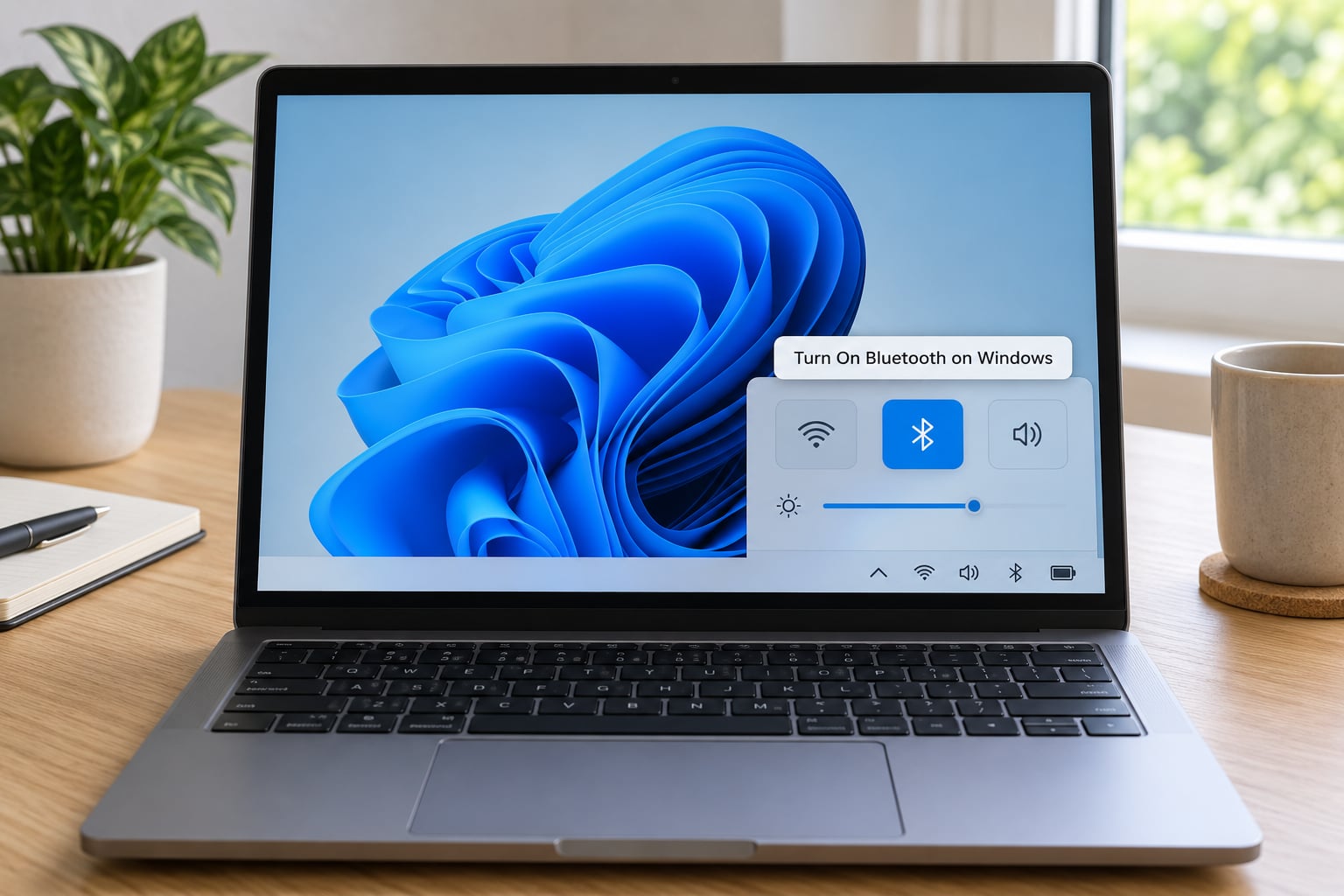
Windows 11: press Windows Key + K to open Quick Settings, then click the Bluetooth tile until it turns blue. Windows 10: click the up arrow in the system tray, then click the Bluetooth icon to switch it on.
You can tell it worked because the Bluetooth icon stays visible in the taskbar corner instead of disappearing.
Put AirPods into Pairing Mode
Put both AirPods in the case, leave the lid open, and hold the pairing button until the status light flashes white. That flashing white light is the only confirmation signal you get. An amber light means the AirPods are already paired to an Apple device, which is a different problem and one I cover below.
You have roughly 30 seconds before the AirPods give up and go back to sleep. Have the Add device screen open first.
Add the AirPods in Windows Bluetooth Settings
On Windows 11, the path is Settings, then Bluetooth and devices on the left, then Add device at the top right. Click Bluetooth and your AirPods will appear within a few seconds. Click the name to pair.
On Windows 10, the path is Settings, then Devices, then the Add a Bluetooth or other device button at the bottom. Pick Add a Bluetooth device and click your AirPods from the list.
| Step | Windows 11 | Windows 10 |
|---|---|---|
| Open Settings | Windows Key + I | Windows Key + I |
| Bluetooth page | Bluetooth and devices | Devices, then Bluetooth and other devices |
| Add button | Add device | Add a Bluetooth or other device |
| Device type | Bluetooth | Add a Bluetooth device |
| Quick Settings shortcut | Windows Key + K | Click the taskbar network icon |
If the AirPods show as Paired but not Connected, click them once to connect. The status under the device name is the only place Windows tells you this.
Select the AirPods as the Audio Output
A successful pairing does not always mean sound comes out. Open the volume mixer from the taskbar, click the output device arrow, and choose your AirPods under Output. The quickest path is right-click the speaker icon in the taskbar, then Sound settings, then scroll to Choose your output device.
Once connected, AirPods usually create two entries in the sound list: Headphones for stereo playback and Headset for calls. Pick Headphones for music and video, because the Headset mode drops audio quality on purpose so the microphone can run at the same time.
Connect AirPods with a USB Cable
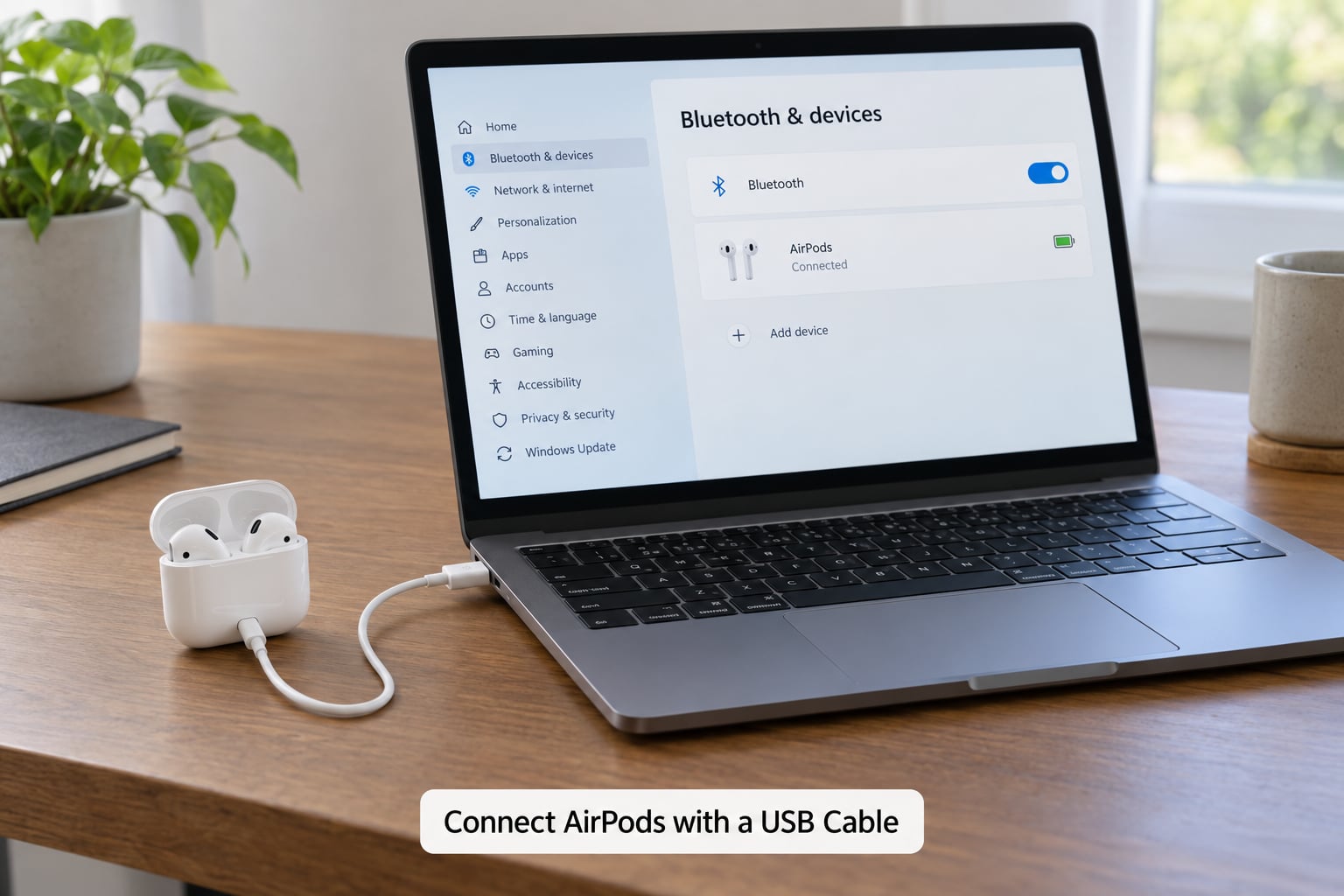
Some AirPods can be paired over USB instead of Bluetooth, which helps on a desktop with no radio or when wireless pairing keeps dropping. Plug a USB-C to Lightning cable, or the equivalent USB-C to USB-C cable for USB-C cases, into the PC and into the charging case with the lid still open.
Windows makes a sound and lists the AirPods under Bluetooth devices within about 30 seconds. Note what the cable does and does not do. It handles audio only. There is no microphone, no charging, and the battery readout stays greyed out in Windows.
USB pairing can overwrite a Bluetooth pairing on some builds. If you plan to use the AirPods wirelessly, delete the USB entry from Settings first so it does not fight the Bluetooth one.
Check Microphone and Controls
Open Settings, then Privacy and security, then Microphone, and confirm your AirPods appear in the input list. Older builds use Control Panel, Sound, Recording tab instead. Right-click the AirPods microphone and tick both Disable device and Hide disabled devices, then tick it back on, which forces Windows to rebuild the input.
Test with a five-second recording in Sound Recorder or a quick call. Noise cancellation and transparency mode work from the AirPods themselves on Windows, but there is no on-screen toggle in Windows settings.
Common Mistakes
Most AirPods problems on Windows trace back to the phone, not the PC. Work down this list in order and stop when the sound comes back.
The AirPods are still connected to your iPhone. This is the single most common cause of a failed PC pairing. Open Bluetooth settings on the iPhone, find your AirPods, and tap Disconnect, then put the case lid back on for ten seconds before you retry. If you see an amber light instead of white when you hold the button, the AirPods are still attached to the phone.
They never appear in the device list at all. Put the case within a few feet of the PC with the lid open and the light flashing. If the PC has no Bluetooth radio, the Settings app hides the Bluetooth section entirely and no amount of button holding will help. A USB adapter fixes it.
Windows hangs on Connecting and then gives up. Turn Bluetooth off and on again with the case lid open, then move the case right next to the computer. Interference from a 2.4GHz Wi-Fi router or a USB port right beside the dongle can weaken the handshake. Moving the adapter to a rear port on a desktop usually settles it.
Windows asks for a pairing PIN. AirPods do not use one. Windows shows this prompt when the handshake half-completes, and any code you type gets rejected, followed by a message that Windows did not receive a response. Do not keep guessing 0000 or 1111. Turn off Bluetooth on the iPhone, reset the AirPods, and pair again from a clean state.
Connected but no sound at all. Check the output device first. Right-click the speaker icon, open Sound settings, and confirm the AirPods are selected under output. If they are, play a test sound there and see whether it routes correctly. Also check that the volume is not turned down separately on the AirPods themselves while they are in the case.
Sound turns muffled the moment an app opens the microphone. This is a profile downgrade, not a broken pair. Windows switches from the A2DP stereo profile to the hands-free profile so the mic can work, and hands-free audio quality is deliberately poor. Close the app that opened the mic, then open Device Manager, expand Bluetooth, right-click the AirPods hands-free or headset entry, and disable it so only the stereo device remains.
That last fix carries a tradeoff, so know it before you do it. Disabling the hands-free device removes the AirPods microphone from Windows entirely. If you join calls often, leave it enabled and instead force stereo playback while accepting that the mic will re-trigger the switch.
The AirPods keep grabbing the iPhone instead of the PC. Windows has no seamless handoff. Take the AirPods out and put them back in the case, which signals the phone they are done, then open the case near your PC and click the AirPods entry to connect again.
The microphone is missing or sounds terrible. Check Privacy and security, Microphone to confirm Windows has permission, then check the app itself. Zoom, Teams and Discord each pick their microphone independently, and most default to the built-in laptop mic. Select the AirPods headset entry inside the app, not just in Windows.
Pairing broke after a Windows 11 update. This is common on the 25H2 branch and on 24H2 builds that shipped with an updated Bluetooth stack. Toggle Bluetooth off, power-cycle the AirPods, and disable the Hands-Free device in Device Manager or the Recording tab. If that fails, remove the AirPods from Windows, reset the AirPods, and pair again. Several Windows 11 25H2 threads report the same audio state failure with Beats and other headsets, so the fix is worth trying before you blame the AirPods.
Resetting the AirPods. Put them in the case, hold the case button for about 15 seconds, and watch the light go amber and then white. For AirPods Max, hold the Digital Crown and the noise control button together until the light goes amber. Then pair from Windows as if they were new.
Some Apple features simply do not exist on Windows. Ear detection, spatial audio with head tracking, automatic switching between devices, and the battery readout for each individual bud will not appear. ANC and transparency work, since the buttons on the AirPods handle them directly. Tap controls can work, but you configure them on the iPhone first and Windows just inherits the choice.
Frequently Asked Questions
Can I connect my AirPods to a desktop computer with no Bluetooth?
Yes, with a USB Bluetooth adapter. Plug it into any free USB port and Windows installs the driver automatically, then the Bluetooth section appears in Settings. Pairing then works exactly as it does on a laptop. You can also skip the radio entirely and pair over a USB-C cable for audio only, though that gives you no microphone and no wireless range.
Do AirPods work with Windows 11?
They work as standard Bluetooth headphones, which means playback, calls, noise cancellation and transparency all function. Windows 11 pairs them through Settings, Bluetooth and devices, then Add device. What you give up compared to an iPhone or Mac is the Apple ecosystem glue: no automatic device switching, no ear detection, no spatial audio and no charging readout for each bud.
Can AirPods connect to my iPhone and my PC at the same time?
AirPods can be paired to both devices, but Windows will not hand them over automatically. You need to put the AirPods back in the case, then open the lid near the PC and click the AirPods entry in Bluetooth settings each time you switch. People often forget the AirPods are still bound to the phone and end up troubleshooting a PC that is working fine.
Why do my AirPods keep connecting to my iPhone instead of my PC?
Because the phone grabs them first when they go back into your ears. Take the AirPods out, close the case for ten seconds, then open the lid next to the PC and select the AirPods in Bluetooth settings. If the case light flashes amber when you hold the button, they are still paired to the phone and you need to tap Disconnect there first.
Does using the AirPods microphone make the sound worse?
Yes, and that is expected. When an app opens the microphone, Windows switches from the A2DP stereo profile to the hands-free profile, which caps audio quality so both directions can work at once. To avoid it, select the AirPods Headphones entry as your output while a call is running, or disable the hands-free device in Device Manager and use a separate mic for meetings.
How do I disconnect AirPods from my PC?
Open Settings, go to Bluetooth and devices, find the AirPods entry and click it, then choose Disconnect. To remove the pairing completely, click Remove device, which also clears the stored profile. To turn Bluetooth off temporarily without unpairing, press Windows Key + K and switch the Bluetooth tile off, then on again when you want the AirPods back.
Conclusion
Start with Bluetooth. Disconnect the AirPods from your iPhone, put them in pairing mode until the light flashes white, then add them through Settings, Bluetooth and devices, Add device, Bluetooth. Once paired, check the output device before assuming anything is broken.
If they will not pair at all, reset the AirPods with the case button for about 15 seconds and try again with your phone Bluetooth switched off. If they pair but sound wrong, the fix is almost never the AirPods. It is the stereo versus hands-free switch, and choosing the Headphones entry in your sound settings solves it in about ten seconds.
Updated for Windows 11 and Windows 10 in 2026.