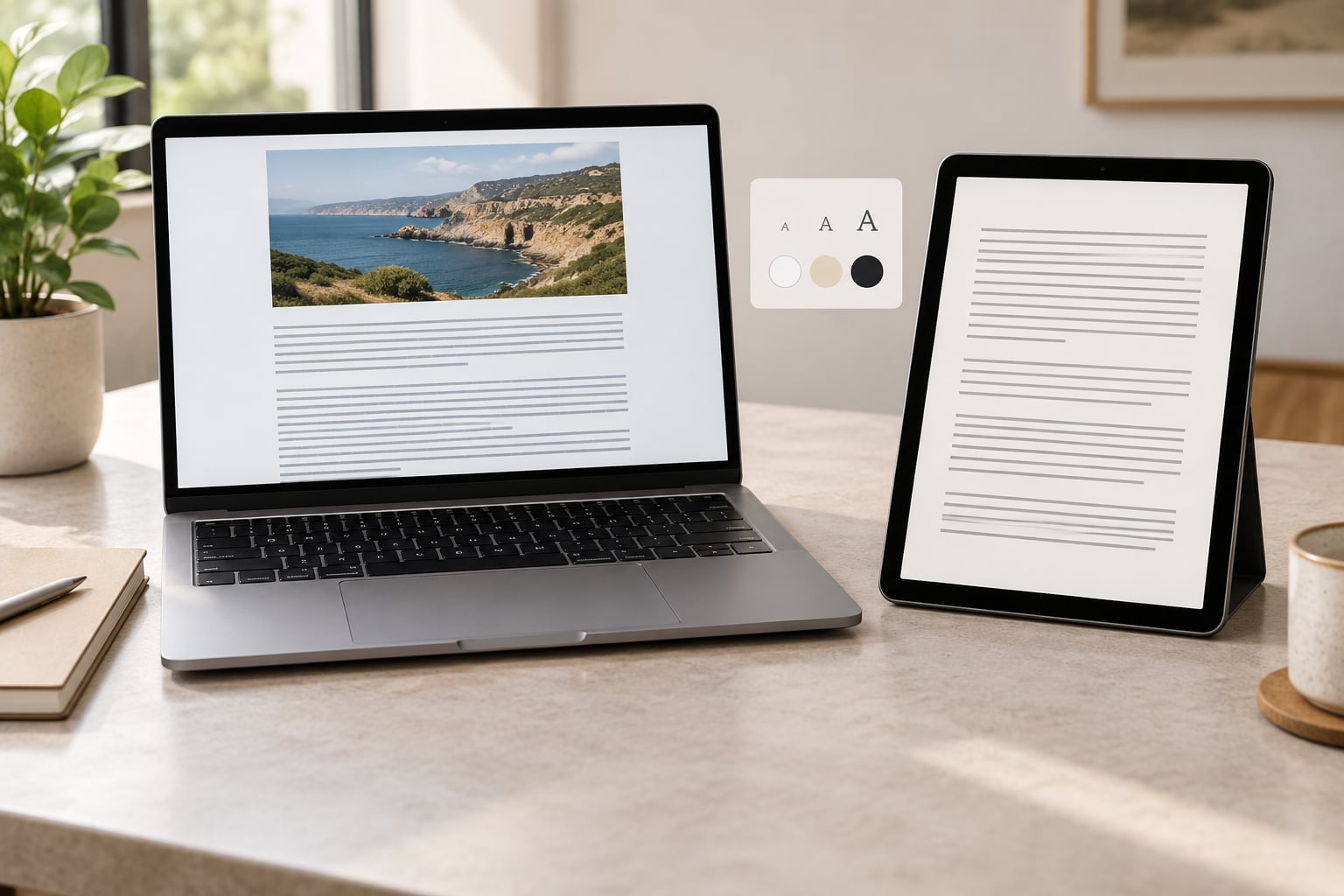
Reader mode strips ads, pop-ups, sidebars and navigation out of a web page and re-renders the article as clean single-column text you can resize, re-theme and read aloud. Learning how to use reader mode to read articles faster takes about two minutes: open the article, tap the reader control, adjust the text size, and read without anything moving at the edges of the page.
I have turned on reader mode hundreds of times, mostly on my phone at night, and the difference is not subtle. A page that took me eleven minutes of skimming and re-reading now takes about six.
One warning up front: menu names move between browser versions. Everything below is current as of October 2026, and I flag the spots where your version of 2026 may label things differently.
Table of Contents
- 1What You Need Before You Use Reader Mode
- 2Step-by-Step: Turning Reader Mode On
- 3How to Use Reader Mode in Chrome
- 4How to Use Reader Mode in Safari on Mac and iPhone
- 5How to Use Reader Mode in Firefox
- 6How to Use Reader Mode in Microsoft Edge
- 7Make the Reading View Easier to Use
- 8Common Mistakes While You Are Learning It
- 9When Reader Mode Is Not the Best Option
- 10Common Mistakes and Quick Fixes
- 11Frequently Asked Questions
- 12What is reader mode in a browser?
- 13Does reader mode work on every website?
- 14Can I save an article opened in reader mode?
- 15Is reader mode the same as offline reading?
- 16Will reader mode remove paywalls or let me bypass a login?
- 17Can I use reader mode on my phone or tablet?
What You Need Before You Use Reader Mode
Just a current browser and an article. No account, no extension, no sign-in, nothing to install. Every major browser on desktop and mobile ships with a reader view built in, and each one is one tap away from a normal page.
There are three situations where the built-in reader view will not help, and it is worth knowing them before you start hunting for a button that was never going to appear:
- Paywalled articles. Reader mode extracts the text the page already served you. It will not unlock anything.
- Login-protected pages. The same rule applies. A dashboard or a members-only newsletter stays exactly as restricted as it was.
- Files and apps rather than articles. A PDF, a Google Doc and a Reddit thread open in their own viewer, where the browser reader control does not apply.
There is also a general rule worth knowing. Reader mode only appears when the page’s algorithm decides it is looking at a genuine article. A home page, a search results page or an app interface will not qualify, which is why the button seems to come and go.
Step-by-Step: Turning Reader Mode On
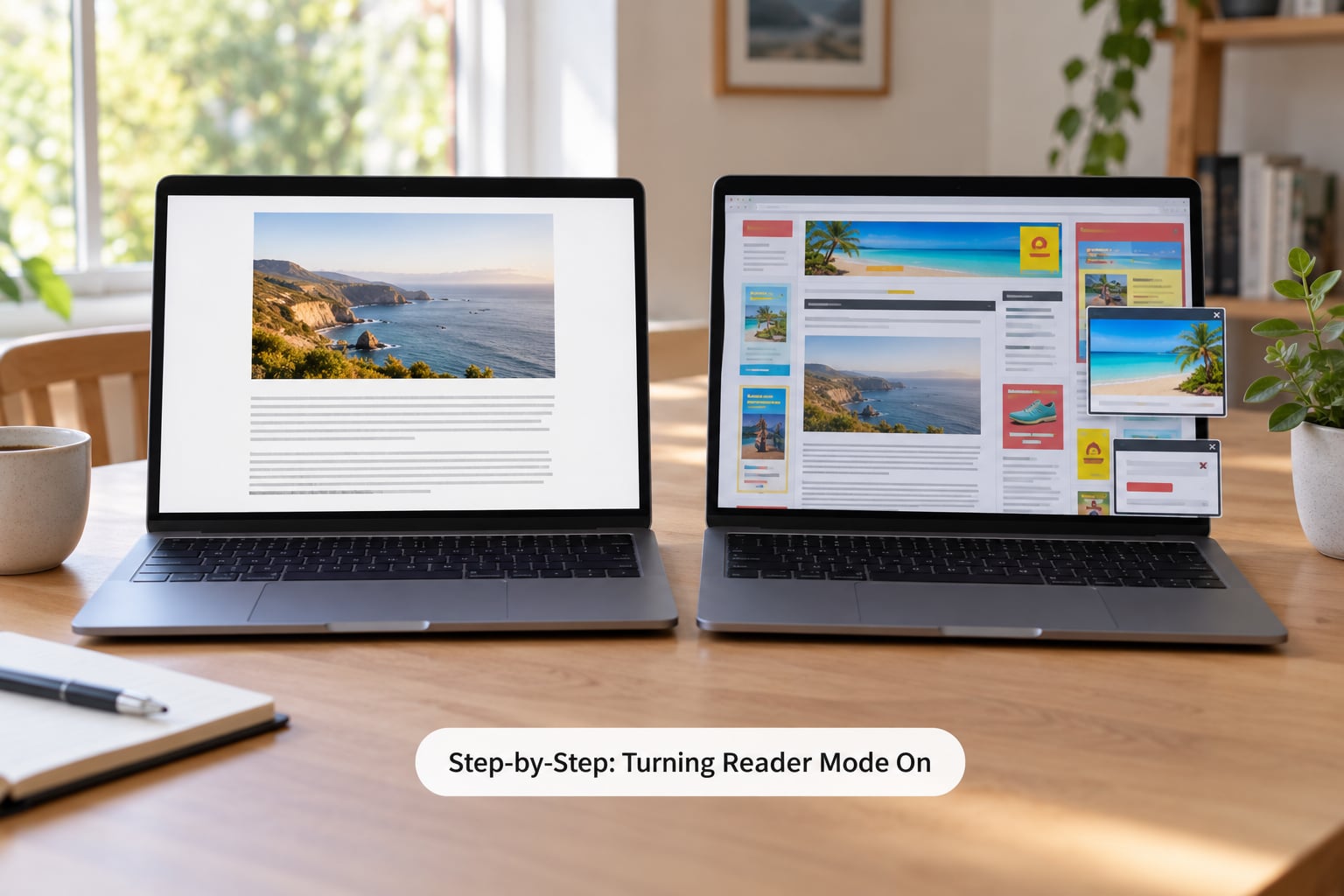
The exact control changes with the browser, but the sequence is identical everywhere:
- Open the article in a normal browser tab, scrolled to the top.
- Find the reader control. On a Mac it is a small page icon beside the address, on Windows and Android it hides in the three-dot menu, and on an iPhone it is the aA button in the address bar.
- Tap or click it. The page reflows into a single column with the ads, sidebars and comment threads gone.
- Set the text size and theme using the same control. Most people jump to a size two steps larger than the default and a dark or sepia background at night.
- Read, then exit. Tap the same control again, or press Escape on desktop, to return to the original page.
How to Use Reader Mode in Chrome
On Chrome for Windows, Mac and Linux, click the three-dot menu in the top-right corner of the window and choose the reader icon, labelled Show Reader Mode or simply Reader mode depending on your version. The shortcut Ctrl+Shift+R on Windows and Linux, or Command+Shift+R on Mac, does the same thing.
Inside reader mode, use the aA control at the top to set the text size from small to large, and the sun and moon icons to flip between light and dark. There is no built-in line-spacing or column-width control in Chrome, which is its one real gap compared with Firefox and Safari.
Two Chrome notes. Reader mode is not available on Chrome for iOS, because Apple blocks third-party browsers from using that rendering mode; use Safari on your iPhone instead. And printing the cleaned view is often faster than printing the original page, since the ads, trackers and auto-refreshing elements go with the clutter.
How to Use Reader Mode in Safari on Mac and iPhone
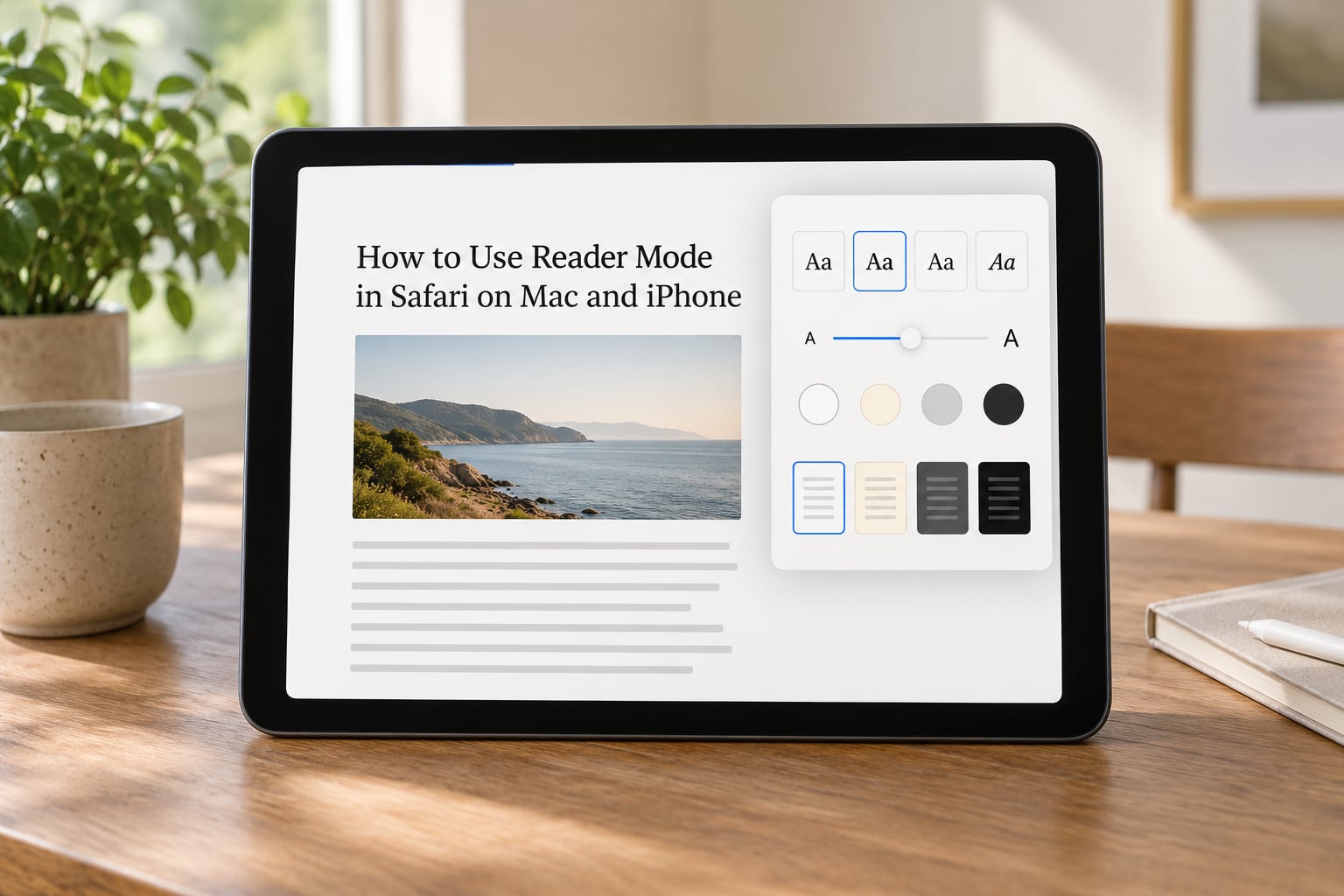
Safari has the most capable reader view of the four desktop browsers, and on macOS it can be forced to switch on automatically for any site you choose.
On a Mac, hover over the address bar until the reader icon appears on the right side of the URL, or use the View menu and pick Show Reader. On an iPhone or iPad, tap the aA button at the far end of the address bar, then tap Show Reader from the menu that slides up.
If you cannot find the aA button, scroll the address bar to the far end of the screen and it will appear. This is also the fix for the most common complaint I see: after the iOS 18 update, many people assumed Reader had been removed. The control moved, it did not disappear, and tapping Show Reader from the aA menu still works on iOS 18 and later.
On the Mac, tap the page icon at the far end of the reader toolbar to open the appearance panel. You get a font choice, a seven-step text size slider, a background colour row and page themes including sepia and dark. The same panel on iPhone is reached through the aA button while reader view is active.
Two more Safari specifics. Tap the Share button in reader mode to add the page to Reading List, send it to yourself or mail it. And if a site keeps pushing you into reader view when you would rather see the layout, Safari remembers that choice per site until you clear website data for that domain.
How to Use Reader Mode in Firefox
Firefox calls it Reader View, and it has the best set of controls of any browser here. Click the hamburger menu in the top-right corner and choose Reader View, or press Ctrl+Shift+R on Windows and Linux, or Command+Shift+R on Mac.
Inside the view, the toolbar at the top adjusts everything: font family, text size, line width for line length, contrast, and a theme selector with light, sepia and dark options. Adjusting line width down toward a narrower column genuinely speeds up reading, because your eye returns to the start of the next line less often and skips fewer words.
On Firefox for Android, open the three-dot menu and tap Reader View. Firefox also remembers whether you want reader view on a given site, so once you enable it on a news domain it can open in that view every time.
How to Use Reader Mode in Microsoft Edge
Edge built an immersive reader into the current Chromium version of the browser. Click the three-dot menu and choose Reading mode, or use the shortcut Ctrl+Shift+R on Windows, which matches Chrome’s.
Options inside the view cover text size, line spacing and a background colour, similar to what Safari offers. Edge is the one mainstream desktop browser that pairs reader mode with Read Aloud, a text-to-speech feature with a playback speed control. That combination is the fastest way through a long article when you do not need to look at it.
The same menu path applies in Edge on Windows and macOS. On Edge for Android, open the three-dot menu and tap Reading mode. Older EdgeHTML builds on Windows 10 handled this differently, so if you are still on that version the menu item is called Immersive Reader.
Make the Reading View Easier to Use
Reader mode gives you a clean page. What you do with the settings on that page is what makes you read faster.
- Bump the text size two steps. The default is tuned for skimming. A larger size cuts the number of words your eye can hold at once, and fewer words per fixation means fewer fixations per paragraph.
- Narrow the column. Firefox and Safari let you do this directly. Aim for roughly 60 to 80 characters per line; anything wider and you start losing your place at the end of a long row.
- Add line spacing. A little extra leading, around 1.5, keeps your eye from drifting onto the next line early.
- Pick a background for the room you are in. Dark for night, sepia for a bright desk, plain white for a dim room. A dark theme at noon is as uncomfortable as white text at midnight.
- Raise playback speed for read aloud. Edge and Safari both read the cleaned page back to you. A rate slightly above normal, around 1.25x to 1.5x, is where most people can still hold comprehension.
If plain playback is still too slow, an RSVP speed reader flashes one word at a time at a fixed pace. Users who pair it with reader mode generally get through a long article in a fraction of the time, at some cost to comprehension on dense or technical writing. I use it for news and skim pieces, never for anything I need to remember.
On the evidence, a clean page helps a modest but real amount. A 2019 CHI study on reader views found average readers spent about 5% less time on standard pages than in reader view, and readers diagnosed with dyslexia improved their reading speed further while reporting they enjoyed the format more. The mechanism is simple: fewer competing elements means fewer times your attention is pulled off the sentence you were on.
One privacy note, because it comes up often: reader mode runs entirely inside your browser. No page text is sent to the publisher, to an extension vendor or to any service. If you use a third-party extension instead, that is no longer true, which is one good reason to start with the built-in version.
Common Mistakes While You Are Learning It
Most frustrating reader-mode problems have a boring cause:
- The control is missing or greyed out. The algorithm decided the page is not an article. Try a linked article page rather than a section front page, and reload the page fully before looking again.
- The article looks truncated. Extraction is a guess, not a guarantee. Comments, embedded charts, data tables and the end of the article are the first things dropped. If the text stops mid-sentence, exit and read the original.
- Photos are gone. Reader mode favours text. Some browsers keep a lead image, and most drop the rest.
- Text is enormous or tiny. The size setting is per browser and sometimes per site. Reset it inside the reader toolbar before you assume something is broken.
- It keeps forcing itself on. Safari remembers a per-site reader preference. Clear website data for that domain to get the normal layout back.
When Reader Mode Is Not the Best Option
Reader mode is one tool, and a few other things do its job better in specific cases.
Ad blockers versus reader mode. An ad blocker removes ads while keeping the publisher’s layout, images and interactive elements. Reader mode throws all of that away for pure text. If you only want the noise gone and still want the page to look like the site, use a blocker.
Read-later apps for archiving. Reader mode displays a page for as long as the tab is open. It does not archive anything. If you want the article in three years, send it to a read-later service or Reading List instead.
PDFs, Google Docs and email. Native reader mode does not touch these. Open the file in a dedicated viewer that has a text-reflow option, or use an extension built to handle them.
Interactive and account pages. Anything with a comment thread worth joining, a chart you need to hover over, or a login-gated tool belongs in the original page or the publisher’s own app.
Common Mistakes and Quick Fixes
Two problems account for most of the frustration people describe, and both look like the feature has been removed when it has not.
On iOS 18 and later, Reader looks gone. The aA button still carries Show Reader, but people are looking in the toolbar instead of the address bar. Tap aA, then Show Reader. On a Mac, the reader icon sits on the right side of the address, which is easy to miss because it only appears on hover.
On Chrome for Android, the option is buried. It lives in the three-dot menu under a reading-mode entry, and the related preference for simplified pages sits in Chrome’s Settings > Accessibility. Users assume the feature is missing because it is not named like a reading feature.
In the Reddit app, there is no reader mode at all. The iOS app removed the built-in reading toolbar, which left long posts hard to read on a phone. Opening the same post in Safari, or using an in-app browser from a share sheet, gets you the reader control back.
Some pages never qualify. The button appears only when the page looks enough like an article. Follow a link into the full post rather than expecting it on a feed or a search page.
Three habits make the difference between a reader view you use once and a habit you keep. Set the size and theme once, per device, and stop re-adjusting. Pair the clean page with read aloud at a raised speed for anything informational. And keep an ad blocker in the other browser profile for the days when you want the pictures and the layout as much as the words.
Frequently Asked Questions
What is reader mode in a browser?
Reader mode is a built-in browser view that identifies the main body of an article, removes ads, pop-ups, navigation, sidebars and comment threads, and re-renders what remains as a single column of text. You can usually resize the text, change the background, and read it aloud. It works locally in your browser, so no page content is sent anywhere.
Does reader mode work on every website?
No. The control only appears when the page looks like a genuine article with a large block of body text. Home pages, search results, app interfaces, PDFs, Google Docs and most in-app webviews will not offer it. When extraction is uncertain the result can also be incomplete, so a truncated article is a reason to switch back to the original page rather than proof the feature is broken.
Can I save an article opened in reader mode?
You can keep the current session, but reader mode does not archive anything by itself. In Safari, use the Share button inside reader view to add the page to Reading List or send it to yourself. Firefox and Edge let you print to PDF, which captures the cleaned version. For permanent storage across devices, a dedicated read-later service is the better tool.
Is reader mode the same as offline reading?
No. Reader mode is a display mode, and offline reading is storage. The two are independent: a page in reader mode still needs a live connection to load, and a page saved for offline use will open in its original cluttered layout. Reader mode makes an article easier to read on the page you are looking at right now, which is a different job from keeping it available without a signal.
Will reader mode remove paywalls or let me bypass a login?
It will not. Reader mode extracts only the text your browser has already been given, so a paywalled or login-protected article stays protected. The same applies to subscription newsletters and members-only pages. The feature is designed to reduce visual clutter, and publishers treat it as a reading aid rather than a way around access controls.
Can I use reader mode on my phone or tablet?
Yes, with one exception. Safari on iPhone and iPad has it through the aA button in the address bar. Chrome, Edge, Firefox and Samsung Internet on Android have it in the three-dot menu. Chrome for iOS does not include it, because Apple does not allow third-party browsers to use that rendering mode, so use Safari on your iPhone and iPad instead.
Start with the one article you have been avoiding and turn the reader control on before you adjust anything else. Once you have seen your own text at a size you like, the rest takes about a minute, and reading a long piece stops being a chore.