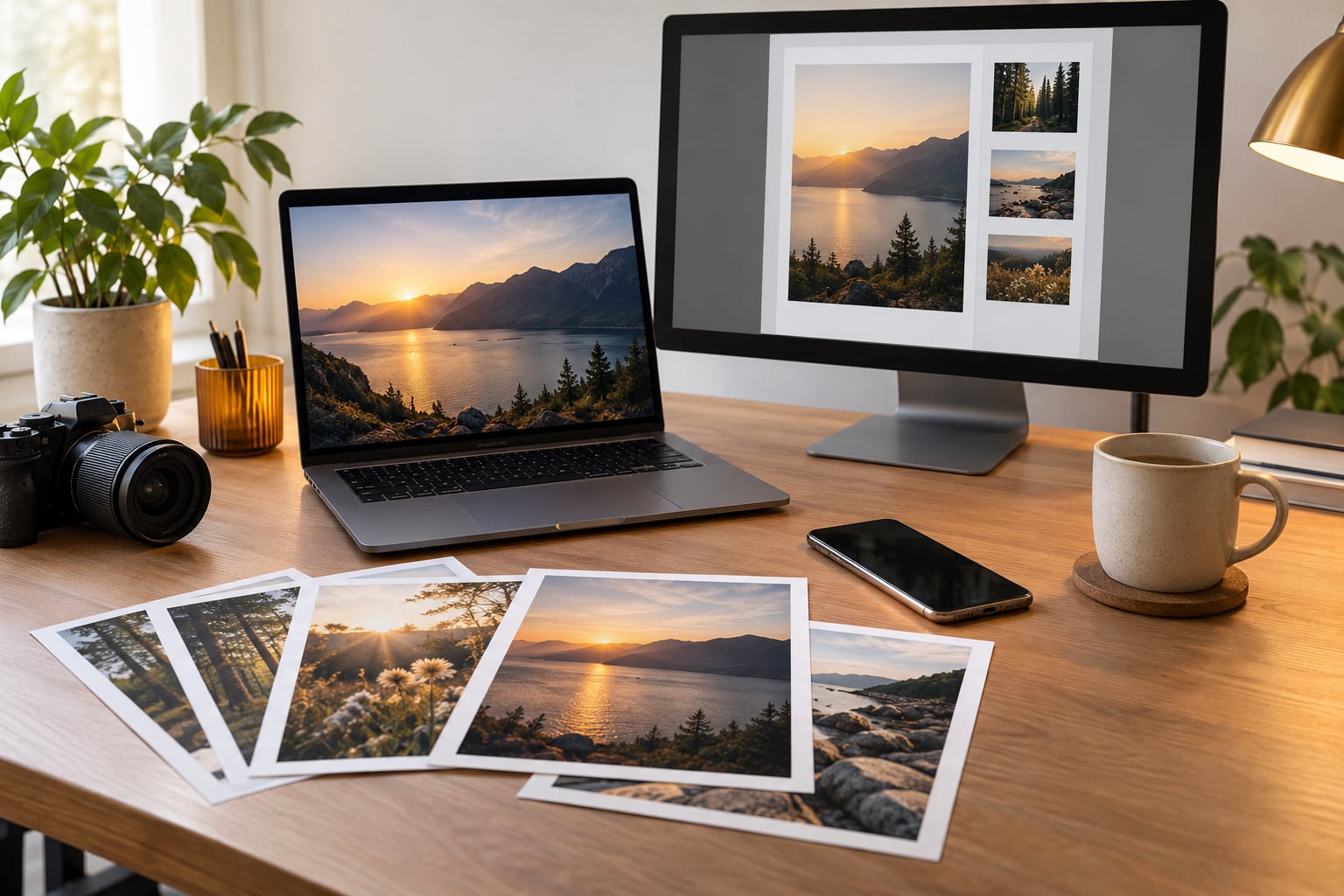
To create a PDF from multiple images, select the files in the order you want them, pick a page size, and export — every image becomes one page in a single document. Windows, macOS, iPhone, and Android all ship with a built-in tool that does this in under a minute, so you rarely need to install anything.
It matters because a folder of loose screenshots is a pain to email, upload, or print. One PDF keeps receipts, worksheets, and ID photos in a fixed order that anyone can open. On this site, updated for 2026, I walk through each platform’s exact menu path and call out the settings people usually miss.
If you only want the fast version, here’s the whole job in six moves:
- Put the images in one folder and open them together.
- Confirm the order matches the pages you want.
- Open the print or share menu on your device.
- Choose the print-to-PDF option instead of a physical printer.
- Set orientation, page size, and scaling.
- Save the file and check the page count before you send it.
Two minutes, once you know where the menu is. The platform differences below are just about where that menu lives.
Table of Contents
- 1What You Need
- 2How to Create a PDF from Multiple Images Step by Step
- 3How to Create a PDF from Multiple Images on Windows
- 4How to Create a PDF from Multiple Images on Mac
- 5How to Create a PDF from Multiple Images on iPhone
- 6How to Create a PDF from Multiple Images on Android
- 7How to Edit Page Order, Size, and Image Quality
- 8Common Mistakes
- 9Frequently Asked Questions
- 10Can I combine multiple JPG files into one PDF?
- 11What is the easiest way to put multiple images into a PDF?
- 12How do I control the order of images in a PDF?
- 13How can I make a PDF file smaller without making it unreadable?
- 14Can I change the page size after combining images?
- 15Can I turn image-only PDFs into searchable PDFs?
- 16Conclusion
What You Need
You need the images themselves, and that’s mostly it. JPG, PNG, HEIC, WebP, BMP, GIF, and TIFF all work as page content; HEIC is the default iPhone format and the one that trips people up most.
A converter reads each file, lays it across a page of a chosen size, and saves the pages as a single PDF. Page size is either the image’s own dimensions or a paper size like A4 or Letter with margins. That choice is the single biggest reason a converted PDF looks odd, so it gets its own section below.
Optional, but useful:
- A free PDF editor for drag-to-reorder, rotation, margin control, and shrinking the file. Preview on Mac does most of this already.
- OCR if you need the finished pages to be searchable rather than flat pictures. Nothing in this guide adds a text layer on its own.
- An offline method for receipts, tax documents, passports, or anything signed. Built-in tools never upload a file anywhere.
One useful habit before you start: name the images in order, like 01_receipt.jpg through 12_receipt.jpg. It matters because some systems sort by name and some sort by capture date, and the two disagree often enough to cost you a rebuild.
How to Create a PDF from Multiple Images Step by Step
Which method wins depends almost entirely on how many images you have and how private they are. A mechanic on a Reddit thread photographing every receipt and batching them into one named file per month — a genuinely calmer tax season — is the kind of workflow this is built for.
| What you need | Best method | Uploads your images? | Watermark | Difficulty |
|---|---|---|---|---|
| A few images, one time | Built-in print to PDF on Windows or Mac | No | No | Easy |
| Images already on your phone | Photos share sheet print gesture | No | No | Easy |
| Page order, margins, A4 fitting | Preview on Mac or a free PDF editor | No | No | Medium |
| Quick one-off, nothing sensitive | Online converter in your browser | Usually yes | Varies | Easy |
| Receipts, IDs, signed documents | Anything that stays on your device | No | No | Easy |
| 100+ images, repeatable | Command line on Linux or macOS | No | No | Harder |
Read that last row seriously if you have more than about fifty images. Graphical tools get slow somewhere past a hundred, and they make page order a guessing game.
How to Create a PDF from Multiple Images on Windows
This is the Windows 11 File Explorer route, and it needs no software at all.
- Open the folder holding your images and press Ctrl+A to select them all, or Ctrl-click just the ones you want.
- Right-click the selection and choose Print, or press Ctrl+P.
- In the printer list, pick Microsoft Print to PDF. If it isn’t listed, add it under Settings, Devices, Printers and scanners, Add device.
- Set Paper size to the page size you want — A4 or Letter — then click More settings.
- Turn on Print only images if you see it. Without it, Windows sometimes lays images two to a page and leaves half-blank sheets behind.
- Check Page order: Horizontal flips left-to-right order to right-to-left.
- Click Save as PDF, then type the filename, choose a folder, and save.
You can tell it worked: the finished file opens with exactly one image per page and the page count matches how many files you selected. If it opens as a single page with everything shrunk into the corner, you hit Ctrl+P while looking at one image instead of selecting them.
Images do not have to be the same size. Windows scales each to fill its page, and crops nothing, so very wide screenshots can lose their edges on a portrait page. Switch orientation to the wide setting for those.
How to Create a PDF from Multiple Images on Mac
Preview is the cleanest converter on any desktop, and it handles page order as a matter of course.
- Open Finder, select the images, and press Command+O to load them all into one Preview window.
- Check the order in the sidebar thumbnail strip. Drag a thumbnail up or down to move a page; the sidebar order is the page order.
- Rotate a sideways photo by clicking its thumbnail, then Command+D or Tools, Rotate.
- Go to File, Export to PDF.
- In the dialog, choose Save each image as a separate page.
- Click Quality to set it — JPEG for small files, PNG for sharp text and screenshots.
- Click Save, name the file, and choose where it goes.
The Quality choice is the one that matters on Mac. JPEG compresses photographs well and can soften small text badly. If you’re converting screenshots of an article or a worksheet, use PNG.
To control the page itself, open the PDF in Preview after export, then Tools, Adjust Page Size to set A4 or Letter, or File, Print and use the Scale to fit setting in the print dialog.
Preview also merges existing PDFs: open both files, select the pages you want in the sidebar, right-click, and choose Delete Page on anything you don’t want. That gives you one document from mixed sources.
How to Create a PDF from Multiple Images on iPhone
Apple has no built-in “convert” button in Photos. The print gesture is the route, and it saves the result straight to Files.
- Open the Photos app and tap Select in the top right, then choose as many photos as you need.
- Tap the Share button — the square with an arrow pointing up.
- Scroll the share sheet and tap Print.
- On the print preview, use two fingers and spread them apart to zoom in. The preview turns into a PDF preview.
- Tap the Share button again in the top right of that preview.
- Choose Save to Files, pick a folder such as iCloud Drive if you want it backed up, then tap Save.
If you only see a small print preview and two fingers won’t zoom, print to AirPrint printers instead. The pinch gesture doesn’t expand when more printers are listed. Saving to Files always works.
The pinch trick keeps one image per page in the order you selected them. If Photos sorts your selection by date rather than by your taps, reorder later or select more carefully the first time.
HEIC is the default here and works fine through this path, which is one reason staying on the phone is easier than uploading HEIC to a website.
How to Create a PDF from Multiple Images on Android
On Android the exact menus move around depending on your phone maker and Android version, so treat the labels as landmarks rather than fixed paths. The reliable shape of the process doesn’t change.
- Open Google Photos, pick the images with a long press, and tap Select all if you want everything.
- Tap More (the three-dot icon) and choose Print. In some versions it sits under Share.
- Choose the Save as PDF destination. Some builds save instantly; others open a print dialog where you pick Save as PDF as the printer.
- If your printer app offers a wide-orientation toggle, A4 or Paper size, set them before saving.
- Save, then open the file in Files or Drive to check the page count and order.
If your gallery app has its own built-in option — many Samsung, OnePlus, and stock Android builds do — look for something like Create PDF or Print under the overflow menu. It does the same job and sometimes lets you reorder pages before export.
Samsung’s Gallery has a Combine action that merges selected images into one document directly, and stock Android photo viewers sometimes offer Select, More, Print. Samsung One UI 6 and Android 14 have been described this way; check what your own phone actually shows rather than trusting any walkthrough, mine included.
How to Edit Page Order, Size, and Image Quality
Built-in converters get you a PDF. Getting a good-looking one is a second pass, and this is where most of the frustration people describe online actually lives — a teacher in r/pdf compiles textbook exercises into a single document and describes the layout that comes out as needing hours of cleanup.
Reorder pages. On Mac, drag thumbnails in Preview’s sidebar. On Windows, open the PDF in Edge or Acrobat, drag pages in the thumbnail rail, then save. In any free cross-platform editor, the same drag-and-drop thumbnail rail does it.
Set page size. By default, most converters give each page the pixel dimensions of its image, which is why a PDF can print tiny on A4 or come out enormous. Preview: Tools, Adjust Page Size, pick A4 or Letter, then Scale to fit and Save. In a PDF editor, the same two controls are usually called Page Size and Scale, and Scale to Fit is the one you want.
Set orientation per page or for the document. Rotation is not orientation. Rotating an image changes which way the picture points; changing orientation changes the shape of the page around it. Wide photos on portrait pages get letterboxed with white bars unless you set orientation to match the widest image in the set.
Fix margins and cropping on screenshots. A screenshot with a status bar and a floating button on it looks like a mistake in print. Crop those out in an image editor before converting, or use your PDF editor’s crop tool on the page and keep the same crop across every page.
Shrink a large PDF. Photos taken on a modern phone are several megabytes each, so fifty of them make a PDF far too big to email. Drop the resolution to about 150 DPI, convert to grayscale if the document is black and white, and use JPEG quality rather than PNG. A free PDF compressor will do the same thing in one step, and your email provider’s limit — usually 20 MB to 25 MB — is the number to work backward from.
Add searchable text. Conversion does not create a text layer. If you need text you can select, copy, and search, run the finished PDF through OCR. Windows 11 has built-in OCR in the Snipping Tool, Adobe Acrobat has it behind a paid subscription, and Tesseract is free on the command line. Scan a document properly rather than photographing it if you can.
Common Mistakes
Pages come out in the wrong order. Most converters sort by filename or by capture date, not by the sequence you had in mind. Prefix filenames with two-digit numbers before selecting them, then verify the first and last page after export.
The PDF is blurry. Usually compression, not resolution. On Mac, switch the export Quality from JPEG to PNG for screenshots and text. On Windows, print at a higher-quality setting in More settings. If it’s blurry because the image itself was low resolution, no setting will recover it.
Page size is unexpected. The default page matches the image’s pixel dimensions. Force A4 or Letter in the print dialog or the editor’s Page Size panel, and set Scale to Fit so nothing gets cropped.
Photos appear rotated. Phones record orientation in metadata rather than rotating the pixels, and not every tool reads that metadata. Rotate explicitly in Preview before exporting, or fix orientation in your image editor first.
HEIC files won’t convert. HEIC is Apple’s default and many web converters reject it. Stay on your device — the iOS print gesture and Android’s own print flow both handle it — or convert HEIC to JPG first on a Mac with Preview: open the file, then File, Export, choose JPEG.
Blank or white pages appear. Usually a transparent PNG, a broken image, or a HEIC that failed silently. Scroll through the new PDF and count pages. If blank pages slipped in, delete them in Preview or your editor.
The file is too big to send. Resize images to about 150 DPI before combining them, switch from PNG to JPEG for photos, or compress the finished PDF. Shrinking images before conversion gives a far better result than compressing the PDF afterwards.
Duplicate pages. Selecting twice, or a Photos library that already contained a duplicate shot. Preview the thumbnails before exporting and remove repeats in the sidebar.
It printed on paper instead of saving. The print dialog defaulted to a physical printer. Pick Microsoft Print to PDF, Save as PDF, or Save to Files before confirming — and check that your real printer isn’t low on paper, because it will be.
One more worth flagging: uploading receipts, passports, or signed documents to a website-based converter means someone else’s server handled them. Some process files entirely in your browser and never transmit the image, others upload and delete. If the document is sensitive, use a method that never touches the network.
Frequently Asked Questions
Can I combine multiple JPG files into one PDF?
Yes, and every method on this page does it. On Windows, select the JPGs in File Explorer, right-click, choose Print, then pick Microsoft Print to PDF. On Mac, open them together in Preview and use File, Export to PDF with Save each image as a separate page selected. Each JPG becomes one page in the order shown in the thumbnail strip. Check that order before you export, since most tools sort by filename or date rather than by what you had in mind.
What is the easiest way to put multiple images into a PDF?
Use your device’s own print function and choose the save-as-PDF destination. On Windows that is Microsoft Print to PDF. On Mac and iPhone it is the print preview with the pinch-to-zoom gesture, then Save to Files. On Android it is Save as PDF in the print or share menu. No account, no watermark, and nothing is uploaded. For 100 or more images, skip the graphical route and use a command-line tool instead.
How do I control the order of images in a PDF?
Number your filenames before you select them: 01, 02, 03 and so on. Most converters sort by filename, so the numbering sets your page order without any dragging. Then verify by opening the finished PDF and looking at the first and last page. If you already built it, Mac Preview lets you drag thumbnails in the sidebar, and most free PDF editors have the same drag-and-drop page rail. Windows users can reorder in Edge or Acrobat the same way.
How can I make a PDF file smaller without making it unreadable?
Resize your images to roughly 150 DPI before combining them, which is the standard for documents you read on screen and print. Use JPEG for photographs and PNG only for screenshots with small text, then lower the JPEG quality rather than the resolution. Convert black-and-white documents to grayscale for a large cut in size. If it is still too big, run the finished file through a PDF compressor. Resizing before conversion works far better than compressing afterwards.
Can I change the page size after combining images?
Yes. On Mac, open the PDF in Preview and choose Tools, Adjust Page Size, then pick A4 or Letter and use Scale to fit. In most free PDF editors the same controls sit under Page Size and Scale, and choosing Scale to Fit is what stops edges being cropped. Windows users can do it in Edge or Acrobat. This matters because converters usually default each page to the raw pixel dimensions of the image, which is why an untweaked PDF can print tiny.
Can I turn image-only PDFs into searchable PDFs?
You need OCR, and image-to-PDF conversion does not include it. Run the finished PDF through an OCR pass and it gains a text layer you can select, copy, search, and copy into other apps. Windows 11 has OCR built into the Snipping Tool, Adobe Acrobat offers it on paid plans, and Tesseract is free from the command line. For anything you scan yourself, choosing a scanner that outputs searchable PDF from the start is easier than converting afterwards.
Conclusion
Select your images, check the order, use your device’s print-to-PDF option, confirm the page size and orientation, then save and check the page count. That is the whole job on Windows, Mac, iPhone, or Android, with nothing uploaded and no account needed. Reach for a PDF editor only when you need reordering, A4 fitting, margins, or a smaller file — and if you have more than a hundred images, script it instead of clicking.