How to merge PDF files for free? You need nothing more than a browser and an internet connection, and the whole job takes about two minutes. Open a free PDF merger, add two or more files, drag them into reading order, click merge, then download one combined document. On a Mac, Preview does the same job with no upload at all.
That is the whole job, and it is genuinely free — no account, no trial countdown, no watermark on the page. Most people only get stuck on two things: getting the page order right, and worrying about whether an unknown website keeps their tax forms or signed contracts. Both are handled below.
Table of Contents
- 1What You Need
- 2Step-by-Step
- 3How to Merge PDF Files for Free in Your Browser
- 4Choose the Output and Download the Combined PDF
- 5Merge PDF Files for Free on Mac with Preview
- 6Check the Merged Document
- 7Common Mistakes
- 8Frequently Asked Questions
- 9Is it really free to merge PDF files online?
- 10Can I merge PDF files without adding a watermark?
- 11Are my PDF files stored when I use an online merger?
- 12Does merging PDF files reduce their quality?
- 13How do I separate pages after merging a PDF?
- 14Conclusion
What You Need
For the browser method you need a current version of Chrome, Edge, Safari or Firefox, a steady internet connection, and the PDF files themselves. Nothing to install and no sign-up. If a tool asks you to create an account before it will merge anything, close the tab and pick another one.
For the no-upload route on a Mac you need the built-in Preview app, which ships with every current version of macOS. On Windows, Edge can print any document to a new PDF, and free desktop tools such as PDFsam or PDFgear work entirely offline if you would rather install something once and never touch a web form again.
Before you start, make working copies. Merging creates a new file, so your originals stay untouched, but renaming originals first saves confusion later. Something like contract-A.pdf, appendix-B.pdf is far easier to reason about than Document1.pdf and Scan_0031.pdf.
Two habits worth building in. Turn pages that scanned sideways before merging, because most mergers will not rotate them for you. And unlock any password-protected file first, since a locked PDF usually fails silently rather than telling you why.
Step-by-Step
There are two complete methods below: one runs in your browser and works on any computer, the other keeps everything on a Mac. Use the browser method for anything ordinary, and the Preview method for documents you would rather not hand to a third-party server.
How to Merge PDF Files for Free in Your Browser
This is the fastest general method and the one most people want. Open the official site of a reputable free PDF merger in your browser and go to its merge tool. The page should have a visible upload area with a dashed border or a Select files button, and nothing between you and the tool except a file picker.
Add your files. Drag them from your desktop into the upload area, or click Select files and pick them from your downloads folder. Merge two or more PDFs at once — a few tools cap it at ten files or around 100 MB per file, so if you have more, merge in batches and then merge the batches.
Set the order before you merge. Each file appears as a card in the list, and you drag the cards into the order you want the pages to read. Cover sheet first, body next, appendices and receipts last. Watch for files scanned in reverse sequence, which is a common reason a finished packet reads backwards.
Click merge, then wait. A short wait for a handful of pages, longer for scanned documents full of images. Most tools show a progress bar; if nothing happens for a minute or two, the file is usually too large or one of them is encrypted.
Download the combined PDF. The file lands in your usual downloads folder and opens in whatever viewer your system defaults to. If you only need a quick check before using it, download it and open it — do not assume the merge worked because the button turned green.
One warning, and it is the important one: type the web address yourself or use a bookmark, rather than clicking a merge link buried in search results. For anything with your name, account numbers, signatures or medical details on it, use a tool that states plainly that processing happens in your browser, or use the Mac method below instead.
Choose the Output and Download the Combined PDF
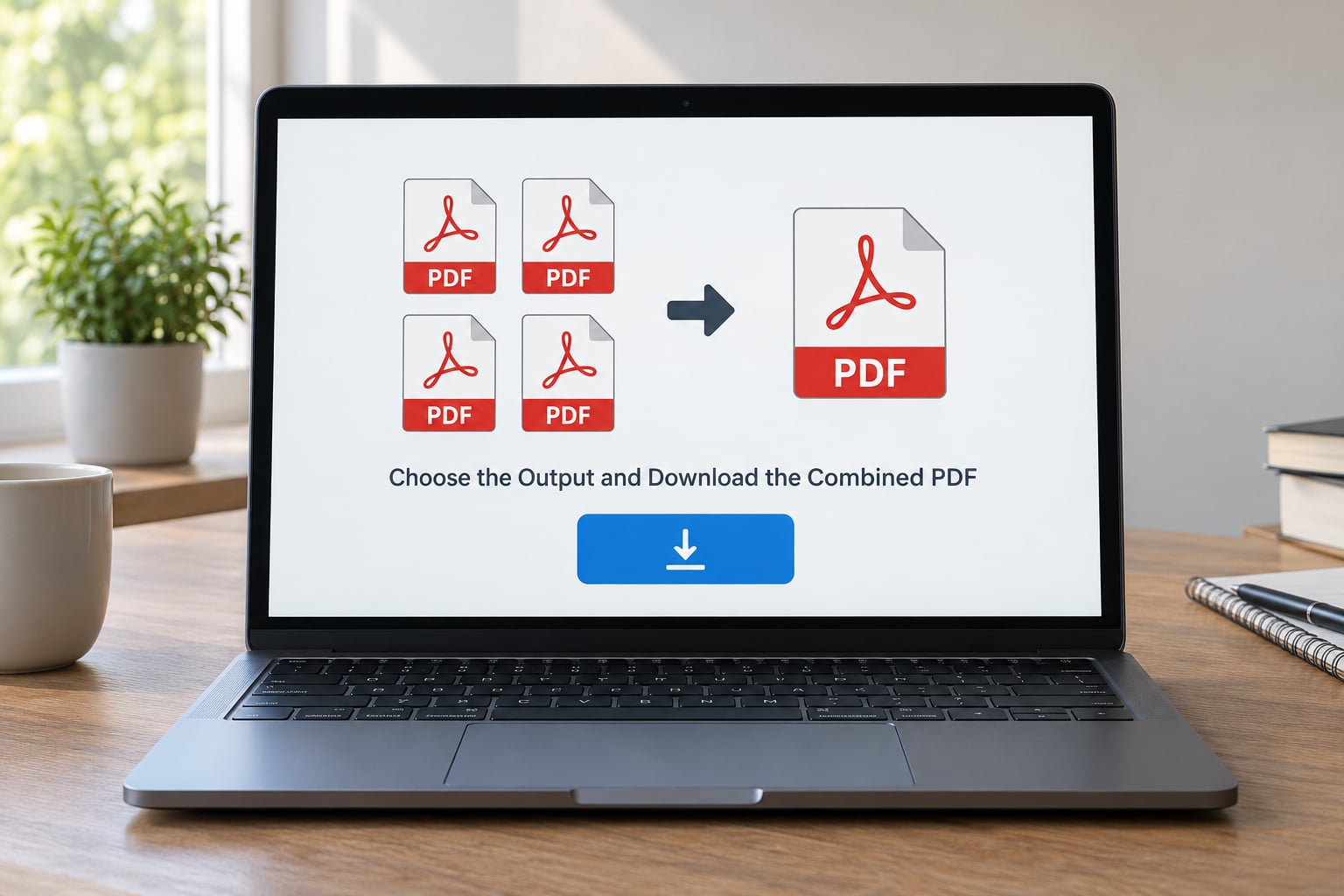
Think about what the finished file is for before you accept the default name. If you are emailing a packet, the recipient sees only the filename in their inbox, so Lease-Agreement-and-Addenda.pdf earns you more than merged.pdf. Long, boring names are a kindness to whoever opens the file next.
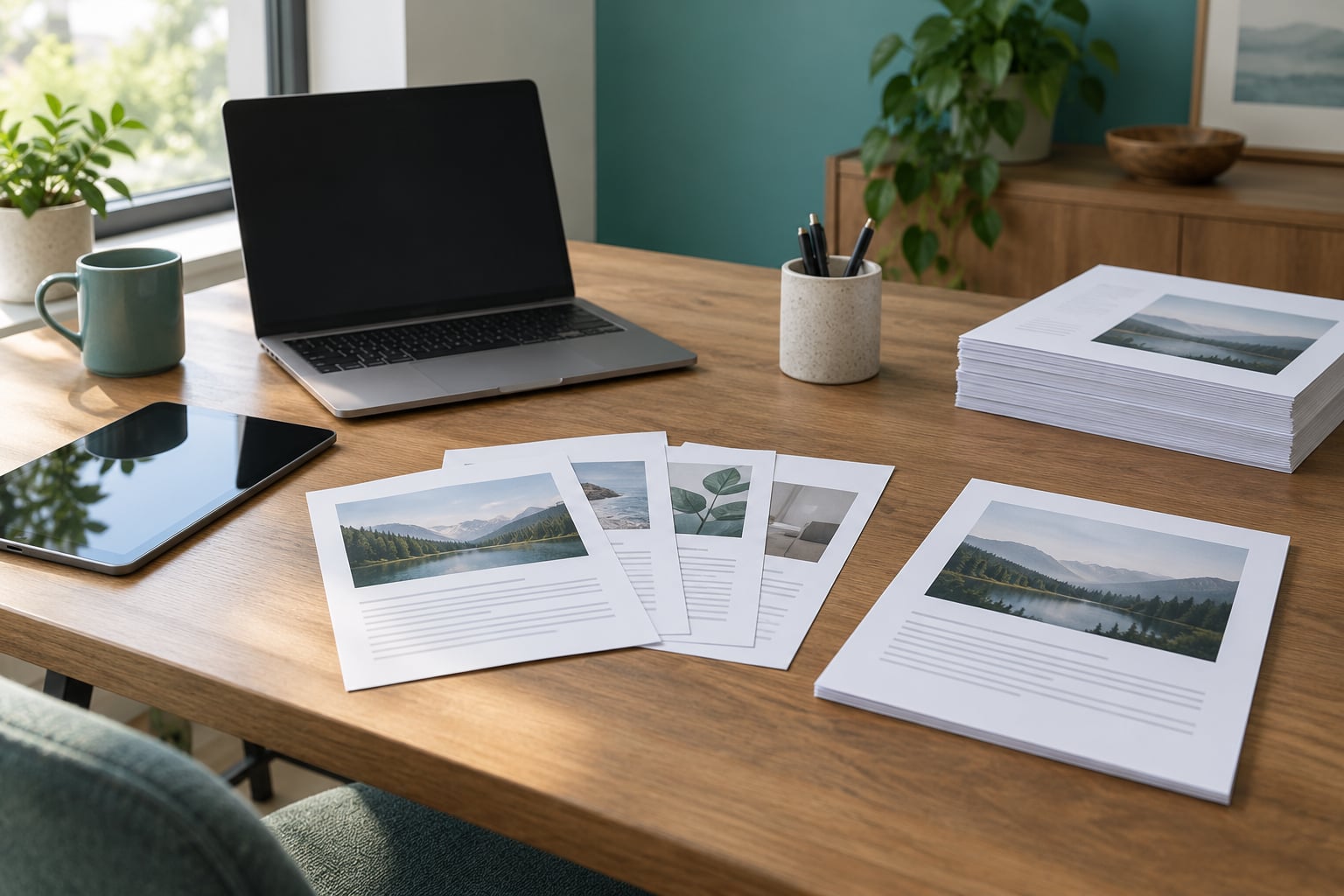
The before-and-after picture matters more than it sounds. A folder with four separate PDFs beside one combined document is a clean result; the same four PDFs with a fifth file that is a duplicate half the size usually means one upload failed or a file merged twice. Comparing sizes catches it in seconds.
If the merge tool offers choices, pick them deliberately. Keeping the original order is the default and usually right. Adding bookmarks to a document with clear sections helps a long packet, but a merger that only copies them from the first file can leave you with a single useless bookmark pointing at page one.
Save the finished file somewhere obvious before you close the tab. Some online mergers clear their own storage and invalidate the download link once you navigate away, which is a fine policy for privacy and a bad surprise at 9pm the night before a deadline.
Merge PDF Files for Free on Mac with Preview
Preview can combine PDFs without sending a single byte anywhere, and it is already on your Mac. Open your first PDF in Preview — double-clicking the file usually works. Move the cursor over the left sidebar and click the thumbnail view button at the top so you see every page as a small image rather than one long scroll.
Now append the rest. Open your second PDF, select all its pages, copy them with Command-C, switch back to the first window, put the cursor after the last page in the sidebar, and paste with Command-V. Repeat for each additional file. Your pages land in the order you paste them, so work through the list methodically rather than opening five files at once.
Check the result in the thumbnail sidebar before saving. It shows the whole document at a glance, which makes missing pages, sideways scans and duplicated pages obvious in a way that scrolling never does.
Save a copy rather than the original. Use File and then Export as PDF, give it a clear name, and pick a location in your Documents or Downloads folder. Exporting leaves your first source file exactly as it was, which is the safer habit when the sources are originals you still need.
One limitation worth knowing: Preview cannot rearrange pages once you have pasted them in. If the order comes out wrong, the cleanest fix is to start over rather than fight it — open the first file again, paste the pages in the right sequence, and export. Dragging a page to a different position sometimes works, sometimes silently fails, and the restart takes a minute.
Check the Merged Document
Open the downloaded or exported file and count the pages. It should equal the total across every source file, and page one should be the first page of the first document in your order. A quick count is the fastest way to catch a failed upload.
Scroll through the whole thing at a zoom level where you can read body text. Watch for sideways pages, blank white pages where a scan failed, and pages that are cut off at the edge — that last one usually means the sources had different page sizes, such as US Letter mixed with A4, and a printer will reject or shrink the result.
Use search inside the document to spot-check content. Searching for a term you know appears near the end, a total, a date or an appendix reference confirms the last file really made it in without reading every page twice.
Test the document the way the recipient will. If it is going by email, try attaching it and watch for a size warning. If it is going to a government or job portal, upload it to a draft submission and confirm it accepts the file size before you finalise anything.
Keep your source files until the combined PDF has been checked and, ideally, until the thing it is for has been sent and acknowledged. Disk space is cheaper than re-scanning a document you no longer have.
Common Mistakes
Pages are missing from the finished file. One upload probably failed silently. Count the pages in the result against your sources, and merge in smaller batches — five files at a time rather than twenty — so a single failure is easy to spot.
The order is wrong. You set the order before clicking merge, not after. Drag the cards into place in the tool, or paste pages in sequence in Preview. For Preview specifically, restarting the merge is faster than trying to move pages afterwards.
A password-protected file will not merge. Mergers cannot read an encrypted document. Open it in Preview, Acrobat or your PDF viewer, enter the password, then export an unencrypted copy — File, then Export as PDF, leaving the password option blank. Merge that copy instead.
Pages are blank or sideways. Blank pages usually mean a scanner lid was closed mid-feed, or an OCR step failed; there is no fix after the fact, so rescan that file. Sideways pages come from portrait scans of landscape originals — rotate them in Preview before merging and export once.
The upload stalls or fails. A very large scanned file is the usual cause, and so is a slow connection on a file that needs to cross the internet twice. Try again on a wired connection, or move the job to a desktop tool that works offline.
The merged file is too large to send. Merging adds overhead on top of the images inside. Run the result through a free compressor, or rescan in greyscale at 150 dpi rather than 300 dpi for anything that is mostly text, and the file usually drops by two-thirds or more.
Something looks different after the merge. Links, annotations and bookmarks sometimes survive, sometimes do not, depending on the tool. If annotations matter, merge with a desktop app and check the first page and the last page of each source file. Metadata is the quieter version of the same problem: author names and creation timestamps can ride along unless the tool strips them.
Browser pop-ups try to sell you something. Close the tab. A free merge does not need a pop-up, and the ones that appear mid-merge are the least trustworthy part of the experience.
Two small tips that prevent most future problems: name files so they sort into the right order on their own, such as 01-cover.pdf, and delete the merged copy once the original packet is confirmed rather than keeping four near-identical versions for years.
Frequently Asked Questions
Is it really free to merge PDF files online?
Yes, for the merge step itself. Plenty of tools combine PDFs at no cost with no account and no watermark, and the built-in options on macOS and Windows cost nothing because they already ship with the operating system. The paid tier usually starts when you want editing, OCR, signing or compression, not simple joining. Check the limits before you begin, though: free tools often cap file count or total size, and you may need to merge in batches.
Can I merge PDF files without adding a watermark?
Yes. Watermarks come from the free tier of tools trying to sell an upgrade, not from the merging process itself. Many browser mergers, the macOS Preview app and free desktop apps like PDFsam produce a completely unmarked file. If a tool stamps its name on the page, close it and try another, or export the merge through Preview on a Mac. Read the small print near the download button, since some tools only reveal the watermark after the merge is finished.
Are my PDF files stored when I use an online merger?
It depends entirely on the tool, and the honest answer is that you have to check its privacy policy. Some services process your files on a server and delete them after a short window; others process everything inside your browser, meaning the file contents never leave your computer even though the page itself loads from the internet. If the wording is vague, assume the pessimistic case and use Preview, a desktop app, or a tool that states its retention policy in plain language before you upload.
Does merging PDF files reduce their quality?
No. A merger copies the page content rather than re-rendering it, so text stays sharp and images keep their original resolution. The one thing that changes is file size, which usually grows because each source carries its own fonts, images and structure. The exception is tools that automatically compress during the merge to keep uploads fast, which can soften photographs. Turn off any automatic compression setting, and check the last page of the result at full zoom before you send it.
How do I separate pages after merging a PDF?
Every free path back out of a merged file runs through the same idea: keep a page you need, throw the rest away. In Preview, open the merged PDF, use the thumbnail sidebar to select the pages you want, and then File, Export as PDF to save just those as a new document. Online mergers usually pair merge with split, letting you choose pages by thumbnail. Desktop tools such as PDFsam do the same offline. This is also the cleanest way to pull one page out of a fifty-page packet.
Conclusion
Start with the browser method for anything ordinary — add your files, drag the order, merge, download. Reach for Preview or a desktop app when the documents are sensitive, encrypted or too large to upload comfortably. Either way, count the pages and read the order before you send it, and hold on to the originals until the combined PDF has done its job.