Saving a web page for offline reading takes about ten seconds on any device: press Ctrl + S on Windows and Linux or Cmd + S on a Mac, choose Webpage, Complete in the format menu, and open the saved file later with no connection. On a phone, use your browser’s share menu instead.
The reason people get stuck is that saving a page comes with four or five format options, and the default choice is not always the one you want. A saved file can look perfect on your machine and turn into unstyled text the next time you open it. Getting it right comes down to one question: do you want a faithful copy of the page, a clean reading copy, or a fixed document?
Table of Contents
- 1What You Need
- 2Step-by-Step
- 3Save the Page in a Desktop Browser
- 4Save a Page on iPhone or iPad
- 5Save a Page on Android
- 6Use a Cleaner Offline Copy
- 7Common Mistakes
- 8Frequently Asked Questions
- 9Can I read a saved web page without internet?
- 10Should I save a web page as HTML or PDF?
- 11Why is my saved page missing images or articles?
- 12Are browser bookmarks the same as saved pages for offline reading?
- 13How do I save a page in Chrome, Firefox, Edge, or Safari?
- 14What is the best way to save a long article on a phone?
- 15Conclusion
What You Need
Nothing to install. Every current version of Chrome, Firefox, Edge and Safari can save a page on its own, and both phones can do it too. That covers most articles, recipes and documentation.
Before you start, four things decide which method fits:
- The page type. A blog post, a recipe and a documentation page all save cleanly. A single-page app, a comment thread or anything behind a login often does not.
- Your device. Desktop browsers save whole folders of files. Phones are far more limited and usually give you a PDF or a text-only reading list entry.
- Your browser. Firefox has a built-in reader view. Chrome and Edge do not, though an extension can add the same result.
- Whether images matter. If you want the layout, images and fonts intact, you need a full capture. If you only want the words, reader mode is faster and the file is far smaller.
One honest warning: dynamic pages that build themselves with JavaScript, videos, and anything behind a paywall or a login session will not survive a save intact. No browser can copy what it was never shown.
Step-by-Step
Save the Page in a Desktop Browser
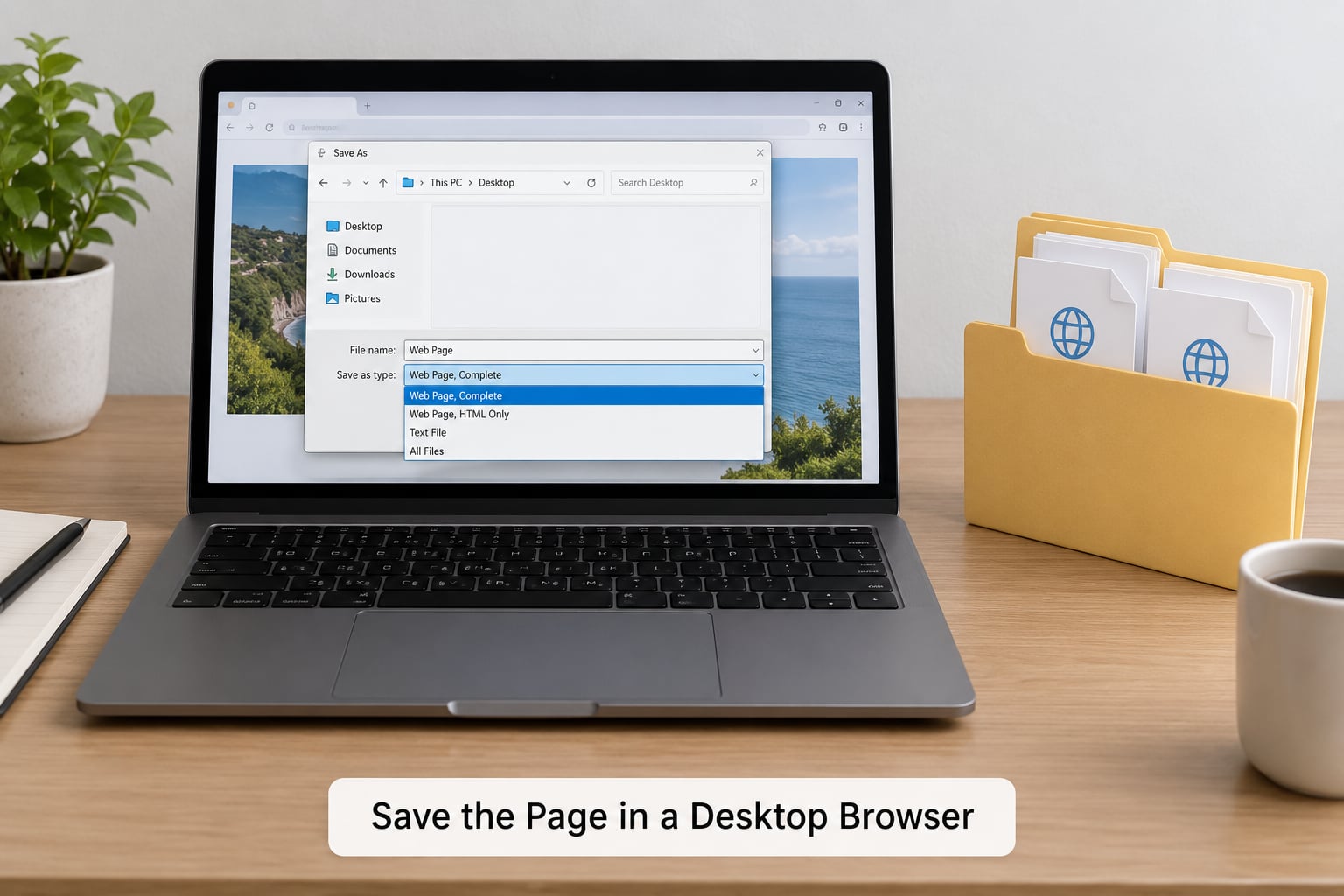
On Windows and Linux, Ctrl + S opens the save dialog in Chrome, Firefox and Edge. On macOS use Cmd + S. In every browser the dialog has a format or file type menu, and that menu is where the decision happens.
Google Chrome and Microsoft Edge: press Ctrl + S (or Cmd + S). The save dialog opens with the page name filled in. Set Save as type to Webpage, Complete or Webpage, HTML Only. You can also reach it without the keyboard: click the three-dot menu, hover Cast, save and share, then click Save page as.
Mozilla Firefox: press Ctrl + S or Cmd + S. Firefox’s dialog defaults to Webpage, Complete, which is the right pick for most pages. You can also use File > Save Page As. Firefox users who only want the text can press Ctrl + R to toggle reader view, then Ctrl + S from there.
Apple Safari on macOS: press Cmd + S or choose File > Save As. Safari’s format menu offers Webpage, Complete and Webpage, HTML Only. Safari also has a reader view of its own: click the page title in the address bar, or use the Show Reader button in the toolbar if it appears.
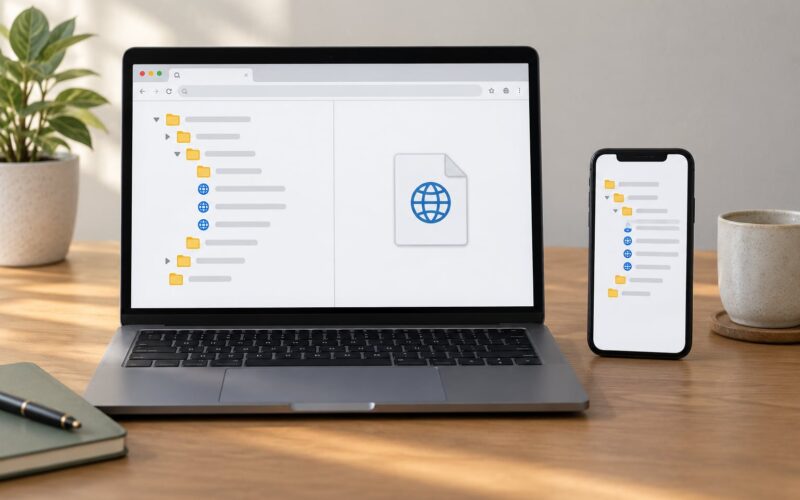
Choose Webpage, Complete when you want the page to look like itself. It saves the HTML plus a folder of every linked asset, and the images still render. Choose Webpage, HTML Only when you care about the words and file size. It produces one HTML file and no images or styling.
To confirm the copy worked, open the saved HTML file in a fresh browser tab while your Wi-Fi is switched off. If the text is there and the layout holds, you have a working offline copy.
Save a Page on iPhone or iPad
Safari on iOS does not offer a full “Webpage, Complete” save. What it offers is simpler and, for reading, often better. Tap the Share button, the square with an arrow pointing up at the bottom of the screen.
From there, scroll through the share sheet and pick Add to Files to store a copy you can open later, or Print to get a PDF. In the print preview, use the pinch-out gesture to zoom in on the preview image, which turns it into a Save to Files button that produces a real PDF of the whole article.
For a clean reading copy, enable Automatically Save Offline first. Go to Settings > Apps > Safari, scroll to Reading List, and turn on Automatically Save Offline. From then on, tapping Add to Reading List keeps a text-only version with no ads, no menus and no images competing for your attention.
Reader view is the more dependable route for a long article. Tap the page title in the address bar, Safari strips the page down to clean text, and what you save there is far more readable later than a squeezed screenshot of the full layout.
Saved PDFs land in Files, usually under On My iPhone > Safari. Open the Files app, browse to that folder, and tap the document. Give it a name at save time, because Safari defaults to a truncated version of the page title.
Save a Page on Android
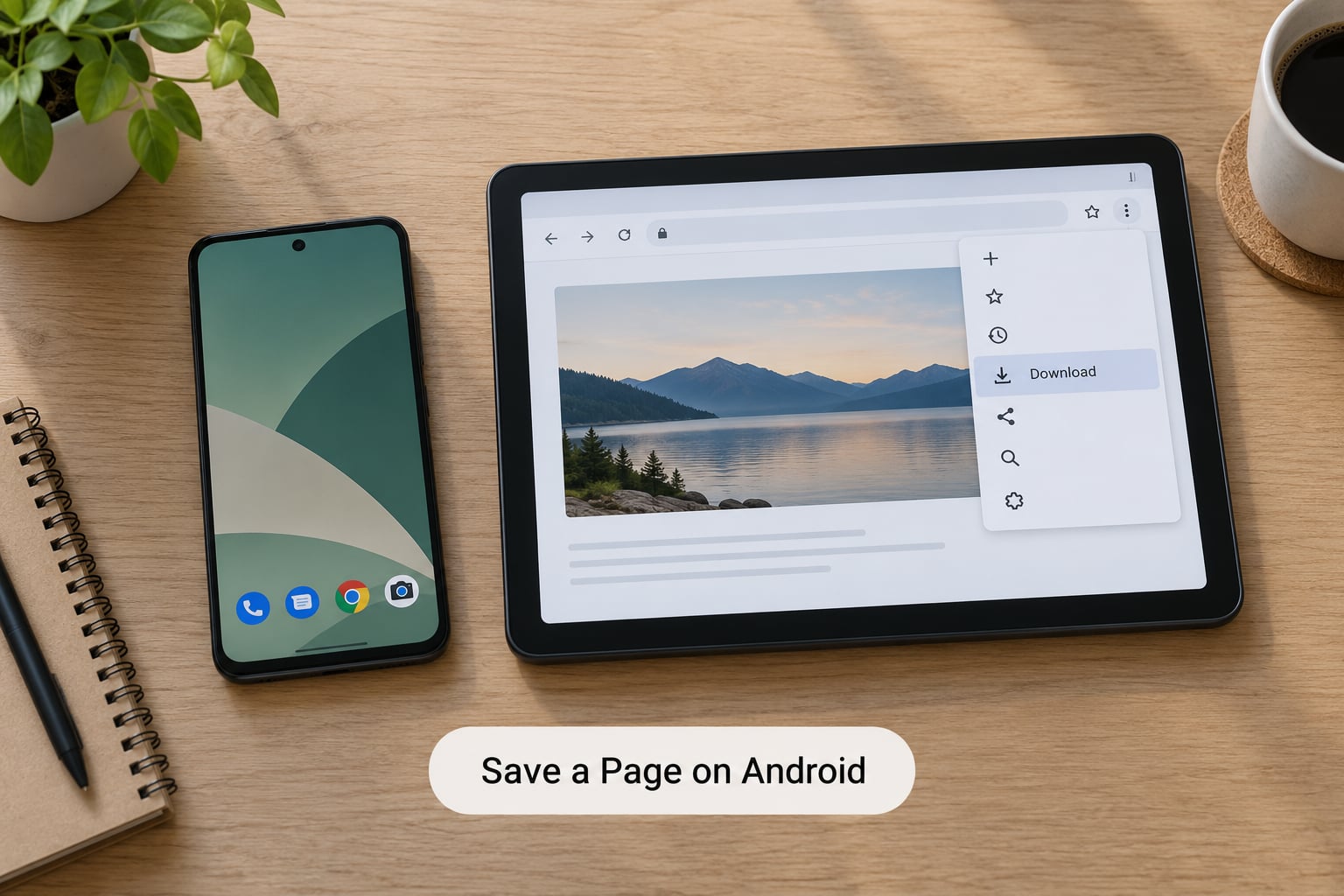
In Chrome for Android, tap the three-dot menu in the top right corner, then look for Download page in the menu and tap it. Chrome pulls the page down and drops it into your Downloads folder, where you can open it with any browser.
If Download page is missing, tap Share instead and choose Save to device, which behaves the same way. The exact label shifts a little between Chrome versions and phone manufacturers, so look for the download arrow or the word “download” in the menu rather than hunting for one fixed string.
For a fixed layout, use the print route. Open the three-dot menu, tap Share, then Print. In the print dialog, change the destination from a printer to Save as PDF, pick a save location, and confirm. You end up with a PDF that looks exactly like the page and reads well on any device.
Android is a bit tighter than a desktop browser here. The saved copy is usually one file rather than a folder of assets, so images sometimes arrive missing. Check it in airplane mode before you rely on it.
Use a Cleaner Offline Copy
The fastest way to a better offline copy is to strip the page down before you save it. Firefox’s reader view, toggled with Ctrl + R or by clicking the page title in the address bar, removes ads, navigation bars, cookie banners and sidebars, leaving the article text with its images. Saving from that view gives you a clean file in a fraction of the size.
Safari’s Show Reader does the same job on a Mac, and tapping the title does it on iPhone.
If you want everything in a single portable file, an extension is the way. SingleFile is a free, open-source browser extension available for Chrome, Firefox and Safari. It inlines the CSS, fonts, images and scripts directly into one HTML file, so there is no companion folder to lose. One caveat from its own issue tracker: it cannot capture certain canvas renderings or video snapshots for security reasons, so embedded graphics occasionally come out blank.
Read-later services take a different approach. They store the article’s text and images on a server so you can sync it across phone, tablet and laptop. Readwise Reader and Raindrop both have offline copies you can pin, and Wallabag is a good self-hosted option if you would rather run the server yourself. Worth knowing: Pocket, once the default read-later service for millions of people, has shut down, so the saved libraries some users kept there no longer sync anywhere.
Print to PDF is the third option and it never breaks. Press Ctrl + P or Cmd + P, set the destination to Save as PDF, and the page becomes a fixed document that looks identical on any screen. The trade-off is search. A PDF of a multi-column layout often extracts as jumbled text, and you lose the ability to click through to links the way an HTML copy allows.
Common Mistakes
The saved page opens blank or half-finished. Usually the page had not finished loading when you saved it. Wait for images to stop appearing as you scroll, then save again. If the page builds itself with JavaScript, scrolling the whole way down once before saving usually captures the content that gets written in later.
Images are missing but the text is fine. You saved HTML Only. Go back and choose Webpage, Complete. On a phone, where a full capture is not offered, a print-to-PDF route is the workaround.
Everything looks like unstyled text. The CSS file is sitting in the companion folder and the links broke, usually because the folder got moved or renamed. Keep the HTML file and its folder together in the same place, with the folder’s name unchanged.
Links inside the saved page send you back online. That is expected. The page you saved is local; the pages it links to are not. Download those separately if you need them.
You reopened the tab and it tried to reload. A browser tab is not an offline copy. Browsers revalidate open tabs against the network and fail when there is no connection. Saving the page is what makes it work without internet.
A bookmark felt like it should work offline. A bookmark stores only a URL. It is a shortcut back to the live site, and with no connection it gives you nothing. That confusion comes up constantly, so it is worth saying plainly: bookmark for navigation, save for offline reading.
Two habits fix most of these. Let the page finish loading, scroll to the bottom once, and then save. After that, switch on airplane mode and open the file. If it renders there, it will render anywhere.
Frequently Asked Questions
Can I read a saved web page without internet?
Yes, as long as you saved the file rather than bookmarked the page. A saved copy lives on your device as an HTML file with a folder of images and styling, or as a single self-contained file. Switch to airplane mode and open it from your file manager or browser to test it. Videos, live content and anything loaded as you scroll may still be missing.
Should I save a web page as HTML or PDF?
HTML keeps links clickable, text selectable and the layout intact, so it is better for reference material you might search later. PDF gives you a fixed document that looks the same everywhere and never breaks, which suits sharing and printing. The catch with PDF is that multi-column pages often extract as jumbled text. For reading, choose HTML. For sending, choose PDF.
Why is my saved page missing images or articles?
Three causes account for nearly all of it. The page had not finished loading, so save it again after scrolling to the bottom. You picked HTML Only instead of Webpage, Complete, so no assets were downloaded. Or the content is generated by JavaScript, which means it never existed as a file to download. Paywalled articles and pages behind a login usually fall into that last group.
Are browser bookmarks the same as saved pages for offline reading?
No. A bookmark stores only a web address, so it works as a shortcut to the live site and gives you nothing when the connection drops. A saved page is an actual copy of the HTML, images and styling stored on your device, and it opens with no network. Use bookmarks to find pages again, and saves to read them on a plane, a train or a bad signal day.
How do I save a page in Chrome, Firefox, Edge, or Safari?
On desktop, press Ctrl + S on Windows and Linux, or Cmd + S on a Mac, then pick Webpage, Complete in the format menu. Firefox defaults to that already, and Safari offers it under File then Save As. Edge and Chrome can also be reached through the three-dot menu, under Cast, save and share, then Save page as. Firefox users can press Ctrl + R first for a cleaner reading copy.
What is the best way to save a long article on a phone?
On iPhone, tap the Share button, turn on Automatically Save Offline under Settings then Apps then Safari, and add the article to your Reading List. That keeps a clean text-only version with no ads. On Android, open the three-dot menu and tap Download page, or use Share then Print to save a PDF. Both phones skip the full image capture a desktop browser gives you, so check the result in airplane mode.
Conclusion
Start with Ctrl + S or Cmd + S and choose Webpage, Complete when you want a faithful copy of how the page looked. Switch on reader mode first when you just want to read it, and reach for Ctrl + P saved as PDF when you need one fixed document that travels well.
Then do the part most people skip: turn on airplane mode and open the file. If it renders there, it will render on a plane, on a train or in five years when the site is gone. Keep the HTML file and its folder together, and the copy keeps working.