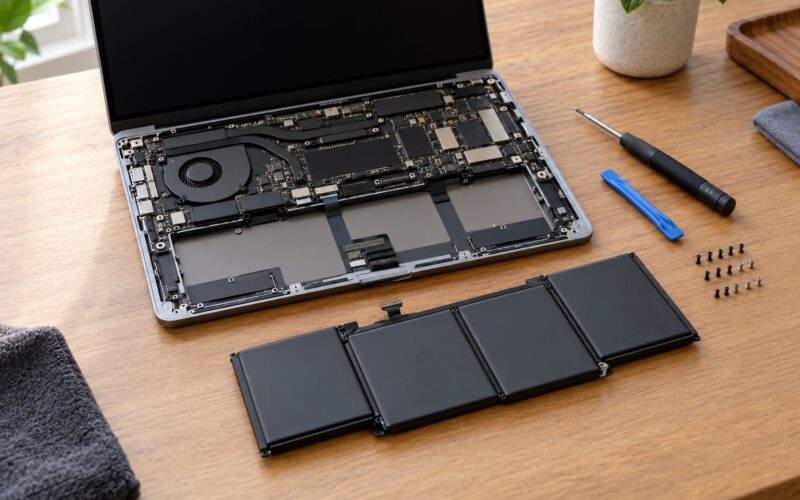
Repair your laptop when the diagnosed fault is a single replaceable part and the all-in quote sits under roughly half of what the same machine sells for used today. Replace it when the quote climbs past about two-thirds of that used value, or when a spill, a drop, or the motherboard is involved. The number that decides it is current used-market value, not the receipt from three years ago.
That rule is where most guides stop, and most arguments start. Two thresholds circulate out there, and they are not competing so much as answering different questions. Use 50% for a machine with several things going wrong. Use 65% for a healthy laptop with one dead part.
Getting this wrong is expensive in both directions. People pay more to fix a laptop than a replacement costs, and other people throw out a four-year-old workhorse over a battery they could have had serviced cheaply. Here is how to tell how to tell, in the order that wastes the least money.
Table of Contents
- 1What You Need
- 2Step-by-Step: Assess the Laptop Before Choosing
- 31. Identify the exact laptop and check its support status
- 42. Back up the data and check what is failing
- 53. Run built-in and third-party diagnostics
- 6Windows
- 7macOS
- 8Linux
- 94. Estimate the repair scope and full cost
- 105. Compare the repair cost with a replacement
- 116. Test the solution or replacement before finalizing
- 12Common Mistakes
- 13Frequently Asked Questions
- 14Is it usually cheaper to repair a laptop or buy a new one?
- 15Is an old laptop still worth keeping if it works?
- 16Should I replace a laptop if the battery keeps swelling?
- 17Can a laptop be repaired after liquid damage?
- 18How do I know whether a laptop problem is hardware or software?
- 19Conclusion
What You Need
Gather these before you spend a cent, because each one changes the answer:
- The laptop itself, plus the charger you normally use
- The model name and the service or serial number from the base
- A recent backup of anything you cannot lose
- Free diagnostic results, written down with the exact error text
- At least one itemized written repair quote
- A short list of what the machine actually has to do — work apps, video calls, gaming, school
One warning before the commands start. Windows tools, macOS tools and Linux commands are not interchangeable, and menu paths move between versions. Every path below names its platform. If you are on something else, follow the structure and look up the equivalent tool for your system rather than pasting a command that will not run.
Step-by-Step: Assess the Laptop Before Choosing
Six steps, in this order. They are ordered because each one can end the conversation for free. A warranty claim in step one makes step four irrelevant, and a clean diagnostic in step three can make step five unnecessary.
1. Identify the exact laptop and check its support status
The model number is the single most useful piece of information you can hand a shop, because it decides parts availability and whether a service program exists. On Windows, press Win + R, type msinfo32, and read the System Model line. On macOS, click the Apple menu, then About This Mac. On Linux, run sudo dmidecode -t system or check the label under the battery.
With that number, check three things:
- Warranty. Most manufacturers offer one to three years. A screen or battery failure inside that window may cost you nothing beyond shipping.
- Open recalls and service programs. Several brands publish free repair programs for specific battery models, hinge brackets, and display cables with known defects.
- Firmware and driver updates. A surprising share of “hardware” complaints, especially odd sleep behavior, flickering panels and battery drain, get fixed by an update. Do this before you spend money.
If a service program covers your failure, the entire decision is made for you.
2. Back up the data and check what is failing
Back up before any diagnostic that involves power or opening the machine. Liquid-damaged laptops in particular can lose everything on the next failed boot, and shops are not responsible for data you left unprotected.
Then classify the fault, because the answer often hides here:
- Follows one app. Slow only in a browser, crashes in one program, screen goes black in a video call. That points at software, and software fixes are free.
- Everywhere, every time. Random shutdowns, failures at 20% battery, display problems visible from a cold start. That points at hardware.
Write down the exact error text, when it started, what you were doing, and whether it happens on battery, on charger, or both. Vague symptoms produce vague quotes, and a vague quote is how people end up paying for the wrong part.
3. Run built-in and third-party diagnostics
Run the free checks before paying anyone to look. They are read-only, they cost nothing, and they narrow the fault enough that a shop cannot bill you for a guess.
Windows
- Disk health: run
chkdsk C: /scanin an elevated command prompt. For the fuller picture, a free tool such as CrystalDiskInfo reads S.M.A.R.T. attributes directly. - Hardware errors: Event Viewer, under Windows Logs, System. WHEA-Logger entries point at hardware faults. Kernel-Power 41 entries mean the machine lost power without a clean shutdown, which is a symptom rather than a cause.
- Battery: open Command Prompt and run
powercfg /batteryreport. Open the generated HTML file and compare design capacity to full-charge capacity. - Overheating: a temperature monitor shows whether your fans are actually spinning up under load.
macOS
- Apple Diagnostics: shut down, hold the power button until the startup options appear, then Command-D. Reference codes map to specific hardware.
- Battery: System Settings, Battery, then Battery Health. It reports condition and cycle count, and it tells you when service is recommended.
- Storage: Disk Utility, then Run First Aid, checks the file system and the drive’s SMART status.
Linux
- Disks:
sudo smartctl -a /dev/sda, with smartmontools installed. - Memory:
sudo memtestfrom a live USB, running several passes. - Battery and thermals: the kernel exposes battery cycle count and temperature through
/sys/class/power_supply/and/sys/class/thermal/, and most desktop environments show both in a power or hardware panel.
Do not open the chassis to hunt for the fault unless you have done this before. Prying a battery or a display can turn a 60-dollar problem into a whole new chassis.
4. Estimate the repair scope and full cost
Once you know what is broken, you can estimate the scope. Broadly, single-part repairs are cheap and worth pricing carefully. Board-level work is a different conversation entirely.
The table below ranks typical repairs by how they hit your wallet relative to what your laptop is worth used, rather than by a fixed dollar figure that would be wrong in every region.
| Failure | Typical share of used value | DIY feasible | Usual verdict |
|---|---|---|---|
| Battery no longer holds charge | Low, often under 10% | Yes, moderate skill | Repair. Best value fix on any laptop. |
| Keyboard with dead keys | Low to moderate | Yes, tedious | Repair unless the deck also cracked. |
| Cracked panel, display still works | Moderate | Not recommended | Repair. Cosmetic damage rarely justifies replacement. |
| Screen with dead pixels or no backlight | Moderate | Not recommended | Repair, but confirm it is the panel and not the cable. |
| Charging port or DC jack | Moderate | Risky | Repair if the board is otherwise clean. |
| Hinge that has pulled the chassis apart | Moderate to high | Not recommended | Repair only if the quote stays low; check for hidden lid damage. |
| Random shutdowns, no power, no display | High or unknown | No | Diagnose first. Often motherboard, which changes everything. |
| Liquid damage | Highly variable | No | Get a paid assessment before committing to anything. |
| Several of the above at once | Compounding | No | Replace. Failures that cluster are usually age, not bad luck. |
Any quote must break out parts and labor separately, and you need the all-in number: parts, labor, tax, and delivery both ways. If you need a loaner or a backup machine while the repair is out, count that time too. Two weeks of using a spare is a real cost that never appears on an invoice.
5. Compare the repair cost with a replacement
This is the step people skip, and it is the only one that produces a verdict. Check what your exact model sells for used right now — sold listings, not asking prices. That number, not your original receipt, is what a repair has to beat.
Here is how the two thresholds fit together:
- 50% of used value: use this when more than one thing is failing, or when you have no reliable diagnosis and the quote is an estimate rather than a firm price.
- 65% of used value: use this when the laptop is otherwise healthy and a single, well-diagnosed part is at fault. A machine with one dead component has all its remaining life in front of it, so you can justify spending closer to its full used value.
A worked example. A business-class laptop from a few years back sells used for around 400. A shop quotes 210 for a keyboard and top case assembly, parts and labor broken out, with a 90-day parts warranty. 210 divided by 400 is 52.5%. One part, firm price, warranty included, so repair. The same shop quotes 470 to fix water damage on the same machine. 470 divided by 400 is 117%, well past either threshold, and liquid damage carries no guarantee, so replace.
Age caps the decision, because a repaired laptop still has to run next year’s software:
| Age | What to expect | Default call |
|---|---|---|
| Under 3 years | Full performance life, warranty often active, healthy battery | Repair, almost always |
| 3 to 5 years | Performance fine, battery starting to fade, warranty may be gone | Repair if one part, replace if several |
| 5 to 7 years | Battery at end of life, some workload pressure, resale value dropping | Repair only for cheap wins like a battery |
| 7 years and up | Struggles with current software, parts harder to source, resale near zero | Replace, unless the machine still does everything you need |
There is a third option worth naming: a refurbished business-grade laptop. A used ThinkPad, Dell Latitude or HP EliteBook often costs less than a major repair and is more reliable than a new budget machine, because those lines were built to be serviced. If your old laptop is a budget consumer model, this middle path is usually the better deal.
6. Test the solution or replacement before finalizing
After a repair, do not assume success on day one. Many faults are intermittent, and a machine that booted fine at pickup can show the same problem again in week three.
- Run the original failing task repeatedly, not just once.
- Leave the machine unplugged on battery long enough to see if the fault returns.
- Stress it — video call, large file copy, sustained compile or render — since heat-related faults only show under load.
- Note the parts warranty in days, and keep the invoice until it expires.
Before you discard the old laptop, erase it properly rather than just deleting files, and check your local recycling rules. Many regions offer free e-waste drop-off. If you need a clean drive for a new machine, an encrypted wipe followed by a full format is enough for most people.
Common Mistakes
Buying a new laptop the moment one part fails. A dead battery in an otherwise excellent machine is the most common expensive reaction. Replace the part.
Trusting a diagnosis based on one symptom. A laptop that will not power on is not necessarily a dead motherboard. Corroded battery connectors and failed charging circuits mimic motherboard death constantly. Demand the diagnosis in writing.
Ignoring warranty and service programs. Free repairs do not belong in your cost comparison. Check first, always.
Comparing against sticker price instead of total cost. Setting up a new machine, migrating files, reinstalling software, replacing incompatible chargers, and losing a week of productivity are all real costs. A 200 repair plus a weekend of setup can be cheaper than a cheaper replacement.
Skipping the test period. If you do not stress-test the repair, you will not know until the failure recurs, usually outside the warranty.
Skipping the itemized quote. A verbal estimate is how a moderate repair becomes a large bill. Ask for parts and labor separately, in writing, and ask whether the diagnostic fee is credited if you approve the work.
Here is the rule of thumb to carry away: replace when the quote is too high, when nobody can give a reliable diagnosis, when the repair comes with no parts warranty, or when the laptop no longer meets what you actually need from it. Repair when a single part is at fault, the quote is a fraction of what the machine is worth used, and the fix carries a guarantee.
Frequently Asked Questions
Is it usually cheaper to repair a laptop or buy a new one?
Repair is cheaper when one replaceable part is at fault and the all-in quote stays under roughly 50% to 65% of what the same laptop sells for used. Batteries and keyboards almost always clear that bar. Motherboard work, liquid damage, and clusters of unrelated failures usually do not. Judge the whole quote, not the first number the shop reads you.
Is an old laptop still worth keeping if it works?
Yes, if it does everything you need. Age matters less than capability. A 7-year-old machine that handles your work comfortably can outlast a new laptop that cannot, especially since most laptop failures are accidental rather than age-related. Replace it when software support has ended for your OS and it can no longer run current versions of the tools you rely on.
Should I replace a laptop if the battery keeps swelling?
Treat swelling as a safety issue, not a comfort issue. Stop using the laptop on mains power, avoid leaving it in a hot car, and get the battery replaced by a technician. Do not puncture or pry the cell yourself. If the chassis is already deformed, the display is lifting, or the trackpad is pushed up, replace the whole machine rather than just the battery.
Can a laptop be repaired after liquid damage?
Yes, sometimes, and the outcome ranges from a complete recovery to a total loss. The difference is time and corrosion. Shut down and unplug it immediately after a spill, do not power it on to test it, and get it assessed before anyone attempts power-on repairs. Sugar-containing drinks leave an acidic residue that keeps damaging the board long after the liquid is gone.
How do I know whether a laptop problem is hardware or software?
Software faults follow a pattern: they are tied to an app, an account, or an update, and they often clear with a reinstall or a clean boot. Hardware faults ignore software entirely and reappear from a cold start, on battery, or under load. If a fault survives a clean boot, a Safe Mode test, and a fresh operating system install, it is almost certainly hardware.
Conclusion
Do three things before deciding anything. Back the laptop up. Run the free diagnostics until you can name the failing part in a sentence. Then divide the itemized quote by what that exact model sells for used today.
Below half of that number, with one part at fault and a parts warranty on the work, repair it. Above two-thirds, or with liquid damage, motherboard involvement, or several unrelated failures, replacing the machine is the sensible call. That is how to tell if a laptop is worth repairing or replacing, and it takes one afternoon instead of one ruined budget.