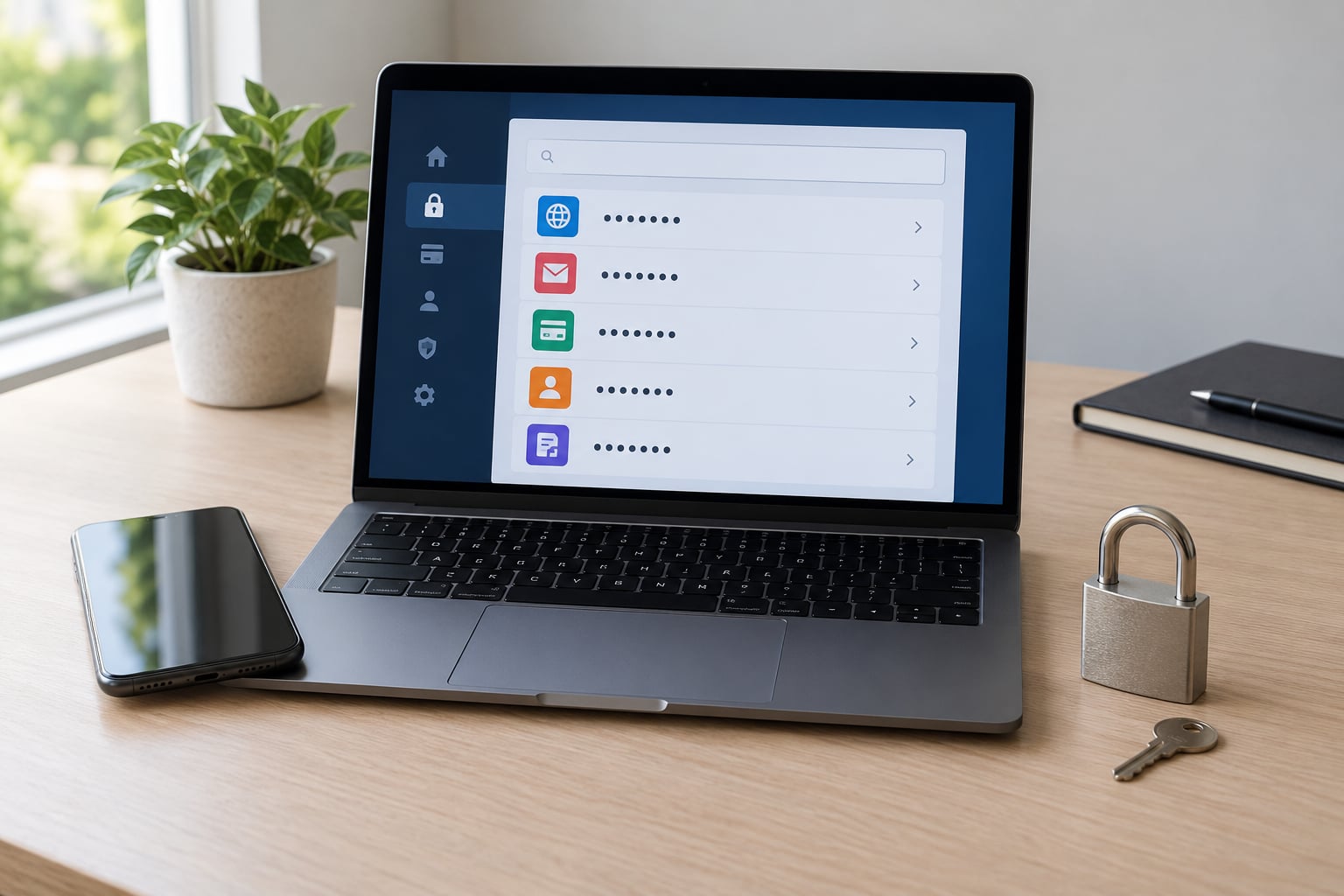
A password manager is an encrypted vault that keeps your logins behind one strong master password. Learning how to use a password manager for beginners comes down to three jobs: sign up, bring your old passwords across, then let it fill logins in for you. Setup takes about 20 minutes. Changing the passwords you already have is the slow part, and that can wait a week.
You do not have to learn anything about encryption, and you do not have to become a careful person in a new way. The tool does the careful part. You type the master password once, and everything else lives in an encrypted vault that syncs to your laptop and your phone.
- One key instead of thirty. Your master password opens everything else, and the manager offers to remember it for you after a check.
- Automatic generation. A built-in password generator creates a different random password for every new account you sign up for.
- Autofill. Logins fill themselves in on websites and in apps, which cuts reuse and stops you pasting a password into the wrong box.
- Breach warnings. Most managers compare saved logins against known leaks and flag the ones that turned up.
Done properly, this closes off credential stuffing, the attack where a login leaked from one small site gets replayed against hundreds of others. That is the whole argument for it. Here is the setup, in the order that causes the least friction.
Table of Contents
- 1What You Need
- 2Step-by-Step: How to Use a Password Manager for Beginners
- 3Step 1: Choose a Password Manager by Features, Not by Price
- 4Step 2: Create Your Account and Master Password
- 5Step 3: Turn On Security Features
- 6Step 4: Import and Organize Existing Passwords
- 7Step 5: How to Save New Logins and Use Autofill
- 8Step 6: Use It on Your Everyday Devices
- 9Common Mistakes
- 10Frequently Asked Questions
- 11What do I do if I forget my password manager master password?
- 12Are password managers actually safe to use?
- 13Should I use my browser’s built-in password manager or a dedicated one?
- 14Can I share passwords with family or teammates?
- 15What should I do if one of my passwords shows up in a data breach?
What You Need
You need five things, and four of them you already have. A device you use daily, an email address you can receive mail on, and the current password to at least one account so the service can verify who you are. Add the password manager itself and a quick way to open your device, usually a PIN, fingerprint or face scan.
Here is the part beginners get wrong: you do not need to memorise your existing passwords before you start. You do not need a spreadsheet, and you do not need to change them all on day one.
What helps is ten quiet minutes with your laptop and your phone in the same room. Setting the vault up on one and confirming it on the other is how you know syncing actually works. A pen and a small piece of paper for the master password round out the list.
If you use a work or school computer you do not control, ask IT first. Some managed devices block browser extensions, and a password manager that will not install there is not a problem you can fix yourself.
Step-by-Step: How to Use a Password Manager for Beginners
Step 1: Choose a Password Manager by Features, Not by Price
Compare managers on what they do for you, not on what they cost. The four things that matter most to a beginner are cross-platform support, so your passwords work on Windows, macOS, Android and iOS; a browser extension that fills logins reliably; a password generator; and a clear answer to what happens if you forget the master password.
After those, look for an encrypted vault, automatic updates for the app and extension, breach monitoring, and a plan you can understand without reading a pricing page. If the free tier is a real free tier rather than a trial, that is usually plenty for one person.
Be honest about your own setup, though. A desktop-only, offline manager needs you to copy and paste every password into every site by hand, which is a real drawback once you have more than a few dozen logins. A cloud-synced manager is less effort in exchange for trusting one provider with your vault. Both are reasonable; one suits a laptop-only user, the other suits anyone who carries a phone.
The question that draws the most argument online is whether to start with a built-in manager from Apple, Google or Microsoft. Built-ins cost nothing and are already half installed, which is the easiest route available. The trade-off is that you tie yourself to one ecosystem, and sharing, secure notes and passkey support tend to be narrower.
For a good example of a secure password, look at structure rather than memorability. Something like harbor-lantern-42-quiet is long, unique to one account and easy to type, and nobody has it in a list of the most common passwords because it was never in a wordlist.
Step 2: Create Your Account and Master Password
Sign up with your everyday email address, then create the master password. Make it a passphrase: four or more unrelated words with a couple of numbers. Length does more for you than punctuation, and a passphrase stays in your head years later in a way that P@ssw0rd!92 never does.
The master password is not stored anywhere inside the vault. It is the key that decrypts everything else, so the manager genuinely cannot show it to you or reset it for you. That is the reason forgetting it locks you out, and it is why a paper backup matters.
Write it on paper and keep it somewhere physically separate from your devices, such as a locked drawer or a safe deposit box. Do not put it in the vault itself, do not keep it in a notes app on your phone, and do not email it to yourself. People who write it down and store it properly never regret it.
Check whether your chosen manager offers an emergency contact and a printed recovery kit. Set up the emergency contact now, while you still have access. It is the difference between a lost master password being a bad afternoon and being a total loss.
Step 3: Turn On Security Features
Now switch on the protective settings, most of which are off until you ask for them. Start with auto-lock, which clears the decrypted vault from memory after a few minutes of inactivity. Then set up biometric or device-unlock access on your laptop and phone, so your fingerprint opens the vault instead of the master password every time.
Turn on two-factor authentication for the password manager account itself, using an authenticator app rather than SMS where you have the option. Add an emergency-access contact. A few managers also offer encrypted file storage inside the vault, which is a tidy place for the copies of your passport and documents you would otherwise email to yourself.
You can tell each control is live without guessing: lock your laptop, come back, and check whether it asks for a fingerprint rather than the master password. Then check the security settings page and confirm the toggles show as enabled. A setting you assume is on is not a setting.
Passkeys are worth a mention here. Many sites now offer a passkey instead of a password, and a good password manager saves and syncs those the same way it saves passwords. When you see the option, take it; it removes phishing as a risk for that account entirely.
Step 4: Import and Organize Existing Passwords
Every major manager has an import tool, and it handles the boring part. In Chrome, open Settings, then Password Manager, then Passwords, then Import passwords, and export to a CSV file. In Safari, the passwords live in iCloud Keychain and export from System Settings, Passwords, then the export option in the corner. If you are leaving an older manager, use its own export and then import that file here.
Once the file is in, work through it in this order: email first, then banking and payment services, then your primary cloud account, then work or school, then everything else. Changing your email password first is the one people skip, and it is the account that can reset all the others.
Look for duplicates while you are in there. A reused password sitting on nine shopping sites is nine entries that need replacing, and most managers flag them or offer to generate a fresh one. Weak or already-breached logins usually show up in the same review, sometimes marked in red.
Saved card numbers and addresses are usually imported too. Keep the ones you want and delete the ones you have never used, since card details do not need to live in a password vault.
Two things to do straight after. First, delete the unencrypted CSV file from your downloads folder and empty the recycle bin, because that file holds every one of your passwords in readable text. Second, decide what happens to the copies still sitting in your browser. The advice that comes back most often is to remove them, because maintaining two stores is how people end up updating one and not the other.
Do it in stages rather than all at once. Change email, bank and cloud in week one, then work through the rest at whatever pace you actually keep. Long game, not a weekend.
Step 5: How to Save New Logins and Use Autofill
Here is the part that confuses people, so it is worth being precise about. The extension watches you sign in. When you type a password on a site and submit it, the extension notices the new domain and pops up a small prompt offering to save that login.
That prompt is the whole handshake. Click save and the new password goes into the vault. Turn the prompt off and nothing is saved, which is why passwords sometimes seem to vanish. The extension never sees a password on a page it does not recognise as a login form, so if a site uses an unusual sign-in layout, expect to save it once by hand.
When autofill works, it should offer exactly one or two matching entries and nothing else. If you are staring at a list of twelve near-identical entries, you have duplicates and it is time to clean them out, because picking the wrong one is how people get locked out of accounts they can see the password for.
Use the generator every time you create a new account. Set the length to 16 characters or more if the site allows it, include symbols if it wants them, and skip anything the generator produces with a word in it that you would have to remember. Let the site store the new password; do not also write it down anywhere.
If a site refuses to accept a generated password, that is usually a limit on characters rather than strength. Turn symbols off, or turn off the ambiguous characters that look like each other, and try again.
If autofill stops working entirely, check these in order: the extension is enabled for that exact site rather than just globally, the desktop app is actually running, your vault is not still locked from an earlier auto-lock, and the extension has been updated recently. Restarting the browser fixes more of these than you would expect.
Step 6: Use It on Your Everyday Devices
Install the desktop app on any machine you own, and the mobile app from your phone’s official store on your phone. Sign in with the master password on each device once, and let sync do the rest. There is nothing to copy by hand after the first sign-in.
If you keep work and personal logins apart, use separate vaults or collections rather than one big pile. Most managers support this, and it makes cleanup later far less painful. Shared family or team vaults work too, but keep them for shared logins only, not for anything private.
Expect to sign in again after a restart or an update, since the vault stays locked until you do. That is the software working as intended, not a bug to chase.
One rule matters more than the rest: install the app and extension from the official site or store, never from a link in an email or a search ad. There are convincing clones, and a fake extension is the most common way password vaults get emptied. Check the publisher name on the extension listing before you install anything.
Common Mistakes
Most beginner problems come down to six habits. Each has a direct fix.
1. Reusing your master password. If it is the same as an account password already in a leaked list, your vault is one breach away from being read. Fix: make the master password a fresh passphrase that appears nowhere else.
2. Saving the master password inside the vault. It cannot open itself, so this locks you out permanently rather than conveniently. Fix: paper backup, stored somewhere physically separate.
3. Leaving old copies behind. Passwords still saved in Chrome or iCloud Keychain create two sources of truth, and the older one is usually the one with the weak, reused passwords still in it. Fix: delete browser copies once your vault is confirmed working on every device.
4. Turning off two-factor authentication for convenience. Your vault is now the single point of failure for every account you own. Fix: use an authenticator app, not SMS, and store the recovery codes on paper in the same place as your master password backup.
5. Sharing passwords by text or email. Both stay readable to the provider and sit in backups you cannot delete. Fix: use the manager’s own sharing feature, which sends an expiring link to one person.
6. Trusting the wrong autofill entry. On a site with twelve saved logins, guessing which one is current is how accounts get locked out. Fix: after cleaning duplicates, autofill usually offers a single obvious match.
A few habits on top of that, in order of value: turn on breach alerts, keep your recovery codes somewhere you can reach without your devices, run the manager’s health check once a quarter, and change your critical passwords whenever a breach alert fires rather than on a schedule.
Frequently Asked Questions
What do I do if I forget my password manager master password?
Start with the recovery paths your service offers. Some managers let a trusted emergency contact wait out a waiting period, and some accept a printed recovery kit or a sealed emergency code. There is no reset link, because the master password is never stored where the company could return it. That is also why a paper backup written today is the real fix for tomorrow.
Are password managers actually safe to use?
For most people, yes, and safer than the alternative. Password managers encrypt the vault with your master password, so the provider stores data it cannot read. The honest risks are real but narrow: forgetting the master password, installing a fake extension, and reusing the master password elsewhere. Avoid all three and you have moved from dozens of weak passwords to one strong one.
Should I use my browser’s built-in password manager or a dedicated one?
A built-in manager from Apple, Google or Microsoft is free, already installed and the easiest possible starting point, especially if you stay inside one ecosystem. A dedicated manager adds cross-platform support, family and team sharing, secure notes and better breach monitoring. Beginners often start built-in and move to a dedicated vault a year later, once they know what they actually need.
Can I share passwords with family or teammates?
Yes, and sharing through the manager is far better than a text message. Family or team plans let you share individual logins or a whole collection with specific people, usually through an encrypted, expiring link. Shared vaults are worth using for streaming accounts, the family wifi password and shared documents. Keep your email, bank and primary cloud logins in a private vault.
What should I do if one of my passwords shows up in a data breach?
Change that one password immediately, then work out why it was exposed. If it was reused, change every account that shared it, which your manager’s duplicate or reuse report will list for you. If it came from a site breach, changing the password closes the door from that point on. If it was your master password, treat the whole vault as compromised and reset everything inside it.
Start tonight, not this weekend. Pick a manager, create the account, write the master passphrase on paper, and enable two-factor authentication before you import anything. Confirm the vault opens on your phone, then import your saved logins and change your email and bank passwords. Everything after that is just letting autofill do the remembering for you, which is the whole point of learning how to use a password manager for beginners properly: one long passphrase, stored offline, protecting everything else.